Mobile to PC Screen Mirroring/
AppsAgile
3.8 ★
2K ratings
500,000+
downloads
Free
+ in-app
In this screen mirroring app, users can share their Android screens to PCs, Macs, or smart TVs through Wi-Fi connections. Includes options for device selection, screen quality adjustments, and security PIN protection.
AppRecs review analysis
AppRecs rating 3.8. Trustworthiness 0 out of 100. Review manipulation risk 0 out of 100. Based on a review sample analyzed.
★★★☆☆
3.8
AppRecs Rating
Ratings breakdown
5 star
58%
4 star
7%
3 star
9%
2 star
10%
1 star
16%
What to know
✓
Good user ratings
65% positive sampled reviews
✓
Authentic reviews
Natural distribution, no red flags
About Mobile to PC Screen Mirroring/
Mobile to PC Screen Mirroring/Sharing app helps user to share their Android mobile screen to either windows PC or Laptop or MAC book.
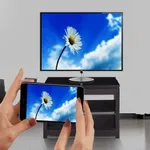
This App also provides option to launch cast screen option in their miracast enabled mobile phones to mirror their screens on to miracast enabled Smart TVs and dongles such as Chrome cast, Ezcast and other miracast enabled dongles.
We have listed steps to mirror your mobile screen to different wireless display devices.
Mobile to PC /laptop sharing :
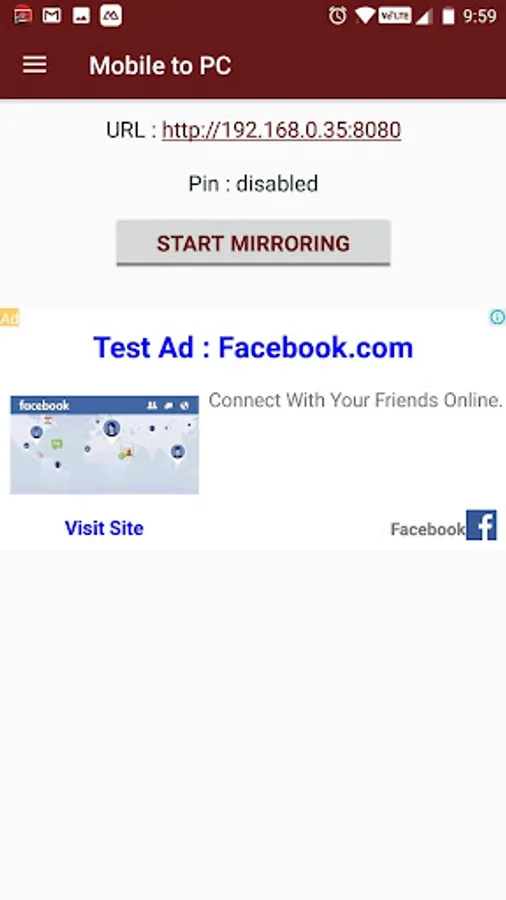
Step 1: Open Mobile to PC Screen Mirroring/Sharing, The default option is Mobile to PC or Laptop.
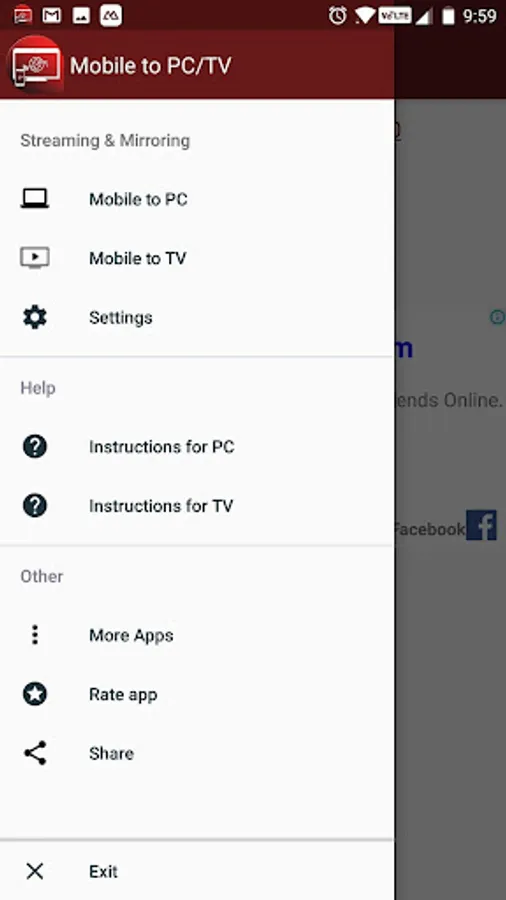
You can also select this option from slide in menu.
Step 2 : Make sure both your mobile and PC /Laptop /Mac is connected to same wireless network.
Step 3 : Open any browser in your Laptop Type IP address shown on your App and press enter
Step 4 : On your Mobile App press "Start Mirroring" button
Happy screen casting to PC/Laptop
Note : The App won't transfer the sound to PC/Laptop , the sound will be played on Mobile.
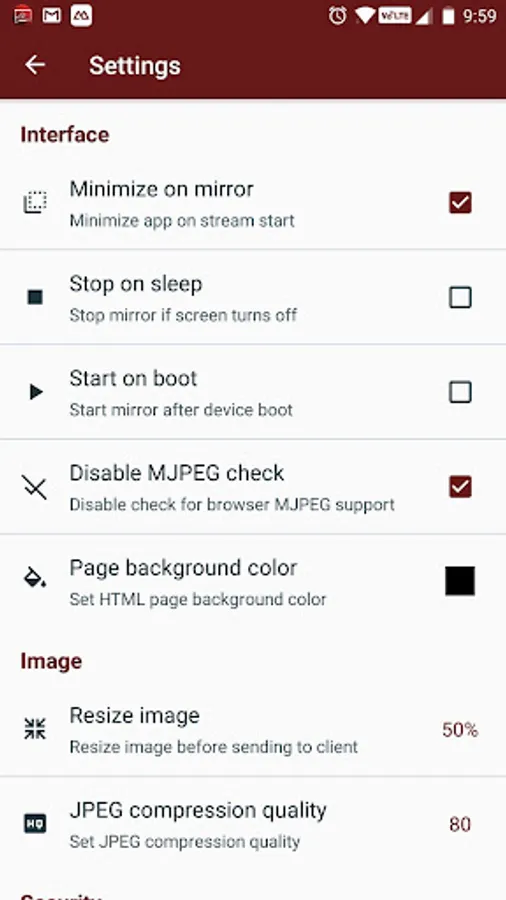
Also the App provides additional layer of security in the form of security PIN.
You can also set the quality and size of the mirroring screen.
Mobile to Smart TV
Please follow below steps to mirror your mobile screen to smart TV.
1) Your Smart TV/Wifi Display Dongles should support miracast enabled Wireless Display technology.
2) The TV should be connected to wifi network same as your phone.
3) The Phone android version must be android 4.2 and above.
4) Select the Mobile to TV option from slide menu.
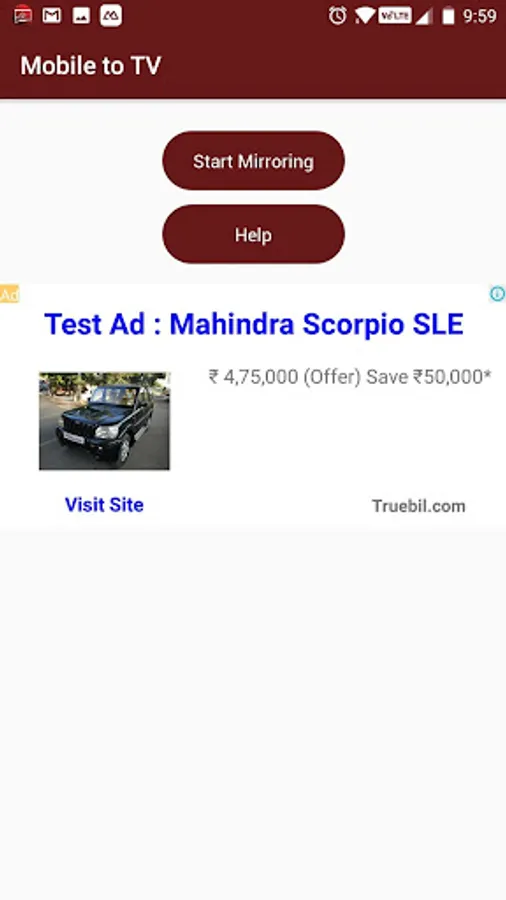
5) Press "Start mirroring" button and select your TV or dongle from the list
5) Happy screen sharing to TV :)
Mobile to MAC
Step 1: Open Mobile to PC Screen Mirroring/Sharing, The default option is Mobile to PC or Laptop.
You can also select this option from slide in menu.
Step 2 : Make sure both your mobile and Mac book is connected to same wireless network.
Step 3 : Open any browser or safari in your MAC book Type IP address shown on your App and press enter
Step 4 : On your Mobile App press "Start Mirroring" button
Happy screen casting to MAC PC
Note : The App won't transfer the sound to MAC , the sound will be played on Mobile.
Also the App provides additional layer of security in the form of security PIN.
You can also set the quality and size of the mirroring screen.
Mobile to Linux machine
Same as Mobile to MAC /PC Laptop sharing.
If you find this app not working on your phone please write to us EasyToolsApps@gmail.com we will try to fix the issue for your phone model.
This App also provides option to launch cast screen option in their miracast enabled mobile phones to mirror their screens on to miracast enabled Smart TVs and dongles such as Chrome cast, Ezcast and other miracast enabled dongles.
We have listed steps to mirror your mobile screen to different wireless display devices.
Mobile to PC /laptop sharing :
Step 1: Open Mobile to PC Screen Mirroring/Sharing, The default option is Mobile to PC or Laptop.
You can also select this option from slide in menu.
Step 2 : Make sure both your mobile and PC /Laptop /Mac is connected to same wireless network.
Step 3 : Open any browser in your Laptop Type IP address shown on your App and press enter
Step 4 : On your Mobile App press "Start Mirroring" button
Happy screen casting to PC/Laptop
Note : The App won't transfer the sound to PC/Laptop , the sound will be played on Mobile.
Also the App provides additional layer of security in the form of security PIN.
You can also set the quality and size of the mirroring screen.
Mobile to Smart TV
Please follow below steps to mirror your mobile screen to smart TV.
1) Your Smart TV/Wifi Display Dongles should support miracast enabled Wireless Display technology.
2) The TV should be connected to wifi network same as your phone.
3) The Phone android version must be android 4.2 and above.
4) Select the Mobile to TV option from slide menu.
5) Press "Start mirroring" button and select your TV or dongle from the list
5) Happy screen sharing to TV :)
Mobile to MAC
Step 1: Open Mobile to PC Screen Mirroring/Sharing, The default option is Mobile to PC or Laptop.
You can also select this option from slide in menu.
Step 2 : Make sure both your mobile and Mac book is connected to same wireless network.
Step 3 : Open any browser or safari in your MAC book Type IP address shown on your App and press enter
Step 4 : On your Mobile App press "Start Mirroring" button
Happy screen casting to MAC PC
Note : The App won't transfer the sound to MAC , the sound will be played on Mobile.
Also the App provides additional layer of security in the form of security PIN.
You can also set the quality and size of the mirroring screen.
Mobile to Linux machine
Same as Mobile to MAC /PC Laptop sharing.
If you find this app not working on your phone please write to us EasyToolsApps@gmail.com we will try to fix the issue for your phone model.