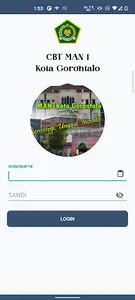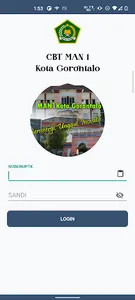
on the login page:
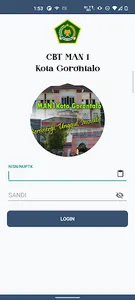
- input nisn/nuptk
- input password
- click login button
teacher's veranda
- open drawer menu
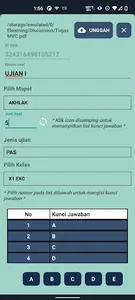
- select the question input menu
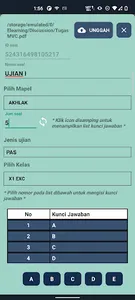
- click add button (+)
- search and select pdf format files
- click use
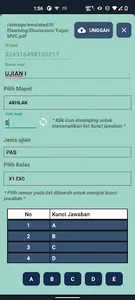
- enter the question name
- select folder
- Enter the number of questions
- click the icon (🔃)
- select exam type
- select class
- Click the number sequence on the answer key list
- select the option to fill in the answer key
- click upload
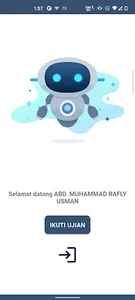
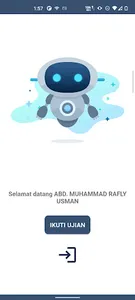
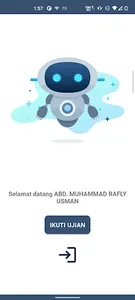
student homepage
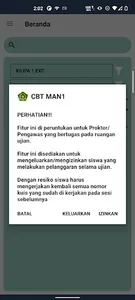
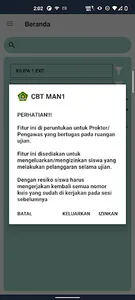
- click take the exam
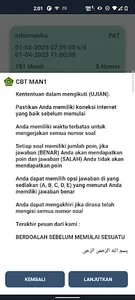
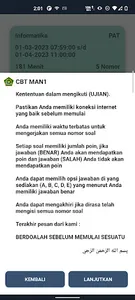
- select a test on the list
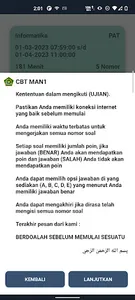
- click continue
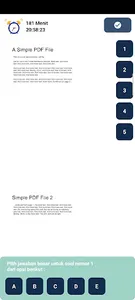
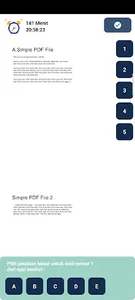
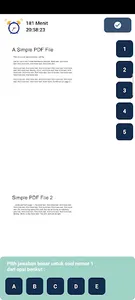
- Click the question number on the right side
- select an option to fill in the answer
- Click end if all question numbers have been filled in
- input nisn/nuptk
- input password
- click login button
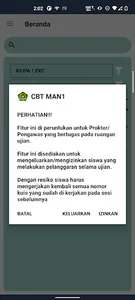
teacher's veranda
- open drawer menu
- select the question input menu
- click add button (+)
- search and select pdf format files
- click use
- enter the question name
- select folder
- Enter the number of questions
- click the icon (🔃)
- select exam type
- select class
- Click the number sequence on the answer key list
- select the option to fill in the answer key
- click upload
student homepage
- click take the exam
- select a test on the list
- click continue
- Click the question number on the right side
- select an option to fill in the answer
- Click end if all question numbers have been filled in
Show More