Retail Point of Sale (POS)
Digital Web Advisors Pvt Ltd
1,000+
downloads
Free
AppRecs review analysis
AppRecs rating 3.5. Trustworthiness 29 out of 100. Review manipulation risk 57 out of 100. Based on a review sample analyzed.
★★★☆☆
3.5
AppRecs Rating
Ratings breakdown
5 star
100%
4 star
0%
3 star
0%
2 star
0%
1 star
0%
What to know
⚠
Questionable review patterns
57% review manipulation risk - some review patterns appear unusual
⚠
Questionable review trustworthiness
29% trustworthiness - reviews show concerning patterns
⚠
Unusually uniform ratings
100% of sampled ratings are 5 stars with very little variation
About Retail Point of Sale (POS)
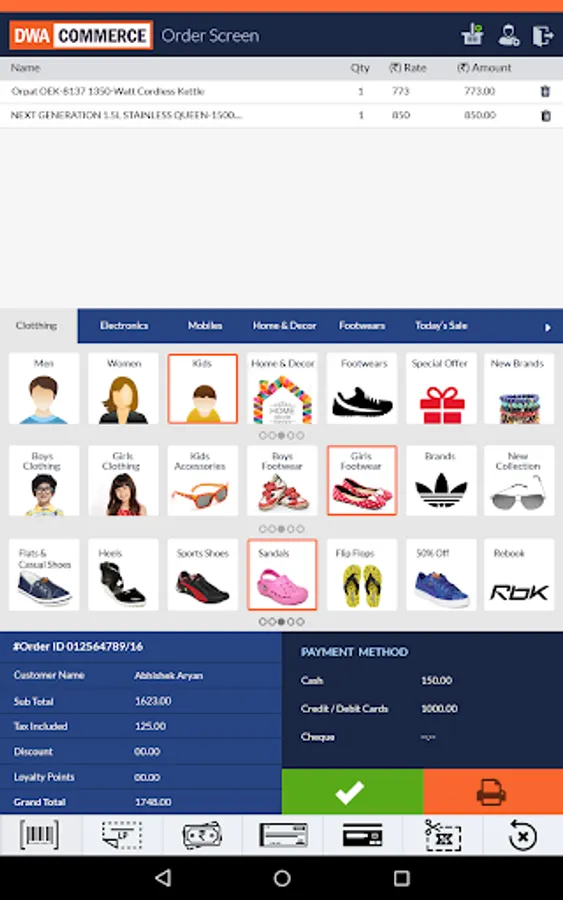
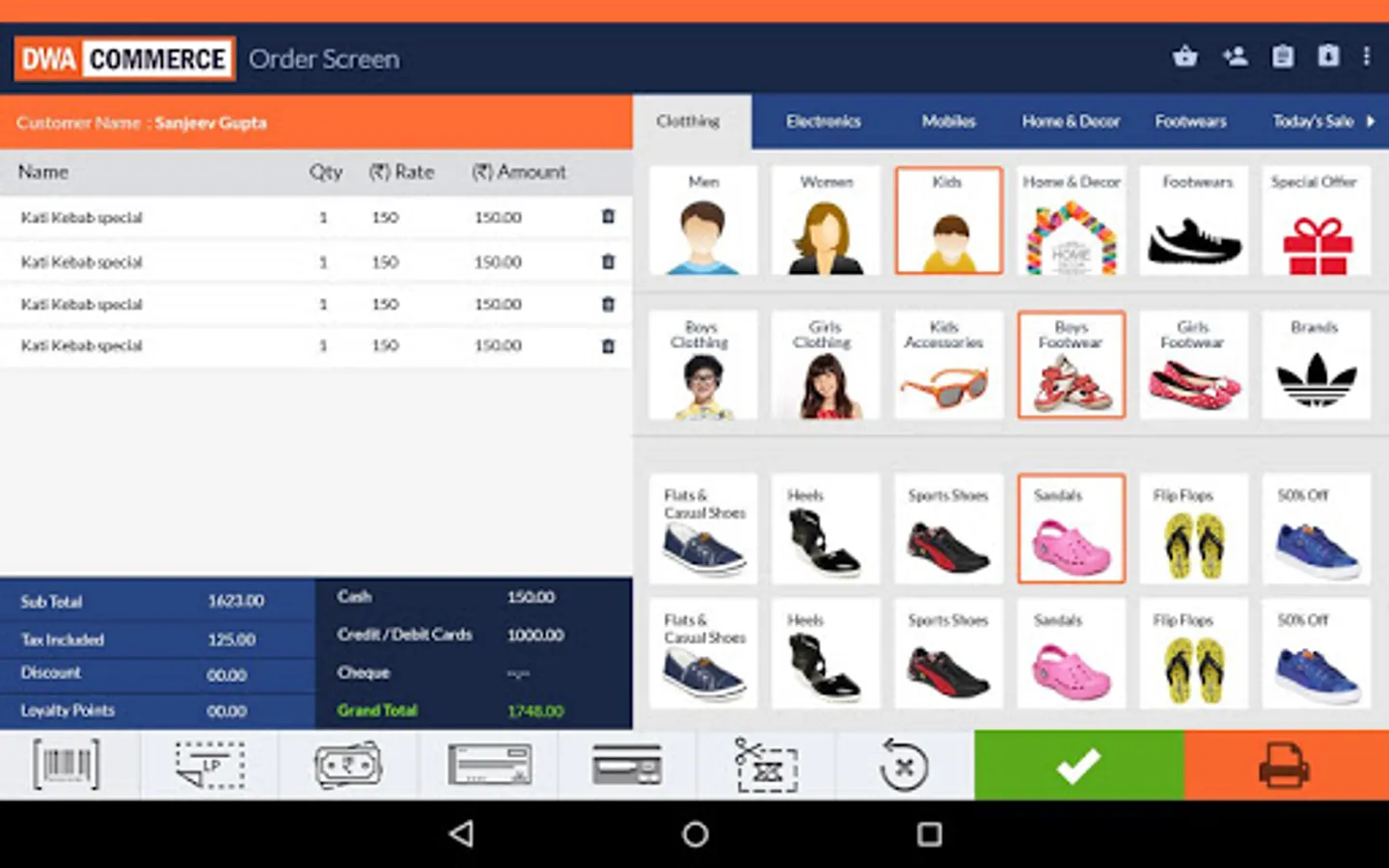
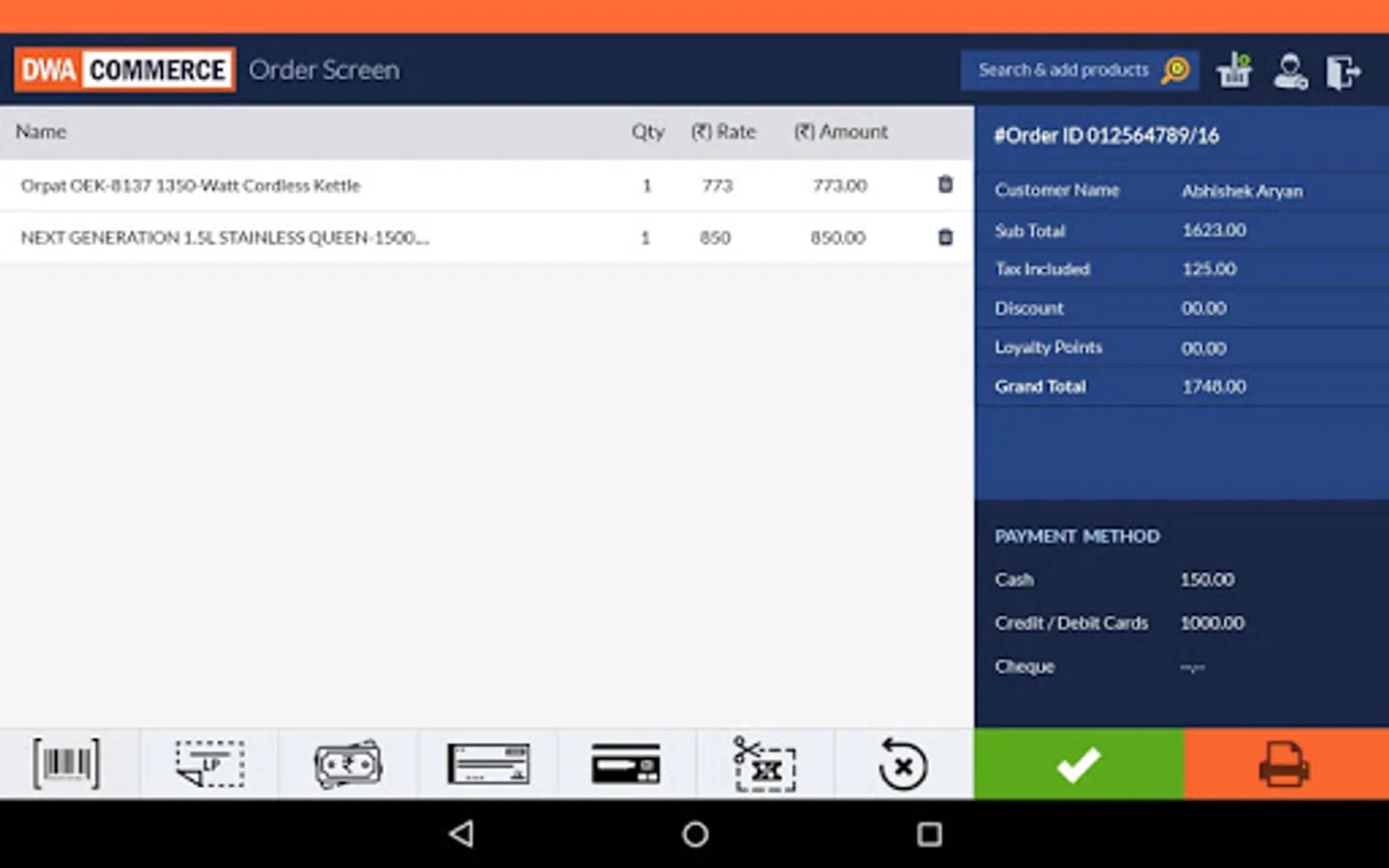
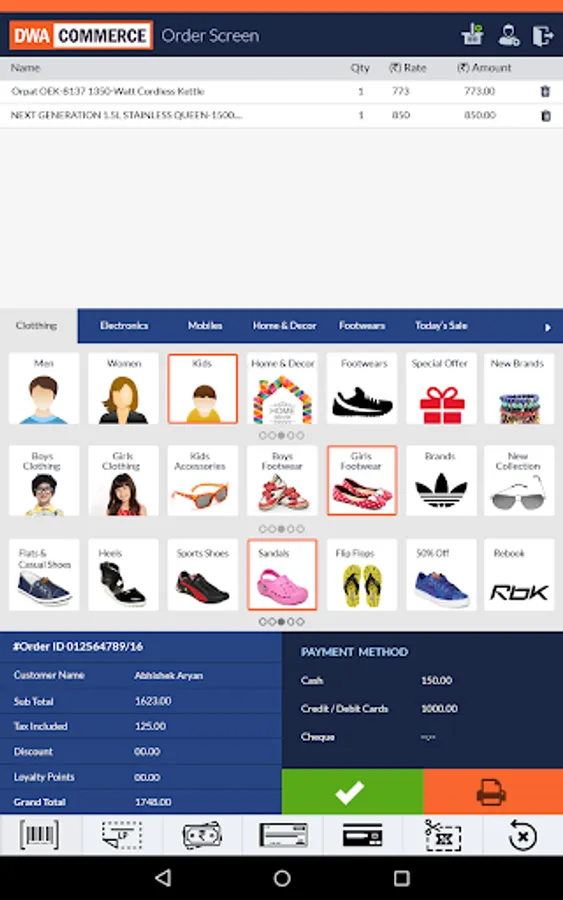
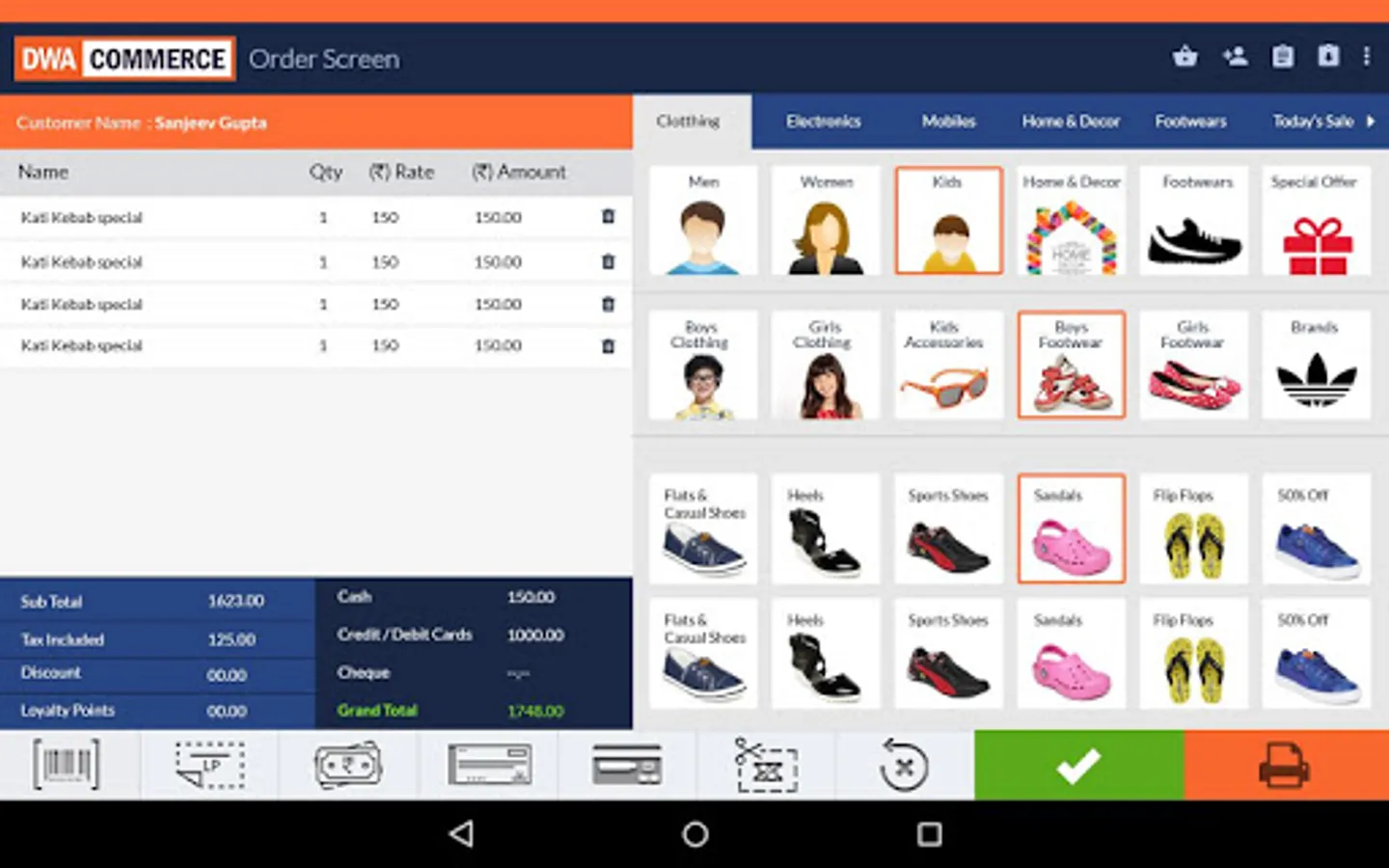
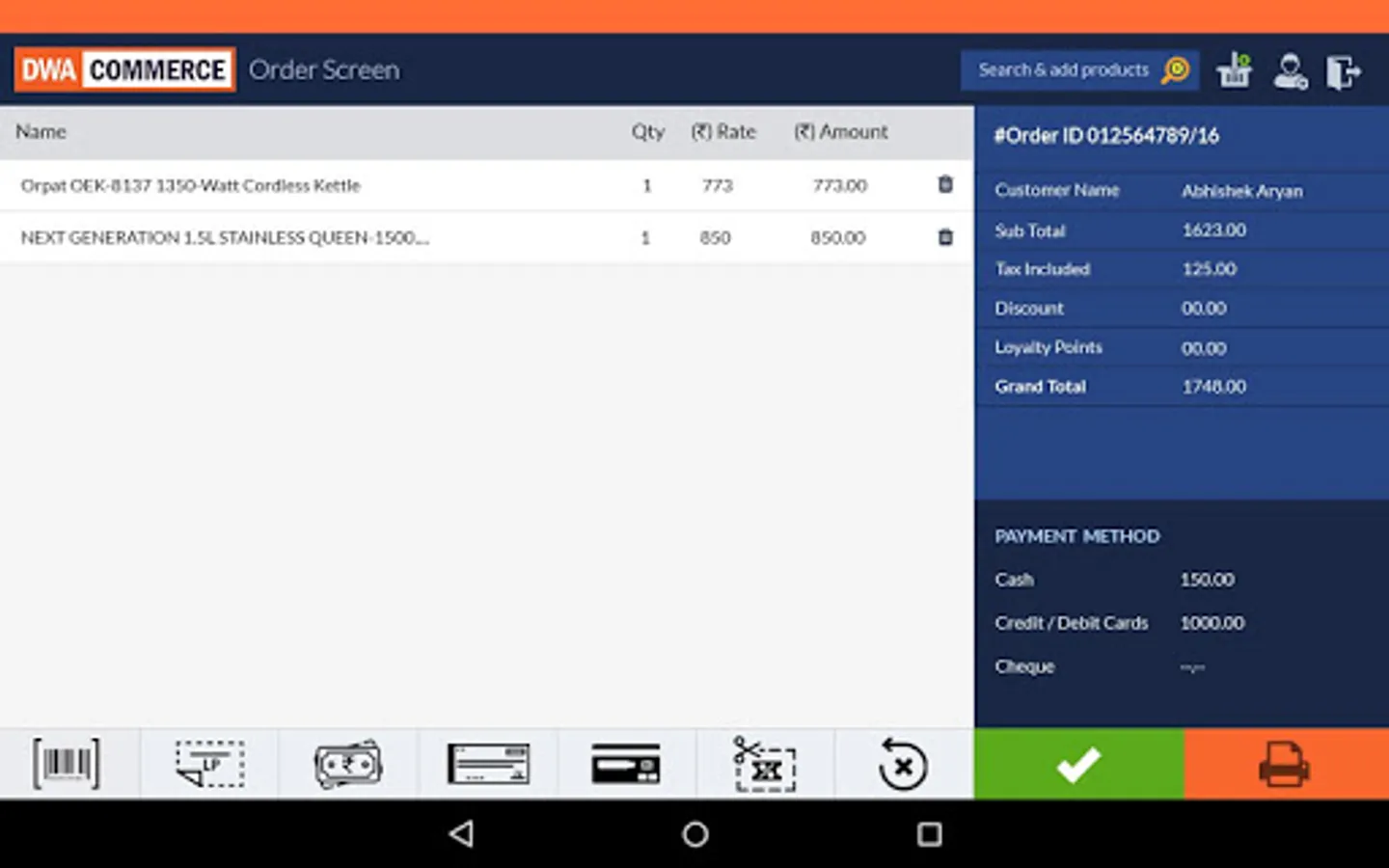
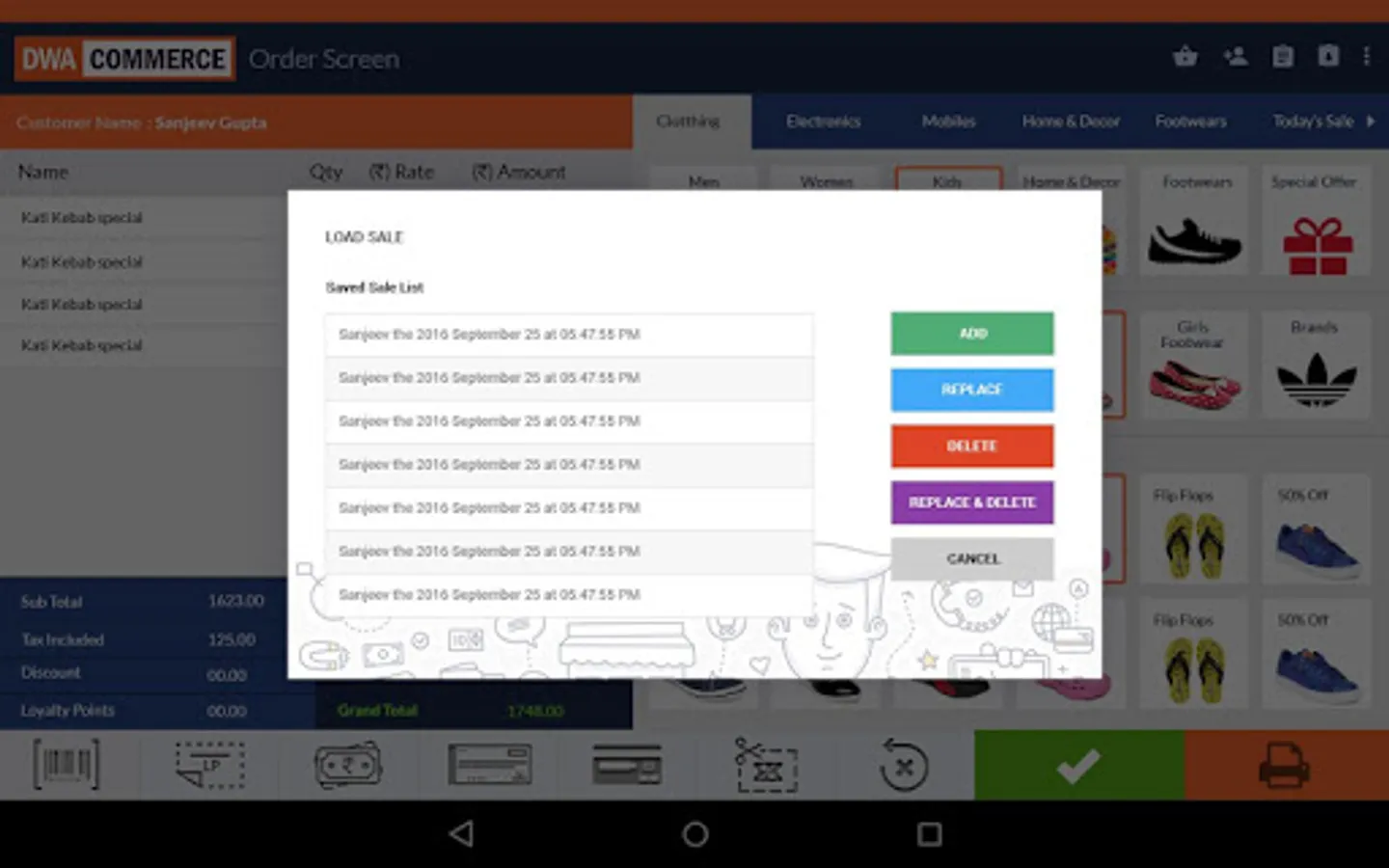
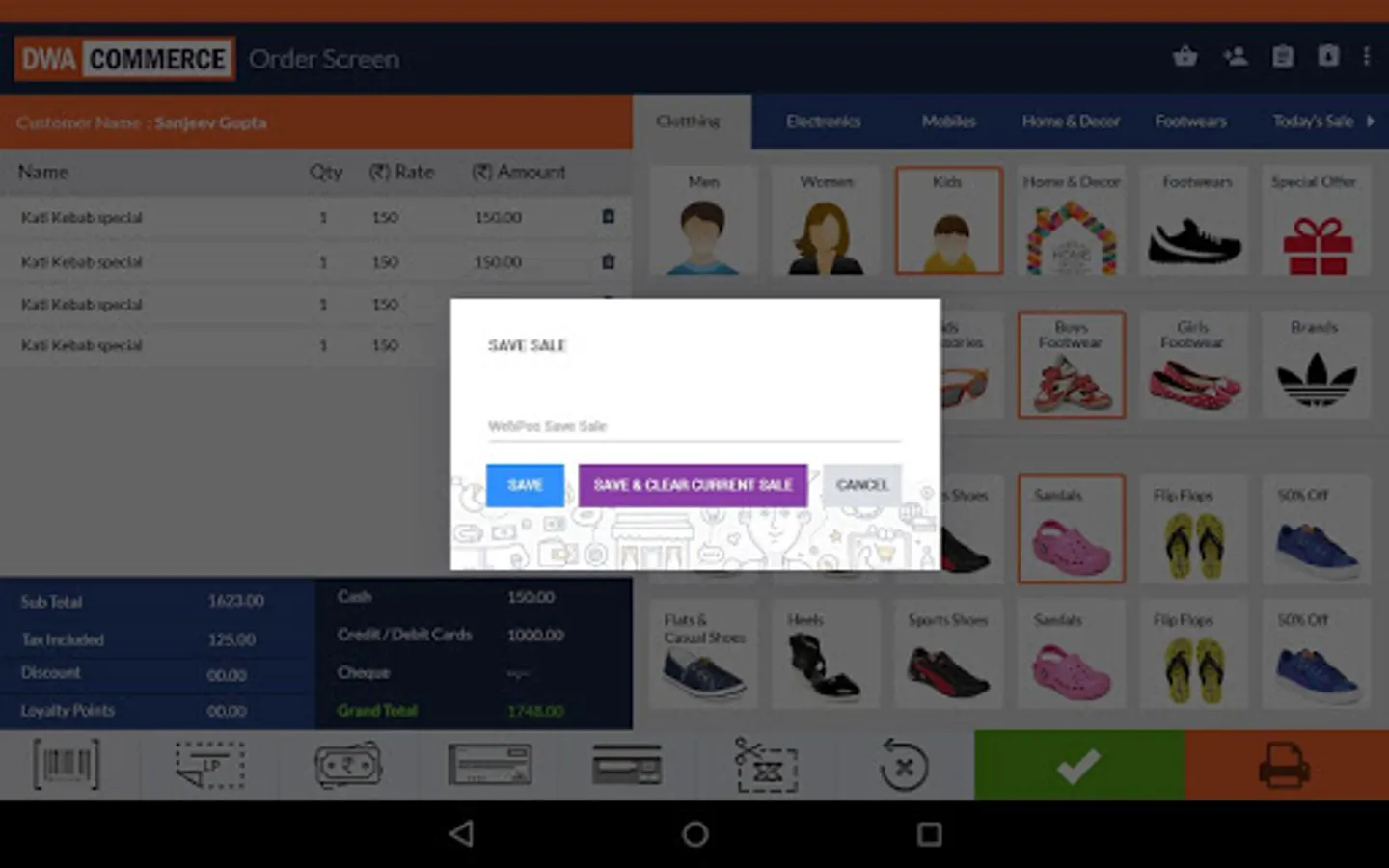
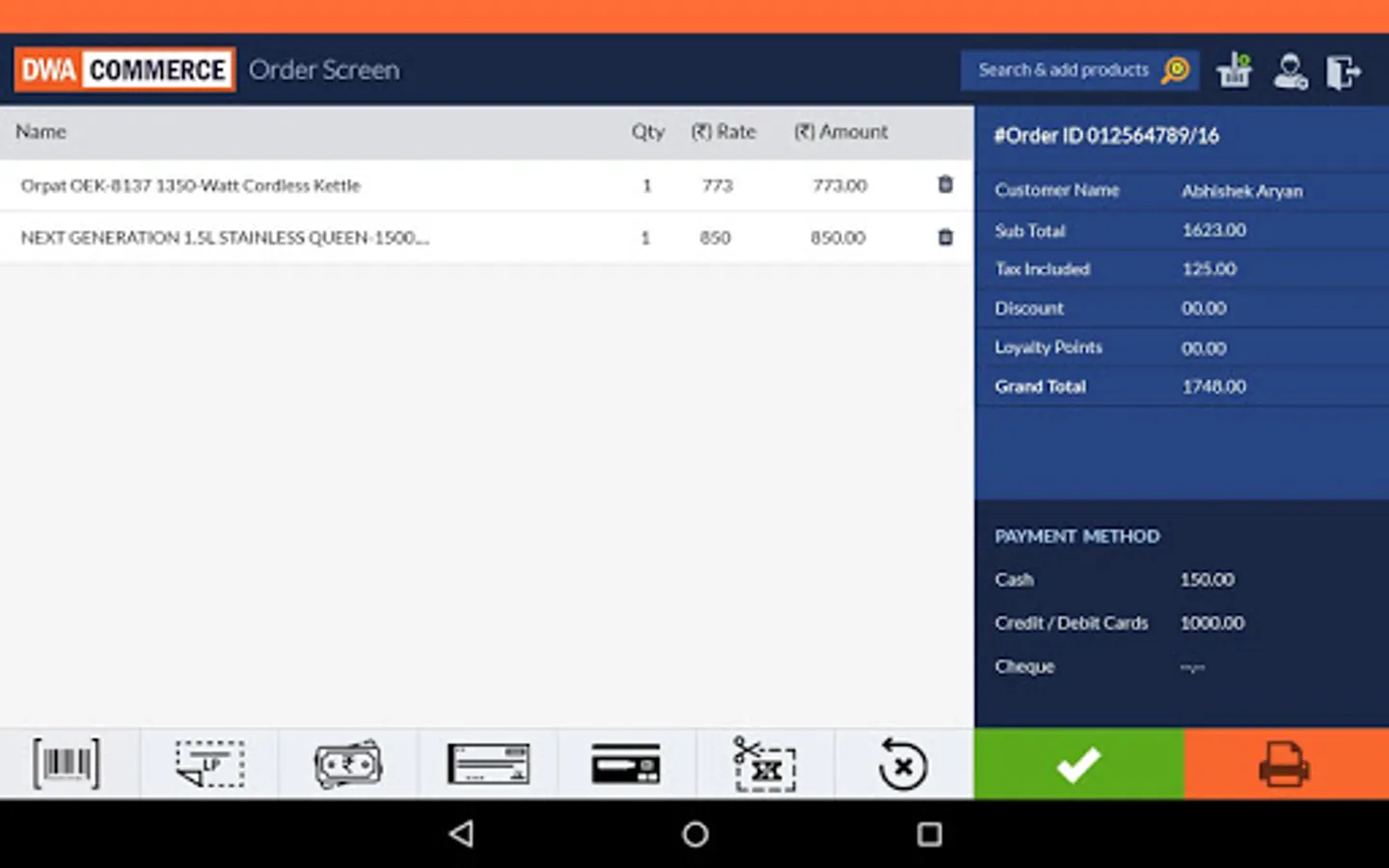
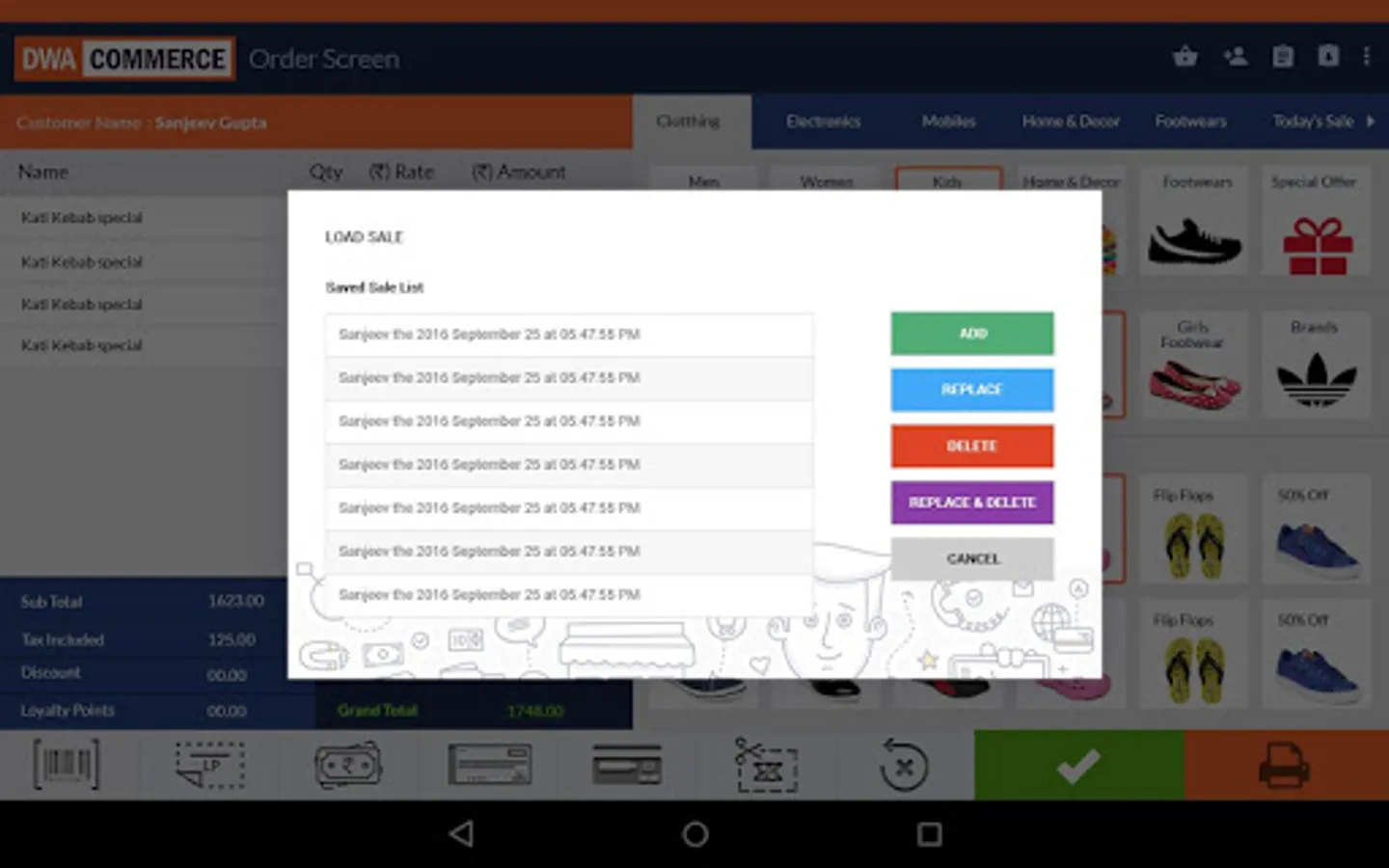
DWA Commerce in an Enterprise Class Multi-Channel Retail solution. It enables you to sell to your customers through Online, Offline as well as mobile channel namely eCommerce, retail stores, kiosks, call center/telesales team, mobile sales force, marketplaces.
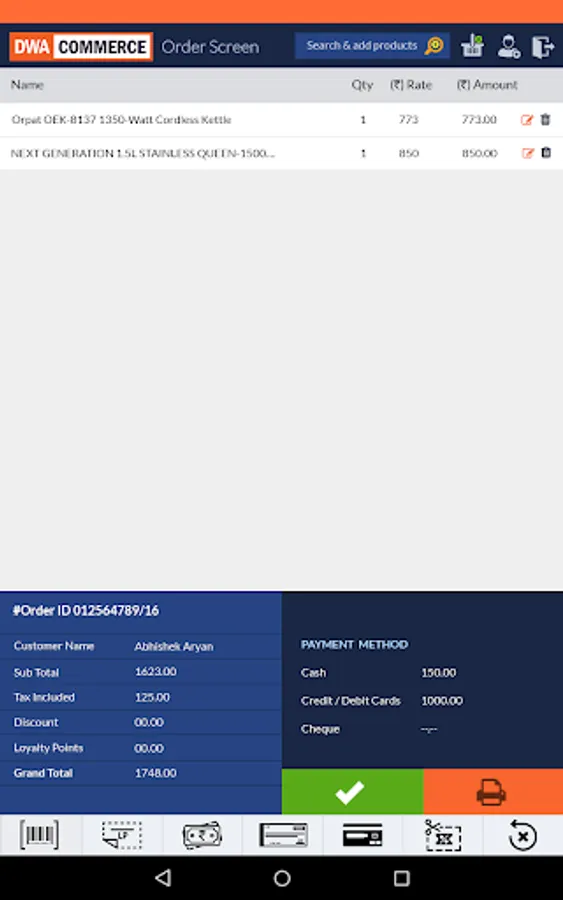
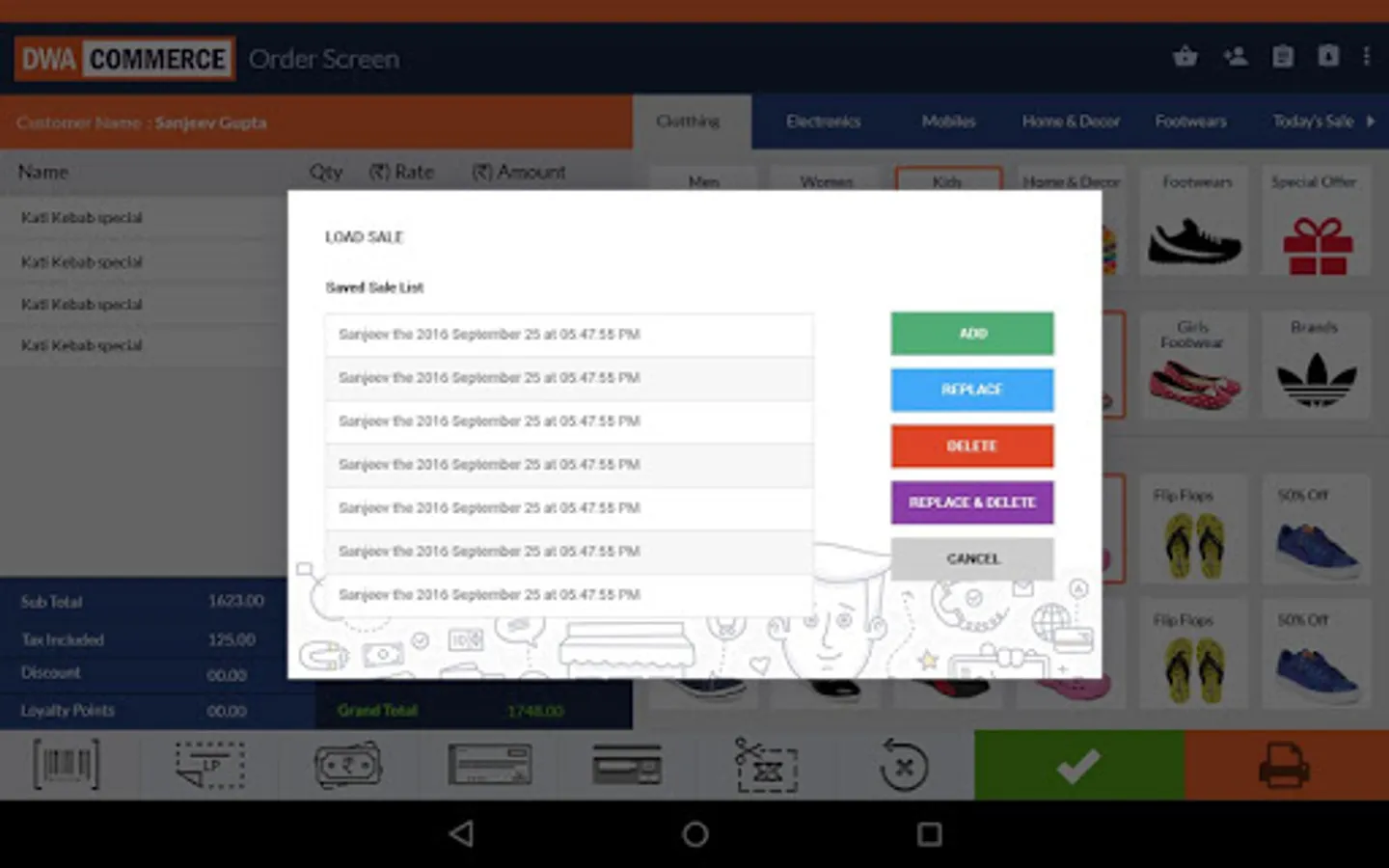
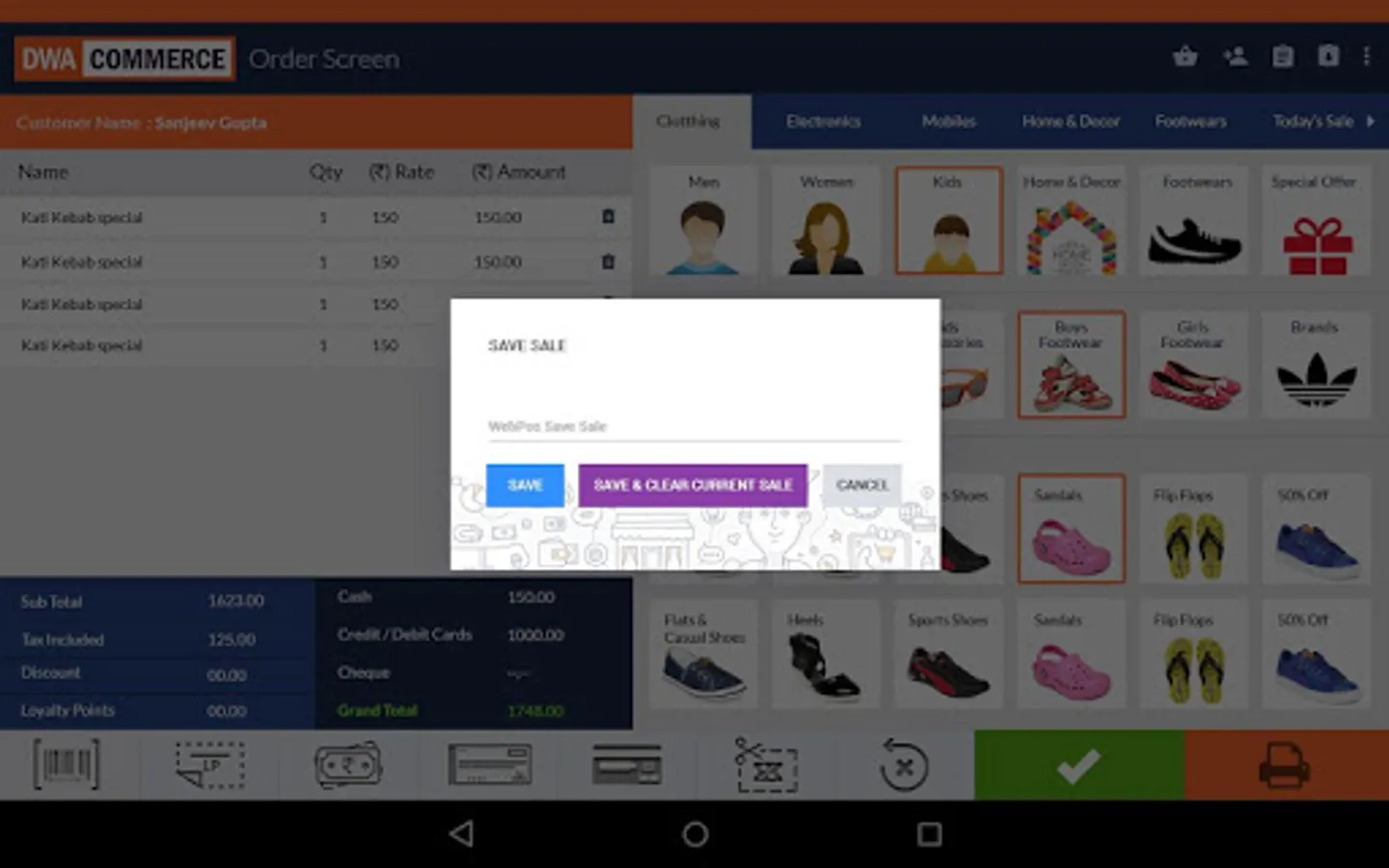
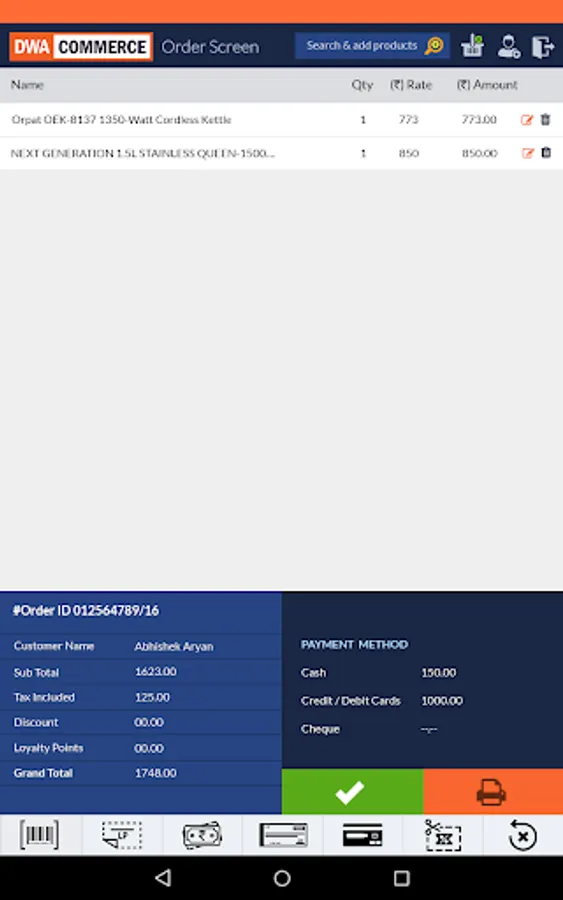
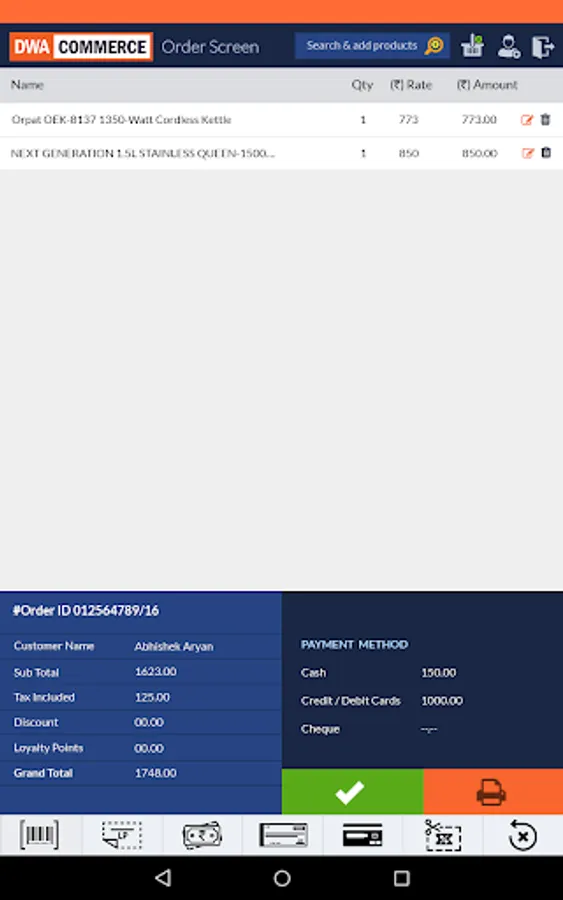
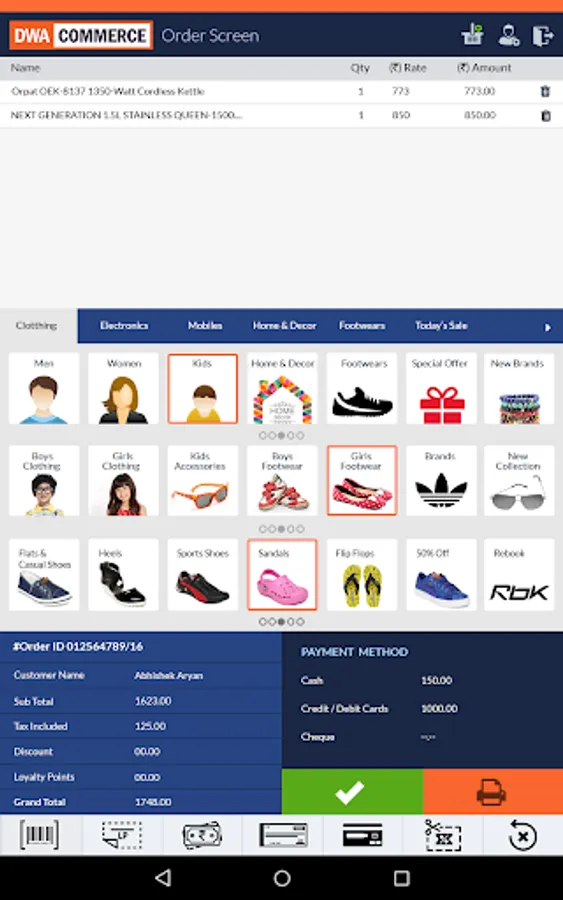
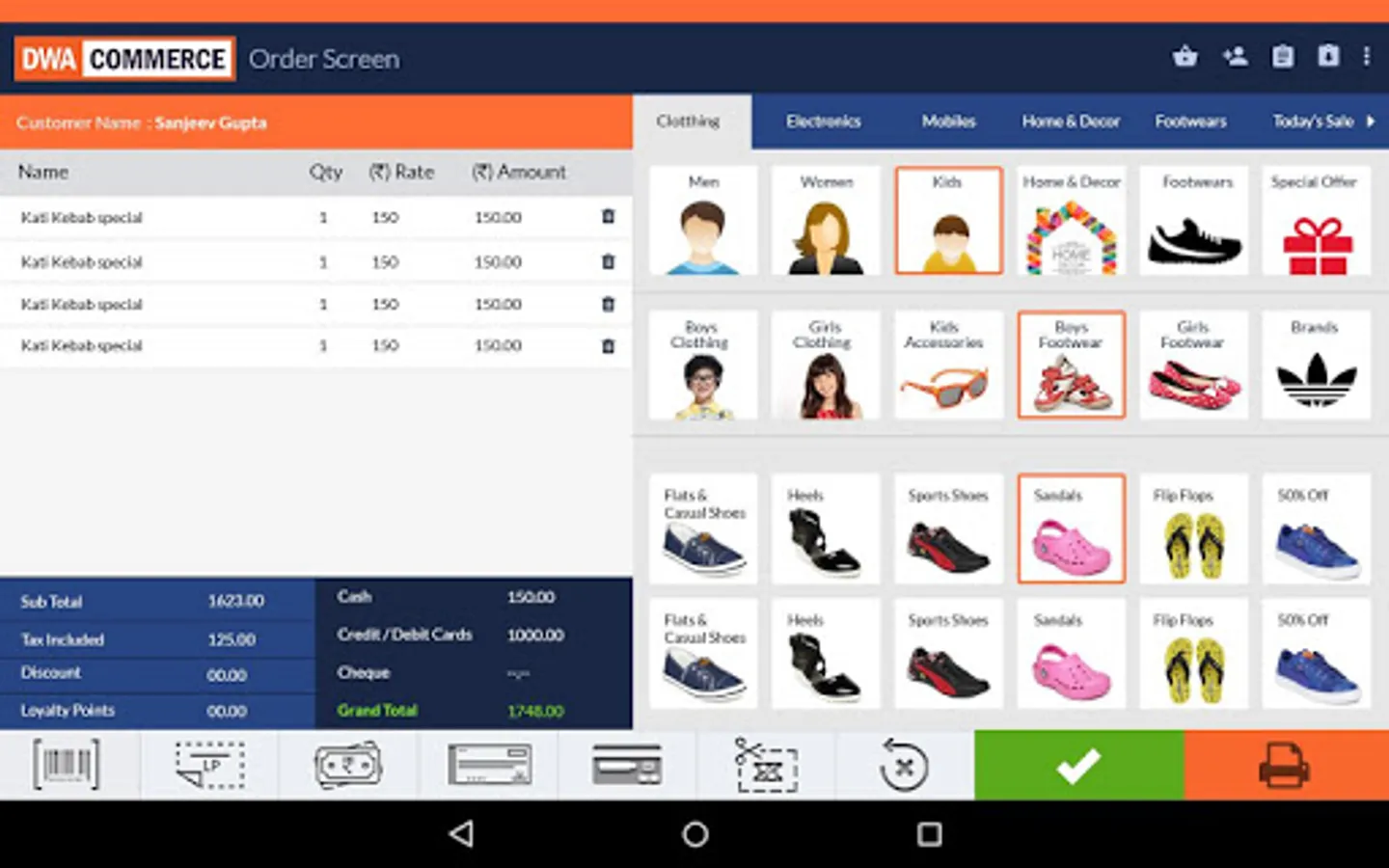
The DWA Commerce Point of Sale app allows you to take orders in retail stores [using POS machines] as well as when on the move [using tabs as well as mobile]
Demo / Evaluation
If you are not an existing DWA Commerce customer and are looking to evaluate, please follow the steps below
1) Launch the app and you'll be taken to the settings screen. Go to the STORE tab and then click the Demo link [at the bottom of the screen - below the save button].
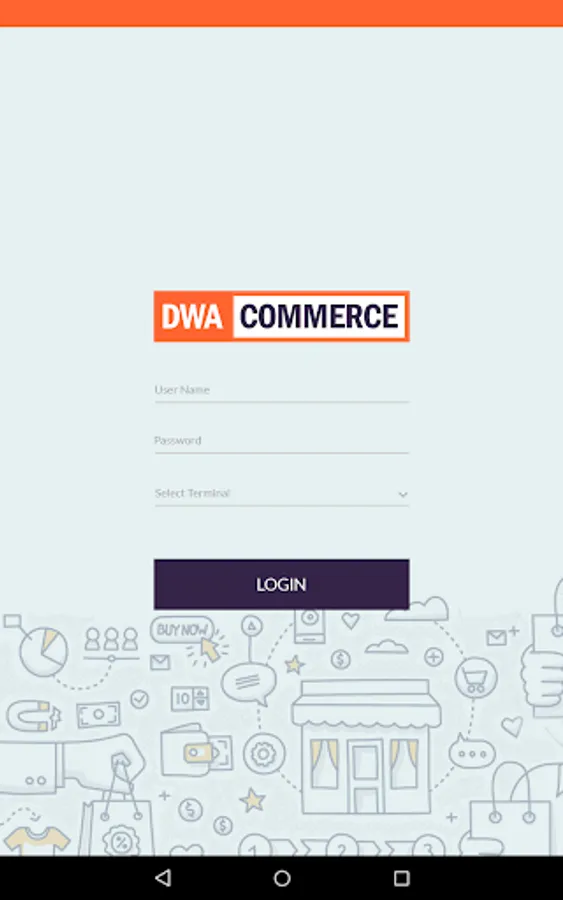
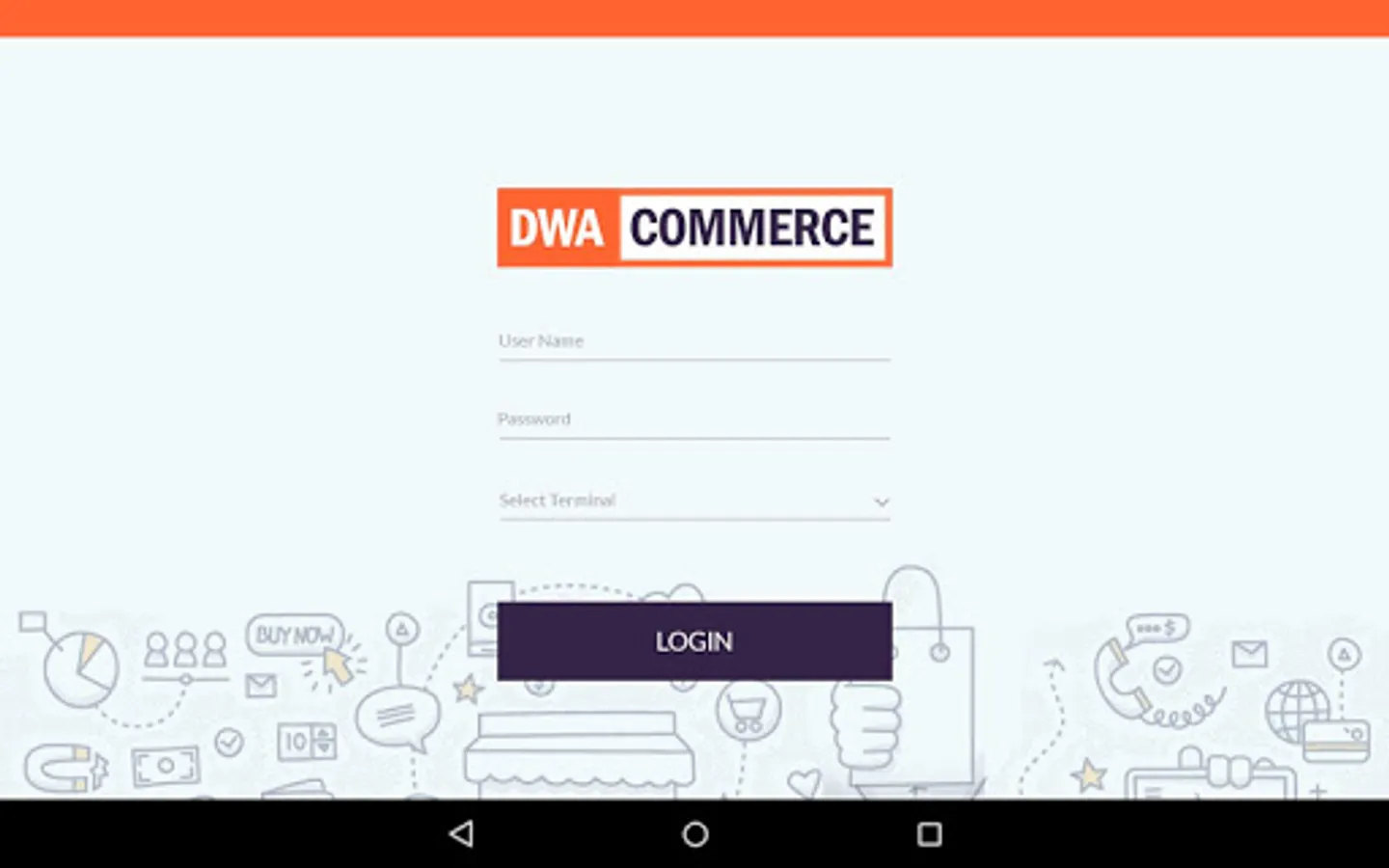
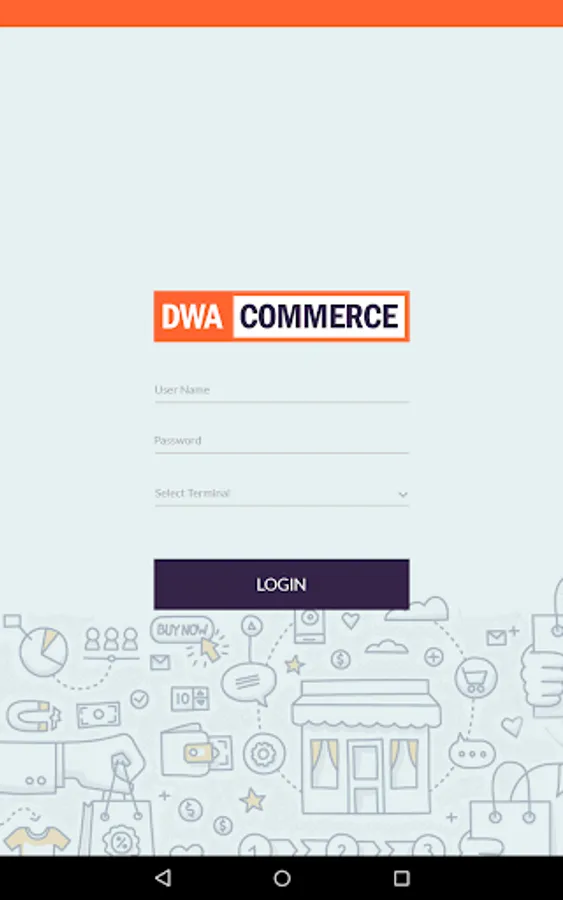
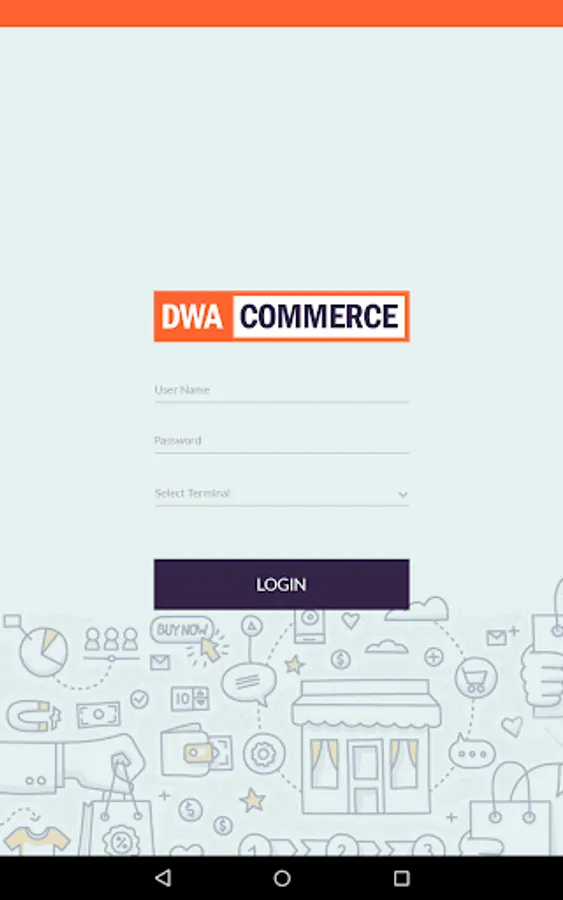
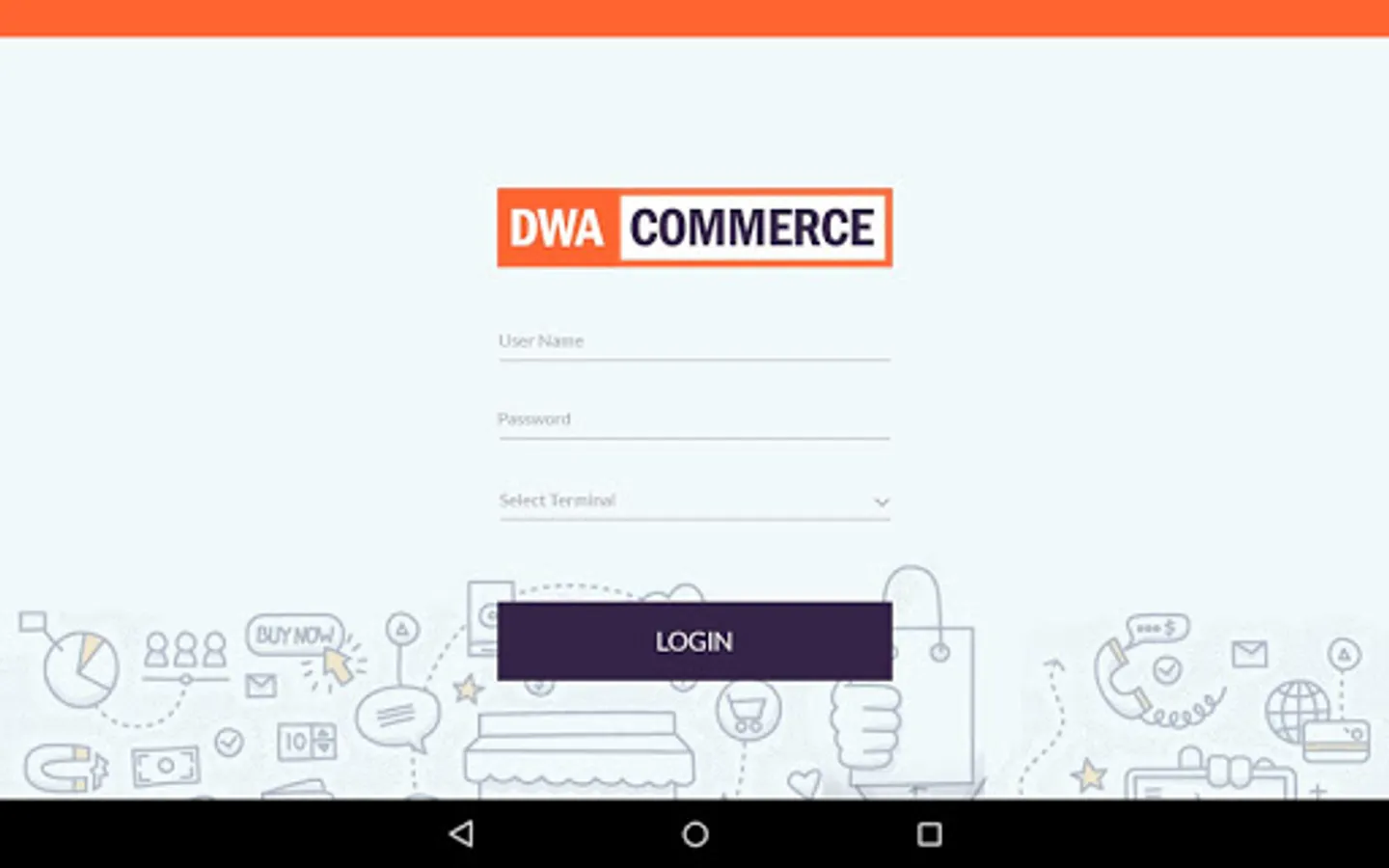
2) You will be now redirected to the Login Screen
3) Use the following credentials :
userID: demo
password: demo
Select a terminal from the drop down.
4) Click Login and you'll be logged into the app
5) Rest all is pretty self-explanatory, so please feel free to play around
And if you have any questions, or are interested in a detailed demo [to cover the backend administration panel], please feel free to contact us.
The DWA Commerce Point of Sale app allows you to take orders in retail stores [using POS machines] as well as when on the move [using tabs as well as mobile]
Demo / Evaluation
If you are not an existing DWA Commerce customer and are looking to evaluate, please follow the steps below
1) Launch the app and you'll be taken to the settings screen. Go to the STORE tab and then click the Demo link [at the bottom of the screen - below the save button].
2) You will be now redirected to the Login Screen
3) Use the following credentials :
userID: demo
password: demo
Select a terminal from the drop down.
4) Click Login and you'll be logged into the app
5) Rest all is pretty self-explanatory, so please feel free to play around
And if you have any questions, or are interested in a detailed demo [to cover the backend administration panel], please feel free to contact us.