e-world Mobile Application Usage
Login screen
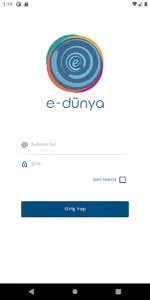
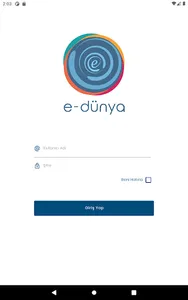
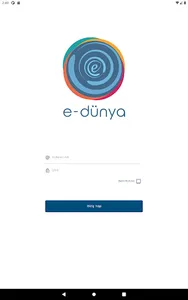
When the e-dunya mobile application is opened, you can enter your username from the Username field on the login screen and your password from the Password field, and log in with the Login button.
When you tick the Remember Me option, your username will be remembered for your next logins.
Left Menu
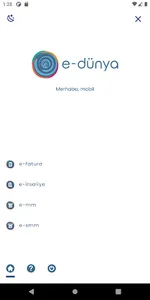
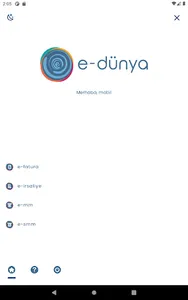
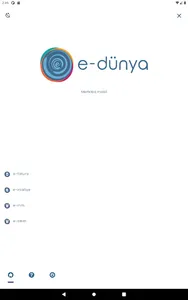
After logging in, you can access the left menu by clicking the menu sign in the upper left from the screen you want. In the left menu, your documents with your service activity are listed. By touching the relevant document type, it is possible to access the listing screens for that document type.
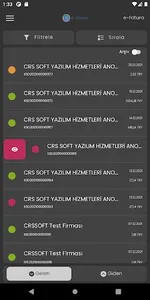
It is possible to use the application in a light or dark theme according to your choice with the icon in the upper left part of the menu.
The first of the buttons at the bottom of the menu directs you to the homepage, the button next to it directs you to the Help page, and the last one is the button that allows you to log out.
Home page
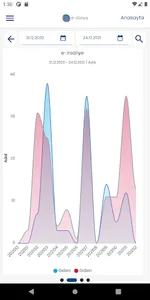
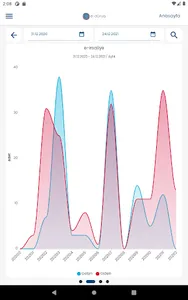
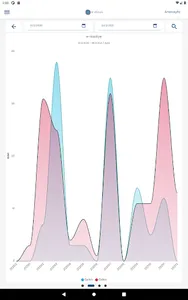
There are reporting graphics prepared for the documents you receive service on the Home screen, which you are directed to after logging in. By swiping the screen to the right and left, you can view the report graphics of the statistics of your documents in the specified periods.
Report Charts
You can access the information of both incoming and outgoing invoices for the specified date period in the e-invoice, e-waybill, e-mm, e-smm report chart. You can select the date period from the drop-down menu at the top of the screen.
When you touch the point you selected on the graph, it is possible to view the number of incoming and outgoing invoices for that date separately.
e-invoice Screen
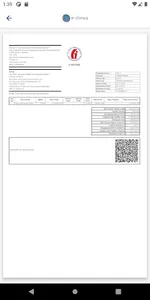
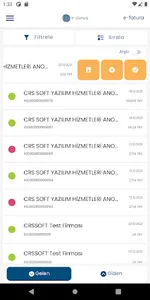
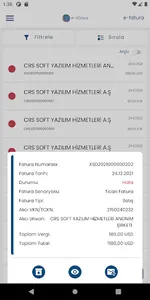
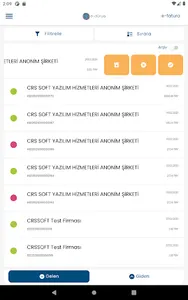
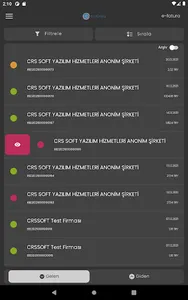
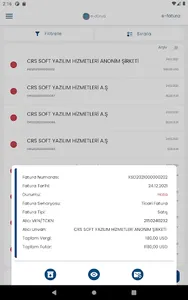
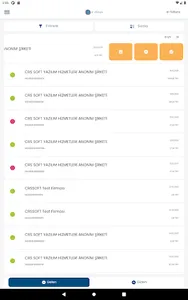
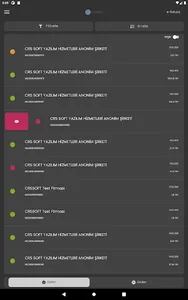
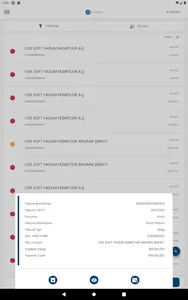
If you click on e-invoice from the left menu, the e-invoice Incoming screen opens. aYou can drag the documents left and right to display the corresponding buttons.
Filtering
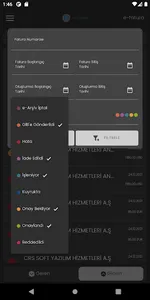
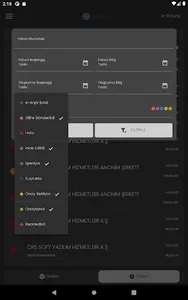
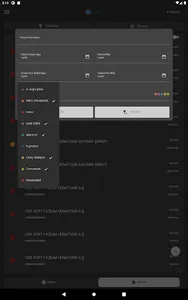
When you touch the Filter button, the filtering screen opens. According to the information you fill in this screen, it is possible to list only the documents that meet the criteria you have specified. The filtering structure on both incoming and outgoing e-invoice screens is the same.
Arrangement
When you touch the Sort button, the sorting criteria list opens. You can choose the one you want from the criteria in the drop-down list and make the sorting on the listing screen in that way.
e-invoice Archive List
When you touch the archive button, the button turns green and directs you to the archive screen. When this button is in the green position, the documents listed are your archive documents. When you touch the button again, it will return to its original state and you will exit the archive list and return to the list of your incoming or outgoing e-invoices.
e-waybill, e-mm, e-smm Screen
If you click on e-waybill, e-mm or e-smm from the left menu, the e-waybill Incoming screen, e-mm Outgoing screen or e-Smm Outgoing screen opens. On the screen that opens, your incoming or outgoing documents are listed. From the listing screens, you can perform the transactions specified in the e-invoice for your documents.
The e-waybill, e-mm and e-smm list screens also have the same features as e-invoice, so they are not explained again.
Help Screen
It contains information that allows you to call or email the customer support team.
Login screen
When the e-dunya mobile application is opened, you can enter your username from the Username field on the login screen and your password from the Password field, and log in with the Login button.
When you tick the Remember Me option, your username will be remembered for your next logins.
Left Menu
After logging in, you can access the left menu by clicking the menu sign in the upper left from the screen you want. In the left menu, your documents with your service activity are listed. By touching the relevant document type, it is possible to access the listing screens for that document type.
It is possible to use the application in a light or dark theme according to your choice with the icon in the upper left part of the menu.
The first of the buttons at the bottom of the menu directs you to the homepage, the button next to it directs you to the Help page, and the last one is the button that allows you to log out.
Home page
There are reporting graphics prepared for the documents you receive service on the Home screen, which you are directed to after logging in. By swiping the screen to the right and left, you can view the report graphics of the statistics of your documents in the specified periods.
Report Charts
You can access the information of both incoming and outgoing invoices for the specified date period in the e-invoice, e-waybill, e-mm, e-smm report chart. You can select the date period from the drop-down menu at the top of the screen.
When you touch the point you selected on the graph, it is possible to view the number of incoming and outgoing invoices for that date separately.
e-invoice Screen
If you click on e-invoice from the left menu, the e-invoice Incoming screen opens. aYou can drag the documents left and right to display the corresponding buttons.
Filtering
When you touch the Filter button, the filtering screen opens. According to the information you fill in this screen, it is possible to list only the documents that meet the criteria you have specified. The filtering structure on both incoming and outgoing e-invoice screens is the same.
Arrangement
When you touch the Sort button, the sorting criteria list opens. You can choose the one you want from the criteria in the drop-down list and make the sorting on the listing screen in that way.
e-invoice Archive List
When you touch the archive button, the button turns green and directs you to the archive screen. When this button is in the green position, the documents listed are your archive documents. When you touch the button again, it will return to its original state and you will exit the archive list and return to the list of your incoming or outgoing e-invoices.
e-waybill, e-mm, e-smm Screen
If you click on e-waybill, e-mm or e-smm from the left menu, the e-waybill Incoming screen, e-mm Outgoing screen or e-Smm Outgoing screen opens. On the screen that opens, your incoming or outgoing documents are listed. From the listing screens, you can perform the transactions specified in the e-invoice for your documents.
The e-waybill, e-mm and e-smm list screens also have the same features as e-invoice, so they are not explained again.
Help Screen
It contains information that allows you to call or email the customer support team.
Show More