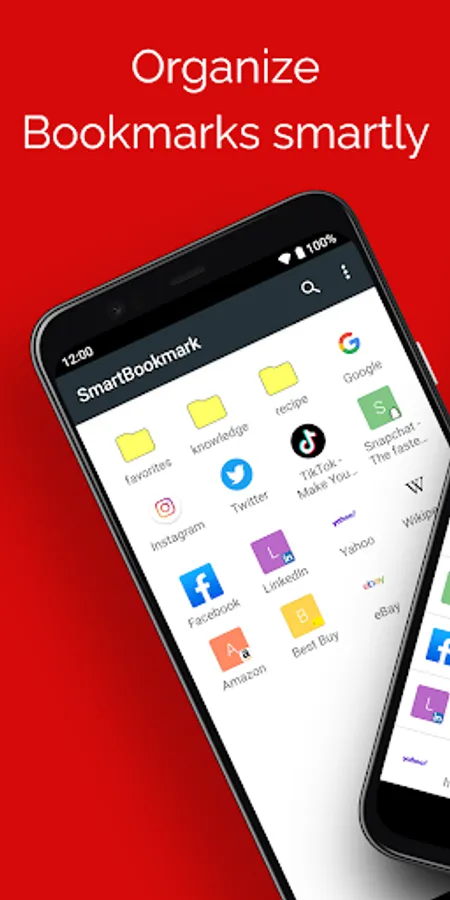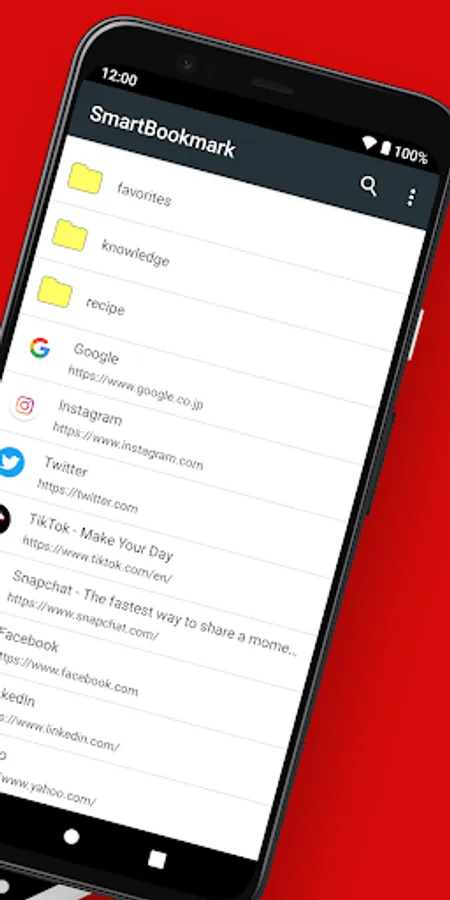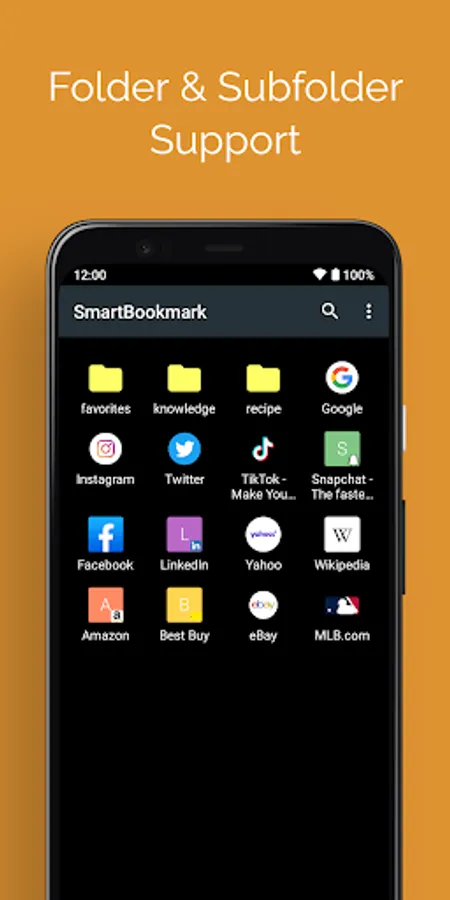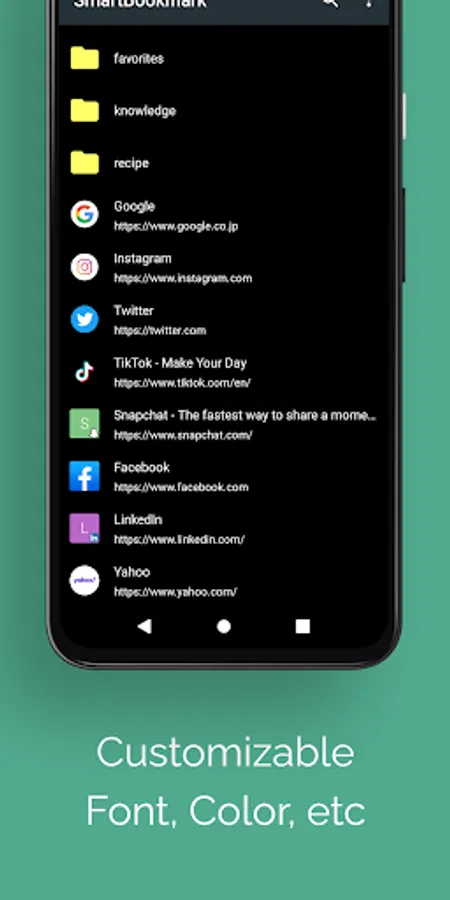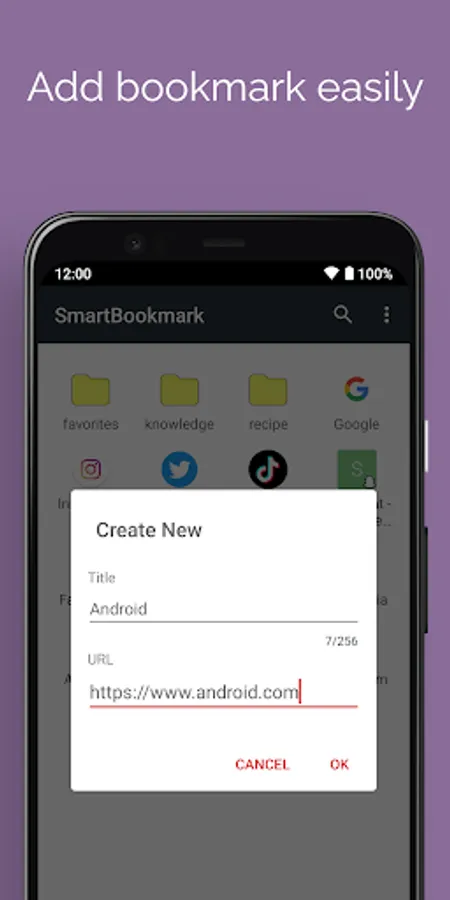
In this bookmarking app, users can organize and manage bookmarks separately from browsers with folder hierarchy and sorting features. Includes backup and restore functions, search capability, and favicon acquisition.
AppRecs review analysis
AppRecs rating 4.0. Trustworthiness 82 out of 100. Review manipulation risk 19 out of 100. Based on a review sample analyzed.
★★★★☆
4.0
AppRecs Rating
Ratings breakdown
5 star
65%
4 star
7%
3 star
8%
2 star
14%
1 star
7%
What to know
✓
Low review manipulation risk
19% review manipulation risk
✓
Credible reviews
82% trustworthiness score from analyzed reviews
✓
High user satisfaction
71% of sampled ratings are 4+ stars (4.1★ average)
About Smart Bookmark
It is an application that can manage its own bookmarks separately from browsers such as Chrome and Firefox.
If you cannot find your favorite web page! Organize bookmarks (favorites) to your liking with unlimited hierarchy of folders and sorting without any limitations.
It is also recommended for those who use multiple browsers.
Since the application has its own bookmark management, it can be used from various browsers such as Chrome, Firefox, Opera, and Dolphin.
It is easy to add bookmarks. Just select "Add to Bookmark" from the browser's "Share" menu. You can also register it manually from the app's menu.
If you use the backup & restore function, you can take over bookmarks even if you switch smartphones. Do use this easy-to-use application.
Main functions
- Create bookmarks with one touch from the browser "Share" menu (compatible with various browsers such as Chrome and other standard Android browsers)
- Folder division correspondence (you can create folder in folder with unlimited hierarchy)
- Sort items by drag and drop
- You can select the browser to display (Please select "Open in browser" menu)
- Search bookmarks
- Bookmark backup and restore function
- Automatic acquisition of Favicon
How to backup & restore
Backup
The backup method is as follows.
1. Launch SmartBookmark
2. Select “Settings” from the menu at the top right of the screen
3. Select "Backup" from the setting menu
4. The save destination selection dialog is displayed
5. Select the directory where you want to save a backup file and select "OK"
6. The backup process is completed and a backup file is created
A backup file is saved as "bookmark.json".
Restore
First, copy bookmark.json to the Android device you want to restore.
Any method is OK. You can also use a microSD card or online services such as Dropbox and Google Drive.
After copying, operate as follows.
1. Launch SmartBookmark
2. Select “Settings” from the menu at the top right of the screen
3. Select "Restore from backup" from the settings menu
4. Read the notes in the dialog and select "OK" if there is no problem
5. A dialog to select a file is displayed
6. Select the "bookmark.json" you copied and select "OK"
7. The restoration process is completed
Restoration is an overwrite process. Existing bookmarks will be lost. Please be careful.
Concern
Android version of Chrome can not read and write bookmarks (I was able to do old Android, but now I can not)
Therefore, there is no plan to implement import / export to Chrome. Please be aware.
If you cannot find your favorite web page! Organize bookmarks (favorites) to your liking with unlimited hierarchy of folders and sorting without any limitations.
It is also recommended for those who use multiple browsers.
Since the application has its own bookmark management, it can be used from various browsers such as Chrome, Firefox, Opera, and Dolphin.
It is easy to add bookmarks. Just select "Add to Bookmark" from the browser's "Share" menu. You can also register it manually from the app's menu.
If you use the backup & restore function, you can take over bookmarks even if you switch smartphones. Do use this easy-to-use application.
Main functions
- Create bookmarks with one touch from the browser "Share" menu (compatible with various browsers such as Chrome and other standard Android browsers)
- Folder division correspondence (you can create folder in folder with unlimited hierarchy)
- Sort items by drag and drop
- You can select the browser to display (Please select "Open in browser" menu)
- Search bookmarks
- Bookmark backup and restore function
- Automatic acquisition of Favicon
How to backup & restore
Backup
The backup method is as follows.
1. Launch SmartBookmark
2. Select “Settings” from the menu at the top right of the screen
3. Select "Backup" from the setting menu
4. The save destination selection dialog is displayed
5. Select the directory where you want to save a backup file and select "OK"
6. The backup process is completed and a backup file is created
A backup file is saved as "bookmark.json".
Restore
First, copy bookmark.json to the Android device you want to restore.
Any method is OK. You can also use a microSD card or online services such as Dropbox and Google Drive.
After copying, operate as follows.
1. Launch SmartBookmark
2. Select “Settings” from the menu at the top right of the screen
3. Select "Restore from backup" from the settings menu
4. Read the notes in the dialog and select "OK" if there is no problem
5. A dialog to select a file is displayed
6. Select the "bookmark.json" you copied and select "OK"
7. The restoration process is completed
Restoration is an overwrite process. Existing bookmarks will be lost. Please be careful.
Concern
Android version of Chrome can not read and write bookmarks (I was able to do old Android, but now I can not)
Therefore, there is no plan to implement import / export to Chrome. Please be aware.