NISSAN Driver's Guide
Nissan Automotive Europe
3.3 ★
4K ratings
500,000+
downloads
Free
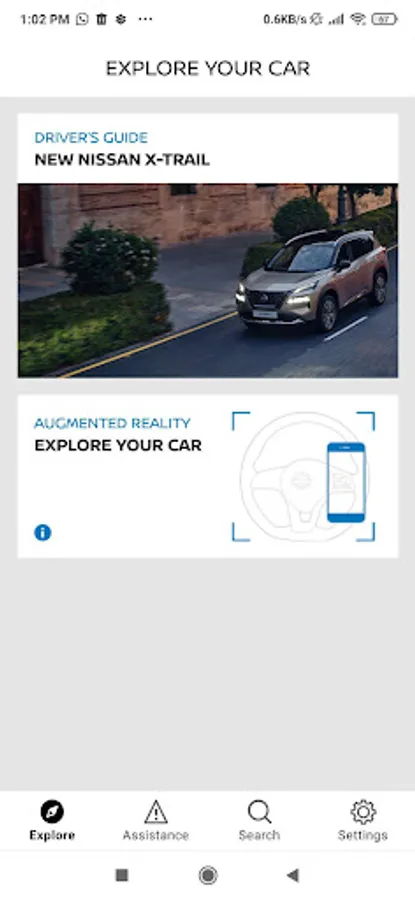
In this automotive guide app, you can learn about vehicle features by pointing your phone at different components and receiving detailed information through augmented reality. Includes vehicle system descriptions, warning light explanations, and quick reference guides.
AppRecs review analysis
AppRecs rating 3.4. Trustworthiness 78 out of 100. Review manipulation risk 18 out of 100. Based on a review sample analyzed.
★★★☆☆
3.4
AppRecs Rating
Ratings breakdown
5 star
41%
4 star
11%
3 star
11%
2 star
19%
1 star
19%
What to know
✓
Low review manipulation risk
18% review manipulation risk
✓
Credible reviews
78% trustworthiness score from analyzed reviews
⚠
High negative review ratio
37% of sampled ratings are 1–2 stars
About NISSAN Driver's Guide
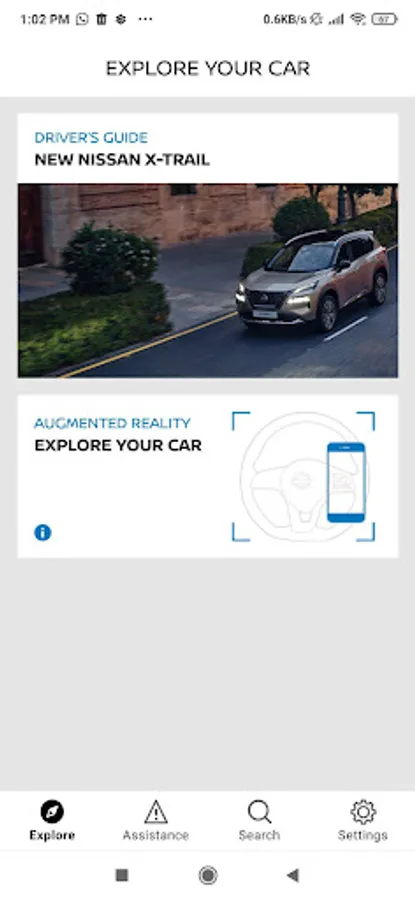
The Nissan Driver’s Guide is an application based on Augmented Reality Technology. It will help you to learn and understand more about your vehicle.
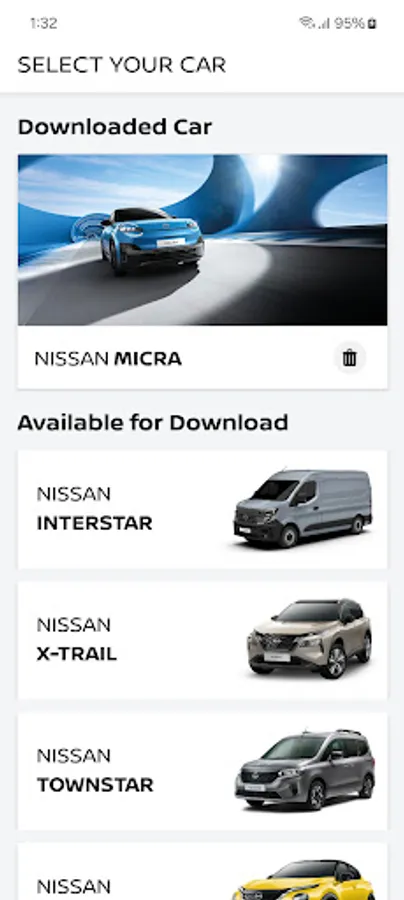
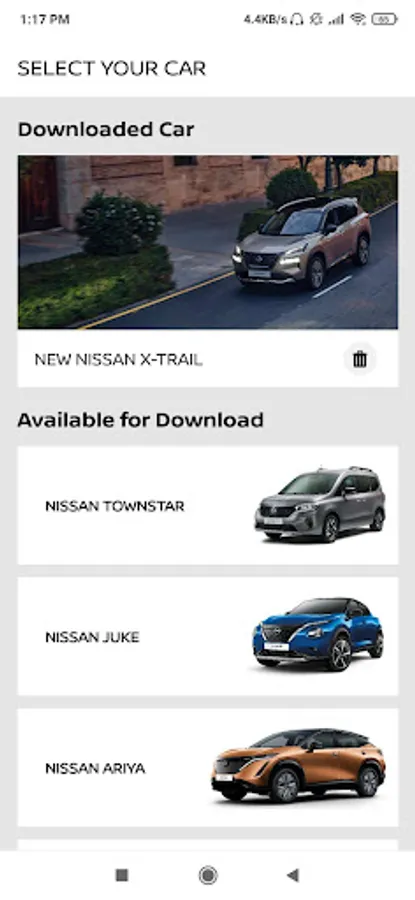
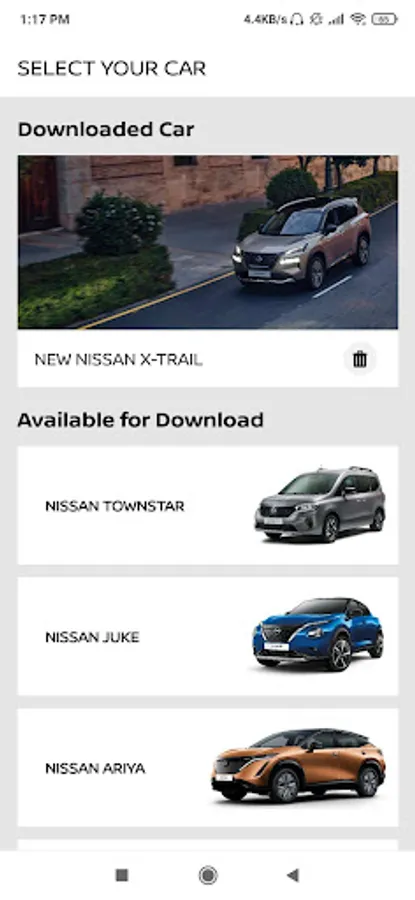
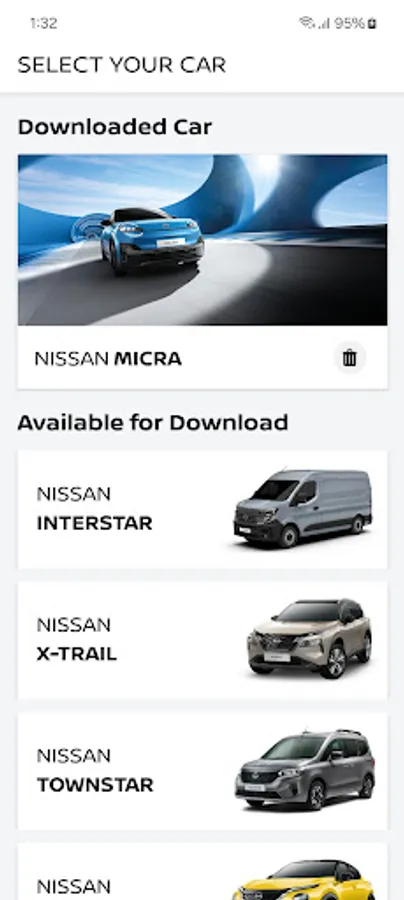
The application is available for all the following vehicles :
· NISSAN JUKE Hybrid
· NISSAN QASHQAI e-POWER
· NISSAN MICRA
· NISSAN JUKE
· NISSAN PULSAR
· NISSAN NOTE
· NISSAN NAVARA
· NISSAN QASHQAI
· NISSAN X-TRAIL
· NISSAN MICRA
· NISSAN LEAF
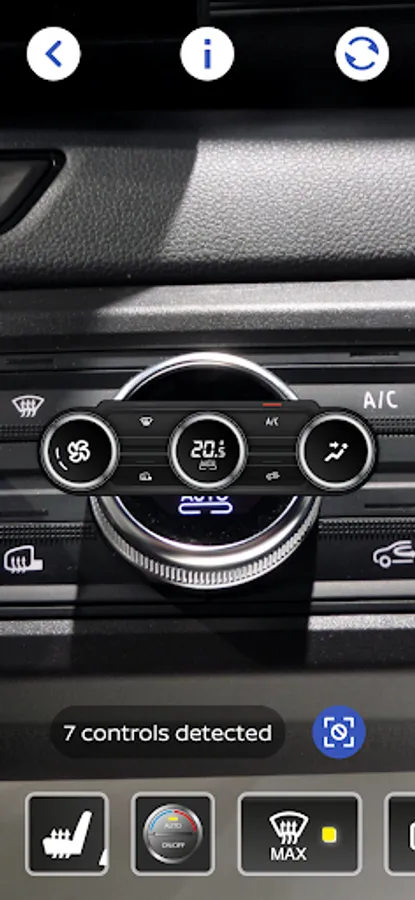
When you want detailed information about a particular button or switch, simply point the camera of your smartphone at that object or area containing the object.
An interactive pop-up appears on the screen of your phone and with a single touch, you are quickly provided with the information you require.
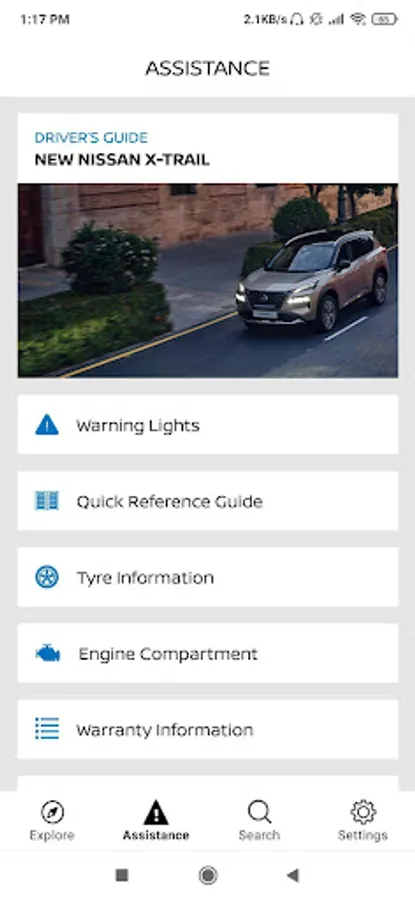
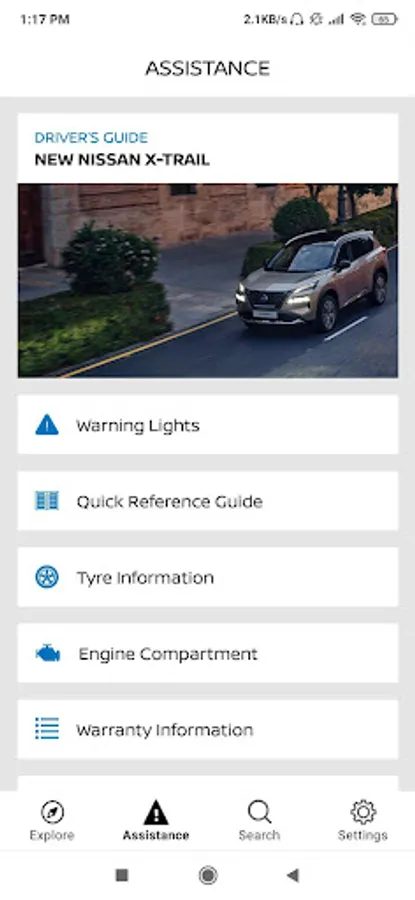
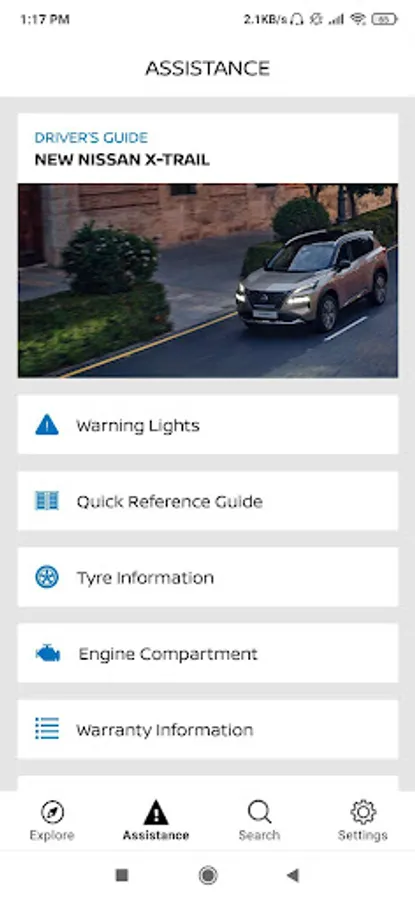
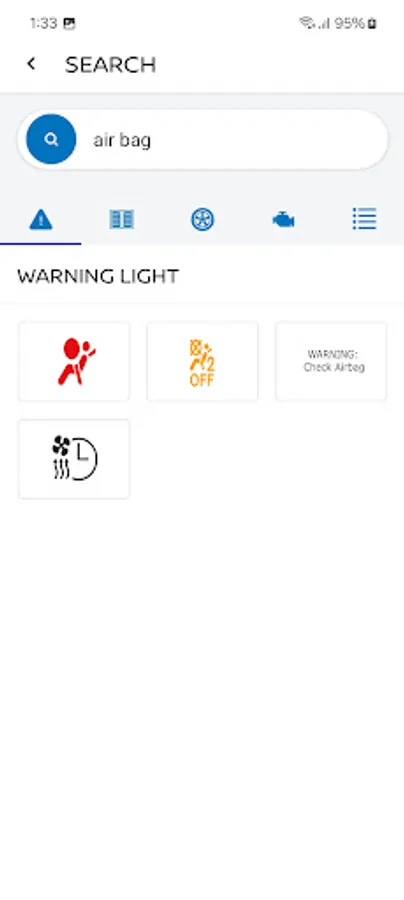
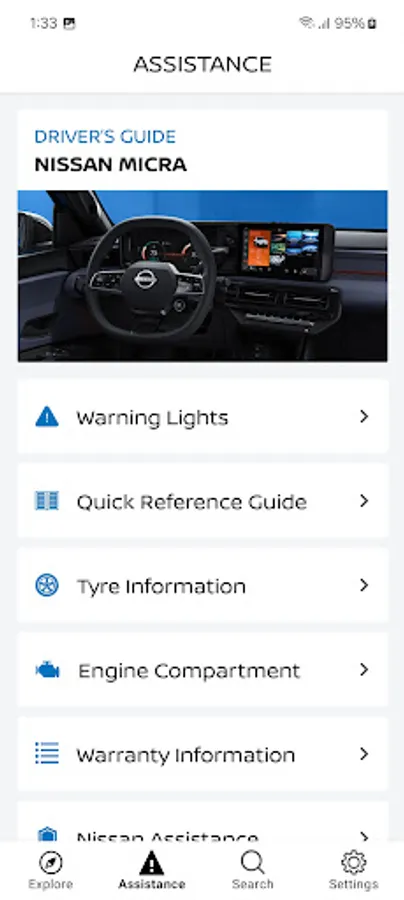
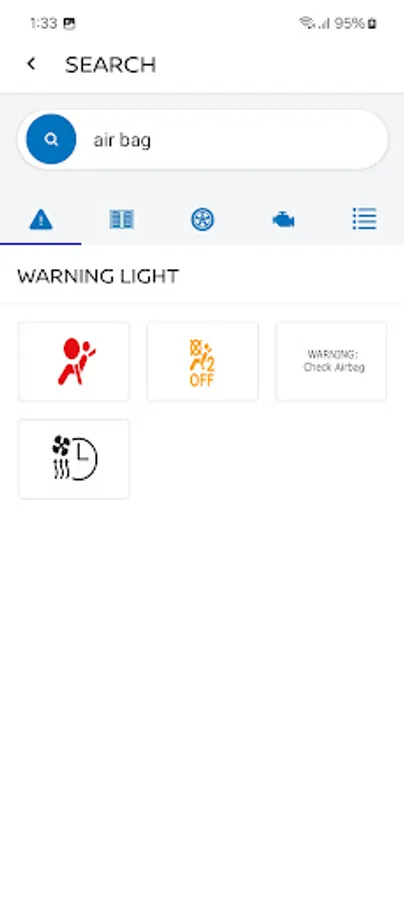
When a warning light is displayed on your vehicle's combination meter, the Nissan Driver's guide provides you with quick access to additional information.
Point the camera of your phone at the combination meter and with a single touch, you will have access to an explanation of all the warning lights.
You can also touch the dedicated warning light icon on the main screen.
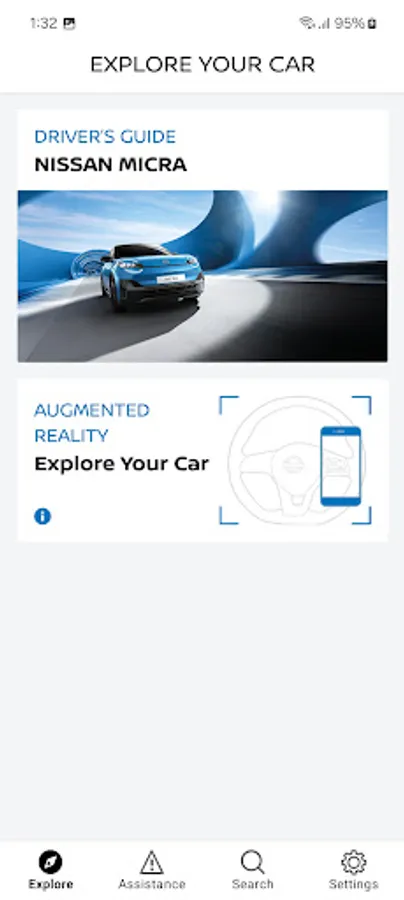
The application provides the following features:
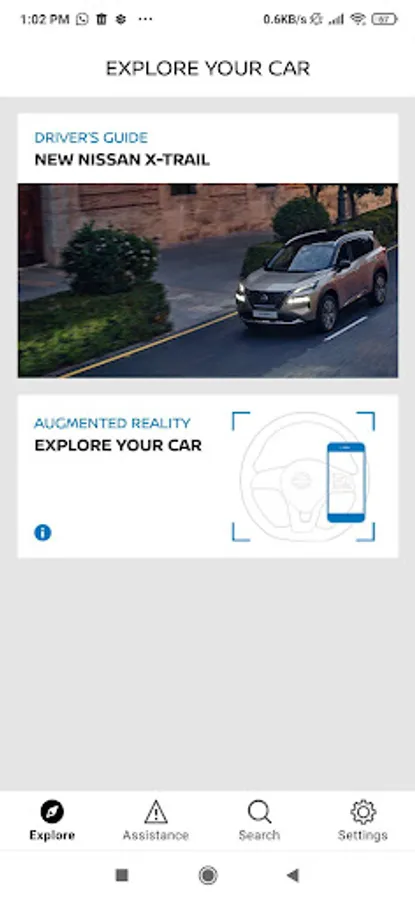
1. An Augmented Reality function that recognizes vehicle content through the camera of your smartphone.
This technology interacts with 3 main areas of the vehicle:
· Steering wheel
· Navigation and Audio system
· Climate control system
2. Descriptions of all the warning lights displayed on the vehicle’s combination meter.
3. An electronic version of the Quick Reference Guide, providing a brief overview of many important features of the vehicle, including instructions to follow if your vehicle has a flat Tyre.
Note
The Augmented Reality interacts with these main buttons and systems:
1. Steering wheel buttons
2. Audio system buttons
3. Navigation system buttons
4. Air Conditioning buttons
5. Parking Brake button
6. Combination meter
7. Start/Stop engine button
8. Buttons located between the steering wheel and the driver's door.
To take the best advantage of the Augmented Reality, you should be aware of the following points:
1. Use the application with sufficient exterior light conditions.
2. Always focus the camera on the complete button area of your vehicle. For instance in the case of the climate control and radio panel, please make sure the whole set of buttons is displayed within the screen.
3. If the camera does not immediately recognize the button area, please point the camera at the area again. Or move forwards and backwards slowly until the camera recognizes the element.
4. The Augmented Reality may not work correctly if reflections appear on the surface of the dashboard or sunlight goes directly into the camera lens.
The application is available for all the following vehicles :
· NISSAN JUKE Hybrid
· NISSAN QASHQAI e-POWER
· NISSAN MICRA
· NISSAN JUKE
· NISSAN PULSAR
· NISSAN NOTE
· NISSAN NAVARA
· NISSAN QASHQAI
· NISSAN X-TRAIL
· NISSAN MICRA
· NISSAN LEAF
When you want detailed information about a particular button or switch, simply point the camera of your smartphone at that object or area containing the object.
An interactive pop-up appears on the screen of your phone and with a single touch, you are quickly provided with the information you require.
When a warning light is displayed on your vehicle's combination meter, the Nissan Driver's guide provides you with quick access to additional information.
Point the camera of your phone at the combination meter and with a single touch, you will have access to an explanation of all the warning lights.
You can also touch the dedicated warning light icon on the main screen.
The application provides the following features:
1. An Augmented Reality function that recognizes vehicle content through the camera of your smartphone.
This technology interacts with 3 main areas of the vehicle:
· Steering wheel
· Navigation and Audio system
· Climate control system
2. Descriptions of all the warning lights displayed on the vehicle’s combination meter.
3. An electronic version of the Quick Reference Guide, providing a brief overview of many important features of the vehicle, including instructions to follow if your vehicle has a flat Tyre.
Note
The Augmented Reality interacts with these main buttons and systems:
1. Steering wheel buttons
2. Audio system buttons
3. Navigation system buttons
4. Air Conditioning buttons
5. Parking Brake button
6. Combination meter
7. Start/Stop engine button
8. Buttons located between the steering wheel and the driver's door.
To take the best advantage of the Augmented Reality, you should be aware of the following points:
1. Use the application with sufficient exterior light conditions.
2. Always focus the camera on the complete button area of your vehicle. For instance in the case of the climate control and radio panel, please make sure the whole set of buttons is displayed within the screen.
3. If the camera does not immediately recognize the button area, please point the camera at the area again. Or move forwards and backwards slowly until the camera recognizes the element.
4. The Augmented Reality may not work correctly if reflections appear on the surface of the dashboard or sunlight goes directly into the camera lens.
NISSAN Driver's Guide Screenshots
Tap to Rate:
Reviews for NISSAN Driver's Guide
Brian Bryce
12/7/2025
I scanned my 2016 Leaf VIN and it didn't recognise it.
John Moore
8/11/2025
worked ok up until today, Now refuses to update?