Remote Panel
odospace
4.5 ★
store rating
10,000+
downloads
Free
In this app, you can display sensor values from a Windows PC on an Android device connected via USB. It offers functionality to monitor data with sensor integration and customizable display options. Includes support for USB connection setup, Aida64 plugin configuration, and troubleshooting tools.
AppRecs review analysis
AppRecs rating 4.3. Trustworthiness 70 out of 100. Review manipulation risk 38 out of 100. Based on a review sample analyzed.
★★★★☆
4.3
AppRecs Rating
Ratings breakdown
5 star
84%
4 star
8%
3 star
0%
2 star
0%
1 star
8%
What to know
✓
Credible reviews
70% trustworthiness score from analyzed reviews
✓
High user satisfaction
84% of sampled ratings are 5 stars
✓
Authentic reviews
No red flags detected
About Remote Panel
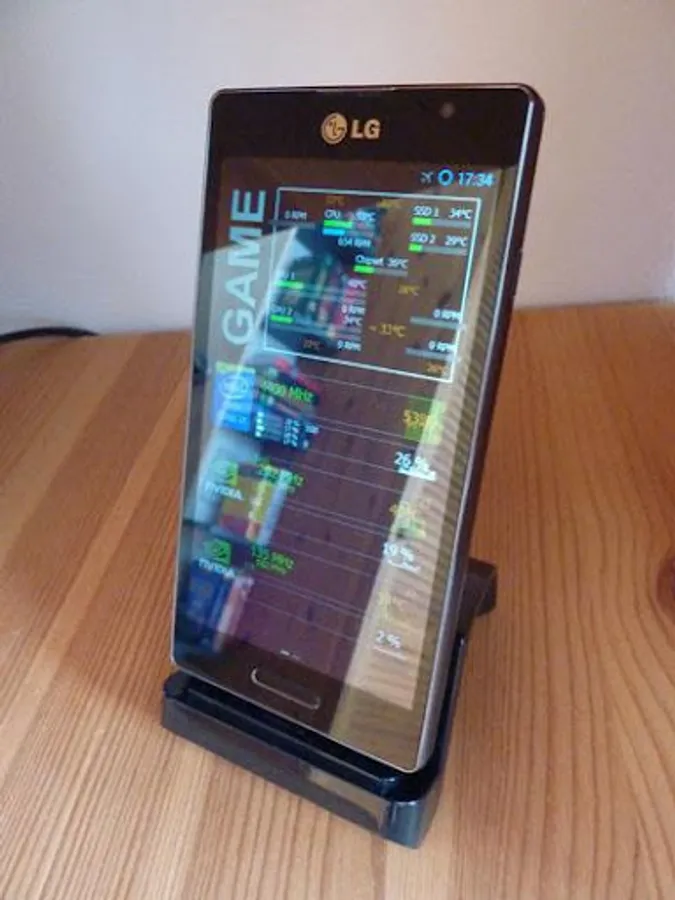
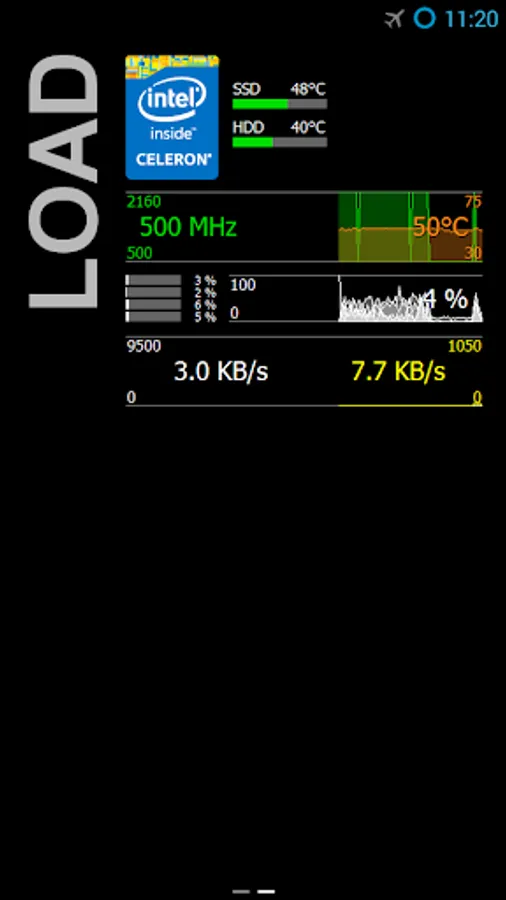
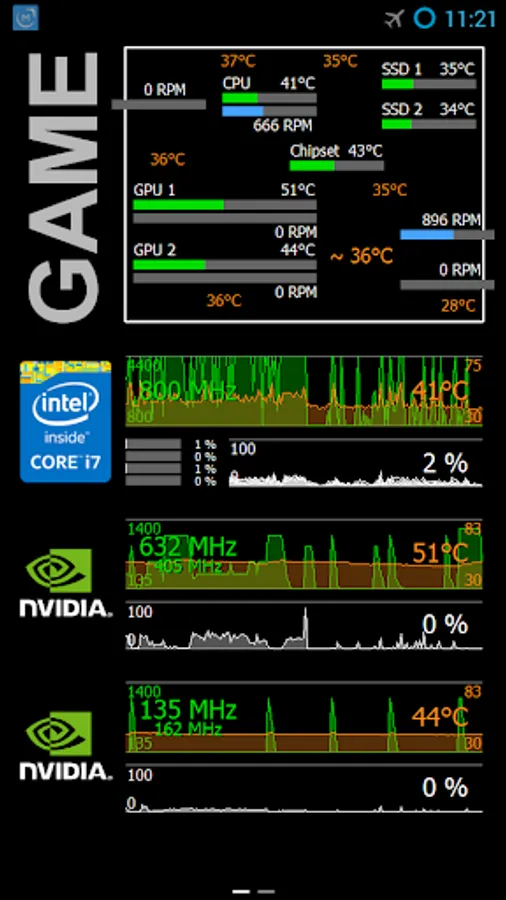
Reuse your old android device to display sensor values of a Windows PC. A WiFi connection is not (!) required, Remote Panel works even when the device is connected to the PC via USB only. However, an SDK for Remote Panel is provided also.
Sensor values are provided by the industry-leading system information tool Aida64 (http://www.aida64.com) which must be purchased separately. Please note that Remote Panel is not affiliated with Aida64 or FinalWire in any way shape or form and no support can be provided by the Aida64 team for this app.
Requirements
- Aida64 version 5.20.3414 or heigher must be installed on the Windows PC.
- Remote Panel (for Windows) version 1.16 must be installed and running, it can be downloaded with the following link https://apps.odospace.com/RemotePanelSetup.exe
- Microsoft .Net framework 4.5 must be installed on the Windows PC. This will be done during the installation of Remote Panel (for Windows).
- The android device vendor's drivers must be installed on the Windows PC.
- USB debugging must be enabled on the android device. This is described in detail at http://www.kingoapp.com/root-tutorials/how-to-enable-usb-debugging-mode-on-android.htm
Enable Aiada64 plugIn
- After installation of Remote Panel (for Windows) Aida64 must be restarted.
- Within Aida64 open the preferences page, navigate to LCD and enable "Odospace". Add items within the LCD items page.
Settings
- A long press within the view opens the settings dialog.
Troubleshooting
- In general the settings dialog of Remote Panel (for Windows) can be opened from the popup menu of its tray icon.
- Remote Panel (for Windows) uses port 38000 and 38001 for local communication, if you experience problems because another PC program is using one of this ports, change the port number within the Remote Panel (for Windows) settings dialog and within the Aida64 Odospace LCD plugin.
- Remote Panel (for Windows) uses the Android Debug Bridge (adb.exe) for communication. If you experience problems with other Android synchronization programs, try to use another adb.exe file - it can be changed within the settings dialog of Remote Panel (for Windows).
- On default, Remote Panel (for Windows) checks every 30 seconds for new devices, decrease this value within the settings for faster device recognition, increase this value for less CPU usage.
Alternative usage
- If an additional PC should send its sensor values to the android device, set the IP address within the Aida64 Odospace LCD plugin to the address of the PC where the android device is connected. For every PC specify a different panel position parameter. Remote Panel (for Windows) must be installed on every PC, however the Remote Panel (for Windows) executable must only be started on the PC where the Android device is connected.
- Remote Panel can be used within a WiFi network also, in such case set the IP address within the Aida64 Odospace PlugIn to the device's address. The port must be set to 38000. The Remote Panel (for Windows) executable can be stopped in this case.
Advanced topics
- To automatically start Remote Panel you can use AutoStart (http://play.google.com/store/apps/details?id=com.autostart)
- To power off the device on PC shut down you can use AutomateIt Pro (http://play.google.com/store/apps/details?id=AutomateItPro.mainPackage) - use the USB disconnect trigger.
- If the device battery discharge even connected via USB, try to set the CPU speed to a lower level. For example you can use Tickster MOD (http://play.google.com/store/apps/details?id=com.bigeyes0x0.trickstermod).
- A description how to power on the device on PC startup can be found at http://apps.odospace.com/RemotePanel.txt
Sensor values are provided by the industry-leading system information tool Aida64 (http://www.aida64.com) which must be purchased separately. Please note that Remote Panel is not affiliated with Aida64 or FinalWire in any way shape or form and no support can be provided by the Aida64 team for this app.
Requirements
- Aida64 version 5.20.3414 or heigher must be installed on the Windows PC.
- Remote Panel (for Windows) version 1.16 must be installed and running, it can be downloaded with the following link https://apps.odospace.com/RemotePanelSetup.exe
- Microsoft .Net framework 4.5 must be installed on the Windows PC. This will be done during the installation of Remote Panel (for Windows).
- The android device vendor's drivers must be installed on the Windows PC.
- USB debugging must be enabled on the android device. This is described in detail at http://www.kingoapp.com/root-tutorials/how-to-enable-usb-debugging-mode-on-android.htm
Enable Aiada64 plugIn
- After installation of Remote Panel (for Windows) Aida64 must be restarted.
- Within Aida64 open the preferences page, navigate to LCD and enable "Odospace". Add items within the LCD items page.
Settings
- A long press within the view opens the settings dialog.
Troubleshooting
- In general the settings dialog of Remote Panel (for Windows) can be opened from the popup menu of its tray icon.
- Remote Panel (for Windows) uses port 38000 and 38001 for local communication, if you experience problems because another PC program is using one of this ports, change the port number within the Remote Panel (for Windows) settings dialog and within the Aida64 Odospace LCD plugin.
- Remote Panel (for Windows) uses the Android Debug Bridge (adb.exe) for communication. If you experience problems with other Android synchronization programs, try to use another adb.exe file - it can be changed within the settings dialog of Remote Panel (for Windows).
- On default, Remote Panel (for Windows) checks every 30 seconds for new devices, decrease this value within the settings for faster device recognition, increase this value for less CPU usage.
Alternative usage
- If an additional PC should send its sensor values to the android device, set the IP address within the Aida64 Odospace LCD plugin to the address of the PC where the android device is connected. For every PC specify a different panel position parameter. Remote Panel (for Windows) must be installed on every PC, however the Remote Panel (for Windows) executable must only be started on the PC where the Android device is connected.
- Remote Panel can be used within a WiFi network also, in such case set the IP address within the Aida64 Odospace PlugIn to the device's address. The port must be set to 38000. The Remote Panel (for Windows) executable can be stopped in this case.
Advanced topics
- To automatically start Remote Panel you can use AutoStart (http://play.google.com/store/apps/details?id=com.autostart)
- To power off the device on PC shut down you can use AutomateIt Pro (http://play.google.com/store/apps/details?id=AutomateItPro.mainPackage) - use the USB disconnect trigger.
- If the device battery discharge even connected via USB, try to set the CPU speed to a lower level. For example you can use Tickster MOD (http://play.google.com/store/apps/details?id=com.bigeyes0x0.trickstermod).
- A description how to power on the device on PC startup can be found at http://apps.odospace.com/RemotePanel.txt