Avica Remote Desktop
Avica
4.3 ★
store rating
50,000+
downloads
Free
+ in-app
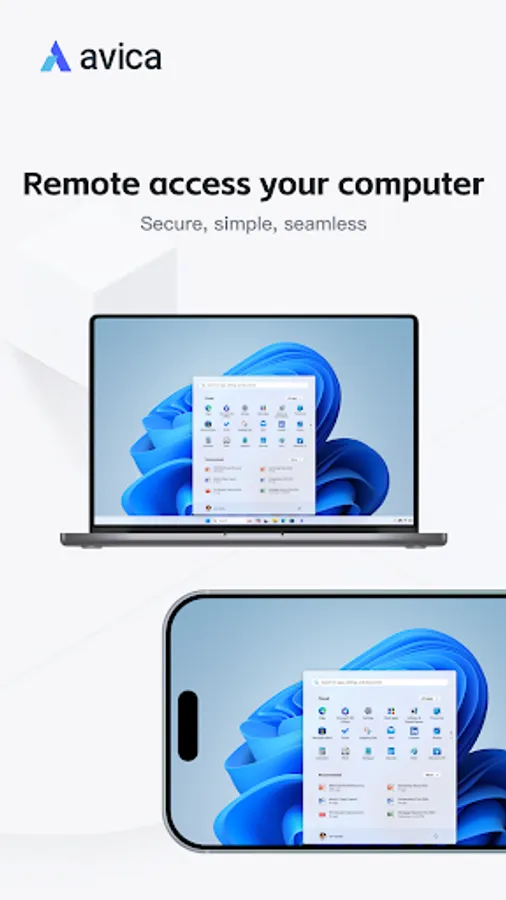
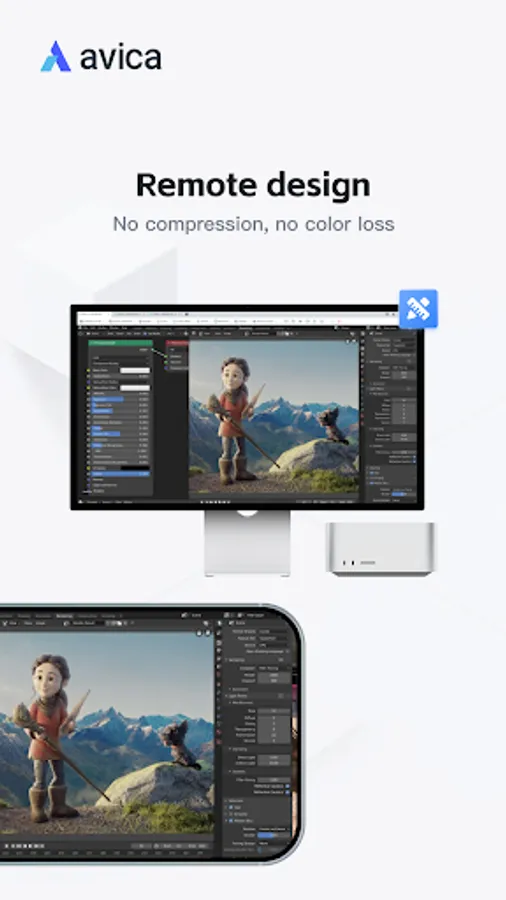
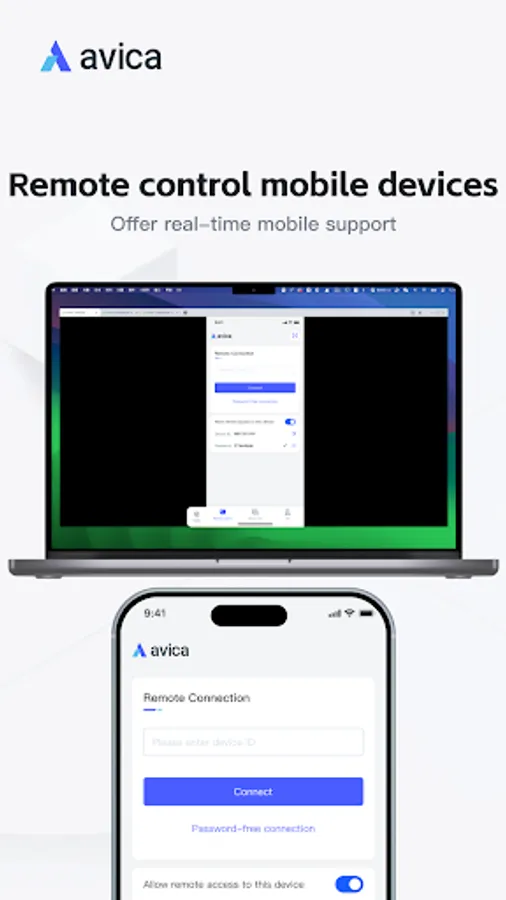
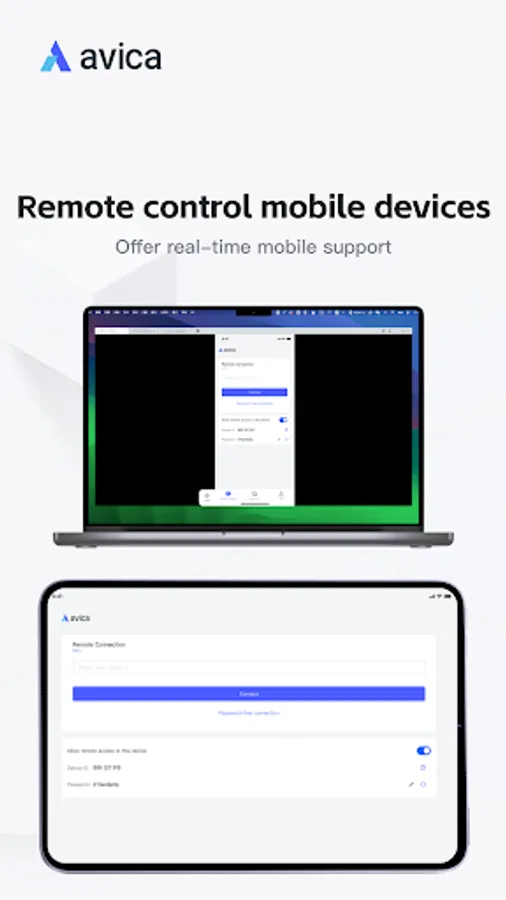
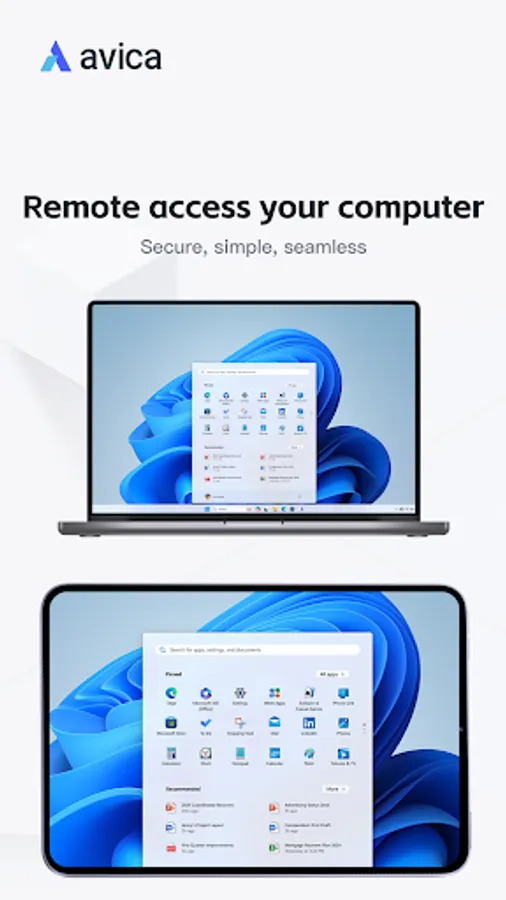
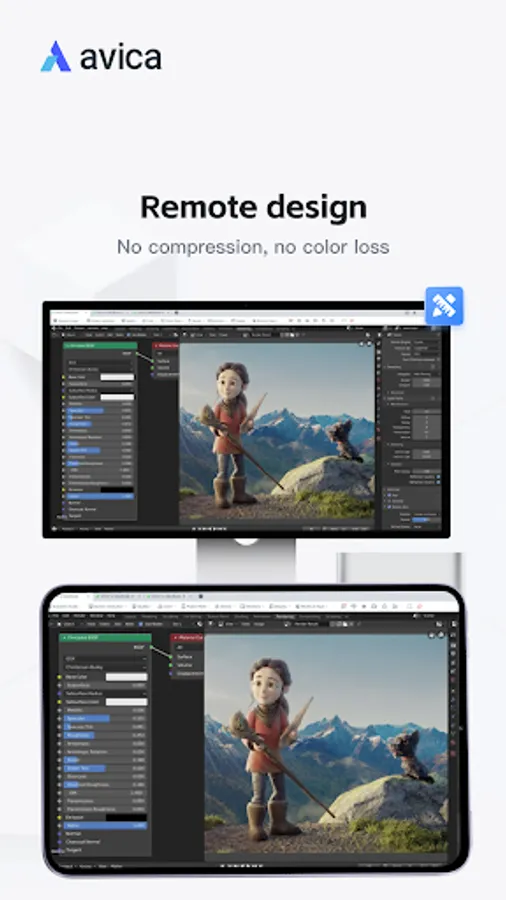
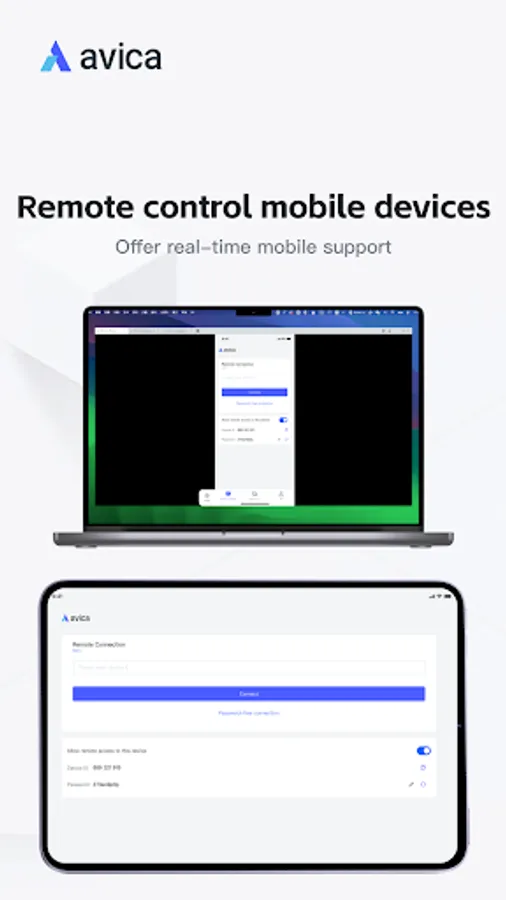
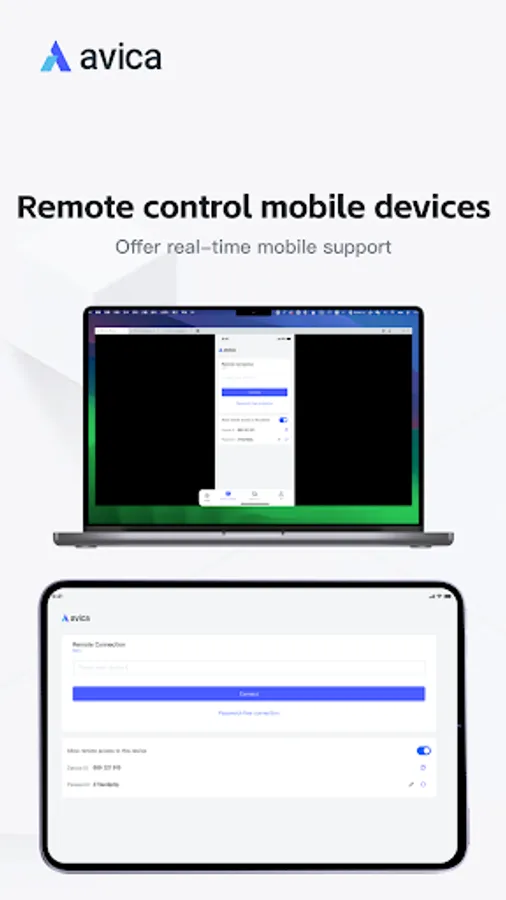
In this remote desktop app, you can establish secure connections to access computers and mobile devices and transfer files between them. Includes multi-monitor support, real-time sound transmission, and remote restart features.
AppRecs review analysis
AppRecs rating 3.1. Trustworthiness 76 out of 100. Review manipulation risk 40 out of 100. Based on a review sample analyzed.
★★★☆☆
3.1
AppRecs Rating
Ratings breakdown
5 star
81%
4 star
0%
3 star
3%
2 star
0%
1 star
16%
What to know
⚠
Pricing complaints
Many low ratings mention paywalls or pricing
⚠
Questionable review patterns
40% review manipulation risk - some review patterns appear unusual
⚠
Review quality concerns
72% of sampled 5-star reviews are very short
About Avica Remote Desktop
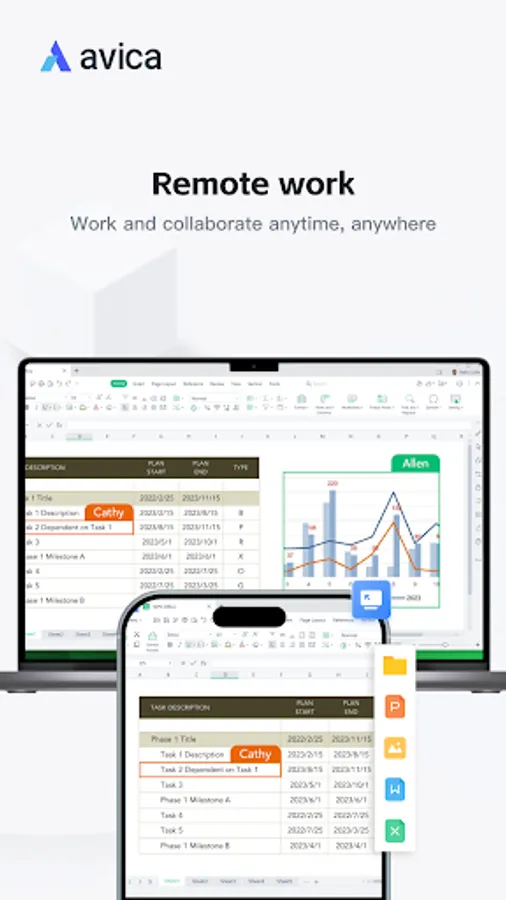
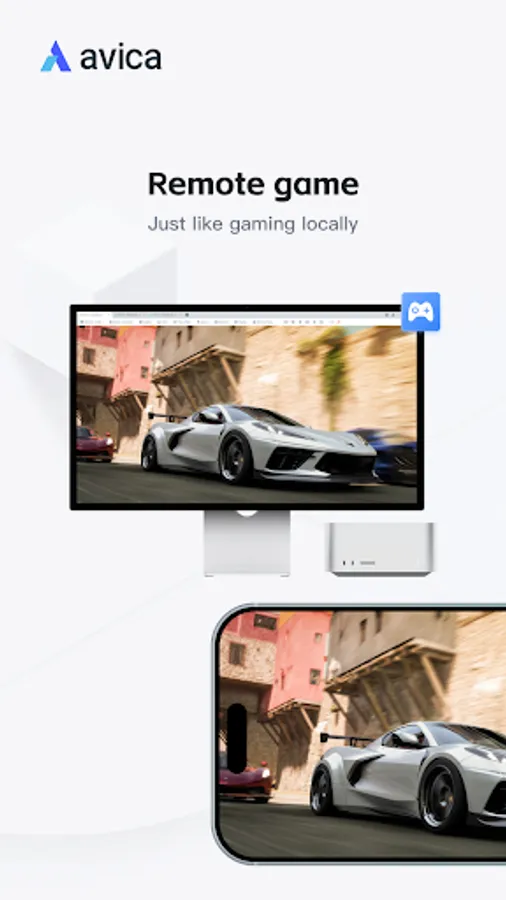
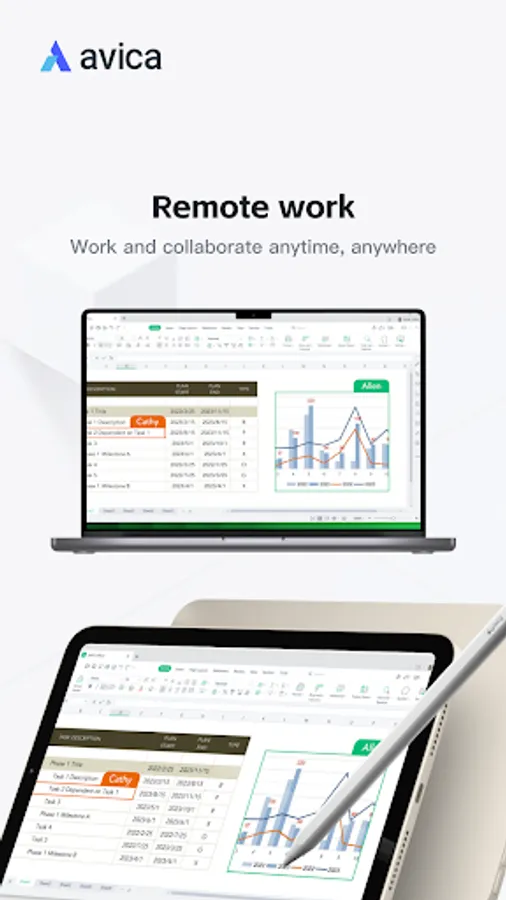
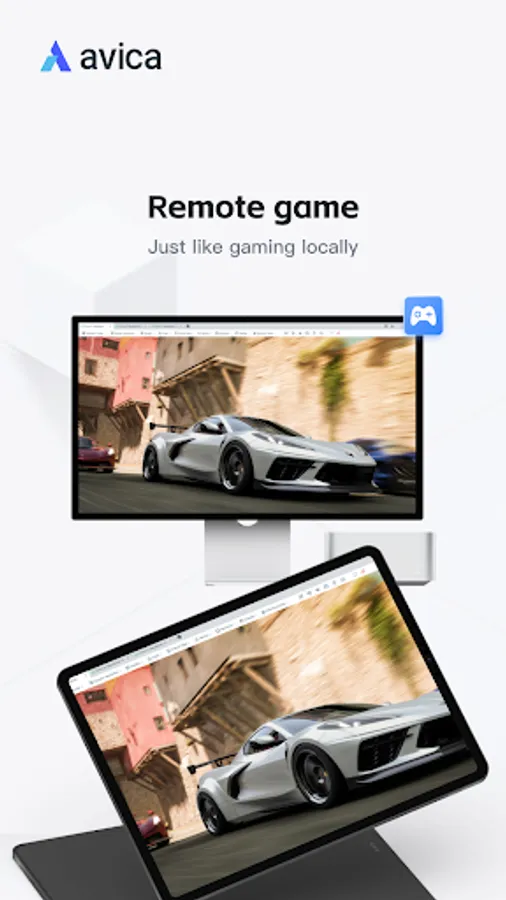
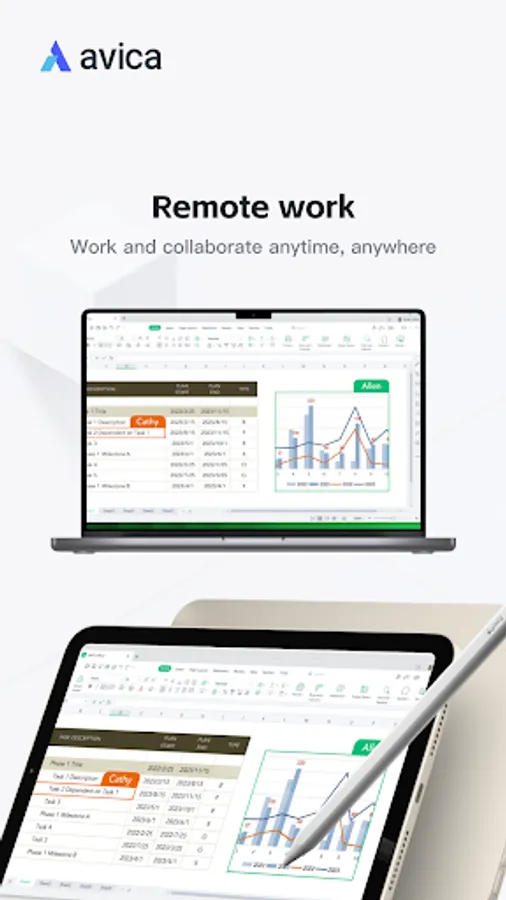
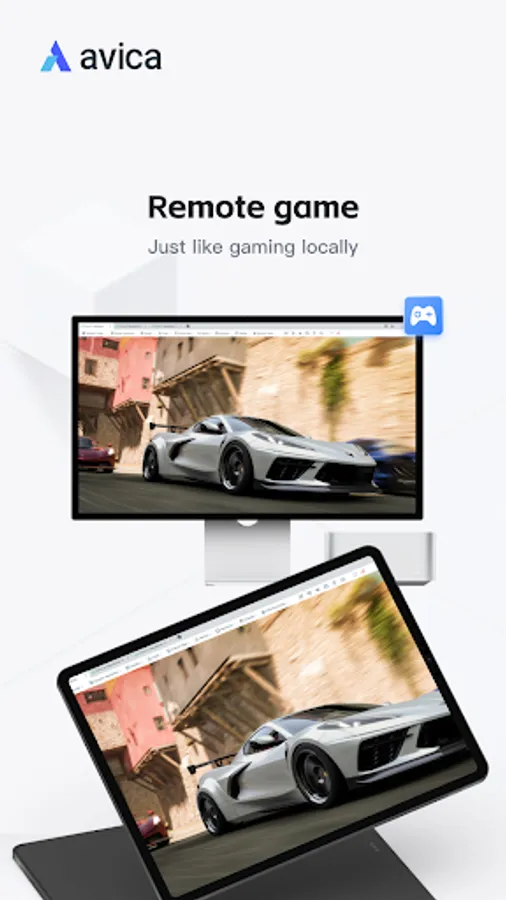
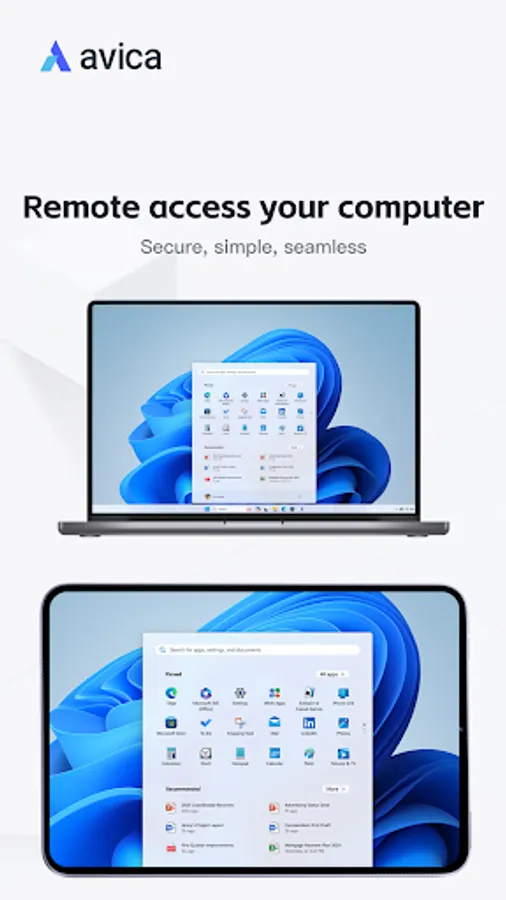
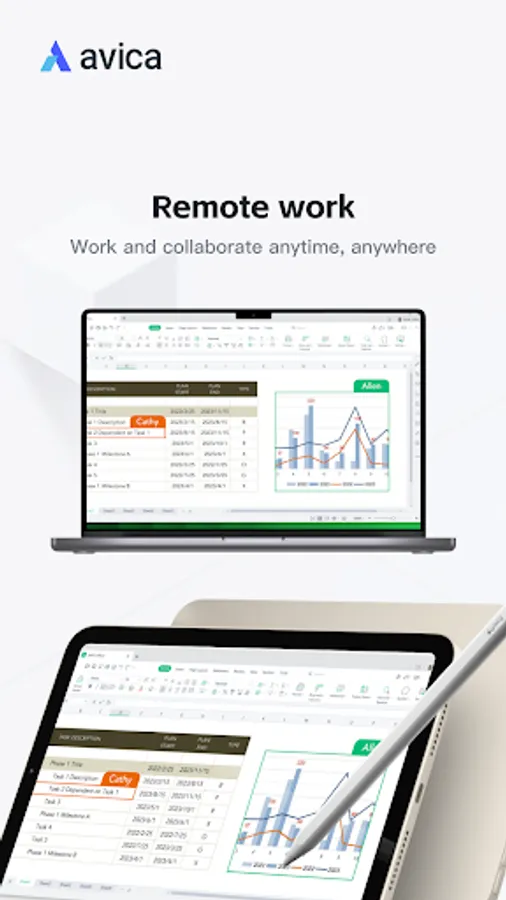
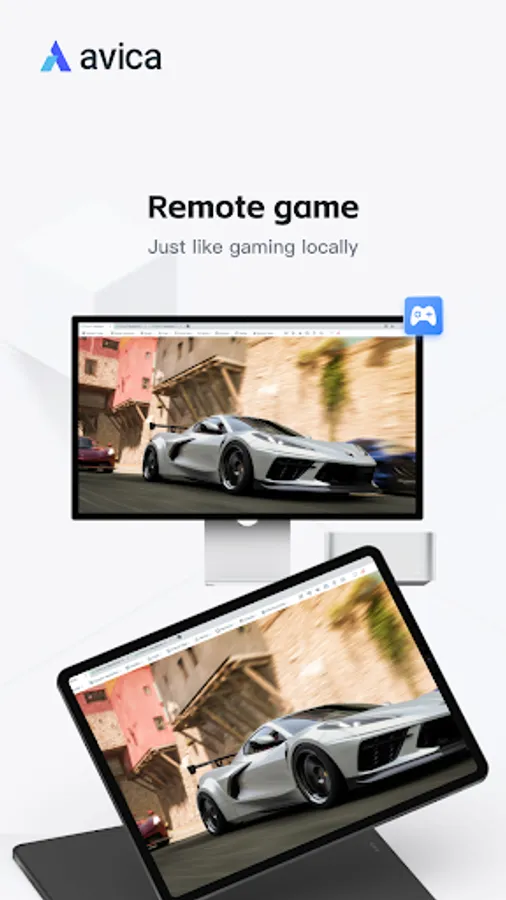
Avica Remote Desktop provides secure, simple, and seamless remote access to computers and mobile devices. It enables remote connections, whether for remote work, remote IT support, remote gaming or distance Learning, making it the ideal solution for your needs.
Why choose Avica Remote Desktop?
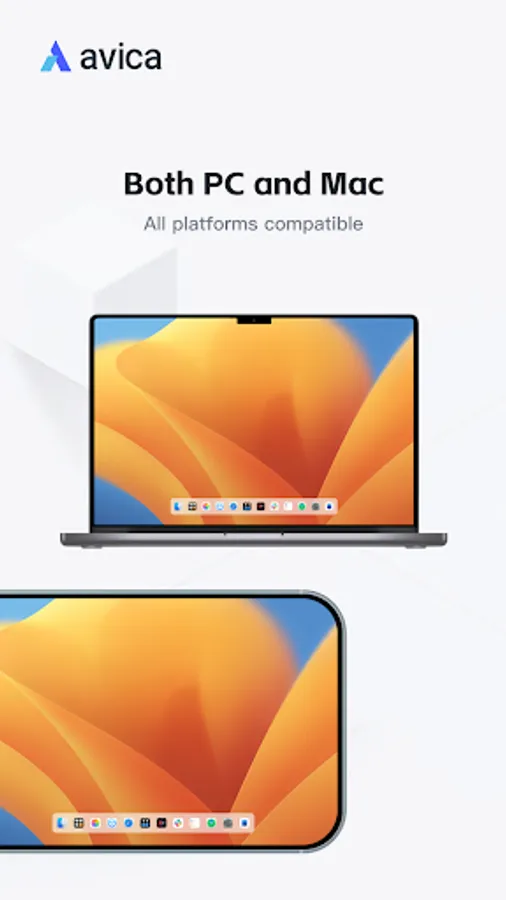
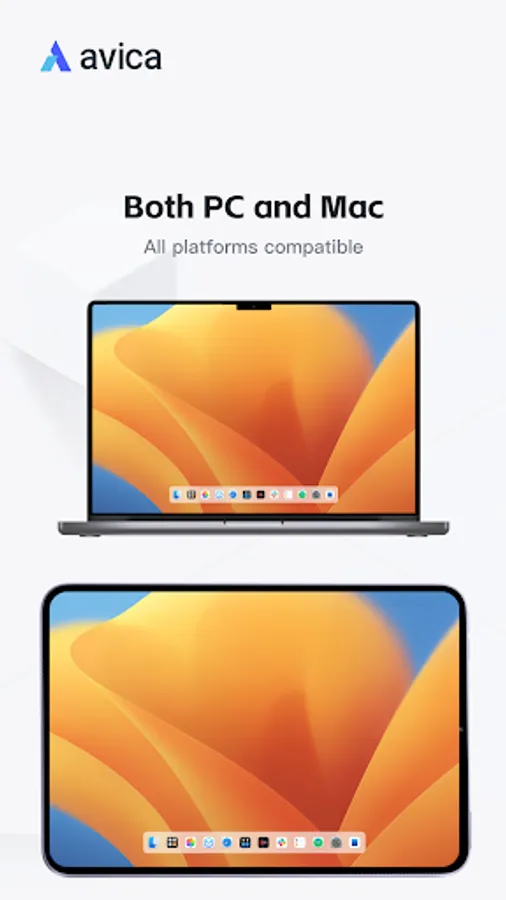
- Cross-platform support: Windows, macOS, Android and iOS
- Industry-acknowledged security: end to end AES-256 encryption
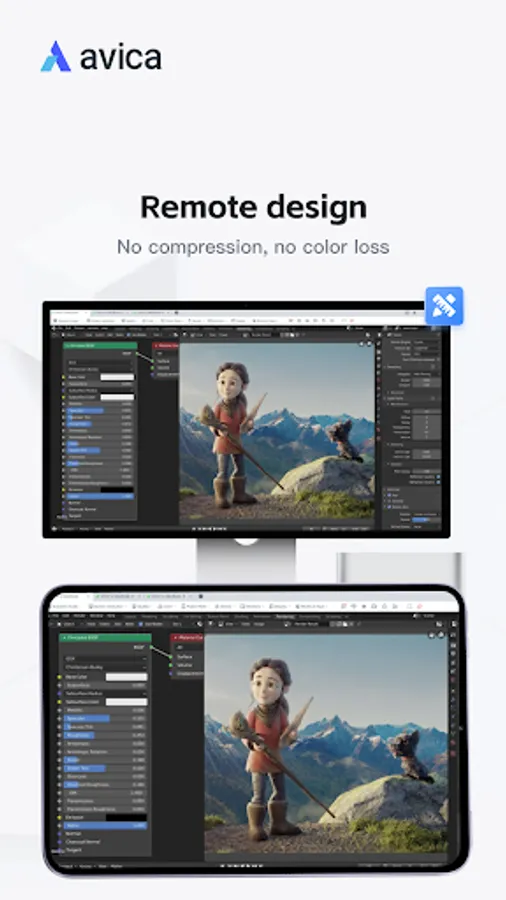
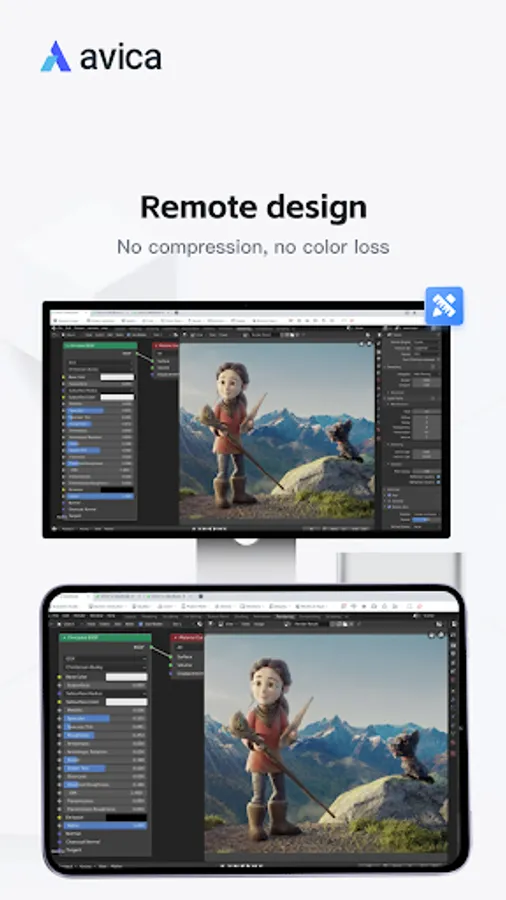
- Ultra HD quality
- Latency as low as 10ms
- High frame rates
- User-friendly interface
- Free to use, with advanced features available via subscription.
Key Features:
- secure and fast file transfer
- Multi-Monitor Support: view and work with multiple monitors from a remote computer on the local mobile device.
- Privacy Mode: block others from seeing and hearing your activities from the host device.
- Game Keyboard: customize game keyboard mapping for remote PC gaming on mobile.
- Control gestures with intuitive touch and pointer modes.
- Sound transmission in real-time
- Remote restart and shutdown
- Remote lock screen
Quick Guide:
1. Install and launch Avica app on both devices.
2. Enter the remote device's Avica ID on the local device.
3. Click the "Connect" button to initiate a remote connection.
Visit Avica's official website https://www.avica.link/ for more information.
Privacy Policy: https://www.avica.link/privacy-policy
Terms of Use: https://www.avica.link/terms-and-conditions
* Note the AccessibilityService API: To use controlled features, you need to turn on Accessibility permissions (AccessibilityService API). Turning on this permission service will allow other devices to remotely view and control the operation of the device (direct control of the phone, no matter where the phone is, you can do whatever you want to do at any time).