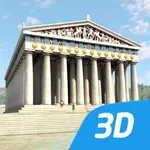
Acropolis educational 3D scene
Mozaik Education
4.7 ★
4K ratings
100,000+
downloads
Free
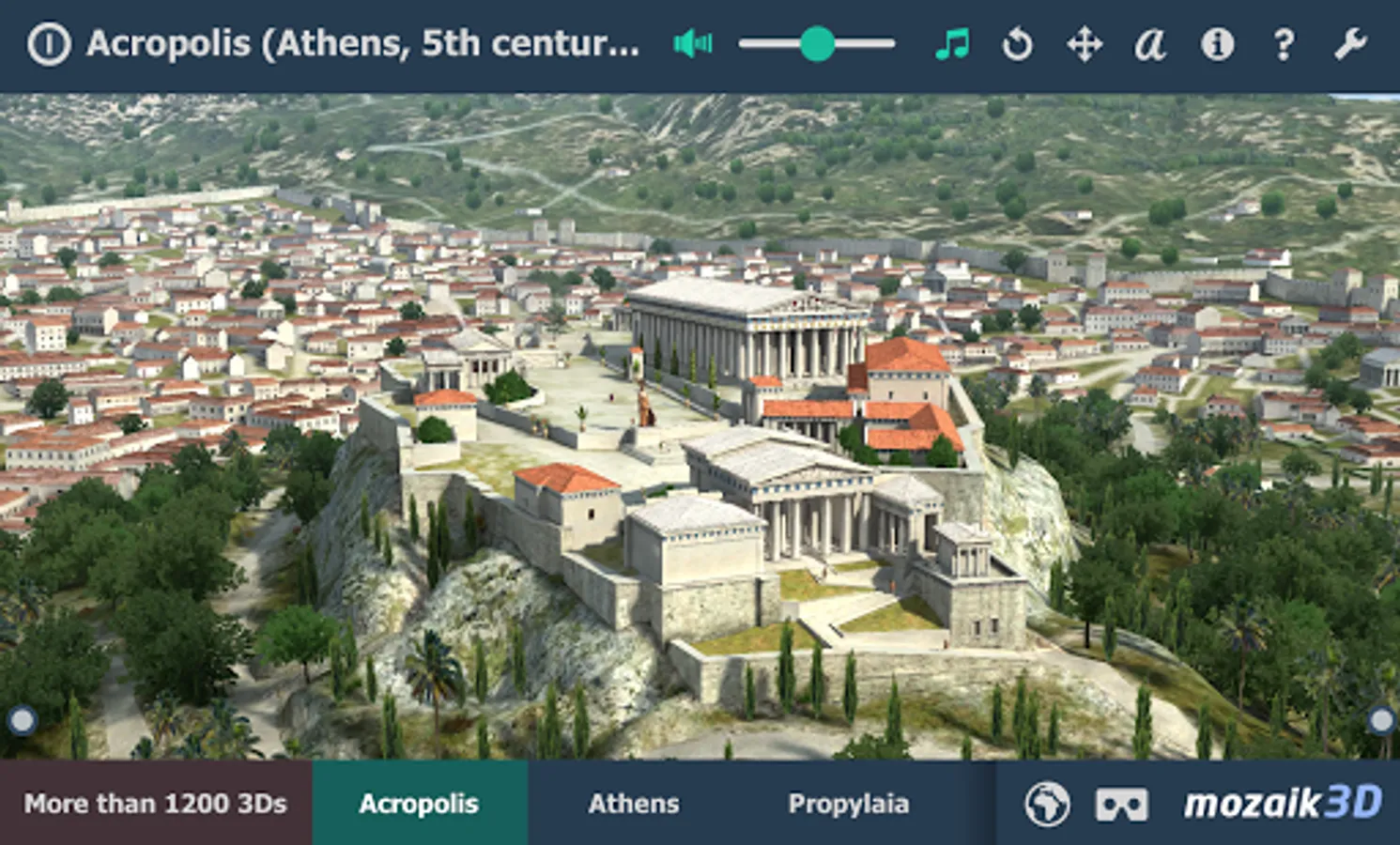
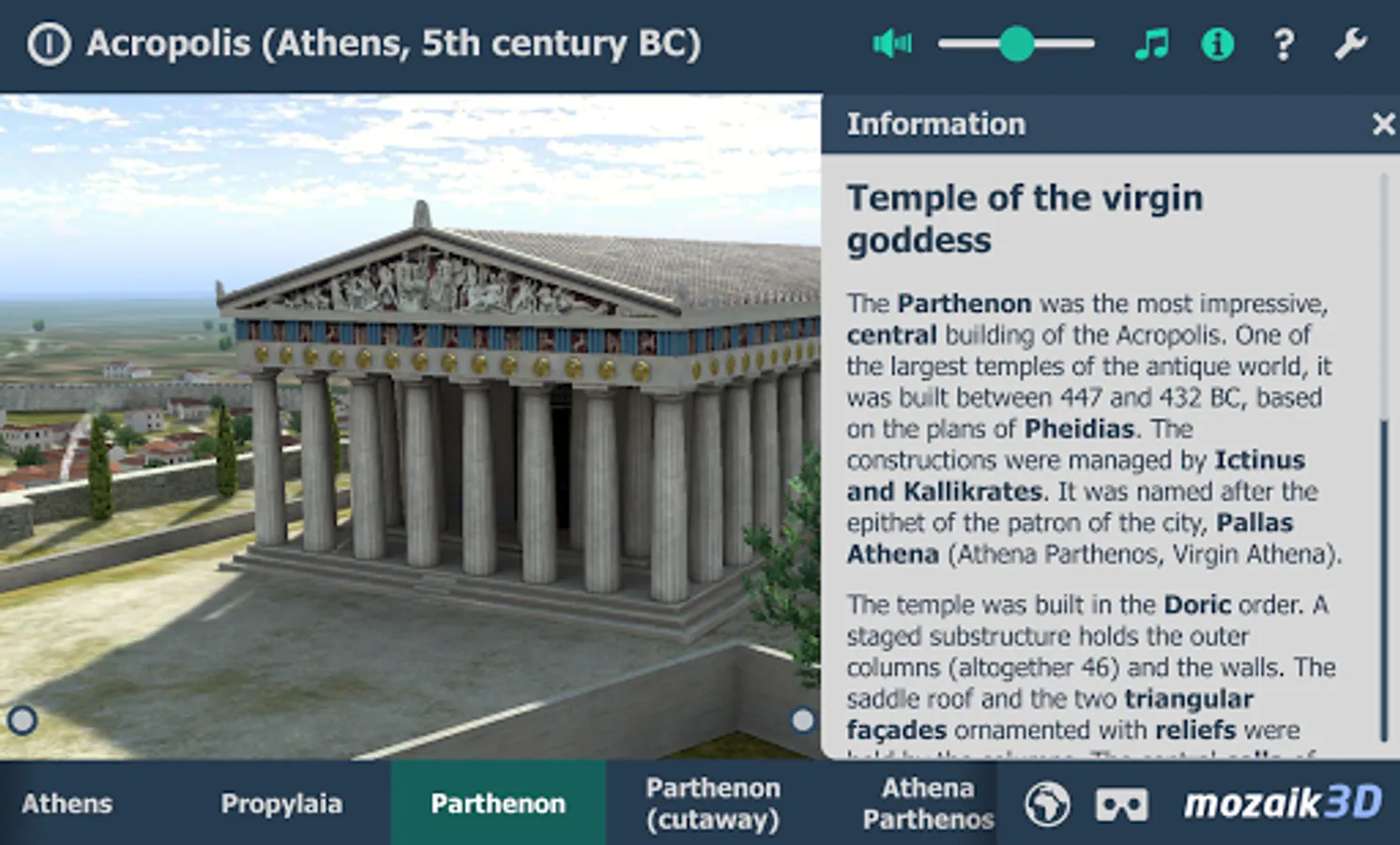
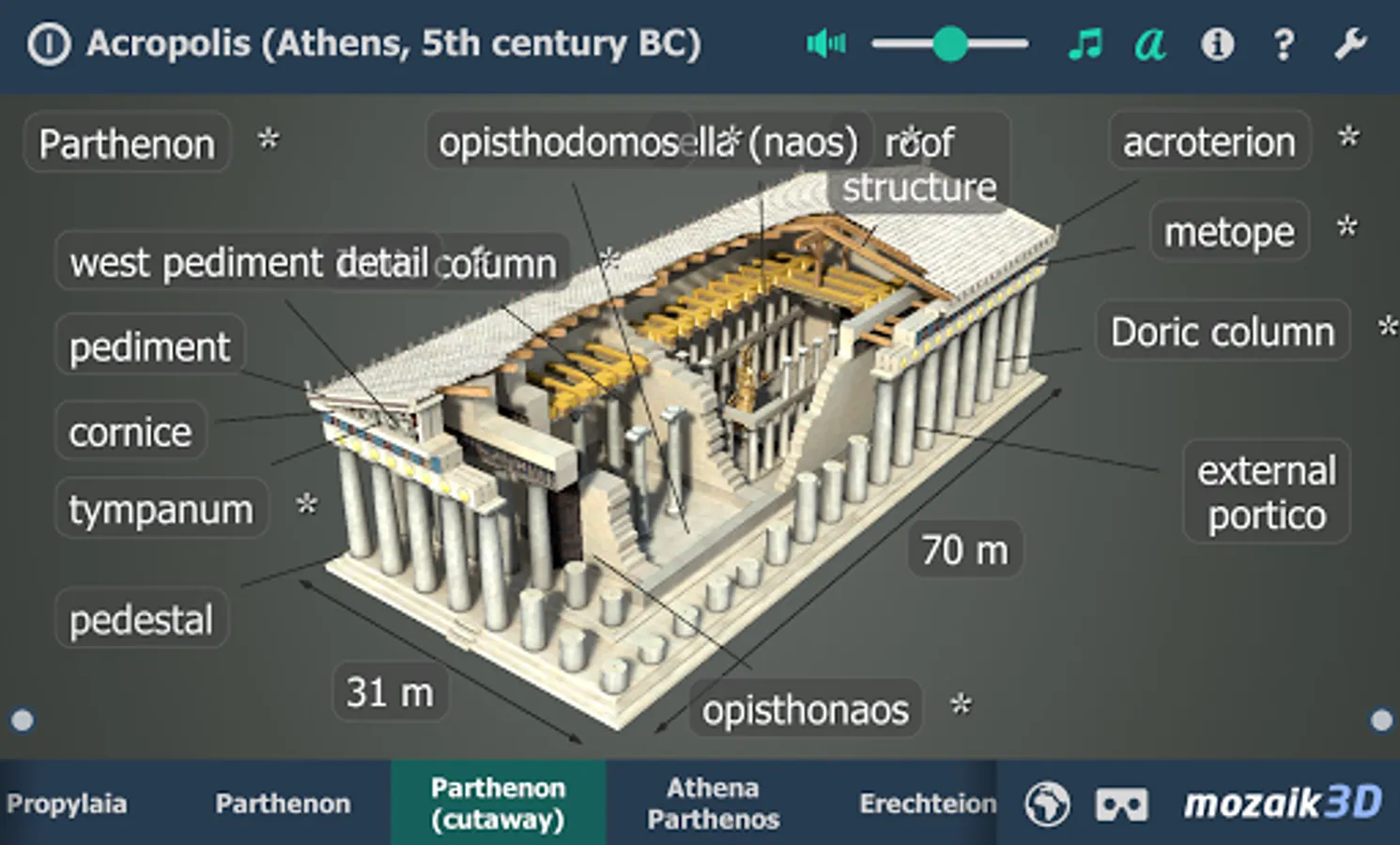
In this educational 3D scene app, you can explore the Acropolis of Athens interactively and learn about its history and architecture. Includes multi-language support and interactive features such as rotation, zooming, narration, and quizzes.
AppRecs review analysis
AppRecs rating 4.7. Trustworthiness 70 out of 100. Review manipulation risk 31 out of 100. Based on a review sample analyzed.
★★★★☆
4.7
AppRecs Rating
Ratings breakdown
5 star
84%
4 star
11%
3 star
0%
2 star
2%
1 star
2%
What to know
✓
Credible reviews
70% trustworthiness score from analyzed reviews
✓
High user satisfaction
84% of sampled ratings are 5 stars
About Acropolis educational 3D scene
The Acropolis of Athens
The world´s most famous citadel, the Acropolis of Athens, was built in Ancient Greece in the 5th century BC.
Explore history with our interactive 3D scenes. Learn about historical sites, great works of architecture or events of the past. With our apps, learning becomes a playful experience.
Our 3D scenes have been designed for students between 8 and 18 years of age but can be interesting for everyone.
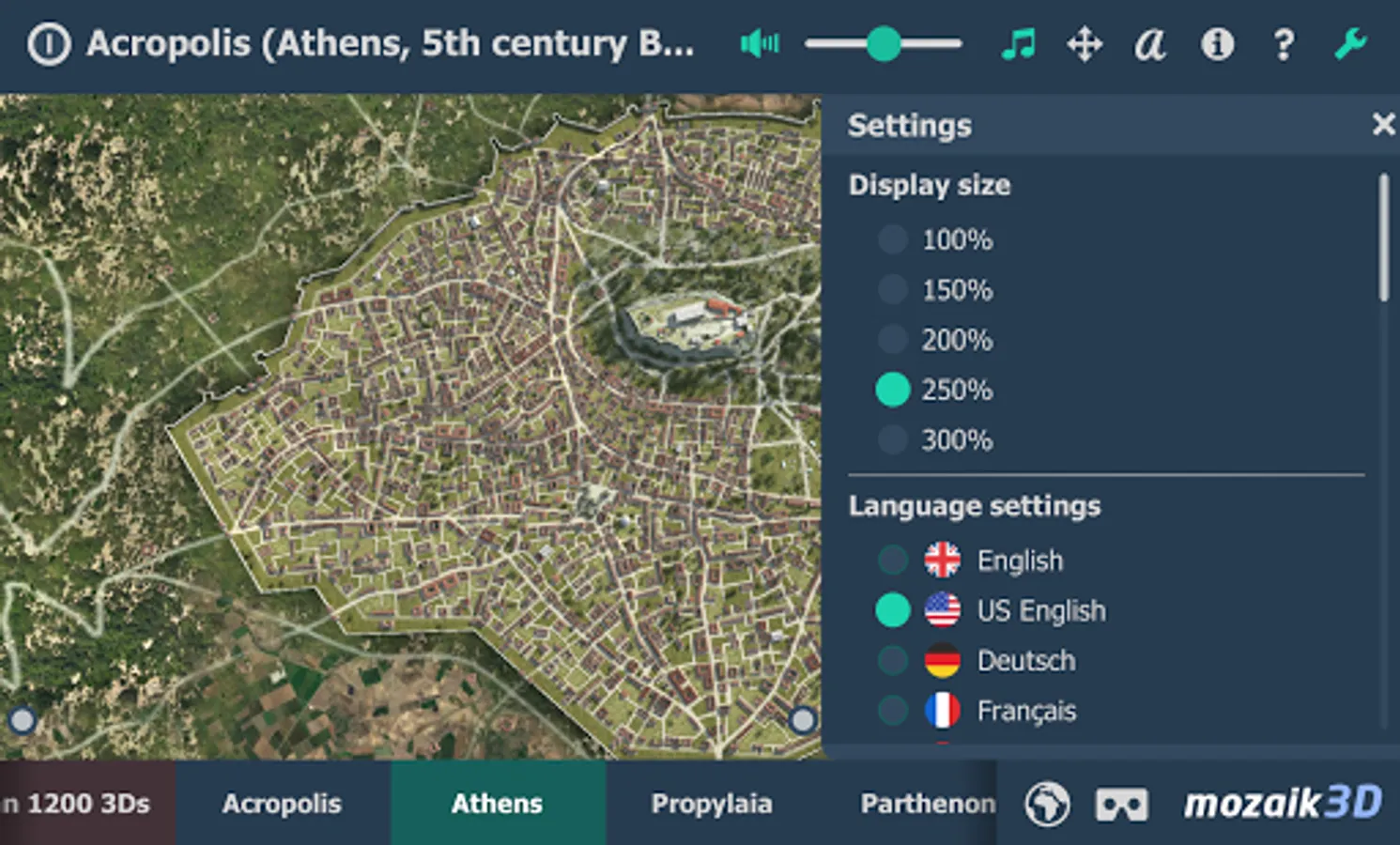
Available languages: English, American English, Deutsch, Français, Español, Русский, العربية, 日本語, 中文, 한국어, Italiano, Português, Svenska, Türkçe, Nederlands, Norsk, Polski, Magyar, ελληνικά
With the mozaik3D App, available in the Google Play store, you can access more than 1200 similar 3D scenes.
Mozaik Interactive 3D
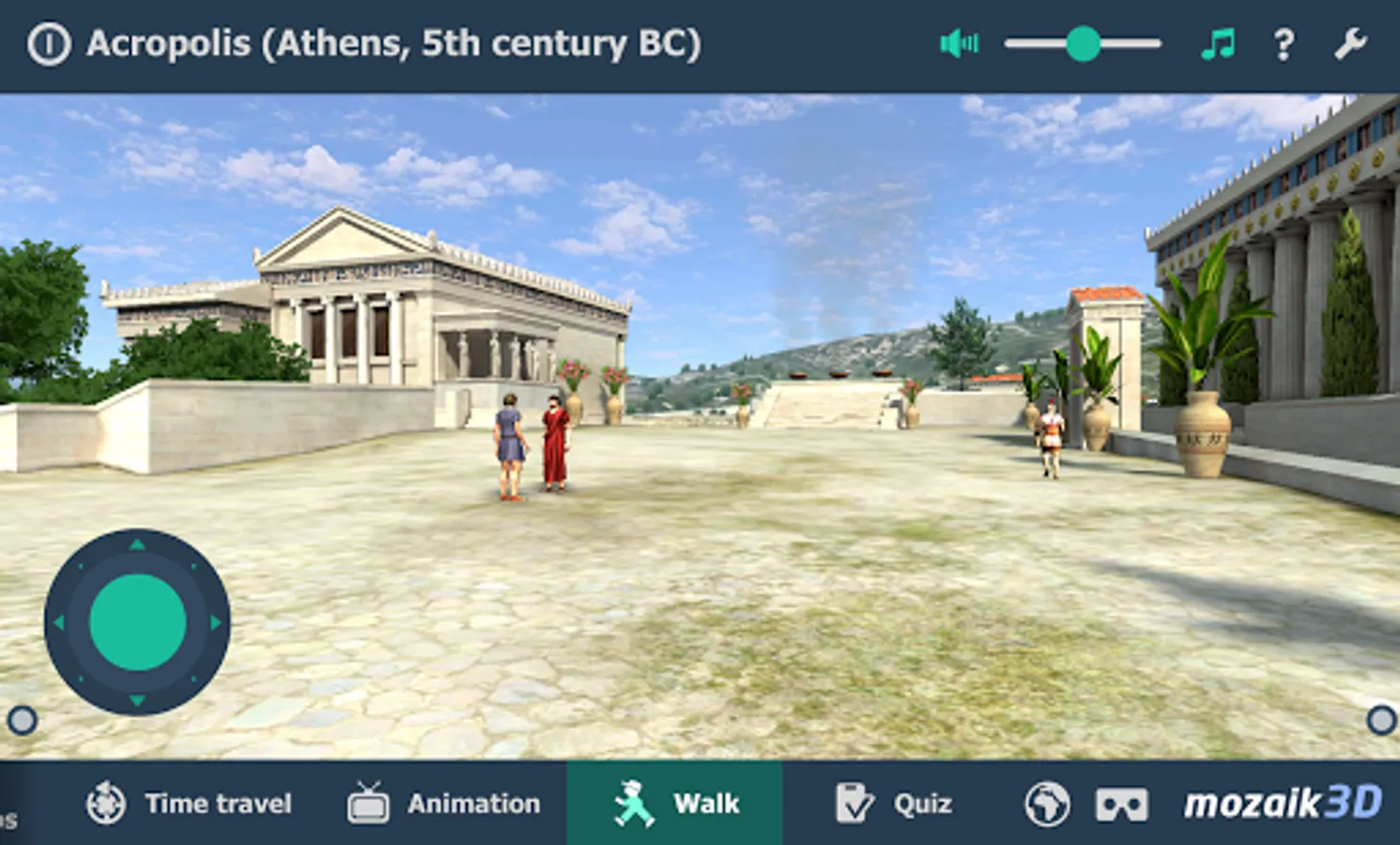
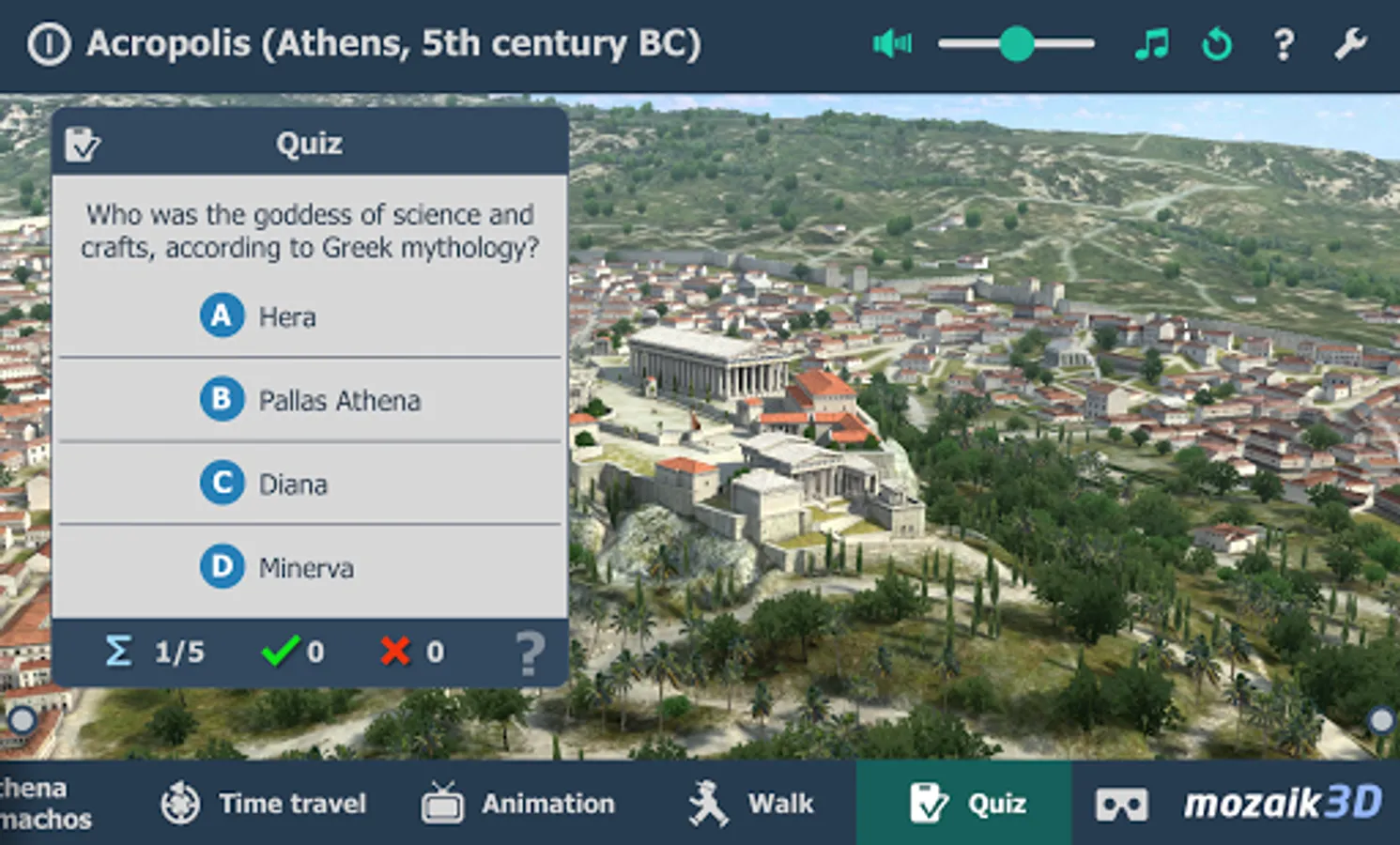
Our fully interactive scenes can be rotated, enlarged or viewed from pre-set angles. With the predefined views, you can easily navigate through the complex scenes. Some of the 3D scenes contain a Walk mode, enabling you to explore the scene yourself. Most of our 3D scenes include narrations and built-in animations. They also contain captions, entertaining animated quizzes and other visual elements. The 3D scenes are available in several languages, which also offers an opportunity to learn and practice foreign languages.
Usage and navigation
Rotate the scene by dragging your finger.
Zoom the scene in or out by pinching with your fingers.
Pan the view by dragging with three fingers.
Tap the buttons at the bottom to switch between predefined views.
If available in a specific view, use the virtual joystick to walk around.
You can change the language and set other functions in the context menu.
The context menu can be accessed by touching the bottom corners.
Activate VR mode by pressing the VR goggles icon in the bottom right corner.
In VR mode, tilt your head to the right or left to display the navigation panel. Look down to turn movement on or off during Walk.
The world´s most famous citadel, the Acropolis of Athens, was built in Ancient Greece in the 5th century BC.
Explore history with our interactive 3D scenes. Learn about historical sites, great works of architecture or events of the past. With our apps, learning becomes a playful experience.
Our 3D scenes have been designed for students between 8 and 18 years of age but can be interesting for everyone.
Available languages: English, American English, Deutsch, Français, Español, Русский, العربية, 日本語, 中文, 한국어, Italiano, Português, Svenska, Türkçe, Nederlands, Norsk, Polski, Magyar, ελληνικά
With the mozaik3D App, available in the Google Play store, you can access more than 1200 similar 3D scenes.
Mozaik Interactive 3D
Our fully interactive scenes can be rotated, enlarged or viewed from pre-set angles. With the predefined views, you can easily navigate through the complex scenes. Some of the 3D scenes contain a Walk mode, enabling you to explore the scene yourself. Most of our 3D scenes include narrations and built-in animations. They also contain captions, entertaining animated quizzes and other visual elements. The 3D scenes are available in several languages, which also offers an opportunity to learn and practice foreign languages.
Usage and navigation
Rotate the scene by dragging your finger.
Zoom the scene in or out by pinching with your fingers.
Pan the view by dragging with three fingers.
Tap the buttons at the bottom to switch between predefined views.
If available in a specific view, use the virtual joystick to walk around.
You can change the language and set other functions in the context menu.
The context menu can be accessed by touching the bottom corners.
Activate VR mode by pressing the VR goggles icon in the bottom right corner.
In VR mode, tilt your head to the right or left to display the navigation panel. Look down to turn movement on or off during Walk.