In this app, you can remotely activate your Canon EOS DSLR's shutter using a USB connection or Wi-Fi. Includes support for auto-focus, bulb shots, and continuous shooting.
AppRecs review analysis
AppRecs rating 3.8. Trustworthiness 53 out of 100. Review manipulation risk 36 out of 100. Based on a review sample analyzed.
★★★☆☆
3.8
AppRecs Rating
Ratings breakdown
5 star
59%
4 star
0%
3 star
18%
2 star
0%
1 star
23%
What to know
✓
Authentic reviews
Natural distribution, no red flags
About Remote Release
Remote Release allows you to "remote release" your Canon EOS DSLR from your Android device with only a USB cable.
Wi-Fi support is also present, if your camera supports Wi-Fi or you are using a go-between like the MR3040 - see further details on the DSLR Controller website ( http://dslrcontroller.com/ ) on how to setup the Wi-Fi connection.
*** PLEASE READ THE ENTIRE DESCRIPTION ***
*** IF YOUR DEVICE IS NOT COMPATIBLE THIS IS NOT MY OR THE SOFTWARES FAULT - YOUR PHONE IS MISSING NEEDED SOFTWARE OR HARDWARE ! ***
Remote releasing is using a remote control to activate the shutter of the camera. This is to prevent shaking the camera, and is often used with bulb shots and/or tripods.
This app is the little (free) brother of DSLR Controller; see http://dslrcontroller.com/ and https://play.google.com/store/apps/details?id=eu.chainfire.dslrcontroller
Remote Release also has a discussion thread on XDA-Developers.com:
http://forum.xda-developers.com/showthread.php?t=1369684
---- Features ----
- Activate the camera's shutter button from your phone over USB, just like using a remote release cable
- Enable/Disable Auto-Focus *
- Support for bulb shots (hold shutter button) *
- Support for continuous shooting (hold shutter button) *
* Depends on camera model. Requires a DryOS based camera. See DSLR Controller's device compatibility page ( http://dslrcontroller.com/devices.php )
---- Requirements ----
- An Android device with an ARMv7-A or newer CPU architecture (virtually all 1ghz+ devices)
- Supported Canon EOS DSLR
When connecting over USB:
- Not rooted: Android 3.1 or higher with USB host kernel+API support **
- Rooted: Android 2.3.1 or higher with USB host kernel support **
- The correct USB adapter, if applicable
** USB host kernel support can usually be determined by connecting a USB stick to your device, and seeing if the device recognizes it.
---- Devices ----
Please see DSLR Controller's supported devices page ( http://dslrcontroller.com/devices.php ) for device compatibility information.
----- Usage -----
-- Getting started --
- Install the application.
- Connect your camera to the phone/tablet, and turn it on. Half-press the shutter button if it was already on.
- If a popup comes up that offers to open Remote Release, press it, and move on to "Operation" below.
- If a popup does not come up, manually start Remote Release. A Superuser popup should appear, click allow. If this took more than a few seconds, Remote Release will complain it cannot find a camera, regardless if you have one connected or not. Exit the app, half-press the shutter button on the camera, then restart the app.
- If a popup appears that tells you your device is not compatible, this is the end of the line for you.
-- Operation --
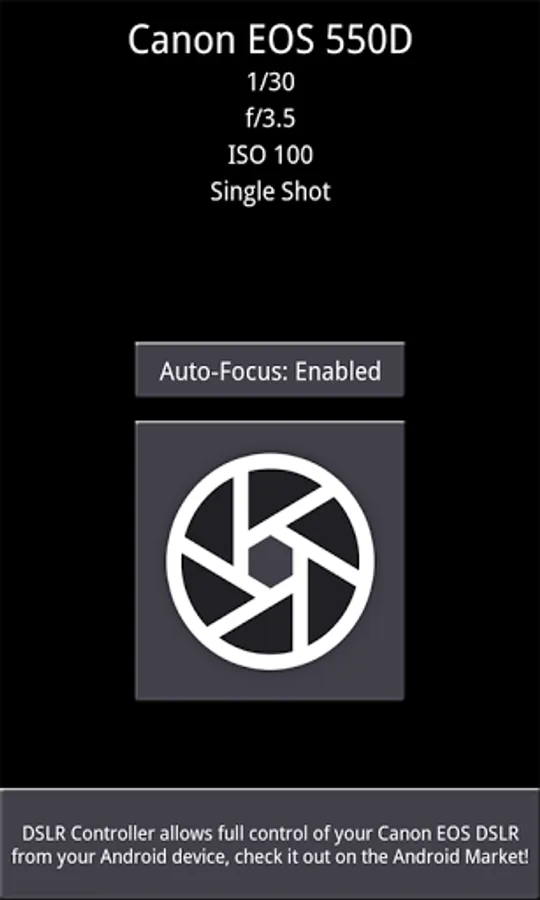
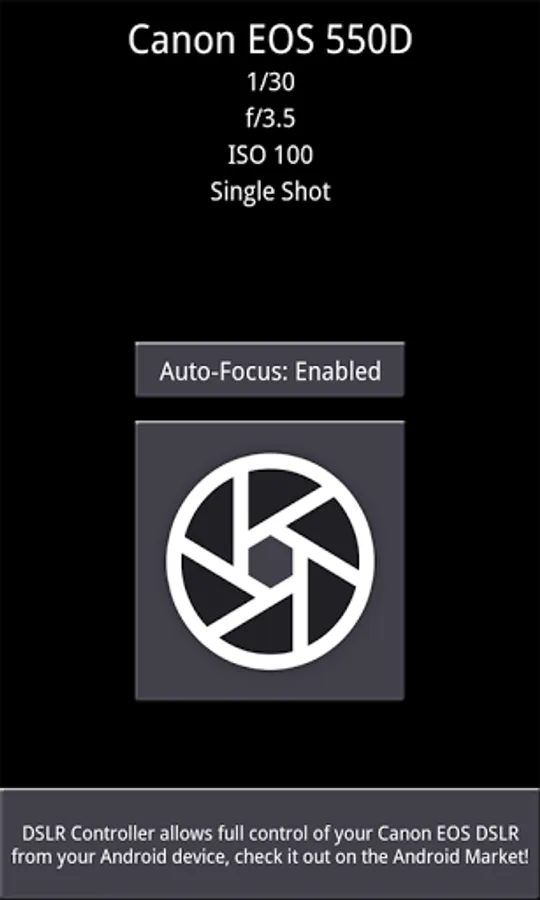
After you have connected your camera and started the app, the app will show you the following:
- Camera model
- Current shutter setting (depending on camera mode)
- Current aperture setting (depending on camera mode)
- Current ISO setting (depending on camera mode)
- Current drive mode setting
Below that you will see three buttons:
- Auto-Focus button
- Shutter button
- Button to open DSLR Controller in the Market
If your lens is set to Auto-Focus and you are using a DryOS based camera, you can use the Auto-Focus button to select if focusing is triggered by pressing the shutter button. By default it is, but it is not always desired. If your lens is set to Manual-Focus, this setting has no effect.
Pressing the shutter button will take a picture on your camera. If the camera is set to bulb mode or to continuous shooting, press-and-hold the shutter button - the bulb/continuous capture will stop once you remove your finger from the screen.
Wi-Fi support is also present, if your camera supports Wi-Fi or you are using a go-between like the MR3040 - see further details on the DSLR Controller website ( http://dslrcontroller.com/ ) on how to setup the Wi-Fi connection.
*** PLEASE READ THE ENTIRE DESCRIPTION ***
*** IF YOUR DEVICE IS NOT COMPATIBLE THIS IS NOT MY OR THE SOFTWARES FAULT - YOUR PHONE IS MISSING NEEDED SOFTWARE OR HARDWARE ! ***
Remote releasing is using a remote control to activate the shutter of the camera. This is to prevent shaking the camera, and is often used with bulb shots and/or tripods.
This app is the little (free) brother of DSLR Controller; see http://dslrcontroller.com/ and https://play.google.com/store/apps/details?id=eu.chainfire.dslrcontroller
Remote Release also has a discussion thread on XDA-Developers.com:
http://forum.xda-developers.com/showthread.php?t=1369684
---- Features ----
- Activate the camera's shutter button from your phone over USB, just like using a remote release cable
- Enable/Disable Auto-Focus *
- Support for bulb shots (hold shutter button) *
- Support for continuous shooting (hold shutter button) *
* Depends on camera model. Requires a DryOS based camera. See DSLR Controller's device compatibility page ( http://dslrcontroller.com/devices.php )
---- Requirements ----
- An Android device with an ARMv7-A or newer CPU architecture (virtually all 1ghz+ devices)
- Supported Canon EOS DSLR
When connecting over USB:
- Not rooted: Android 3.1 or higher with USB host kernel+API support **
- Rooted: Android 2.3.1 or higher with USB host kernel support **
- The correct USB adapter, if applicable
** USB host kernel support can usually be determined by connecting a USB stick to your device, and seeing if the device recognizes it.
---- Devices ----
Please see DSLR Controller's supported devices page ( http://dslrcontroller.com/devices.php ) for device compatibility information.
----- Usage -----
-- Getting started --
- Install the application.
- Connect your camera to the phone/tablet, and turn it on. Half-press the shutter button if it was already on.
- If a popup comes up that offers to open Remote Release, press it, and move on to "Operation" below.
- If a popup does not come up, manually start Remote Release. A Superuser popup should appear, click allow. If this took more than a few seconds, Remote Release will complain it cannot find a camera, regardless if you have one connected or not. Exit the app, half-press the shutter button on the camera, then restart the app.
- If a popup appears that tells you your device is not compatible, this is the end of the line for you.
-- Operation --
After you have connected your camera and started the app, the app will show you the following:
- Camera model
- Current shutter setting (depending on camera mode)
- Current aperture setting (depending on camera mode)
- Current ISO setting (depending on camera mode)
- Current drive mode setting
Below that you will see three buttons:
- Auto-Focus button
- Shutter button
- Button to open DSLR Controller in the Market
If your lens is set to Auto-Focus and you are using a DryOS based camera, you can use the Auto-Focus button to select if focusing is triggered by pressing the shutter button. By default it is, but it is not always desired. If your lens is set to Manual-Focus, this setting has no effect.
Pressing the shutter button will take a picture on your camera. If the camera is set to bulb mode or to continuous shooting, press-and-hold the shutter button - the bulb/continuous capture will stop once you remove your finger from the screen.
Remote Release Screenshots
Tap to Rate:
Reviews for Remote Release
kaspermord
1/14/2023
I tried using it with an Olympus camera even though it is not compatible with that brand, and the app recognized the exact model. Is there a way to use this with my E-PL6 regardless? Activating the shutter does not work, but the camera model is being displayed at the top. Thank you!
Pix2reel
4/19/2022
Camera freezes
![[root] Recently icon](https://apprecs.org/gp/img/icons/webp/150/eu.chainfire.recently/WIiQpeMl9x_2OGF7c8bhAVTaVmVslyjGJO78daK7vxM-icon)
![[root] StickMount Pro icon](https://apprecs.org/gp/img/icons/webp/150/eu.chainfire.stickmount.pro/4xyUFDz7Tj_hXm-dx30Y6uWuvp00rCOLWurhO0xuAls-icon)
![[root] FlashFire icon](https://apprecs.org/gp/img/icons/webp/150/eu.chainfire.flash/q0BNMqutiFvA5MrZA0pGFIP7j1vX6YF_ZjJ4hOuMmW4-icon)

![[root] LiveBoot icon](https://apprecs.org/gp/img/icons/webp/150/eu.chainfire.liveboot/C15QGYiD0x08e-P1m-dWCCYrPBtav1w4DEW_1tutZfg-icon)