Swarachakra Tamil Keyboard
Swarachakra Team, IDC, IIT Bombay
4.6 ★
35K ratings
1,000,000+
downloads
Free
In this Tamil keyboard app, you can input Tamil characters using a chakra-based layout and select combinations by sliding your finger. Includes character prediction, numeral input, and language switching options.
AppRecs review analysis
AppRecs rating 4.6. Trustworthiness 69 out of 100. Review manipulation risk 42 out of 100. Based on a review sample analyzed.
★★★★☆
4.6
AppRecs Rating
Ratings breakdown
5 star
74%
4 star
22%
3 star
2%
2 star
1%
1 star
2%
What to know
⚠
Questionable review patterns
42% review manipulation risk - some review patterns appear unusual
⚠
Rating authenticity concerns
High rating concentration (74% 5-star) in sampled ratings
⚠
Review quality concerns
78% of sampled 5-star reviews are very short
About Swarachakra Tamil Keyboard
“அகர முதல எழுத்தெல்லாம் ஆதி பகவன் முதற்றே உலகு” If your device can display this sentence in Tamil perfectly, then your device supports Tamil and Swarachakra should also work well. If you do not see any text, or if some of the words are incorrect, Swarachakra may not work well.
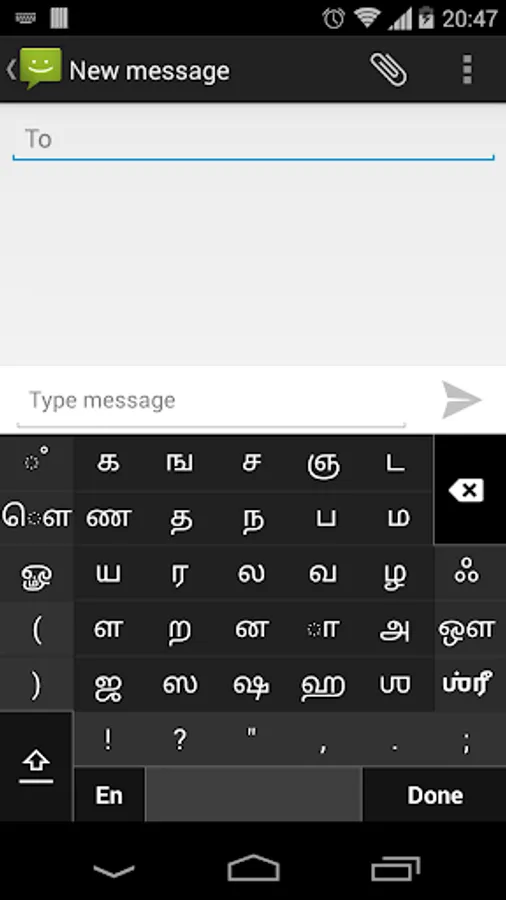
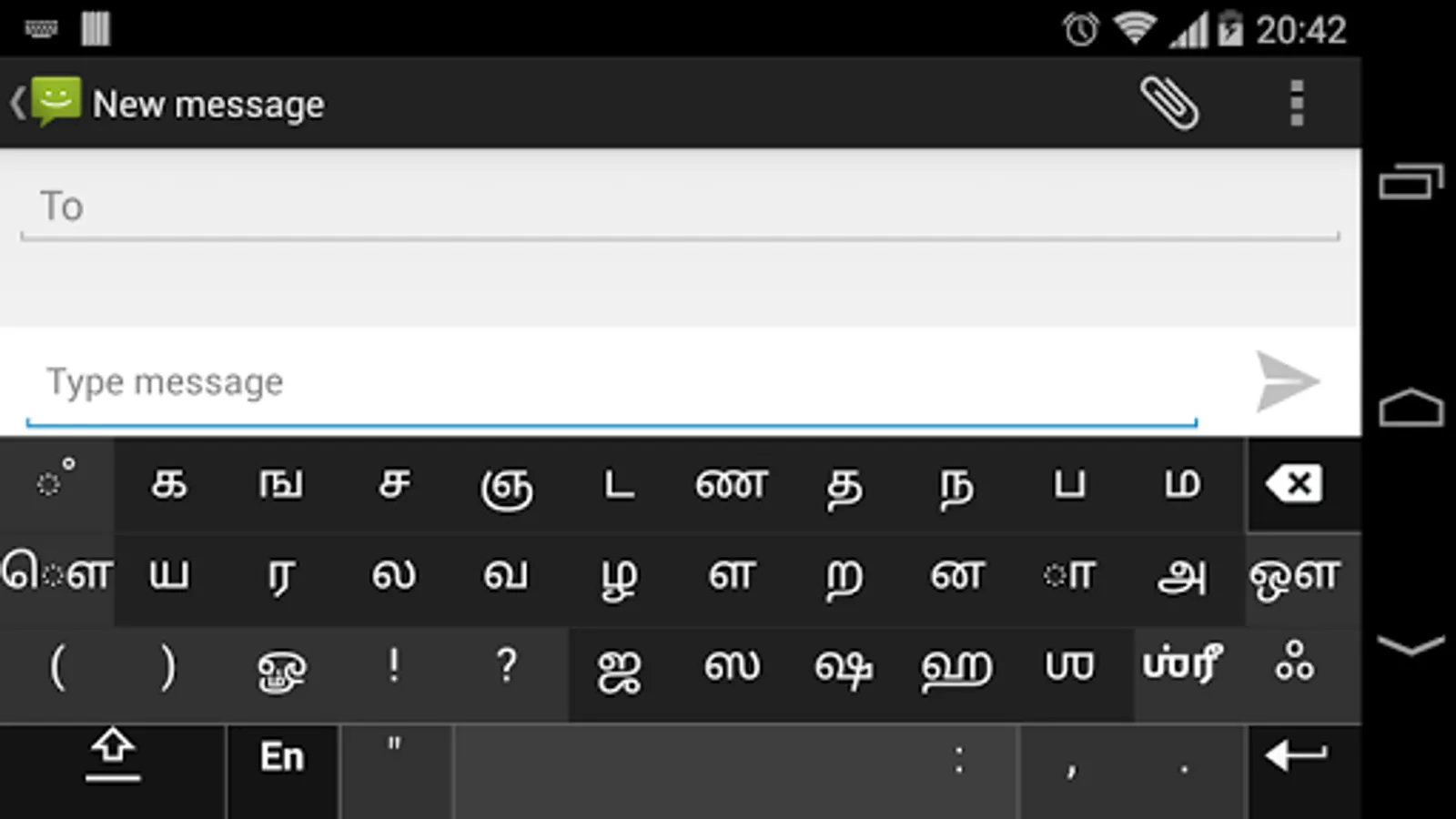
Swarachakra Tamil (ஸ்வரச்சக்ரா தமிழ்) is a touch-screen keyboard for inputting text in Tamil. (Swarachakra is also available in Telugu, Malayalam, Kannada, Hindi, Marathi, Gujarati, Odia, Punjabi, Bengali and Konkani.) Swarachakra uses a logically ordered design based on the structure of Tamil script. Swarachakra displays the consonants sequenced according to the logical structure of Tamil script, phonetically grouped and arranged in a grid similar to those found in most school textbooks.
Typing with Swarachakra
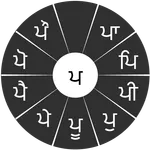
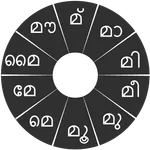
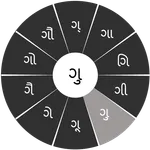
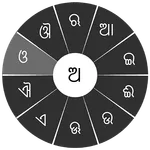
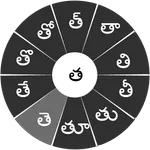
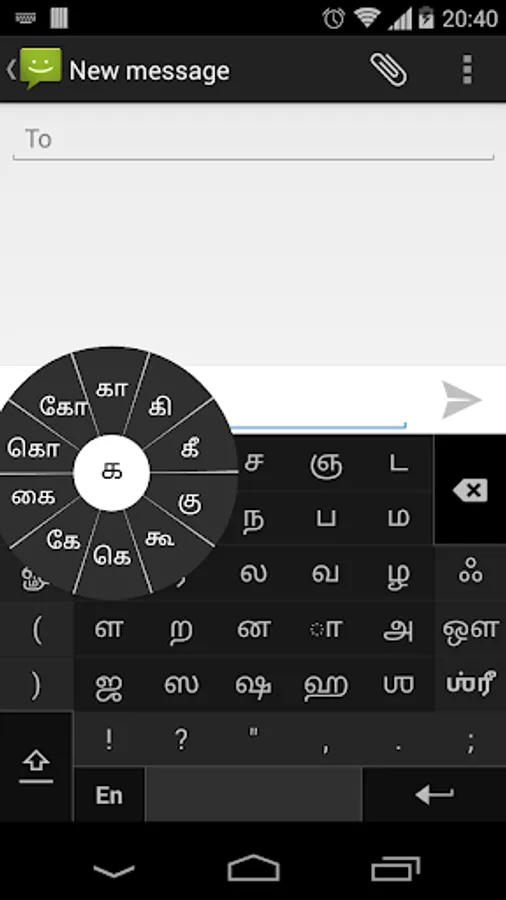
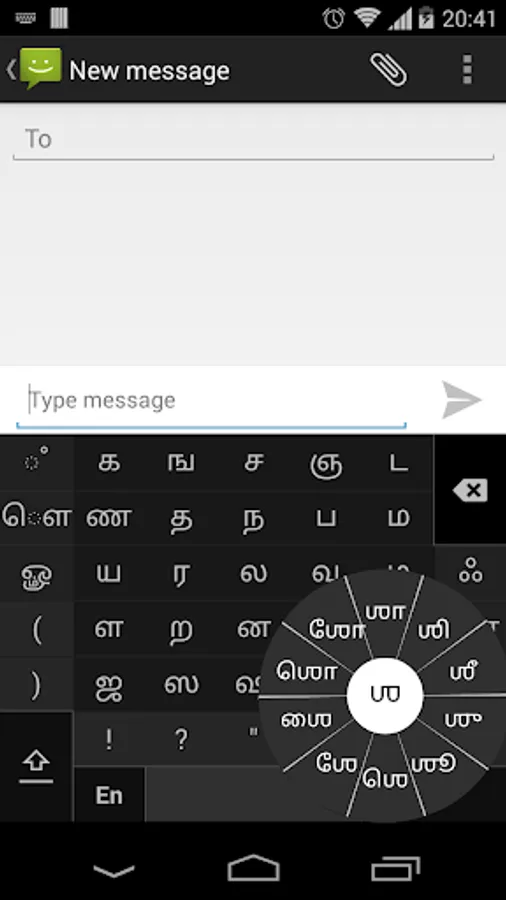
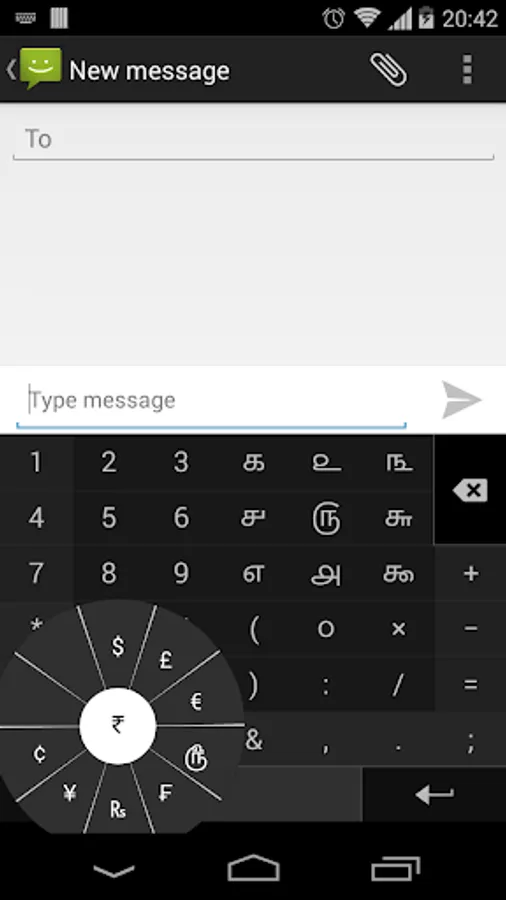
In Tamil, we frequently need to type a combination of a consonant (க) and a matra (ி) like க + ி = கி. When you touch a consonant, a chakra with combination of consonants and 10 frequent matras pops up (கா, கி, கீ, கு, கூ, கெ, கே, கை...). The chakra gives a preview of the possible character combinations. To select a combination, you slide the stylus or finger towards it.
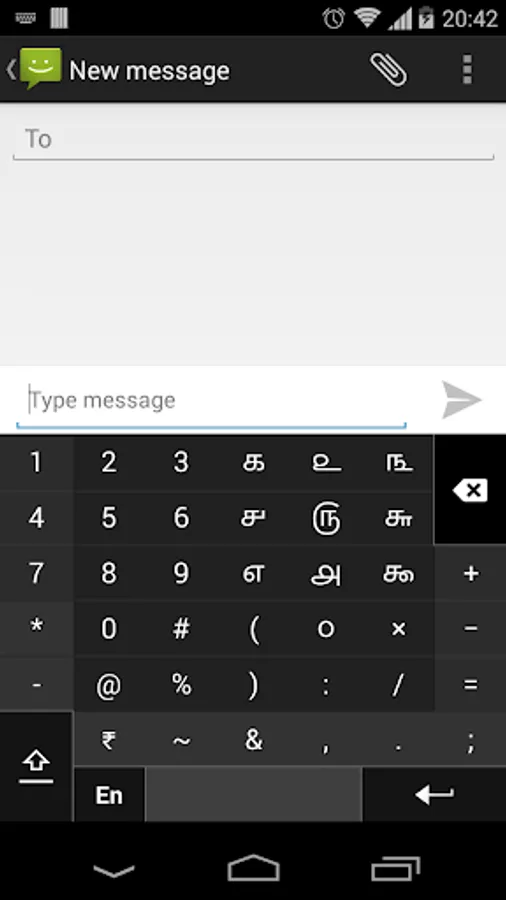
Complete vowels (அ, ஆ, இ, ஈ, உ, ஊ, எ, ஏ, ஐ...) appear in a separate chakra on the bottom right. The less used vowels and matras are next to it (ஔ, ௌ, ஃ). Numerals, symbols and rarely used characters appear on a shift. You could also switch to the QWERTY keypad temporarily to input English characters.
Installing Swarachakra
First, install Swarachakra Tamil by clicking the “Install” button above.
Next, you need to “enable” the keyboard. To enable, open “Settings”, select “Language and Input” and check the box in front of ஸ்வரச்சக்ரா தமிழ் (Swarachakra Tamil) in the “Keyboard and input methods” section.
Finally, click on the “Default” option in the “Keyboard and input methods” section, and select ஸ்வரச்சக்ரா தமிழ் (Swarachakra Tamil) as the default keyboard. (Sorry, but that’s how Android works)
Swarachakra Tamil (ஸ்வரச்சக்ரா தமிழ்) is a touch-screen keyboard for inputting text in Tamil. (Swarachakra is also available in Telugu, Malayalam, Kannada, Hindi, Marathi, Gujarati, Odia, Punjabi, Bengali and Konkani.) Swarachakra uses a logically ordered design based on the structure of Tamil script. Swarachakra displays the consonants sequenced according to the logical structure of Tamil script, phonetically grouped and arranged in a grid similar to those found in most school textbooks.
Typing with Swarachakra
In Tamil, we frequently need to type a combination of a consonant (க) and a matra (ி) like க + ி = கி. When you touch a consonant, a chakra with combination of consonants and 10 frequent matras pops up (கா, கி, கீ, கு, கூ, கெ, கே, கை...). The chakra gives a preview of the possible character combinations. To select a combination, you slide the stylus or finger towards it.
Complete vowels (அ, ஆ, இ, ஈ, உ, ஊ, எ, ஏ, ஐ...) appear in a separate chakra on the bottom right. The less used vowels and matras are next to it (ஔ, ௌ, ஃ). Numerals, symbols and rarely used characters appear on a shift. You could also switch to the QWERTY keypad temporarily to input English characters.
Installing Swarachakra
First, install Swarachakra Tamil by clicking the “Install” button above.
Next, you need to “enable” the keyboard. To enable, open “Settings”, select “Language and Input” and check the box in front of ஸ்வரச்சக்ரா தமிழ் (Swarachakra Tamil) in the “Keyboard and input methods” section.
Finally, click on the “Default” option in the “Keyboard and input methods” section, and select ஸ்வரச்சக்ரா தமிழ் (Swarachakra Tamil) as the default keyboard. (Sorry, but that’s how Android works)
Swarachakra Tamil Keyboard Screenshots
Tap to Rate:
Reviews for Swarachakra Tamil Keyboard
charles joe
12/29/2025
மிகநன்று....சிறப்பு....
shankarmasilamani shankarmasilamani
12/23/2025
good