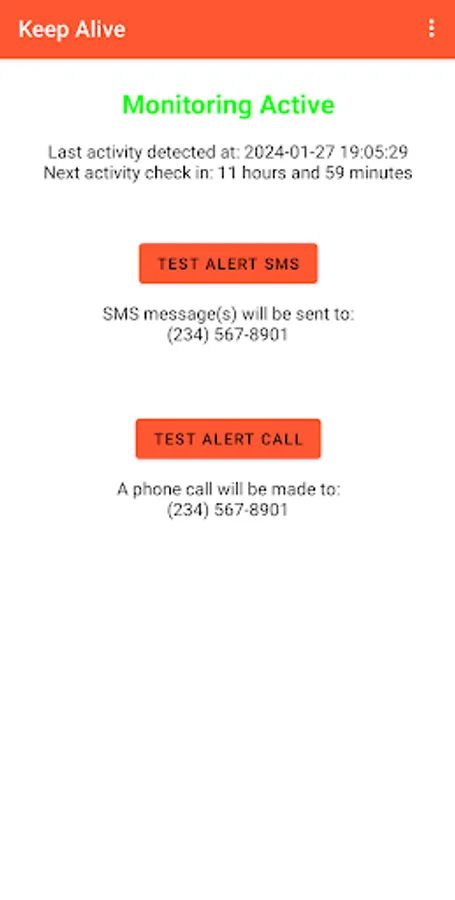
In this safety app, you configure inactivity monitoring to send alerts if no device activity is detected. Use this app to notify emergency contacts through SMS or calls after set periods of inactivity. Includes customizable alert messages, location sharing, multiple recipients, and optional HTTP requests.
AppRecs review analysis
AppRecs rating 4.3. Trustworthiness 86 out of 100. Review manipulation risk 28 out of 100. Based on a review sample analyzed.
★★★★☆
4.3
AppRecs Rating
Ratings breakdown
5 star
73%
4 star
13%
3 star
0%
2 star
0%
1 star
13%
What to know
✓
Low review manipulation risk
28% review manipulation risk
✓
Credible reviews
86% trustworthiness score from analyzed reviews
✓
High user satisfaction
87% of sampled ratings are 4+ stars (4.3★ average)
About Keep Alive
Keep Alive will send a custom message via SMS to one or more people if you haven't used your device in a given period of time. Intended to be used as a failsafe for those living alone in case of an accident or other emergency. Once the settings are configured, no further interaction is required.
- 100% Device-based, no cloud services or accounts required
- Free with no ads or trackers
- Open Source (https://github.com/keepalivedev/KeepAlive)
- Minimal Battery Usage
- Multiple SMS Recipients
- Custom Alert Message
- Optional: Include Location Information in SMS
- Optional: Place a phone call with speakerphone enabled
- Optional: Send an HTTP request to a custom URL
Requirements
Keep Alive requires that your device has an active cellular plan. WiFi calling and messaging will be used if the device supports it.
How it Works
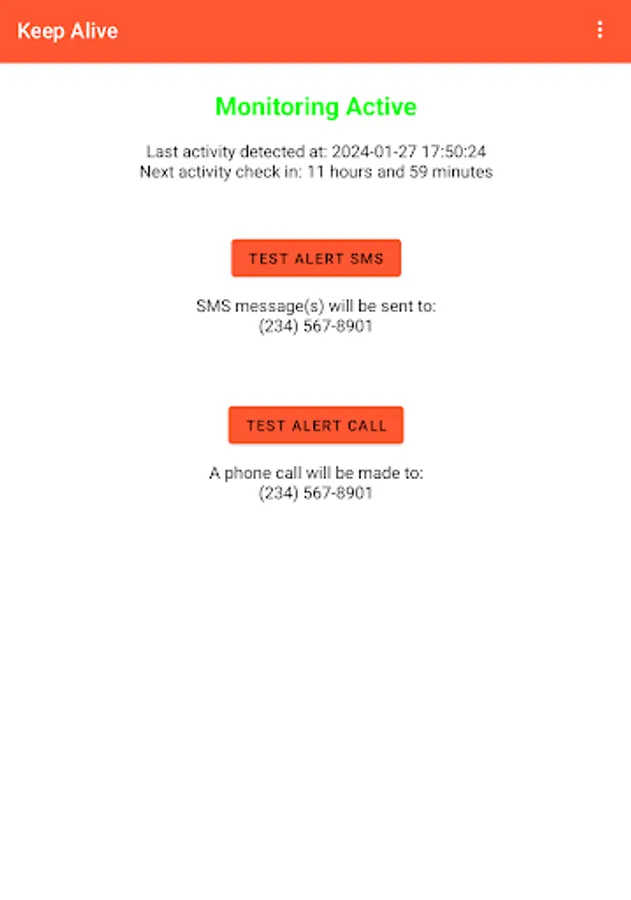
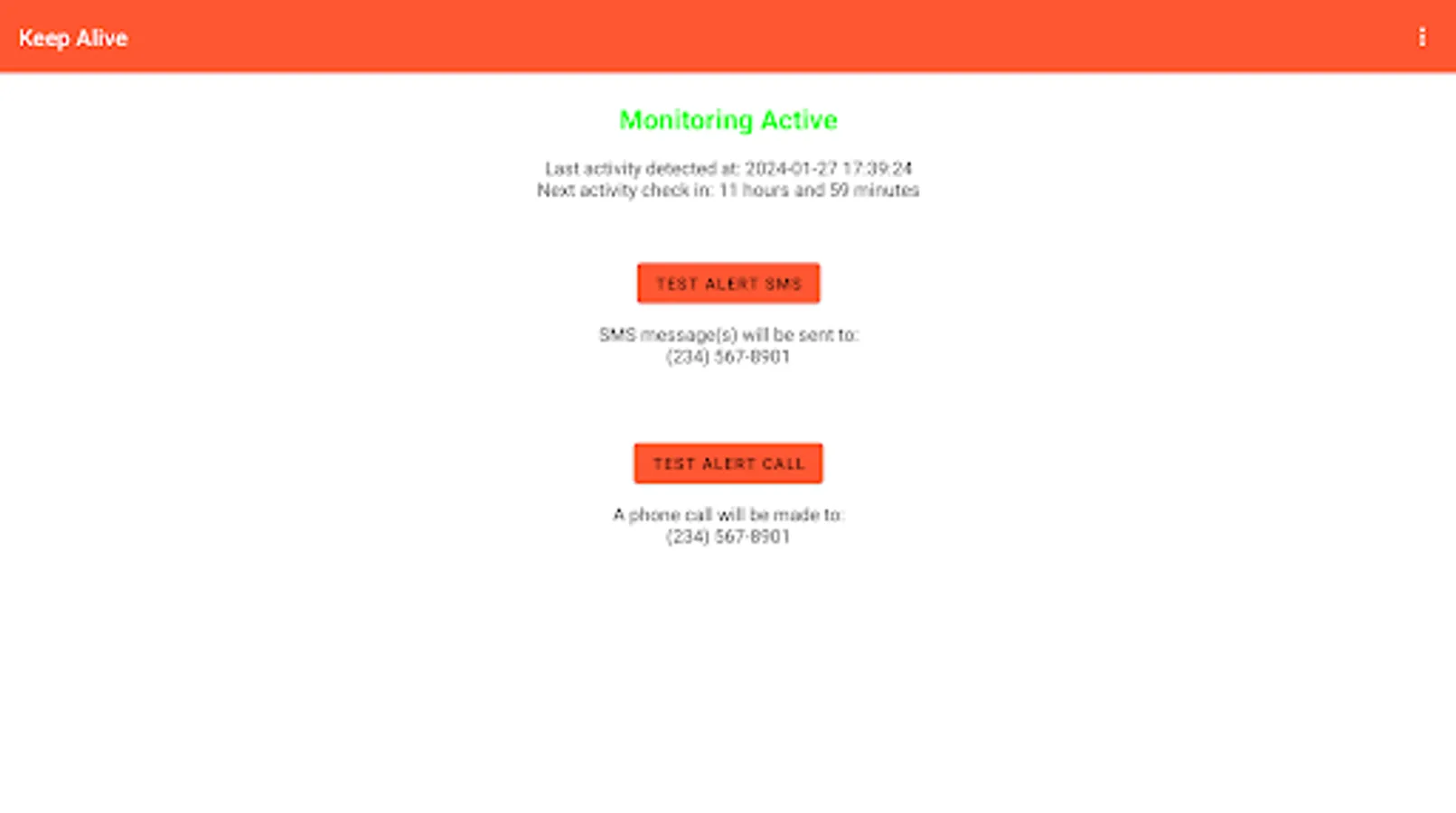
Keep Alive uses either your device's lock screen or another app(s) to detect activity. If your device hasn't been lock or unlocked for a set period of time, or if you haven't accessed the selected app(s), you will be prompted with an 'Are you there?' notification. If this notification is not acknowledged an Alert will be triggered. Based on the configured Emergency Contact Settings, one or more SMS messages and/or a phone call will be placed to notify others that you may be in need of assistance.
Main Settings
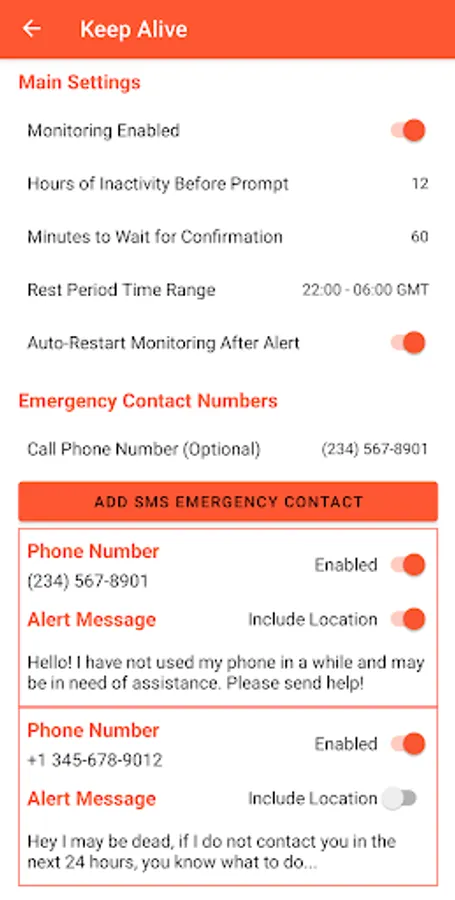
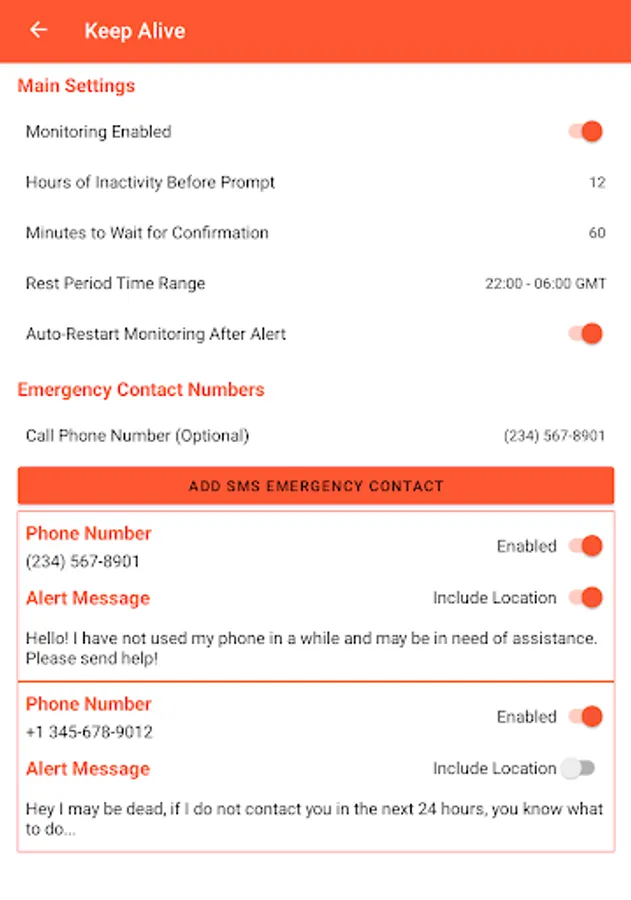
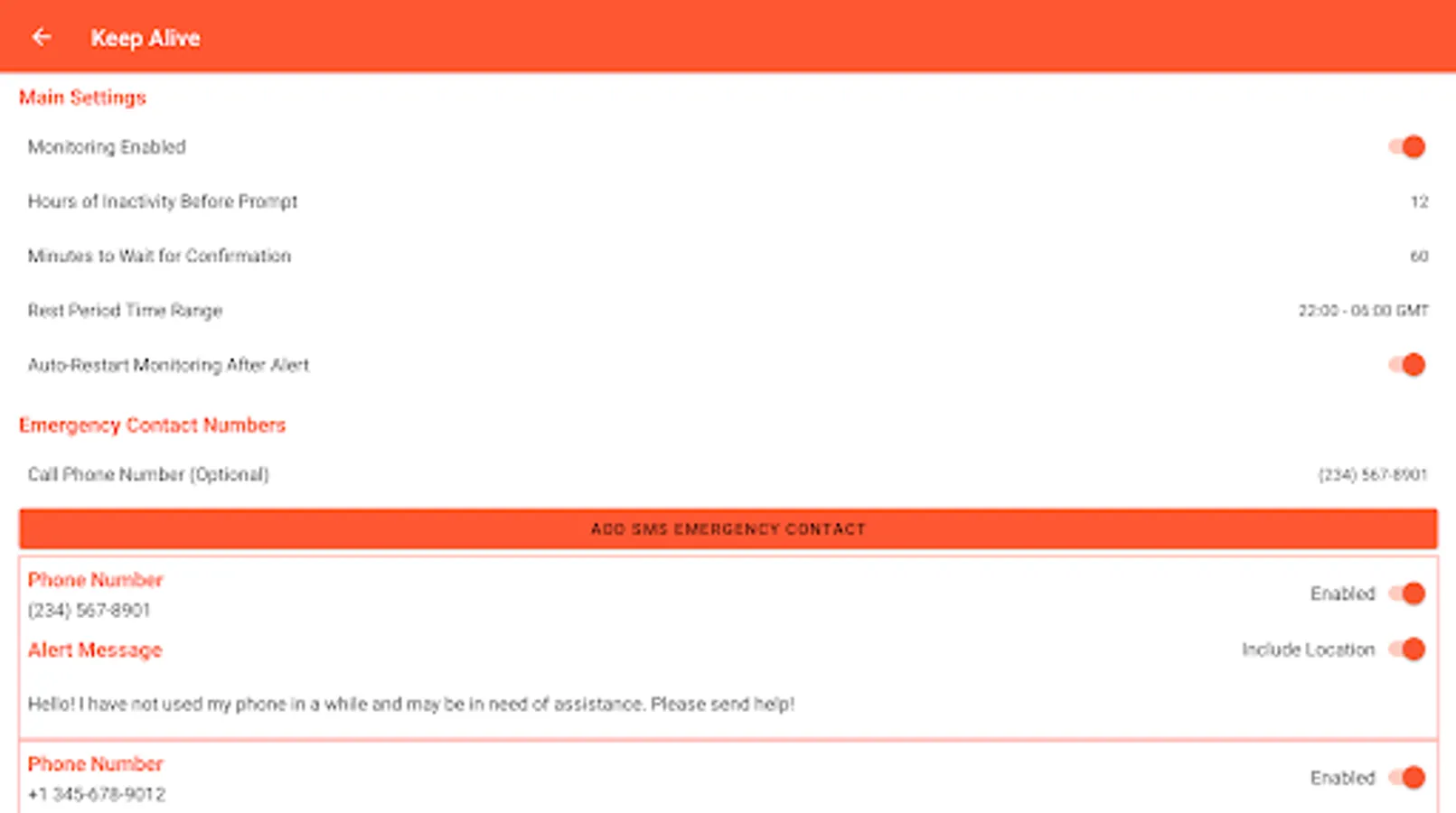
- Monitoring Method - Choose between using the lock screen or another app(s) to detect activity. If using another app(s), you will be prompted to select the app(s) to monitor.
- Hours of Inactivity Before Prompt - how many hours since your phone was last locked or unlocked before you are prompted with an 'Are you there?' notification. Defaults to 12 hours
- Minutes to Wait - if the prompt is not acknowledged within this time, an Alert will be sent based on the configured emergency contact settings. Defaults to 60 minutes
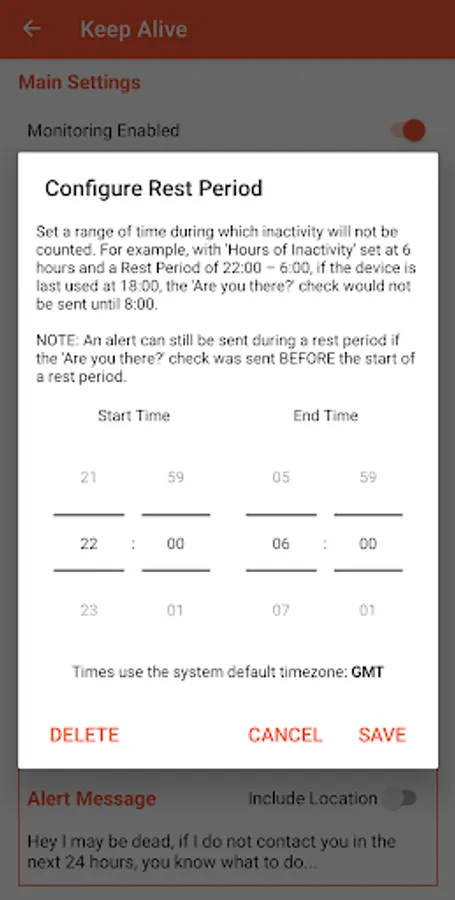
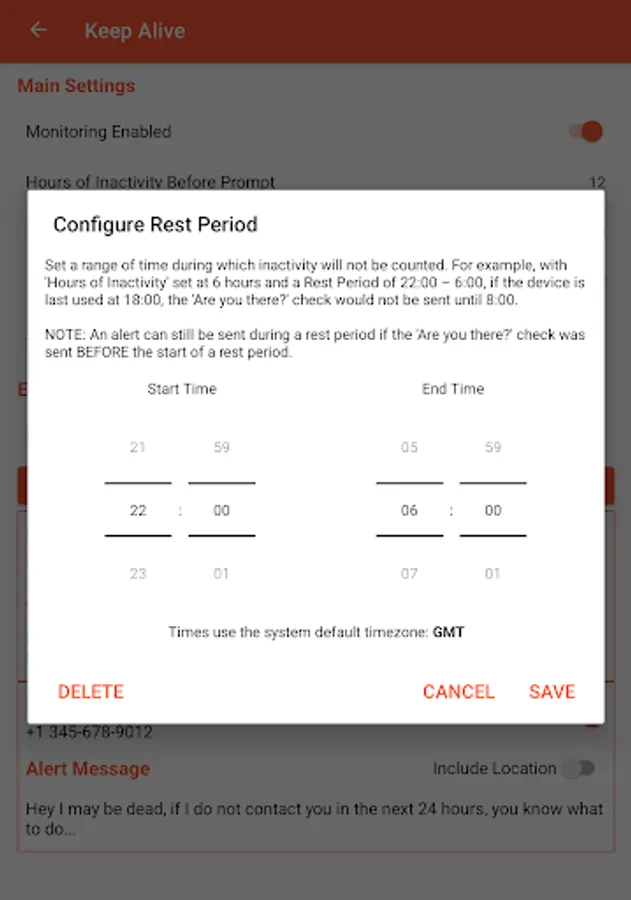
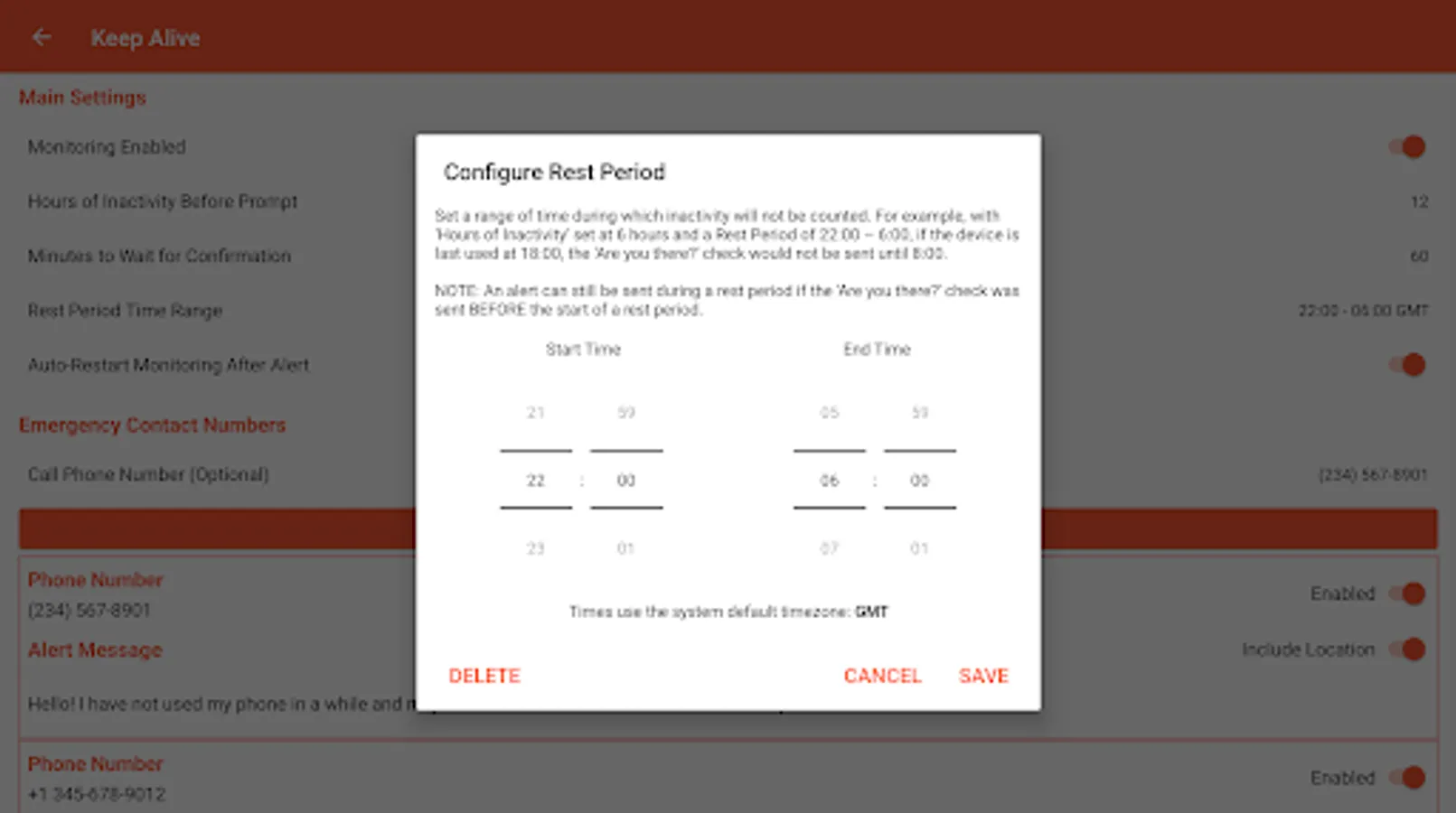
- Rest Period Time Range - a range of time during which inactivity will not be counted. For example, with 'Hours of Inactivity' set at 6 hours and a Rest Period of 22:00 – 6:00, if the device is last used at 18:00, the 'Are you there?' check would not be sent until 8:00. Note that an alert can still be sent during a rest period if the 'Are you there?' check was sent BEFORE the start of a rest period.
- Auto-Restart Monitoring After Alert - If enabled, monitoring will be automatically restarted after an Alert is sent.
- Alert Webhook - Configure an HTTP request to be sent when an Alert is triggered
Emergency Contact Settings
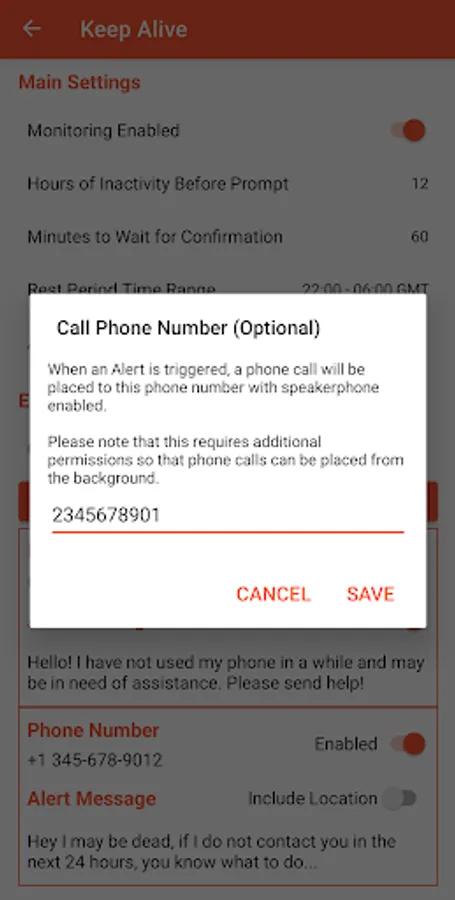
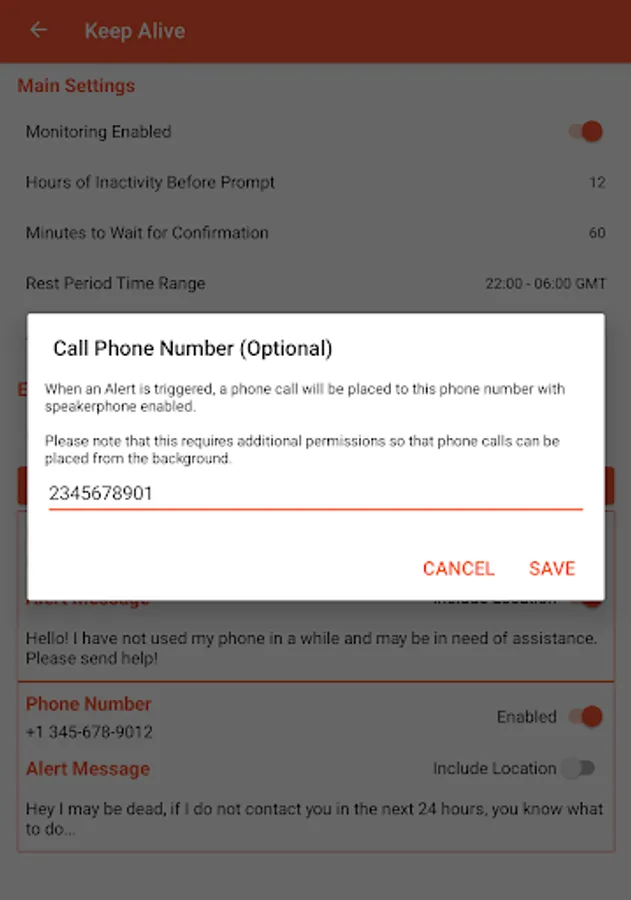
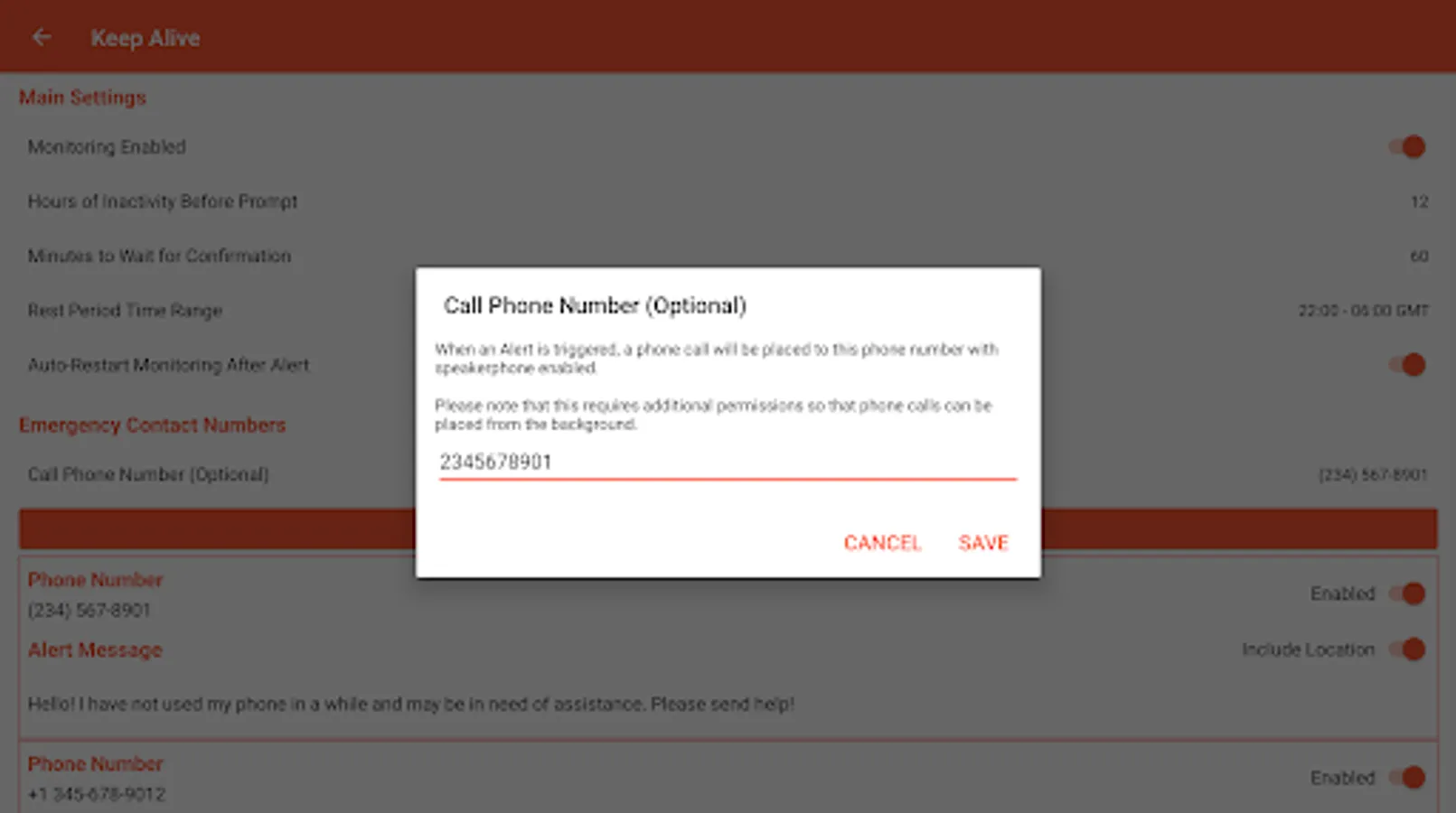
- Phone Call Number (Optional) - when an Alert is triggered a phone call will be placed to this number with speakerphone enabled
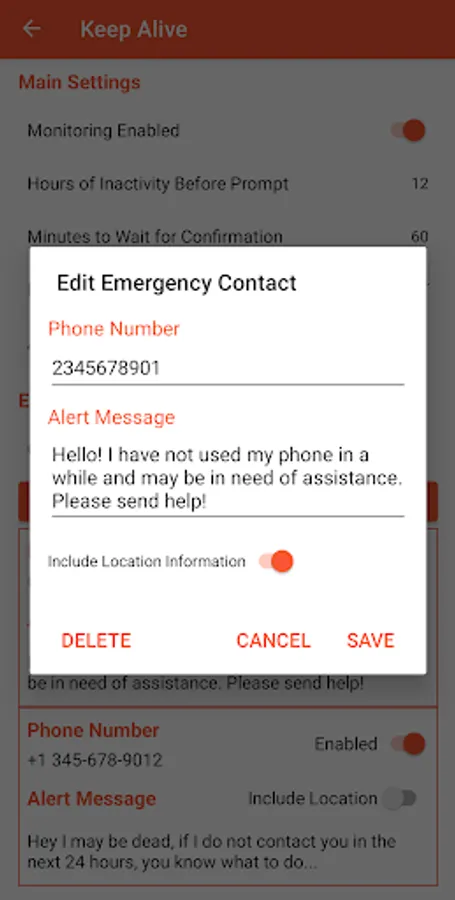
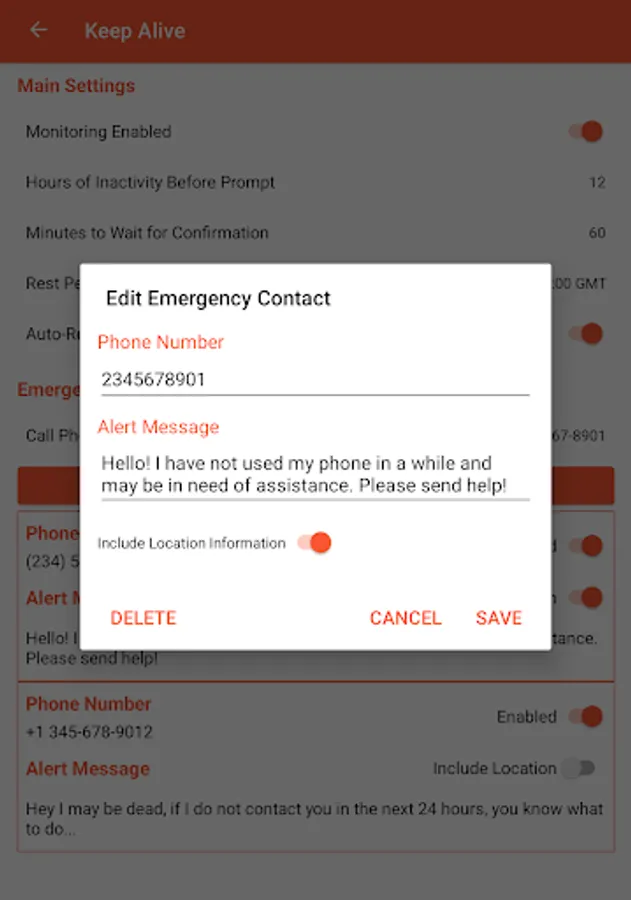
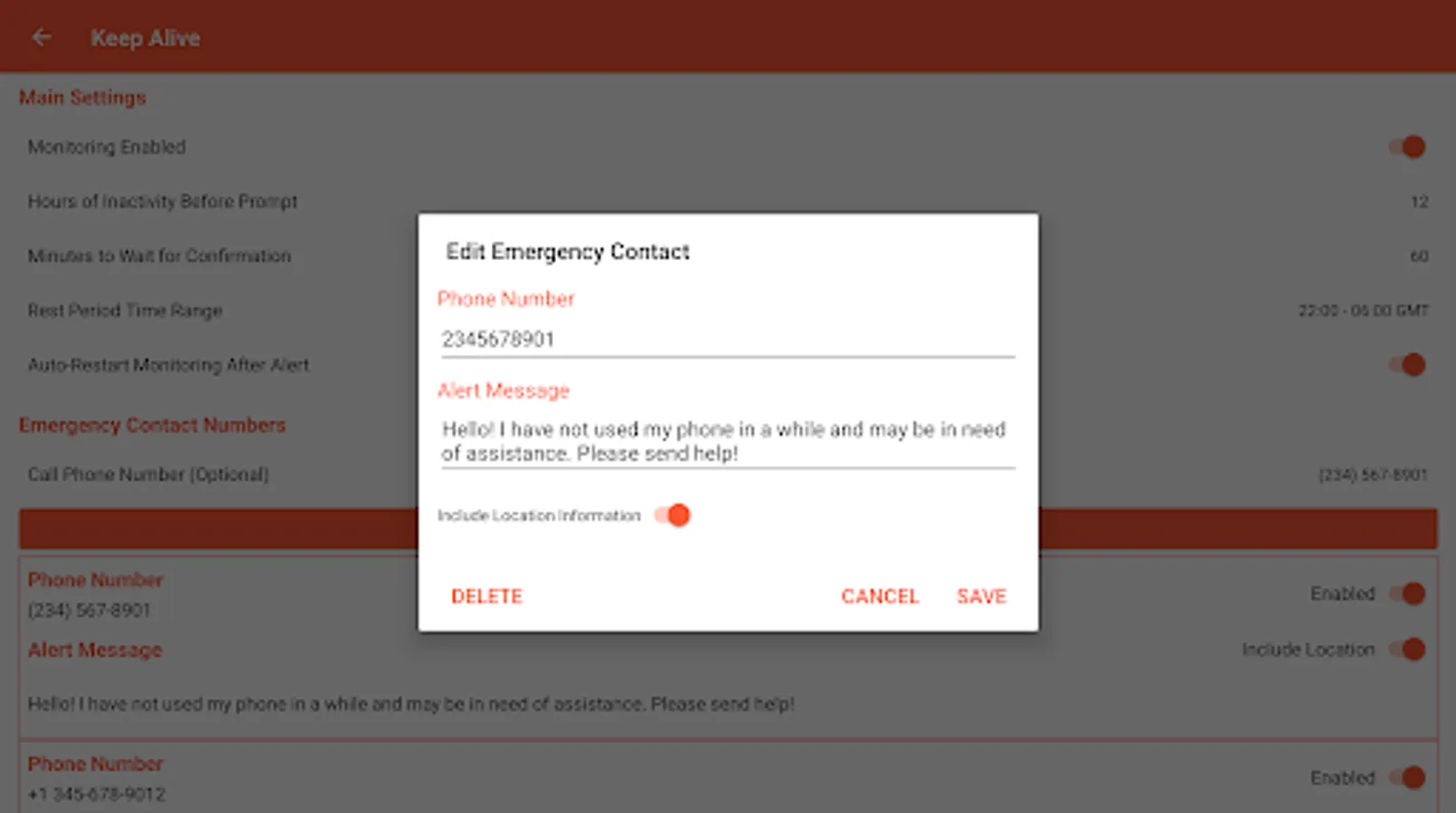
One or more SMS recipients can be configured with:
- Phone Number - the phone number to send the Alert SMS to
- Alert Message - the message that will be sent when an Alert is triggered
- Include Location - if enabled, your location will be included in a second SMS
Privacy/Data Collection
No data is collected other than the configured settings. This data is not shared with the developers or any 3rd parties. The only data transmitted is to the configured emergency contacts. This app does not request network or storage access and no data is sent to the developers or any 3rd parties.
Disclaimer
- Not responsible for SMS or phone call charges incurred by the use of the Keep Alive app
- The operation of the Keep Alive app is dependent on the device, software, and network connectivity. The developers are not responsible for any failure due to device malfunctions, software incompatibilities, or network issues.
- 100% Device-based, no cloud services or accounts required
- Free with no ads or trackers
- Open Source (https://github.com/keepalivedev/KeepAlive)
- Minimal Battery Usage
- Multiple SMS Recipients
- Custom Alert Message
- Optional: Include Location Information in SMS
- Optional: Place a phone call with speakerphone enabled
- Optional: Send an HTTP request to a custom URL
Requirements
Keep Alive requires that your device has an active cellular plan. WiFi calling and messaging will be used if the device supports it.
How it Works
Keep Alive uses either your device's lock screen or another app(s) to detect activity. If your device hasn't been lock or unlocked for a set period of time, or if you haven't accessed the selected app(s), you will be prompted with an 'Are you there?' notification. If this notification is not acknowledged an Alert will be triggered. Based on the configured Emergency Contact Settings, one or more SMS messages and/or a phone call will be placed to notify others that you may be in need of assistance.
Main Settings
- Monitoring Method - Choose between using the lock screen or another app(s) to detect activity. If using another app(s), you will be prompted to select the app(s) to monitor.
- Hours of Inactivity Before Prompt - how many hours since your phone was last locked or unlocked before you are prompted with an 'Are you there?' notification. Defaults to 12 hours
- Minutes to Wait - if the prompt is not acknowledged within this time, an Alert will be sent based on the configured emergency contact settings. Defaults to 60 minutes
- Rest Period Time Range - a range of time during which inactivity will not be counted. For example, with 'Hours of Inactivity' set at 6 hours and a Rest Period of 22:00 – 6:00, if the device is last used at 18:00, the 'Are you there?' check would not be sent until 8:00. Note that an alert can still be sent during a rest period if the 'Are you there?' check was sent BEFORE the start of a rest period.
- Auto-Restart Monitoring After Alert - If enabled, monitoring will be automatically restarted after an Alert is sent.
- Alert Webhook - Configure an HTTP request to be sent when an Alert is triggered
Emergency Contact Settings
- Phone Call Number (Optional) - when an Alert is triggered a phone call will be placed to this number with speakerphone enabled
One or more SMS recipients can be configured with:
- Phone Number - the phone number to send the Alert SMS to
- Alert Message - the message that will be sent when an Alert is triggered
- Include Location - if enabled, your location will be included in a second SMS
Privacy/Data Collection
No data is collected other than the configured settings. This data is not shared with the developers or any 3rd parties. The only data transmitted is to the configured emergency contacts. This app does not request network or storage access and no data is sent to the developers or any 3rd parties.
Disclaimer
- Not responsible for SMS or phone call charges incurred by the use of the Keep Alive app
- The operation of the Keep Alive app is dependent on the device, software, and network connectivity. The developers are not responsible for any failure due to device malfunctions, software incompatibilities, or network issues.