SecurityBrowser for M365
SateraitoOffice
4.4 ★
58 ratings
10,000+
downloads
Free
In this security browser, users can access Microsoft 365 with enhanced security features and access control. Includes single sign-on, data protection, and activity logging.
AppRecs review analysis
AppRecs rating 4.4. Trustworthiness 61 out of 100. Review manipulation risk 14 out of 100. Based on a review sample analyzed.
★★★★☆
4.4
AppRecs Rating
Ratings breakdown
5 star
61%
4 star
20%
3 star
20%
2 star
0%
1 star
0%
What to know
✓
Low review manipulation risk
14% review manipulation risk
✓
High user satisfaction
80% of sampled ratings are 4+ stars (4.4★ average)
✓
Authentic reviews
Natural distribution, no red flags
About SecurityBrowser for M365
In the "NextSet Security Browser for Microsoft 365" move in conjunction with the "next set single sign-on for Microsoft 365", it is a secure browser. I will provide a more advanced and security access control to detailed Microsoft 365.
Single Sign-On with · Office365
Security policy enforcement by, personalized / organization another of the control
And use control of the global IP address / terminal ID Unit
· URL to use site control by the filter
Data download ban / cache & Cookei Clear
· Character of the prohibition of copy and paste
Automatic deletion of clipboard
· Automatic login availability
And printing ban
Address URL bar availability of
· The entire shared bookmark / personal bookmark availability of
Automatic logout function
The acquisition and by the administrator of the user access log
Mail & Calendar New data notification function
Etc.
The user can to keep doing the registration and terminal application of account that you want to access in advance
Network that is authorized from the next time, if the terminal, ID, without placing a password
Simply by pressing the sign-in button is available each service of Office365, such as e-mail and calendar!
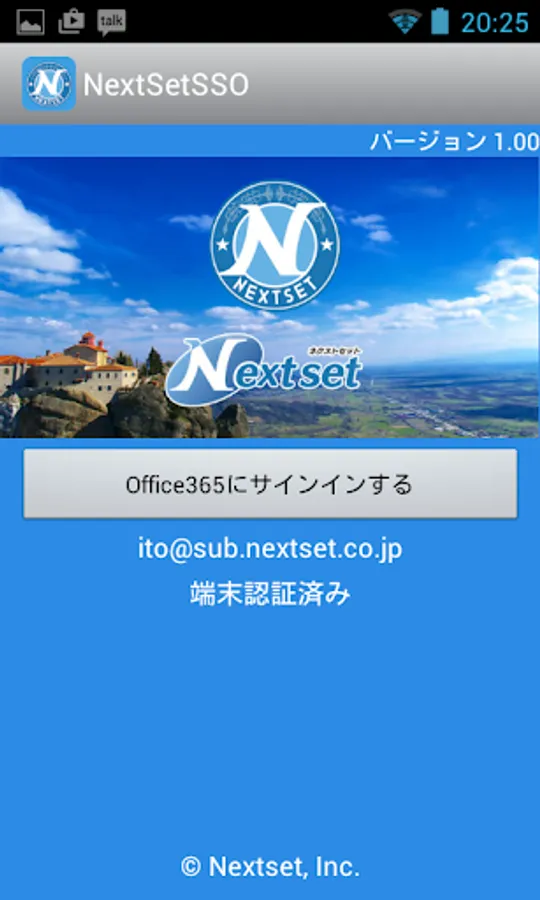
1. launch the app
Tap the "Account Management" in the top screen
2. account management to the display
Tap the "not registered"
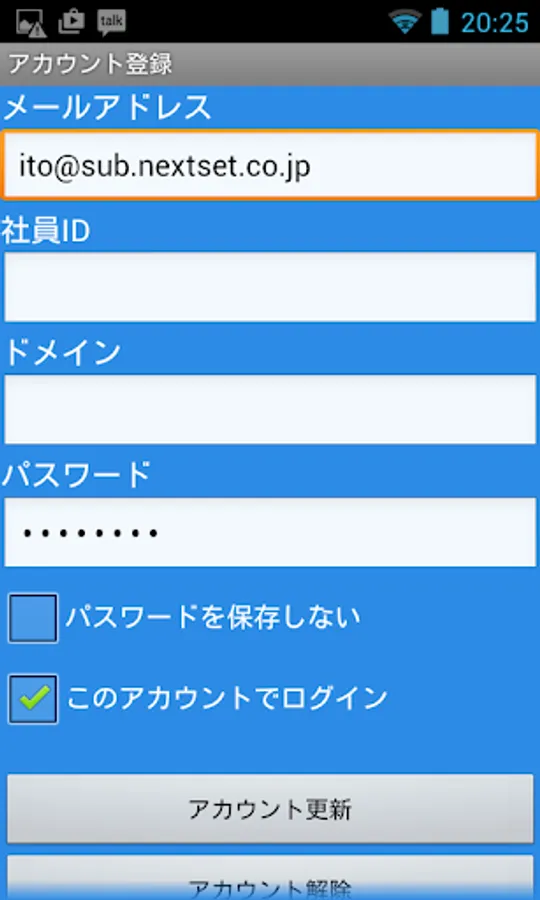
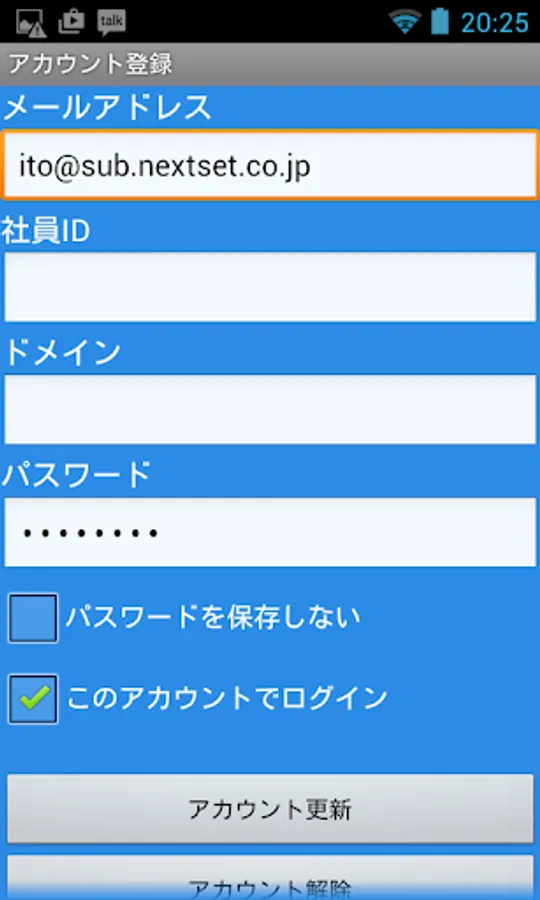
3.Account registration display
Enter input to the "e-mail address" to the e-mail address or "Employee ID", "domain"
Enter a password in the "Password"
Check out "log in with this account."
Tap the "registration"
4. Tap the e-mail address that you entered earlier in account management
5. account registration display
Tap the "registration of the terminal information"
6. note of registration of the terminal terminal display
Tap the "registration"
7. Enter your purpose
Tap to "register"
Registration display 8. terminal terminal
Tap "OK"
To 9.Top screen
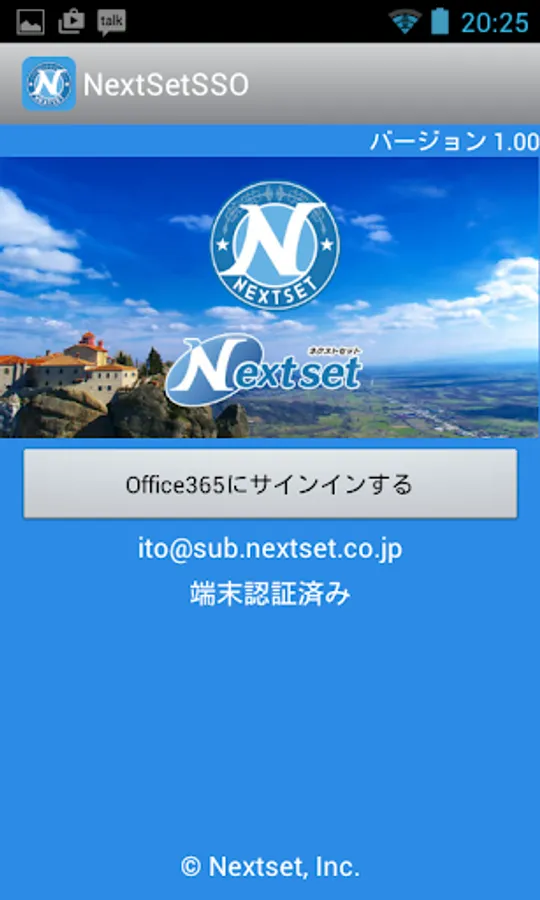
Tap to "Office365 to sign in to the"
Single Sign-On with · Office365
Security policy enforcement by, personalized / organization another of the control
And use control of the global IP address / terminal ID Unit
· URL to use site control by the filter
Data download ban / cache & Cookei Clear
· Character of the prohibition of copy and paste
Automatic deletion of clipboard
· Automatic login availability
And printing ban
Address URL bar availability of
· The entire shared bookmark / personal bookmark availability of
Automatic logout function
The acquisition and by the administrator of the user access log
Mail & Calendar New data notification function
Etc.
The user can to keep doing the registration and terminal application of account that you want to access in advance
Network that is authorized from the next time, if the terminal, ID, without placing a password
Simply by pressing the sign-in button is available each service of Office365, such as e-mail and calendar!
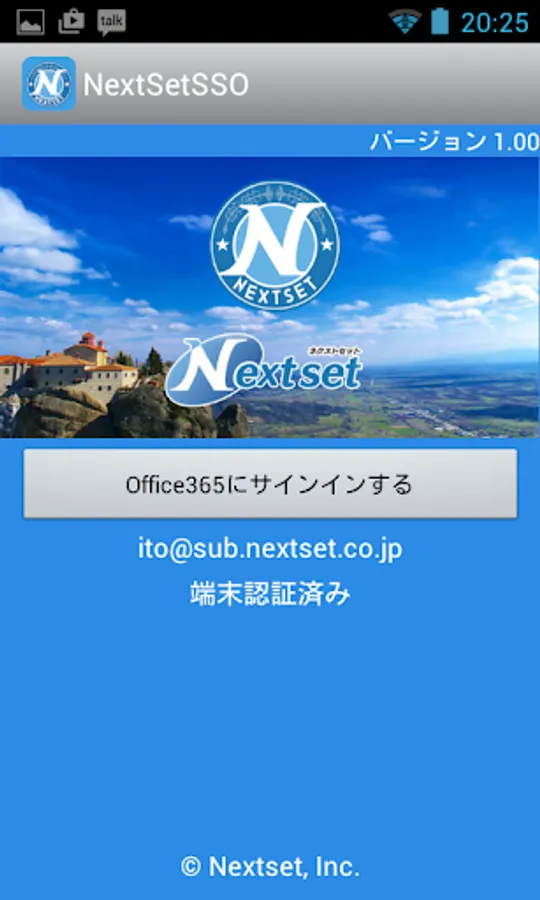
1. launch the app
Tap the "Account Management" in the top screen
2. account management to the display
Tap the "not registered"
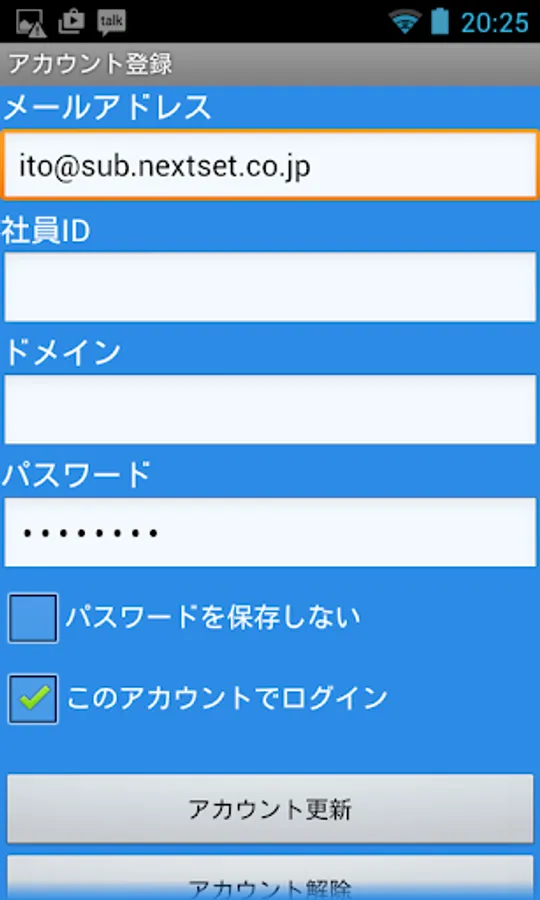
3.Account registration display
Enter input to the "e-mail address" to the e-mail address or "Employee ID", "domain"
Enter a password in the "Password"
Check out "log in with this account."
Tap the "registration"
4. Tap the e-mail address that you entered earlier in account management
5. account registration display
Tap the "registration of the terminal information"
6. note of registration of the terminal terminal display
Tap the "registration"
7. Enter your purpose
Tap to "register"
Registration display 8. terminal terminal
Tap "OK"
To 9.Top screen
Tap to "Office365 to sign in to the"