In this file management app, you can create, extract, and edit various archive formats easily. Includes support for password-protected archives, multi-part archives, and partial decompression.
AppRecs review analysis
AppRecs rating 4.4. Trustworthiness 80 out of 100. Review manipulation risk 27 out of 100. Based on a review sample analyzed.
★★★★☆
4.4
AppRecs Rating
Ratings breakdown
5 star
88%
4 star
4%
3 star
0%
2 star
1%
1 star
7%
What to know
✓
Low review manipulation risk
27% review manipulation risk
✓
Credible reviews
80% trustworthiness score from analyzed reviews
✓
High user satisfaction
88% of sampled ratings are 5 stars
About ZArchiver Donate
ZArchiver Donate - a special version of ZArchiver for donating to project.
Warning! Unfortunately, Google has stopped processing payments for developers from Russia for an indefinite period of time. It is impossible to purchase this application. You can find out about other ways to support the project on the website: zdevs.ru
Advantages of Pro version:
- Light and dark theme;
- Password storage;
- Image preview in archive;
- Editing the files in the archive (see notes);
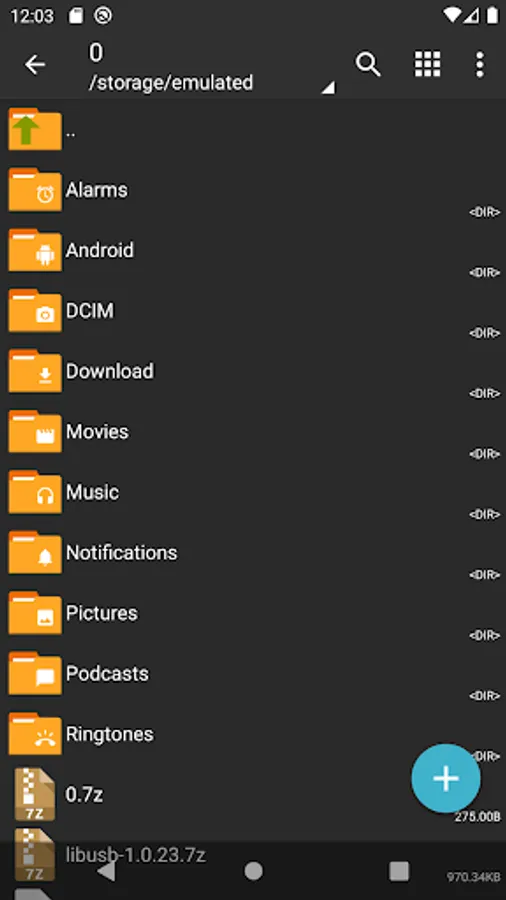
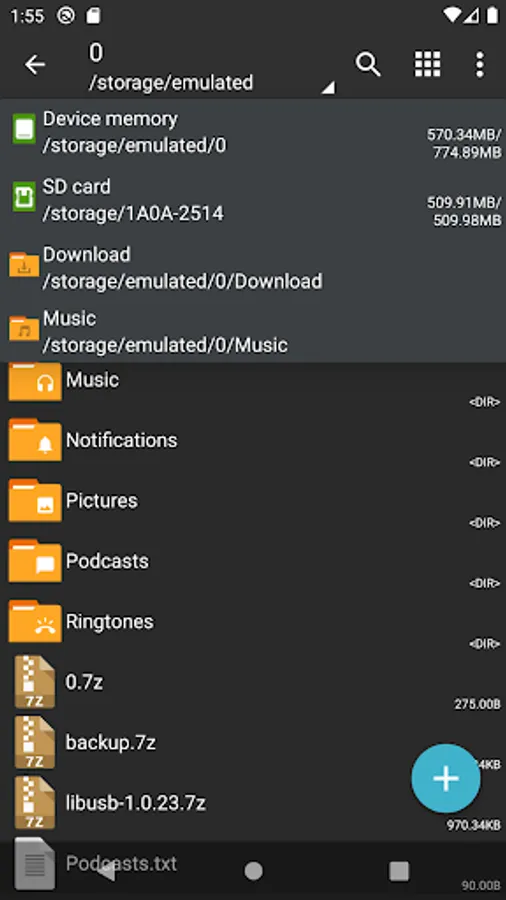
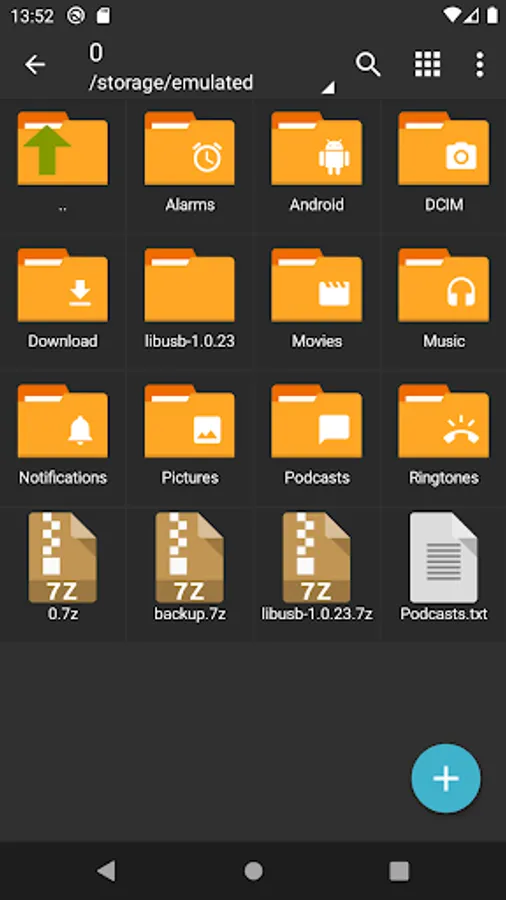
ZArchiver - is a program for archive management (including managing backup applications in archives). It has a simple and functional interface. The app doesn't have permission to acces the internet, so cannot transmit any information to other services or persons.
ZArchiver lets you:
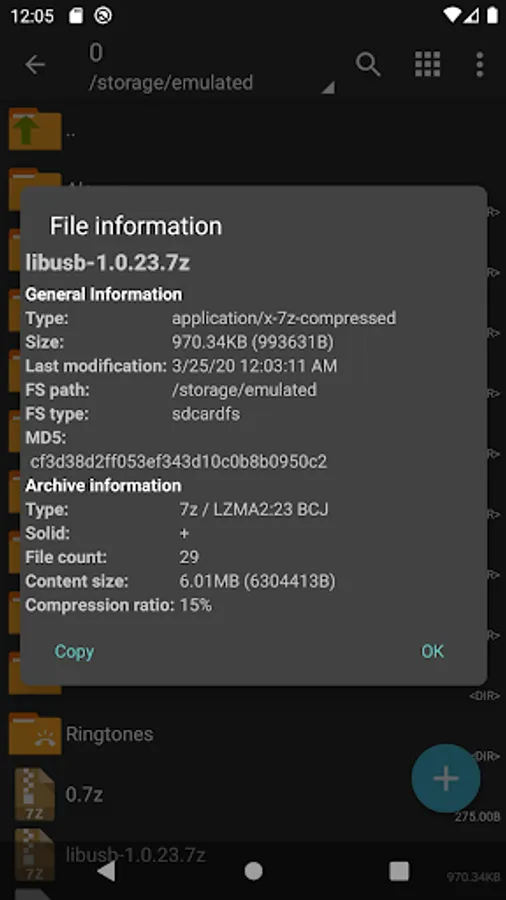
- Create the following archive types: 7z (7zip), zip, bzip2 (bz2), gzip (gz), XZ, lz4, tar, zst (zstd);
- Decompress the following archive types: 7z (7zip), zip, rar, rar5, bzip2, gzip, XZ, iso, tar, arj, cab, lzh, lha, lzma, xar, tgz, tbz, Z, deb, rpm, zipx, mtz, chm, dmg, cpio, cramfs, img (fat, ntfs, ubf), wim, ecm, lzip, zst (zstd), egg, alz;
- View archive contents: 7z (7zip), zip, rar, rar5, bzip2, gzip, XZ, iso, tar, arj, cab, lzh, lha, lzma, xar, tgz, tbz, Z, deb, rpm, zipx, mtz, chm, dmg, cpio, cramfs, img (fat, ntfs, ubf), wim, ecm, lzip, zst (zstd), egg, alz;
- Create and decompress password-protected archives;
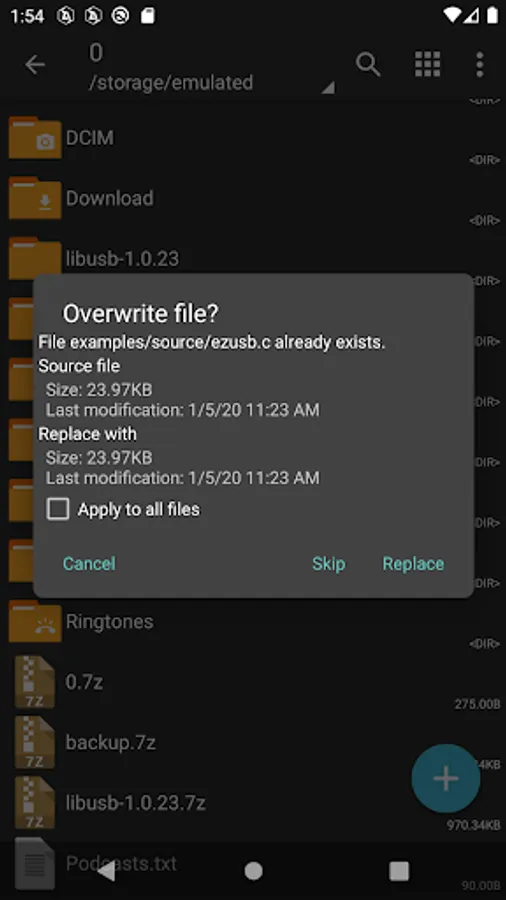
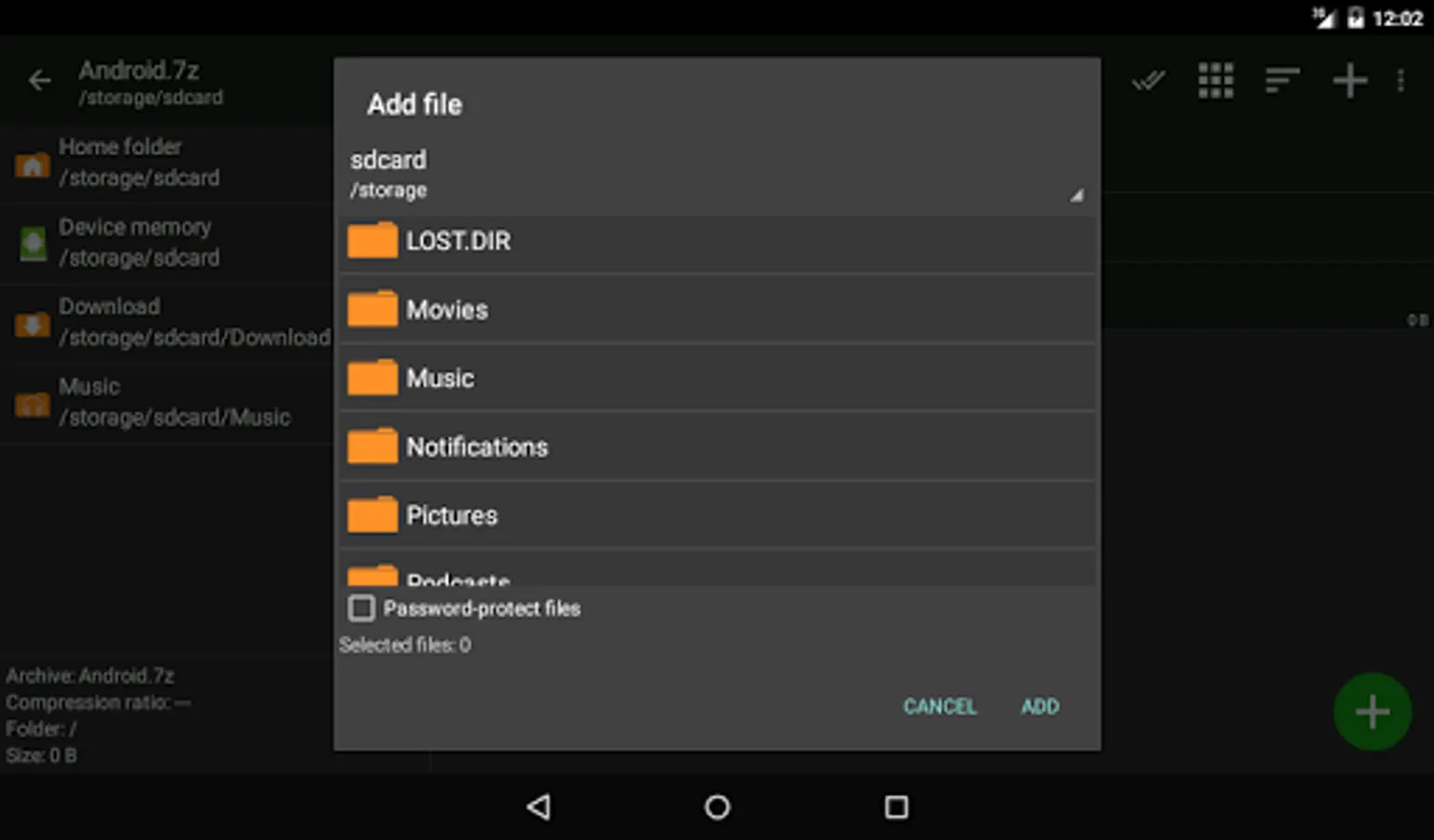
- Edit archives: add/remove files to/from the archive (zip, 7zip, tar, apk, mtz);
- Create and decompress multi-part archives: 7z, rar(decompress only);
- Install APK and OBB file from backup (archive);
- Partial archive decompression;
- Open compressed files;
- Open an archive file from mail applications;
- Extract split archives: 7z, zip and rar (7z.001, zip.001, part1.rar, z01);
Particular properties:
- Start with Android 9 for small files (<10MB). If possible, use direct opening without extracting to a temporary folder;
- Multithreading support (useful for multicore processors);
- UTF-8/UTF-16 support for filenames allows you to use national symbols in filenames.
ATTENTION! Any useful ideas or wishes are welcome. You can send them by email or just leave a comment here.
Notes:
File modification in the archive it is the ability to update the file in the archive after changing it in an external program. To do this: open the file from the archive, select the application (if required), edit the file, save the changes, return to ZArchiver. You will be prompted to update the file in the archive when you return to ZArchiver. If for some reason you are not prompted to update the file, the modified file can be found on the memory card in the folder Android/ru.zdevs.zarchiver.pro/temp/.
Mini FAQ:
Q: What password?
A: The contents of some archives may be encrypted and the archive can only be opened with the password (don't use the phone password!).
Q: The program is not working correctly?
A: Send me an email with detailed description of the problem.
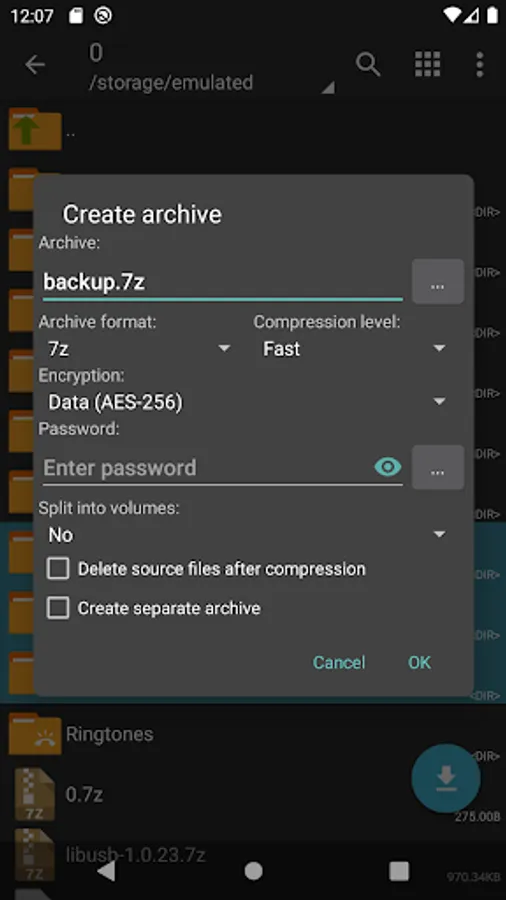
Q: How to compress files?
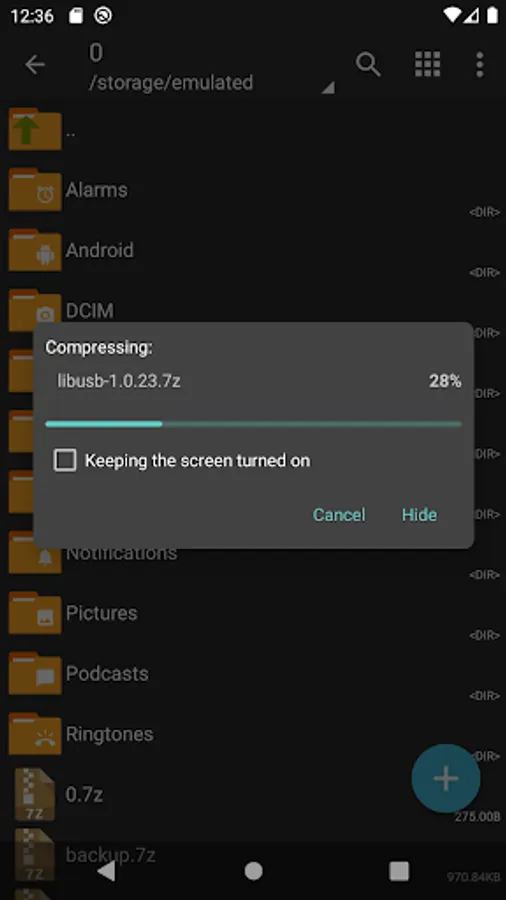
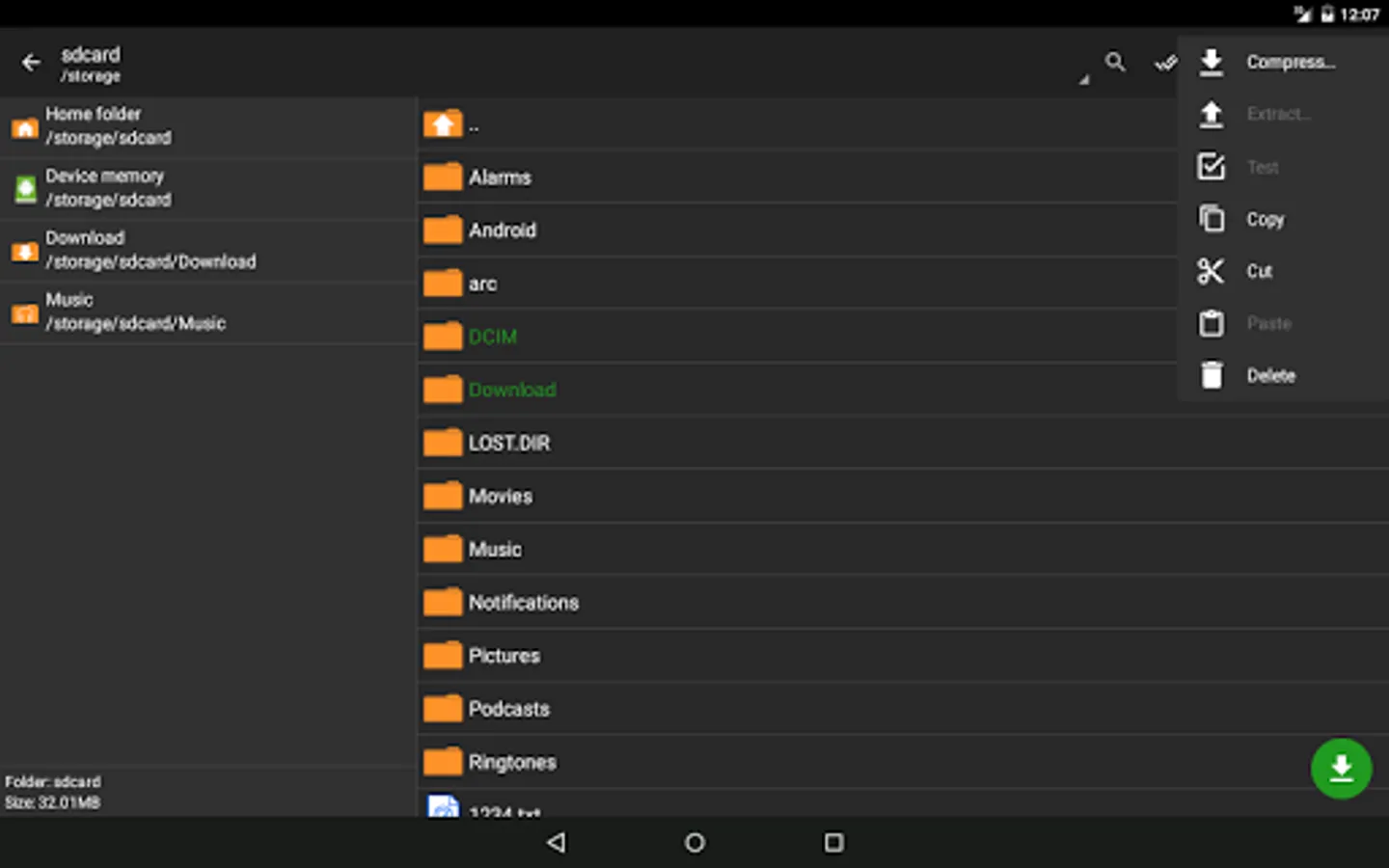
A: Select all the files you want to compress by clicking on icons (from the left of filenames). Click on the first of selected files and choose "Compress" from menu. Set desired options and press the OK button.
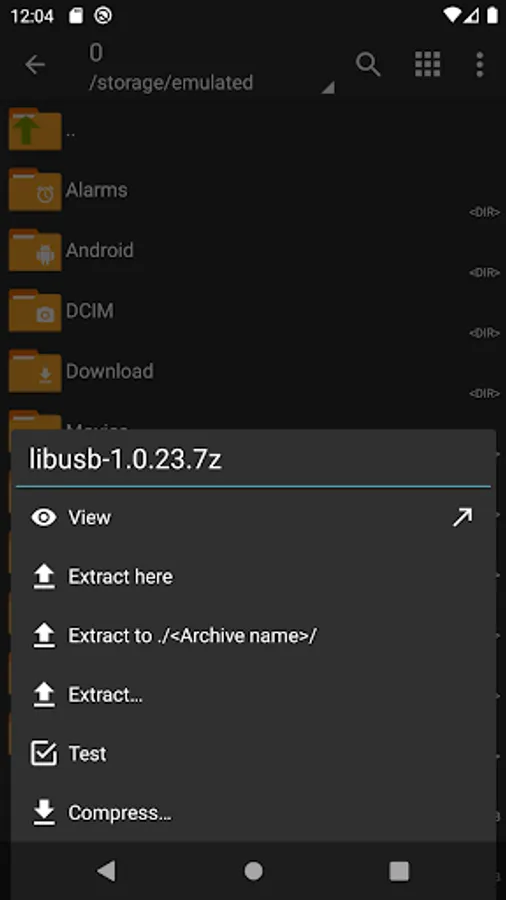
Q: How to extract files?
A: Click on the archive name and select suitable options ("Extract Here" or other).
Warning! Unfortunately, Google has stopped processing payments for developers from Russia for an indefinite period of time. It is impossible to purchase this application. You can find out about other ways to support the project on the website: zdevs.ru
Advantages of Pro version:
- Light and dark theme;
- Password storage;
- Image preview in archive;
- Editing the files in the archive (see notes);
ZArchiver - is a program for archive management (including managing backup applications in archives). It has a simple and functional interface. The app doesn't have permission to acces the internet, so cannot transmit any information to other services or persons.
ZArchiver lets you:
- Create the following archive types: 7z (7zip), zip, bzip2 (bz2), gzip (gz), XZ, lz4, tar, zst (zstd);
- Decompress the following archive types: 7z (7zip), zip, rar, rar5, bzip2, gzip, XZ, iso, tar, arj, cab, lzh, lha, lzma, xar, tgz, tbz, Z, deb, rpm, zipx, mtz, chm, dmg, cpio, cramfs, img (fat, ntfs, ubf), wim, ecm, lzip, zst (zstd), egg, alz;
- View archive contents: 7z (7zip), zip, rar, rar5, bzip2, gzip, XZ, iso, tar, arj, cab, lzh, lha, lzma, xar, tgz, tbz, Z, deb, rpm, zipx, mtz, chm, dmg, cpio, cramfs, img (fat, ntfs, ubf), wim, ecm, lzip, zst (zstd), egg, alz;
- Create and decompress password-protected archives;
- Edit archives: add/remove files to/from the archive (zip, 7zip, tar, apk, mtz);
- Create and decompress multi-part archives: 7z, rar(decompress only);
- Install APK and OBB file from backup (archive);
- Partial archive decompression;
- Open compressed files;
- Open an archive file from mail applications;
- Extract split archives: 7z, zip and rar (7z.001, zip.001, part1.rar, z01);
Particular properties:
- Start with Android 9 for small files (<10MB). If possible, use direct opening without extracting to a temporary folder;
- Multithreading support (useful for multicore processors);
- UTF-8/UTF-16 support for filenames allows you to use national symbols in filenames.
ATTENTION! Any useful ideas or wishes are welcome. You can send them by email or just leave a comment here.
Notes:
File modification in the archive it is the ability to update the file in the archive after changing it in an external program. To do this: open the file from the archive, select the application (if required), edit the file, save the changes, return to ZArchiver. You will be prompted to update the file in the archive when you return to ZArchiver. If for some reason you are not prompted to update the file, the modified file can be found on the memory card in the folder Android/ru.zdevs.zarchiver.pro/temp/.
Mini FAQ:
Q: What password?
A: The contents of some archives may be encrypted and the archive can only be opened with the password (don't use the phone password!).
Q: The program is not working correctly?
A: Send me an email with detailed description of the problem.
Q: How to compress files?
A: Select all the files you want to compress by clicking on icons (from the left of filenames). Click on the first of selected files and choose "Compress" from menu. Set desired options and press the OK button.
Q: How to extract files?
A: Click on the archive name and select suitable options ("Extract Here" or other).
ZArchiver Donate Screenshots
Tap to Rate:
Reviews for ZArchiver Donate
Denis Axe123
12/16/2025
good app
J L
12/13/2025
I absolutely Love ZArchiver!Light years ahead of the other file managers!