OSRMS
Arena Phone BD Ltd.
5,000+
downloads
Free
AppRecs review analysis
AppRecs rating 3.2. Trustworthiness 78 out of 100. Review manipulation risk 31 out of 100. Based on a review sample analyzed.
★★★☆☆
3.2
AppRecs Rating
Ratings breakdown
5 star
50%
4 star
7%
3 star
7%
2 star
0%
1 star
36%
What to know
✓
Credible reviews
78% trustworthiness score from analyzed reviews
About OSRMS
The OSRMS app is used to manage outsourced resources and the Out Source Resource (OSR) can manage their daily activities through this app.
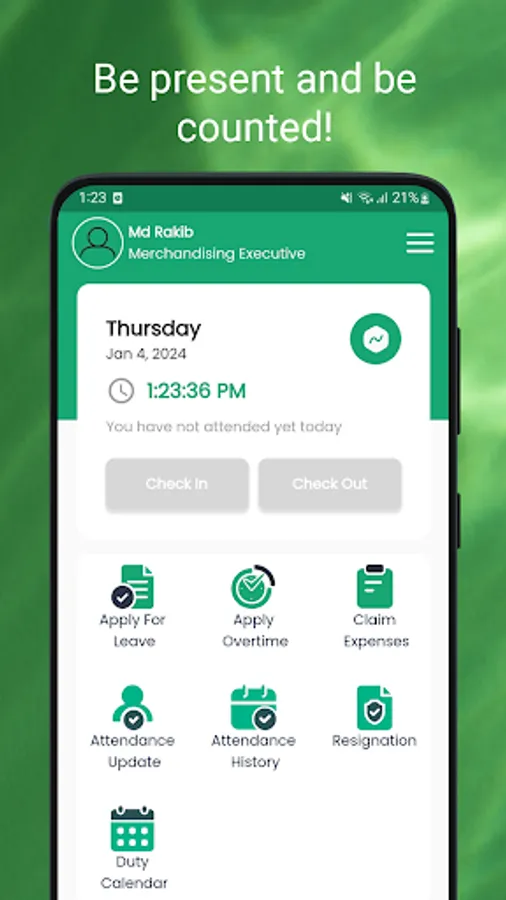
The check-in and check-out feature is used for marking the attendance of OSR. While they start working click “Check-in” and while leaving work click “Check-out”. The time and location will be stored on the OSRMS database automatically.
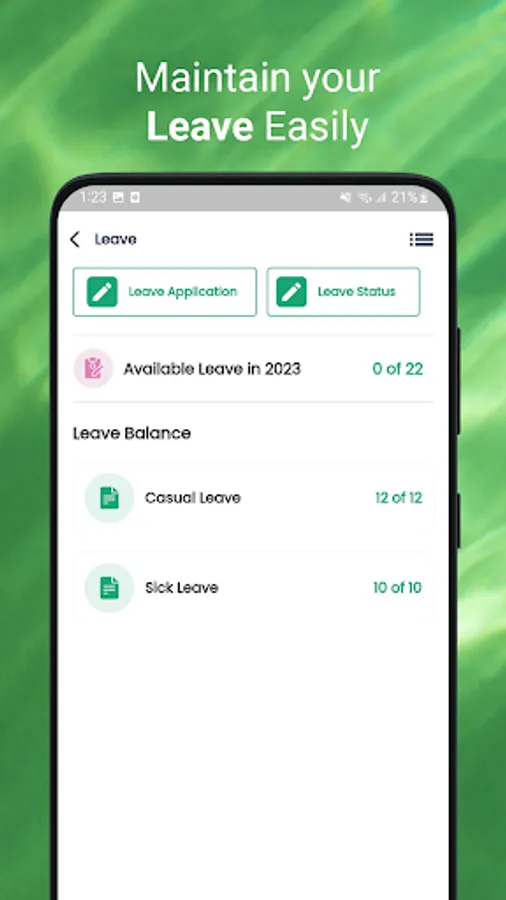
If the OSR wants any leave go to “Apply for Leave” and select the types of leave (Casual, Sick, Annual) then submit the leave request. The leave request will be sent to the vendor and after reviewing from LM, the vendor will accept or reject the leave request.
Overtime claims could be performed from this feature by OSR. Click the “Apply Overtime” and select the date, start time, end time, and duration, and write the reason for overtime. Click the “Submit” button. The request will be reviewed and the OSR will be notified, if is it accepted or rejected.
If the OSR wants to claim expenses, click the “Claim Expenses” and select the fields that are mentioned in the expenses claim form, then submit it. The request will be reviewed and the OSR will be notified, if is it accepted or rejected.
If any OSR fails to give the check-in / check-out response. They need to send requests for attendance updates. Click “Attendance Update” and fill up the date and time. Submit it by clicking “Apply”. The request will be reviewed and the OSR will be notified, if is it accepted or rejected.
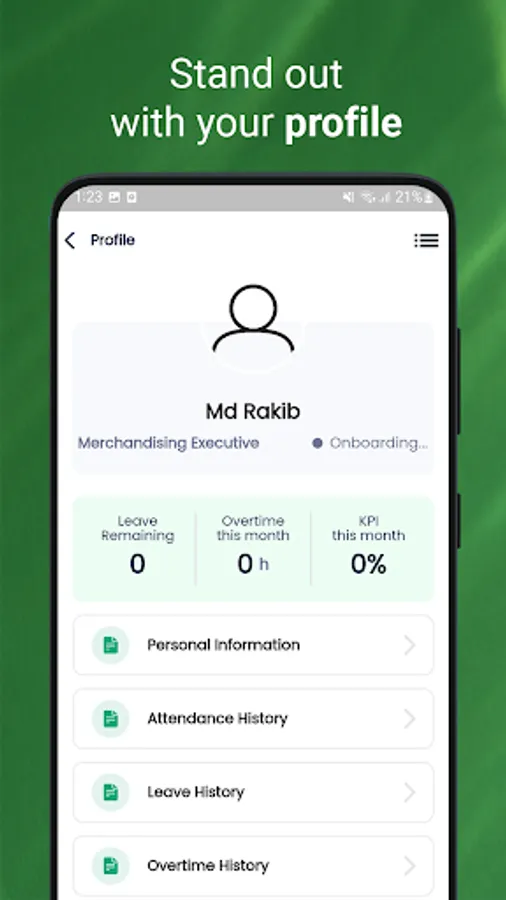
The OSR could check the attendance history by clicking “Attendance History”.
The duty calendar will show the duty time of OSR that is managed or selected from the vendor end.
If the OSR wants to resign from their job, go to the Resignation feature fill in the date and reason for resign then submit it.
The check-in and check-out feature is used for marking the attendance of OSR. While they start working click “Check-in” and while leaving work click “Check-out”. The time and location will be stored on the OSRMS database automatically.
If the OSR wants any leave go to “Apply for Leave” and select the types of leave (Casual, Sick, Annual) then submit the leave request. The leave request will be sent to the vendor and after reviewing from LM, the vendor will accept or reject the leave request.
Overtime claims could be performed from this feature by OSR. Click the “Apply Overtime” and select the date, start time, end time, and duration, and write the reason for overtime. Click the “Submit” button. The request will be reviewed and the OSR will be notified, if is it accepted or rejected.
If the OSR wants to claim expenses, click the “Claim Expenses” and select the fields that are mentioned in the expenses claim form, then submit it. The request will be reviewed and the OSR will be notified, if is it accepted or rejected.
If any OSR fails to give the check-in / check-out response. They need to send requests for attendance updates. Click “Attendance Update” and fill up the date and time. Submit it by clicking “Apply”. The request will be reviewed and the OSR will be notified, if is it accepted or rejected.
The OSR could check the attendance history by clicking “Attendance History”.
The duty calendar will show the duty time of OSR that is managed or selected from the vendor end.
If the OSR wants to resign from their job, go to the Resignation feature fill in the date and reason for resign then submit it.