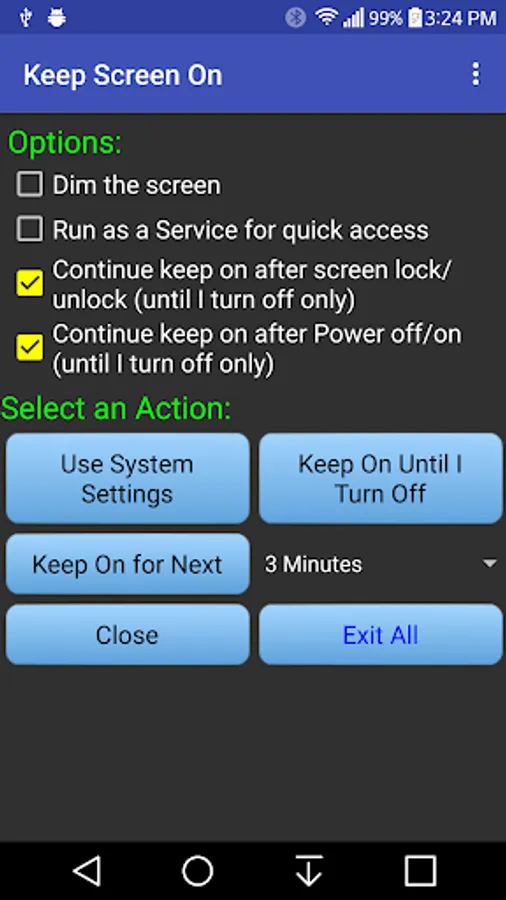
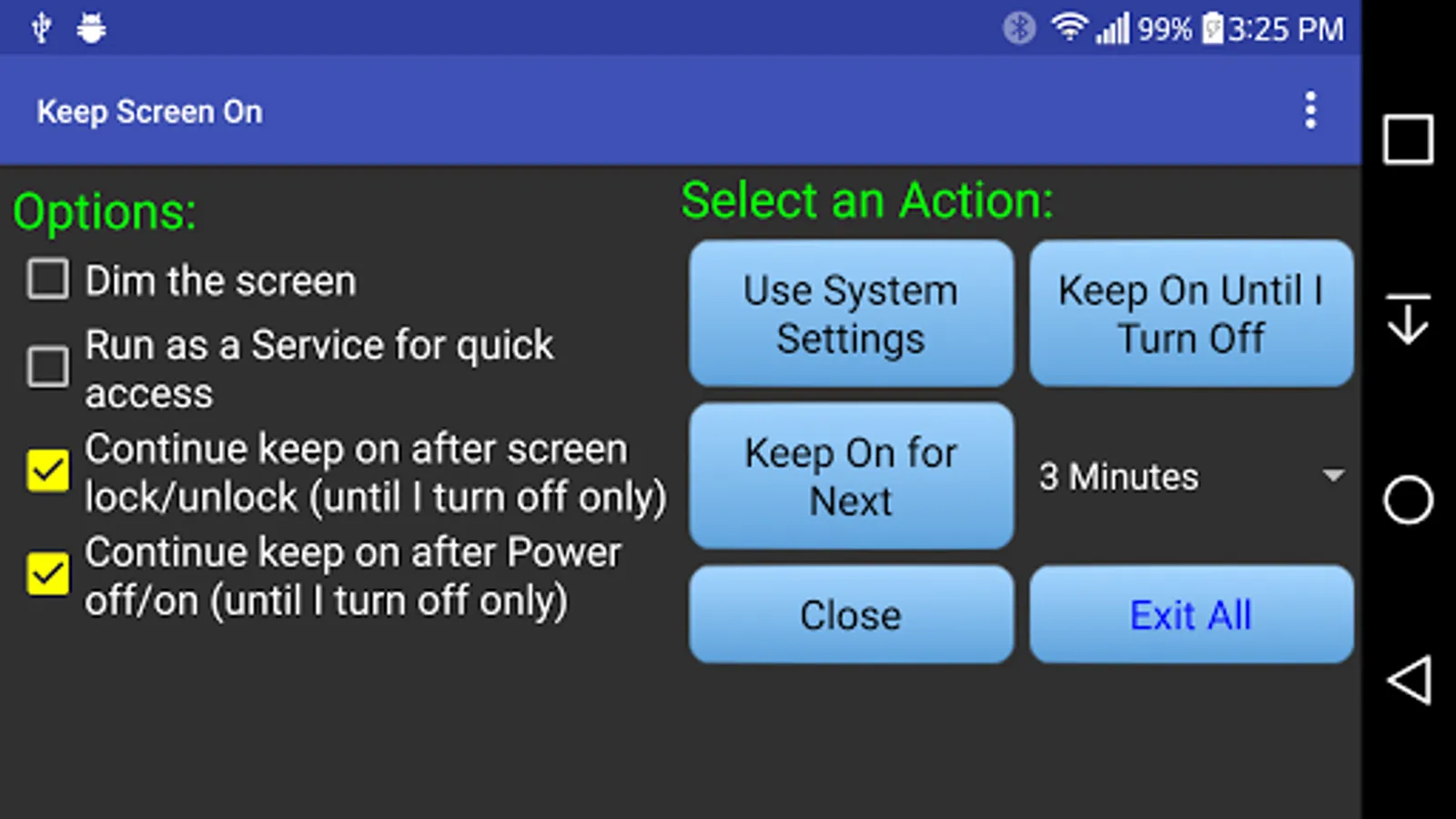
In this app, you can select modes to keep your device’s screen on, including custom durations and system settings. Includes options for service mode, notifications, and screen dimming features.
AppRecs review analysis
AppRecs rating 3.5. Trustworthiness 54 out of 100. Review manipulation risk 35 out of 100. Based on a review sample analyzed.
★★★☆☆
3.5
AppRecs Rating
Ratings breakdown
5 star
53%
4 star
16%
3 star
0%
2 star
0%
1 star
32%
What to know
✓
Good user ratings
68% positive sampled reviews
About Keep Screen On
This little app provides a quick and simple way to keep your device’s screen on, so you don’t have to keep touching the screen to prevent the screen from going off.
This app has 3 modes to keep the screen on:
1. Use System Setting – Restore to your device’s system setting screen timeout value.
2. Until I turn off – Keep the screen on until you turn off the phone or put the phone on sleep.
3. Keep on for the desired period of time.
This app also has the following features:
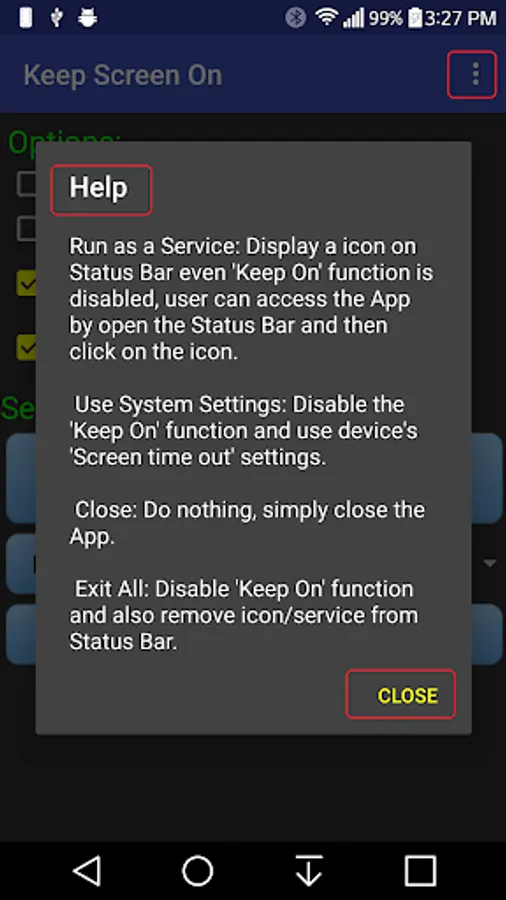
- Run as a Service for quick and easy access from any other apps.
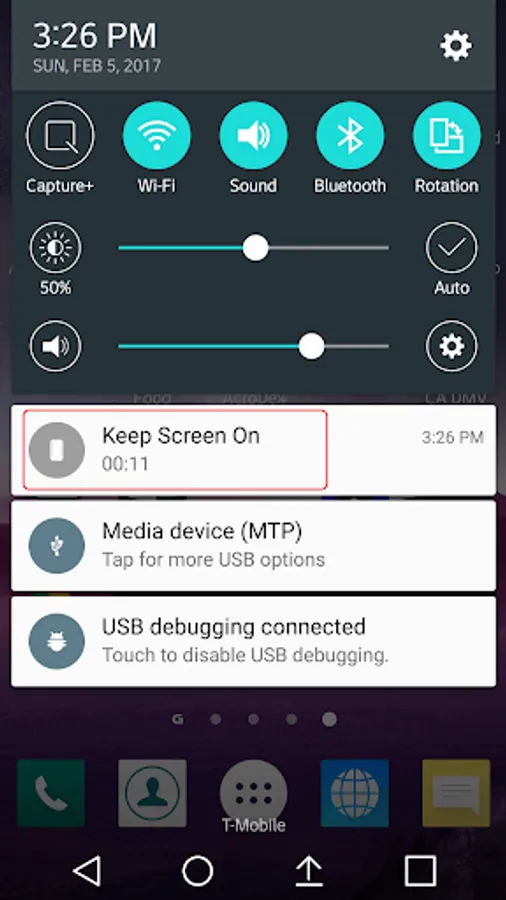
- Display a notification icon on top to indicate how long the screen has been on (Until I turn off mode) or how long the screen will be on (Keep on for next … mode).
- An option to keep the screen on but also dim the screen.
Use the following two options to stop running as a Service:
1. Un-check the “Run as a Service…”, and then click on “Use System Settings”.
2. Use “Exit All” button.
This app uses the following permissions:
- System Wake Lock: To prevent the screen from turning off.
This app has 3 modes to keep the screen on:
1. Use System Setting – Restore to your device’s system setting screen timeout value.
2. Until I turn off – Keep the screen on until you turn off the phone or put the phone on sleep.
3. Keep on for the desired period of time.
This app also has the following features:
- Run as a Service for quick and easy access from any other apps.
- Display a notification icon on top to indicate how long the screen has been on (Until I turn off mode) or how long the screen will be on (Keep on for next … mode).
- An option to keep the screen on but also dim the screen.
Use the following two options to stop running as a Service:
1. Un-check the “Run as a Service…”, and then click on “Use System Settings”.
2. Use “Exit All” button.
This app uses the following permissions:
- System Wake Lock: To prevent the screen from turning off.