In this app, you can emulate a game controller on your phone with customizable buttons and directional pads. Includes options for multi-touch, transparent keyboard, and configurable gestures.
AppRecs review analysis
AppRecs rating 3.3. Trustworthiness 0 out of 100. Review manipulation risk 0 out of 100. Based on a review sample analyzed.
★★★☆☆
3.3
AppRecs Rating
Ratings breakdown
5 star
44%
4 star
10%
3 star
10%
2 star
10%
1 star
27%
What to know
✓
Authentic reviews
Natural distribution, no red flags
⚠
High negative review ratio
36% of sampled ratings are 1–2 stars
About GamePad
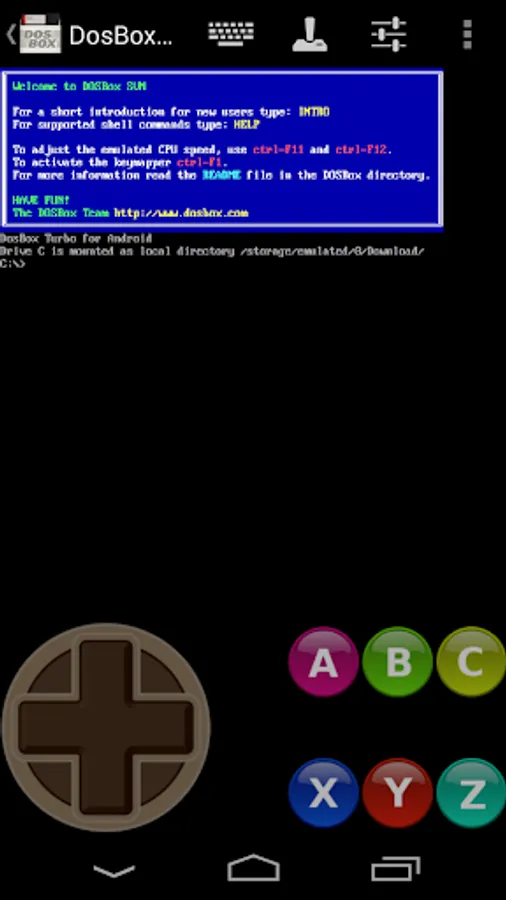
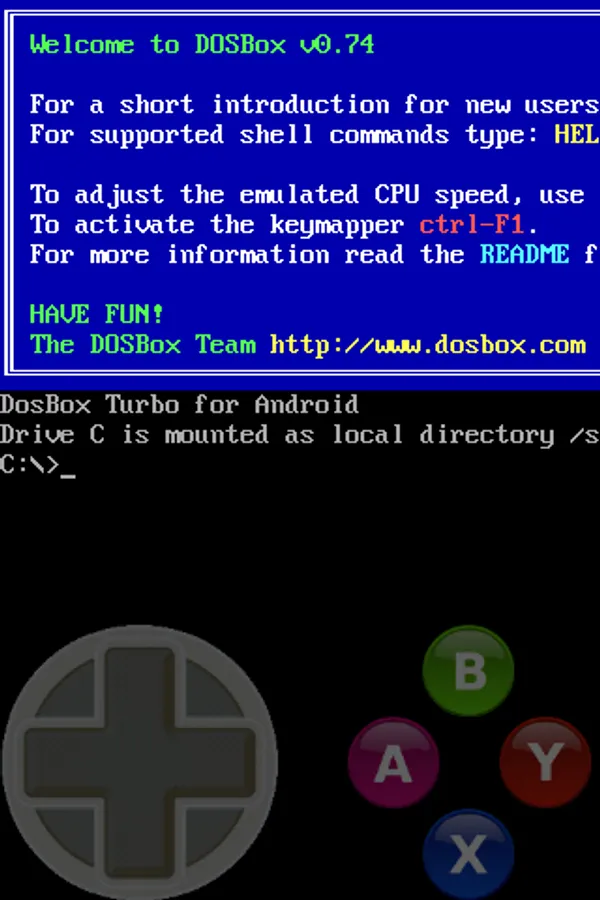
The only 100% FREE Gamepad keyboard for playing games. Emulates a simple D-Dpad directional keys / Cursor Keyboard Keys, and four (or six) separate buttons.
Emulate a Game Controller on your phone. Designed for use with DosBox Turbo, but works with other Android emulators, OnLive, SplashTop and any Android game/app that can use a Keyboard (utilizes the standard Android Input Method Framework).
Features:
=========
★ True 8-Way or emulated 8-Way Directional Pad
★ Permanent Notification Setting to allow use in any App/Game
★ Custom Mappable 8-way DPad
★ 4 or 6 extra mappable buttons + directional pad
★ DosBox Turbo / Xbox360 mode Controller emulation
★ ESC and Function Keys (F1-F12)
★ Re-Map A,B,X,Y,C,Z buttons to Different Keys
★ Multi-Touch capable (depends on phone hardware)
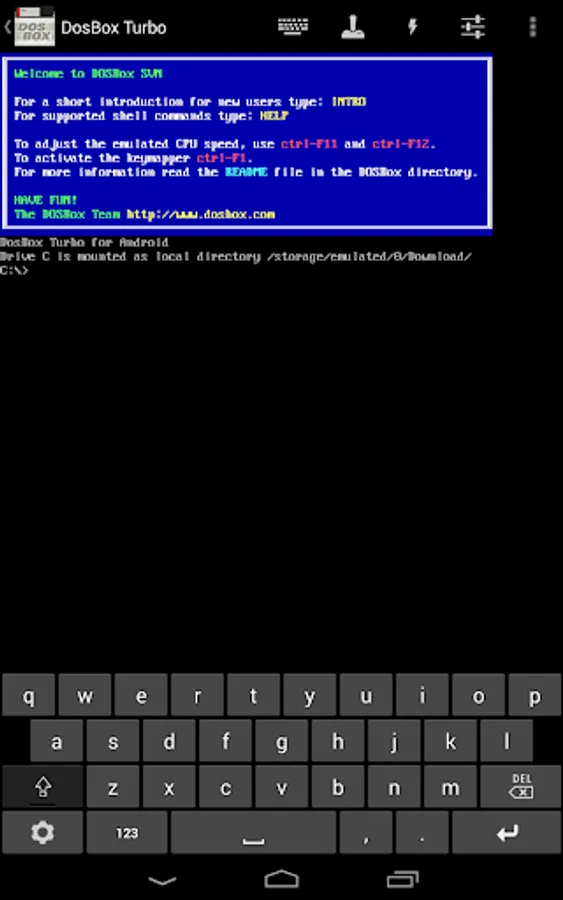
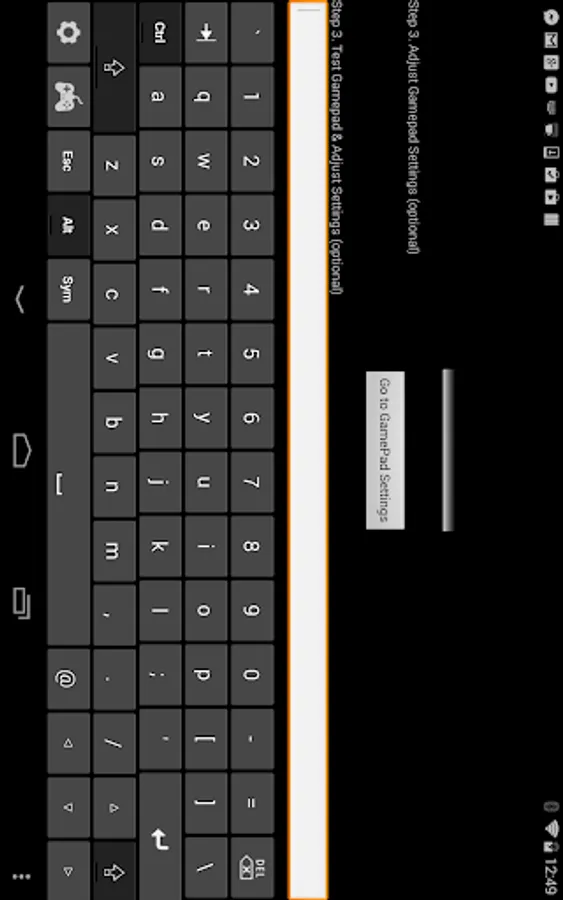
★ Built in Transparent Keyboard
★ Uses standard Android Input Method (IME)
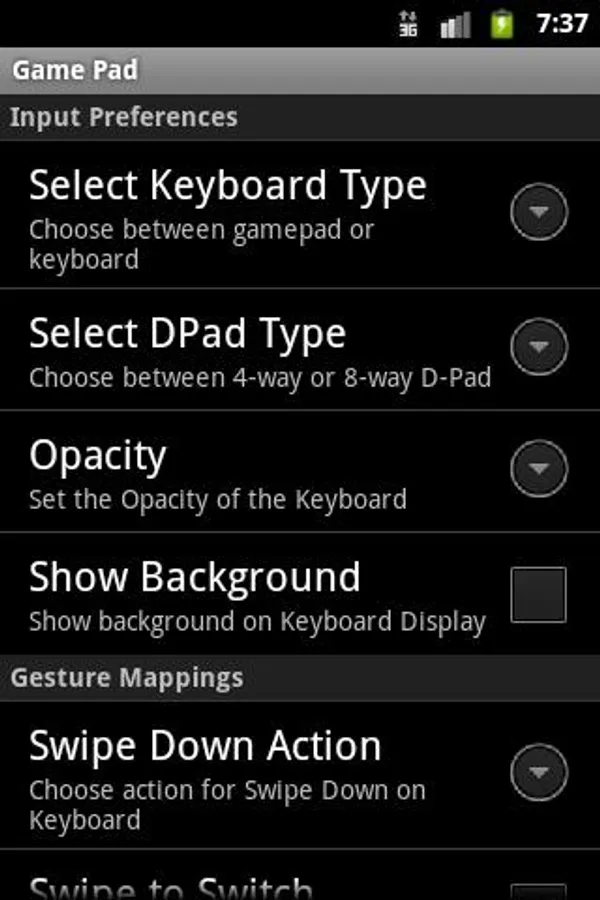
★ Configurable Transparency Levels
★ Swipe Left/Right to switch from Keyboard to GamePad
★ Swipe Down for Settings
★ Configurable Swipe Gestures
To Use:
=======
After installation, Enable "Game Pad" in the Android Settings->Keyboards section.
Choose "Game Pad" as the Input Method.
** NOTE: If the game/app does not SUPPORT using Standard Android Input Method (ie. Keyboard) as an input method, then go into the settings menu and enable "Permanent Notification". Launch Gamepad Keyboard once to start the notification. Then start your game and drag down the notification area. By clicking on notification icon, Gamepad Keyboard will be displayed.
Emulate a Game Controller on your phone. Designed for use with DosBox Turbo, but works with other Android emulators, OnLive, SplashTop and any Android game/app that can use a Keyboard (utilizes the standard Android Input Method Framework).
Features:
=========
★ True 8-Way or emulated 8-Way Directional Pad
★ Permanent Notification Setting to allow use in any App/Game
★ Custom Mappable 8-way DPad
★ 4 or 6 extra mappable buttons + directional pad
★ DosBox Turbo / Xbox360 mode Controller emulation
★ ESC and Function Keys (F1-F12)
★ Re-Map A,B,X,Y,C,Z buttons to Different Keys
★ Multi-Touch capable (depends on phone hardware)
★ Built in Transparent Keyboard
★ Uses standard Android Input Method (IME)
★ Configurable Transparency Levels
★ Swipe Left/Right to switch from Keyboard to GamePad
★ Swipe Down for Settings
★ Configurable Swipe Gestures
To Use:
=======
After installation, Enable "Game Pad" in the Android Settings->Keyboards section.
Choose "Game Pad" as the Input Method.
** NOTE: If the game/app does not SUPPORT using Standard Android Input Method (ie. Keyboard) as an input method, then go into the settings menu and enable "Permanent Notification". Launch Gamepad Keyboard once to start the notification. Then start your game and drag down the notification area. By clicking on notification icon, Gamepad Keyboard will be displayed.
GamePad Screenshots
Tap to Rate: