Switch Access
Google LLC
3.5 ★
store rating
1,000,000,000+
downloads
Free
AppRecs review analysis
AppRecs rating 2.5. Trustworthiness 65 out of 100. Review manipulation risk 32 out of 100. Based on a review sample analyzed.
★★☆☆☆
2.5
AppRecs Rating
Ratings breakdown
5 star
53%
4 star
6%
3 star
7%
2 star
5%
1 star
29%
What to know
⚠
Recent negative feedback
38% of recent sampled reviews report problems
⚠
Review quality concerns
85% of sampled 5-star reviews are very short
⚠
High negative review ratio
34% of sampled ratings are 1–2 stars
About Switch Access
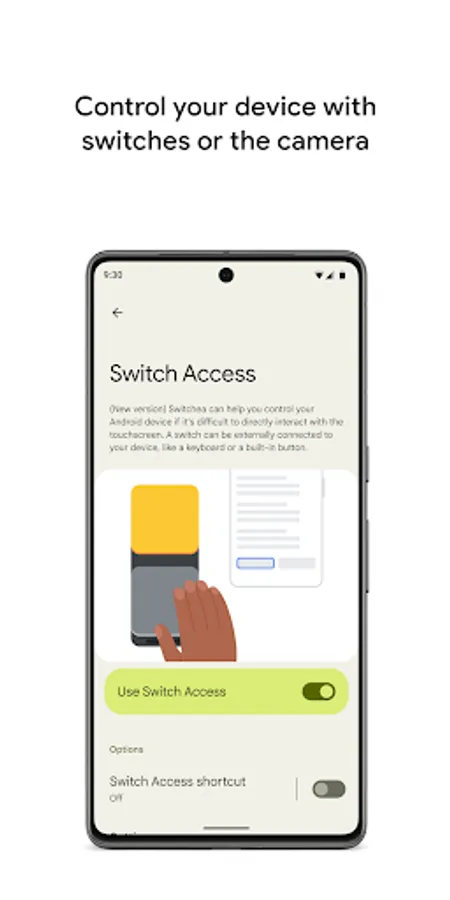
Control your phone or tablet using switches or the front camera. You can use switches to select items, scroll, enter text, and more.
Switch Access helps you interact with your Android device using one or more switches instead of the touchscreen. Switch Access can be helpful if you can't interact directly with your device.
To get started:
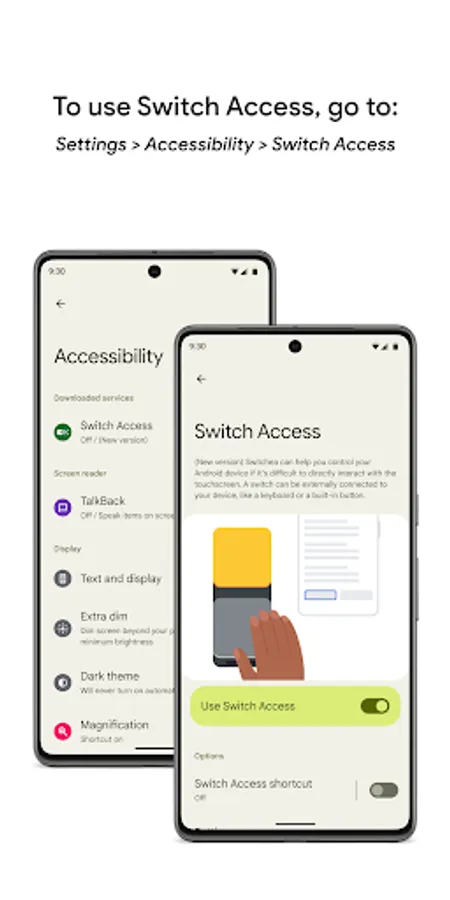
1. Open your device's Settings app.
2. Tap Accessibility > Switch Access.
Set up a switch
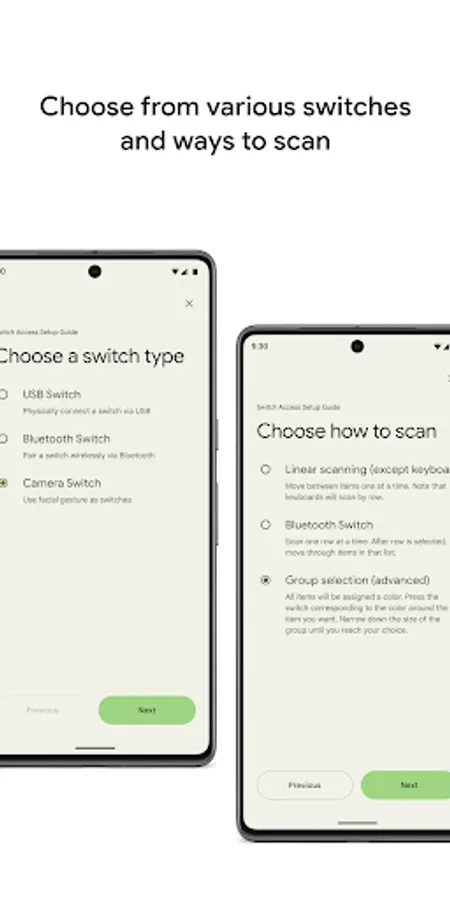
Switch Access scans the items on your screen and highlights each item until you make a selection. You can choose from a few kinds of switches:
Physical switches
• USB or Bluetooth switches, like buttons or keyboards
• On-device switches, like volume buttons
Camera switches
• Open your mouth, smile, or raise your eyebrows
• Look left, right, or up
Scan your device
After setting up a switch, you can scan and interact with things on the screen.
• Linear scanning: Move between items one at a time.
• Row-column scanning: Scan one row at a time. After a row is selected, move through items in that list.
• Point scanning: Use moving lines to select a specific horizontal and vertical location, then press "Select".
• Group selection: Assign switches to different color groupings. All items on the screen will be assigned a color. Press the switch corresponding to the color around the item you want. Narrow down the size of the group until you reach your choice.
Use the menus
When an element is selected, you'll see a menu with available interactions, like select, scroll, copy, paste, and more.
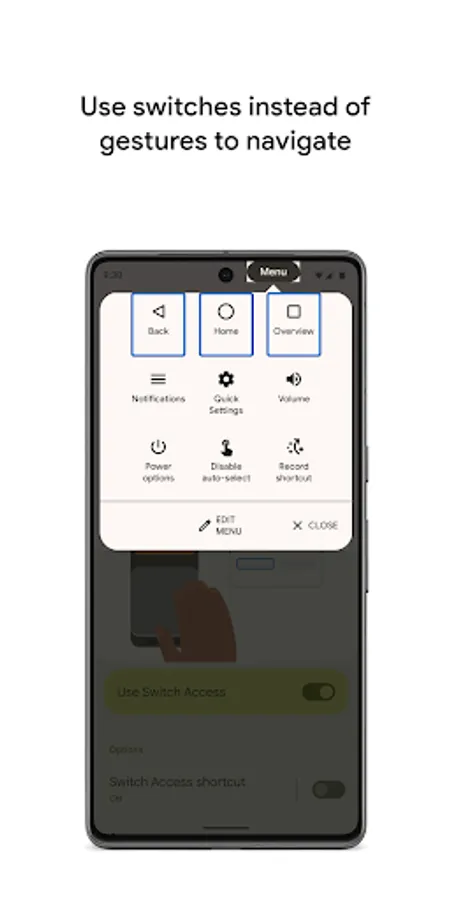
There will also be a menu at the top of the screen to help you move around your device. For example, you can open notifications, go to the home screen, change the volume, and more.
Navigate with Camera Switches
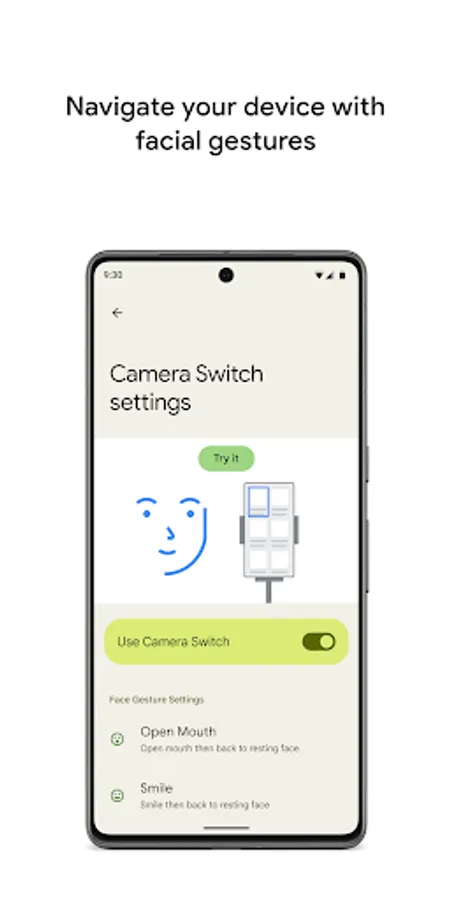
You can use Camera Switches to navigate your phone with facial gestures. Browse or select apps on your phone with the use of your phone’s front camera.
You can also customize the sensitivity and duration of each gesture to better fit your needs.
Record shortcuts
You can record touch gestures that can be assigned to a switch or started from a menu. Touch gestures can include pinching, zooming, scrolling, swiping, double tapping, and more. You can then start frequent or complex actions with a single switch, for example, recording a gesture that swipes left twice to turn two pages of an ebook.
Permissions Notice
• Accessibility Service: Because this app is an accessibility service, it can observe your actions, retrieve window content, and observe text that you type.
Switch Access helps you interact with your Android device using one or more switches instead of the touchscreen. Switch Access can be helpful if you can't interact directly with your device.
To get started:
1. Open your device's Settings app.
2. Tap Accessibility > Switch Access.
Set up a switch
Switch Access scans the items on your screen and highlights each item until you make a selection. You can choose from a few kinds of switches:
Physical switches
• USB or Bluetooth switches, like buttons or keyboards
• On-device switches, like volume buttons
Camera switches
• Open your mouth, smile, or raise your eyebrows
• Look left, right, or up
Scan your device
After setting up a switch, you can scan and interact with things on the screen.
• Linear scanning: Move between items one at a time.
• Row-column scanning: Scan one row at a time. After a row is selected, move through items in that list.
• Point scanning: Use moving lines to select a specific horizontal and vertical location, then press "Select".
• Group selection: Assign switches to different color groupings. All items on the screen will be assigned a color. Press the switch corresponding to the color around the item you want. Narrow down the size of the group until you reach your choice.
Use the menus
When an element is selected, you'll see a menu with available interactions, like select, scroll, copy, paste, and more.
There will also be a menu at the top of the screen to help you move around your device. For example, you can open notifications, go to the home screen, change the volume, and more.
Navigate with Camera Switches
You can use Camera Switches to navigate your phone with facial gestures. Browse or select apps on your phone with the use of your phone’s front camera.
You can also customize the sensitivity and duration of each gesture to better fit your needs.
Record shortcuts
You can record touch gestures that can be assigned to a switch or started from a menu. Touch gestures can include pinching, zooming, scrolling, swiping, double tapping, and more. You can then start frequent or complex actions with a single switch, for example, recording a gesture that swipes left twice to turn two pages of an ebook.
Permissions Notice
• Accessibility Service: Because this app is an accessibility service, it can observe your actions, retrieve window content, and observe text that you type.