Button Master: Lock Screen
MozStudio
4.4 ★
store rating
10,000+
downloads
Free
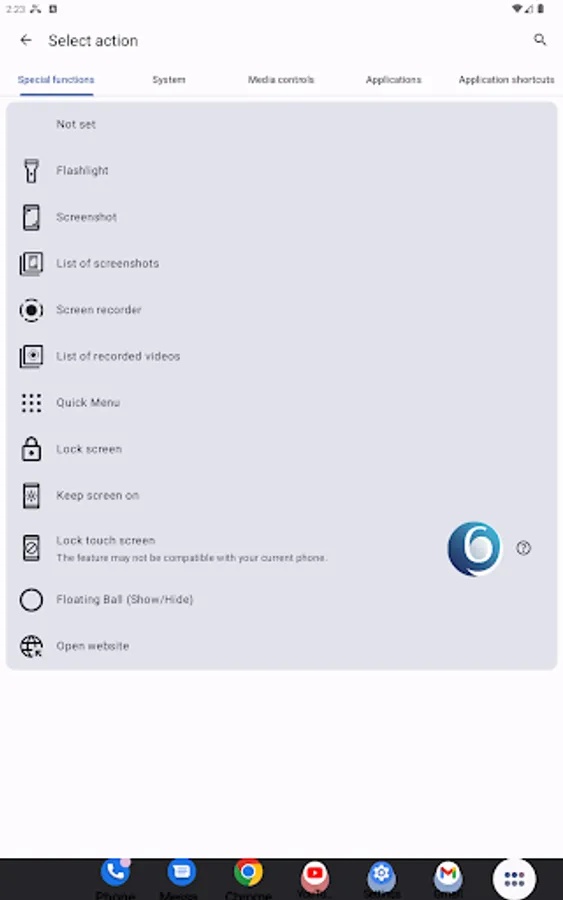
In this app, you can create customizable buttons to execute actions like screen recording, screenshot, lock screen, and toggle flashlight. Includes static and dynamic icons, widget options, gesture controls, and smart flip cover features.
AppRecs review analysis
AppRecs rating 4.4. Trustworthiness 0 out of 100. Review manipulation risk 0 out of 100. Based on a review sample analyzed.
★★★★☆
4.4
AppRecs Rating
Ratings breakdown
5 star
78%
4 star
11%
3 star
0%
2 star
0%
1 star
11%
What to know
✓
High user satisfaction
89% of sampled ratings are 4+ stars (4.4★ average)
About Button Master: Lock Screen
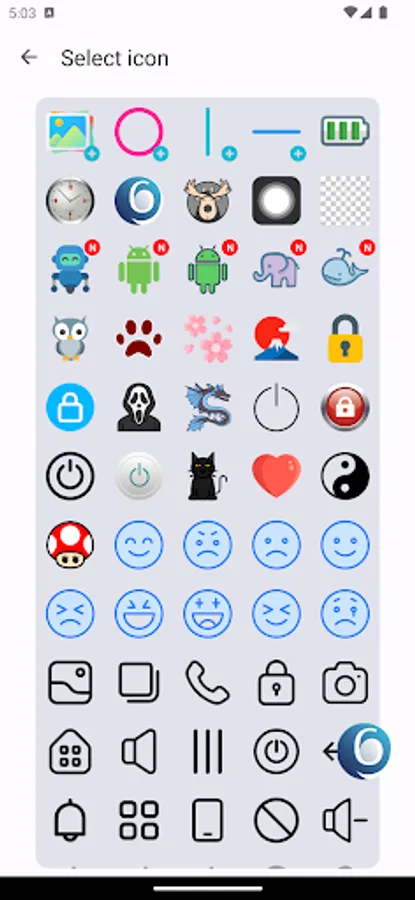
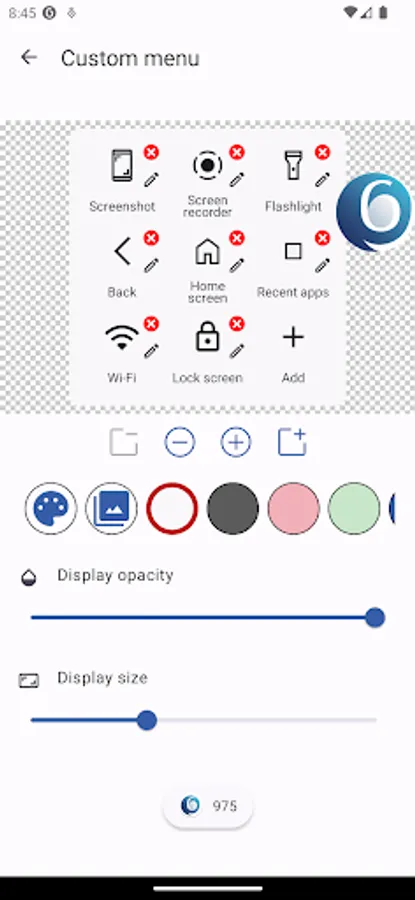
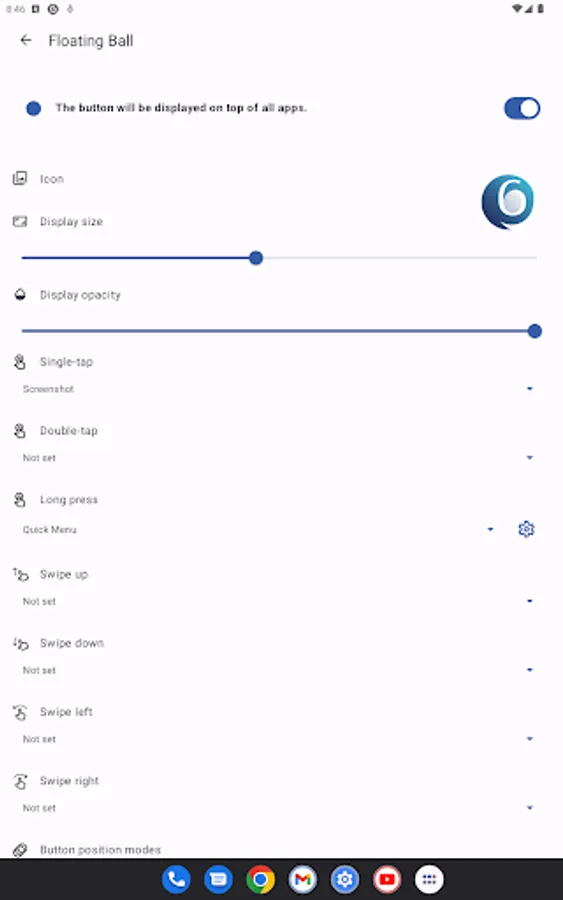
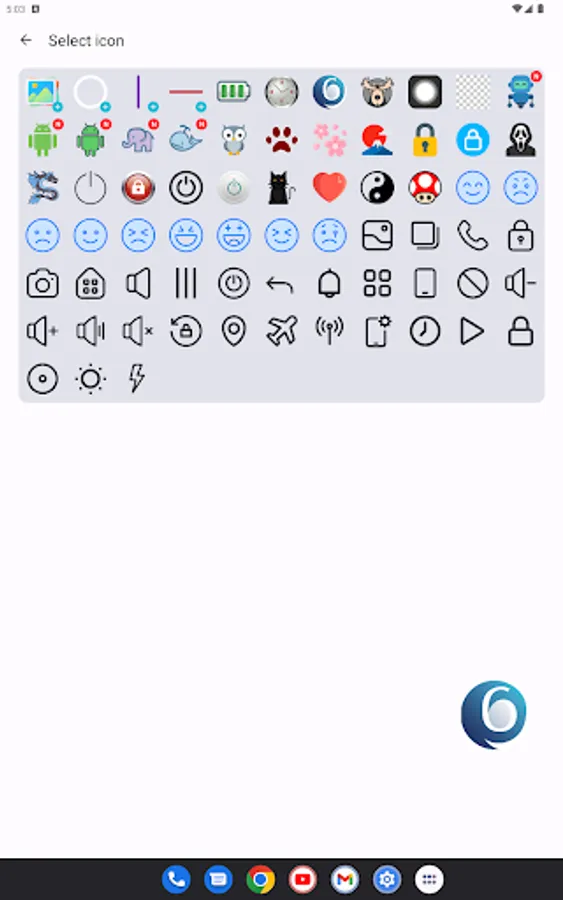
Button Master not only provides you with a wide array of button options but also accelerates your execution of various commonly used actions, such as screen recording, taking a screenshot, lock screen and using the flashlight. Additionally, we've included a rich set of both static and dynamic icons—such as clock display and battery level—to let you personalize your button icons freely.
🔄 Monthly Updates - Keep your experience fresh and exciting! 👍
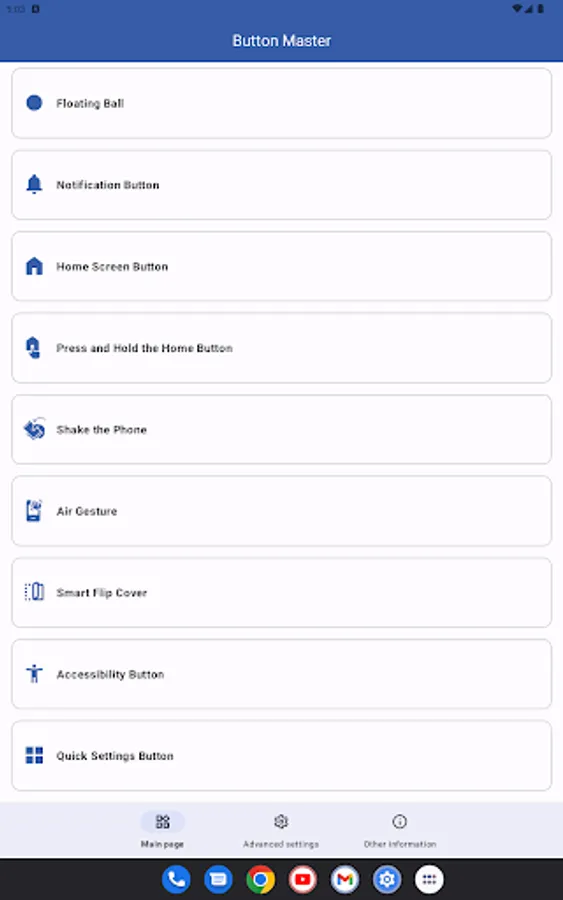
🔹 The buttons we provide are:
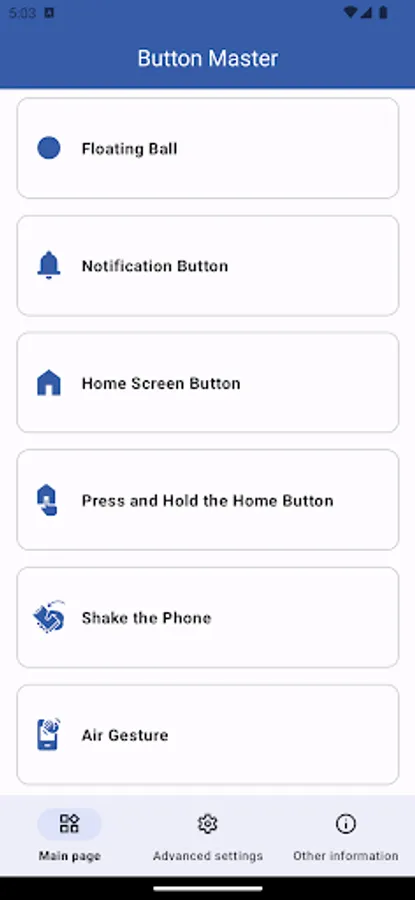
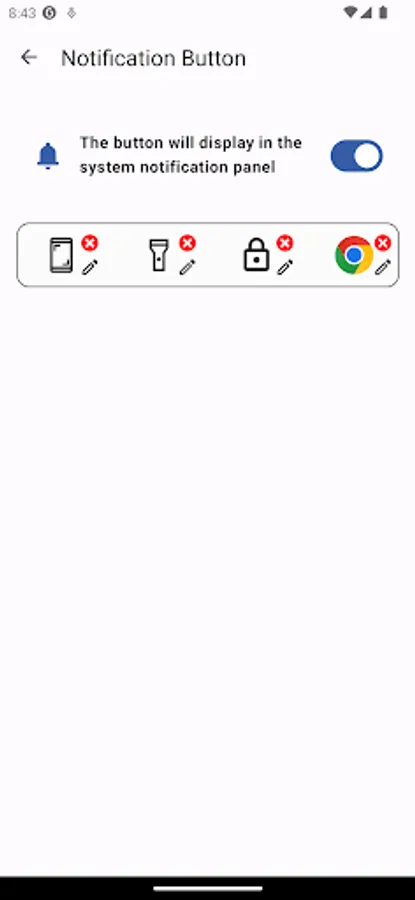
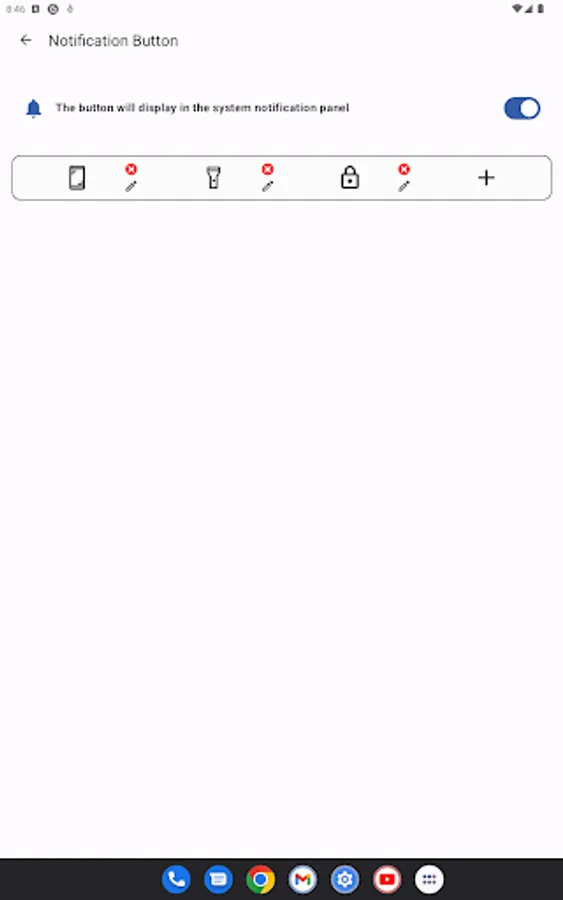
● Notification Widget: Displayed in the system notification panel, this allows you to customize multiple buttons with actions and icons of your choice.
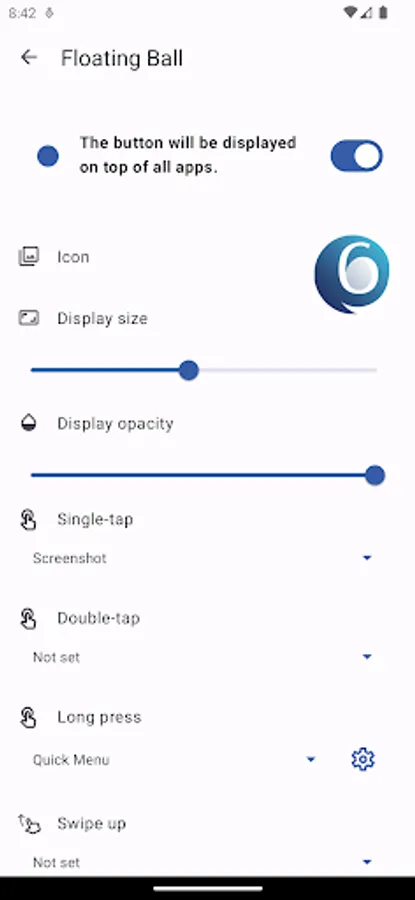
● Floating Ball: An enhanced version of iOS's Assistive Touch, it floats above all app interfaces for convenient, anytime operation. It also supports dynamic information display, such as clock display and battery level.
● Home Screen Button: Create personalized buttons on your phone's Home screen.
● Press and Hold Home Screen Button: Press and hold the Home screen button to execute your configured action instantly.
● Shake Phone: Simply shake your phone to quickly execute specific actions, such as activating the flashlight or starting screen recording.
● Air Gesture: Wave your hand over the proximity sensor (located near the front camera) to trigger a specific action.
● Smart Flip Cover (Phone Case): Automatically wake up screen when the flip cover is opened, and turn off or lock screen when closed.
● Quick Settings Button: Set the button action within the system's Quick Settings panel.
● Accessibility Button: The button floats on your screen over other apps, allowing you to quickly execute the action you've configured with it.
🔹 Actions you can assign to our customizable buttons include:
● Quick Access to Distinctive Functions:
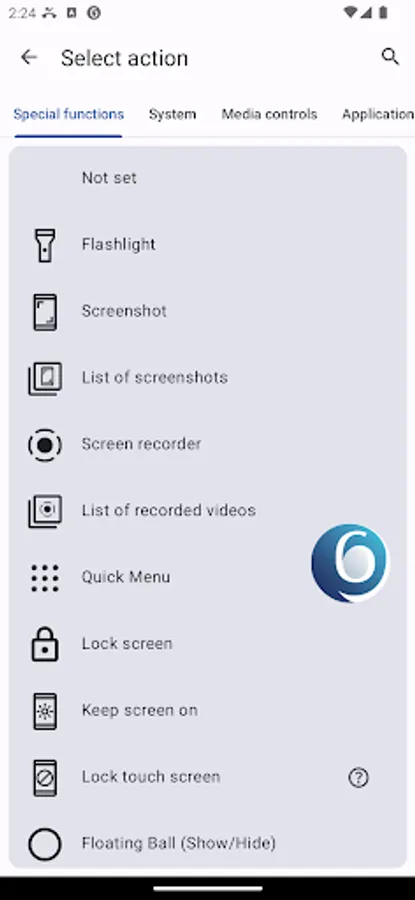
○ Flashlight
○ Screen recording / Taking a screenshot
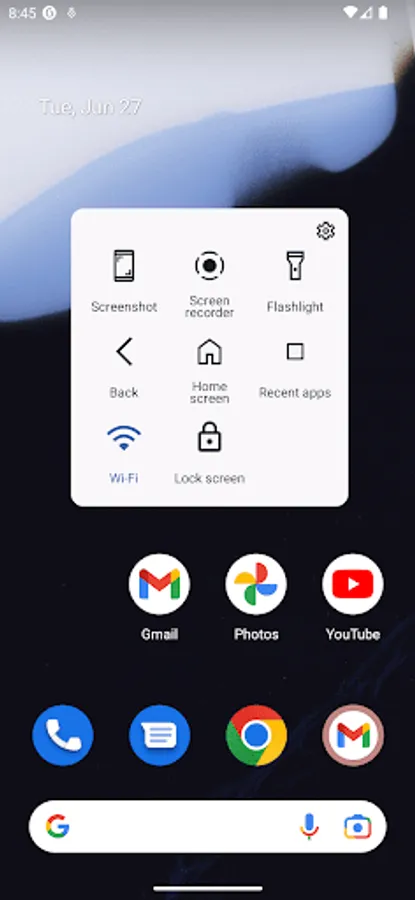
○ Quick Menu: A robust and adaptable menu that consolidates your top actions in one location.
○ Turn off screen or lock screen (Screen Lock): Provides a one-click solution to lock screen or turn off screen. Also offers a solution for when the screen can't be unlocked using biometric recognition (fingerprint / iris / face) after locking.
○ Lock touch screen: You can lock the touch screen while watching movies or playing videos for children to prevent accidental touches by the kids.
○ Keep the screen on: Stops the screen from going to sleep automatically.
○ Quickly launch websites
● Emulate system virtual buttons:
○ Home, Back, Recent Apps, and Last Used App.
○ Launch system power menu
● Media control:
○ Volume adjustments(up / down)
○ Play / Pause, Skip to Next / Previous Track, Fast Forward / Rewind
● Quick access to system settings or pages:
○ Open system notification panel
○ Adjust System Volume
○ Mobile data / Airplane mode / Location (GPS)
○ Wi-Fi / Bluetooth / NFC
○ Screen Brightness / Timeout / Rotation
○ Ring Mode (Normal / Vibrate / Silent)
● Launch applications or application shortcuts
🔹 Accessibility Services Declaration:
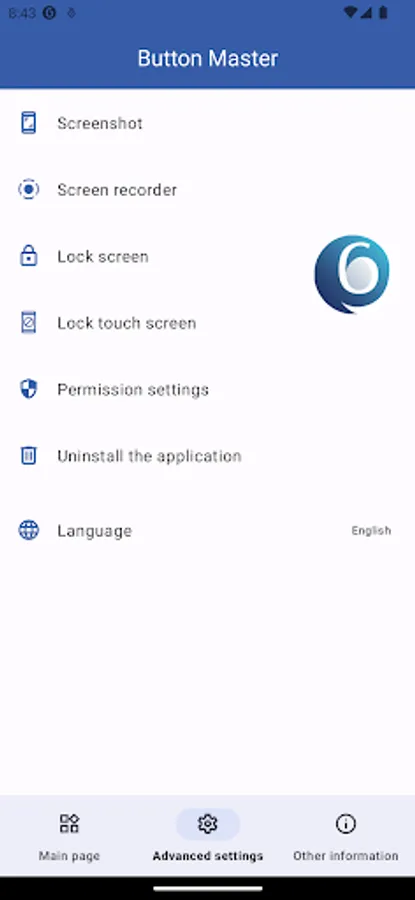
Button Master utilizes the system's provided accessibility services to enhance your user experience. Before you use the following specific features, we will obtain your consent to enable the relevant accessibility services. These features include, but are not limited to:
○ Emulate system virtual key actions, like Home, Back, Recent Apps, and Last Used App.
○ Launch system power menu and notification panel.
○ Turn off screen or lock screen (Screen Lock)
○ Taking a screenshot
○ Lock touch screen
We respect your privacy and we do not collect, store, or share any of your personal or sensitive data through the AccessibilityService API. You can turn off this permission at any time in the app settings.
🔄 Monthly Updates - Keep your experience fresh and exciting! 👍
🔹 The buttons we provide are:
● Notification Widget: Displayed in the system notification panel, this allows you to customize multiple buttons with actions and icons of your choice.
● Floating Ball: An enhanced version of iOS's Assistive Touch, it floats above all app interfaces for convenient, anytime operation. It also supports dynamic information display, such as clock display and battery level.
● Home Screen Button: Create personalized buttons on your phone's Home screen.
● Press and Hold Home Screen Button: Press and hold the Home screen button to execute your configured action instantly.
● Shake Phone: Simply shake your phone to quickly execute specific actions, such as activating the flashlight or starting screen recording.
● Air Gesture: Wave your hand over the proximity sensor (located near the front camera) to trigger a specific action.
● Smart Flip Cover (Phone Case): Automatically wake up screen when the flip cover is opened, and turn off or lock screen when closed.
● Quick Settings Button: Set the button action within the system's Quick Settings panel.
● Accessibility Button: The button floats on your screen over other apps, allowing you to quickly execute the action you've configured with it.
🔹 Actions you can assign to our customizable buttons include:
● Quick Access to Distinctive Functions:
○ Flashlight
○ Screen recording / Taking a screenshot
○ Quick Menu: A robust and adaptable menu that consolidates your top actions in one location.
○ Turn off screen or lock screen (Screen Lock): Provides a one-click solution to lock screen or turn off screen. Also offers a solution for when the screen can't be unlocked using biometric recognition (fingerprint / iris / face) after locking.
○ Lock touch screen: You can lock the touch screen while watching movies or playing videos for children to prevent accidental touches by the kids.
○ Keep the screen on: Stops the screen from going to sleep automatically.
○ Quickly launch websites
● Emulate system virtual buttons:
○ Home, Back, Recent Apps, and Last Used App.
○ Launch system power menu
● Media control:
○ Volume adjustments(up / down)
○ Play / Pause, Skip to Next / Previous Track, Fast Forward / Rewind
● Quick access to system settings or pages:
○ Open system notification panel
○ Adjust System Volume
○ Mobile data / Airplane mode / Location (GPS)
○ Wi-Fi / Bluetooth / NFC
○ Screen Brightness / Timeout / Rotation
○ Ring Mode (Normal / Vibrate / Silent)
● Launch applications or application shortcuts
🔹 Accessibility Services Declaration:
Button Master utilizes the system's provided accessibility services to enhance your user experience. Before you use the following specific features, we will obtain your consent to enable the relevant accessibility services. These features include, but are not limited to:
○ Emulate system virtual key actions, like Home, Back, Recent Apps, and Last Used App.
○ Launch system power menu and notification panel.
○ Turn off screen or lock screen (Screen Lock)
○ Taking a screenshot
○ Lock touch screen
We respect your privacy and we do not collect, store, or share any of your personal or sensitive data through the AccessibilityService API. You can turn off this permission at any time in the app settings.