About Docker Management
NO docker daemon or docker api is required to be enabled for this app, simply connect via ssh. It is strongly recommended NOT to open unnecessary ports on your server (such as enabling docker daemon) as it can expose your server to more security threads
Connect via ssh to your Linux server and manage your docker.
This application allows you to:
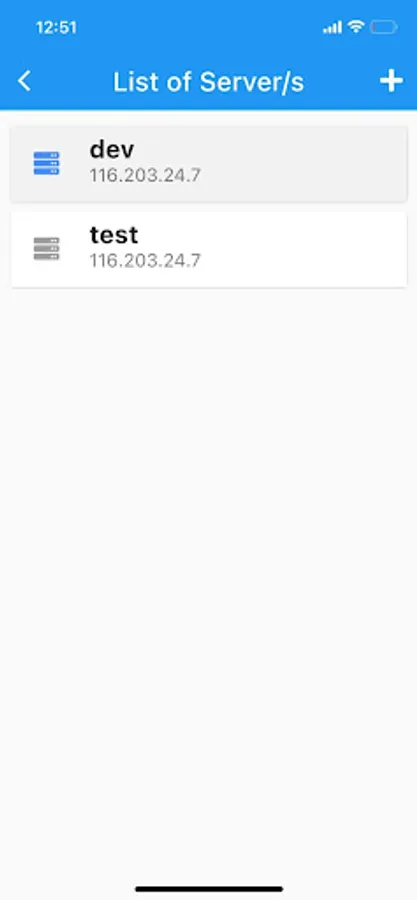
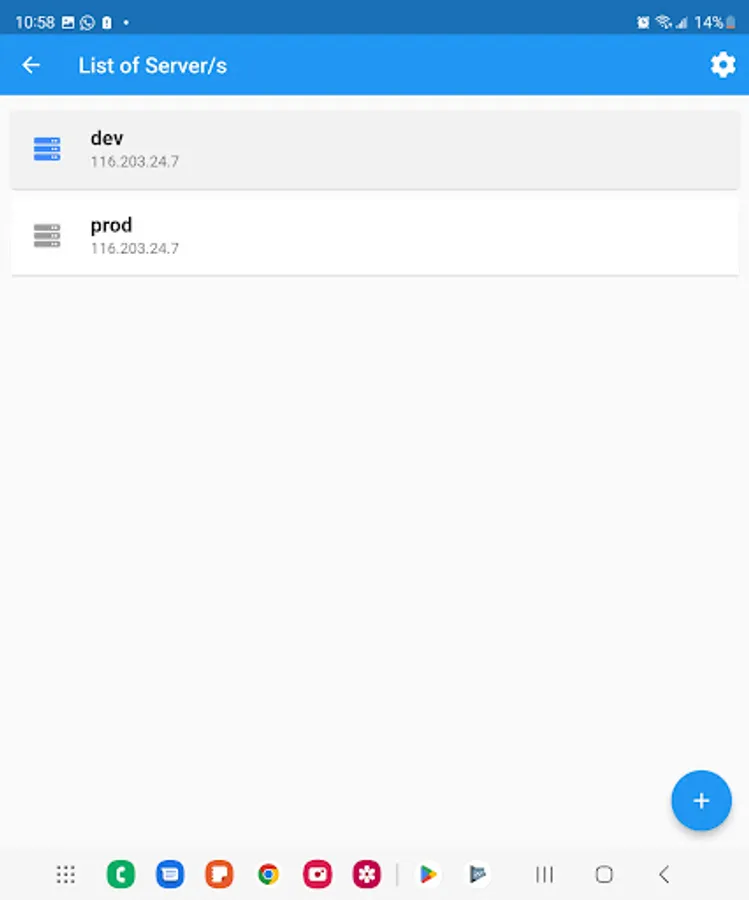
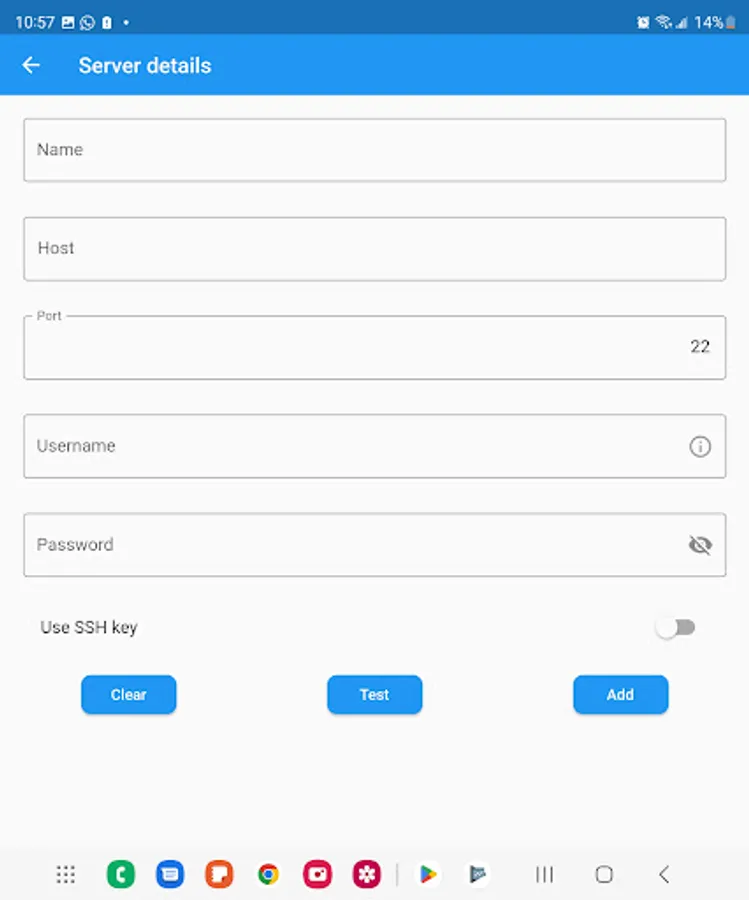
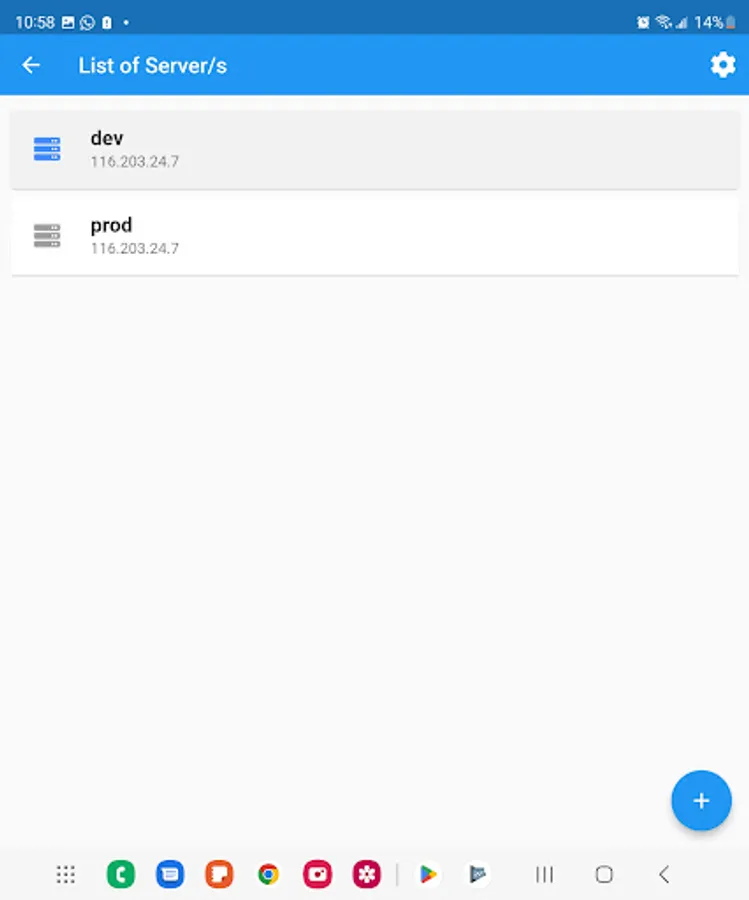
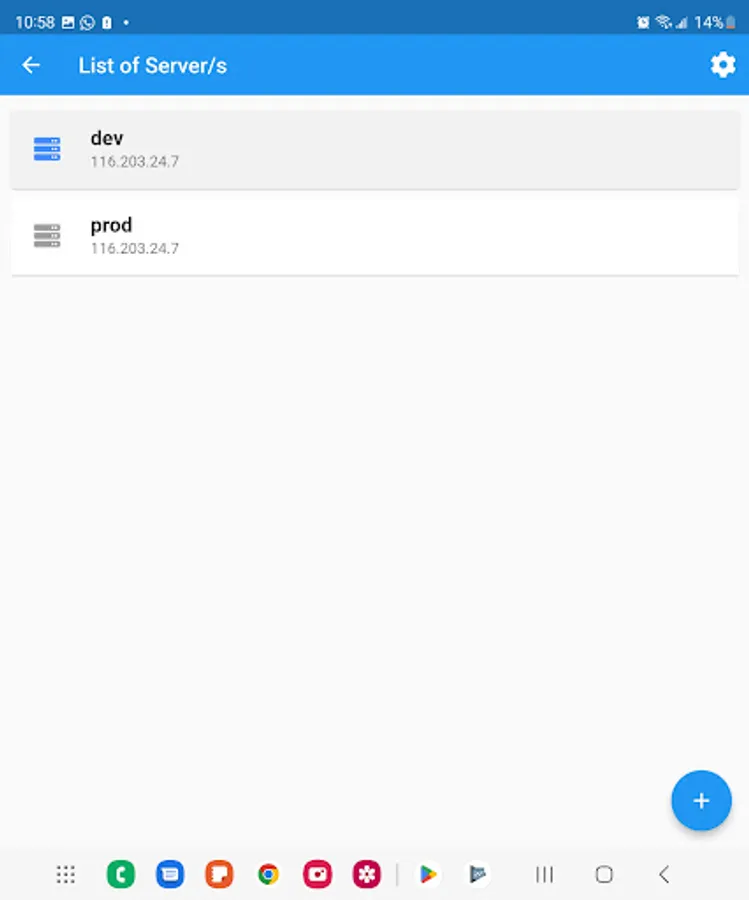
- connect to multiple servers
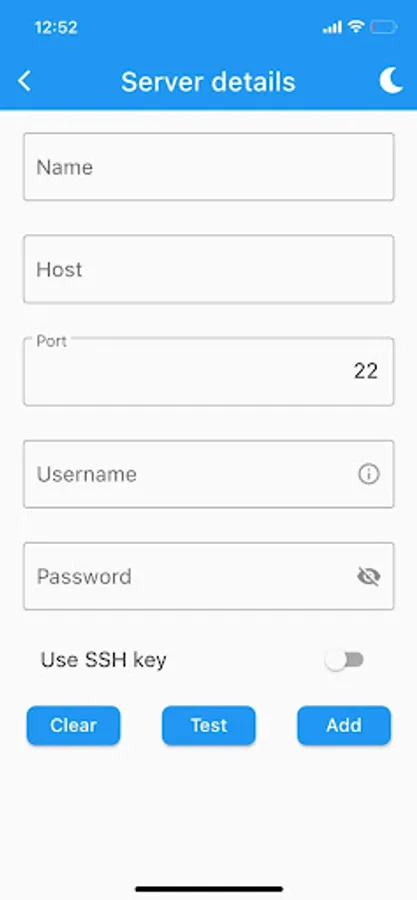
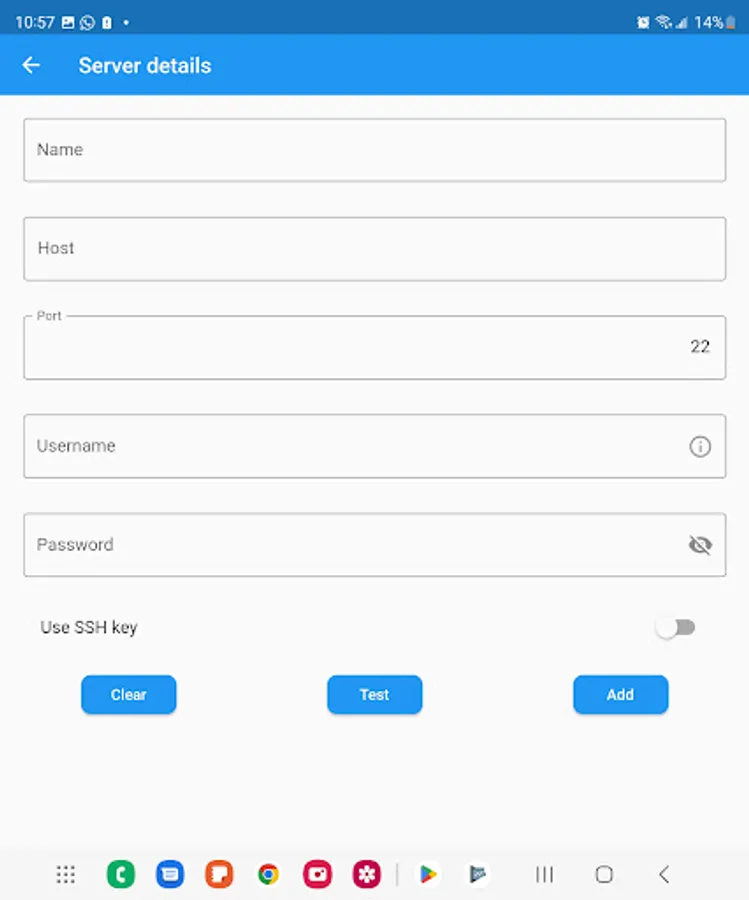
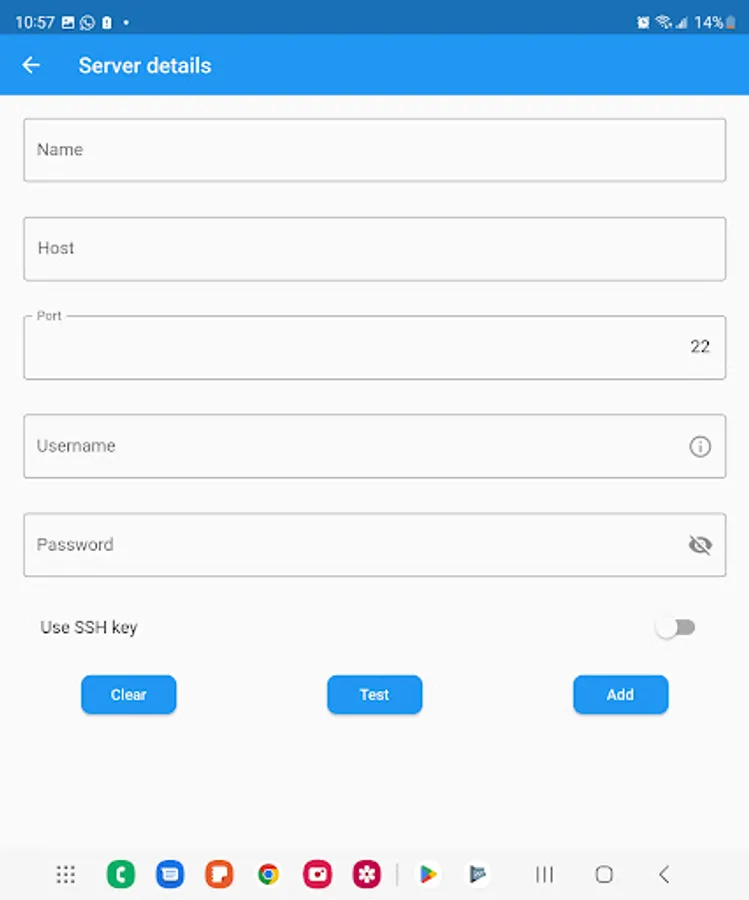
- connect through password or rsa key
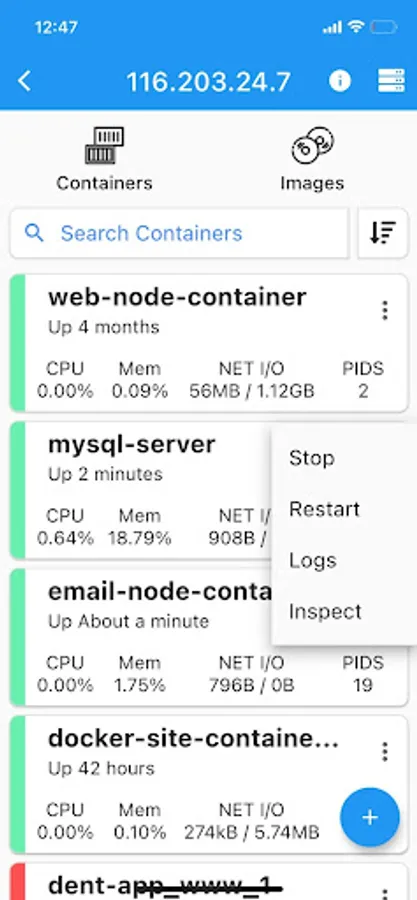
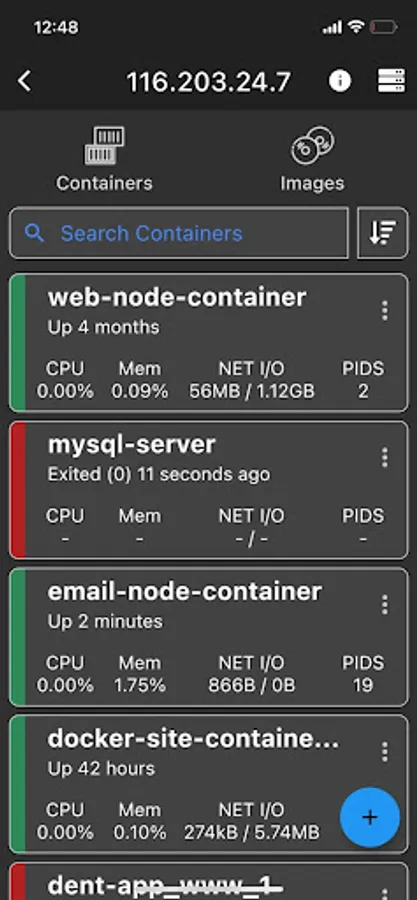
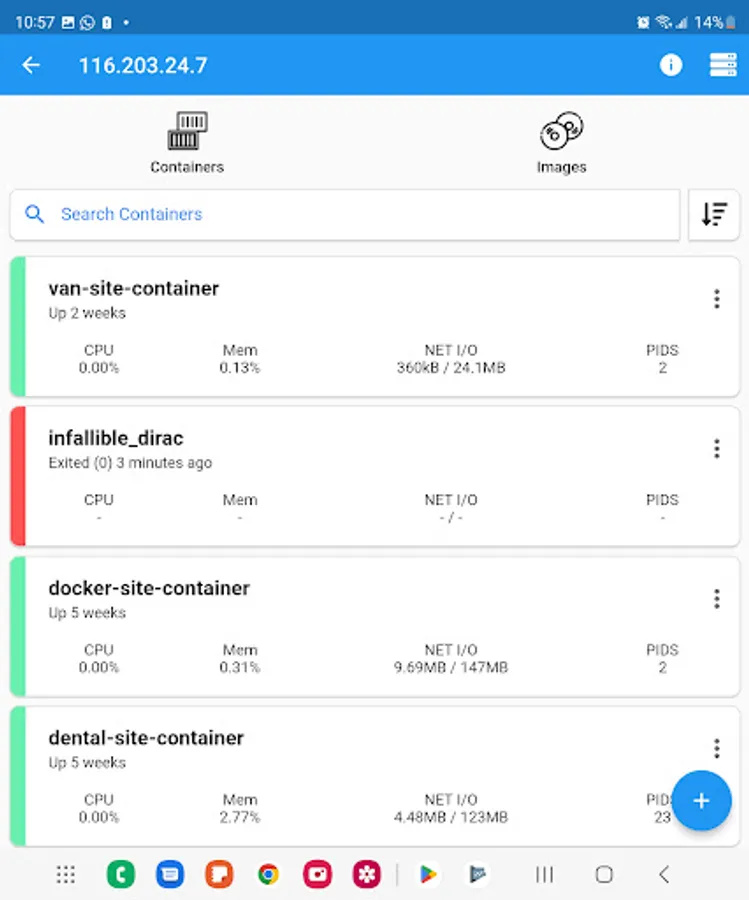
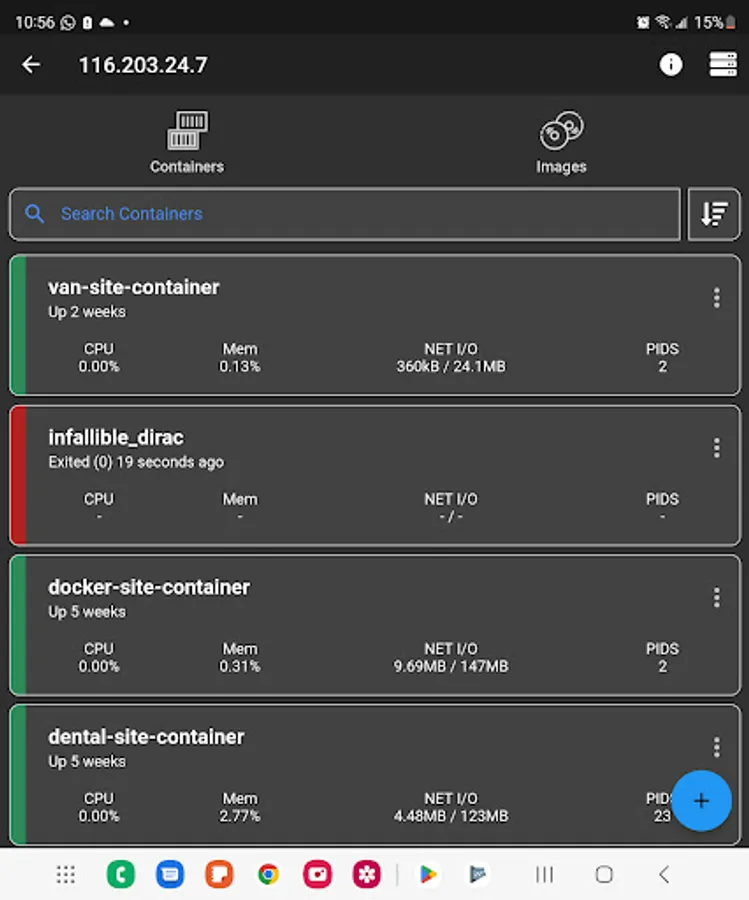
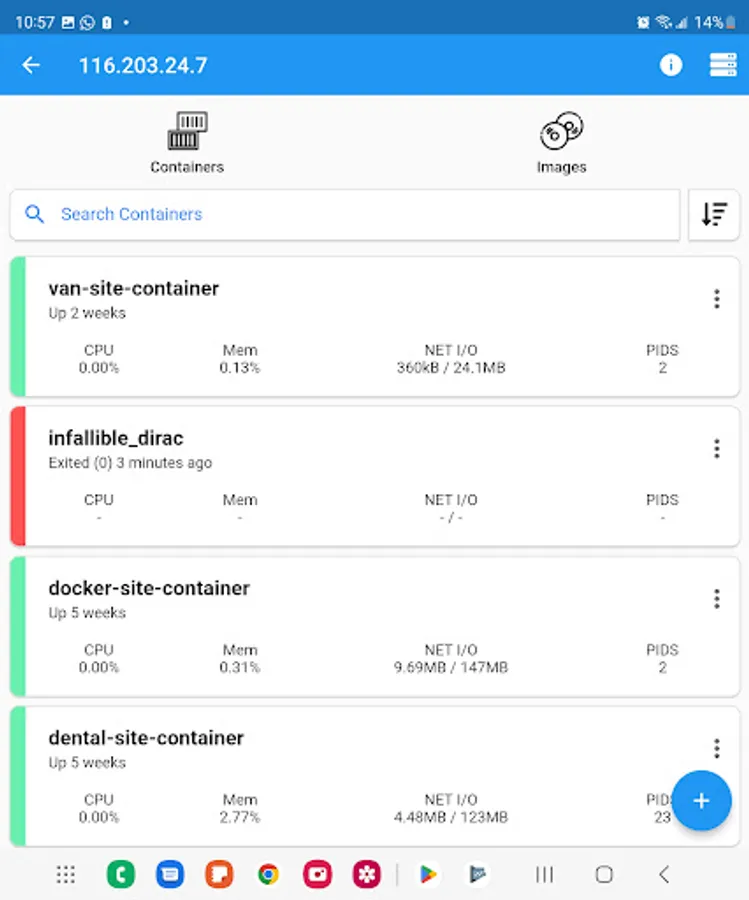
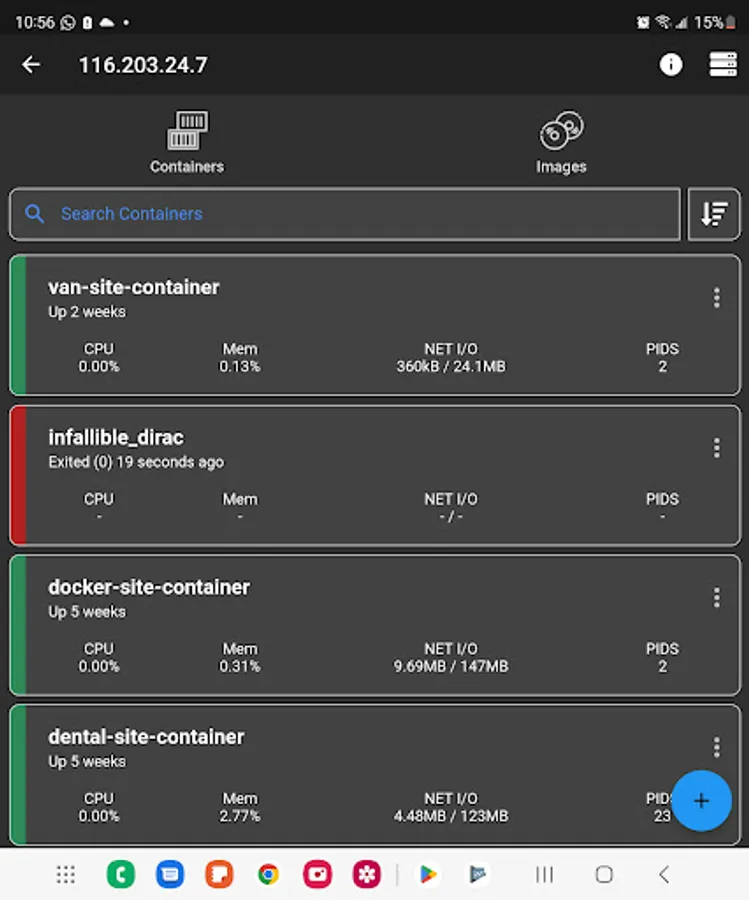
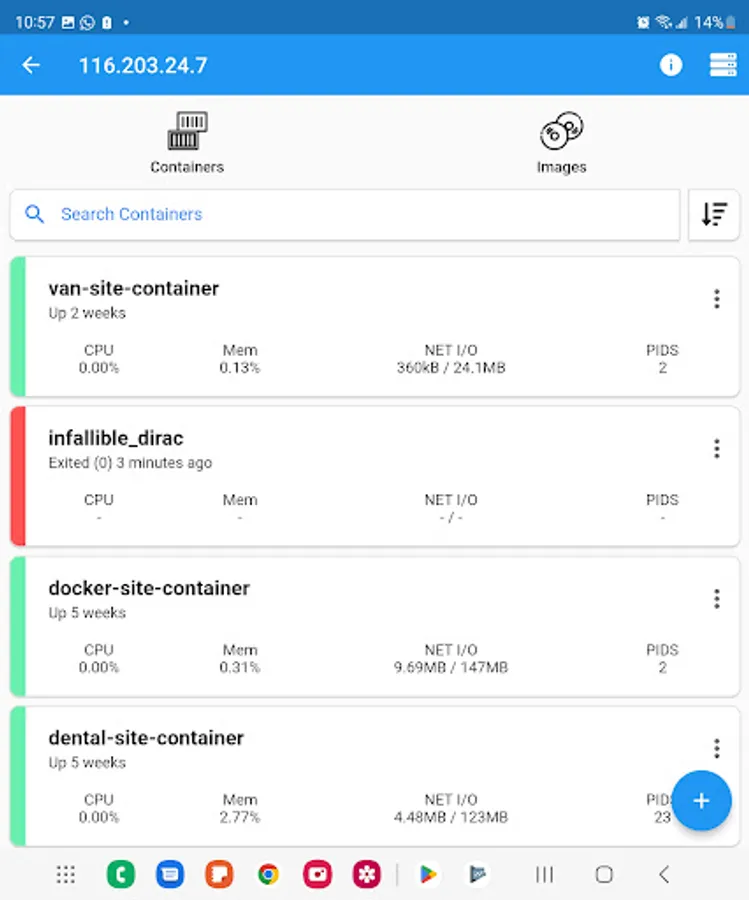
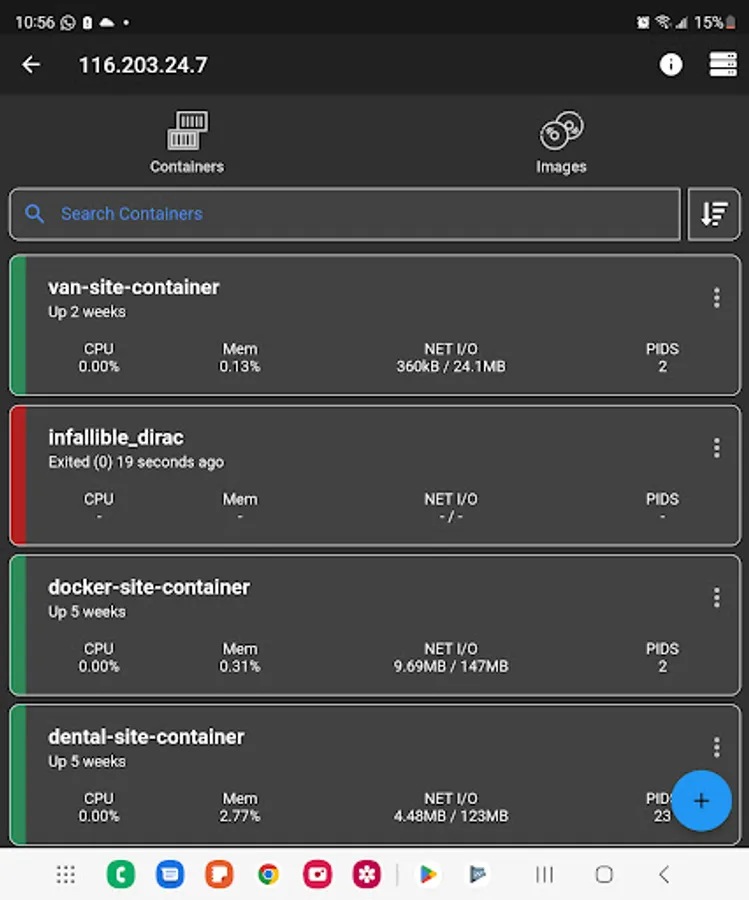
- list containers
- create containers
- start containers
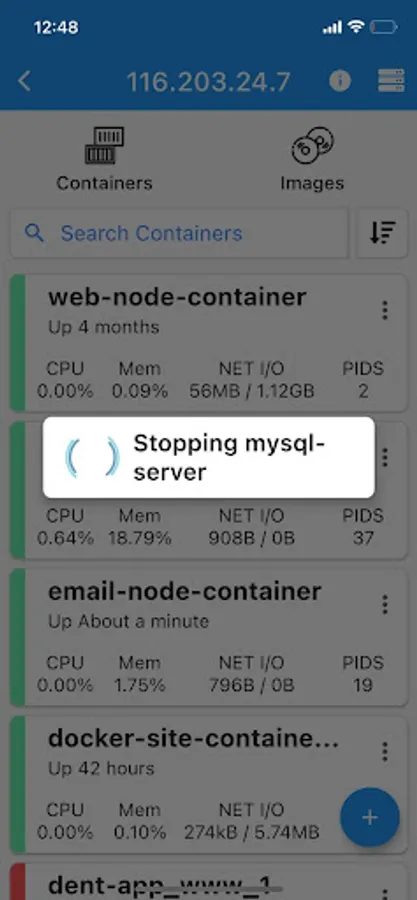
- stop containers
- restart containers
- remove containers
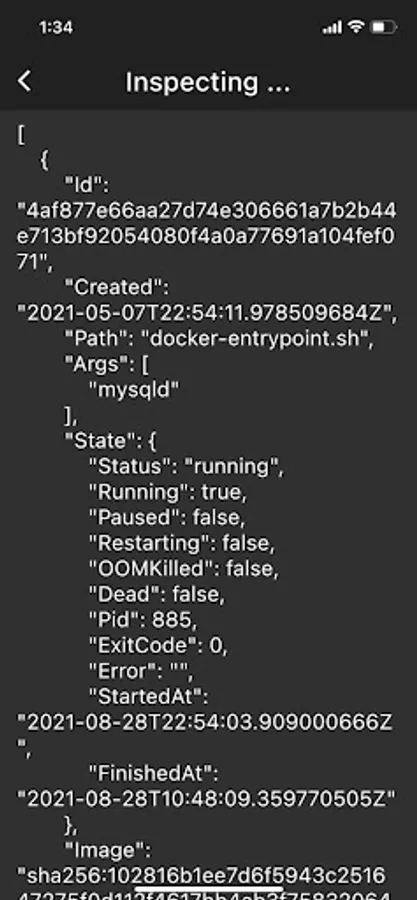
- inspect containers
- view resource usage of containers
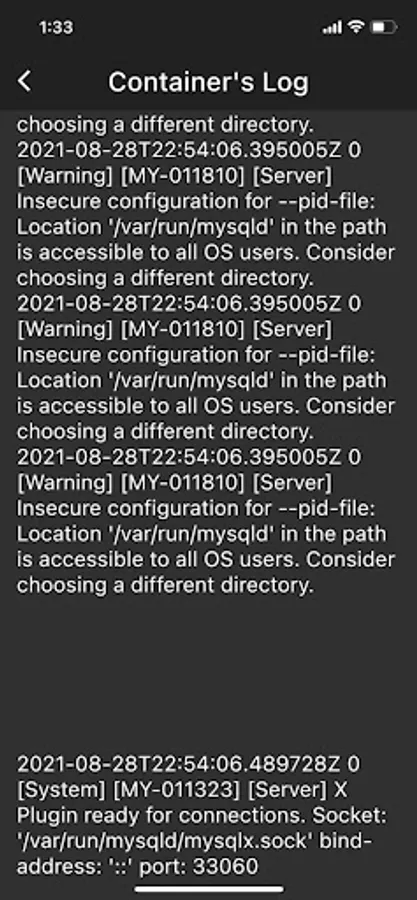
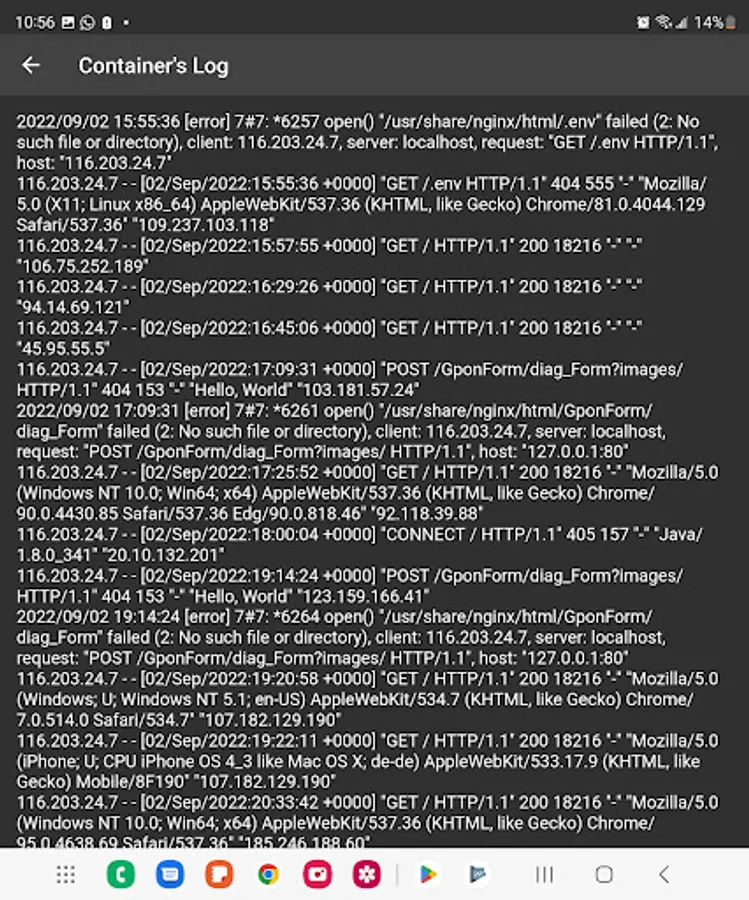
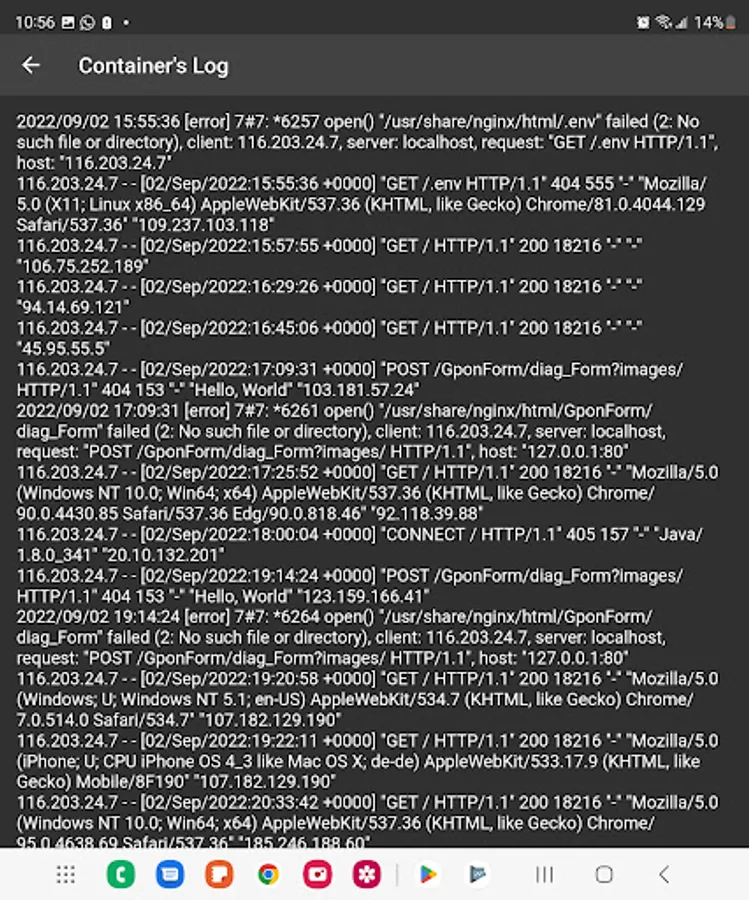
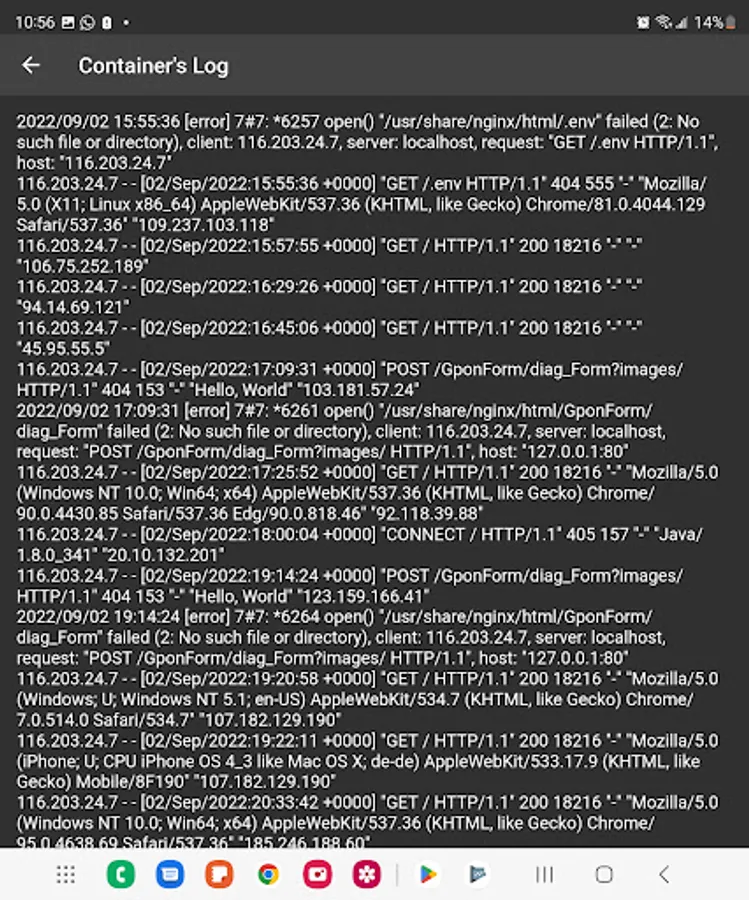
- view logs of containers
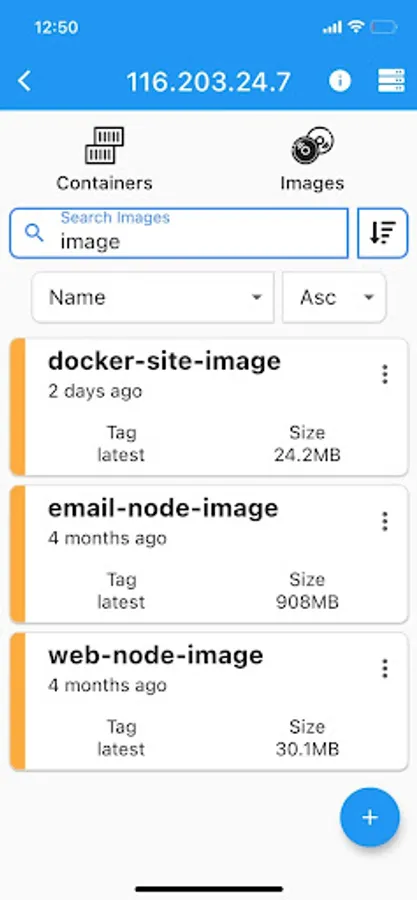
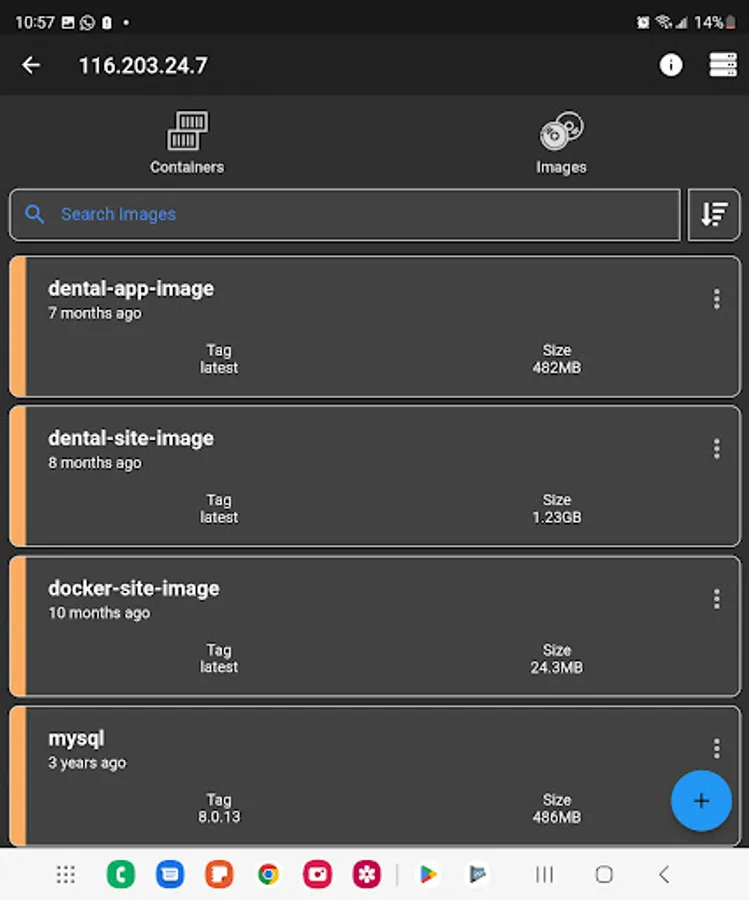
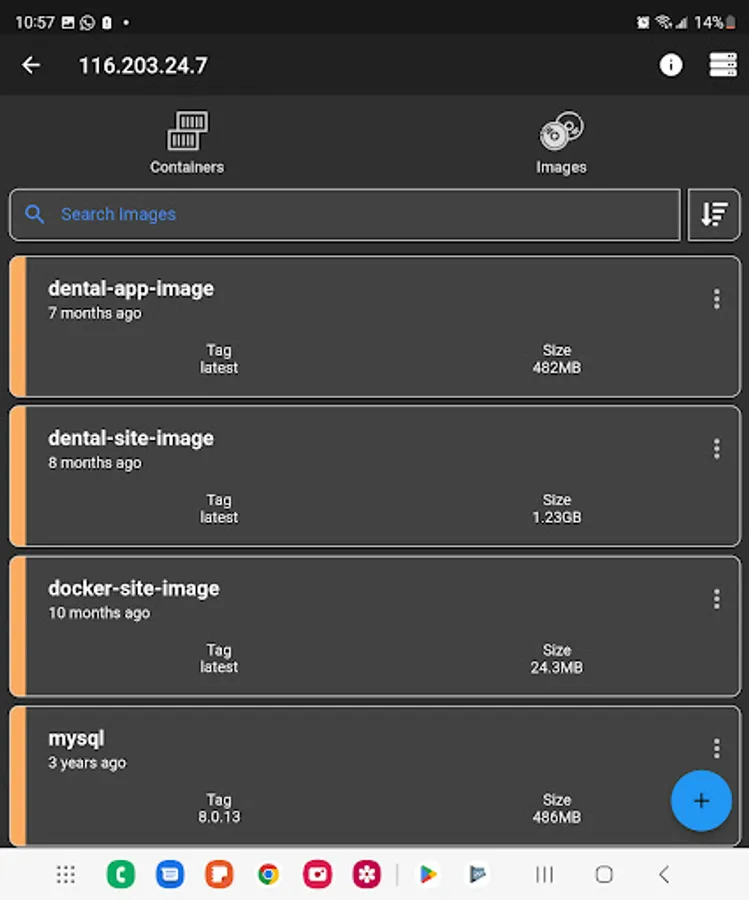
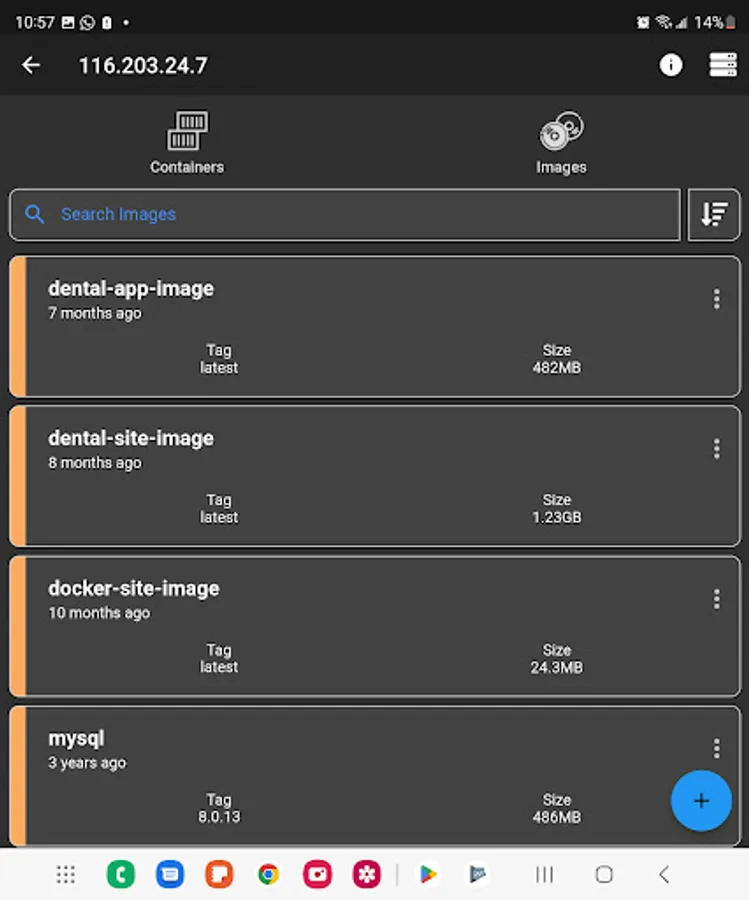
- list images
- build images
- remove images
- inspect images
Features
- credentials are encrypted
- server info is stored on phone only (the data is wiped out once the app is removed)
Q/A
Q: Why I can not connect with non-root users?
A: The docker commands are executed by the app without "sudo" so you will need to add your non-root user to the docker group with the following command:
sudo usermod -aG docker $USER
Q: Why I can not connect to Synology server?
A: The non-root user has to in the docker group and also when ssh-ing to Synology server, the .bashrc profile is not loaded by default so the following command are required:
sudo synogroup --add docker $USER
sudo chown root:docker /var/run/docker.sock
sudo ln -s /volume1/@appstore/Docker/usr/bin/docker /usr/bin/docker
NOTE: "/volume1/@appstore/Docker/usr/bin/docker" might be different for your case.
Q: Why I can not connect to QNAP server?
A: The non-root user has to in the docker group and also when ssh-ing to QNAP server, the .bashrc profile is not loaded by default so the following command are required:
sudo addgroup $USER administrators
sudo ln -s /share/CACHEDEV1_DATA/.qpkg/container-station/bin/docker /usr/bin/docker
NOTE: "/share/CACHEDEV1_DATA/.qpkg/container-station/bin/docker" might be different for your case.
Q: Why my ssh key is not working?
A: The ssh agent accepts only RSA format keys so if you are using another format (openssh) please convert it with the following command:
ssh-keygen -f -p -m pem -P PASSPHASE -N PASSPHASE
NOTE: add "" if there is no passphase for the ssh key
Found a bug?
Send an email to: nevis.applications@gmail.com
Connect via ssh to your Linux server and manage your docker.
This application allows you to:
- connect to multiple servers
- connect through password or rsa key
- list containers
- create containers
- start containers
- stop containers
- restart containers
- remove containers
- inspect containers
- view resource usage of containers
- view logs of containers
- list images
- build images
- remove images
- inspect images
Features
- credentials are encrypted
- server info is stored on phone only (the data is wiped out once the app is removed)
Q/A
Q: Why I can not connect with non-root users?
A: The docker commands are executed by the app without "sudo" so you will need to add your non-root user to the docker group with the following command:
sudo usermod -aG docker $USER
Q: Why I can not connect to Synology server?
A: The non-root user has to in the docker group and also when ssh-ing to Synology server, the .bashrc profile is not loaded by default so the following command are required:
sudo synogroup --add docker $USER
sudo chown root:docker /var/run/docker.sock
sudo ln -s /volume1/@appstore/Docker/usr/bin/docker /usr/bin/docker
NOTE: "/volume1/@appstore/Docker/usr/bin/docker" might be different for your case.
Q: Why I can not connect to QNAP server?
A: The non-root user has to in the docker group and also when ssh-ing to QNAP server, the .bashrc profile is not loaded by default so the following command are required:
sudo addgroup $USER administrators
sudo ln -s /share/CACHEDEV1_DATA/.qpkg/container-station/bin/docker /usr/bin/docker
NOTE: "/share/CACHEDEV1_DATA/.qpkg/container-station/bin/docker" might be different for your case.
Q: Why my ssh key is not working?
A: The ssh agent accepts only RSA format keys so if you are using another format (openssh) please convert it with the following command:
ssh-keygen -f -p -m pem -P PASSPHASE -N PASSPHASE
NOTE: add "" if there is no passphase for the ssh key
Found a bug?
Send an email to: nevis.applications@gmail.com