Learn Adobe Premiere Pro Video
quantum apps solution
2.8 ★
1K ratings
100,000+
downloads
Free
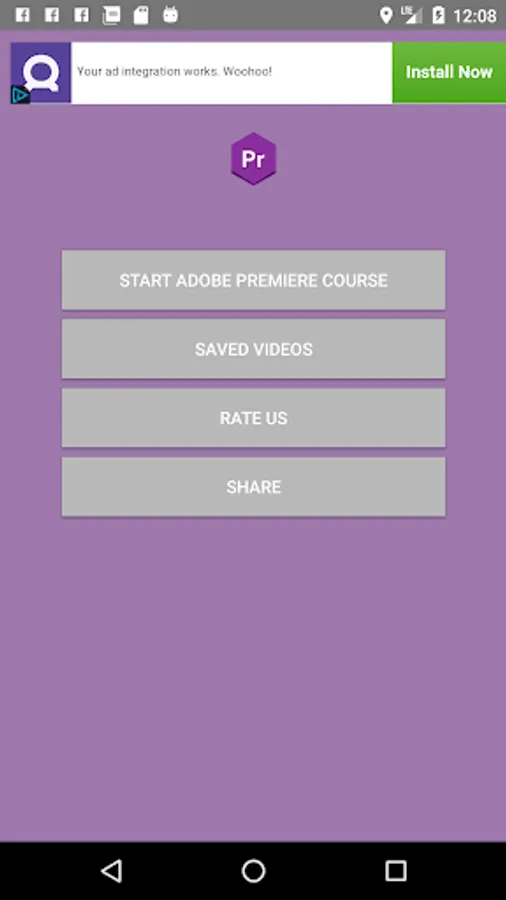
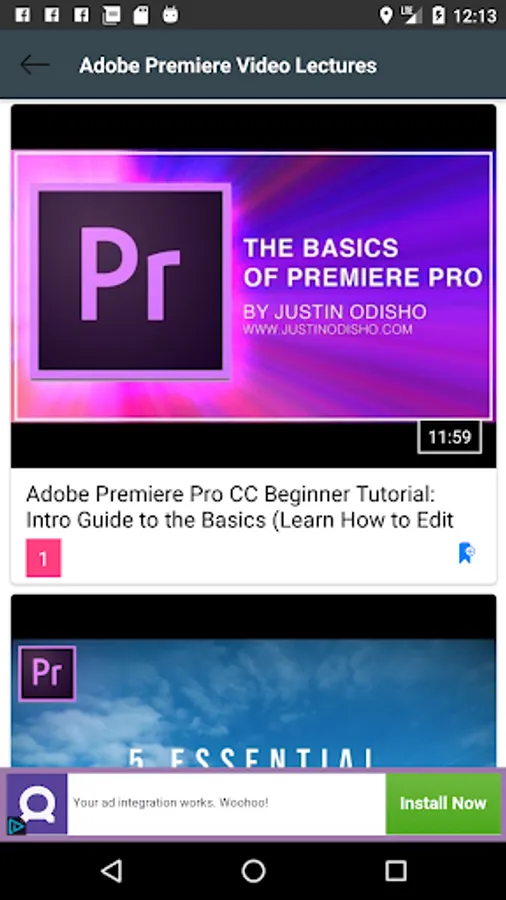
In this video training app, you can learn to edit and share videos using Adobe Premiere Pro with clear explanations and easy navigation. Includes course modules on shortcuts, editing techniques, transitions, effects, and exporting options.
AppRecs review analysis
AppRecs rating 2.8. Trustworthiness 0 out of 100. Review manipulation risk 0 out of 100. Based on a review sample analyzed.
★★☆☆☆
2.8
AppRecs Rating
Ratings breakdown
5 star
37%
4 star
4%
3 star
4%
2 star
4%
1 star
50%
What to know
⚠
Mixed user feedback
Average 2.8★ rating suggests room for improvement
⚠
High negative review ratio
54% of sampled ratings are 1–2 stars
About Learn Adobe Premiere Pro Video
Learn Adobe Premiere Pro Video Lectures on your Mobile phone is now easy and fast. Now that you’ve got all your footage, it’s time to put it all together.
Watch this Learn Adobe Premiere Pro Video Lectures course and learn how to quickly edit and share your video footage in Adobe Premiere Pro
App Features:
• video training
• Super clear explanations
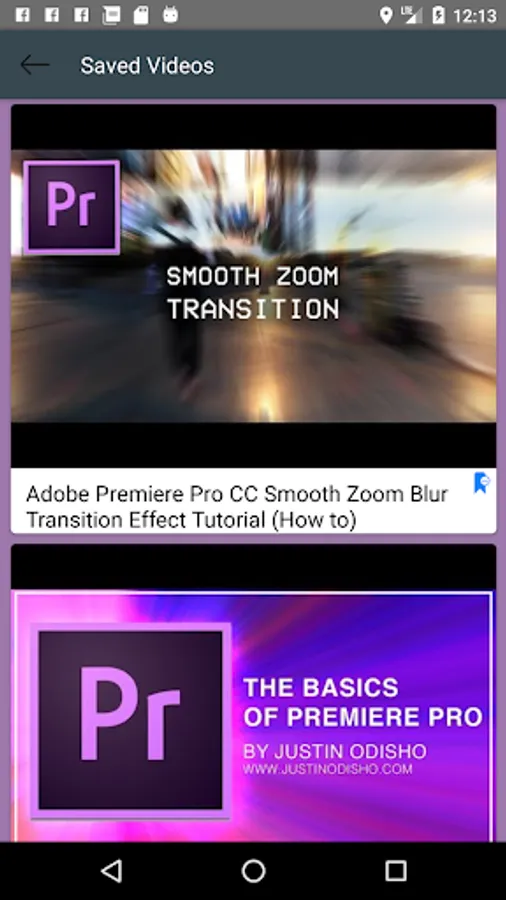
• Save Video For further Use
• Easy to navigate
Course Outline:
1. Introduction
2. Keyboard Shortcuts
3. Looking at the Finished Edit
4. Previewing the Clips
5. Creating a Sequence
6. Setting Ins & Outs
7. Adding Clips to the Timeline
8. Clip Management
9. A Choppy Edit
10. Trimming the Clips
11. Rolling Edits
12. Overwriting a Clip
13. Default Transition Timing
14. Adding Transitions
15. Editing Transitions
16. Dialogue Sync Problems
17. Finding Fixes
18. Adding Foley
19. Audio Transitions
20. Clip-based Effects
21. Track-based Effects
22. Inserting Audio
23. Clip Volume
24. Exporting One Scene
25. Exporting Multiple Scenes
26. Sending to Another Editor
Watch this Learn Adobe Premiere Pro Video Lectures course and learn how to quickly edit and share your video footage in Adobe Premiere Pro
App Features:
• video training
• Super clear explanations
• Save Video For further Use
• Easy to navigate
Course Outline:
1. Introduction
2. Keyboard Shortcuts
3. Looking at the Finished Edit
4. Previewing the Clips
5. Creating a Sequence
6. Setting Ins & Outs
7. Adding Clips to the Timeline
8. Clip Management
9. A Choppy Edit
10. Trimming the Clips
11. Rolling Edits
12. Overwriting a Clip
13. Default Transition Timing
14. Adding Transitions
15. Editing Transitions
16. Dialogue Sync Problems
17. Finding Fixes
18. Adding Foley
19. Audio Transitions
20. Clip-based Effects
21. Track-based Effects
22. Inserting Audio
23. Clip Volume
24. Exporting One Scene
25. Exporting Multiple Scenes
26. Sending to Another Editor