Spendy
Siddhyaan
100+
downloads
Free
About Spendy
Spendy: An expense manager app.
Spendy allows you to track your expenses and maintain a budget!
Features:
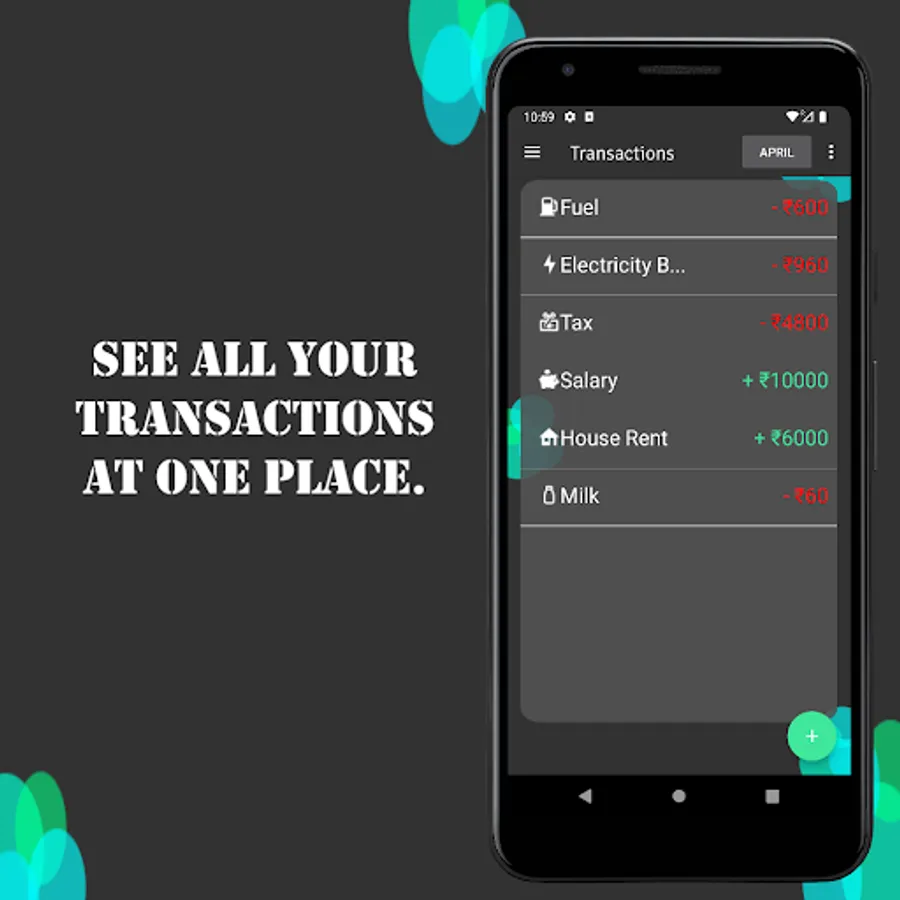
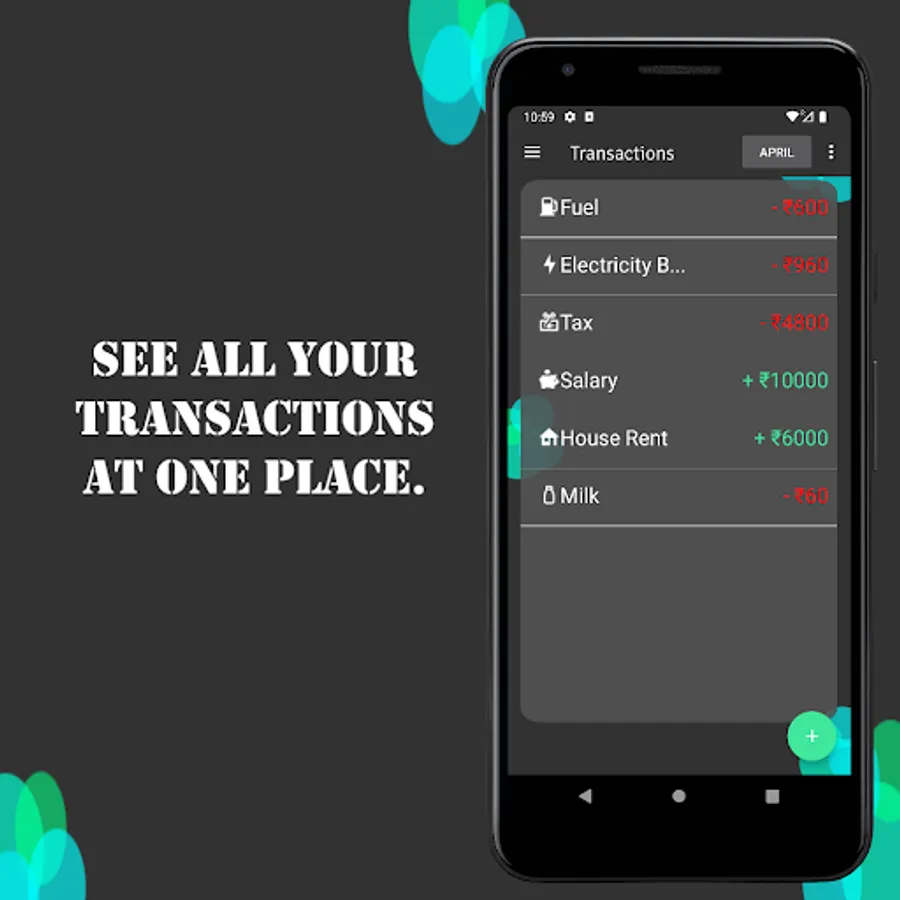
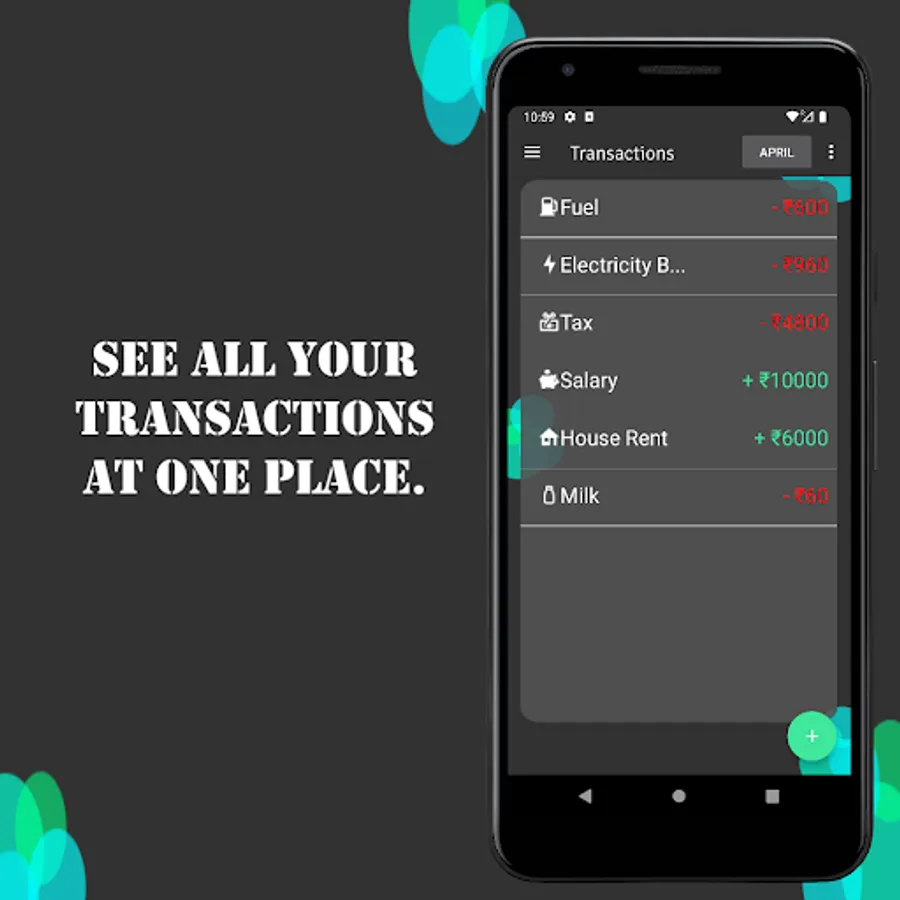
1) You can create transactions for income and expense easily.
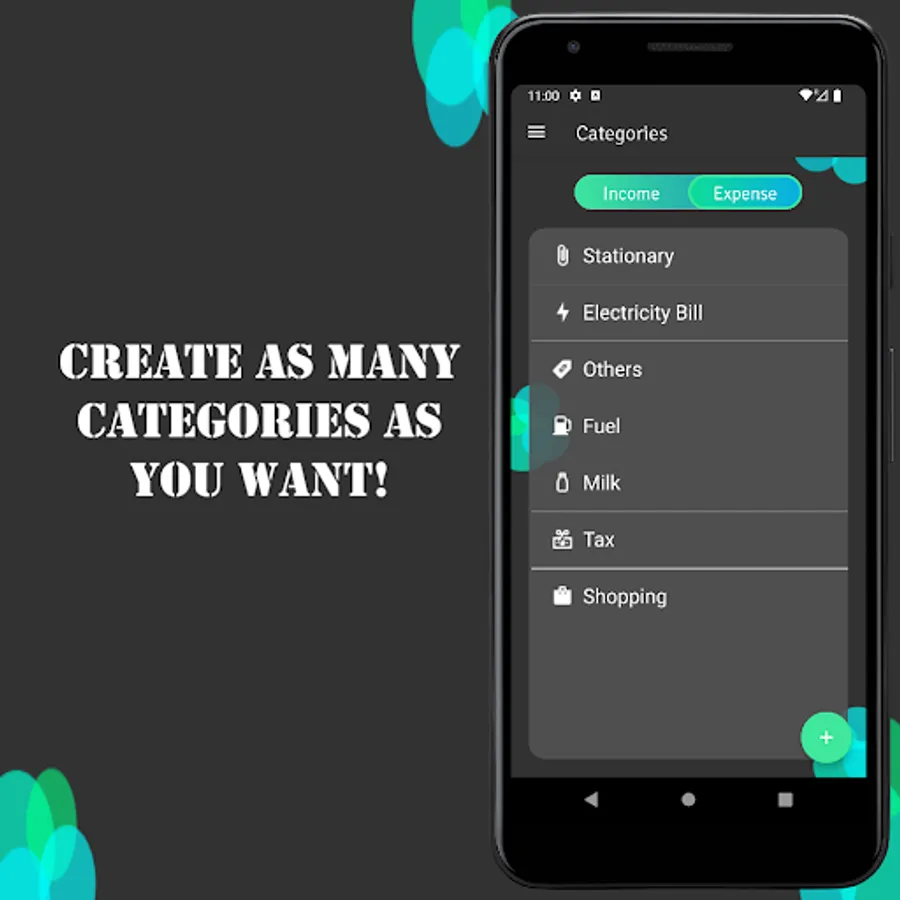
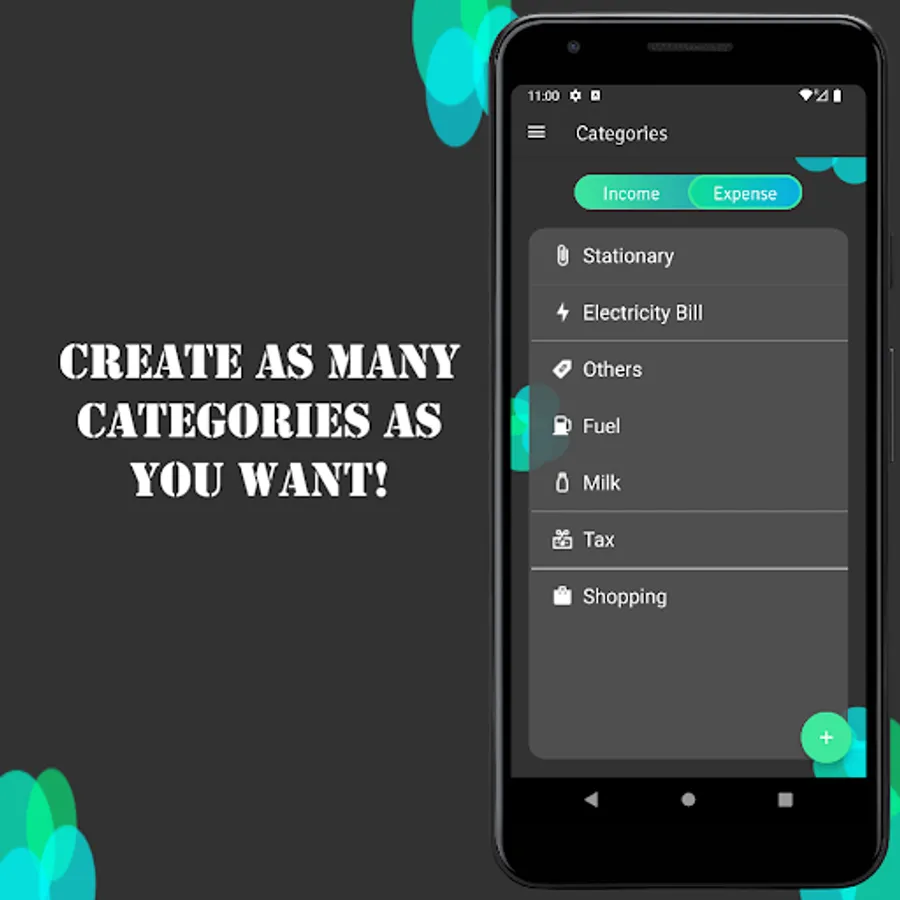
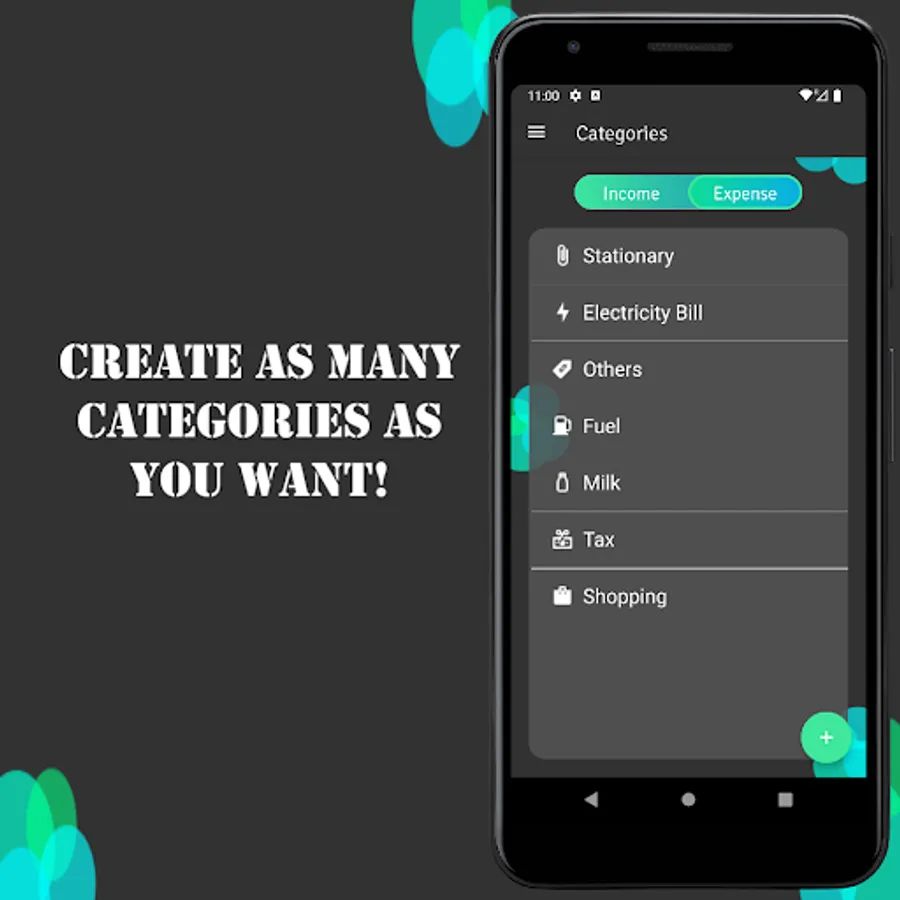
2) You can add categories for your transactions.
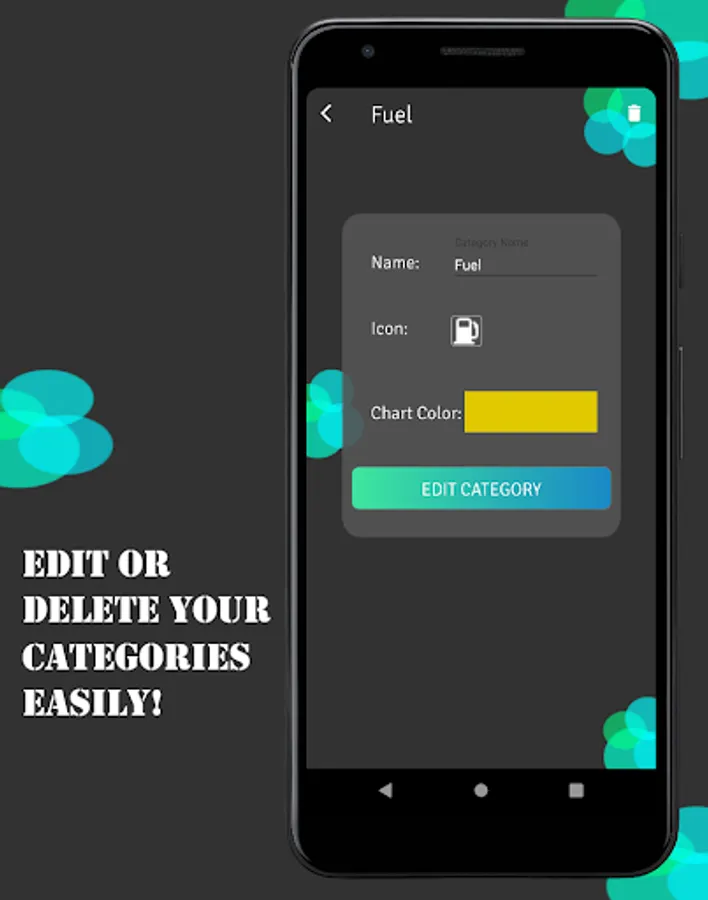
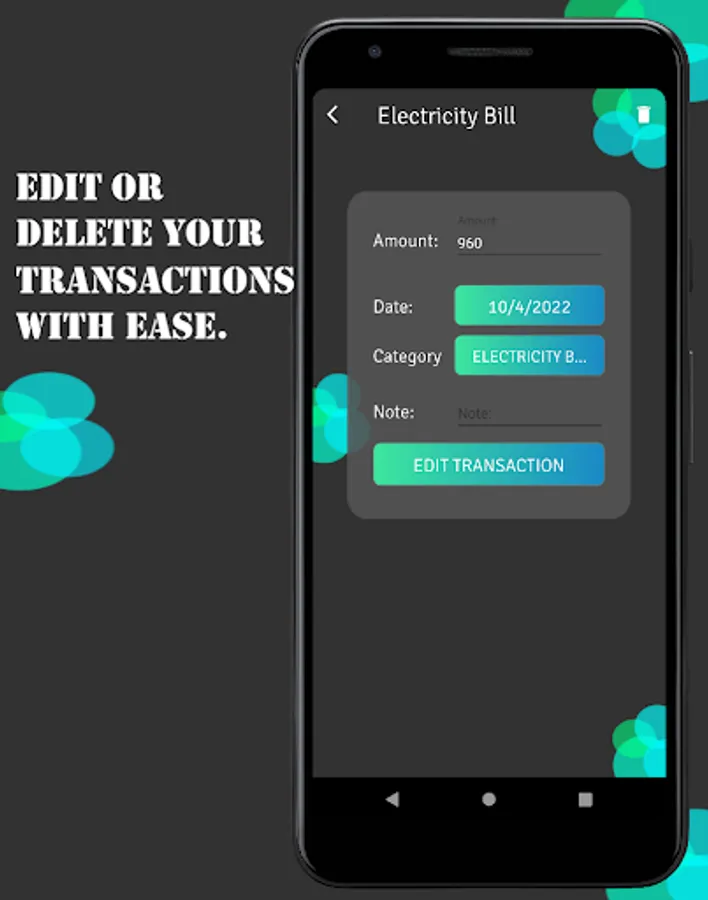
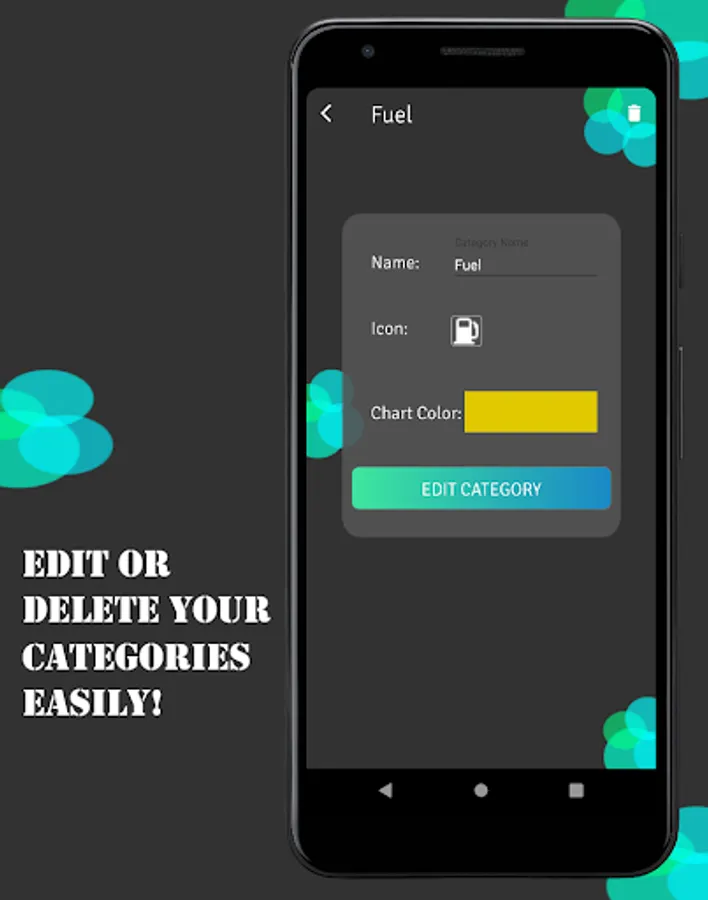
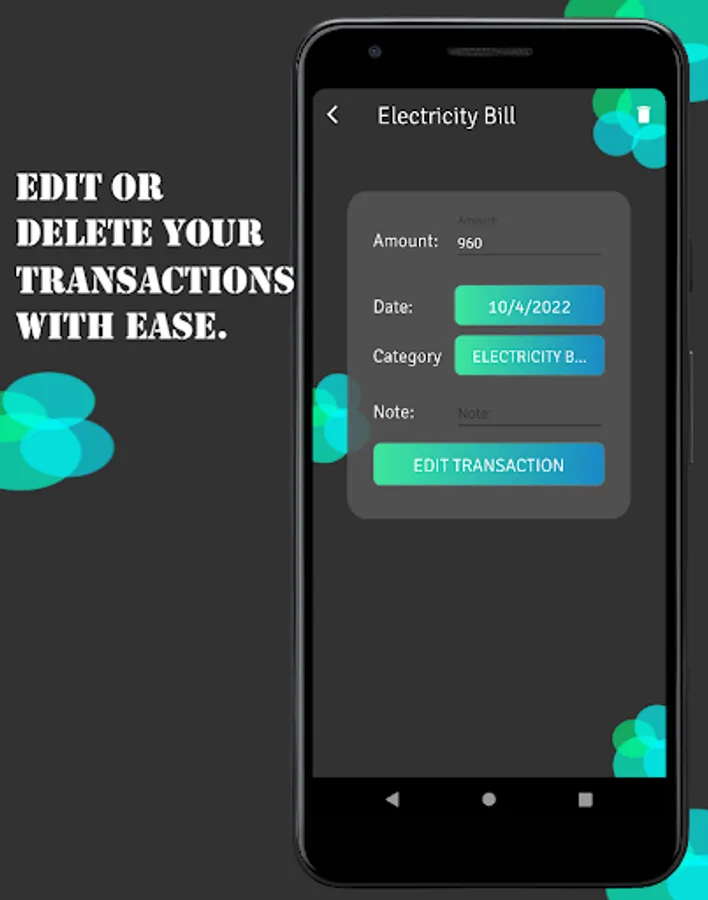
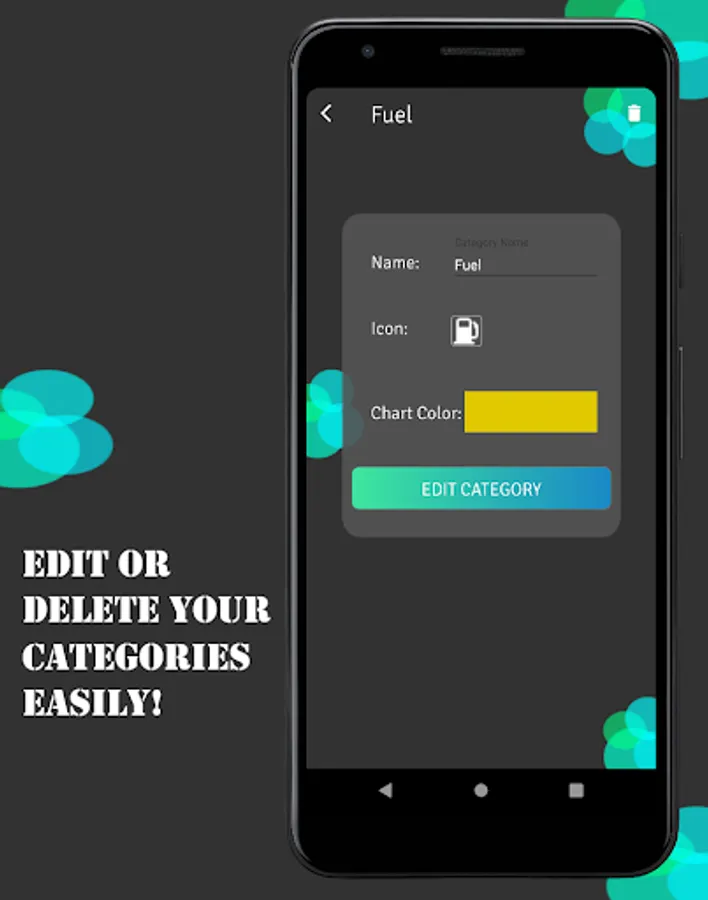
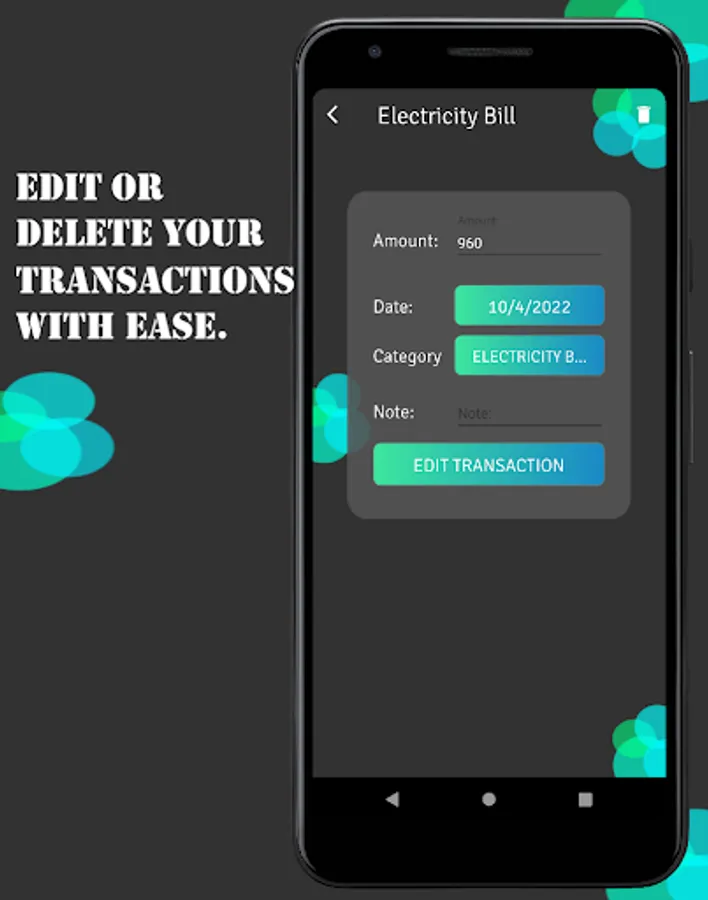
3) You can edit your transactions and categories easily.
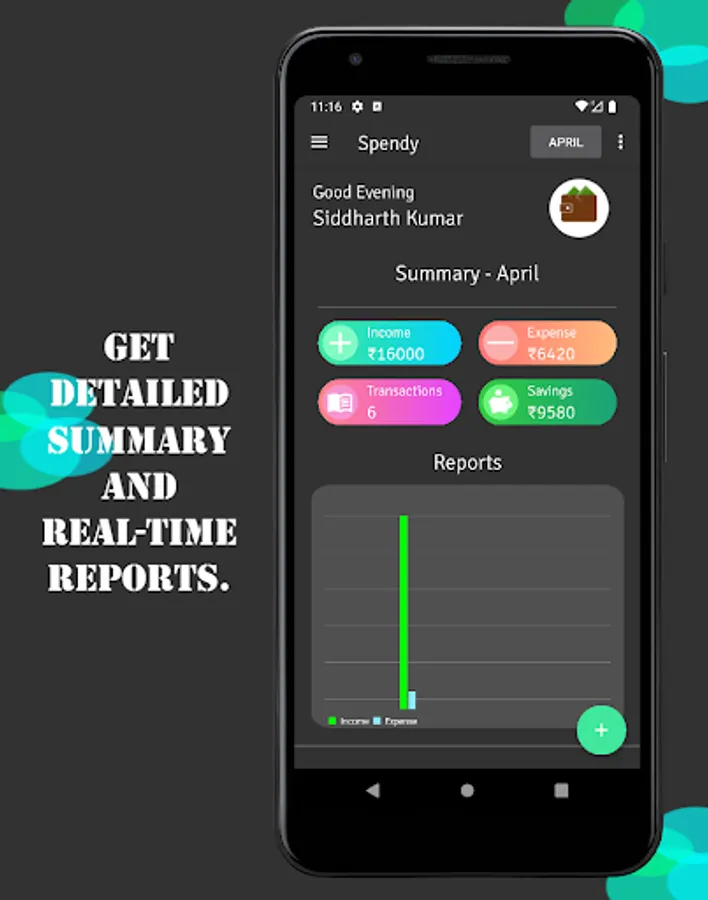
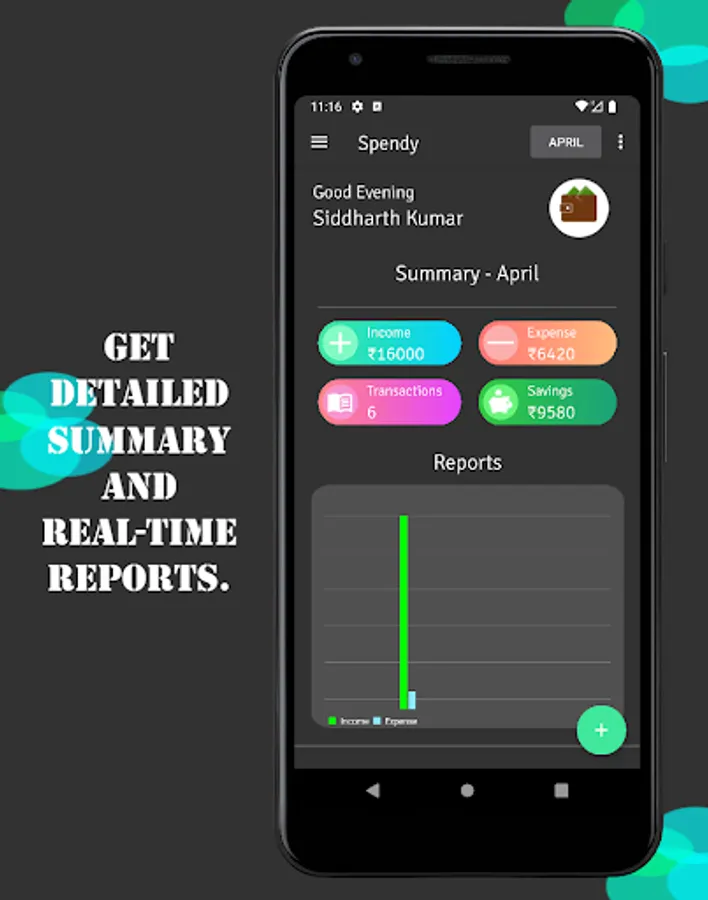
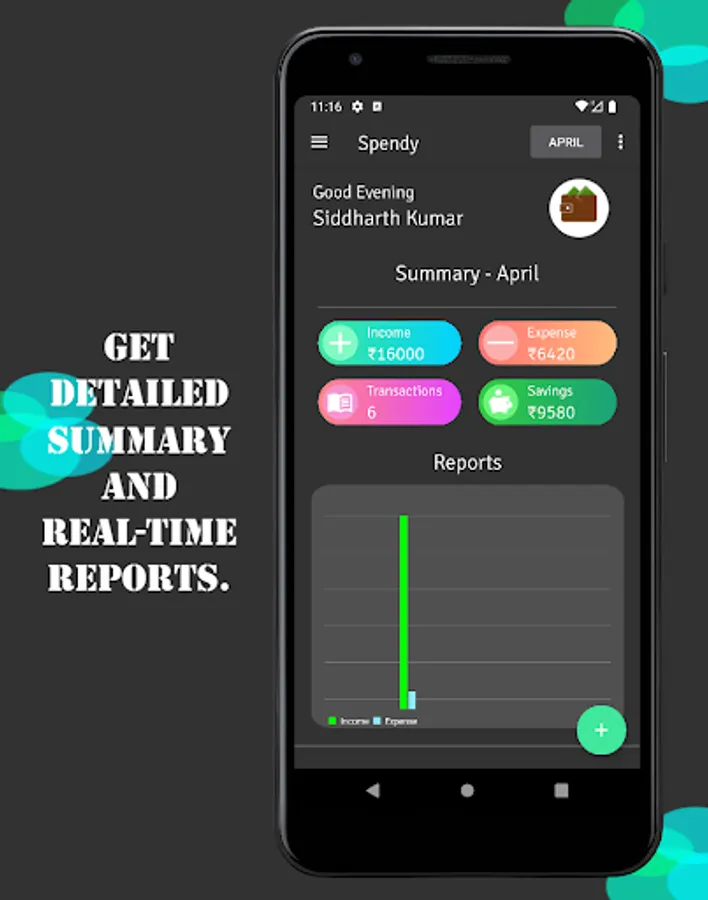
4) Get real-time reports(charts) for your income and expense.
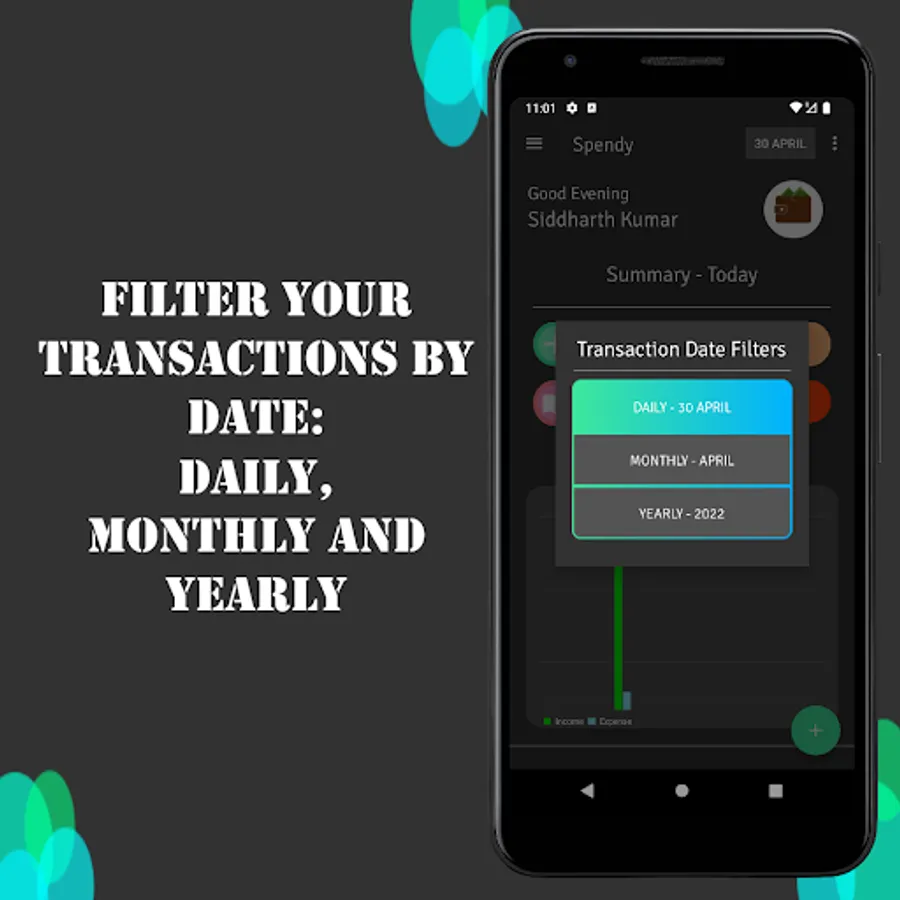
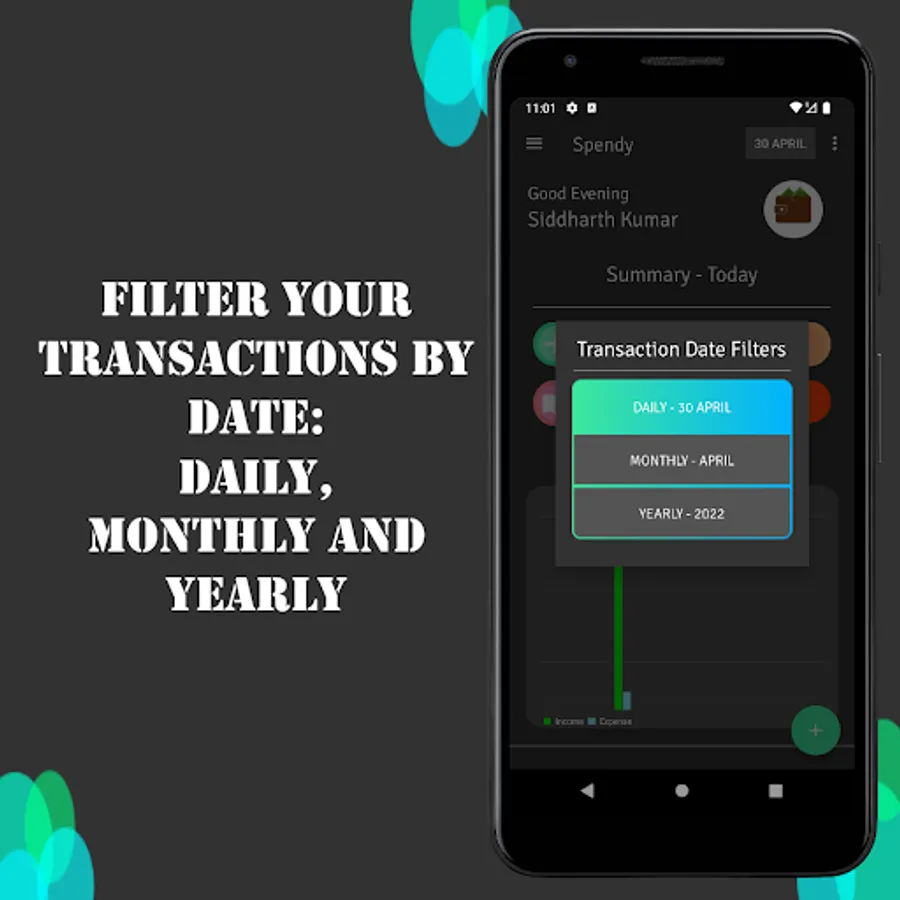
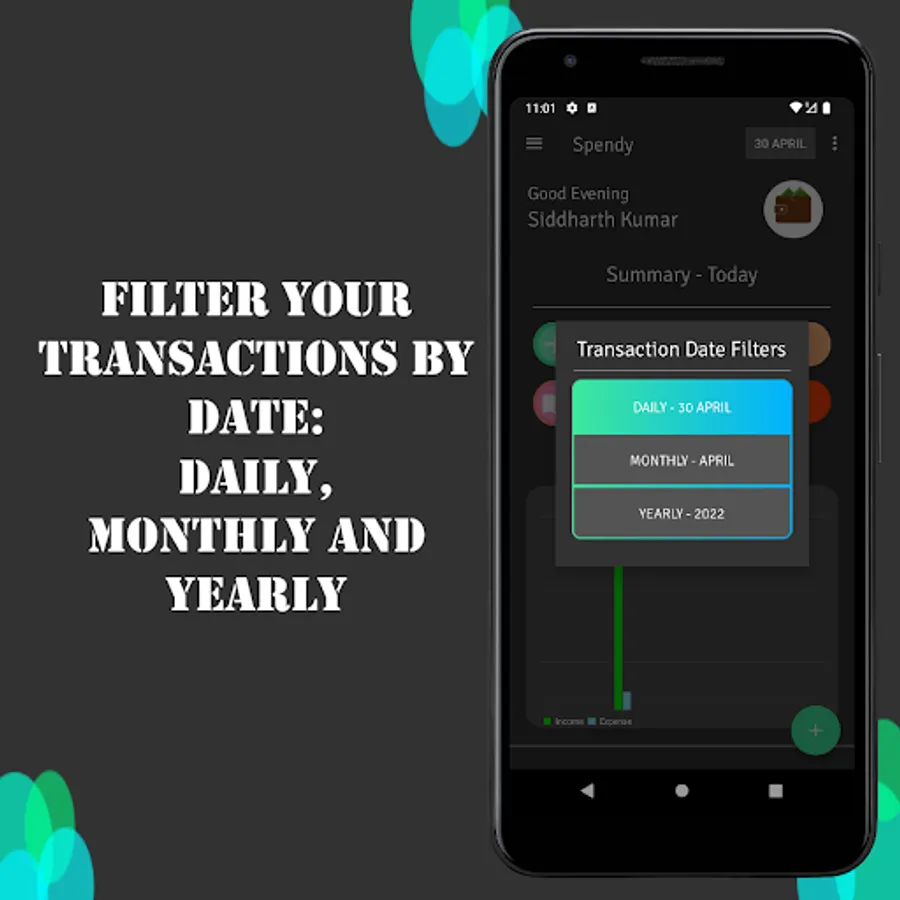
5) Filter your transactions by date: Daily, Monthly, Yearly.
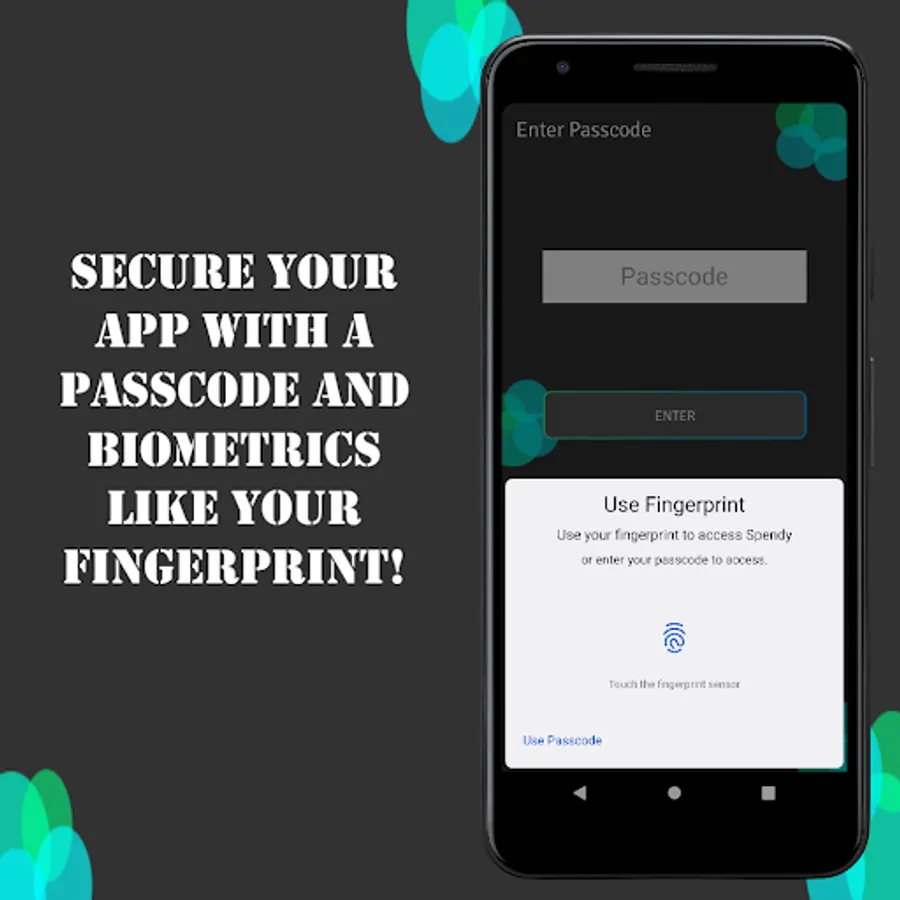
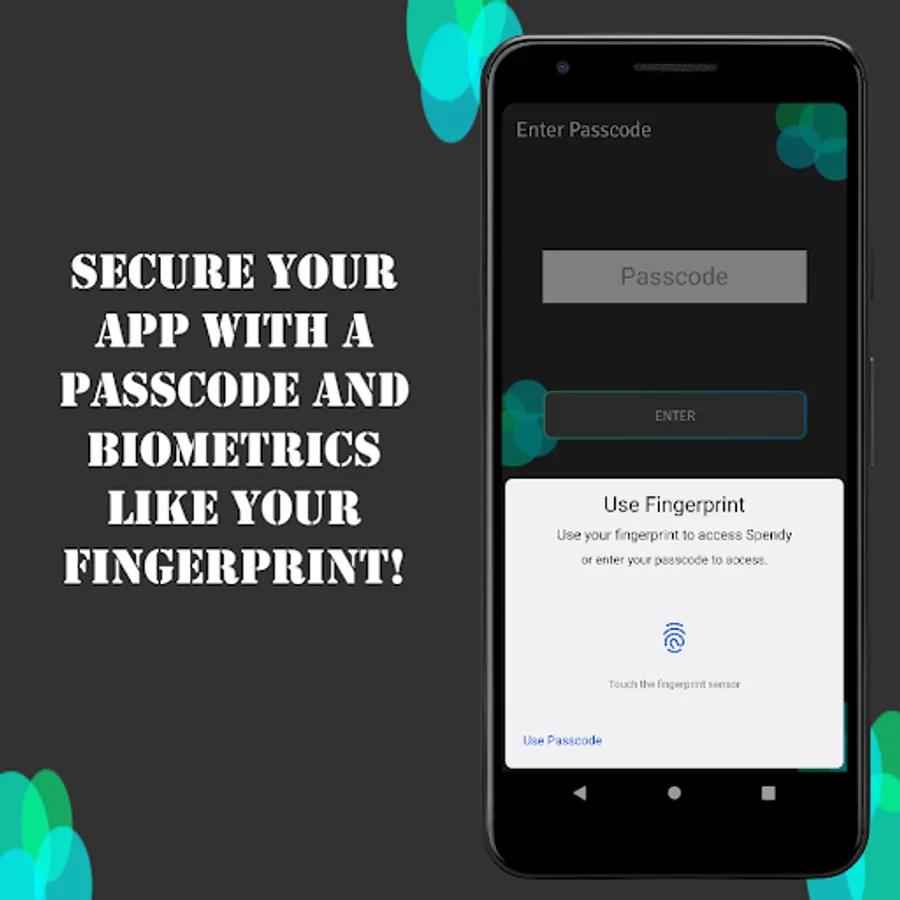
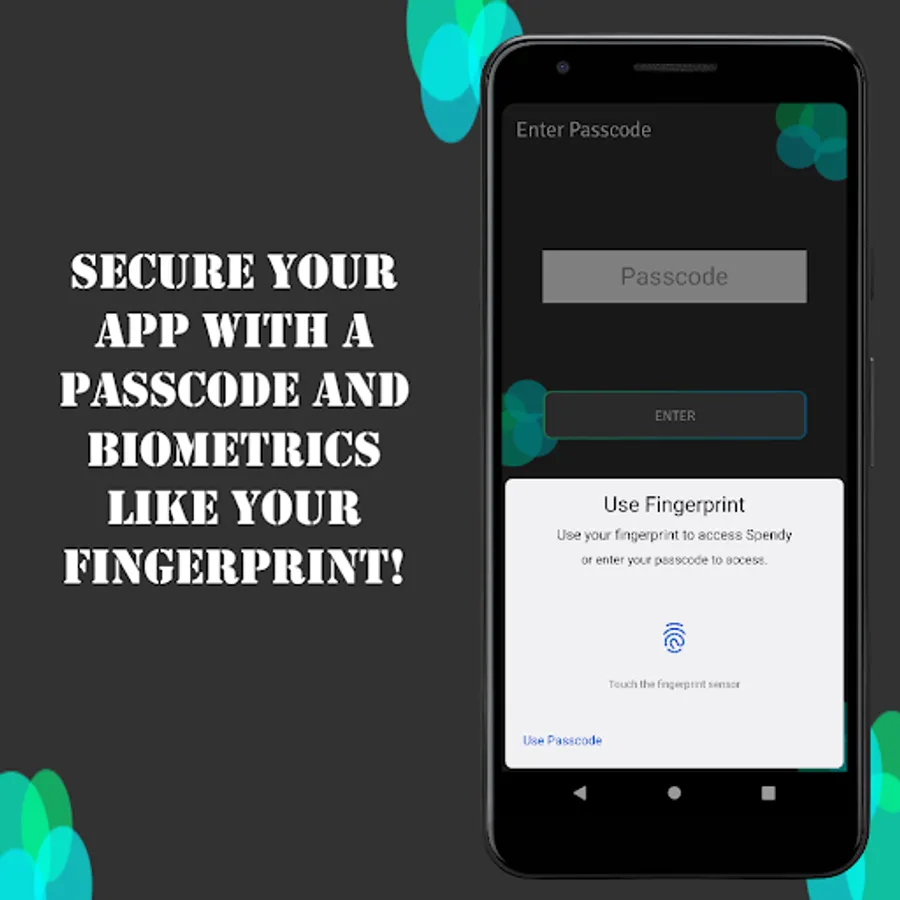
6) Secure your transactions by adding a passcode and biometrics like your fingerprint!
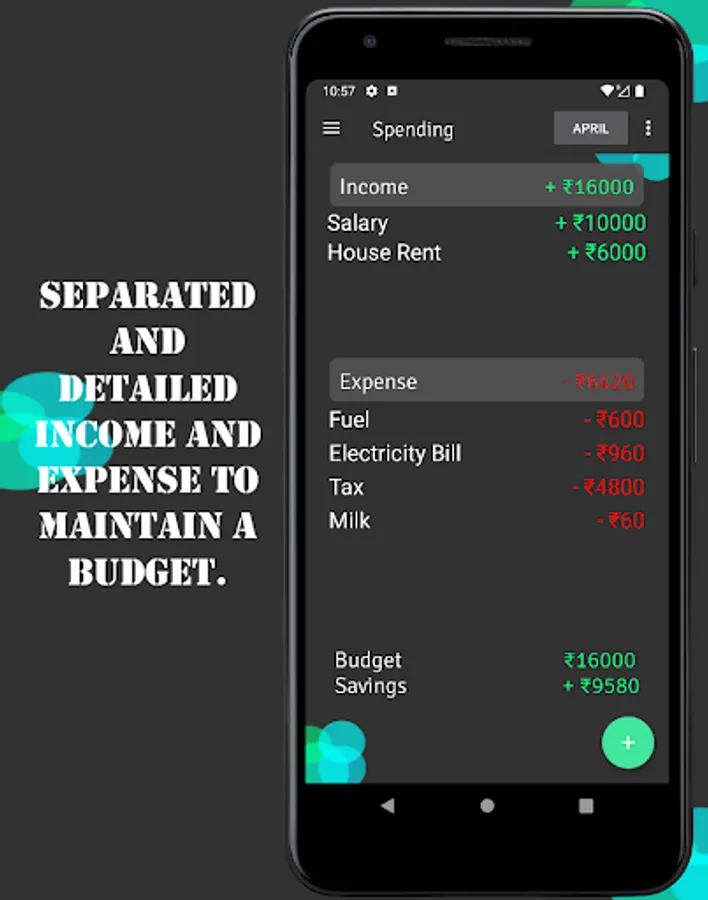
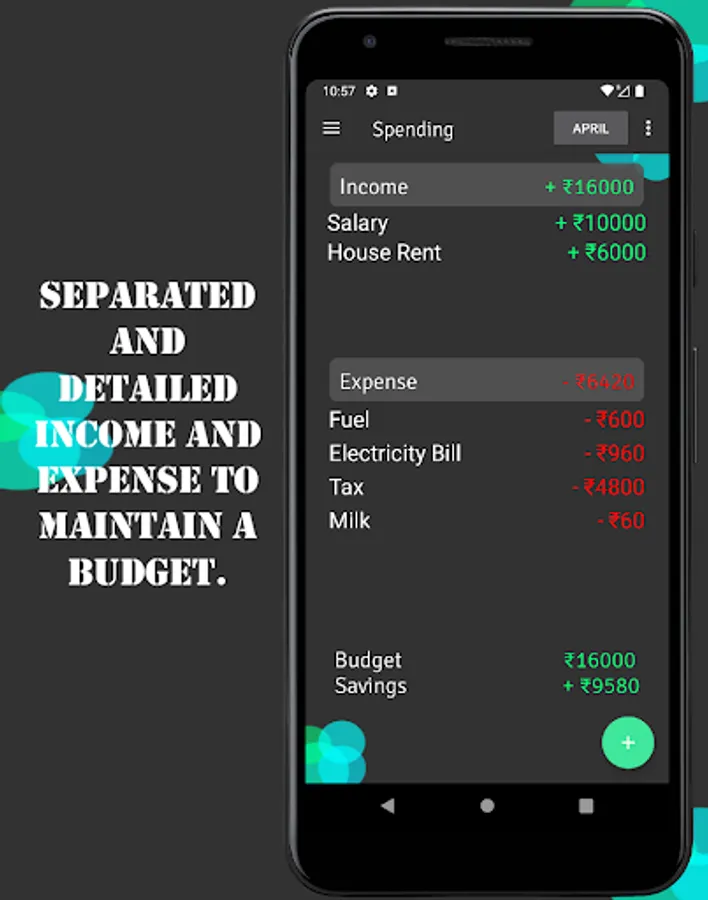
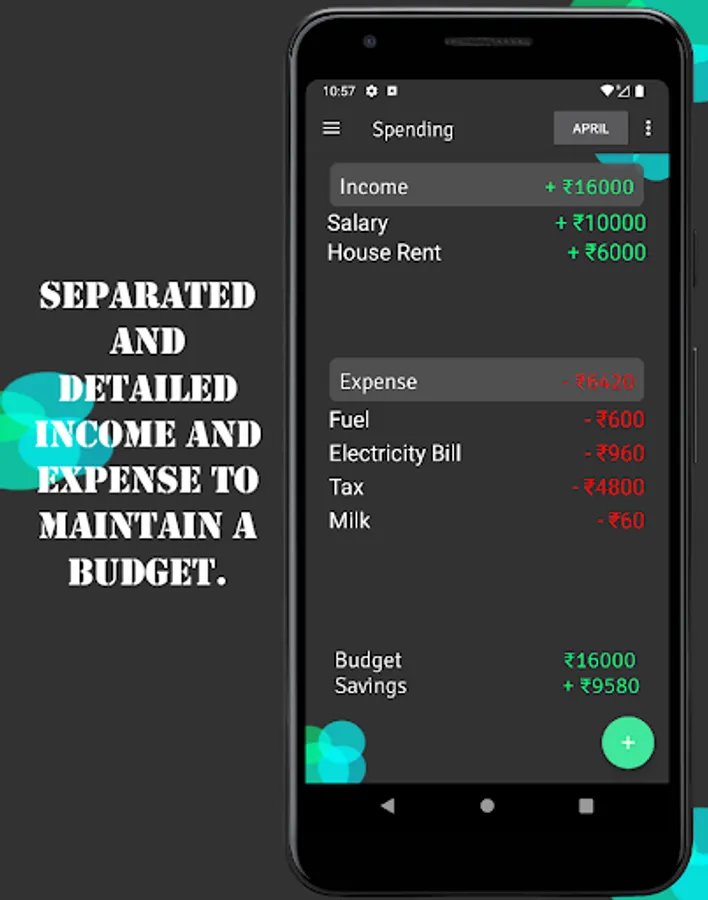
7) Separated and detailed Income and Expense to maintain a budget.
8) You can see your Future and Previous Transactions
9) You can Hide your Future Transactions
10) Repeat by days and months.
Guides:
1) To create a transaction click on the + Button on the bottom-right corner of the Home, Spending or Transactions Screen
2) To create a category click on the + Button on the bottom-right of the Categories Screen
3) To see your reports(charts) click on the three dots on the upper-right corner and select reports in either of the three screens: Home, Spending or Transactions
4) To edit a transaction or category, click on the respective transaction or category in the Transactions Screen and Categories Screen respectively
5) To change your currency go to Settings by clicking on on the upper-right corner and click on Currency -> Choose your respective currency
6) To change your time period(Filter for transactions, Default: Monthly), go to Settings -> Time Period -> Select the time period you want.
7) To add a Passcode and Fingerprint, go to Options Menu -> Settings -> Passcode or Fingerprint -> Enter a passcode and confirm it(to add a passcode) and then click on Enable Biometrics and verify your passcode(to add a fingerprint).
8) To see your future or previous transaction, click on the forward and backward buttons respectively in either of the to screens, Transaction Screen and Spending Screen
9) To Hide your Future Transactions, go to Options Menu -> Settings -> Hide Future Transactions -> Click on Yes or No
10) To repeat a transaction by day or month, click on the + button on either of the Home, Spending or Transactions Screen, and select the checkbox labeled as Repeat, then select the `Every:` field: Either day or month and the 'For:' field as the remaining days in the respective month(if `Every` field selected as Day) or as any of the months left in the respective year (if `Every` field selected as Month).
------------------------------
Thanks.
Spendy allows you to track your expenses and maintain a budget!
Features:
1) You can create transactions for income and expense easily.
2) You can add categories for your transactions.
3) You can edit your transactions and categories easily.
4) Get real-time reports(charts) for your income and expense.
5) Filter your transactions by date: Daily, Monthly, Yearly.
6) Secure your transactions by adding a passcode and biometrics like your fingerprint!
7) Separated and detailed Income and Expense to maintain a budget.
8) You can see your Future and Previous Transactions
9) You can Hide your Future Transactions
10) Repeat by days and months.
Guides:
1) To create a transaction click on the + Button on the bottom-right corner of the Home, Spending or Transactions Screen
2) To create a category click on the + Button on the bottom-right of the Categories Screen
3) To see your reports(charts) click on the three dots on the upper-right corner and select reports in either of the three screens: Home, Spending or Transactions
4) To edit a transaction or category, click on the respective transaction or category in the Transactions Screen and Categories Screen respectively
5) To change your currency go to Settings by clicking on on the upper-right corner and click on Currency -> Choose your respective currency
6) To change your time period(Filter for transactions, Default: Monthly), go to Settings -> Time Period -> Select the time period you want.
7) To add a Passcode and Fingerprint, go to Options Menu -> Settings -> Passcode or Fingerprint -> Enter a passcode and confirm it(to add a passcode) and then click on Enable Biometrics and verify your passcode(to add a fingerprint).
8) To see your future or previous transaction, click on the forward and backward buttons respectively in either of the to screens, Transaction Screen and Spending Screen
9) To Hide your Future Transactions, go to Options Menu -> Settings -> Hide Future Transactions -> Click on Yes or No
10) To repeat a transaction by day or month, click on the + button on either of the Home, Spending or Transactions Screen, and select the checkbox labeled as Repeat, then select the `Every:` field: Either day or month and the 'For:' field as the remaining days in the respective month(if `Every` field selected as Day) or as any of the months left in the respective year (if `Every` field selected as Month).
------------------------------
Thanks.