
TeamViewer Remote Control
TeamViewer
4.4 ★
1M ratings
100,000,000+
downloads
Free
+ in-app
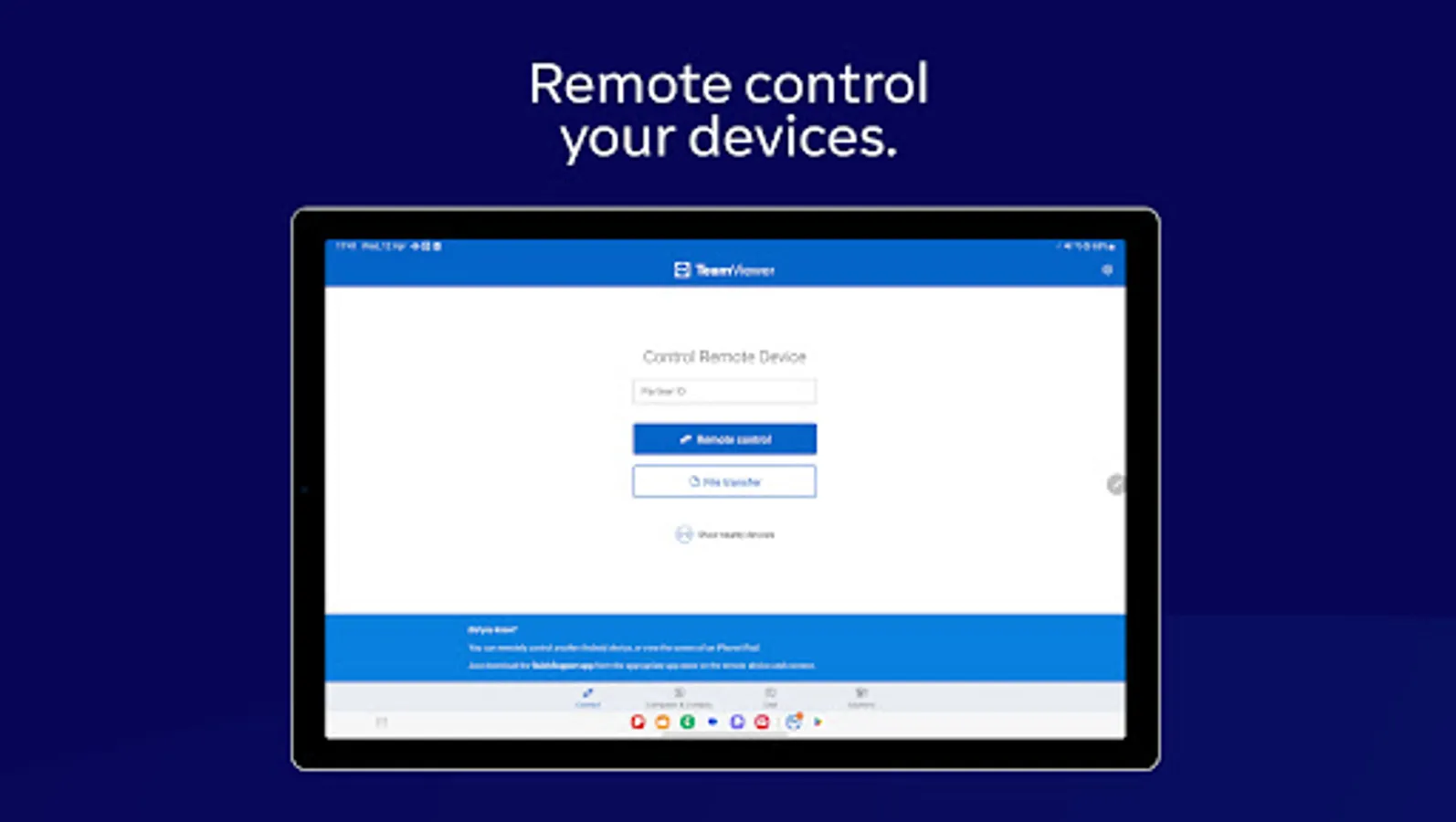
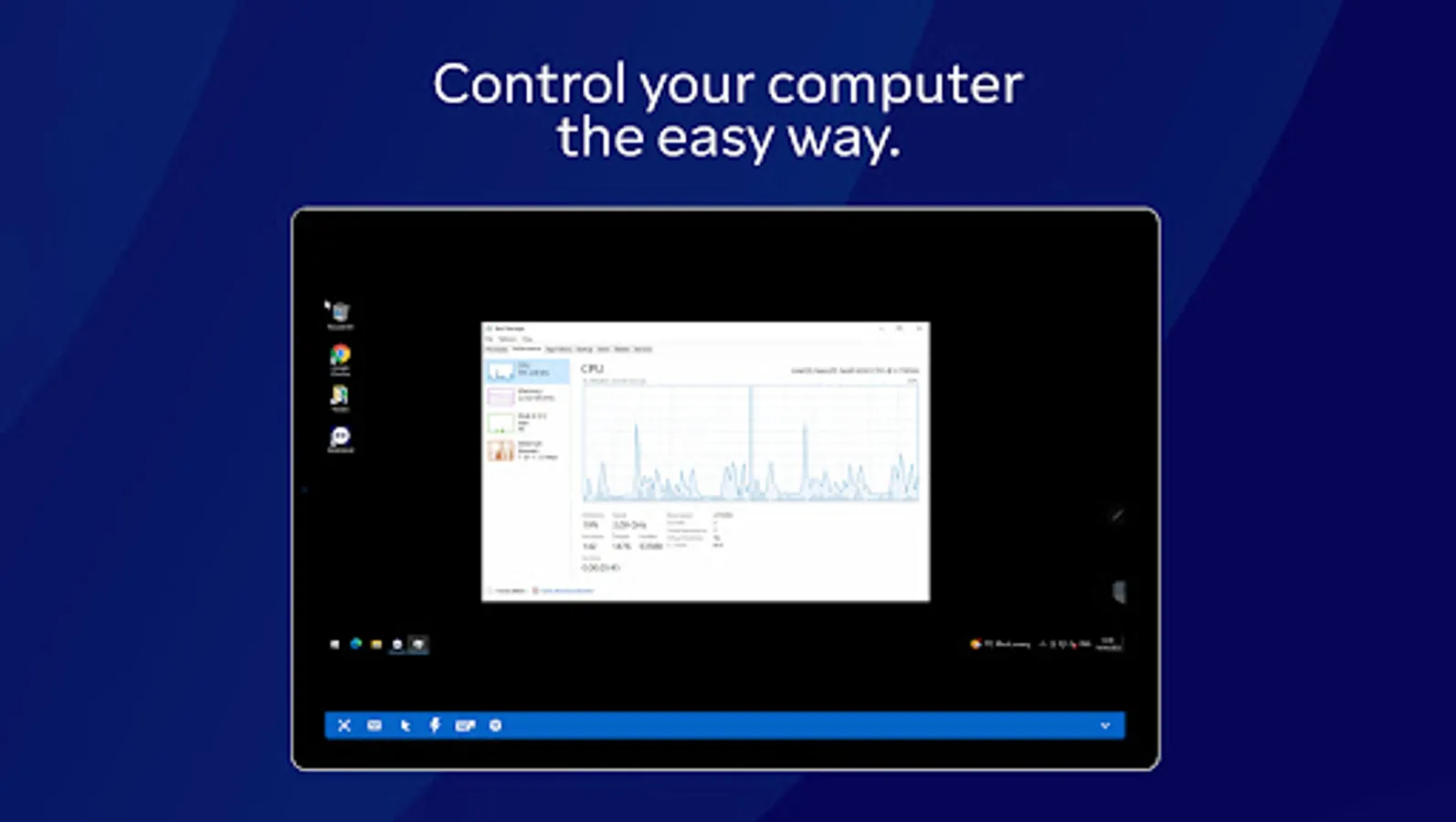
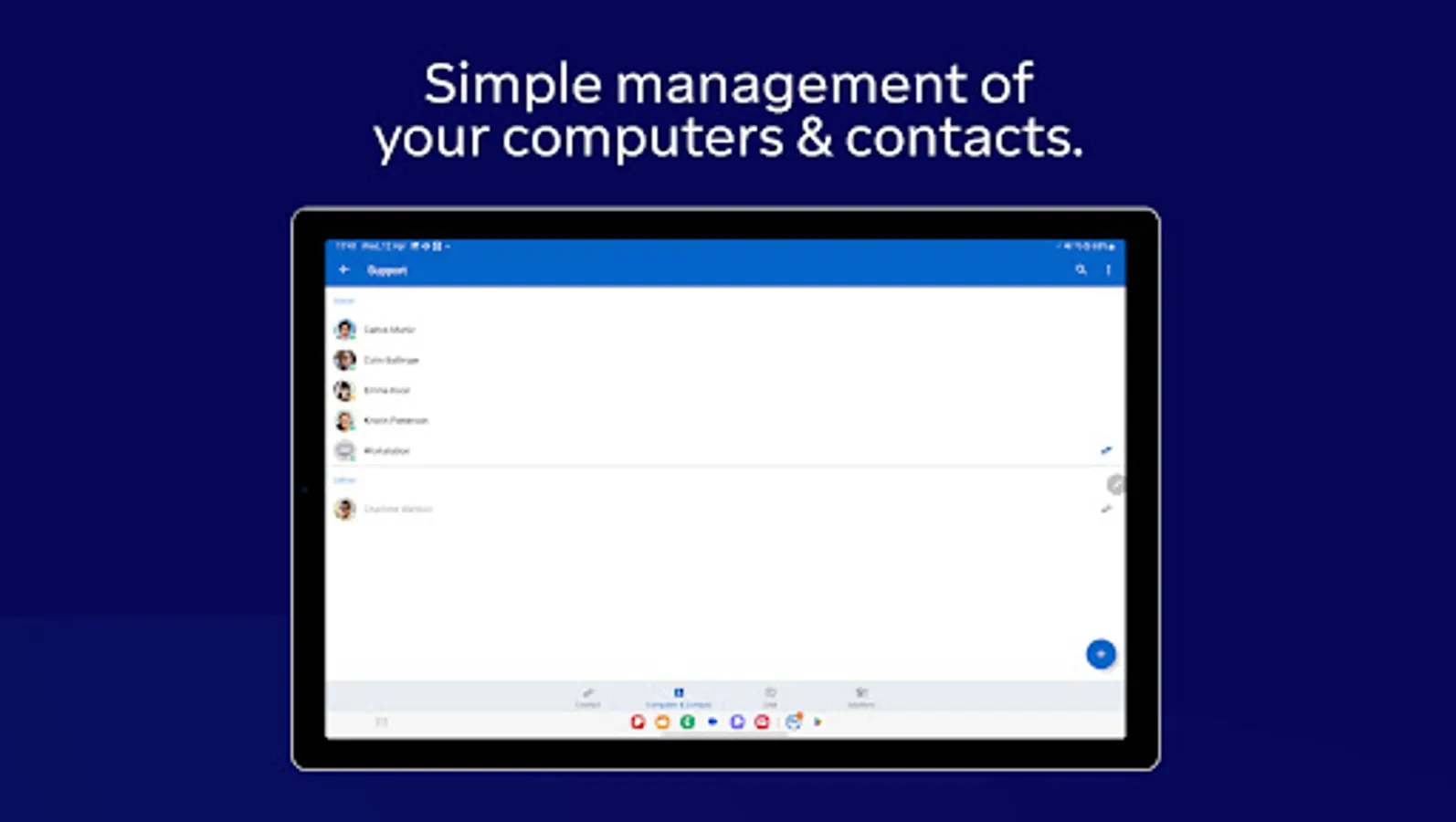
In this remote control app, users can access and manage computers and mobile devices from anywhere using secure connections. Includes remote desktop access, file transfer, real-time chat, screen sharing with audio and video, and support for augmented reality guidance.
AppRecs review analysis
AppRecs rating 4.3. Trustworthiness 73 out of 100. Review manipulation risk 28 out of 100. Based on a review sample analyzed.
★★★★☆
4.3
AppRecs Rating
Ratings breakdown
5 star
78%
4 star
7%
3 star
3%
2 star
1%
1 star
11%
What to know
✓
Low review manipulation risk
28% review manipulation risk
✓
Credible reviews
73% trustworthiness score from analyzed reviews
⚠
Pricing complaints
Many low ratings mention paywalls or pricing
About TeamViewer Remote Control
Control your desktop, manage files, and support devices—from anywhere, anytime. Whether you’re on the move, traveling, or in the field, the TeamViewer Remote Control app gives you fast, secure remote access right from your Android phone, tablet, or Chromebook.
What's inside:
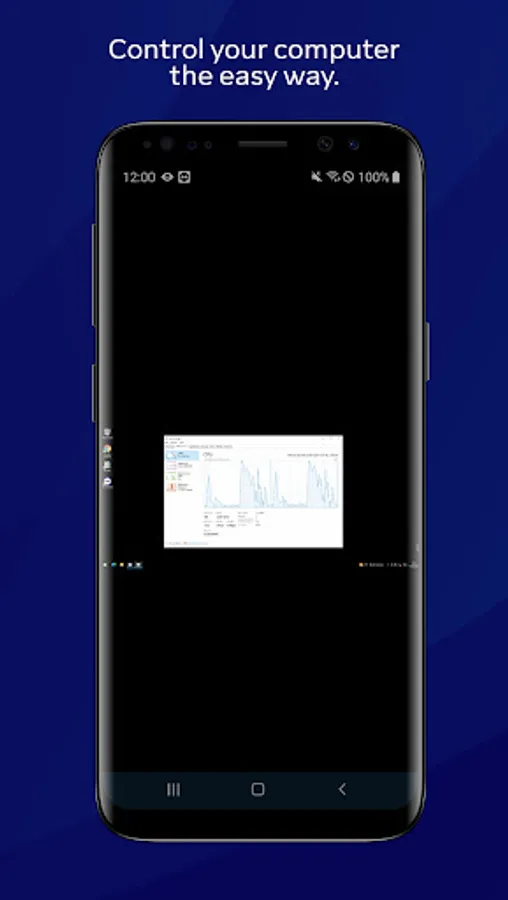
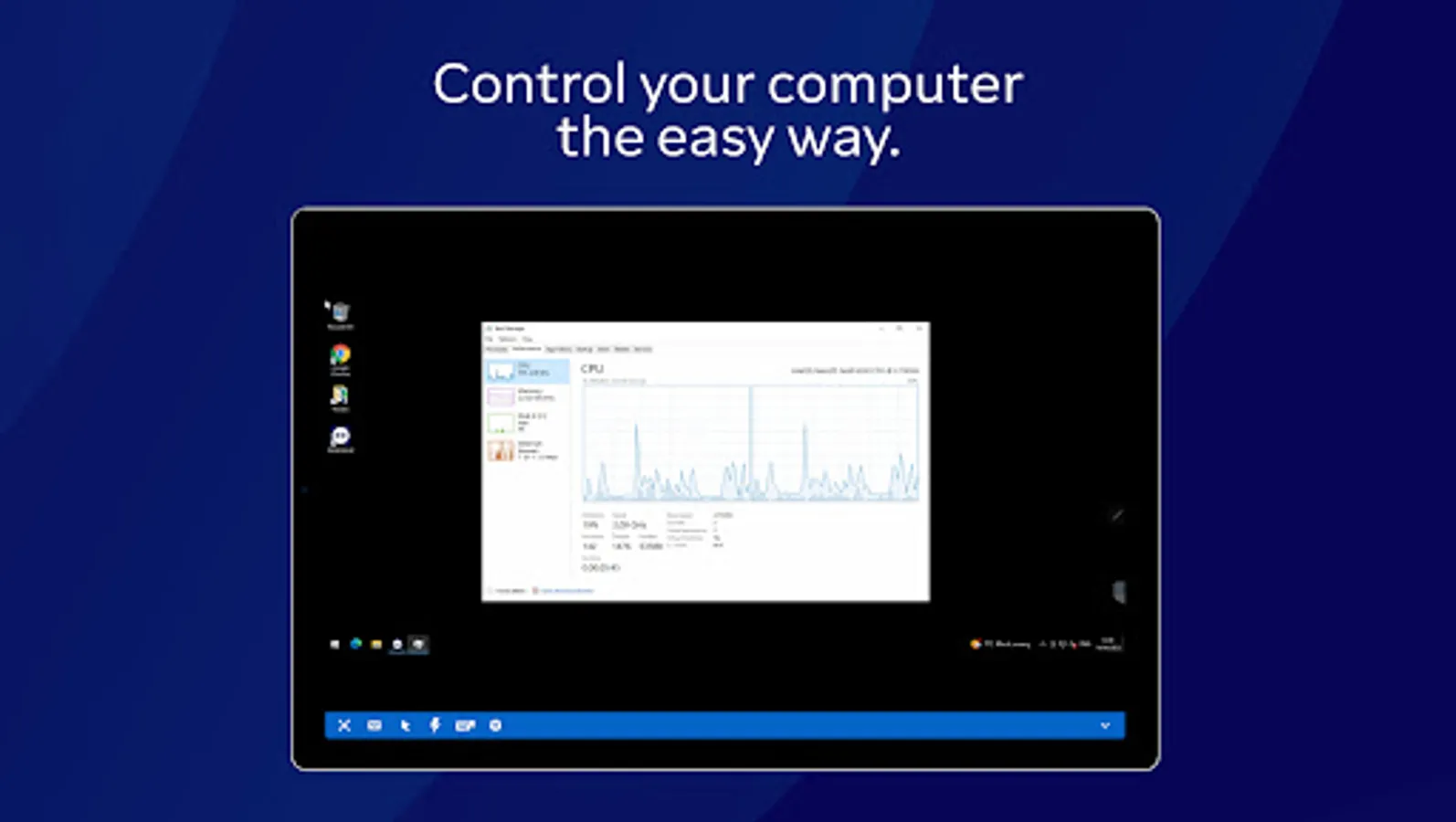
• Securely access Windows, macOS, and Linux computers as if you were right in front of them
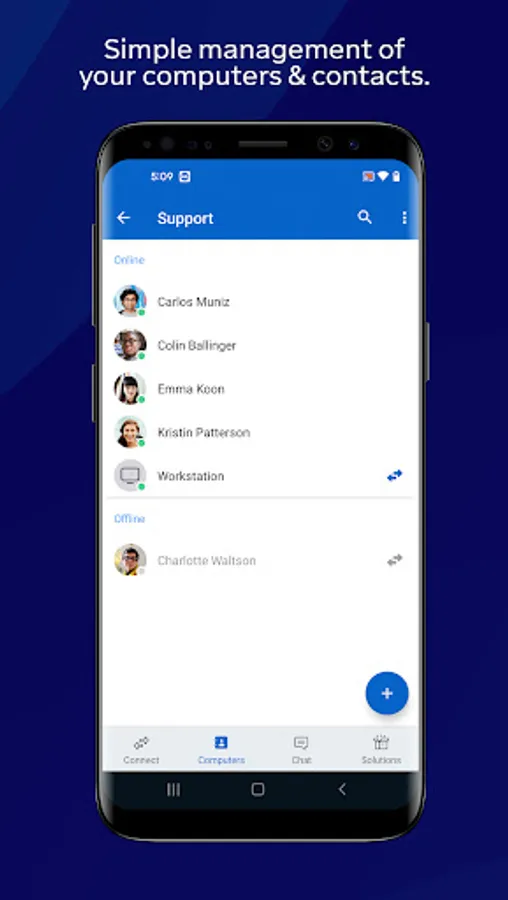
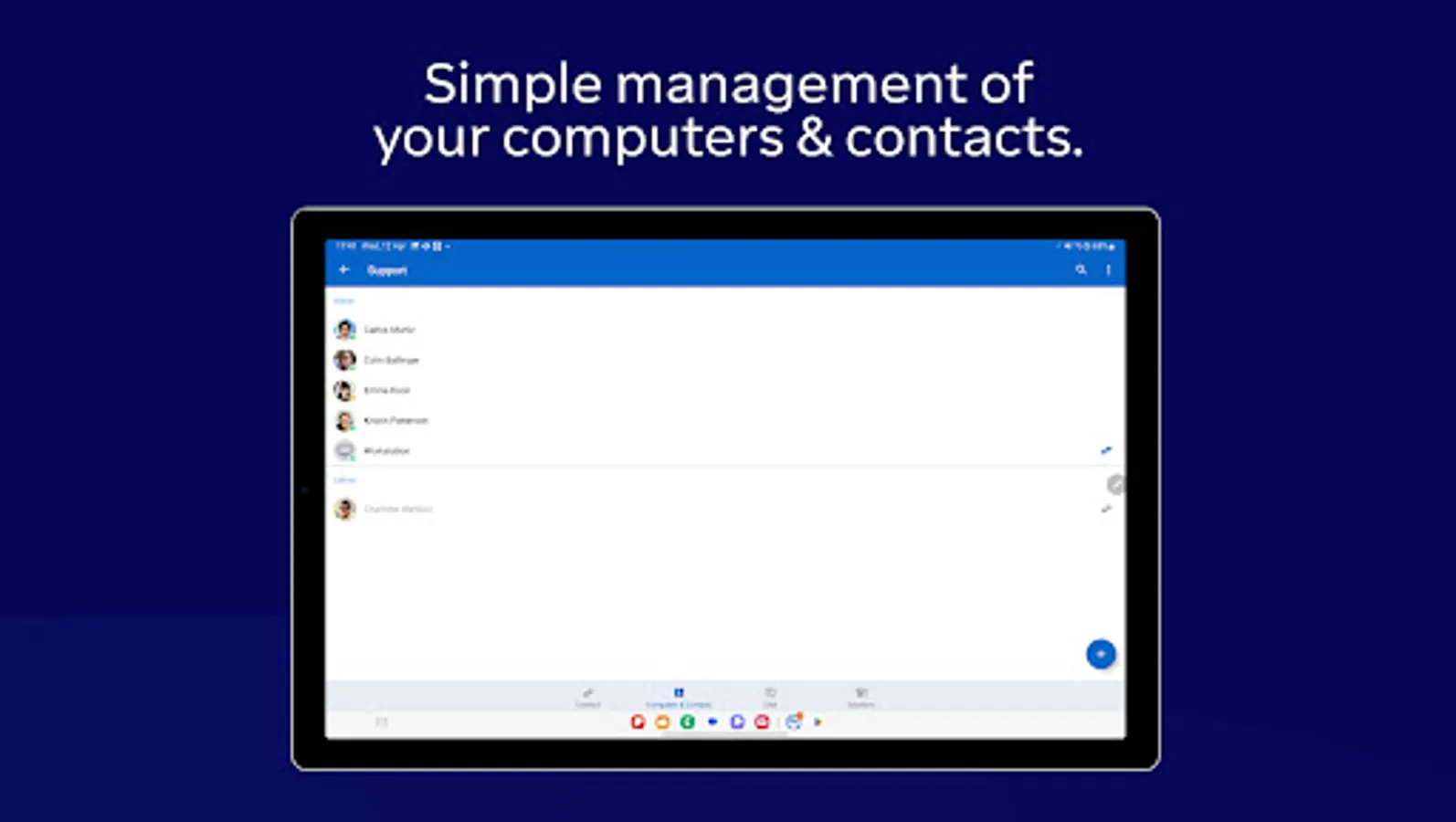
• Provide instant support or manage unattended devices like servers or virtual machines
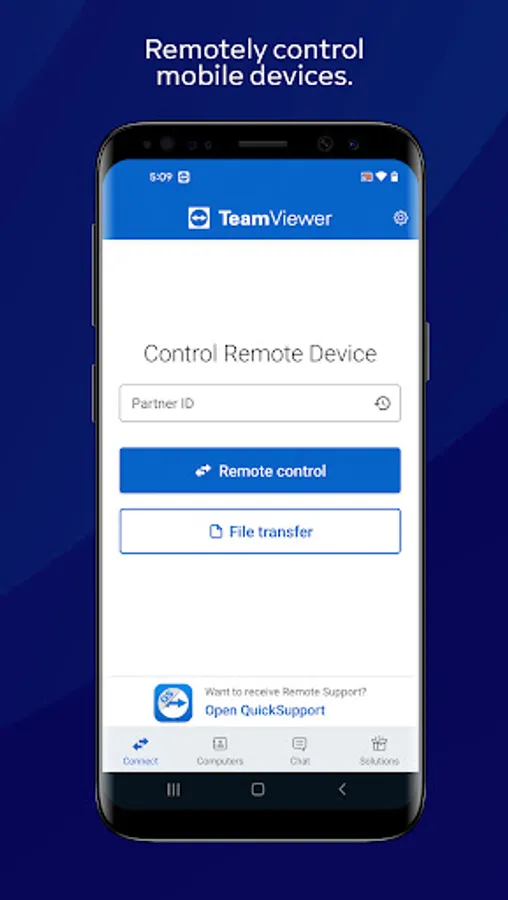
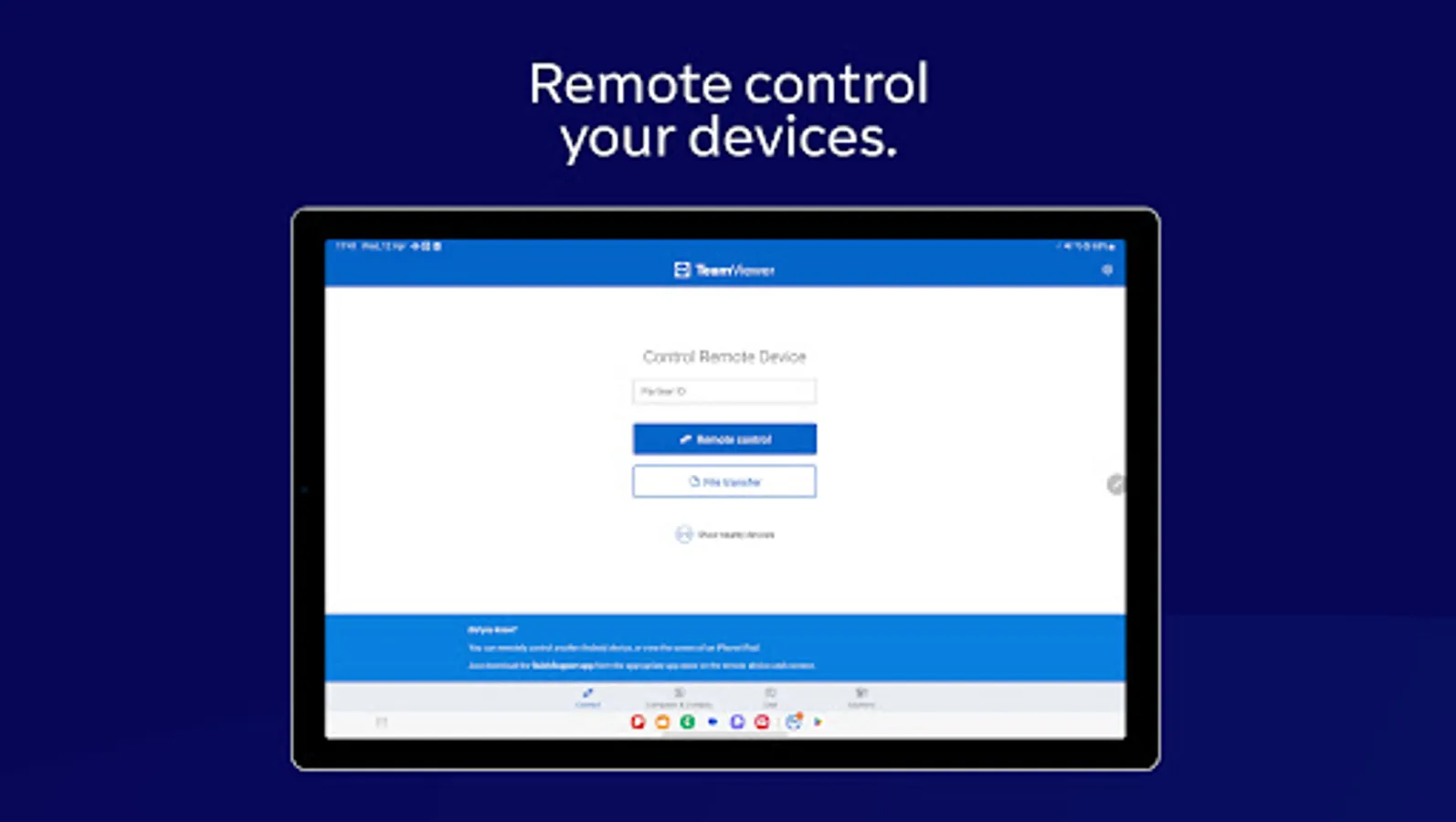
• Control Android mobile and tablet devices remotely – including rugged devices, kiosks, and smart glasses
• Use Assist AR for live, visual support with augmented reality — guide users by placing 3D markers in their environment
• Use your phone or tablet to work on your remote desktop while traveling
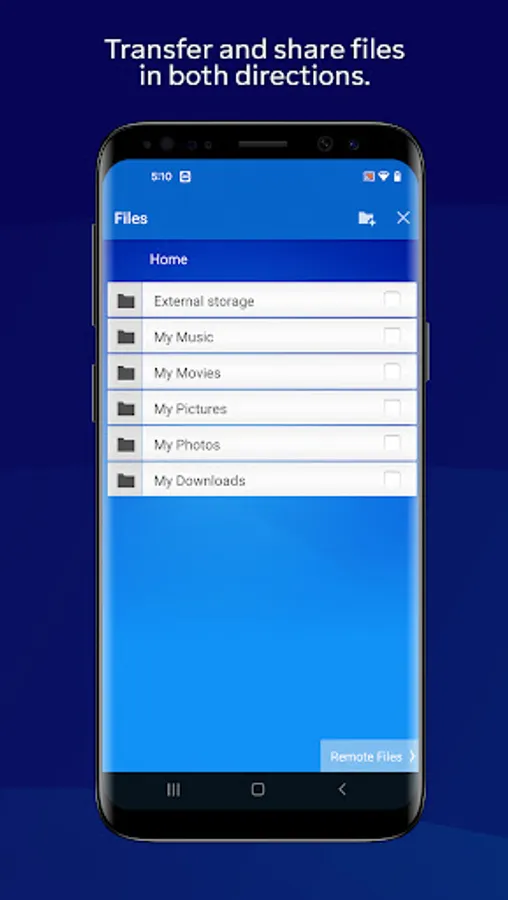
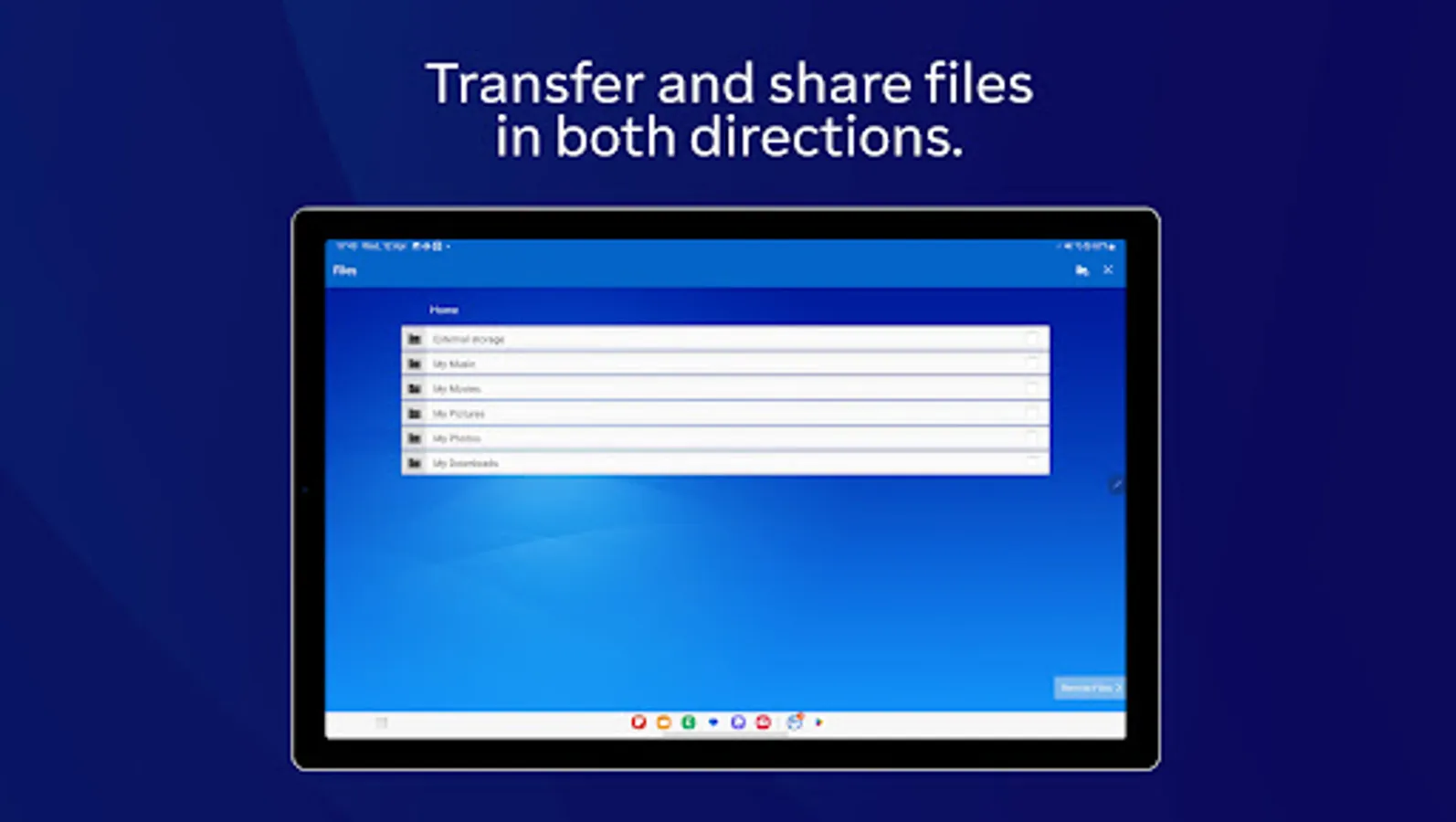
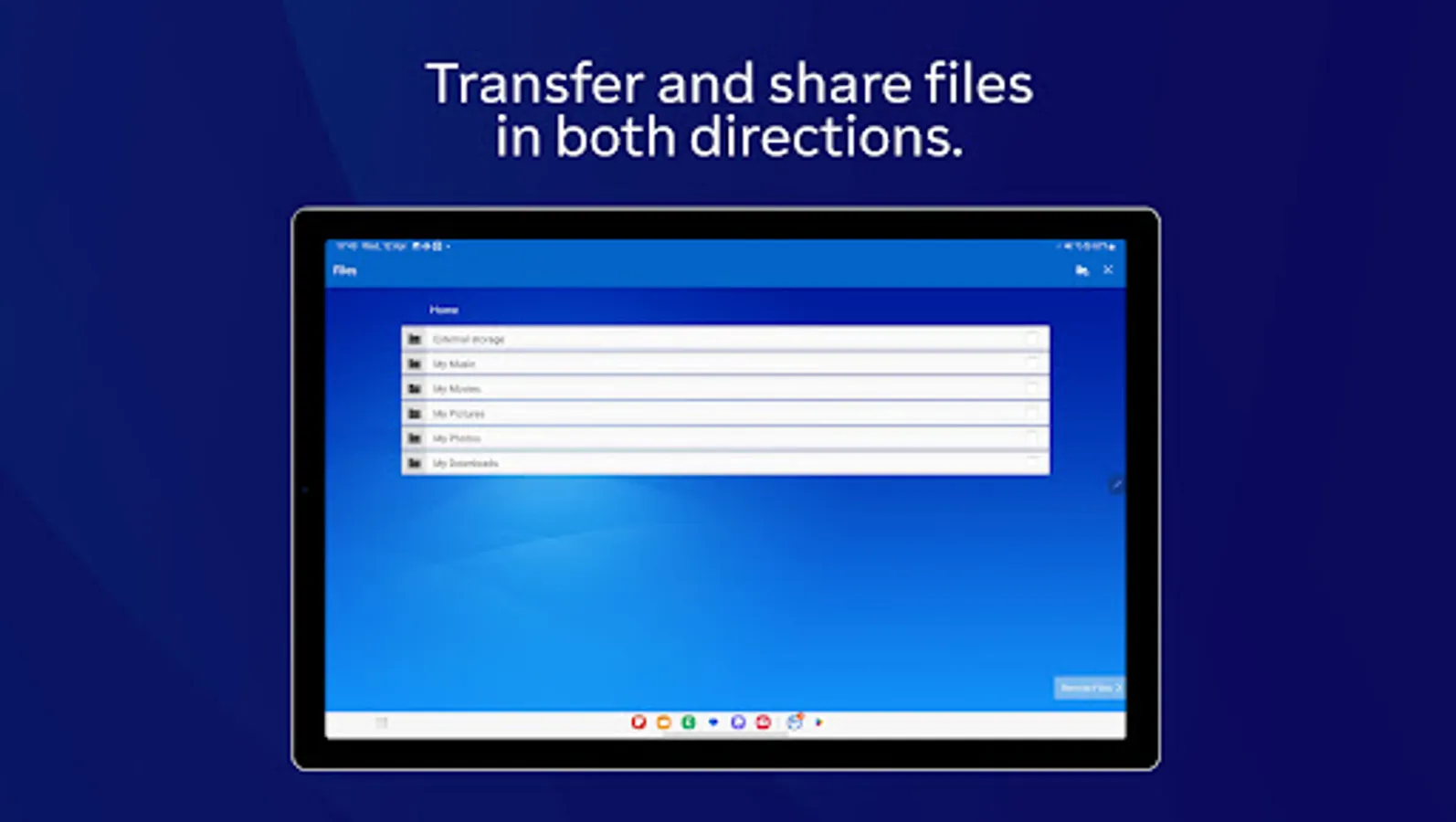
• Share and transfer files easily between devices — in both directions
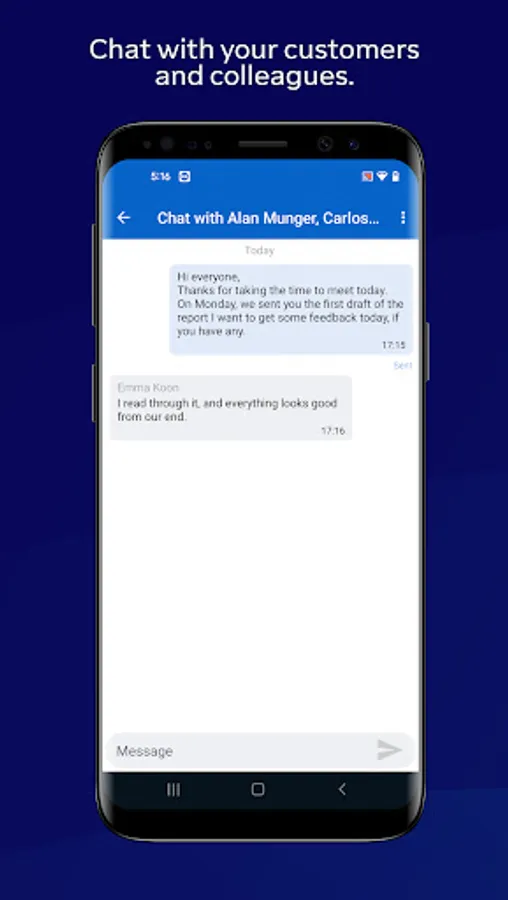
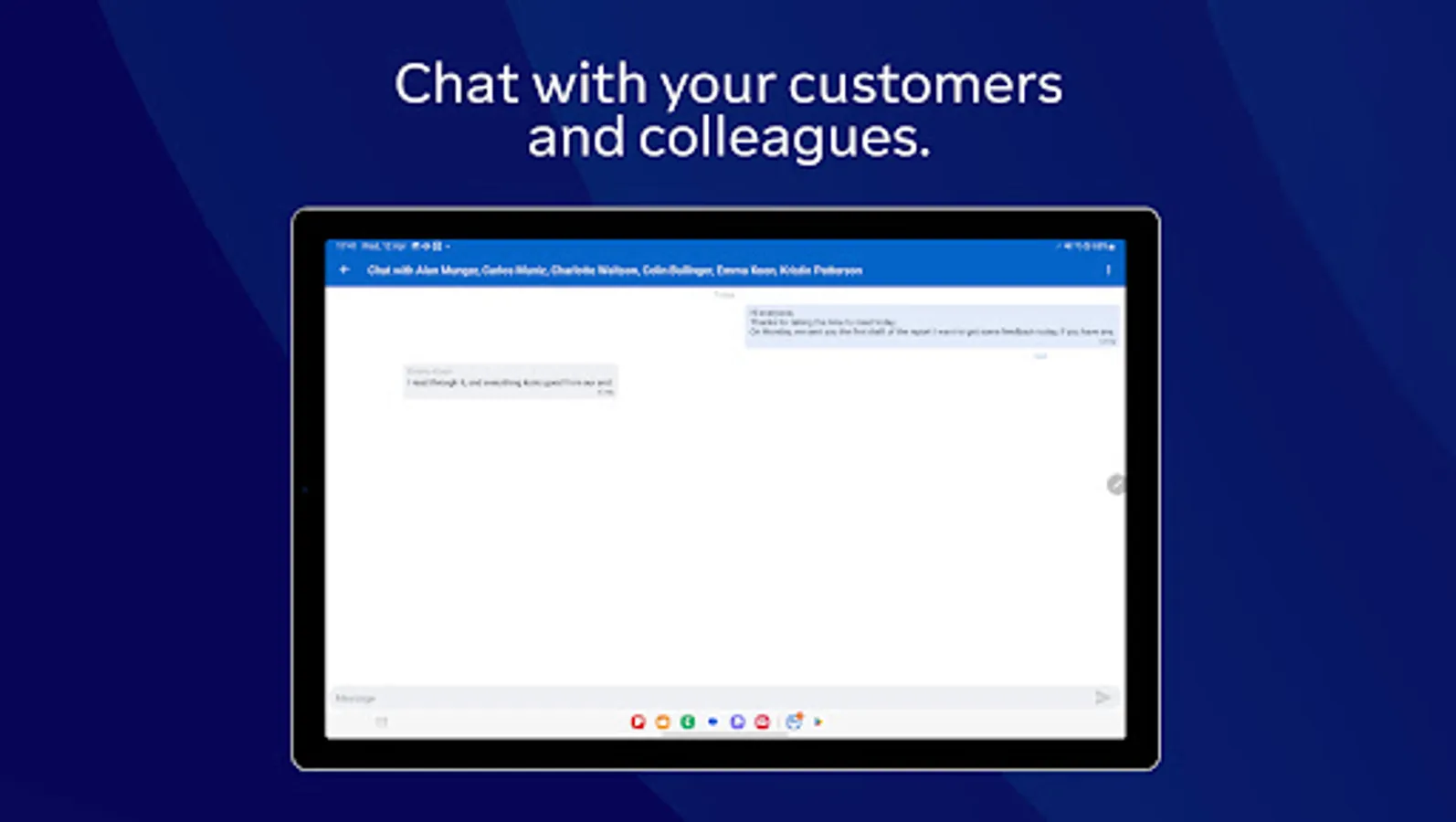
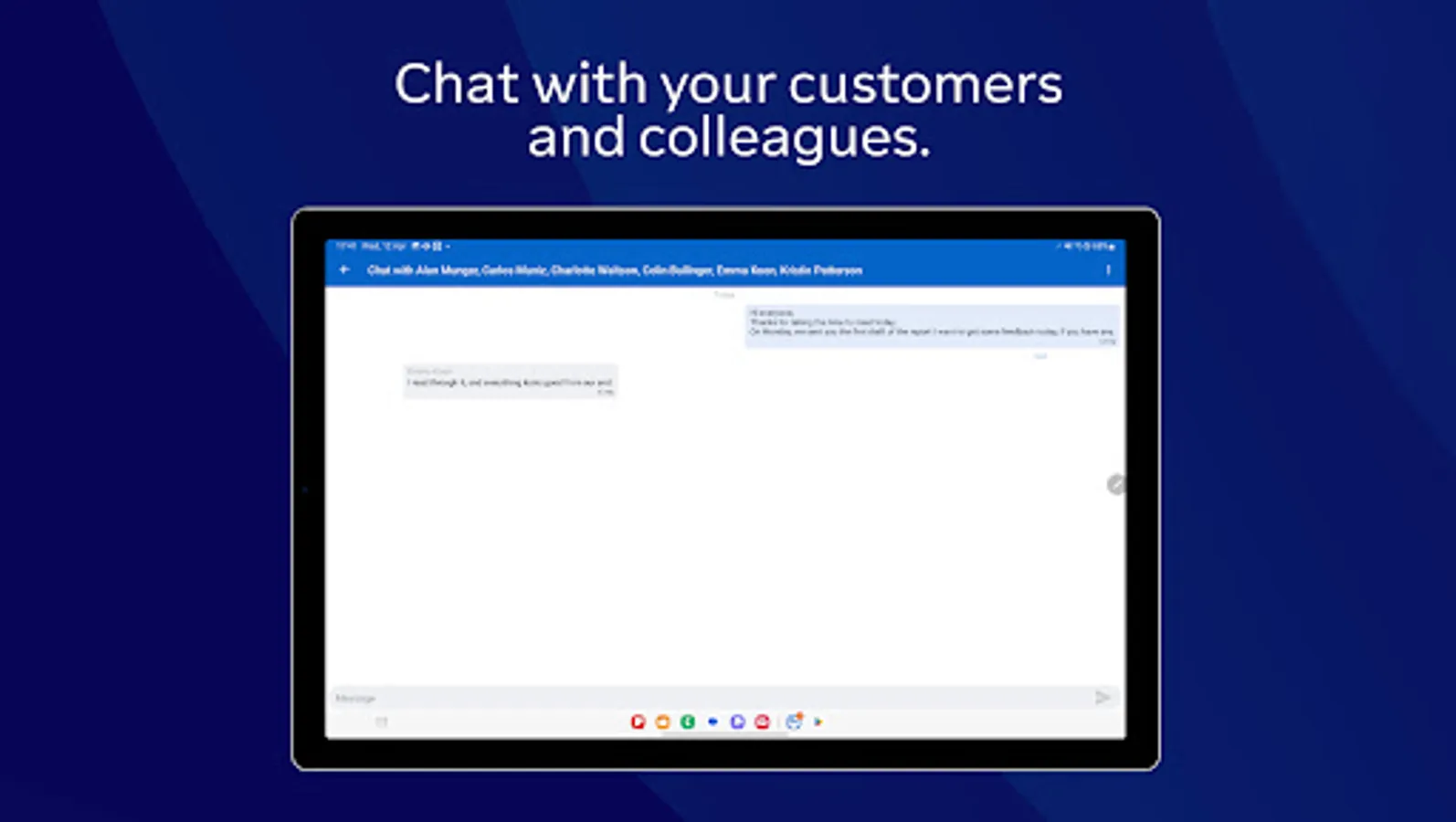
• Chat in real time for questions, updates, or guidance during a session
• Enjoy smooth screen sharing with sound and HD video transmission
Key Features:
• Full remote control and screen sharing
• Intuitive touch gestures and controls
• File transfer in both directions
• Real-time chat
• Effortlessly access computers behind firewalls and proxy servers
• Multi-monitor support
• Sound and video transmission in real-time
• High-quality sound and video
• Industry-grade security: 256-bit AES encryption
• Works across Android, iOS, Windows, macOS, Linux, and more
How to get started:
1. Install this app on your Android device
2. On the device you want to connect to, install the TeamViewer QuickSupport app
3. Open both apps, enter the ID or Session code from QuickSupport, and connect
Optional Access Permissions:
• Camera – To Scan QR codes
• Microphone – To transmit audio or record sessions
(You can use the app without these permissions; adjust them anytime in Settings)
Want to allow remote access to this device instead? Download the TeamViewer QuickSupport app.
TeamViewer subscriptions purchased from the app will be charged to your iTunes account and will automatically renew within 24 hours prior to the end of the current subscription period, unless auto-renewal is turned off, after purchase, go to your iTunes account settings. A subscription cannot be cancelled during the active subscription period.
Privacy Policy: https://www.teamviewer.com/apps-privacy-policy
Terms of Use: https://www.teamviewer.com/eula/
What's inside:
• Securely access Windows, macOS, and Linux computers as if you were right in front of them
• Provide instant support or manage unattended devices like servers or virtual machines
• Control Android mobile and tablet devices remotely – including rugged devices, kiosks, and smart glasses
• Use Assist AR for live, visual support with augmented reality — guide users by placing 3D markers in their environment
• Use your phone or tablet to work on your remote desktop while traveling
• Share and transfer files easily between devices — in both directions
• Chat in real time for questions, updates, or guidance during a session
• Enjoy smooth screen sharing with sound and HD video transmission
Key Features:
• Full remote control and screen sharing
• Intuitive touch gestures and controls
• File transfer in both directions
• Real-time chat
• Effortlessly access computers behind firewalls and proxy servers
• Multi-monitor support
• Sound and video transmission in real-time
• High-quality sound and video
• Industry-grade security: 256-bit AES encryption
• Works across Android, iOS, Windows, macOS, Linux, and more
How to get started:
1. Install this app on your Android device
2. On the device you want to connect to, install the TeamViewer QuickSupport app
3. Open both apps, enter the ID or Session code from QuickSupport, and connect
Optional Access Permissions:
• Camera – To Scan QR codes
• Microphone – To transmit audio or record sessions
(You can use the app without these permissions; adjust them anytime in Settings)
Want to allow remote access to this device instead? Download the TeamViewer QuickSupport app.
TeamViewer subscriptions purchased from the app will be charged to your iTunes account and will automatically renew within 24 hours prior to the end of the current subscription period, unless auto-renewal is turned off, after purchase, go to your iTunes account settings. A subscription cannot be cancelled during the active subscription period.
Privacy Policy: https://www.teamviewer.com/apps-privacy-policy
Terms of Use: https://www.teamviewer.com/eula/
TeamViewer Remote Control Screenshots
Tap to Rate:
Reviews for TeamViewer Remote Control
Mahendra
12/30/2025
Again and again asking login
Larry Parrot
12/30/2025
too technical with no support on how to use this app. so I just don't have the time or patience to wait it out