Draw on screen & Capture
SV Tools
3.5 ★
886 ratings
100,000+
downloads
Free
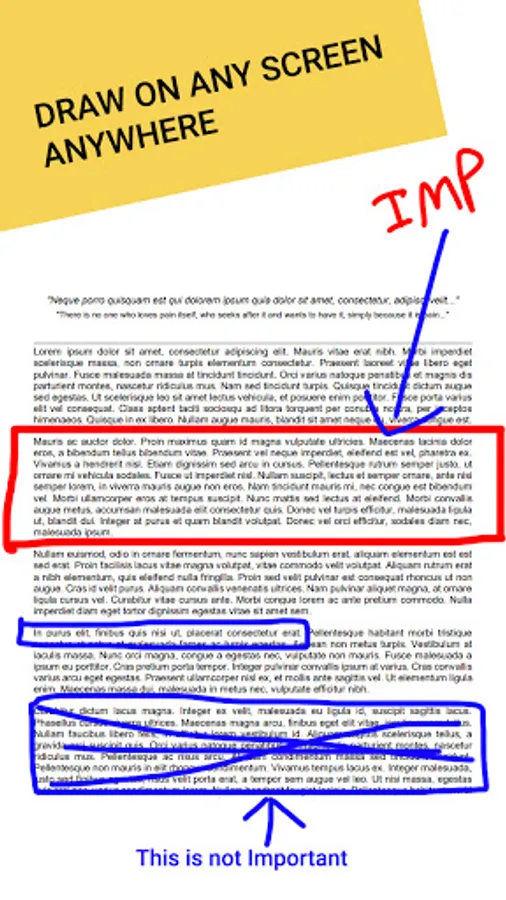
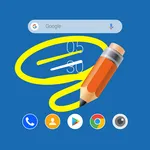
In this screen drawing app, you can use a floating tool to draw, write, and add shapes on your screen while using other applications or playing games. Includes features such as drawing, text, shape tools, stickers, image insertion, and screenshot capture.
AppRecs review analysis
AppRecs rating 3.6. Trustworthiness 81 out of 100. Review manipulation risk 25 out of 100. Based on a review sample analyzed.
★★★☆☆
3.6
AppRecs Rating
Ratings breakdown
5 star
44%
4 star
19%
3 star
6%
2 star
6%
1 star
25%
What to know
✓
Low review manipulation risk
25% review manipulation risk
✓
Credible reviews
81% trustworthiness score from analyzed reviews
⚠
High negative review ratio
31% of sampled ratings are 1–2 stars
About Draw on screen & Capture
This app has a floating drawing tool that will stay on your screen, and using it you can draw anywhere on your screen.
Even while using other apps or while playing games, the floating drawing tool will be on your screen, and you can use it and make drawing on your apps and games.
With this tool, you can draw things freely and smoothly on your screen using your finger, and you can also take a screenshot of it.
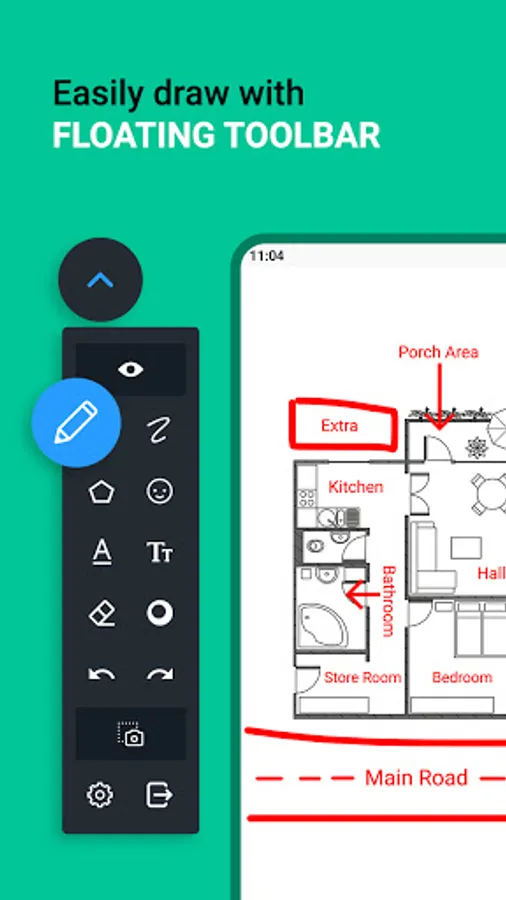
The floating drawing tool has a drawing panel with the following options:
1) Draw Mode:
- When this mode is on, then you will be able to draw anywhere on the screen.
2) Pencil
- You can draw on your screen using this tool.
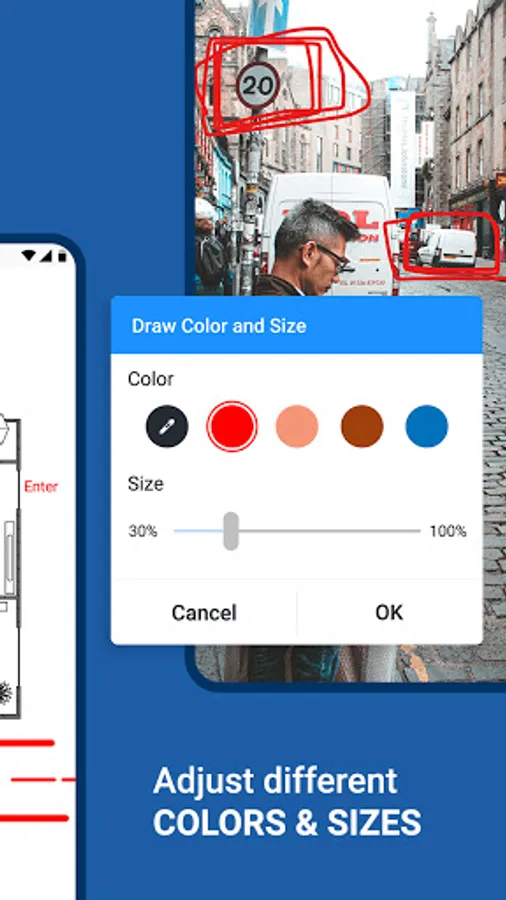
3) Pencil Customization:
- You can change the color and size of the pencil tool.
4) Eraser
- You can rub your drawings using this tool.
5) Eraser customization:
- You can change the size of the eraser.
6) Undo
- You can rollback changes using this tool.
7) Redo
- You can bring the changes back that you have removed with undo.
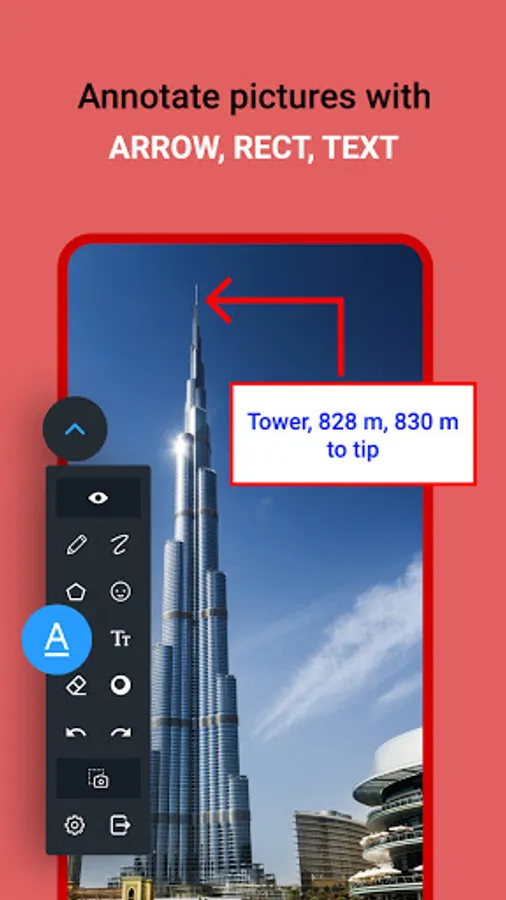
8) Text:
- You can write text on your screen. You can also change its font and color.
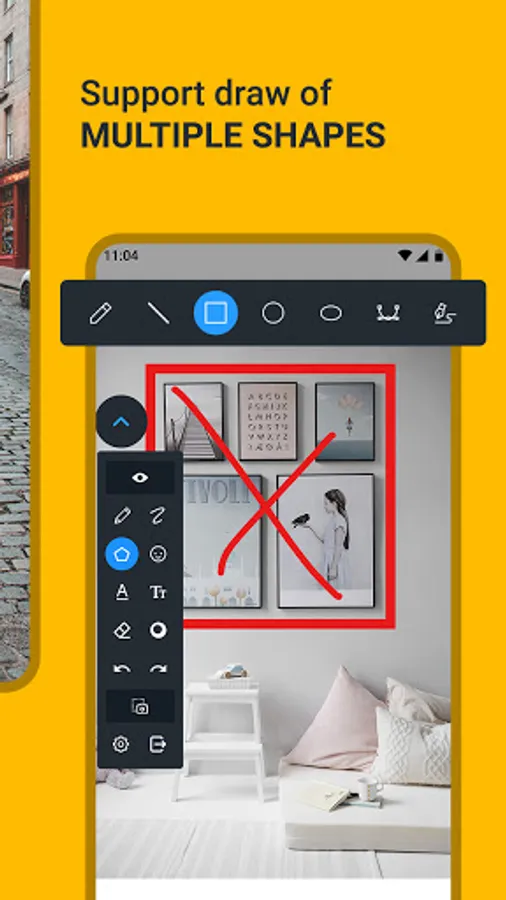
9) Shapes:
- You can draw things like straight-line, rectangle, circle, oval, and curved lines.
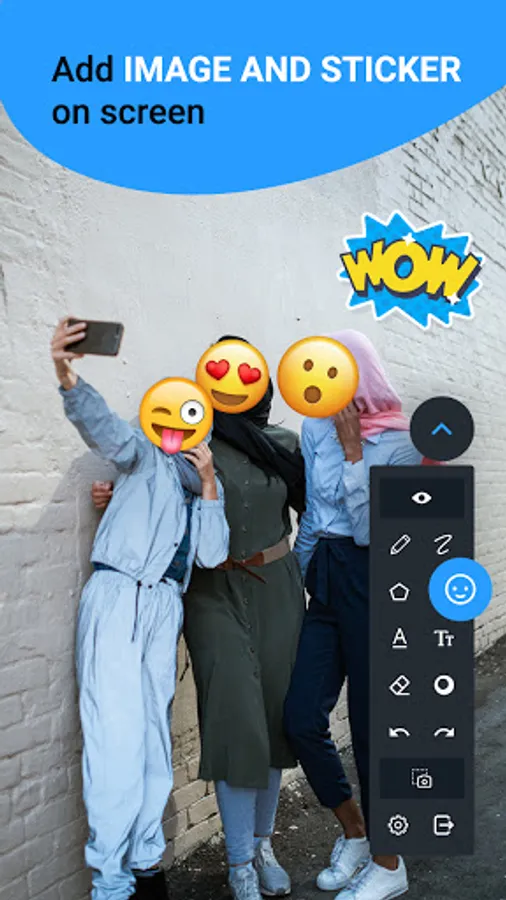
10) Sticker:
- Here, you will get stickers, and you can add them to your screen.
11) Image:
- You can insert an image on the screen from your camera or gallery.
12) Clear Drawing:
- It clears everything that you have drawn.
13) Screenshot:
- It takes a screenshot, in this way, you can save the things that you have drawn on your screen.
Here you can also customize the menu by changing its transparency, and you can also add and remove some icons from the menu.
In this app, there is a Clear Drawing option, if you turn it on, then it will clear the screen drawing after you take the screenshot.
To make your screen drawings quickly, use this floating drawing tool on your android phone.
Even while using other apps or while playing games, the floating drawing tool will be on your screen, and you can use it and make drawing on your apps and games.
With this tool, you can draw things freely and smoothly on your screen using your finger, and you can also take a screenshot of it.
The floating drawing tool has a drawing panel with the following options:
1) Draw Mode:
- When this mode is on, then you will be able to draw anywhere on the screen.
2) Pencil
- You can draw on your screen using this tool.
3) Pencil Customization:
- You can change the color and size of the pencil tool.
4) Eraser
- You can rub your drawings using this tool.
5) Eraser customization:
- You can change the size of the eraser.
6) Undo
- You can rollback changes using this tool.
7) Redo
- You can bring the changes back that you have removed with undo.
8) Text:
- You can write text on your screen. You can also change its font and color.
9) Shapes:
- You can draw things like straight-line, rectangle, circle, oval, and curved lines.
10) Sticker:
- Here, you will get stickers, and you can add them to your screen.
11) Image:
- You can insert an image on the screen from your camera or gallery.
12) Clear Drawing:
- It clears everything that you have drawn.
13) Screenshot:
- It takes a screenshot, in this way, you can save the things that you have drawn on your screen.
Here you can also customize the menu by changing its transparency, and you can also add and remove some icons from the menu.
In this app, there is a Clear Drawing option, if you turn it on, then it will clear the screen drawing after you take the screenshot.
To make your screen drawings quickly, use this floating drawing tool on your android phone.