Simple Expense Manager
Rudhra Nectar Ventures
4.2 ★
store rating
10,000+
downloads
Free
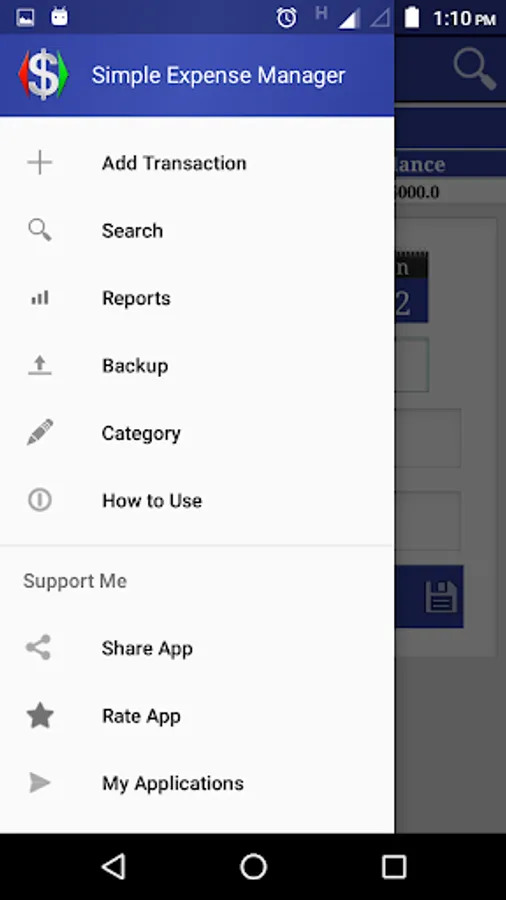
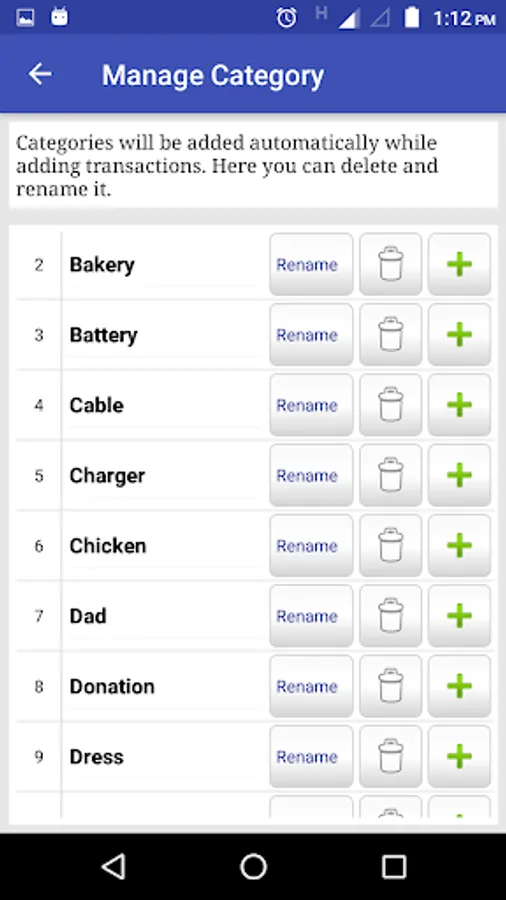
With this expense manager app, you can record income and expenses, search transactions by date or category, and edit transaction details. Includes features for saving data locally and managing transaction categories.
AppRecs review analysis
AppRecs rating 2.7. Trustworthiness 52 out of 100. Review manipulation risk 44 out of 100. Based on a review sample analyzed.
★★☆☆☆
2.7
AppRecs Rating
Ratings breakdown
5 star
67%
4 star
0%
3 star
17%
2 star
17%
1 star
0%
What to know
⚠
Ad complaints
Many low ratings mention excessive ads
⚠
Questionable review patterns
44% review manipulation risk - some review patterns appear unusual
⚠
Review quality concerns
42% of sampled 5-star reviews are very short
About Simple Expense Manager
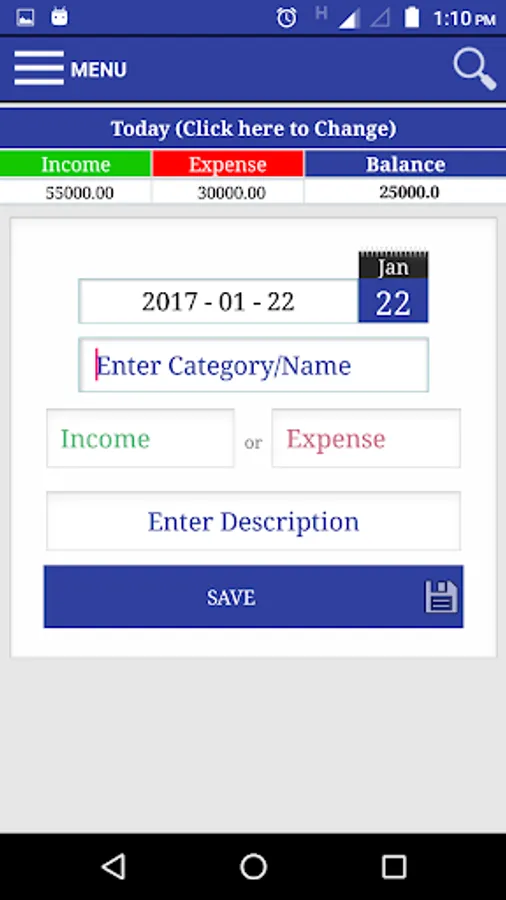
This is a simple app that let you save your savings and daily expenses. You may later search for transactions using date and/or category and get summary of them. The app also lets you edit details at later points.
How to use:
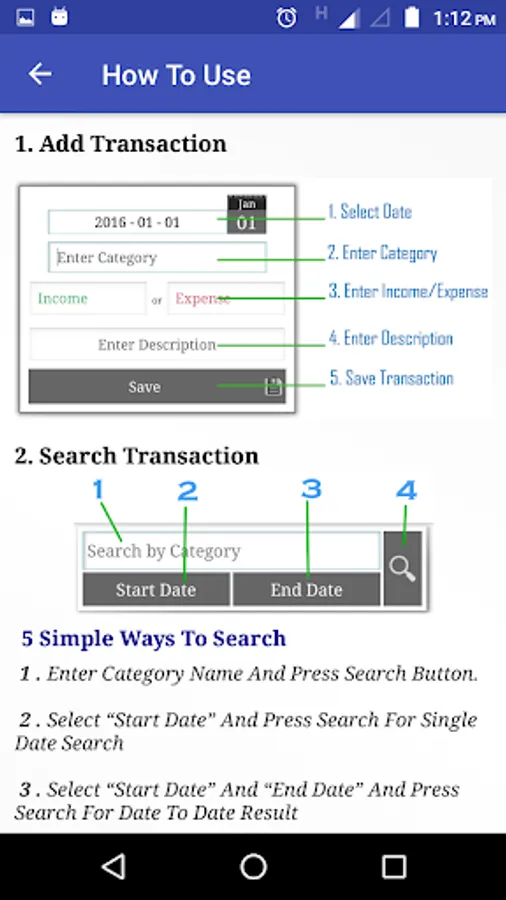
a) Save transactions:
1. Select date (default is current date)
2. Enter category . Examples are Salary, Fuel, Food etc. Category once added will be saved and you may auto-select same later.
3. For savings enter the amount in "Income" field. Enter amount in "Expense" field for cash outflow.
4. Enter description (optional).
5. Click on "Save" button.
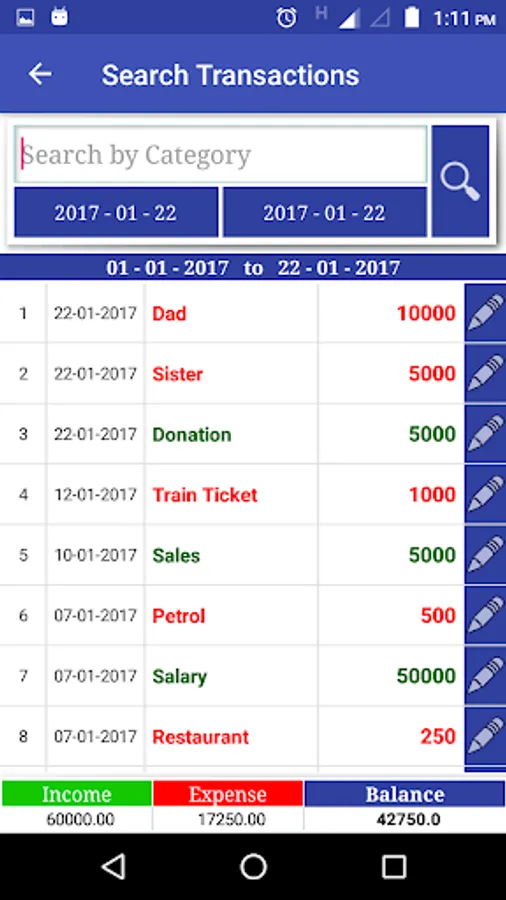
b) Search/Edit :
1. Click the search button on the top right (magnifying glass icon). This will take you to search page which lists current day's transaction by default.
2. Enter category and dates as required for the search and click on search icon again.
3. Each record has an edit button in the right-end (Pencil icon). Click on it to edit any details previously entered.
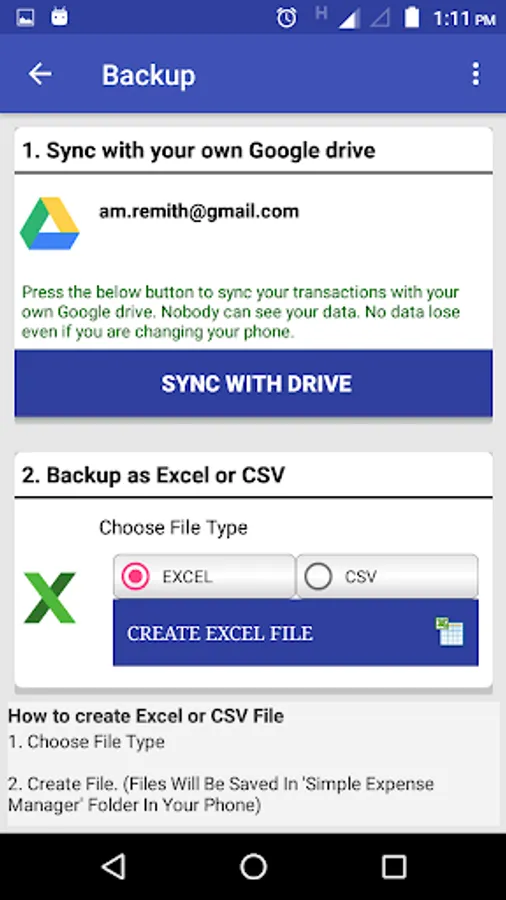
Note : The transactions are hard saved in phone memory / memory card under "Easy Transaction" folder. You may take back-up of this file in case of formatting etc. and copy it back to same location.
How to use:
a) Save transactions:
1. Select date (default is current date)
2. Enter category . Examples are Salary, Fuel, Food etc. Category once added will be saved and you may auto-select same later.
3. For savings enter the amount in "Income" field. Enter amount in "Expense" field for cash outflow.
4. Enter description (optional).
5. Click on "Save" button.
b) Search/Edit :
1. Click the search button on the top right (magnifying glass icon). This will take you to search page which lists current day's transaction by default.
2. Enter category and dates as required for the search and click on search icon again.
3. Each record has an edit button in the right-end (Pencil icon). Click on it to edit any details previously entered.
Note : The transactions are hard saved in phone memory / memory card under "Easy Transaction" folder. You may take back-up of this file in case of formatting etc. and copy it back to same location.