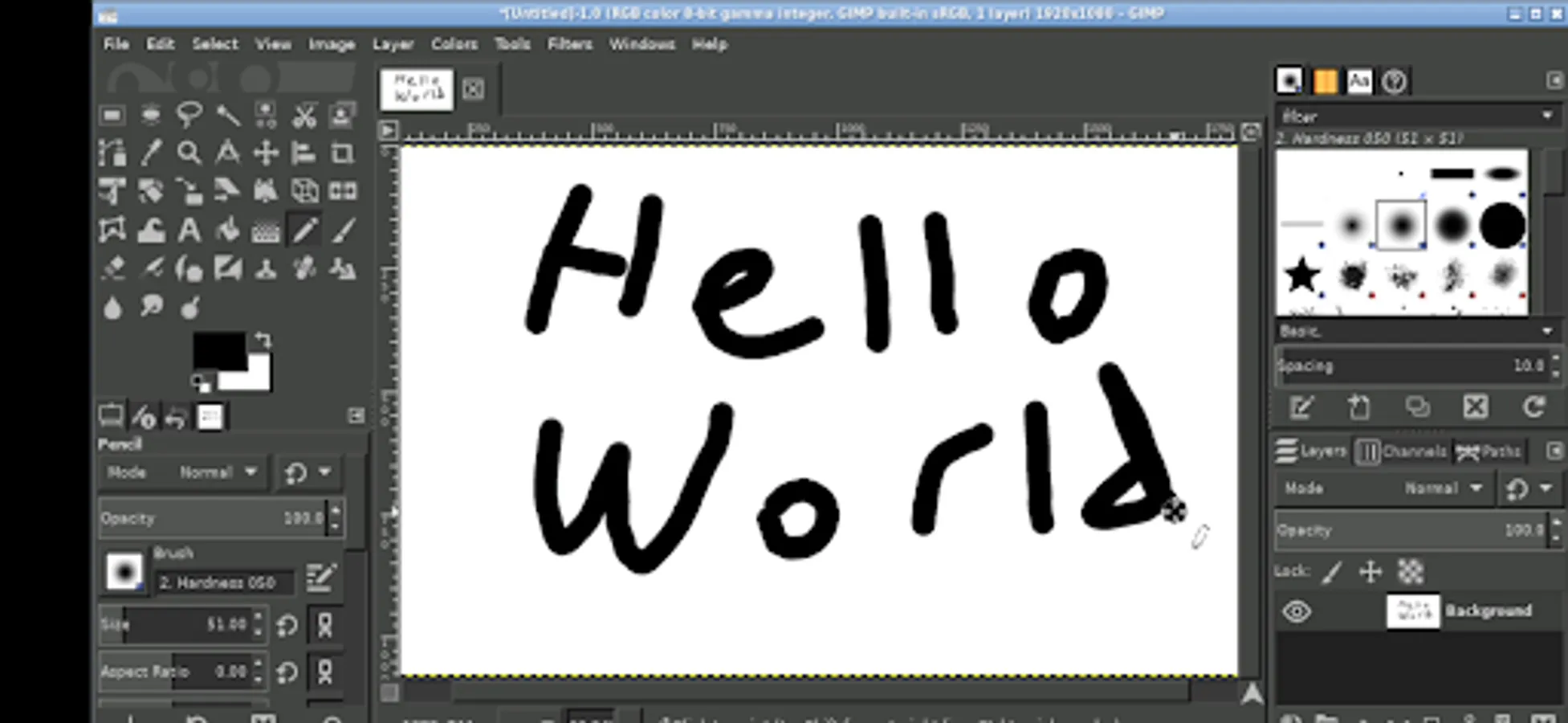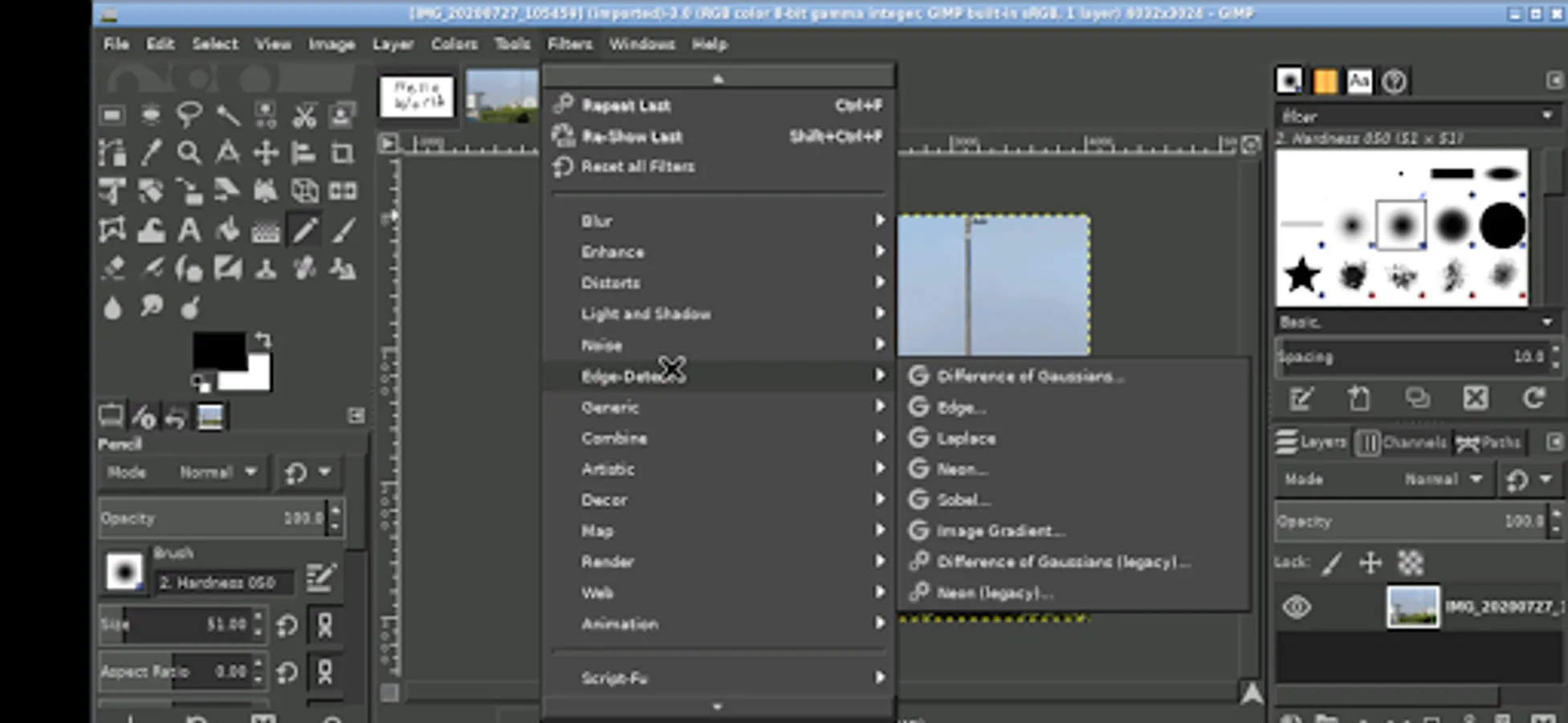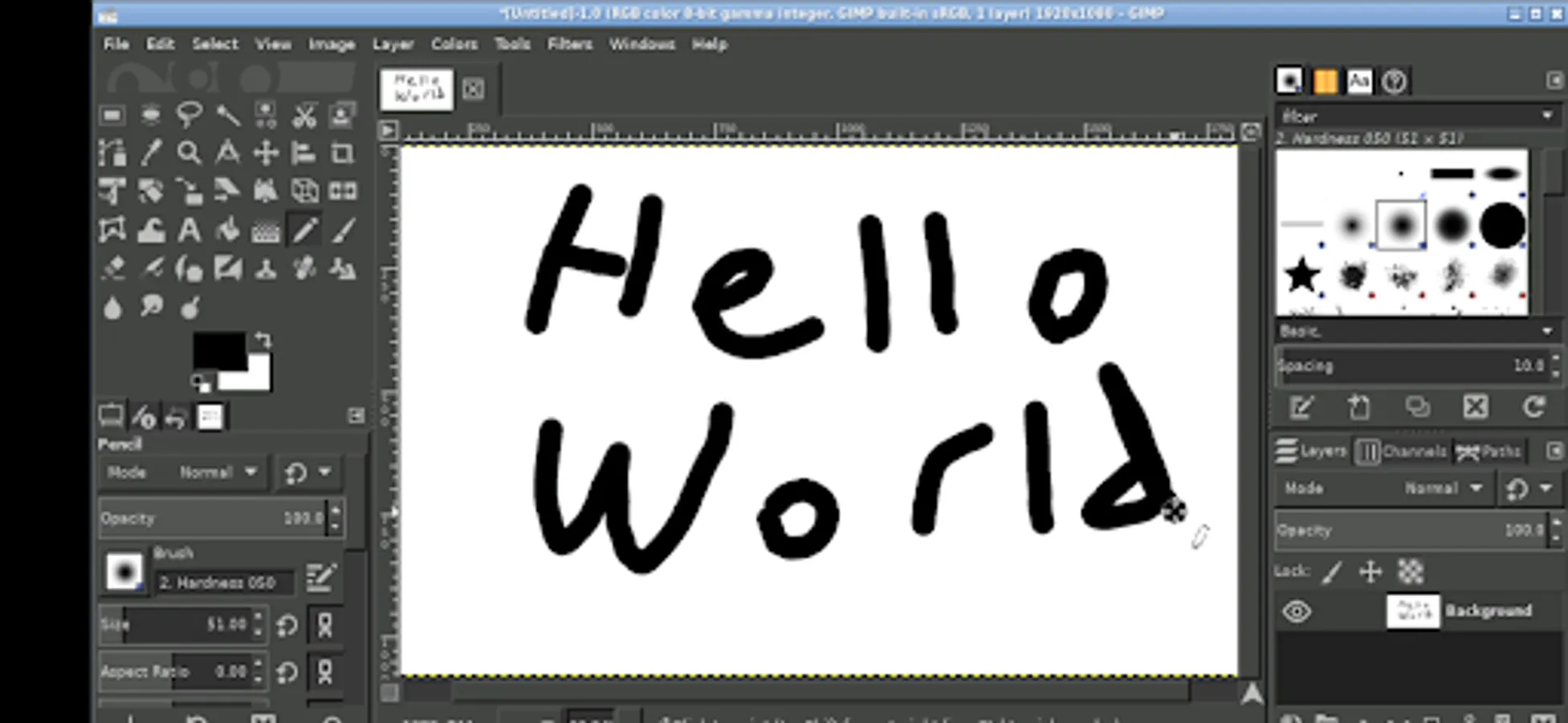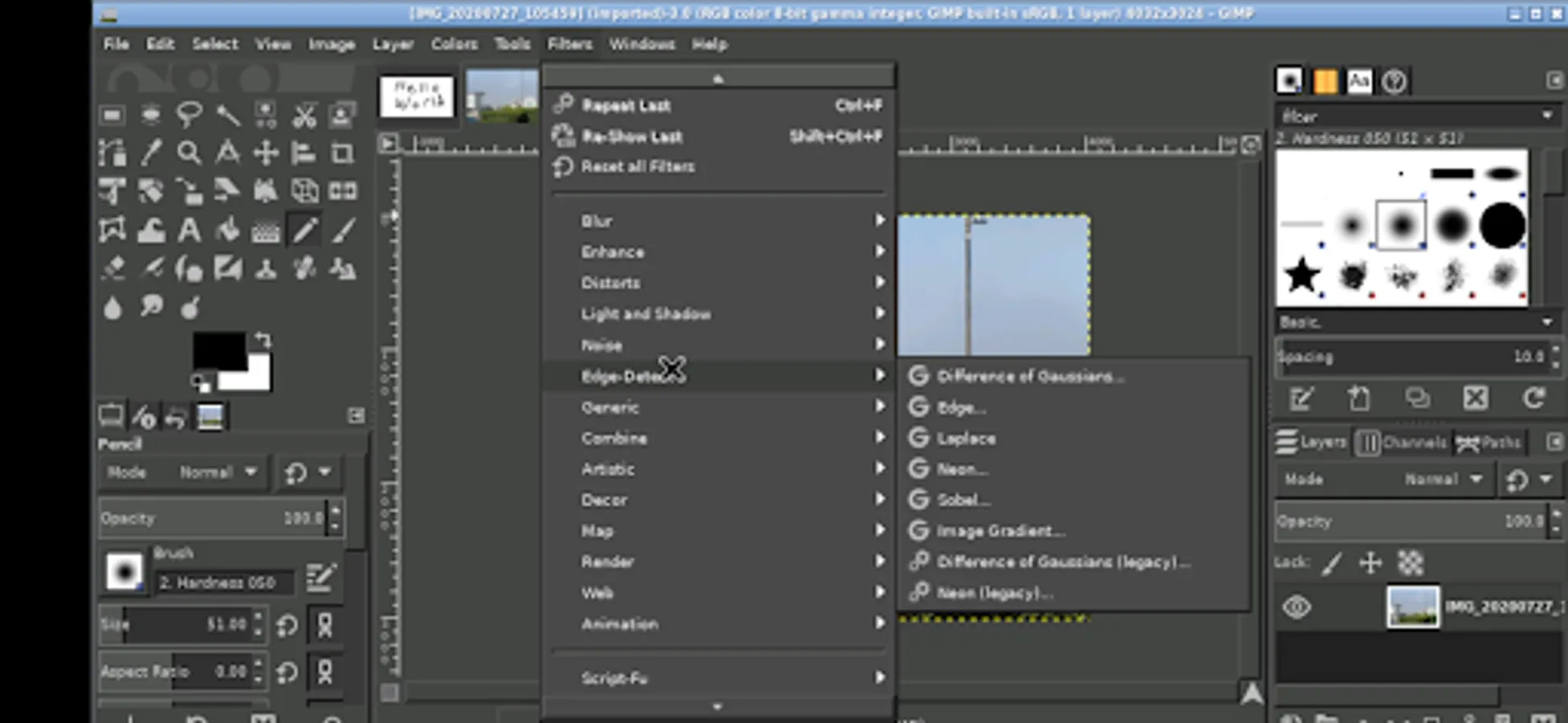
In this image editing app, you can create and modify images using professional tools and features. Includes advanced selection, layers, and color adjustment options.
AppRecs review analysis
AppRecs rating 2.7. Trustworthiness 85 out of 100. Review manipulation risk 22 out of 100. Based on a review sample analyzed.
★★☆☆☆
2.7
AppRecs Rating
Ratings breakdown
5 star
37%
4 star
7%
3 star
3%
2 star
11%
1 star
43%
What to know
✓
Low review manipulation risk
22% review manipulation risk
⚠
Mixed user feedback
Average 2.8★ rating suggests room for improvement
⚠
High negative review ratio
53% of sampled ratings are 1–2 stars
About GIMP
This really is GIMP, the amazingly capable GNU Image Manipulation Program, running on your device. It is full featured and professionally supported.
Features of GIMP:
GIMP has too many feature to list here. Please checkout the GIMP site: https://www.gimp.org/about/introduction.html
The short version of this, is that it has everything you would want from a professional photo and image editing and authoring program.
How to use this GIMP Android app:
Use it just like normal. But here are some specifics to the Android interface.
* Tap with one figure to left click.
* Move mouse by sliding around one finger.
* Pinch to zoom.
* Press and hold and then slide one finger to pan (useful when zoomed in).
* Slide two fingers up and down to scroll.
* If you want to bring up a keyboard, tap on the screen to get a set of icons to appear and then click the keyboard icon.
* If you want to do the equivalent to a right click, tap with two fingers.
* If you want to change the desktop scaling, find the service android notification and click the settings. You have to stop and restart the app after changing this settings for it to take effect.
This is all easier to do on a tablet and with a stylus, but it can be done on a phone or using your finger as well.
To access files from the rest of Android, there are many useful links in your home directory (/home/userland) to places like your Documents, Pictures, etc. No need to import or export files.
If you don't want to, or cannot pay the cost of this app, you can run GIMP via the UserLAnd app.
Licensing:
This app is released under the GPLv3. The source code can be found here:
https://github.com/CypherpunkArmory/gimp
The icon, Wilber, the GIMP mascot, comes from a vector image source (SVG) made available by Jakub Steiner, available as Creative Commons by-sa 3.0.
This app is not created by the main GIMP development team. Instead it is an adaptation that allows the Linux version to run on Android.
Features of GIMP:
GIMP has too many feature to list here. Please checkout the GIMP site: https://www.gimp.org/about/introduction.html
The short version of this, is that it has everything you would want from a professional photo and image editing and authoring program.
How to use this GIMP Android app:
Use it just like normal. But here are some specifics to the Android interface.
* Tap with one figure to left click.
* Move mouse by sliding around one finger.
* Pinch to zoom.
* Press and hold and then slide one finger to pan (useful when zoomed in).
* Slide two fingers up and down to scroll.
* If you want to bring up a keyboard, tap on the screen to get a set of icons to appear and then click the keyboard icon.
* If you want to do the equivalent to a right click, tap with two fingers.
* If you want to change the desktop scaling, find the service android notification and click the settings. You have to stop and restart the app after changing this settings for it to take effect.
This is all easier to do on a tablet and with a stylus, but it can be done on a phone or using your finger as well.
To access files from the rest of Android, there are many useful links in your home directory (/home/userland) to places like your Documents, Pictures, etc. No need to import or export files.
If you don't want to, or cannot pay the cost of this app, you can run GIMP via the UserLAnd app.
Licensing:
This app is released under the GPLv3. The source code can be found here:
https://github.com/CypherpunkArmory/gimp
The icon, Wilber, the GIMP mascot, comes from a vector image source (SVG) made available by Jakub Steiner, available as Creative Commons by-sa 3.0.
This app is not created by the main GIMP development team. Instead it is an adaptation that allows the Linux version to run on Android.