
In this widget customization app, you can modify clock skins and assign app hotspots. Includes options for applying and editing skins with customizable features.
AppRecs review analysis
AppRecs rating 4.5. Trustworthiness 71 out of 100. Review manipulation risk 27 out of 100. Based on a review sample analyzed.
★★★★☆
4.5
AppRecs Rating
Ratings breakdown
5 star
100%
4 star
0%
3 star
0%
2 star
0%
1 star
0%
What to know
✓
Low review manipulation risk
27% review manipulation risk
✓
Credible reviews
71% trustworthiness score from analyzed reviews
✓
High user satisfaction
100% of sampled ratings are 5 stars
About Diagonal UCCW Skin
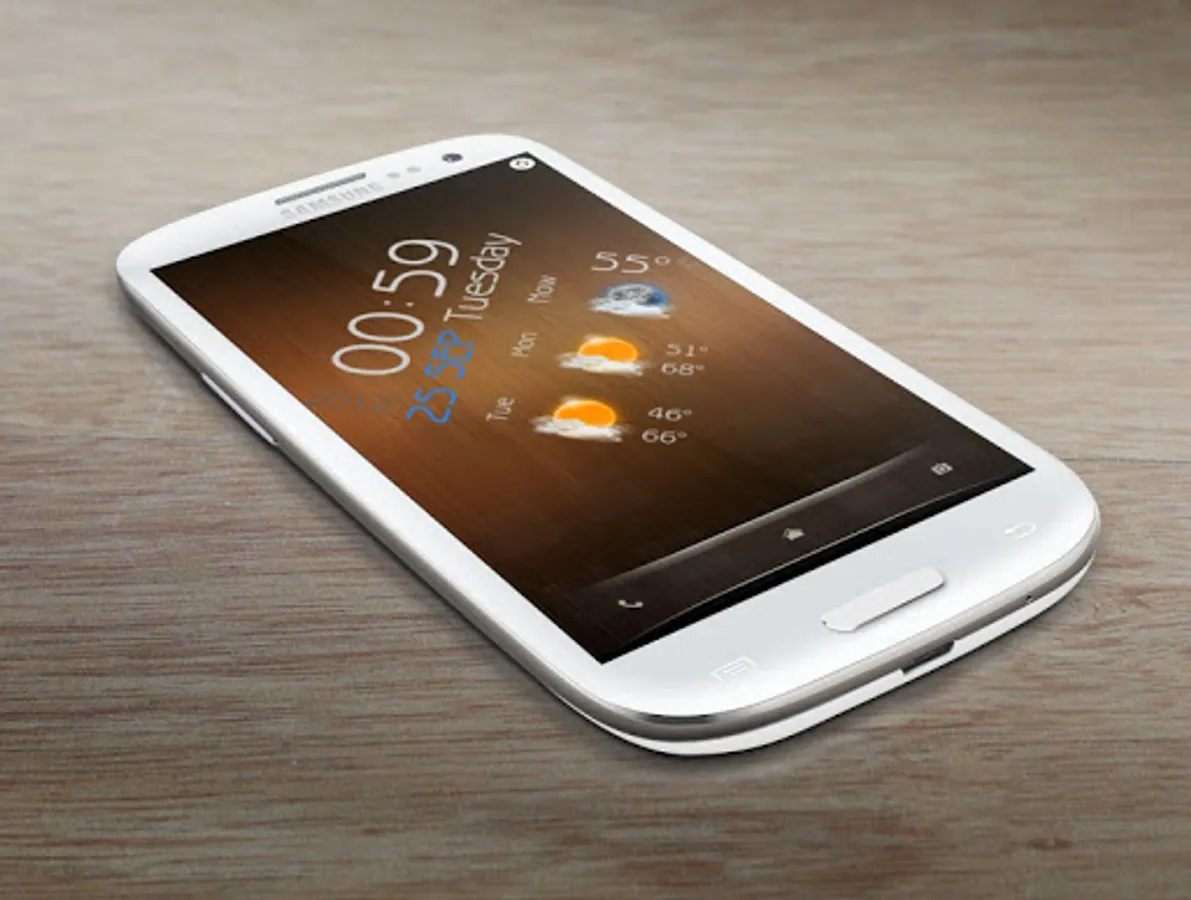
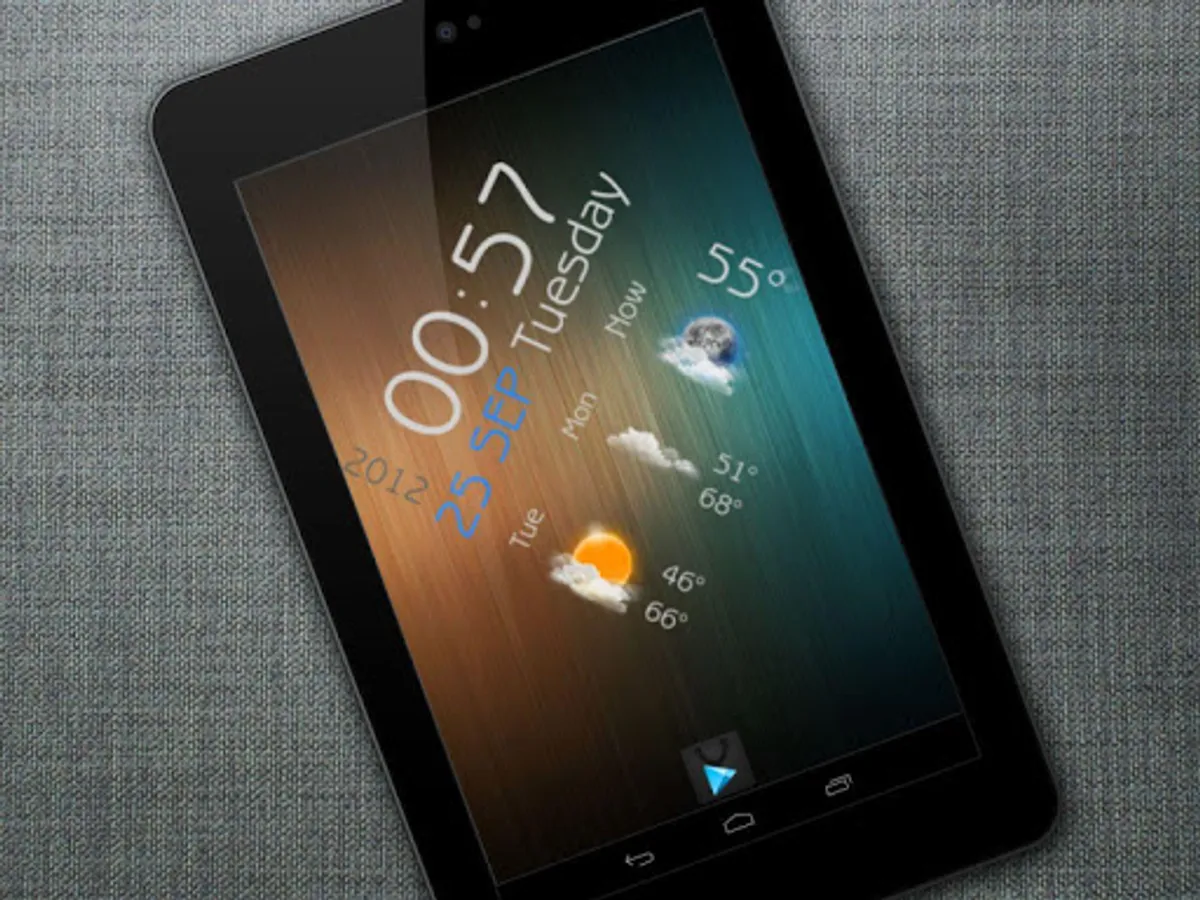
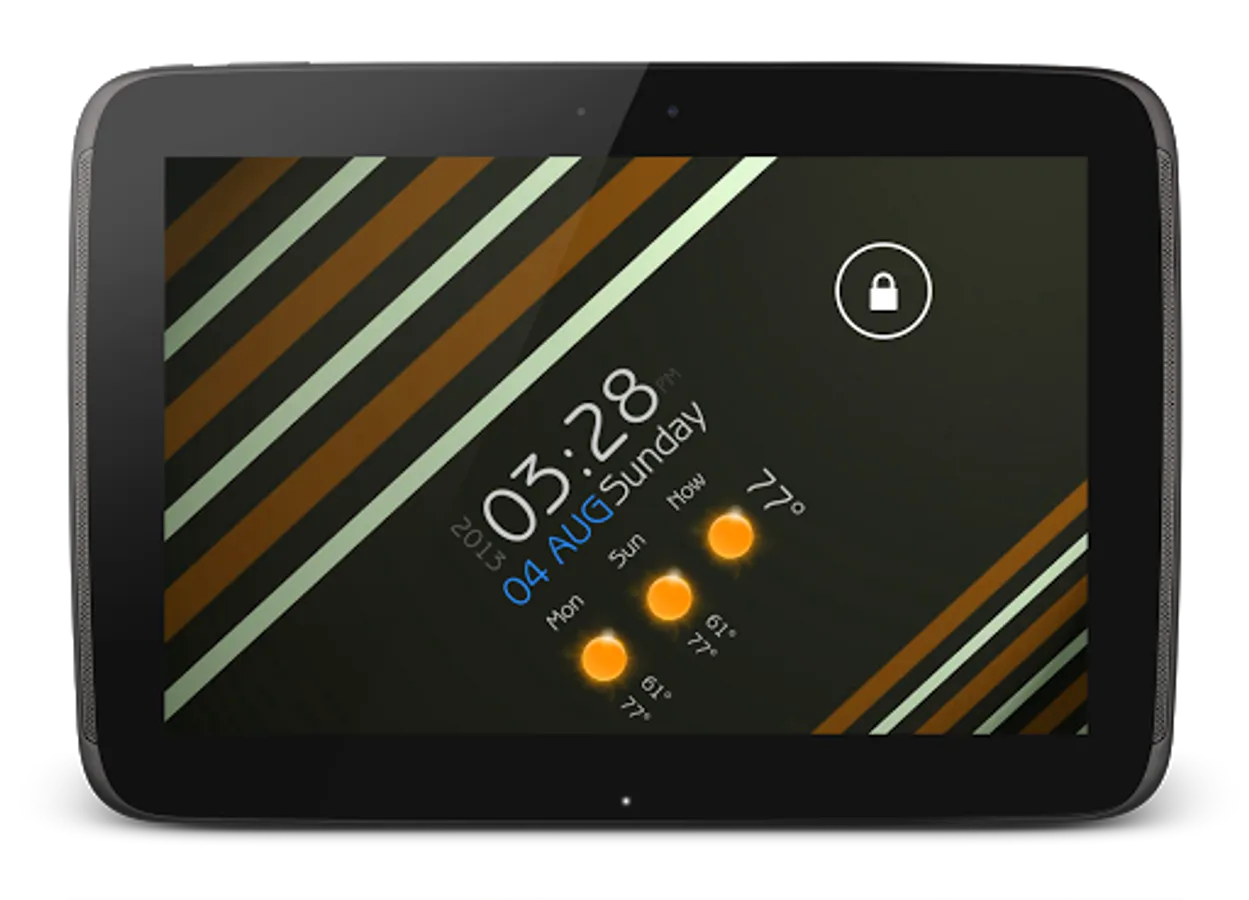
Tired of the same ol' clock widgets and skins? Give it a twist, literally. Sport this diagonal ultimate clock skin and listen to the oooohs and aaaahs. :)
== FEATURES ==
The skin shows / contains the following -
* Time and Date in sleek diagonal look.
* Current weather and forecast for 2 days; with beautiful weather icons.
* Hotspot trigger for alarm and weather update
* You can assign your favorite apps to the hotspots.
== INSTRUCTIONS ==
To use this skin, you have to install, apply and optionally edit/assign hotspots to the skin.
Install -
* After downloading the skin app from play store, launch it.
* Tap "Install Skin" button in the app.
* Tap "Ok" when it asks you whether you want to replace app. This step is replacing the skin installer with the actual skin. OR
* If you are using a KitKat device, it'll ask whether you want to update the existing app.
* Tap "Install". When that finishes, tap "Done". Skin is now installed.
Apply -
* You must have latest version of Ultimate custom widget (UCCW) installed. http://goo.gl/eDQjG
* Place a UCCW widget of 4x3 size on the homescreen. You can do so by dragging the widget from app drawer or by long pressing homescreen to pull up widget menu.
* This will open the skins list. Skins installed from play store will show up ONLY HERE.
* Tap on the skin you want to apply and it'll be applied to the widget.
* Long press on the widget and resize it as & if necessary.
Edit -
* After applying the skin as mentioned above, launch UCCW app itself. Tap Menu, tap "hotspot mode" and tap 'OFF'. UCCW will exit.
* Now tap anywhere on the uccw widget. It'll open in uccw edit window.
* Scroll through the components in the bottom half of the screen. Assign apps to hotspots in this window. This IS a MUST.
* You can change color, format etc too (optional) in this window.
* When done, no need to save. That won't work. Simply tap Menu, tap "hotspot mode" and tap 'ON'. UCCW will exit. Your changes will now be applied to the widget.
== TIPS / TROUBLESHOOT ==
* If the "Install" step fails; go to Android settings > Security and make sure "Unknown sources" is enabled. Reason explained here - http://wizardworkapps.blogspot.com/2013/12/ultimate-custom-widgets-uccw-tutorial.html
* To change temperature unit between Celsius and Fahrenheit -> Launch UCCW app itself. Tap Menu, tap settings. Here, if "Celsius" is marked, temperature will display in Celsius. If unmarked, Fahrenheit.
* If weather info is not displayed/updated, Launch UCCW app itself. Tap Menu, tap settings, tap location. Make sure "Auto location" is checked and that the third row is correctly showing your location.
* You can also tap Menu, tap settings, tap 'weather provider' and change the selected provider.
Mail me if you have ANY issues.
== FEATURES ==
The skin shows / contains the following -
* Time and Date in sleek diagonal look.
* Current weather and forecast for 2 days; with beautiful weather icons.
* Hotspot trigger for alarm and weather update
* You can assign your favorite apps to the hotspots.
== INSTRUCTIONS ==
To use this skin, you have to install, apply and optionally edit/assign hotspots to the skin.
Install -
* After downloading the skin app from play store, launch it.
* Tap "Install Skin" button in the app.
* Tap "Ok" when it asks you whether you want to replace app. This step is replacing the skin installer with the actual skin. OR
* If you are using a KitKat device, it'll ask whether you want to update the existing app.
* Tap "Install". When that finishes, tap "Done". Skin is now installed.
Apply -
* You must have latest version of Ultimate custom widget (UCCW) installed. http://goo.gl/eDQjG
* Place a UCCW widget of 4x3 size on the homescreen. You can do so by dragging the widget from app drawer or by long pressing homescreen to pull up widget menu.
* This will open the skins list. Skins installed from play store will show up ONLY HERE.
* Tap on the skin you want to apply and it'll be applied to the widget.
* Long press on the widget and resize it as & if necessary.
Edit -
* After applying the skin as mentioned above, launch UCCW app itself. Tap Menu, tap "hotspot mode" and tap 'OFF'. UCCW will exit.
* Now tap anywhere on the uccw widget. It'll open in uccw edit window.
* Scroll through the components in the bottom half of the screen. Assign apps to hotspots in this window. This IS a MUST.
* You can change color, format etc too (optional) in this window.
* When done, no need to save. That won't work. Simply tap Menu, tap "hotspot mode" and tap 'ON'. UCCW will exit. Your changes will now be applied to the widget.
== TIPS / TROUBLESHOOT ==
* If the "Install" step fails; go to Android settings > Security and make sure "Unknown sources" is enabled. Reason explained here - http://wizardworkapps.blogspot.com/2013/12/ultimate-custom-widgets-uccw-tutorial.html
* To change temperature unit between Celsius and Fahrenheit -> Launch UCCW app itself. Tap Menu, tap settings. Here, if "Celsius" is marked, temperature will display in Celsius. If unmarked, Fahrenheit.
* If weather info is not displayed/updated, Launch UCCW app itself. Tap Menu, tap settings, tap location. Make sure "Auto location" is checked and that the third row is correctly showing your location.
* You can also tap Menu, tap settings, tap 'weather provider' and change the selected provider.
Mail me if you have ANY issues.
Diagonal UCCW Skin Screenshots
Tap to Rate:
Reviews for Diagonal UCCW Skin
Lawrence Amihan
7/1/2022
such a waste of time
A Google user
12/30/2019
Love this skin, and the whole UCCW skin app, thank you Dev for making it for ppl who can't always afford, (even small amounts at times) but want to make there phone awesome also! Very appreciated!!