E-Checklist
Yogesh Sanwal
4.0 ★
115 ratings
10,000+
downloads
Free
+ in-app
In this checklist app, you can create, modify, and organize checklists with features like reminders and data backup. Includes options for sharing, customizing, and sorting checklists and items.
AppRecs review analysis
AppRecs rating 4.0. Trustworthiness 0 out of 100. Review manipulation risk 0 out of 100. Based on a review sample analyzed.
★★★★☆
4.0
AppRecs Rating
Ratings breakdown
5 star
44%
4 star
38%
3 star
6%
2 star
0%
1 star
12%
What to know
✓
High user satisfaction
82% of sampled ratings are 4+ stars (4.0★ average)
✓
Authentic reviews
Natural distribution, no red flags
About E-Checklist
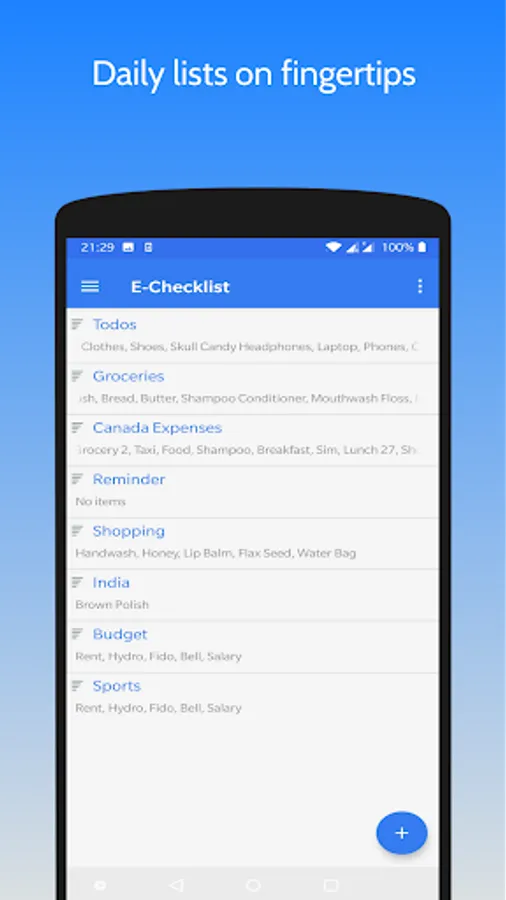
Checklist app to keep things on your finger tips. It helps you in daily tasks and ToDo list management. It's a simple, easy to use app that keeps you on track.
What it allows you to do:
--------------------------------------
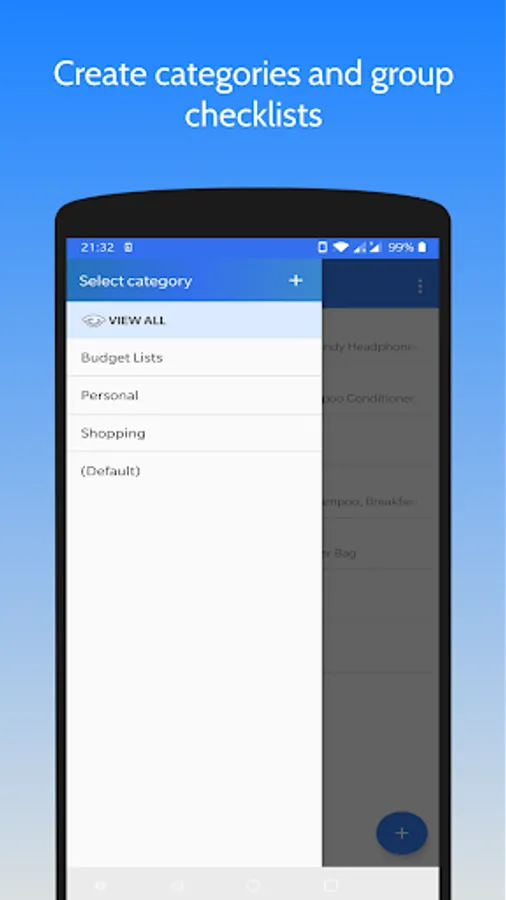
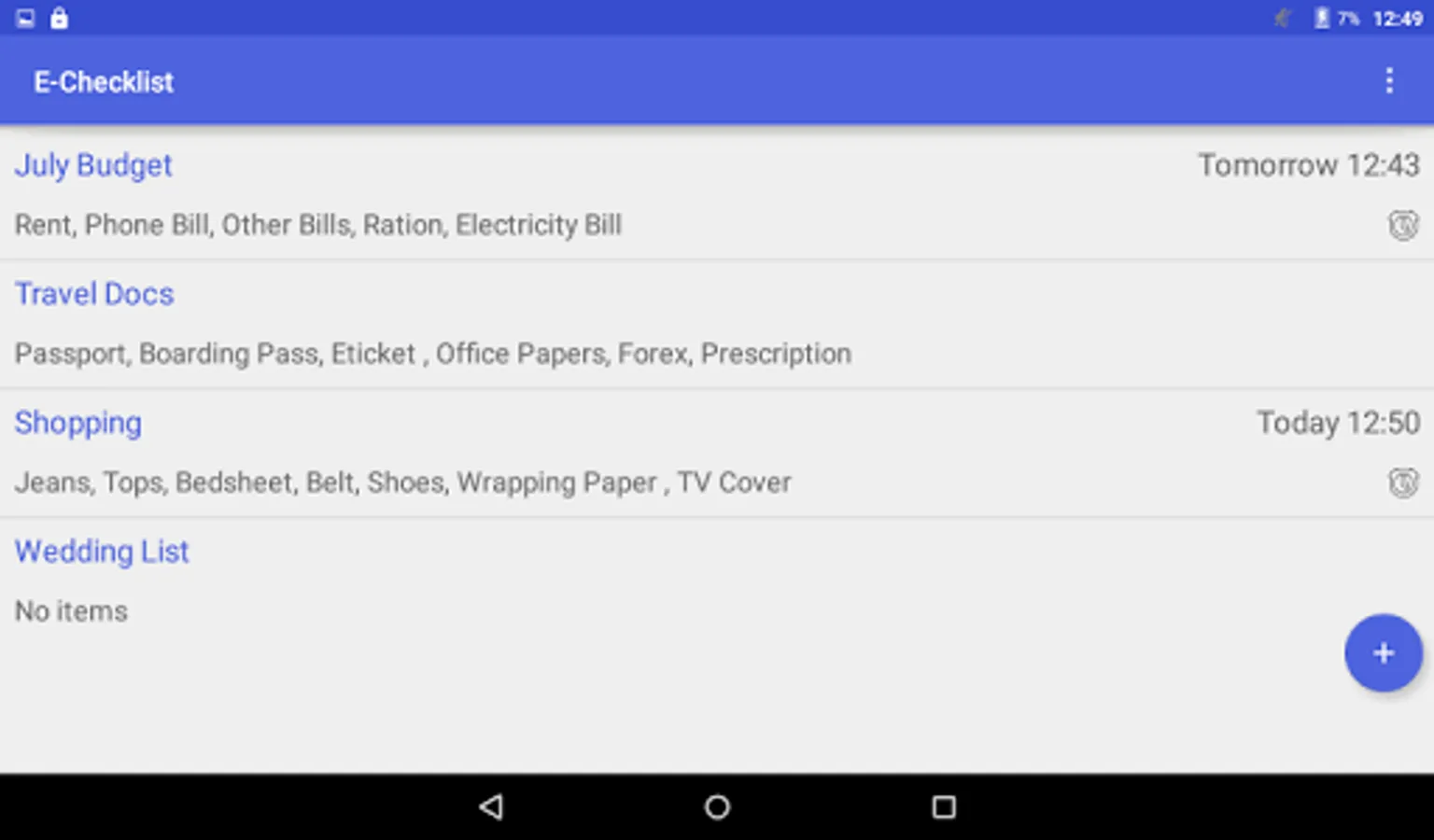
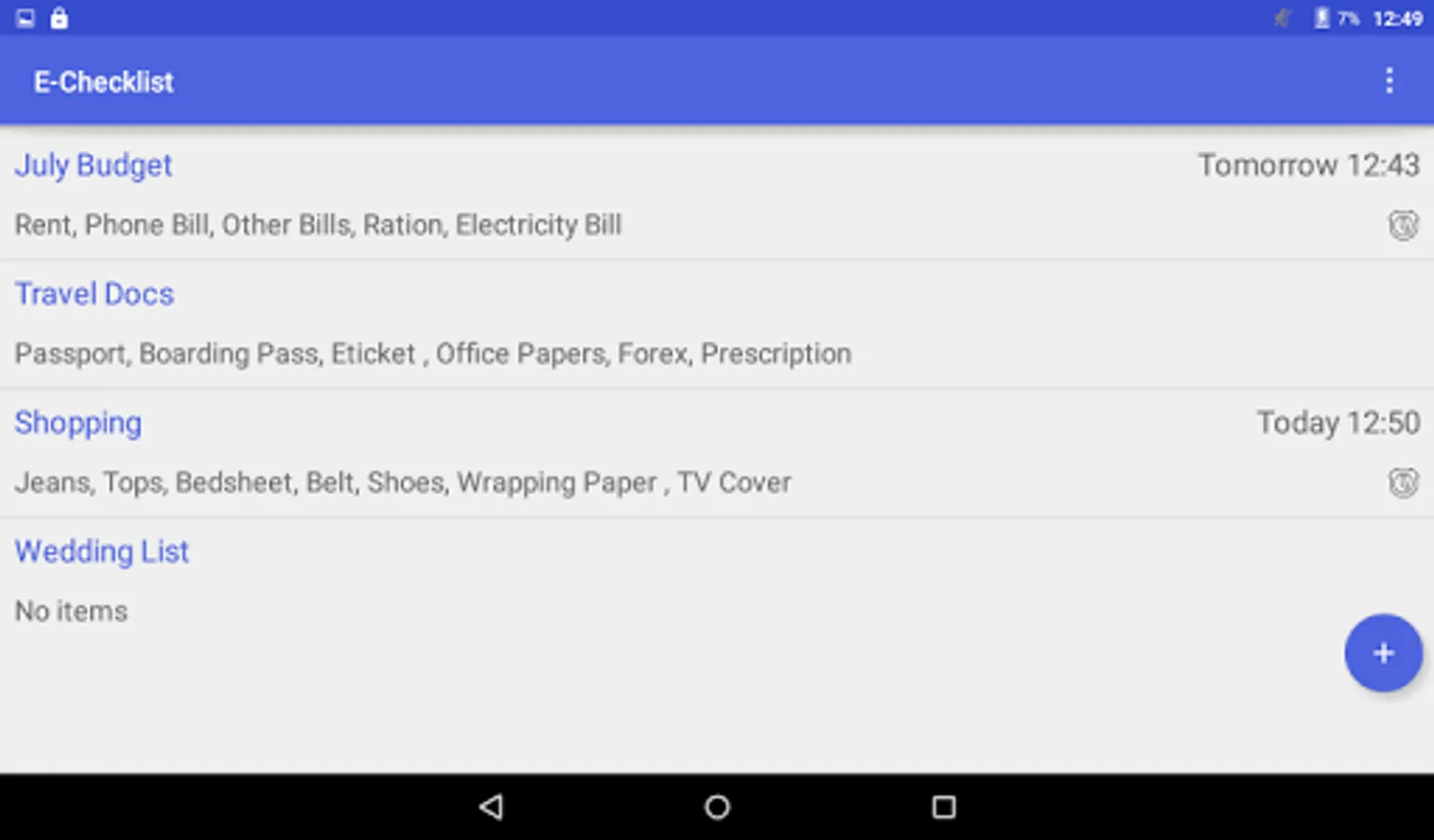
• Create, modify, delete checklists
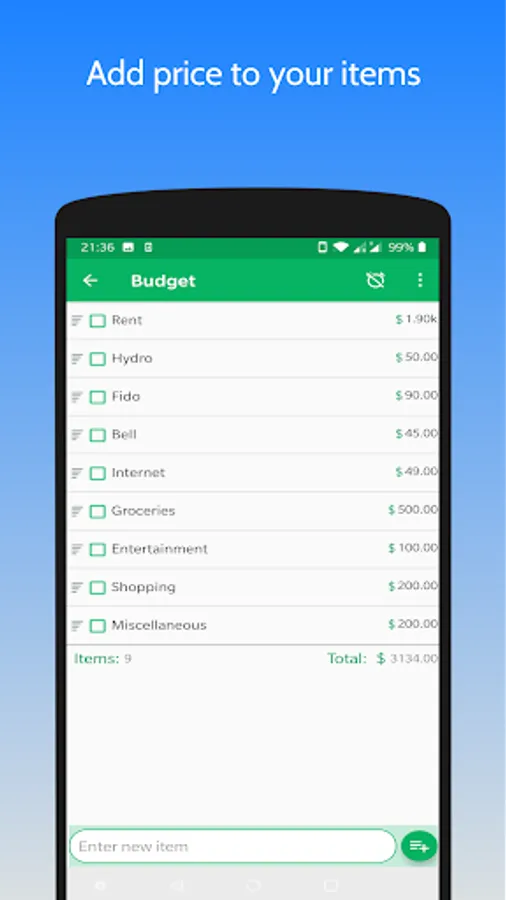
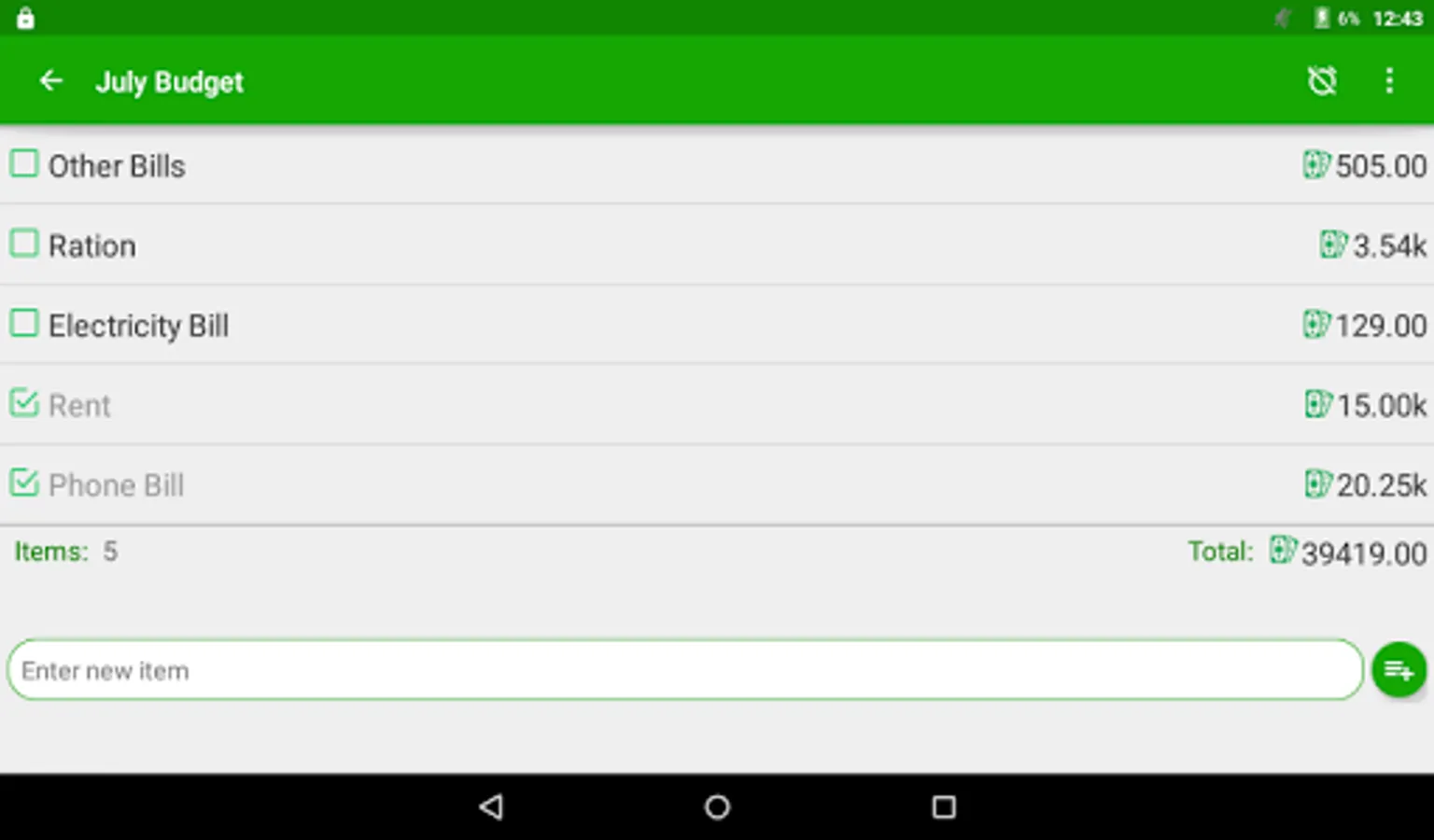
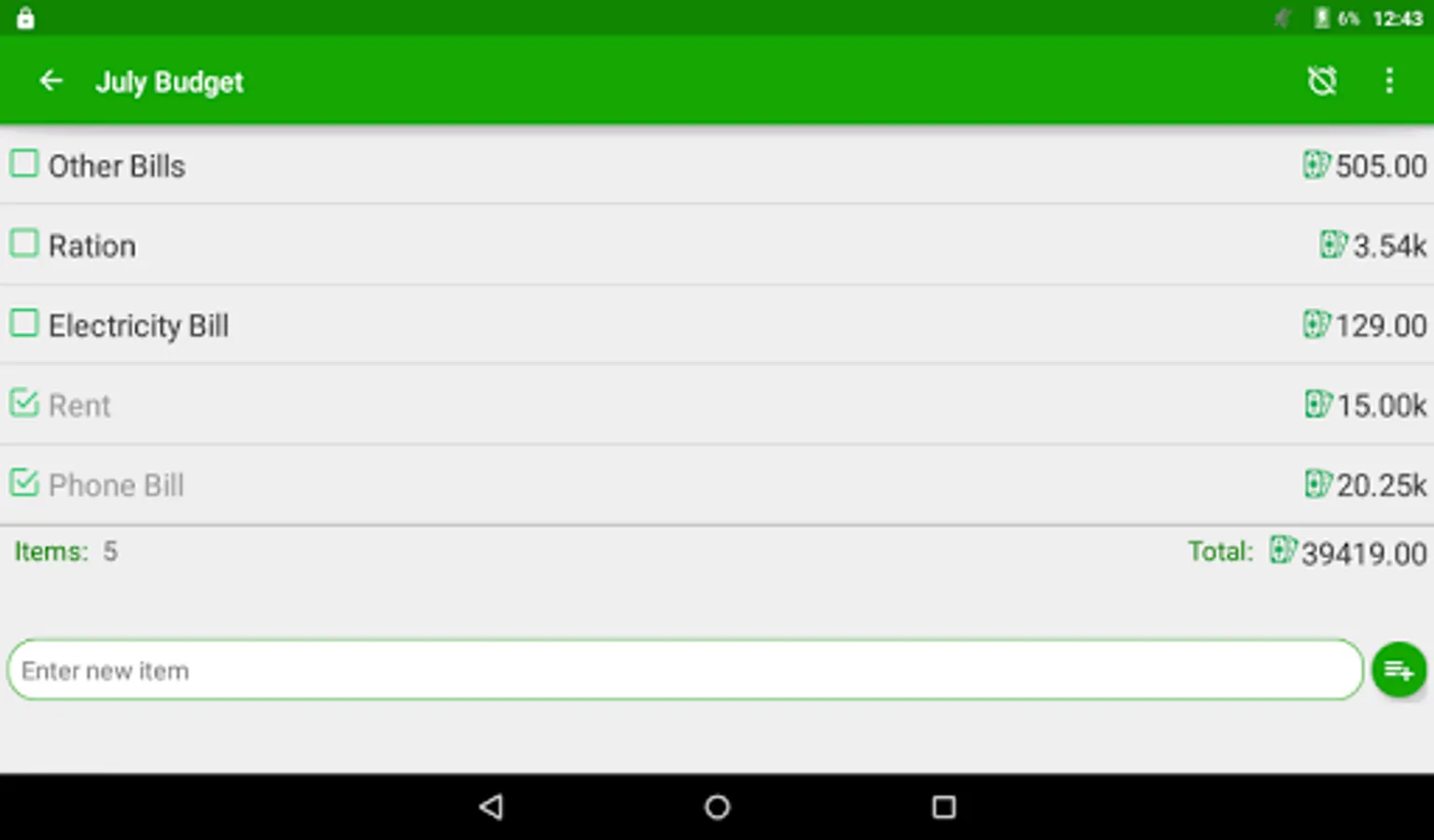
• Create a budget list by adding price column
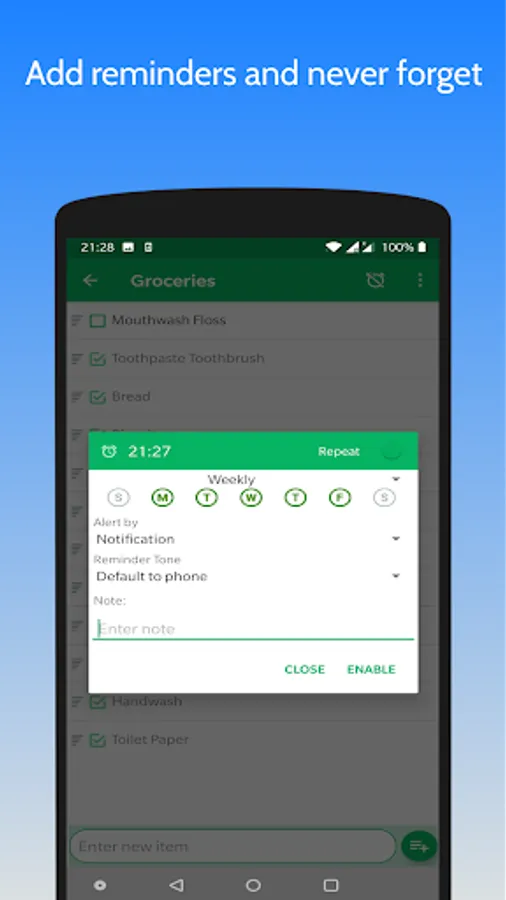
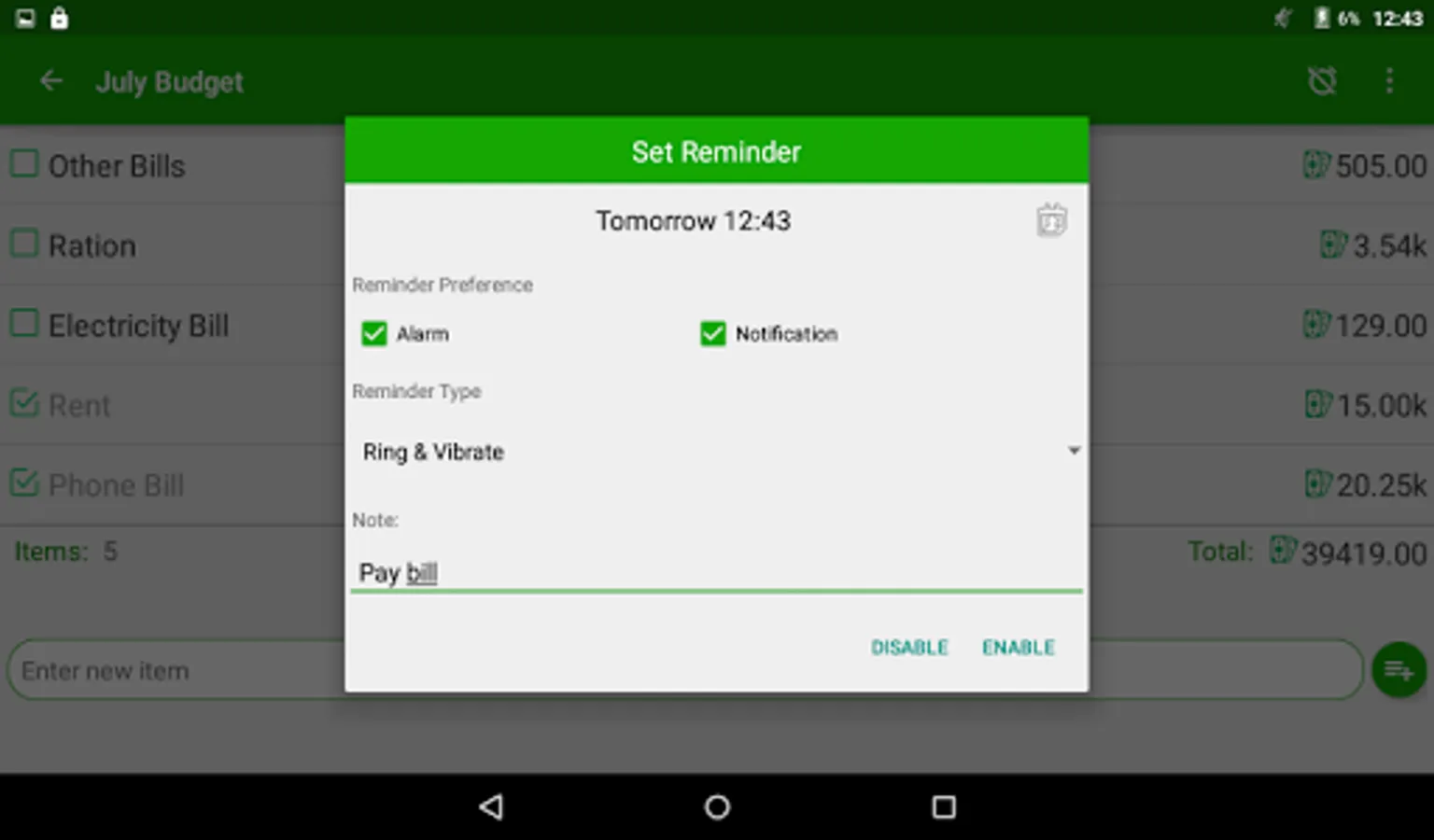
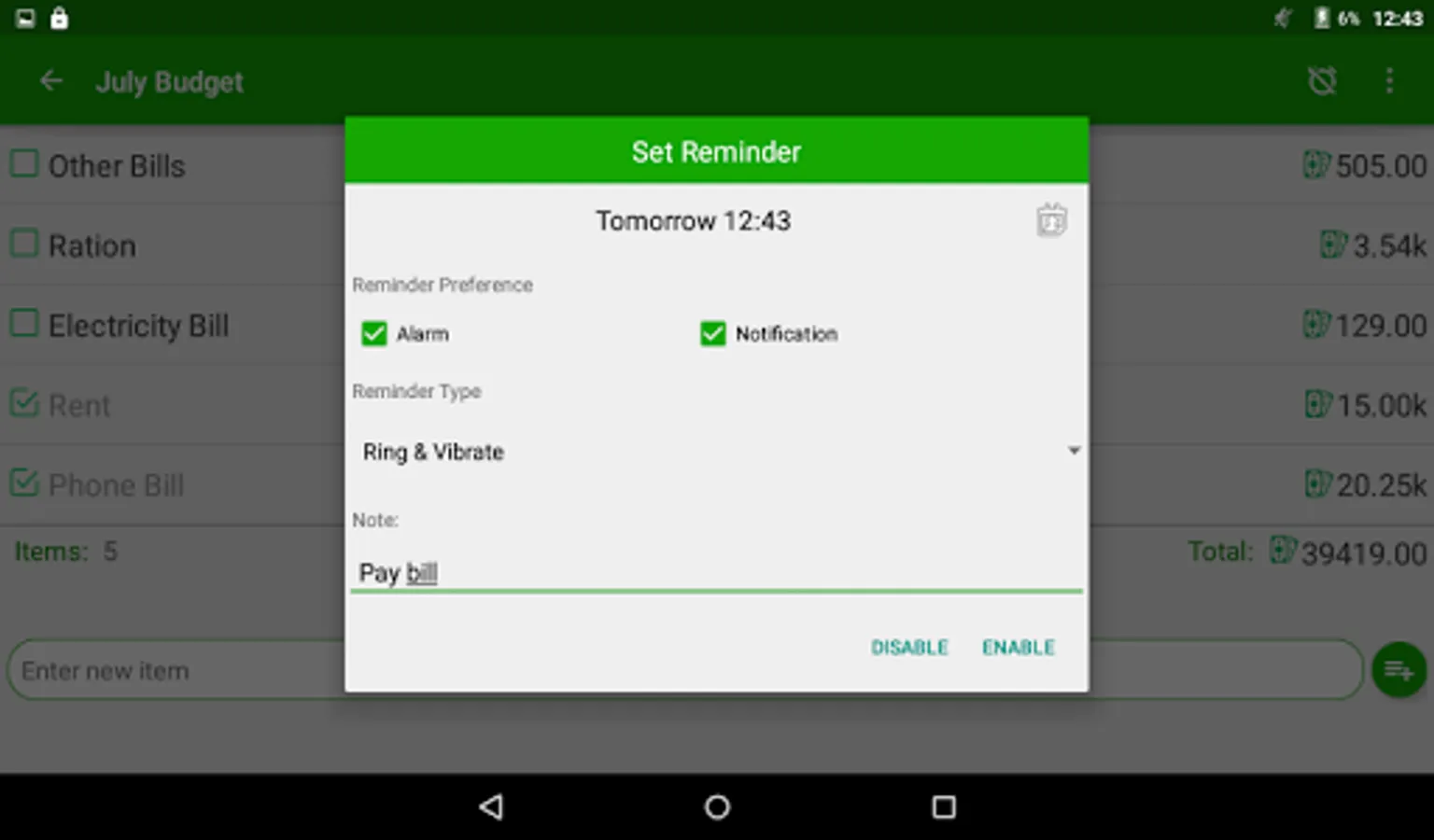
• Add reminder to checklist
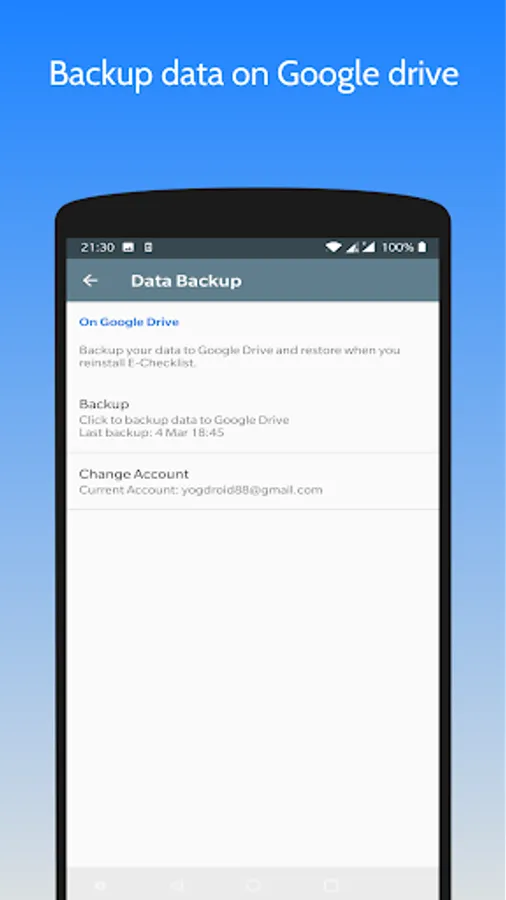
• BACKUP data on Google Drive & RESTORE when you reinstall app
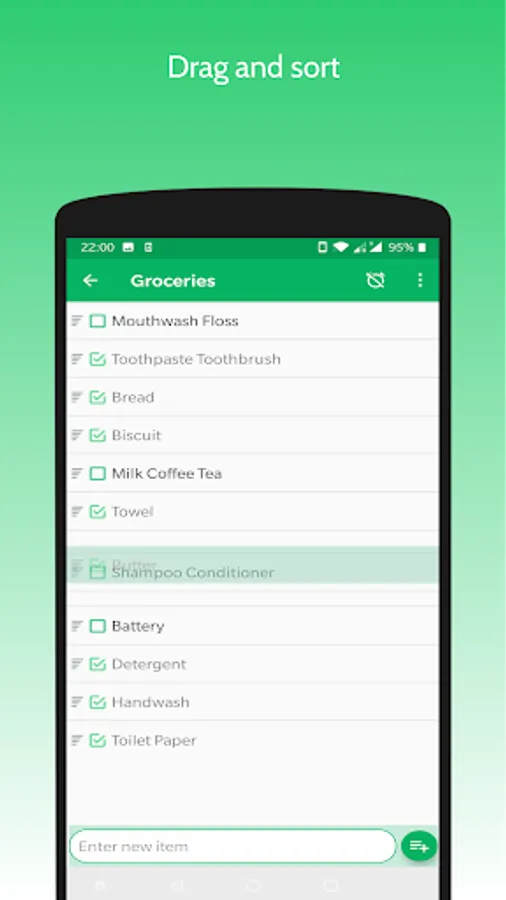
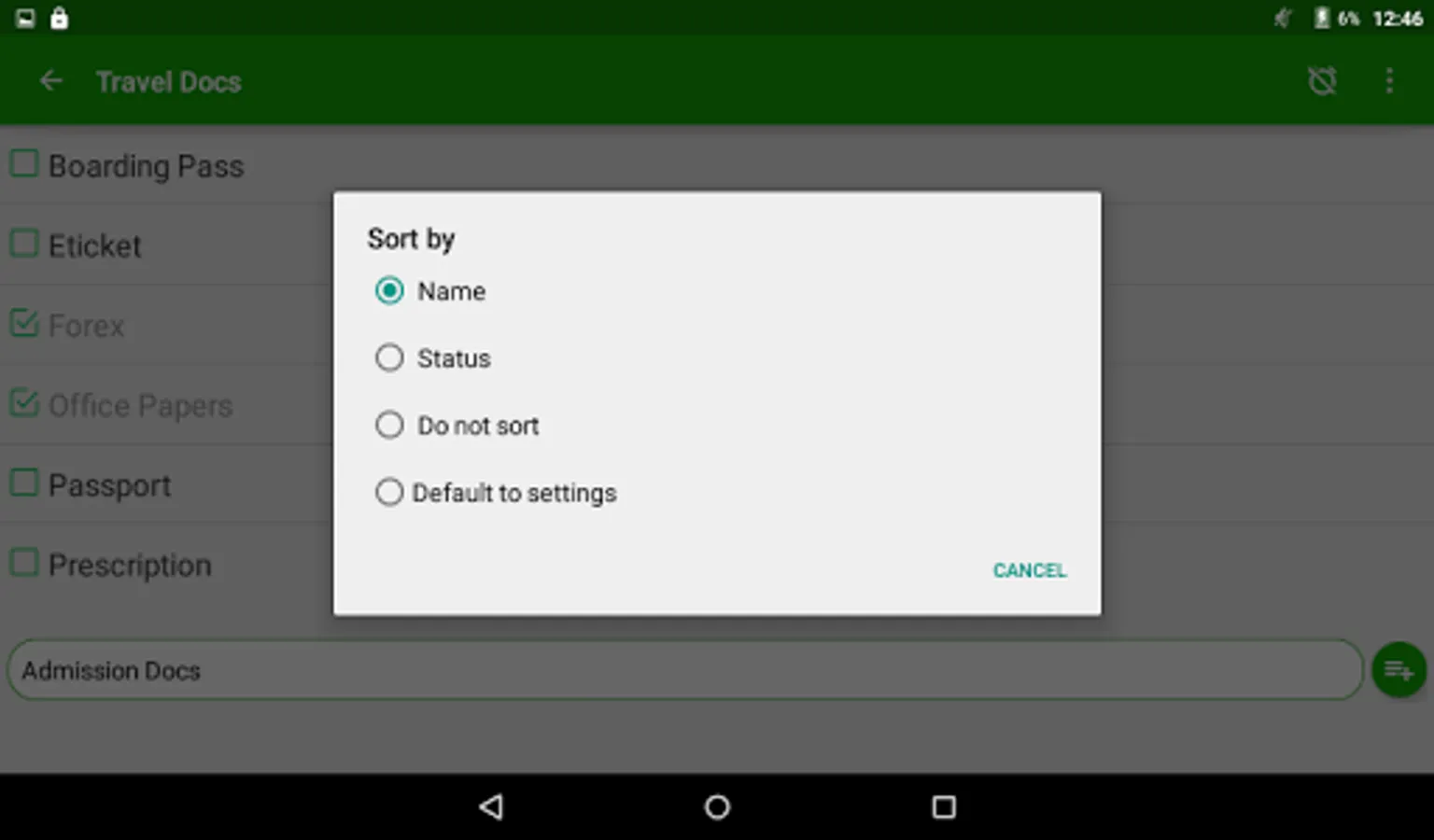
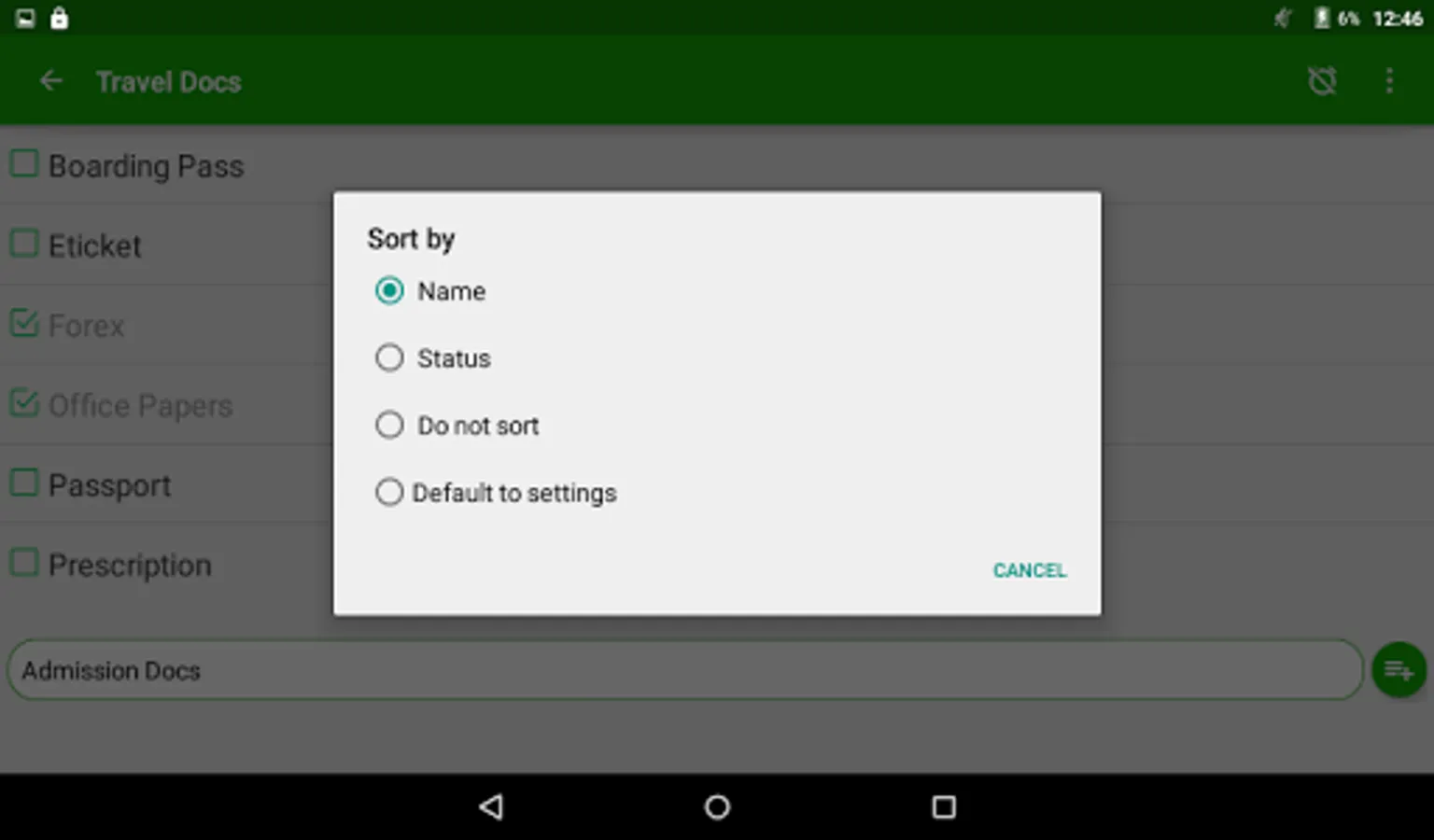
• Auto and manual sort options for easy look up
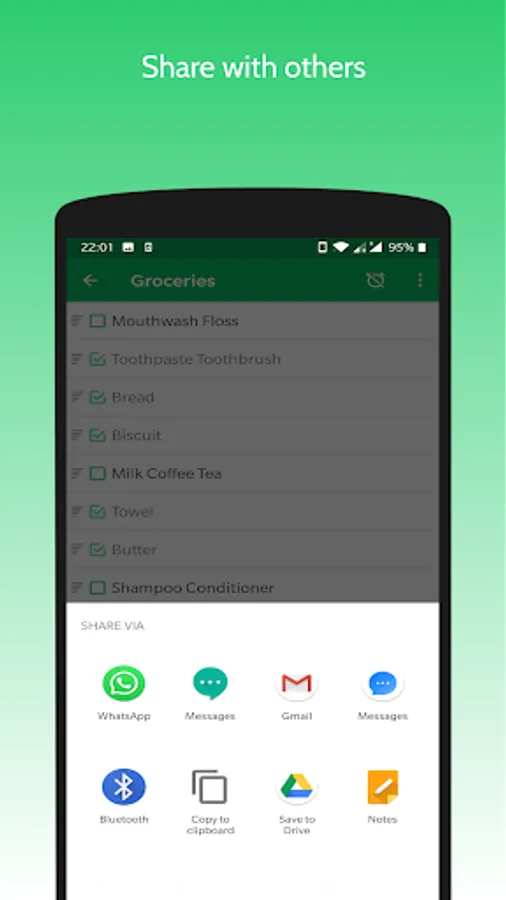
• Share checklist as a text message and convert it to checklist using Import feature
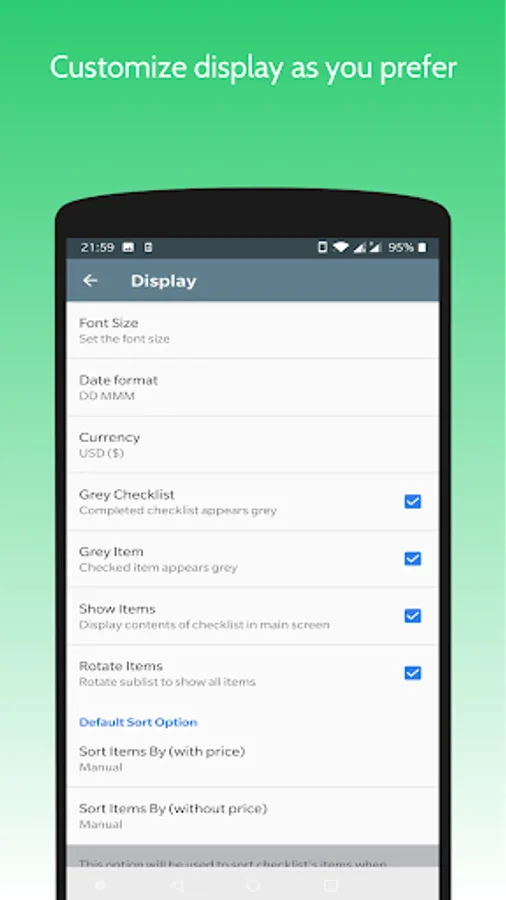
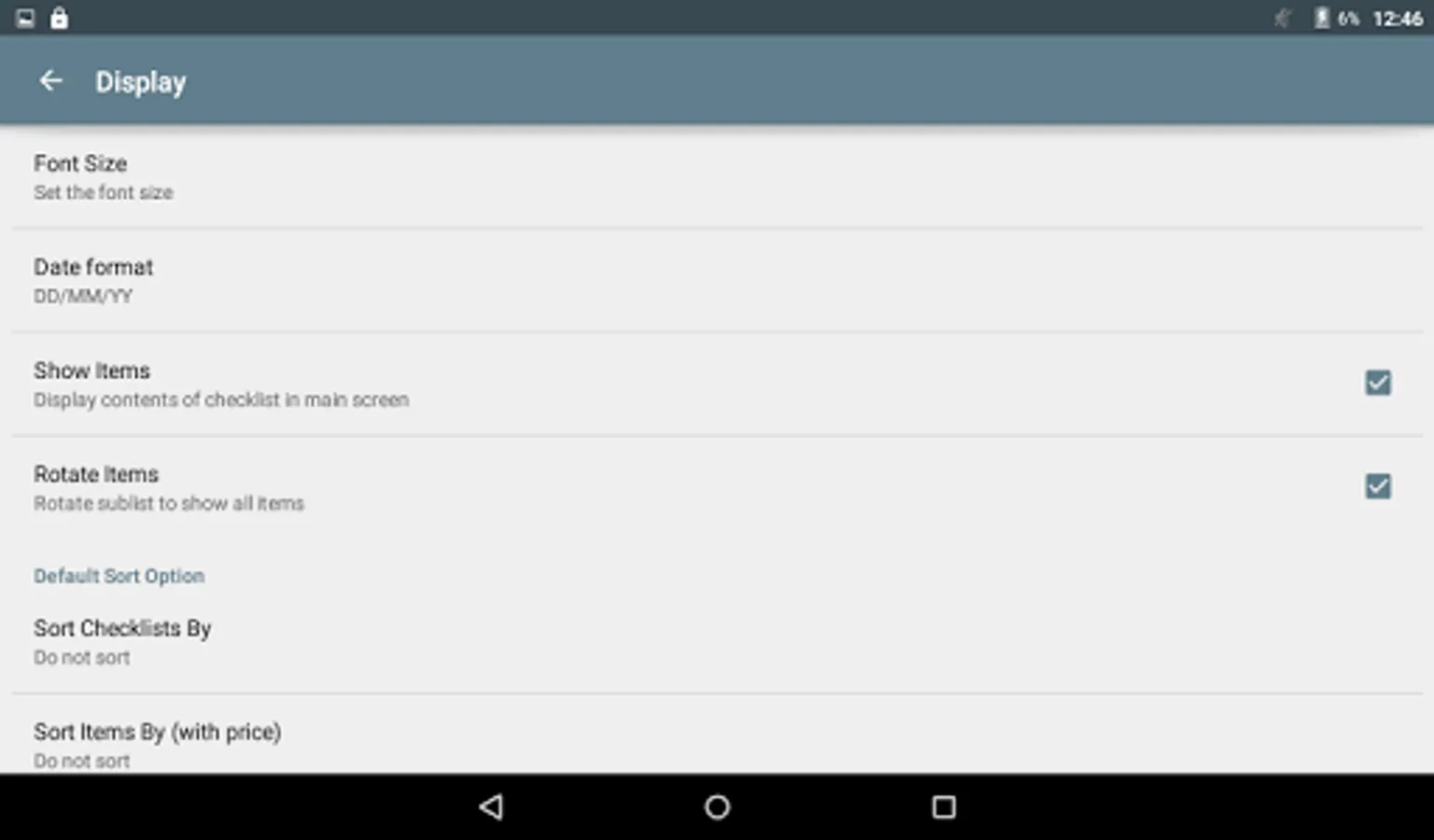
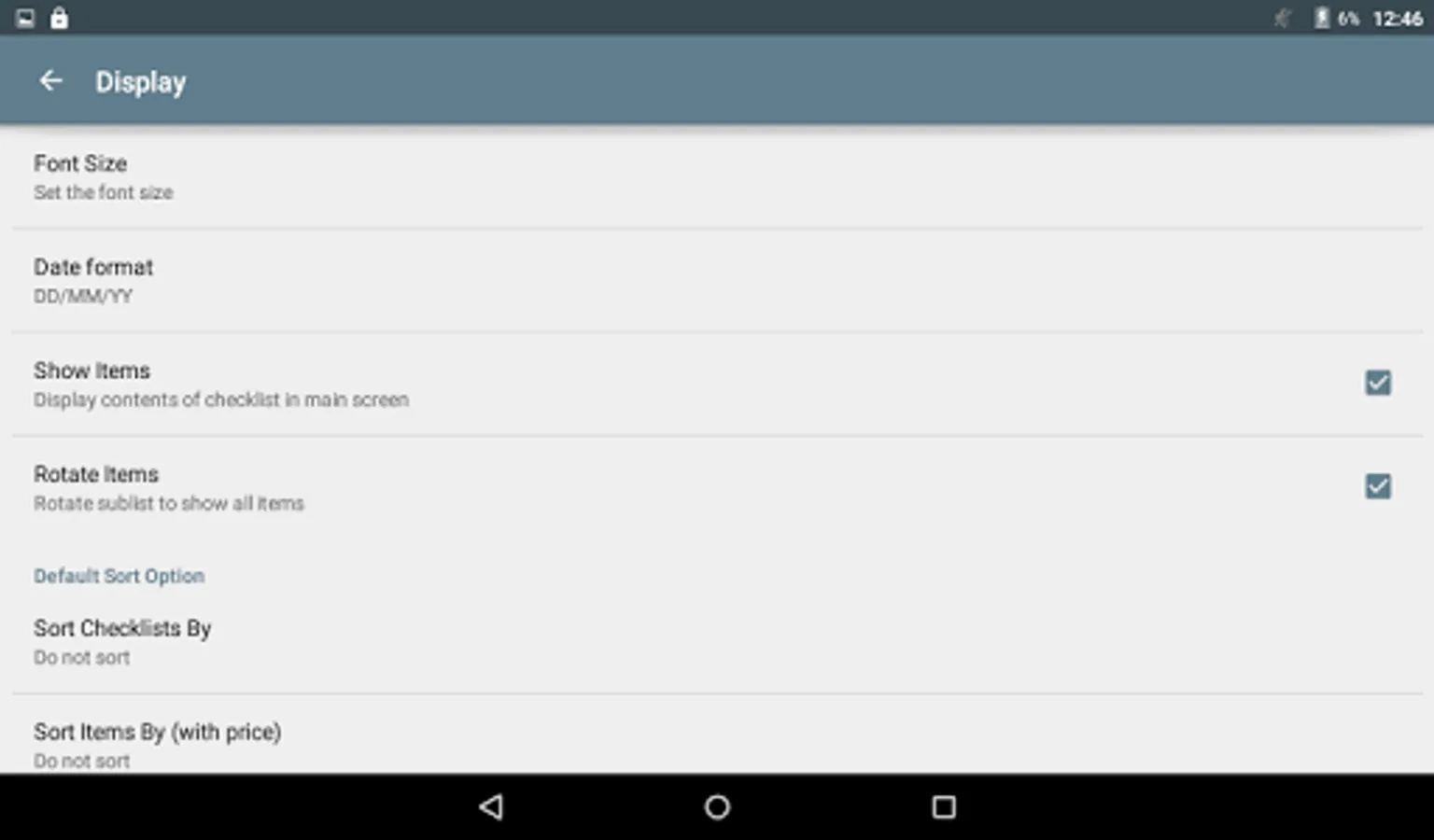
• Customize font size, date format, alarm tone and more from "Settings"
• Duplicate a checklist
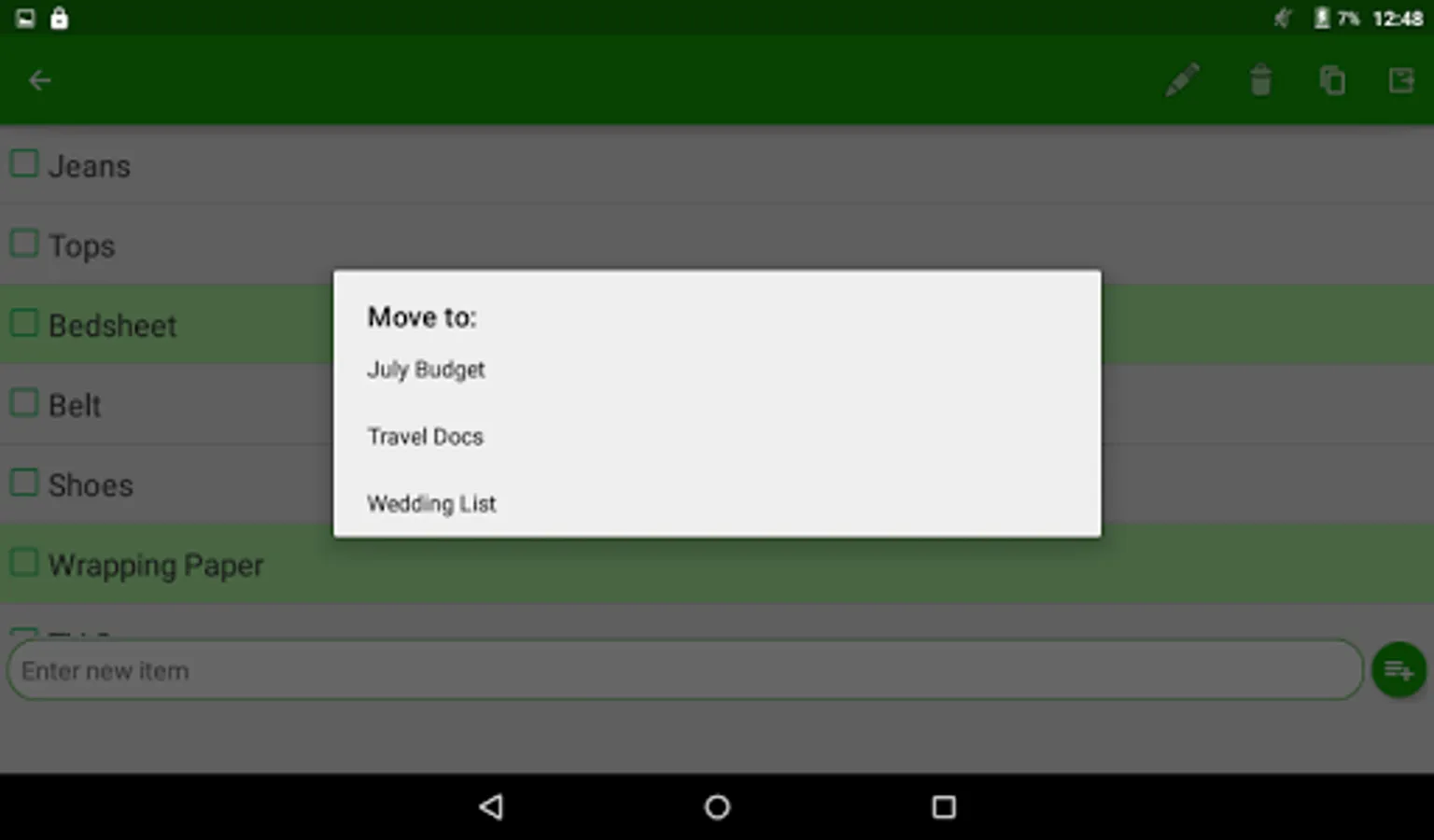
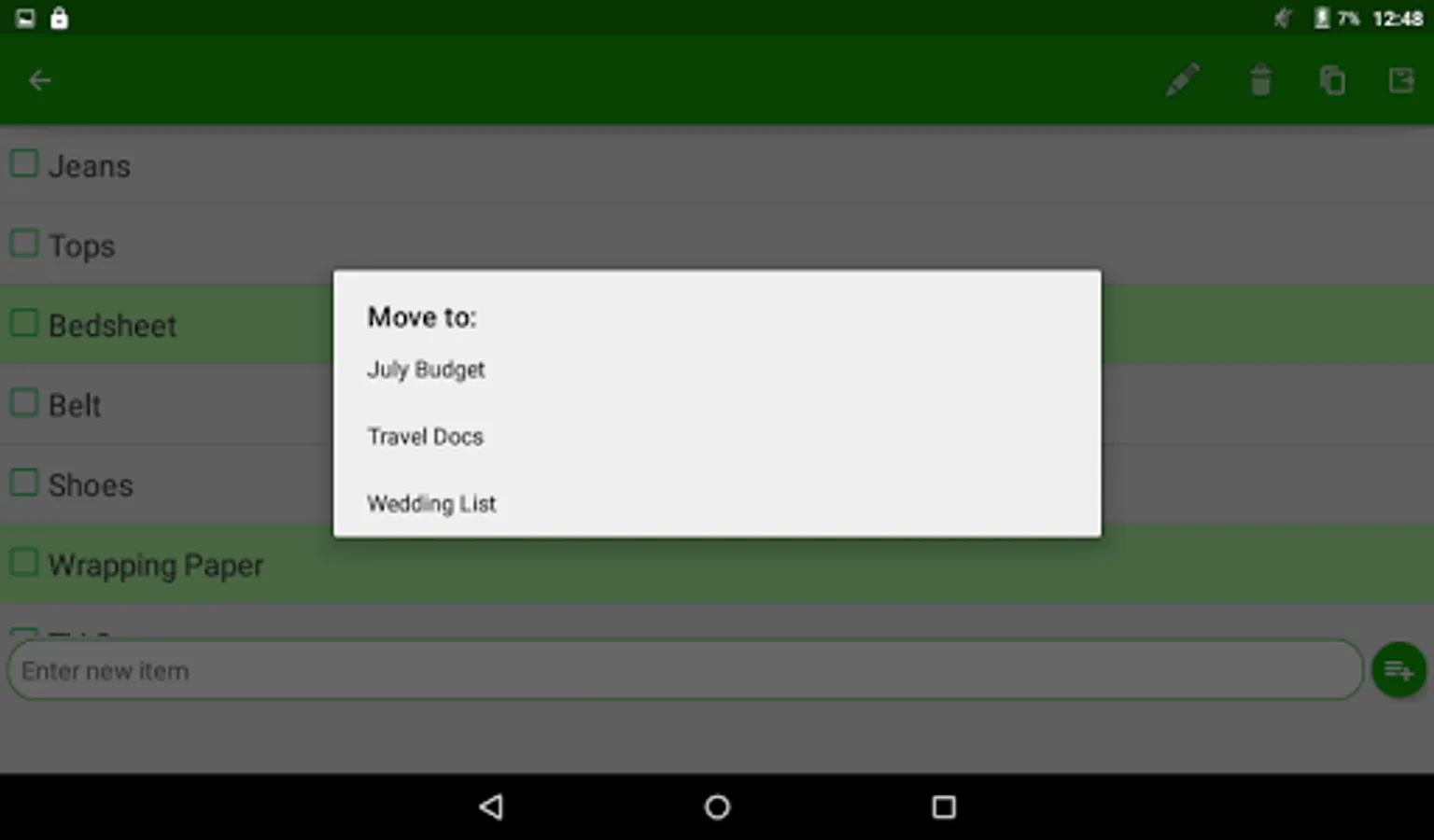
• Copy or move items from one checklist to other
• Rename checklists and its items
FAQs
----------
1. How to renames checlists/items?
- Long press the item, select edit icon on top and rename.
2. How to delete selected items?
- Long press on intended item, selected other required items and click delete icon on top.
3. How to share checklist?
- Open checklist, click on menu icon. Select 'Share Checklist' from drop down menu.
Select app to share. Currently checklist is shared as text message.
4. How to duplicate a checklist?
- Long press on checklist to duplicated and select copy icon on top. Provide new name for duplicated list and click ok.
5. How to manually sort checklists and their items?
- Go to option menu, click on sort, select Manually from menu. Now drag n drop icon will appear on left on checklist/item name. Press and hold the that icon and move up and down to required position.
6. How to move or copy items from one list to other?
- Open checklist, long press on required item and select other items too. Next click on move or copy icon on top. Select target checklist from menu and click OK..
7. How to create budget list?
- Create new checklist from + button on main screen. Hi to its option menu. Select Add Price. Now add items they will come with extra price column. Same can be done with existing checklist.
8. How to backup checklist?
- Go to settings page from menu. Go to Backup data page. Click on create backup. If not logged in, select account and login first. Give required permissions if asked.
9. How to restore data?
- Reinstall app, keep internet connection ON. Sigin in to your Gmail account. You will be guided to restore your data if backup was taken in past.
Kindly share your reviews. We would love to hear your feedback to grow this app further.
E-mail: yogdroid88@gmail.com
What it allows you to do:
--------------------------------------
• Create, modify, delete checklists
• Create a budget list by adding price column
• Add reminder to checklist
• BACKUP data on Google Drive & RESTORE when you reinstall app
• Auto and manual sort options for easy look up
• Share checklist as a text message and convert it to checklist using Import feature
• Customize font size, date format, alarm tone and more from "Settings"
• Duplicate a checklist
• Copy or move items from one checklist to other
• Rename checklists and its items
FAQs
----------
1. How to renames checlists/items?
- Long press the item, select edit icon on top and rename.
2. How to delete selected items?
- Long press on intended item, selected other required items and click delete icon on top.
3. How to share checklist?
- Open checklist, click on menu icon. Select 'Share Checklist' from drop down menu.
Select app to share. Currently checklist is shared as text message.
4. How to duplicate a checklist?
- Long press on checklist to duplicated and select copy icon on top. Provide new name for duplicated list and click ok.
5. How to manually sort checklists and their items?
- Go to option menu, click on sort, select Manually from menu. Now drag n drop icon will appear on left on checklist/item name. Press and hold the that icon and move up and down to required position.
6. How to move or copy items from one list to other?
- Open checklist, long press on required item and select other items too. Next click on move or copy icon on top. Select target checklist from menu and click OK..
7. How to create budget list?
- Create new checklist from + button on main screen. Hi to its option menu. Select Add Price. Now add items they will come with extra price column. Same can be done with existing checklist.
8. How to backup checklist?
- Go to settings page from menu. Go to Backup data page. Click on create backup. If not logged in, select account and login first. Give required permissions if asked.
9. How to restore data?
- Reinstall app, keep internet connection ON. Sigin in to your Gmail account. You will be guided to restore your data if backup was taken in past.
Kindly share your reviews. We would love to hear your feedback to grow this app further.
E-mail: yogdroid88@gmail.com
E-Checklist Screenshots
Tap to Rate: