AppRecs review analysis
AppRecs rating 3.3. Trustworthiness 85 out of 100. Review manipulation risk 24 out of 100. Based on a review sample analyzed.
★★★☆☆
3.3
AppRecs Rating
Ratings breakdown
5 star
52%
4 star
0%
3 star
5%
2 star
10%
1 star
33%
What to know
✓
Low review manipulation risk
24% review manipulation risk
✓
Credible reviews
85% trustworthiness score from analyzed reviews
About Photo Pixelizer
Select your photo
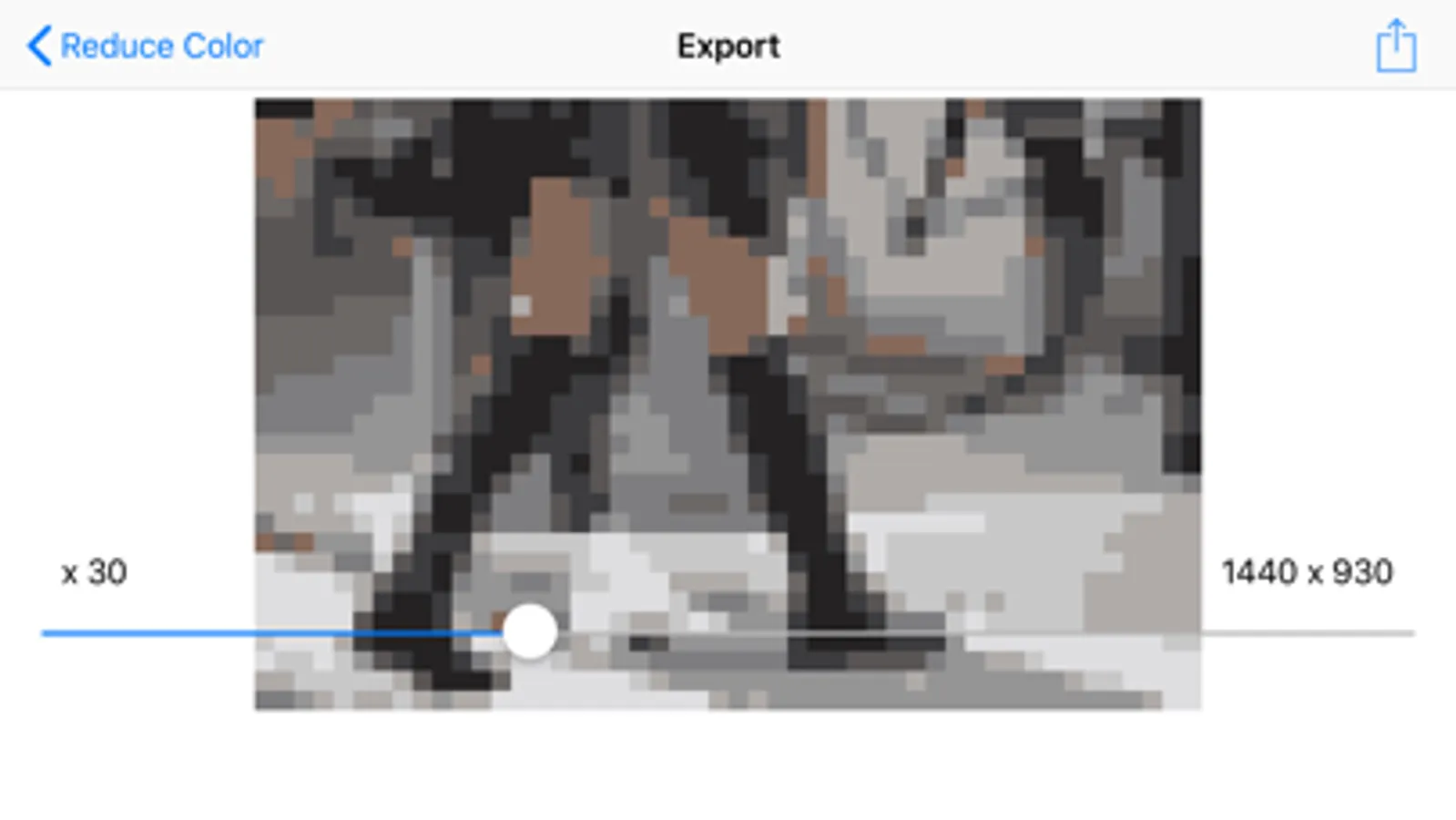
Set pixel size
Adjust resolution and colors
No complex editing tools - just pure simplicity. The app automatically reduces your entire photo's resolution and colors, then scales it to your desired size. Perfect for beginners and anyone who wants quick results.
Exports in PNG format to preserve crisp pixels without color bleeding.
Photo Pixelizer Screenshots
Tap to Rate:
Reviews for Photo Pixelizer
Jammerpilot
good
i wanted an app that would make my picture pixelated, it is now pixelated, and the advertisements aren't too in the way. it just did exactly what i wanted all for free
peachypapaya
No export to camera roll
You can’t export the images to your camera roll. You can copy it or save it as a file but it will not save like normal photos. If I could export images directly to my camera roll then I would give this app 5 stars. You can get the pictures to your camera roll in a few roundabout ways. 1. Create a shared album on your phone that only you have access to then use the “add to shared album” option. Then go to the shared album on your phone and tap the 📤 share/export button and then select the “save image” option. Now the image is in your camera roll. 2. Select the “save to files” option. If you plan on saving more than 1 image from this app, I suggest naming the image. Otherwise the image name will always be “PNG Image” and you will get a prompt asking what to do with the identically named files. Then navigate to your “Files” app and select the photo you want and tap the 📤 share/export button and then select the “save image” option. Now the image is in your camera roll 3. Select the “copy” option then paste into your notes app. Then from the notes app, press and hold the image and select “Share” and then select “Save Image” Now the image is in your camera roll