AppRecs review analysis
AppRecs rating . Trustworthiness 86 out of 100. Review manipulation risk 29 out of 100. Based on a review sample analyzed.
★
AppRecs Rating
Ratings breakdown
5 star
40%
4 star
0%
3 star
0%
2 star
20%
1 star
40%
What to know
✓
Low review manipulation risk
29% review manipulation risk
✓
Credible reviews
86% trustworthiness score from analyzed reviews
⚠
Mixed user feedback
Average 2.8★ rating suggests room for improvement
About Creative Cast
Creative Cast makes it possible to connect Android devices to Optoma displays (projectors, interactive flat panels and LED displays). Once connected you will be able to mirror your screen, share images, documents and videos, along with live broadcasting via your camera.
Functionality
Multiple devices
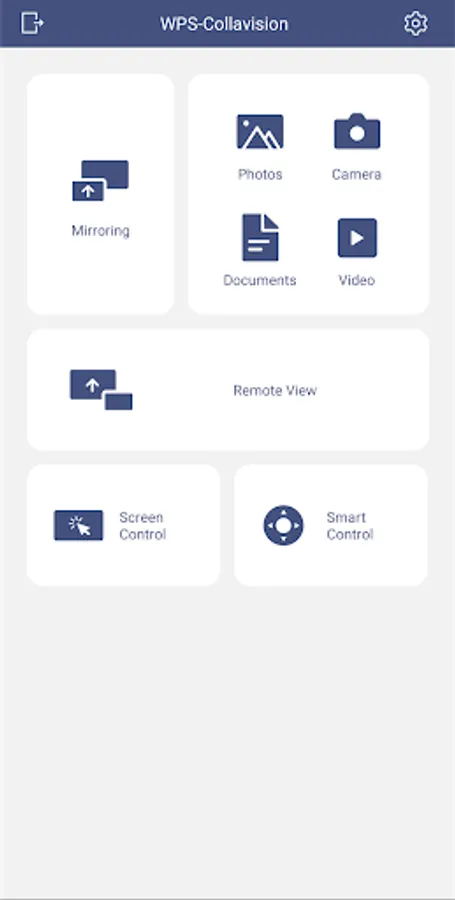
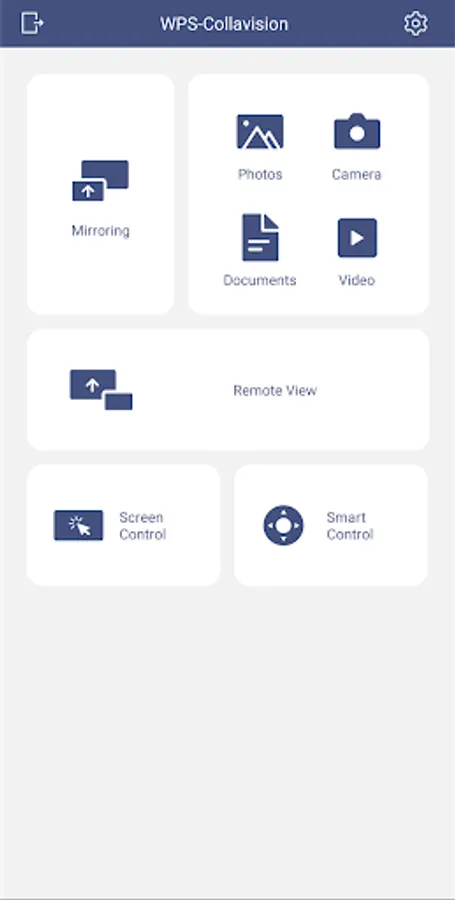
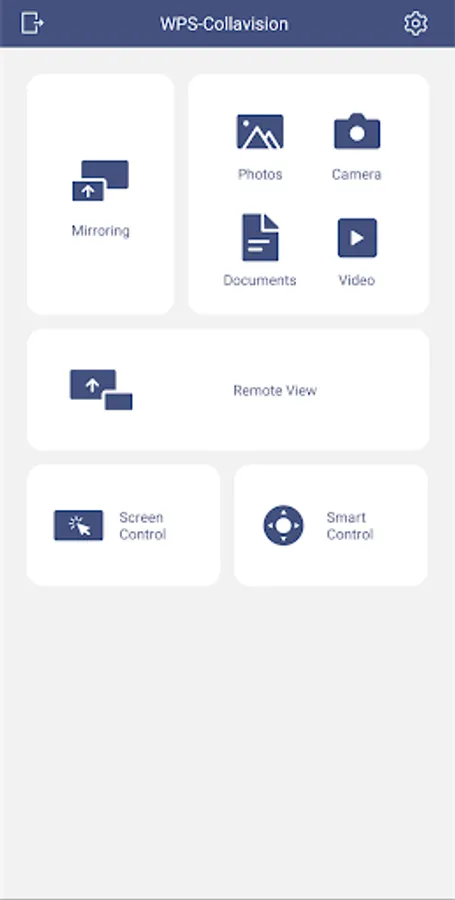
- Supports multiple devices for easy content sharing
Screen-mirroring
- Share your screen on an Optoma display (with supported apps)
File sharing
- Easily share documents (PDF) and images (JPEG and PNG) to connected displays
Wireless camera
- Share images in real-time via the camera on your base device
Getting started
Use the steps below to establish a connection between a terminal (TX) display, projector or IFP (RXs) and the Creative Cast App.
1. Launch the Creative Cast App on your Android device and Optoma display
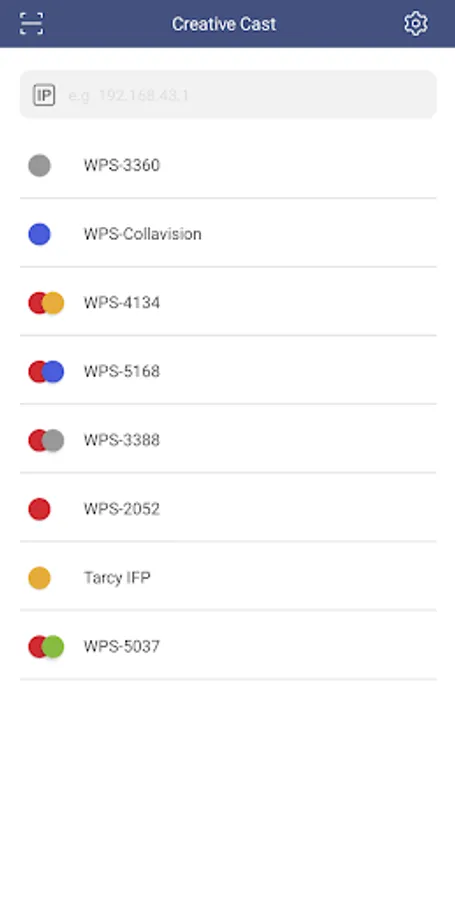
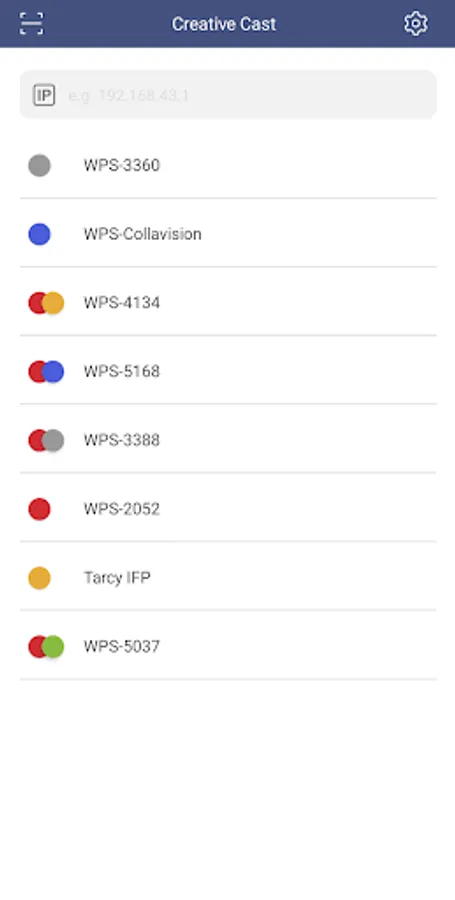
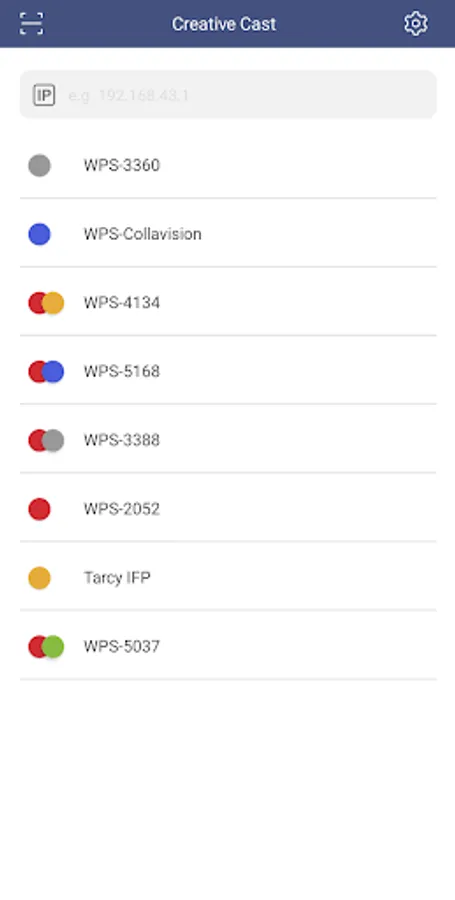
2. Creative Cast will display all connectable devices on the same network
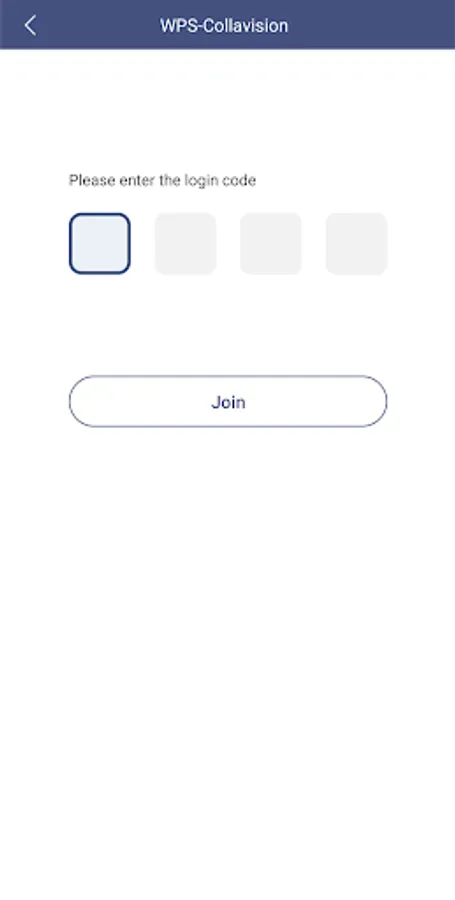
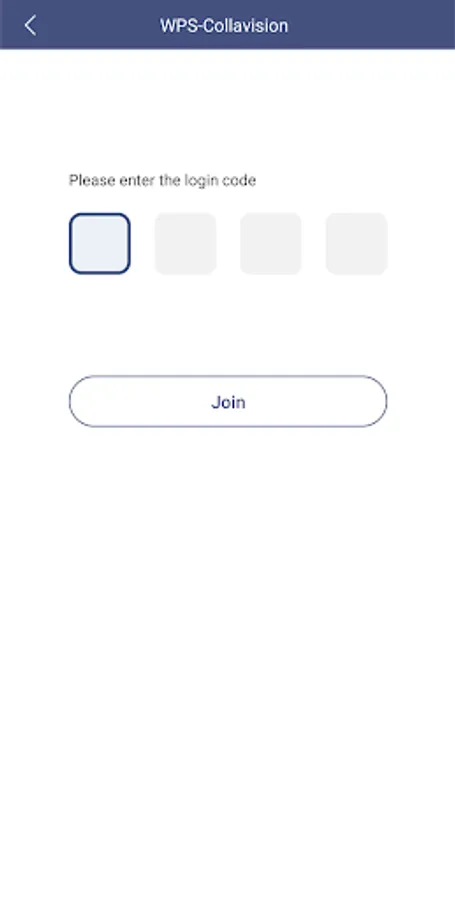
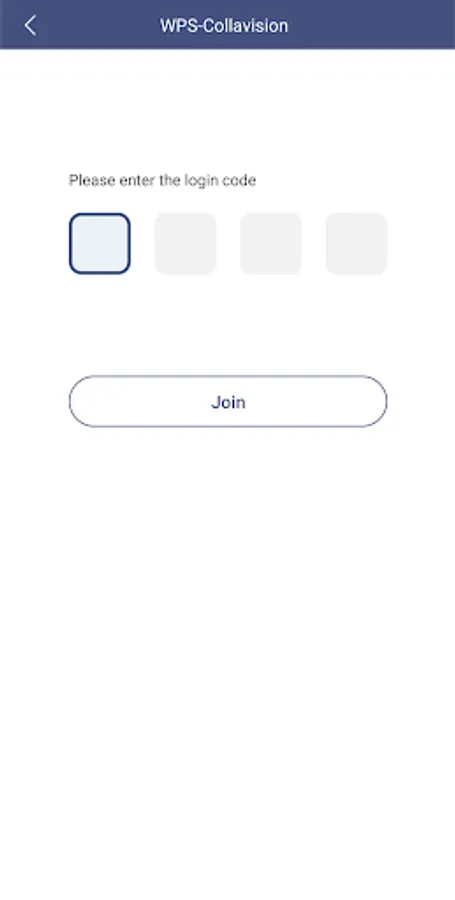
3. Select the display you want to connect to
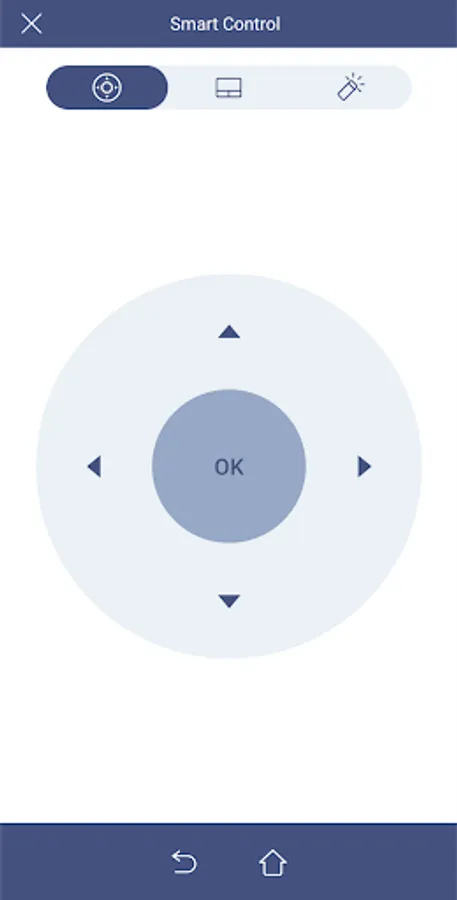
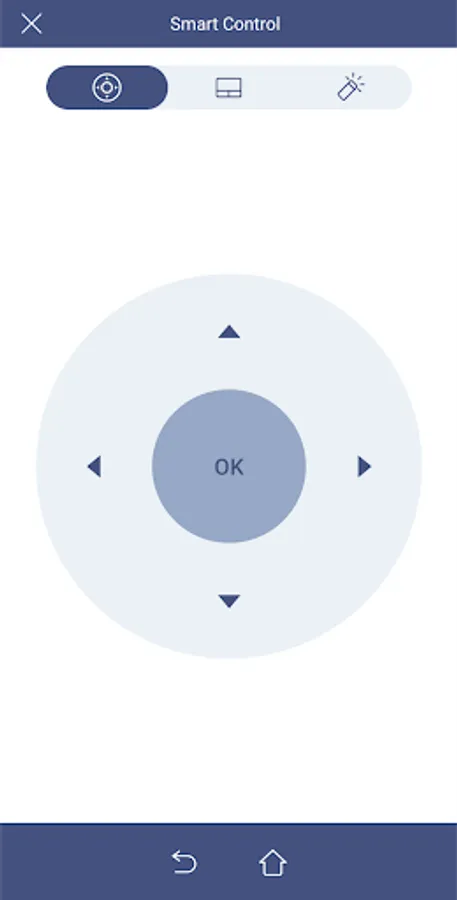
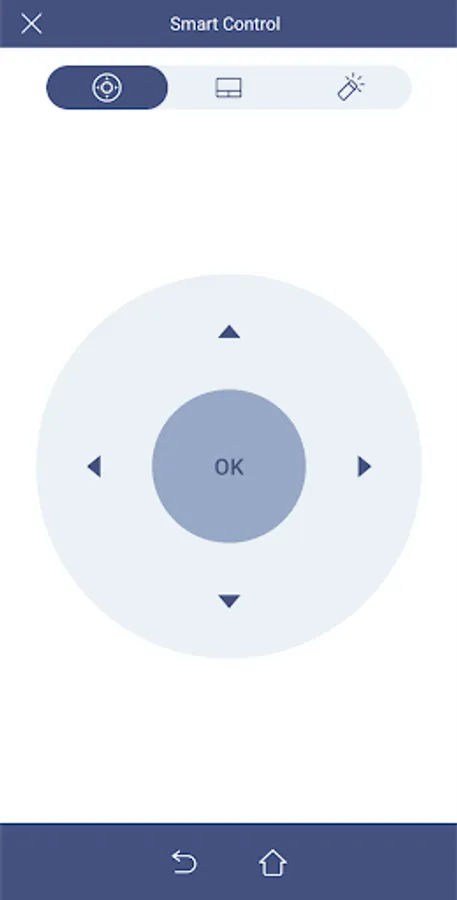
4. Navigate the home screen to select the required features and functions
Visit the Optoma website for information on supported models
www.optoma.com
Functionality
Multiple devices
- Supports multiple devices for easy content sharing
Screen-mirroring
- Share your screen on an Optoma display (with supported apps)
File sharing
- Easily share documents (PDF) and images (JPEG and PNG) to connected displays
Wireless camera
- Share images in real-time via the camera on your base device
Getting started
Use the steps below to establish a connection between a terminal (TX) display, projector or IFP (RXs) and the Creative Cast App.
1. Launch the Creative Cast App on your Android device and Optoma display
2. Creative Cast will display all connectable devices on the same network
3. Select the display you want to connect to
4. Navigate the home screen to select the required features and functions
Visit the Optoma website for information on supported models
www.optoma.com