
Pixel Net White - Icon Pack
GomoTheGom
4.3 ★
236 ratings
10,000+
downloads
$1.49
+ in-app
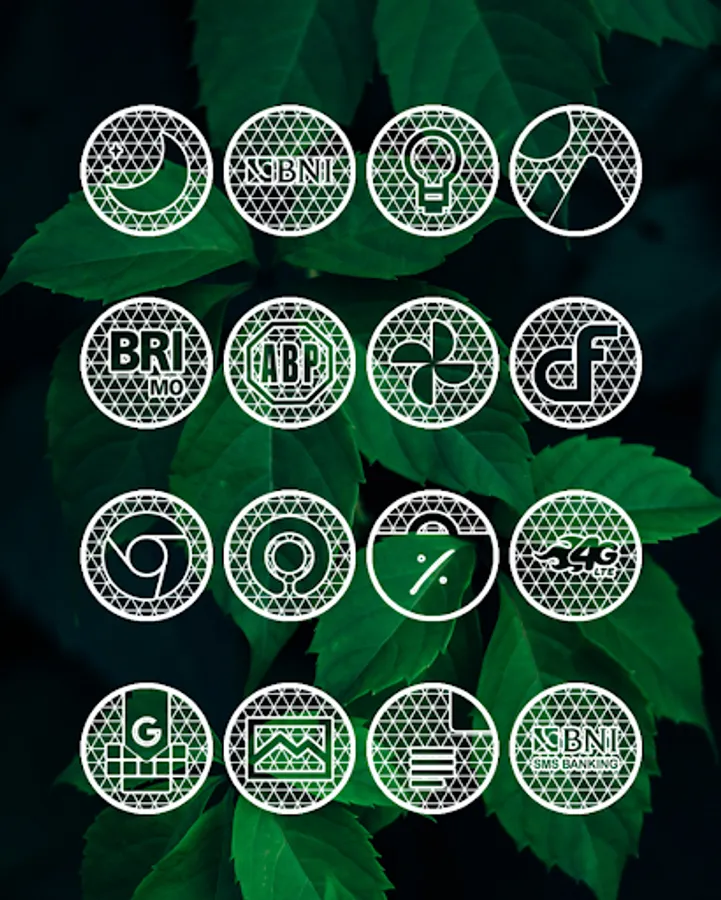
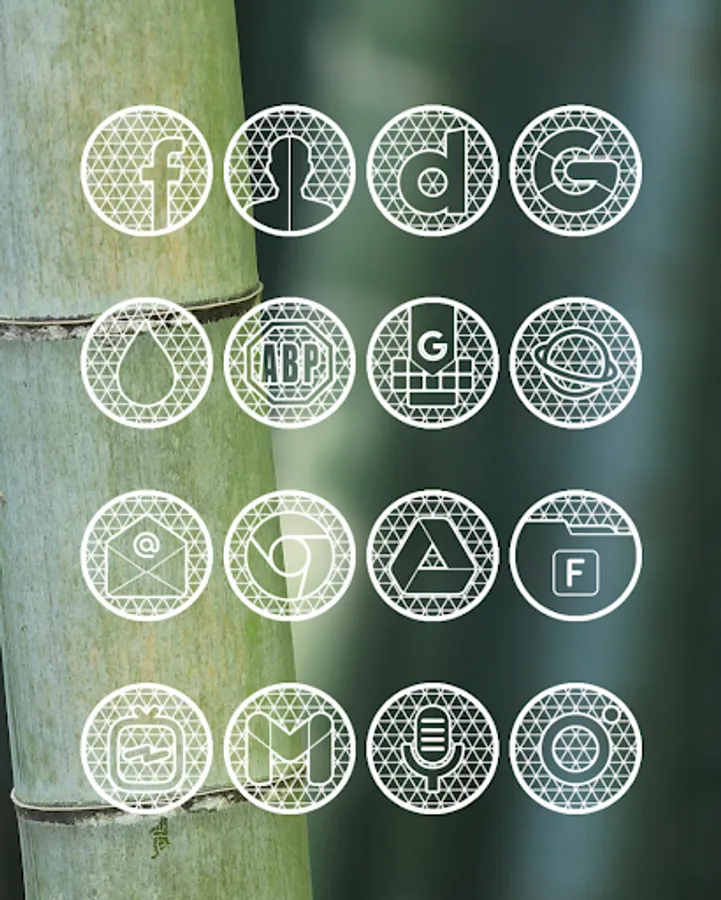
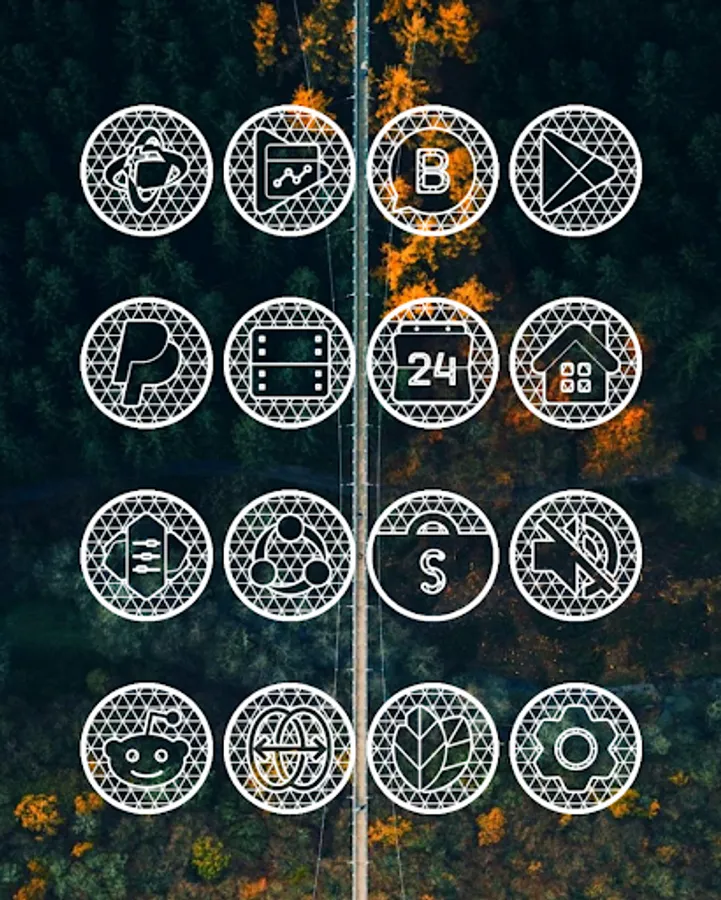
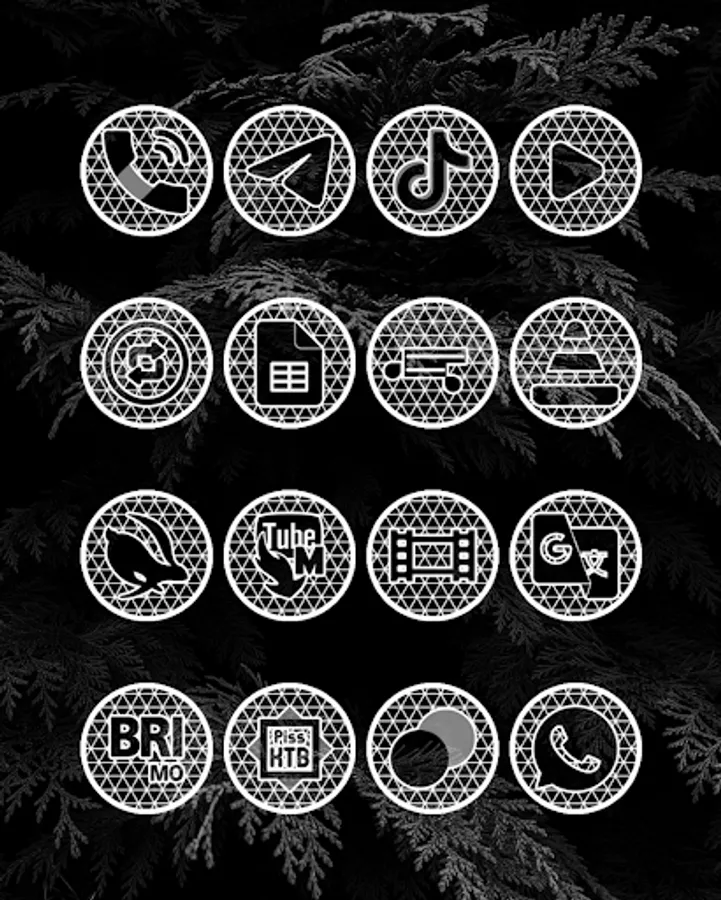
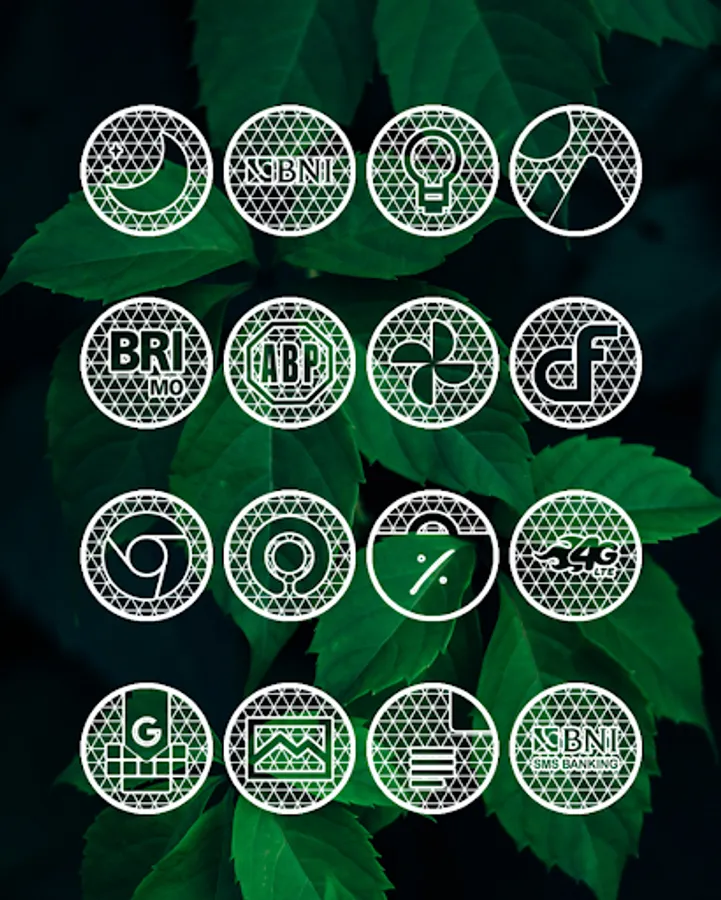
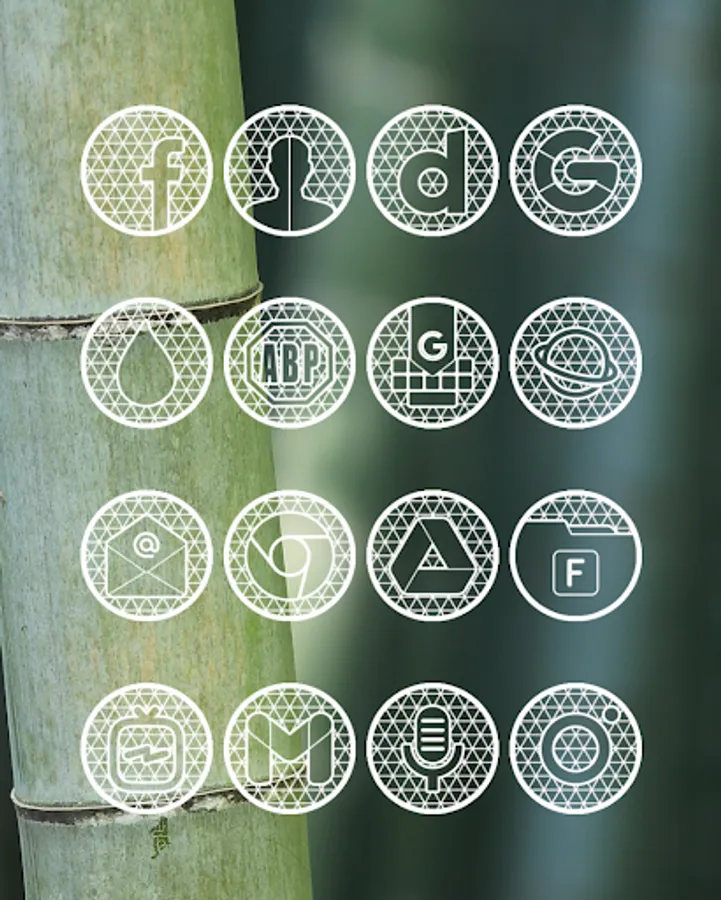
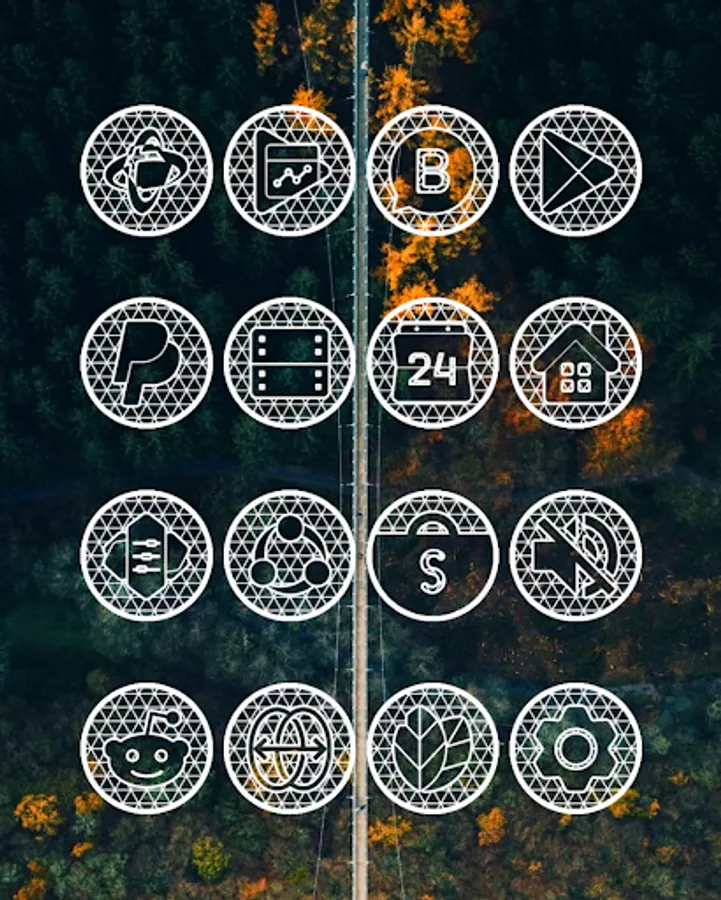
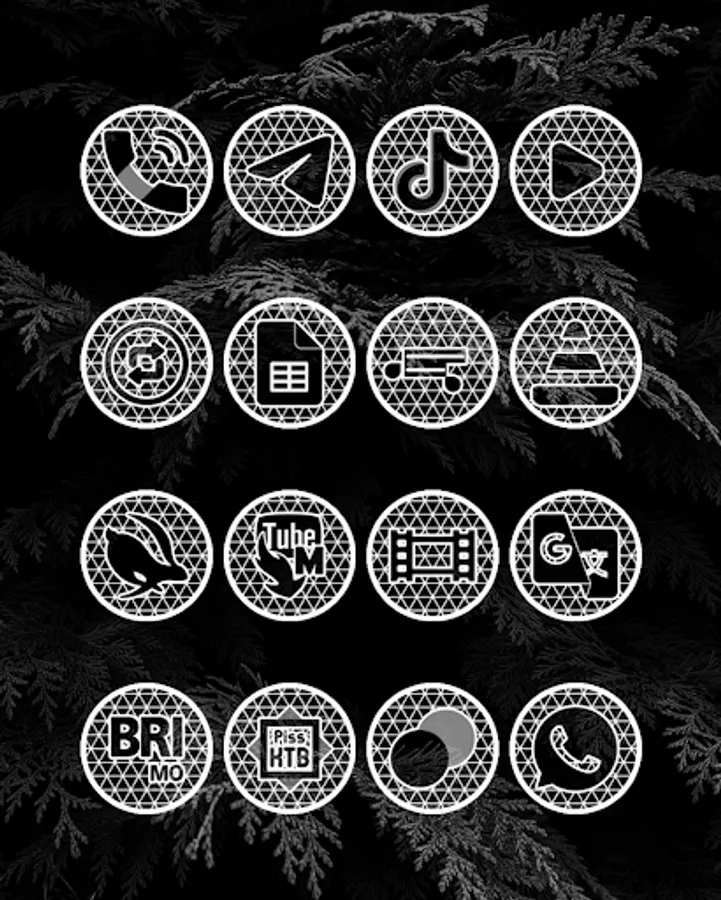
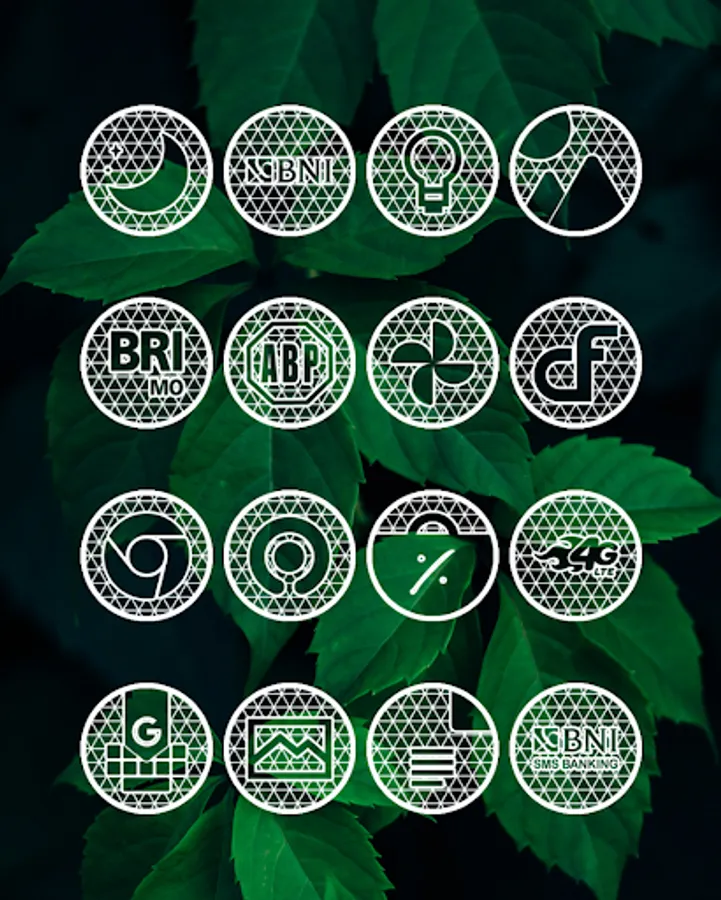
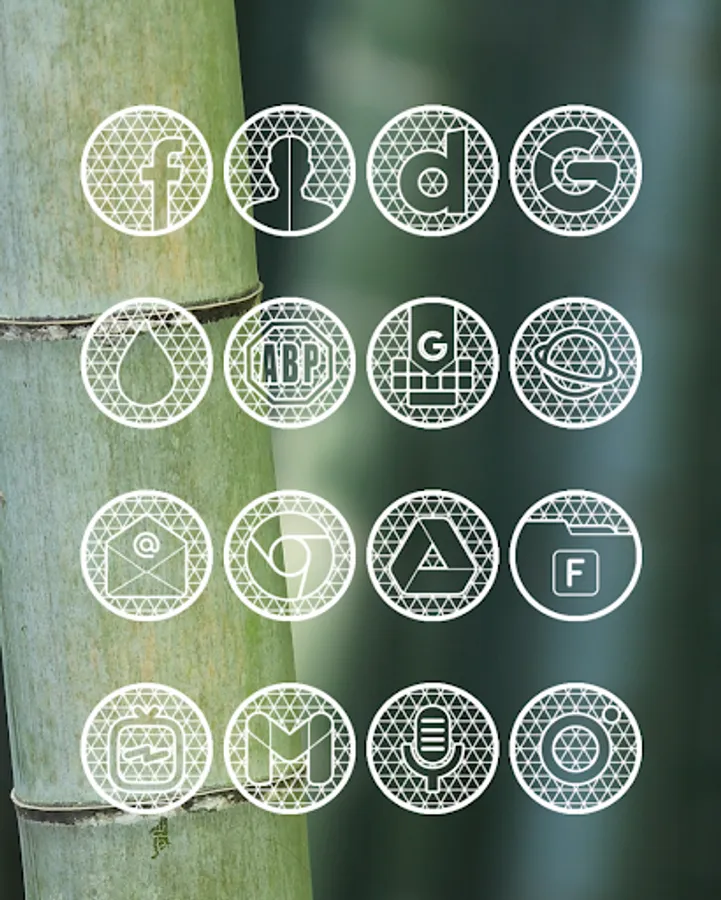
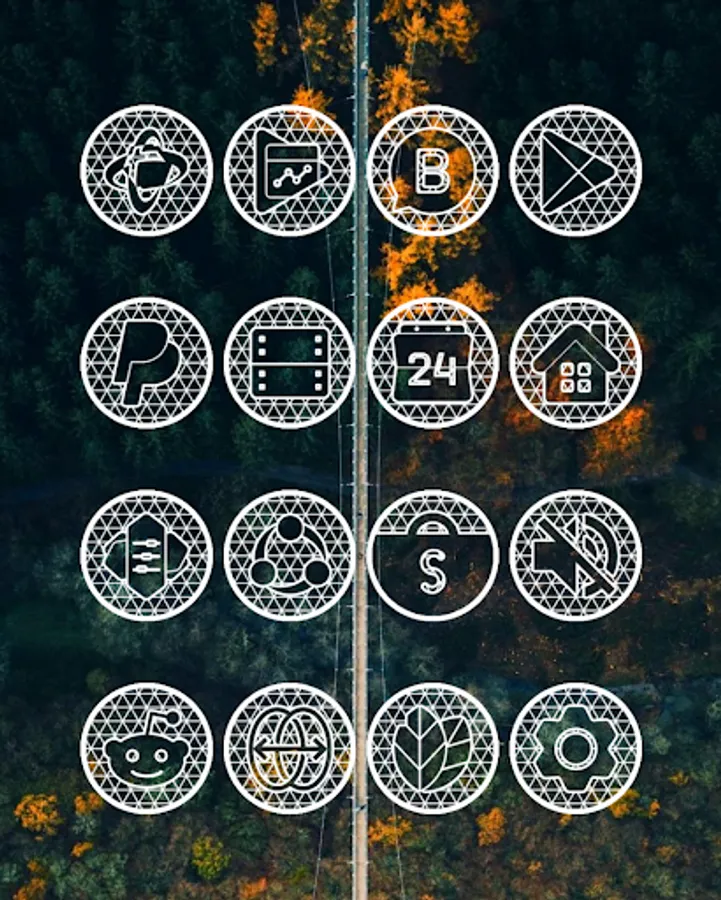
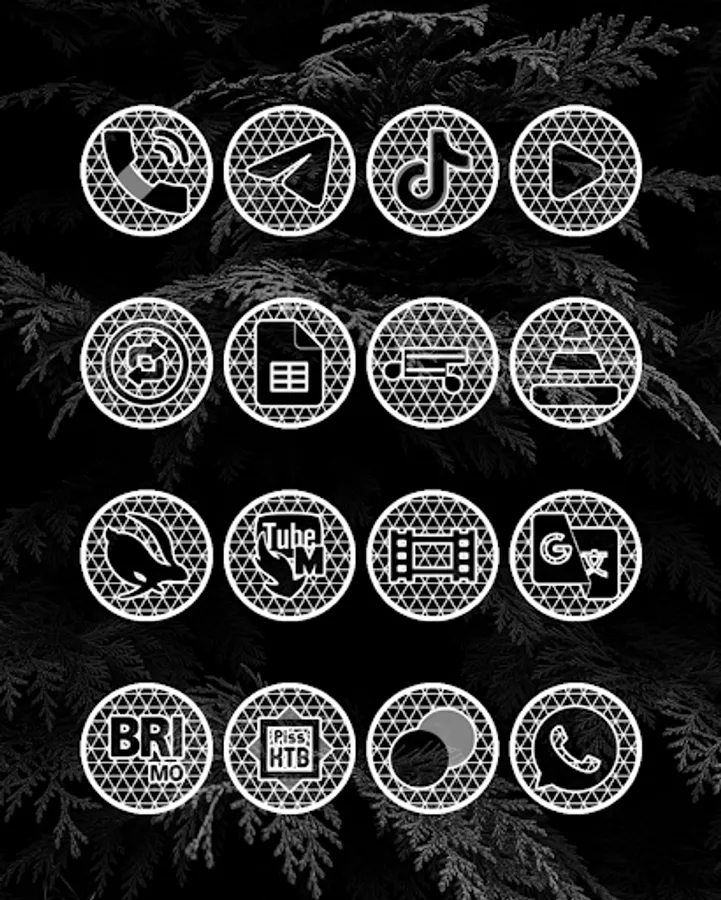
In this icon pack app, users can customize app icons with white net structure designs and apply them across multiple launchers. Includes support for Nova, Evie, Sony Xperia, and other popular launchers.
AppRecs review analysis
AppRecs rating 4.3. Trustworthiness 57 out of 100. Review manipulation risk 42 out of 100. Based on a review sample analyzed.
★★★★☆
4.3
AppRecs Rating
Ratings breakdown
5 star
62%
4 star
15%
3 star
15%
2 star
9%
1 star
0%
What to know
✓
Authentic reviews
Natural distribution, no red flags
⚠
Questionable review patterns
42% review manipulation risk - some review patterns appear unusual
⚠
Review quality concerns
39% of sampled 5-star reviews are very short
About Pixel Net White - Icon Pack
Pixel Net White is an icon pack/ icon changer inspired by net structures. it's perfectly white, transparent and elegant with net structure like. This White icons is very suitable for dark wallpaper or natural scenery. I don't recommend using thisIcon pack with a white or bright wallpaper, because it makes the net structure on this icon not perfectly visible.
How to apply Pixel Net White Icon Pack?
This icon pack supports numbers of popular launcher such as nova launcher, evie launcher and many more. Follow these steps to apply
1. Open Pixel Net White Icon Pack App
2. Navigate to Apply Icon Pack Screen
3. The app shows a list of launcher that are supported such as nova launcher, evie launcher etc. Select the nova launcher installed on your phone to apply icons from this icon pack.
4. The app will automatically applies the icons from this icon pack for nova launcher.
Note: If launcher doesn't show while applying from the icon pack. Please try applying from the launcher itself.
Sony Xperia Home Launcher does not appear in this application, but it can apply this icon pack with different settings.
The setting for Sony Xperia :
1. Long press on the main screen
2. open the settings
3. Scroll down and open the appearance icon setting
4. choose Pixel Net White Icon Pack icon pack
5. done, your Sony Xperia has applied Pixel Net White Icon Pack.
Note: Icon pack only Support on Sony Xperia Home Launcher 10.0.A.0.8 Or Up.
Supported Launcher:
Icon Pack for Nova Launcher
Icon Pack for Apex Launcher
Icon Pack for ADW Launcher
Icon Pack for ABC Launcher
Icon Pack for Evie Launcher
Icon Pack for Next Launcher
Icon Pack for Holo Launcher
Icon Pack for Lucid Launcher
Icon Pack for M Launcher
Icon Pack for N Launcher
Icon Pack for Arrow Launcher
Icon Pack for Action Launcher
Icon Pack for Sony Xperia Home Launcher
Icon Pack for Aviate Launcher
Icon Pack for KK Launcher
Icon Pack for Nine Launcher
Icon Pack for Blur Launcher
Icon Pack for Trebuchet Launcher
Icon Pack for Unicon Launcher
Icon Pack for Smart Launcher
Icon Pack for Go Launcher(doesn't support icon masking)
Icon Pack for Zero Launcher(doesn't support icon masking)
DISCLAIMER
You may need a 3rd party launcher to apply the icon pack. If your stock launcher doesn't support icon pack, you can use apps like Awesome Icons or Unicon to change your icons without using a 3rd party launcher.
FEATURES
- 7000+ icons and counting
- Iconback for your unthemed icons
- 36+ HD Wallpapers
- Alternate icons
- Icon Request
- HD Icon resolution 192x192px
More Design Information On Google+, Instagram, Twitter.
https://plus.google.com/118122394503523102122
https://www.instagram.com/panoto.gomo/
https://twitter.com/panoto_gomo
special thanks to Dani Mahardika for Candybar Dashboard.
How to apply Pixel Net White Icon Pack?
This icon pack supports numbers of popular launcher such as nova launcher, evie launcher and many more. Follow these steps to apply
1. Open Pixel Net White Icon Pack App
2. Navigate to Apply Icon Pack Screen
3. The app shows a list of launcher that are supported such as nova launcher, evie launcher etc. Select the nova launcher installed on your phone to apply icons from this icon pack.
4. The app will automatically applies the icons from this icon pack for nova launcher.
Note: If launcher doesn't show while applying from the icon pack. Please try applying from the launcher itself.
Sony Xperia Home Launcher does not appear in this application, but it can apply this icon pack with different settings.
The setting for Sony Xperia :
1. Long press on the main screen
2. open the settings
3. Scroll down and open the appearance icon setting
4. choose Pixel Net White Icon Pack icon pack
5. done, your Sony Xperia has applied Pixel Net White Icon Pack.
Note: Icon pack only Support on Sony Xperia Home Launcher 10.0.A.0.8 Or Up.
Supported Launcher:
Icon Pack for Nova Launcher
Icon Pack for Apex Launcher
Icon Pack for ADW Launcher
Icon Pack for ABC Launcher
Icon Pack for Evie Launcher
Icon Pack for Next Launcher
Icon Pack for Holo Launcher
Icon Pack for Lucid Launcher
Icon Pack for M Launcher
Icon Pack for N Launcher
Icon Pack for Arrow Launcher
Icon Pack for Action Launcher
Icon Pack for Sony Xperia Home Launcher
Icon Pack for Aviate Launcher
Icon Pack for KK Launcher
Icon Pack for Nine Launcher
Icon Pack for Blur Launcher
Icon Pack for Trebuchet Launcher
Icon Pack for Unicon Launcher
Icon Pack for Smart Launcher
Icon Pack for Go Launcher(doesn't support icon masking)
Icon Pack for Zero Launcher(doesn't support icon masking)
DISCLAIMER
You may need a 3rd party launcher to apply the icon pack. If your stock launcher doesn't support icon pack, you can use apps like Awesome Icons or Unicon to change your icons without using a 3rd party launcher.
FEATURES
- 7000+ icons and counting
- Iconback for your unthemed icons
- 36+ HD Wallpapers
- Alternate icons
- Icon Request
- HD Icon resolution 192x192px
More Design Information On Google+, Instagram, Twitter.
https://plus.google.com/118122394503523102122
https://www.instagram.com/panoto.gomo/
https://twitter.com/panoto_gomo
special thanks to Dani Mahardika for Candybar Dashboard.
Pixel Net White - Icon Pack Screenshots



Tap to Rate:
Reviews for Pixel Net White - Icon Pack
Walter Wright
7/12/2024
Icon pack! Beautiful and white.
Lynn Peltier
11/2/2023
Can't type in a specific icon to find it. Keeps putting it in quotation marks when I start to type. VERY frustrating 😡