With this app, you can emulate the keypad of Raymarine displays and control MFD functions remotely. Includes Wi-Fi connectivity setup and display mirroring features.
AppRecs review analysis
AppRecs rating 2.0. Trustworthiness 64 out of 100. Review manipulation risk 35 out of 100. Based on a review sample analyzed.
★★☆☆☆
2.0
AppRecs Rating
Ratings breakdown
5 star
19%
4 star
7%
3 star
0%
2 star
16%
1 star
59%
What to know
✓
Authentic reviews
Natural distribution, no red flags
⚠
Mixed user feedback
Average 2.1★ rating suggests room for improvement
⚠
High negative review ratio
74% of sampled ratings are 1–2 stars
About RayRemote
About RayRemote
RayRemote transforms your phone into a virtual remote keypad for Raymarine multifunction displays.
Android/Kindle Fire = Best performance achieved with 1GHz processor or better and running Android 2.2.2 or later.
Multi-Functional Display software requirement – v 3.15 or later.
Compatible displays (MFDs) – all third generation c-Series, e-Series, g-S and Wi-Fi enabled a-Series models, plus all the Axiom range
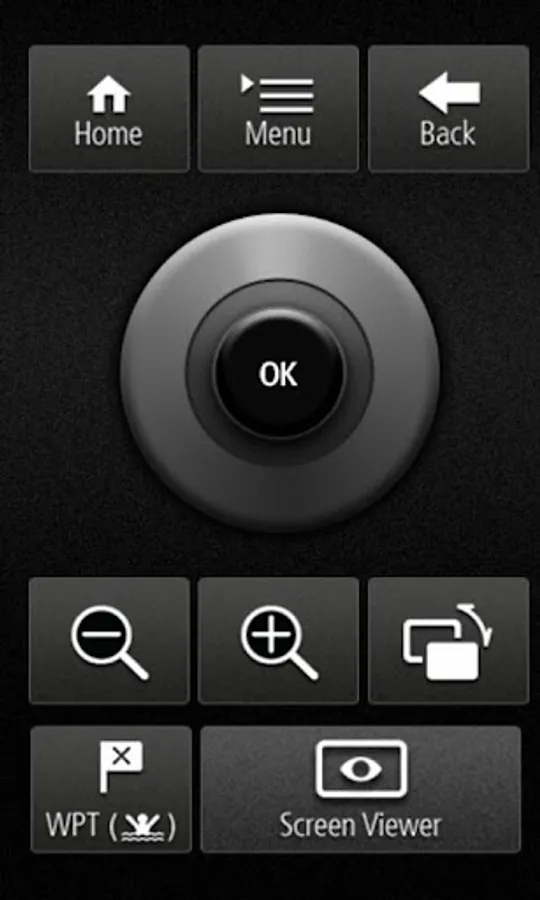
RayRemote emulates the keypad of Raymarine displays, giving you control of all the MFD functions with large full screen keypad.
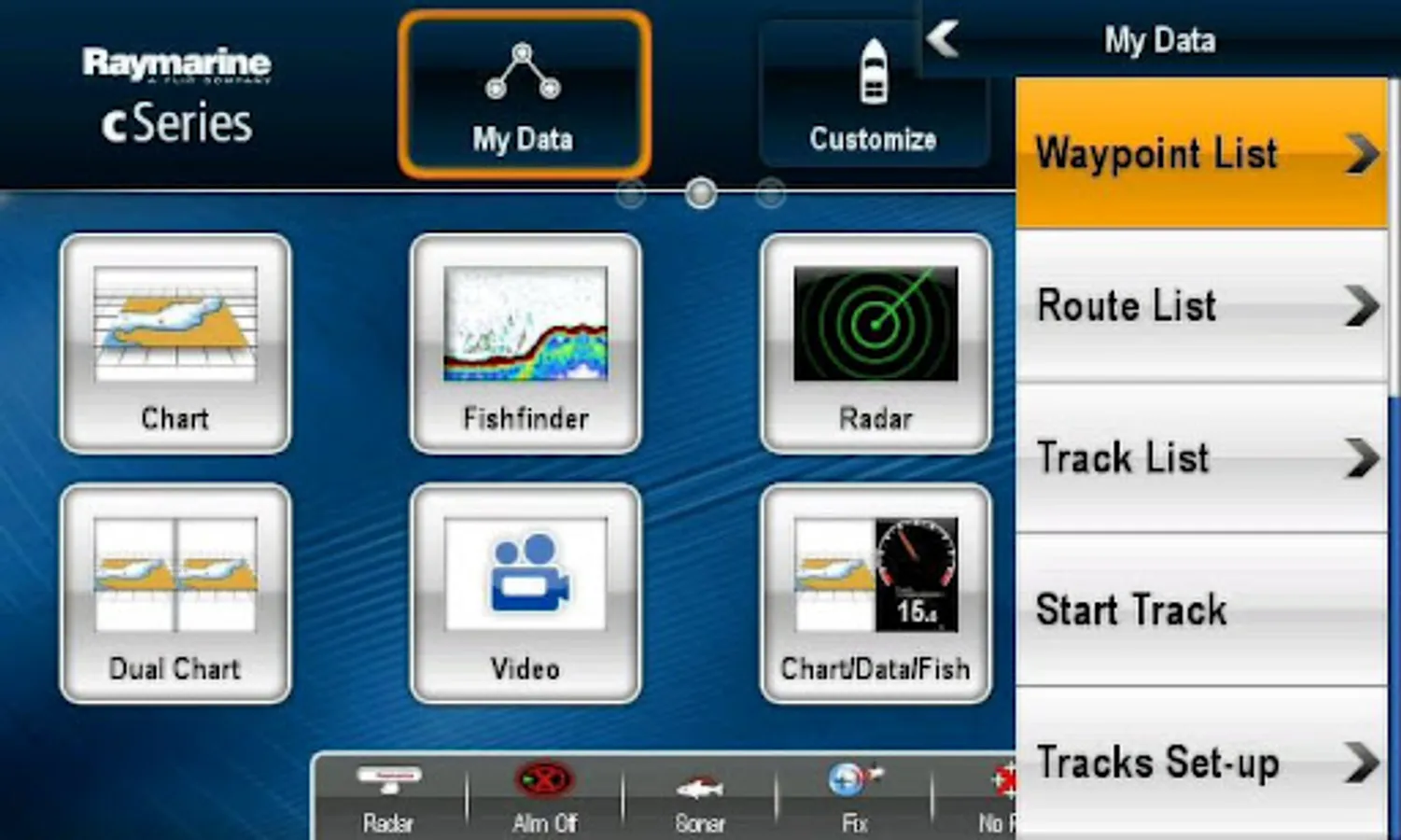
The virtual uni-controller lets you rotate through menus and make menu adjustments effortlessly. The app also provides a viewing mode, which mirrors the MFD’s display. To use this app please upgrade your Raymarine WiFi enabled Multi-Functional Display to software version 3.15 or later. Software upgrades are available for free at www.raymarine.com/support.
Note - RayRemote will also run on tablet devices, though it is primarily intended for smart phones.
Getting Started
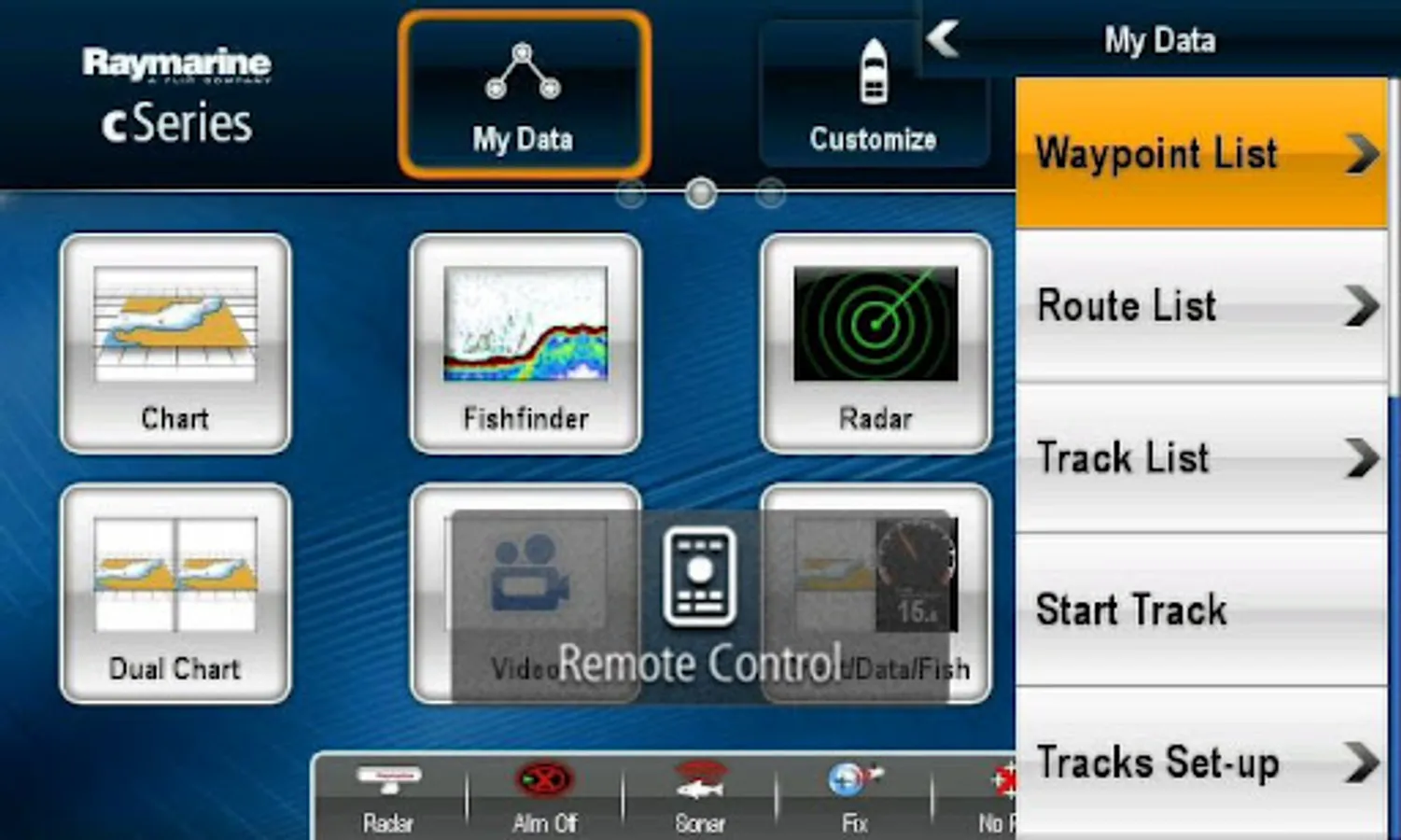
Download the RayRemote app, and install it on your device. You should ensure your device has access to the internet when initially installing to enable verification of the app. Next, connect to your Multifunction Display via Wi-Fi (see MFD operators manual for Wi-Fi setup details). When the Wi-Fi connection is established, launch the app. You should now see the same image on your mobile device as you do on your MFD. Simply touch the screen and a button will appear to switch to remote control mode.
Note - autopilot activation/deactivation is not possible via a mobile device.
RayRemote transforms your phone into a virtual remote keypad for Raymarine multifunction displays.
Android/Kindle Fire = Best performance achieved with 1GHz processor or better and running Android 2.2.2 or later.
Multi-Functional Display software requirement – v 3.15 or later.
Compatible displays (MFDs) – all third generation c-Series, e-Series, g-S and Wi-Fi enabled a-Series models, plus all the Axiom range
RayRemote emulates the keypad of Raymarine displays, giving you control of all the MFD functions with large full screen keypad.
The virtual uni-controller lets you rotate through menus and make menu adjustments effortlessly. The app also provides a viewing mode, which mirrors the MFD’s display. To use this app please upgrade your Raymarine WiFi enabled Multi-Functional Display to software version 3.15 or later. Software upgrades are available for free at www.raymarine.com/support.
Note - RayRemote will also run on tablet devices, though it is primarily intended for smart phones.
Getting Started
Download the RayRemote app, and install it on your device. You should ensure your device has access to the internet when initially installing to enable verification of the app. Next, connect to your Multifunction Display via Wi-Fi (see MFD operators manual for Wi-Fi setup details). When the Wi-Fi connection is established, launch the app. You should now see the same image on your mobile device as you do on your MFD. Simply touch the screen and a button will appear to switch to remote control mode.
Note - autopilot activation/deactivation is not possible via a mobile device.
RayRemote Screenshots
Tap to Rate:
Reviews for RayRemote
K 3 Fishing
2/15/2024
Good
Sebba
10/23/2022
Just a screen viewer with a not useful kind of remote control.