
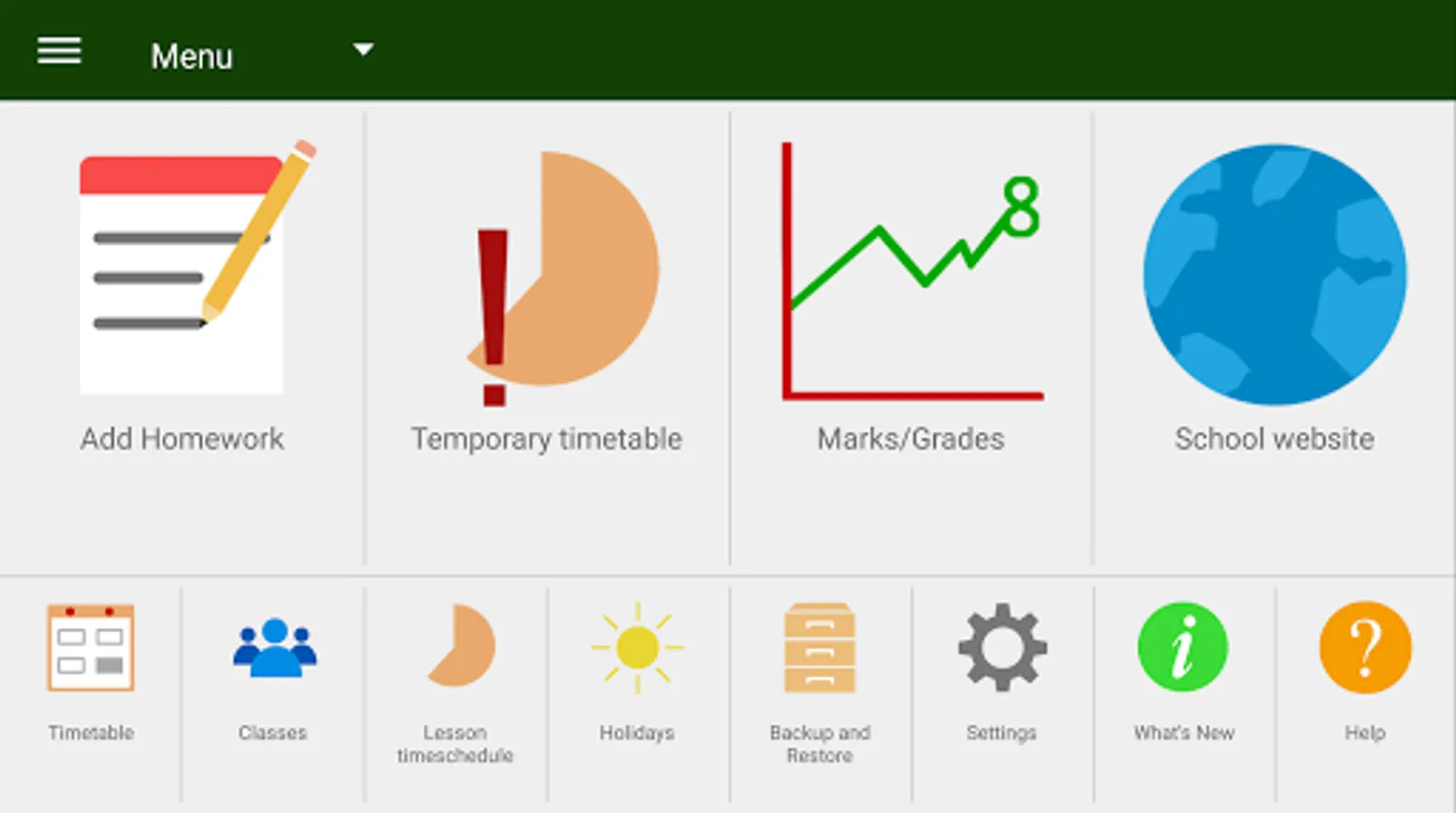
In this app, you can keep track of homework and manage your timetable with customizable lessons and contact information. Includes multiple timetable views, temporary schedule changes, and home screen widgets.
AppRecs review analysis
AppRecs rating 3.5. Trustworthiness 56 out of 100. Review manipulation risk 37 out of 100. Based on a review sample analyzed.
★★★☆☆
3.5
AppRecs Rating
Ratings breakdown
5 star
48%
4 star
10%
3 star
9%
2 star
6%
1 star
28%
What to know
✓
Authentic reviews
Natural distribution, no red flags
⚠
High negative review ratio
34% of sampled ratings are 1–2 stars
About HomeWork
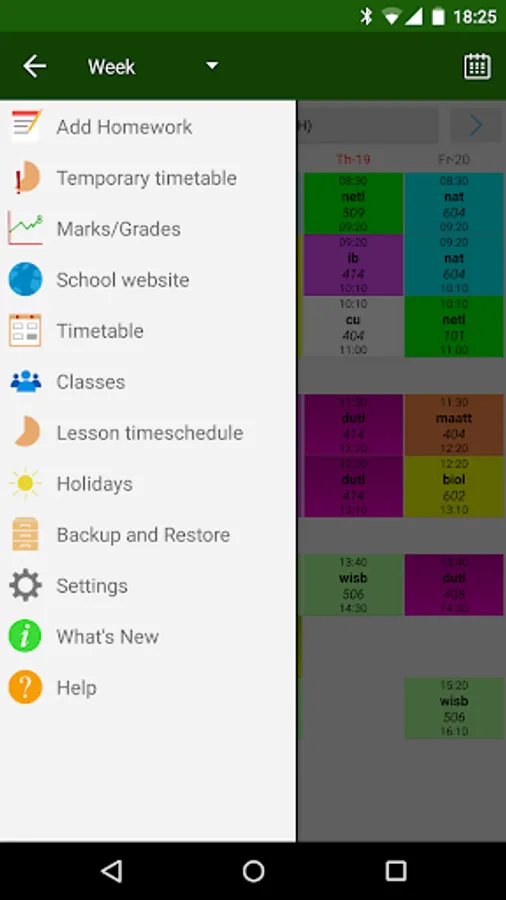
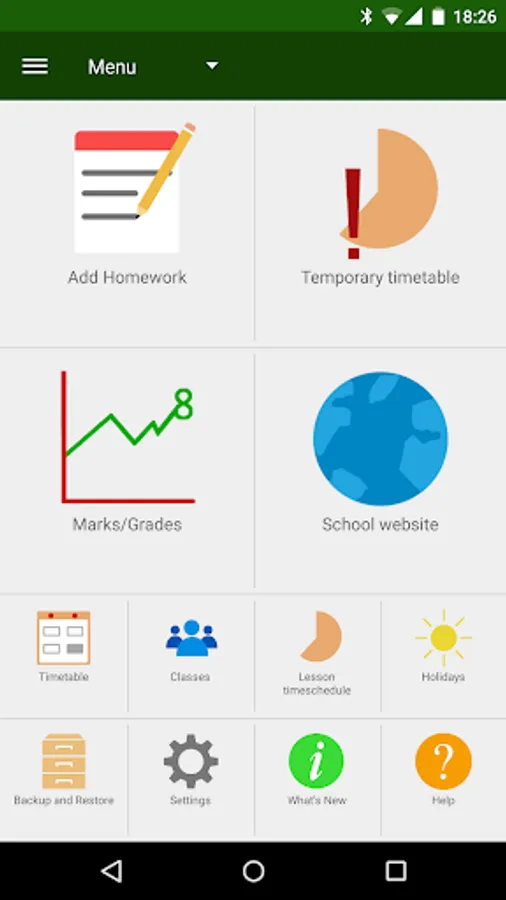
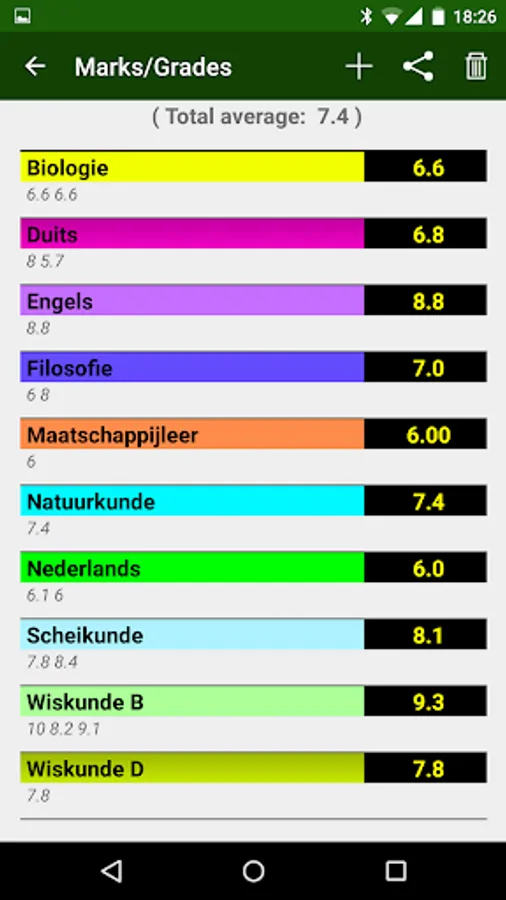
1. HomeWork app to keep track of your homework and Timetable.
2. You can define your own subjects/lessons.
You can define the start and end times of the lessons.
Upto 20 lessons per day.
You can define contact information for each subject.
3. Feature to make a temporary (one lesson, one day) timetable change.
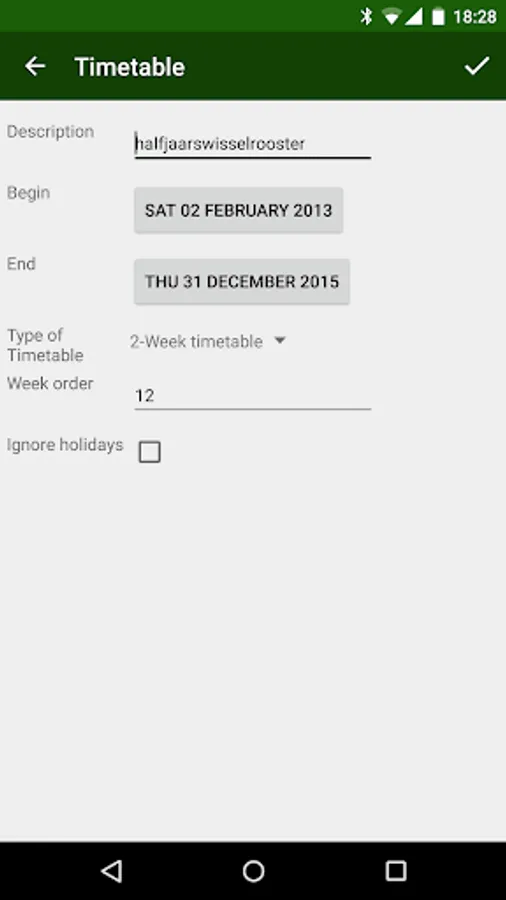
4. ---> Possible to use a 2- 3- and 4-week timetable (enable it in the Settings!)
5. ---> Possible to use a rotating timetable (enable it in the Settings!)
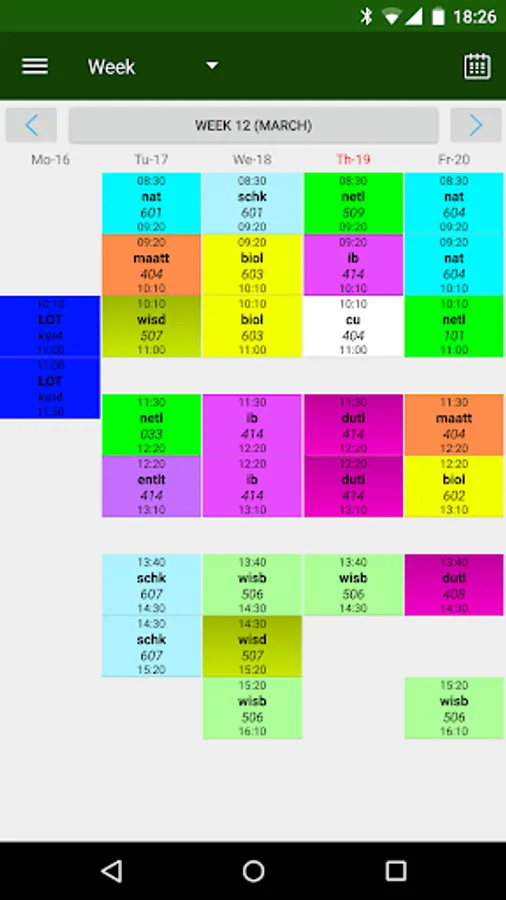
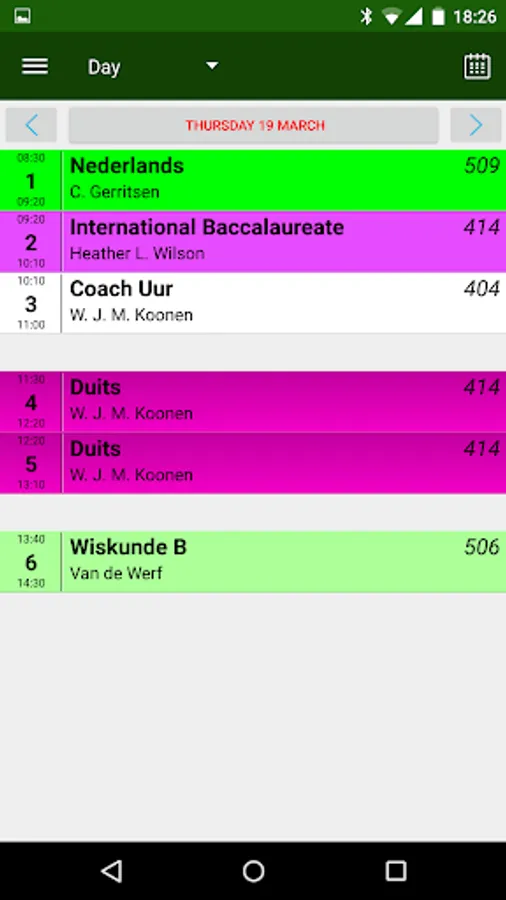
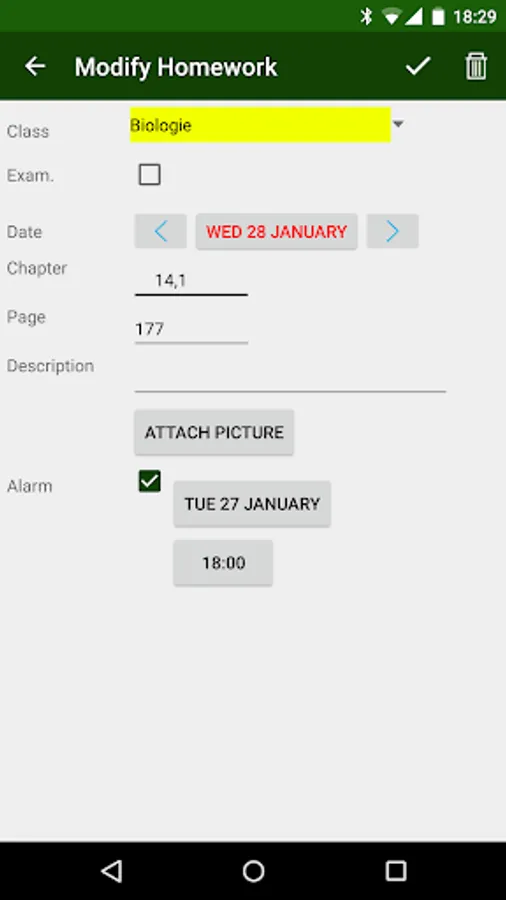
6. By (short) Clicking on a lesson in the timetable screens, you can define homework for that lesson.
By (long) Clicking on a lesson in the timetable screens, you can define a one-time timetable change for that lesson.
7. In the Timetable screens, there are indications for unfinished homework and examinations for lessons.
8. By sweeping left or right on the timetable screen, you can go forward or backward in time.
Sweep down is back to current day/week
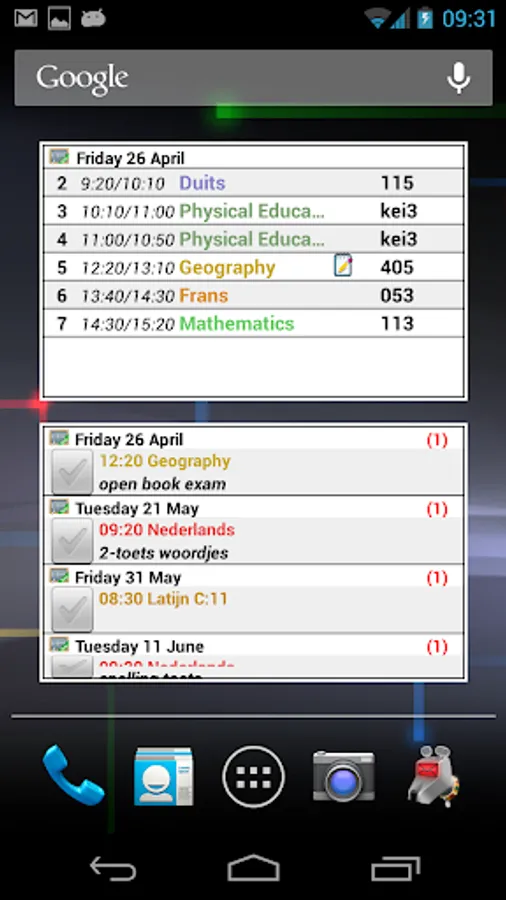
9. Multiple homescreen widgets available.
klwinkel.com
Tablet optimization was sponsored and designed by Digitally Different Srl
[Arabic translation by: Adel Al-Ghuzaili]
2. You can define your own subjects/lessons.
You can define the start and end times of the lessons.
Upto 20 lessons per day.
You can define contact information for each subject.
3. Feature to make a temporary (one lesson, one day) timetable change.
4. ---> Possible to use a 2- 3- and 4-week timetable (enable it in the Settings!)
5. ---> Possible to use a rotating timetable (enable it in the Settings!)
6. By (short) Clicking on a lesson in the timetable screens, you can define homework for that lesson.
By (long) Clicking on a lesson in the timetable screens, you can define a one-time timetable change for that lesson.
7. In the Timetable screens, there are indications for unfinished homework and examinations for lessons.
8. By sweeping left or right on the timetable screen, you can go forward or backward in time.
Sweep down is back to current day/week
9. Multiple homescreen widgets available.
klwinkel.com
Tablet optimization was sponsored and designed by Digitally Different Srl
[Arabic translation by: Adel Al-Ghuzaili]
HomeWork Screenshots
Tap to Rate:
Reviews for HomeWork
ghar yasenasenlu
10/2/2025
𝕛𝕦𝕙𝕒𝕣
Mdingi Nomakhaya
8/18/2022
Does not work properly 😉🐱