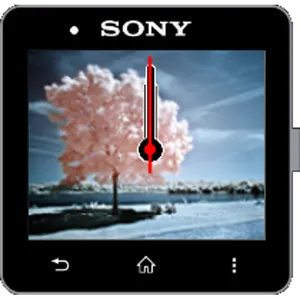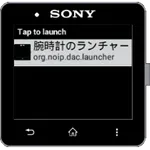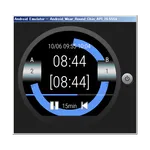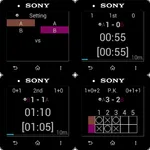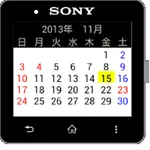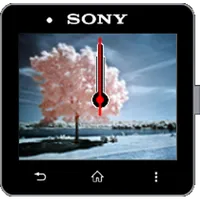
It is an analog clock that you can select your favorite image from the gallery and set it as the background.
From version 2 it became a Widget for Watch Face.
From version 150828 (2.0.5), you can select images on the clock side.
■ How to use
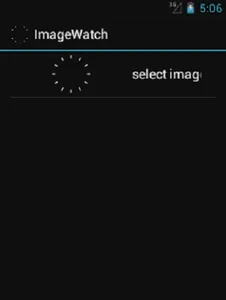
Select the image by opening the settings of this application from SmartWatch2 on the notification bar of the main unit. When you select the icon of this application from the clock widget of WatchFace, the selected image becomes the analog clock of the background.
After version 150828 (2.0.5), you can also select images in the watch app. Swipe left or right to select and tap to set. If the app does not start, please select an image on the main unit once.
There are two types of clock widgets, with and without dates.
If you change the image, press the power button on the SmartWatch 2 three times to redisplay the watch face. (It may take some time before it is reflected.)
【caution】
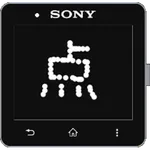
When the backlight is turned off, the image becomes monochrome, which makes it difficult to see depending on the selected image.
From version 2 it became a Widget for Watch Face.
From version 150828 (2.0.5), you can select images on the clock side.
■ How to use
Select the image by opening the settings of this application from SmartWatch2 on the notification bar of the main unit. When you select the icon of this application from the clock widget of WatchFace, the selected image becomes the analog clock of the background.
After version 150828 (2.0.5), you can also select images in the watch app. Swipe left or right to select and tap to set. If the app does not start, please select an image on the main unit once.
There are two types of clock widgets, with and without dates.
If you change the image, press the power button on the SmartWatch 2 three times to redisplay the watch face. (It may take some time before it is reflected.)
【caution】
When the backlight is turned off, the image becomes monochrome, which makes it difficult to see depending on the selected image.
Show More