In this app, you can set custom school chimes and manage schedules easily. Includes options for chime types, notifications, and test functions.
AppRecs review analysis
AppRecs rating 3.6. Trustworthiness 77 out of 100. Review manipulation risk 24 out of 100. Based on a review sample analyzed.
★★★☆☆
3.6
AppRecs Rating
Ratings breakdown
5 star
39%
4 star
25%
3 star
16%
2 star
9%
1 star
11%
What to know
✓
Low review manipulation risk
24% review manipulation risk
✓
Credible reviews
77% trustworthiness score from analyzed reviews
✓
Good user ratings
64% positive sampled reviews
About School Chimes
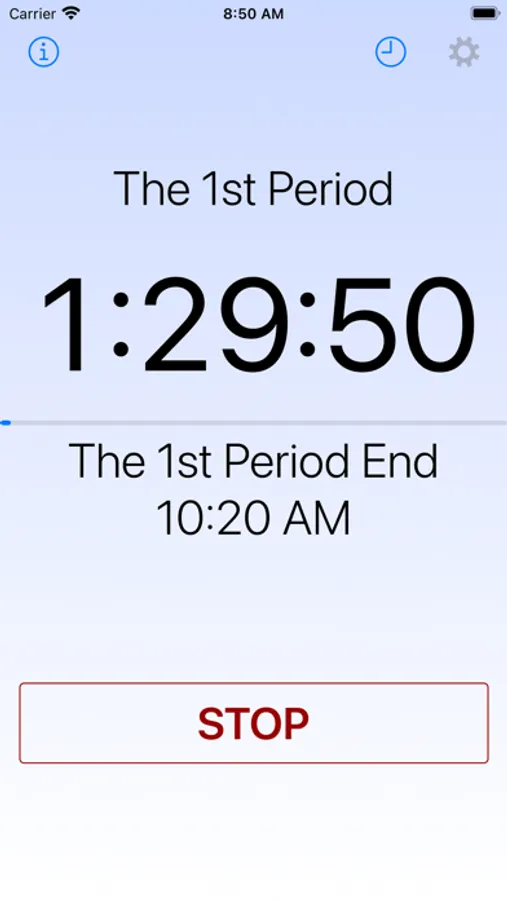
This app is a basic alarm with scheduling capabilities. If you wish to use a school chime inspired by the Westminster Quarters, this app can fulfill your request. In Japan, the school chime is commonly used to signal the beginning and end of class periods.
Settings:
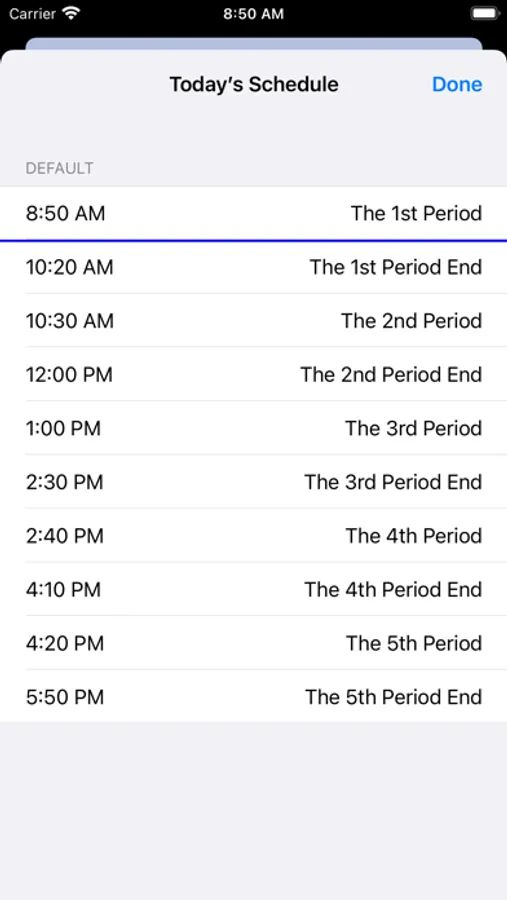
- Schedule Check: This feature allows you to check chime times with a list.
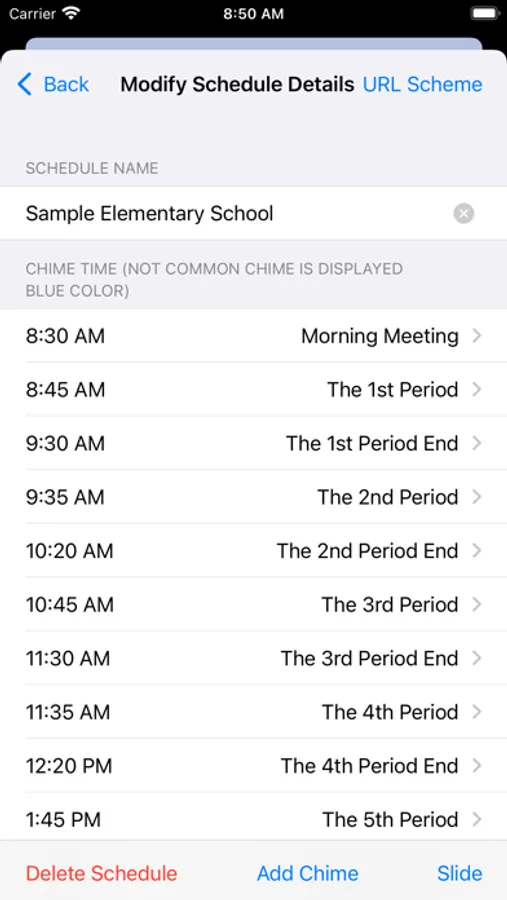
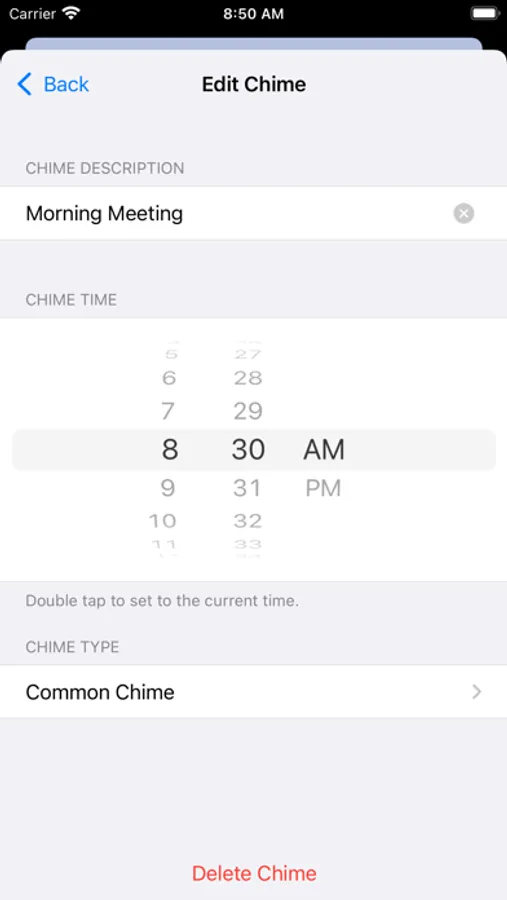
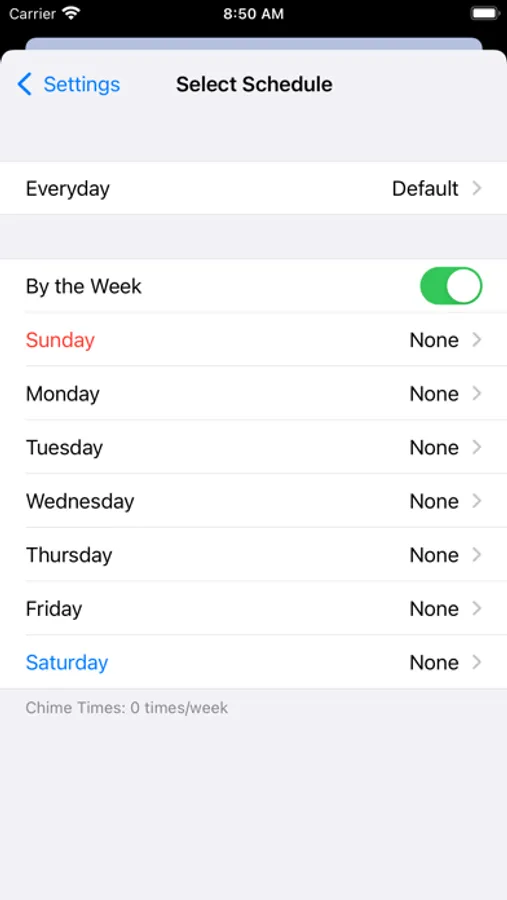
- Schedule: You can choose a schedule, create a new schedule, and modify an existing one.
- Chime Type: Select the tone or chime type.
- Display Notifications: When turned off, notifications will only include sound.
- Chime Test: Use this to ring the selected chime.
- Information (i button): This section provides information about the app.
URL Schemes:
1. ON/OFF
(Format) sc://a/b/c
- a: on or off. If set to off, the following items (b, c) are invalid.
- b (optional): schedule number, with the top of the list (Default) being 0.
- c (optional): tone number, with the top of the list (Westminster 1) being 0.
Example:
- Start with Default and Westminster 2: sc://on/0/1
- Stop: sc://off
2. Add a schedule
(Format) sc://add/a/hhmmb/... (repeat, max 64 times)
- add: constant
- a: schedule name
- hhmm: time in 24-hour format
- b: description
Example:
- Add a “Test” schedule: sc://add/Test/0800Start/1200Noon/1700End
If your iPhone doesn't read the URL scheme correctly, try converting spaces to %20 and commas to %2c.
Settings:
- Schedule Check: This feature allows you to check chime times with a list.
- Schedule: You can choose a schedule, create a new schedule, and modify an existing one.
- Chime Type: Select the tone or chime type.
- Display Notifications: When turned off, notifications will only include sound.
- Chime Test: Use this to ring the selected chime.
- Information (i button): This section provides information about the app.
URL Schemes:
1. ON/OFF
(Format) sc://a/b/c
- a: on or off. If set to off, the following items (b, c) are invalid.
- b (optional): schedule number, with the top of the list (Default) being 0.
- c (optional): tone number, with the top of the list (Westminster 1) being 0.
Example:
- Start with Default and Westminster 2: sc://on/0/1
- Stop: sc://off
2. Add a schedule
(Format) sc://add/a/hhmmb/... (repeat, max 64 times)
- add: constant
- a: schedule name
- hhmm: time in 24-hour format
- b: description
Example:
- Add a “Test” schedule: sc://add/Test/0800Start/1200Noon/1700End
If your iPhone doesn't read the URL scheme correctly, try converting spaces to %20 and commas to %2c.
School Chimes Screenshots
Tap to Rate:
Reviews for School Chimes
Kim P teacher
School alarms
Class
ramadi03
Very helpful
This is a very helpful app I use throughout the day.