
In this video editing app, users can adjust playback speed and save videos to their camera roll. Includes features for simple speed changes, time range adjustments, and background music options.
AppRecs review analysis
AppRecs rating 4.5. Trustworthiness 67 out of 100. Review manipulation risk 43 out of 100. Based on a review sample analyzed.
★★★★☆
4.5
AppRecs Rating
Ratings breakdown
5 star
88%
4 star
6%
3 star
2%
2 star
1%
1 star
2%
What to know
✓
Authentic reviews
No red flags detected
⚠
Questionable review patterns
43% review manipulation risk - some review patterns appear unusual
⚠
Rating authenticity concerns
High rating concentration (88% 5-star) in sampled ratings
About Video Speed Editor - VBooster
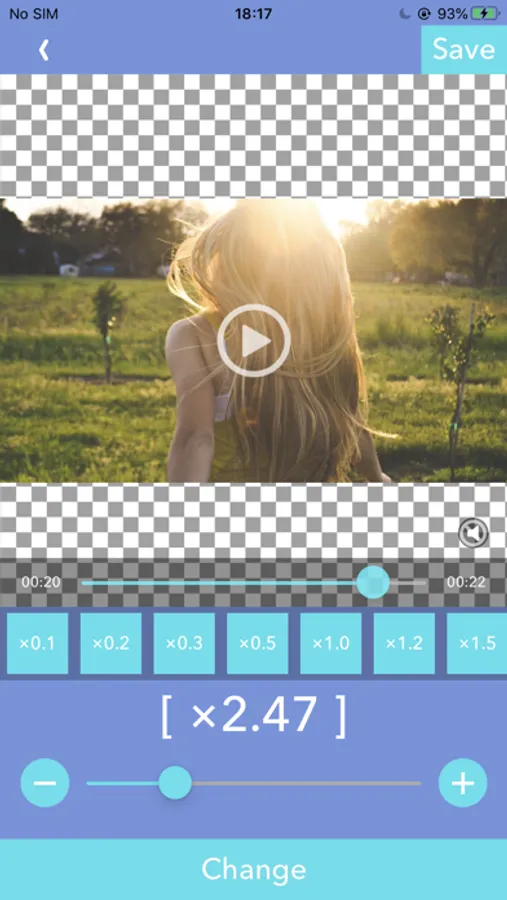
VBooster is the app for changing playback speed and saving to your camera roll.
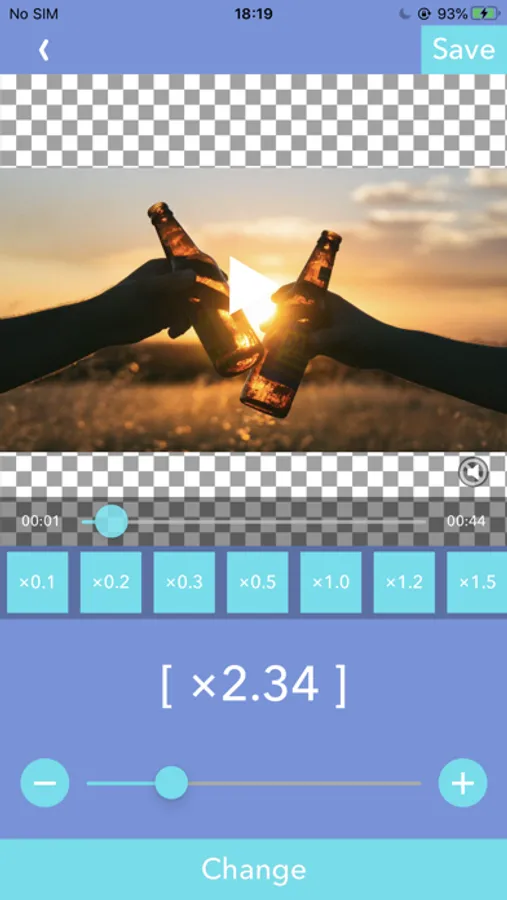
[Simple Mode]
Simple Mode is for change playback speed of entire a video easily.
-- Playback speed --
You can change playback speed from x0.1 to x10.0 by 0.1 steps.
-- Sound types --
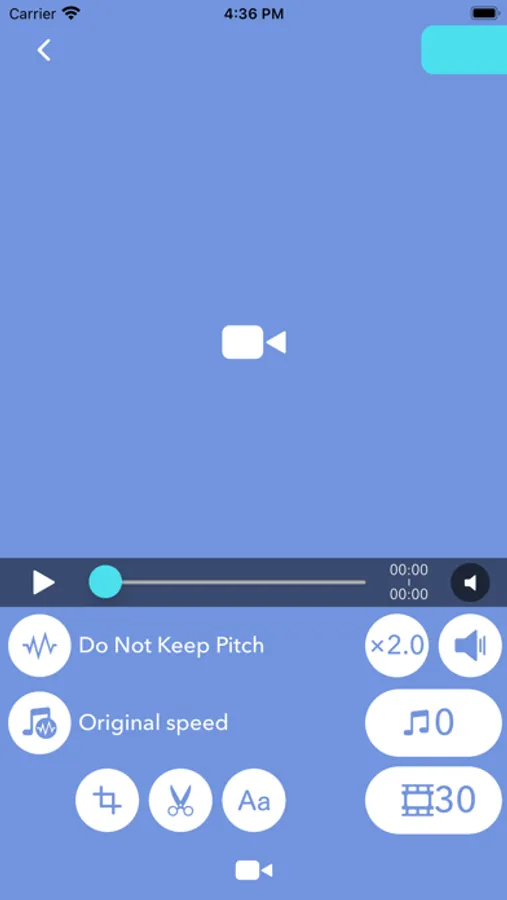
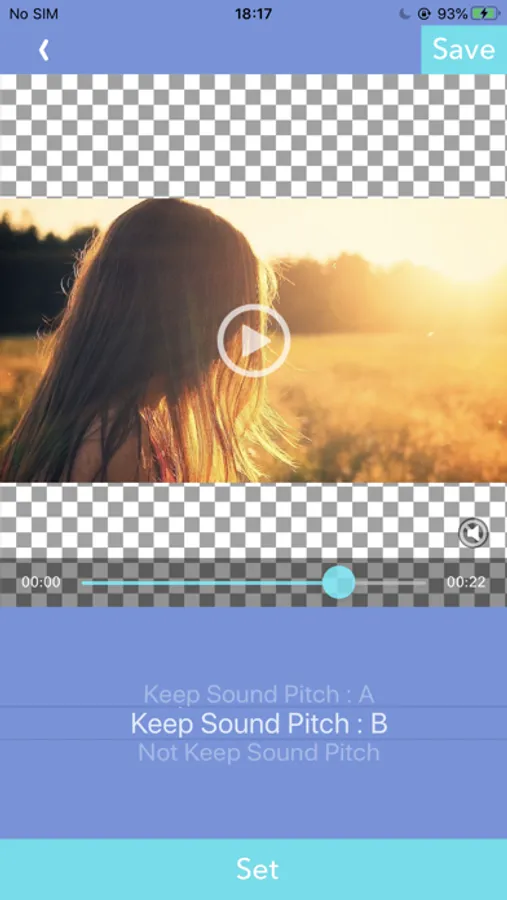
You can choose 3 types of sounds.
1. Change pitch by speed
2. Keep pitch type A
3. Keep pitch type B
-- Music --
You can add songs as Background music.
-- Music speed --
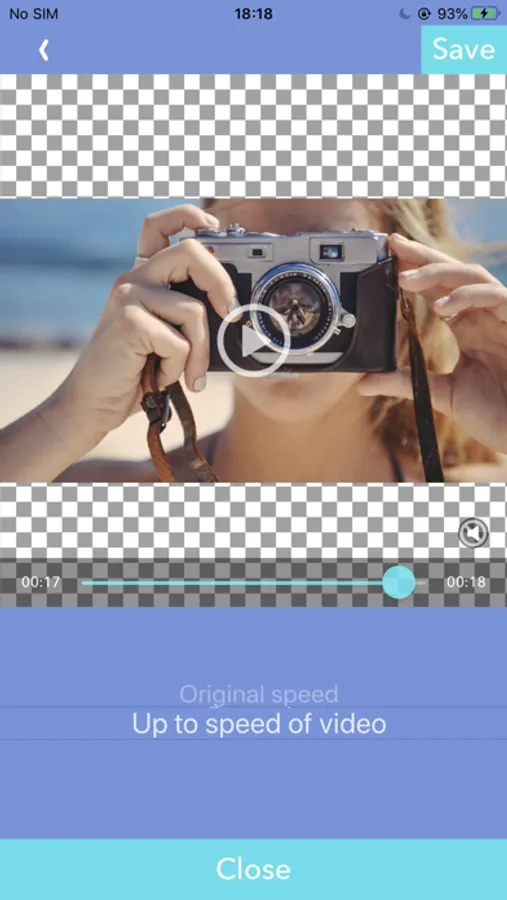
You can choose 2 types of speed.
1. Up to a speed of the video
2. Original speed
Q.Witch types are better " Keep pitch type A" or "B"?
A. It depends on the sound of the video. So please try both to find the better one.
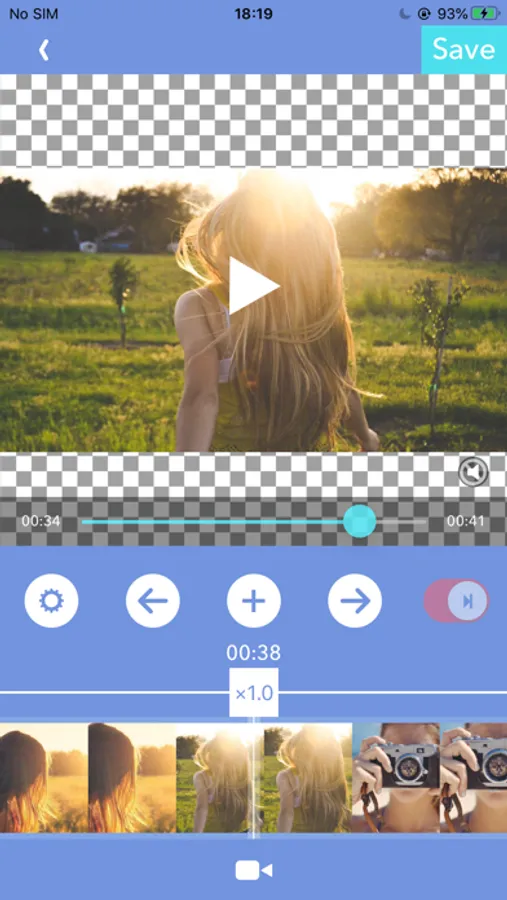
[Time range mode]
Time range mode lets you change the playback speed of time ranges you specified.
--Add a new time range--
・Seek to the time you want to start a new time range with seek bar.
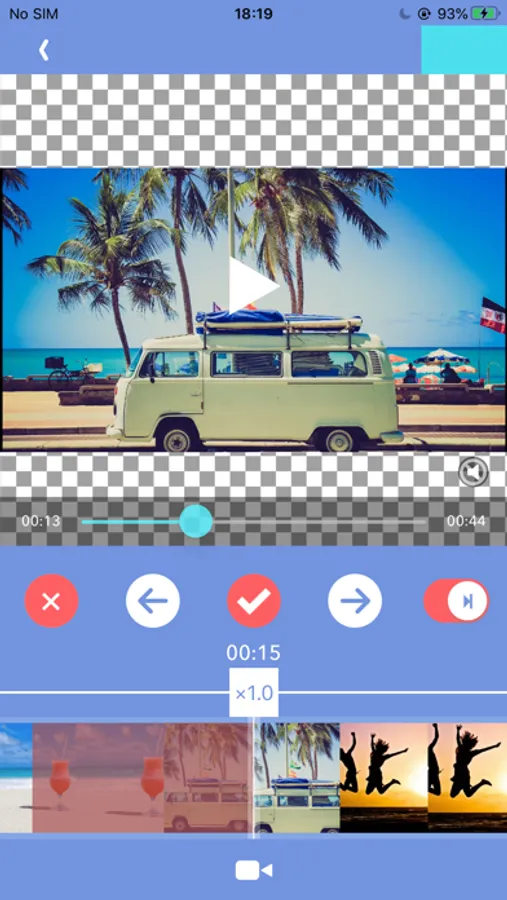
・Press [+] button to start creating time range, then move to the end of the time range.
・Then, press [check mark] button to finish adding a new time range.
・After added the time range, the playback speed setting screen will be shown, and you can change the speed.
--Overwrite a time range--
・By the default, you can't specify over another time ranges.
・To overwrite another time ranges, turn off the switch that is located on the right side.
--Change playback speed or delete a time range--
・If you want to edit playback speed or delete a time range, tap the time range on the seek bar.
・Then, the edit menu will be shown.
--Other settings--
・You can set BGM/Frame rate and so on as well as Simple Mode.
・To do that, press [gear] button to open settings.
[Simple Mode]
Simple Mode is for change playback speed of entire a video easily.
-- Playback speed --
You can change playback speed from x0.1 to x10.0 by 0.1 steps.
-- Sound types --
You can choose 3 types of sounds.
1. Change pitch by speed
2. Keep pitch type A
3. Keep pitch type B
-- Music --
You can add songs as Background music.
-- Music speed --
You can choose 2 types of speed.
1. Up to a speed of the video
2. Original speed
Q.Witch types are better " Keep pitch type A" or "B"?
A. It depends on the sound of the video. So please try both to find the better one.
[Time range mode]
Time range mode lets you change the playback speed of time ranges you specified.
--Add a new time range--
・Seek to the time you want to start a new time range with seek bar.
・Press [+] button to start creating time range, then move to the end of the time range.
・Then, press [check mark] button to finish adding a new time range.
・After added the time range, the playback speed setting screen will be shown, and you can change the speed.
--Overwrite a time range--
・By the default, you can't specify over another time ranges.
・To overwrite another time ranges, turn off the switch that is located on the right side.
--Change playback speed or delete a time range--
・If you want to edit playback speed or delete a time range, tap the time range on the seek bar.
・Then, the edit menu will be shown.
--Other settings--
・You can set BGM/Frame rate and so on as well as Simple Mode.
・To do that, press [gear] button to open settings.
Video Speed Editor - VBooster Screenshots

Tap to Rate:
Reviews for Video Speed Editor - VBooster
Debt free and happy!
Matt
Radmacher
Ares Pamintuan
1/10
I. Do Not Like The Logo