
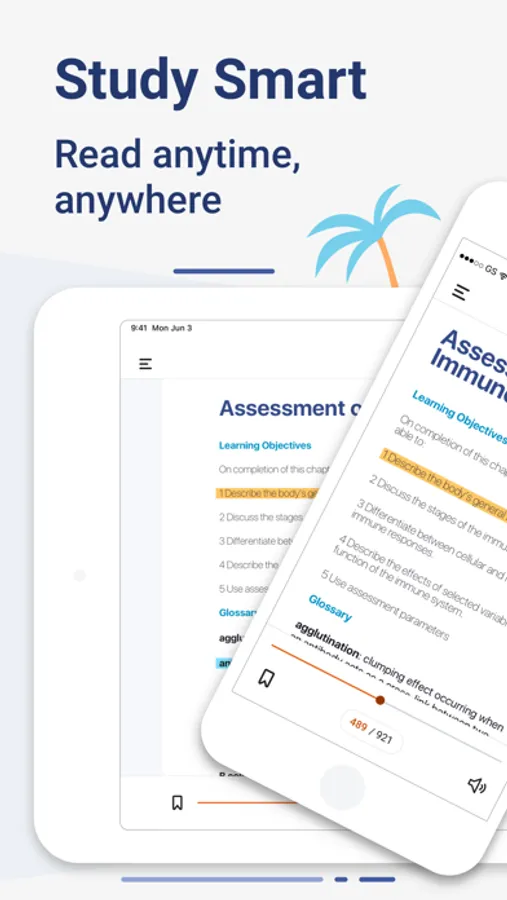
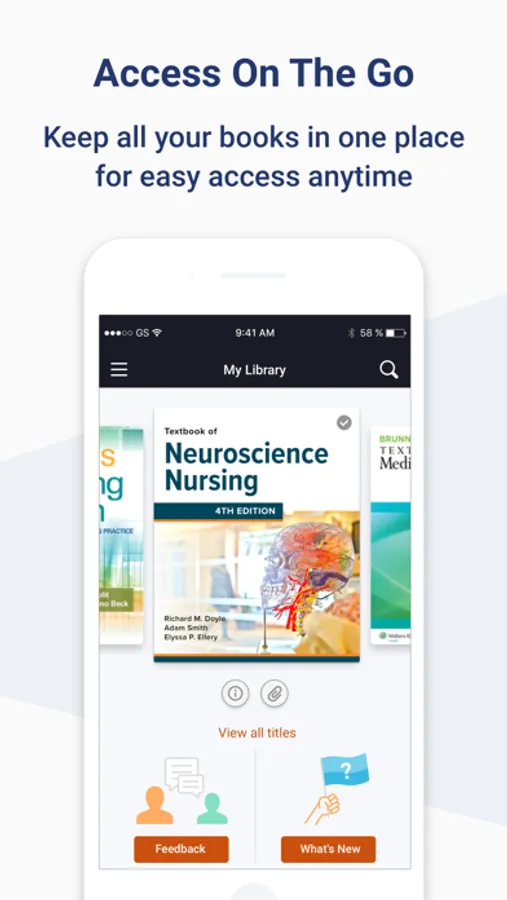
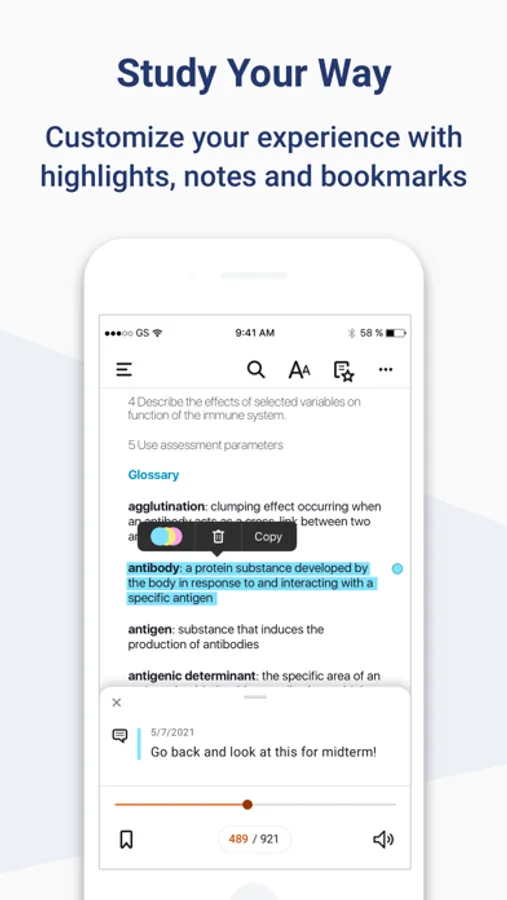
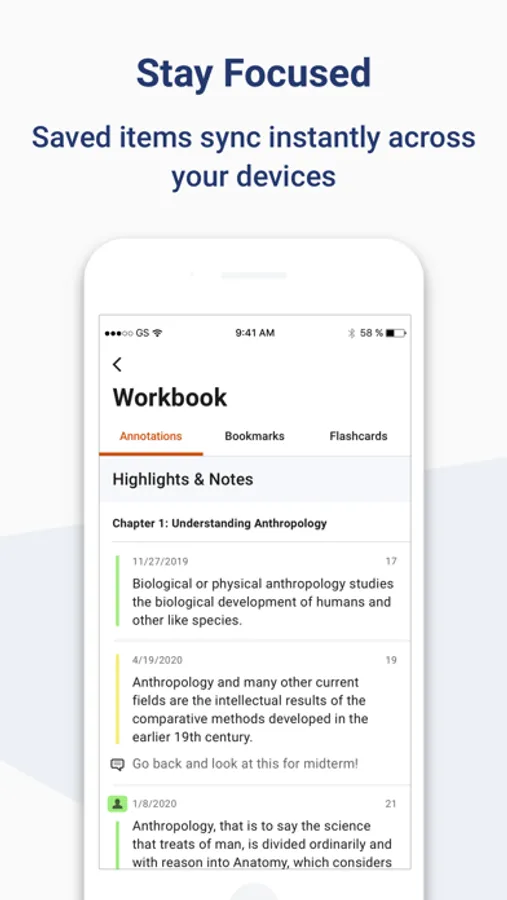
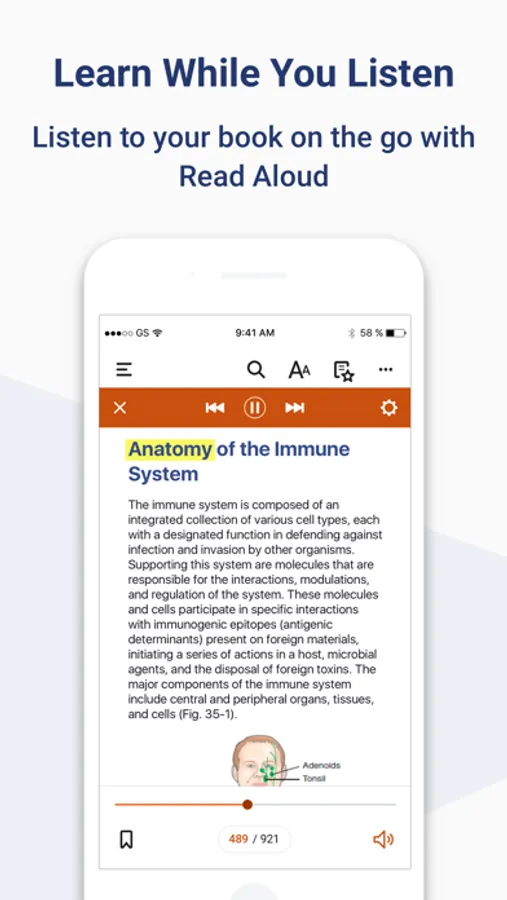
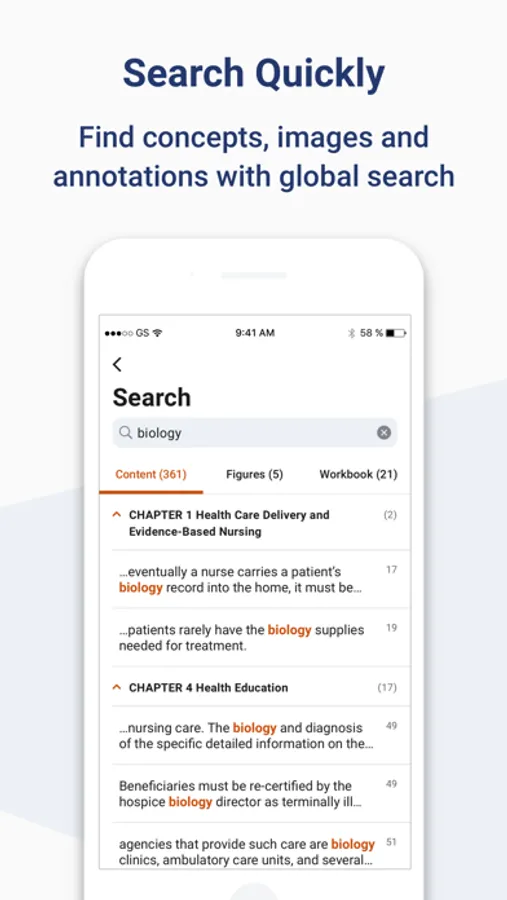
With this Bookshelf app, you can access and organize your medical study materials across devices, highlight text, and create notes. Includes offline access, synchronization, and annotation tools.
AppRecs review analysis
AppRecs rating 4.4. Trustworthiness 64 out of 100. Review manipulation risk 34 out of 100. Based on a review sample analyzed.
★★★★☆
4.4
AppRecs Rating
Ratings breakdown
5 star
87%
4 star
5%
3 star
3%
2 star
1%
1 star
3%
What to know
✓
High user satisfaction
87% of sampled ratings are 5 stars
✓
Authentic reviews
No red flags detected
About ClinicalKey Student Bookshelf
Requirements:
• iOS 15+
• ClinicalKey Student account
• The app is available in the following languages: English, Spanish, French, German, Portuguese
How to Access:
• Download the app for free and open it.
• On the welcome screen, click Sign In with your CK Student email and password. NOTE: The first time you log in, you must be on your university network.
• If you have been given a Registration ID to create your account, go to https://www.clinicalkey.com/student/register and follow the steps on-screen. You can then use your login to sign into the Bookshelf app.
• Launch any title you want to add to your bookshelf on the CK Student website. The app will synchronise any books you have added from CK Student. NOTE: You must be online to synchronize your book collection.
For Support and FAQs, go to https://service.elsevier.com/app/home/supporthub/ckstudent/
ClinicalKey Student Bookshelf Screenshots
Tap to Rate:
Reviews for ClinicalKey Student Bookshelf
Ekstinson
Sit lux et veritas.
Sit lux et veritas.
hugh laurie 69
Will be 5Stars with these features
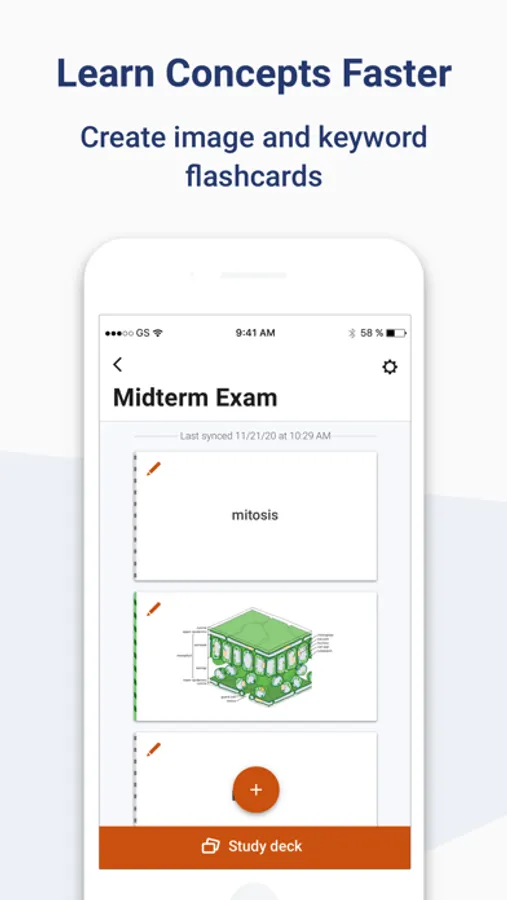
Will be 5Stars with these features: 1.limitless flashcard text-boxes since we are studying medicine there’s no such thing as short answers!! 2.ability to import images from the device to the flashcards. 3.annotations on the image in flashcards 4. More text options and customization in flashcards like colors ,size, fonts…. 5.A new section of highlights from books u have read in the window when u open the app where it displays highlights u made from different subjects or books with beautiful design. 6.more number of devices to sign in the same account not just 3 devices.