In this augmented reality measurement app, users can measure areas, lengths, and compare object sizes using virtual signs and overlays. Includes features for measuring floors, walls, distances, placing virtual furniture, and size comparison.
AppRecs review analysis
AppRecs rating 4.4. Trustworthiness 81 out of 100. Review manipulation risk 28 out of 100. Based on a review sample analyzed.
★★★★☆
4.4
AppRecs Rating
Ratings breakdown
5 star
78%
4 star
8%
3 star
3%
2 star
1%
1 star
10%
What to know
✓
Low review manipulation risk
28% review manipulation risk
✓
Credible reviews
81% trustworthiness score from analyzed reviews
✓
High user satisfaction
86% of sampled ratings are 4+ stars (4.4★ average)
About sqft AR
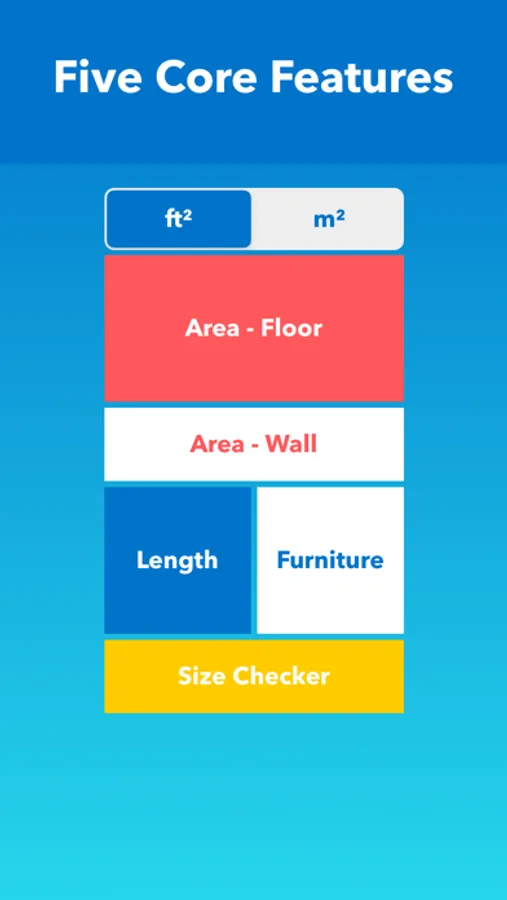
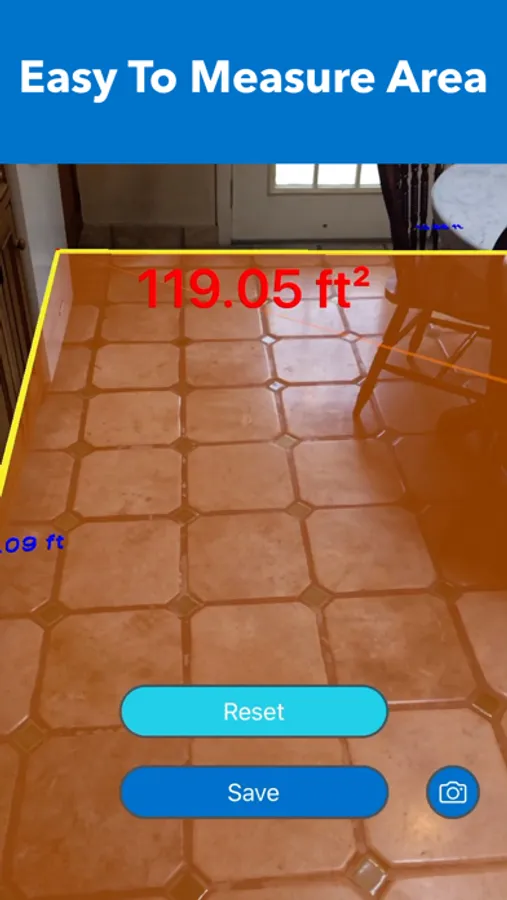
1. Area - Floor: To measure the horizontal area on a floor in ft² or m²
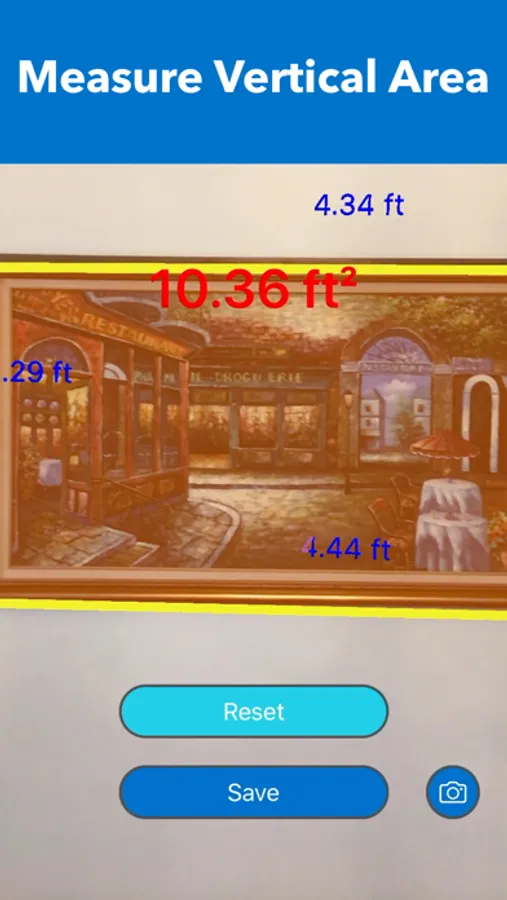
2. Area - Wall: To measure the vertical area on a wall in ft² or m²
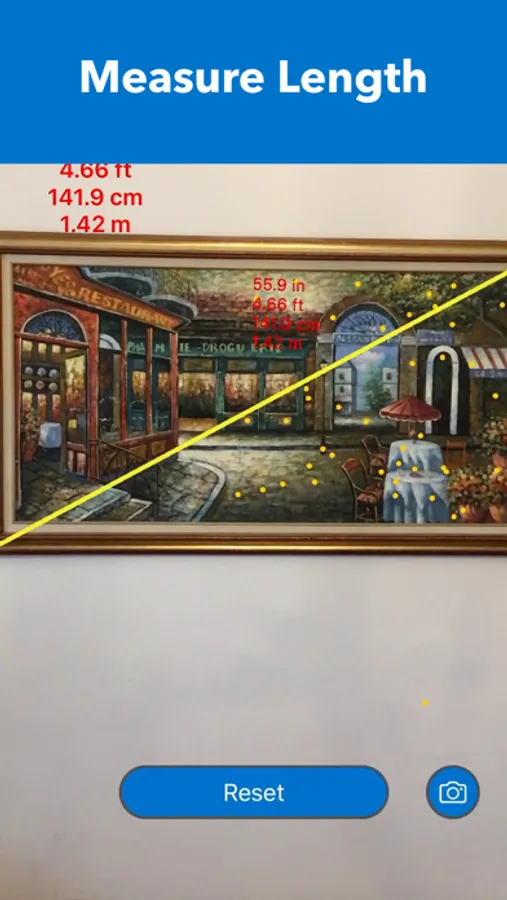
3. Length: To measure the length between two points
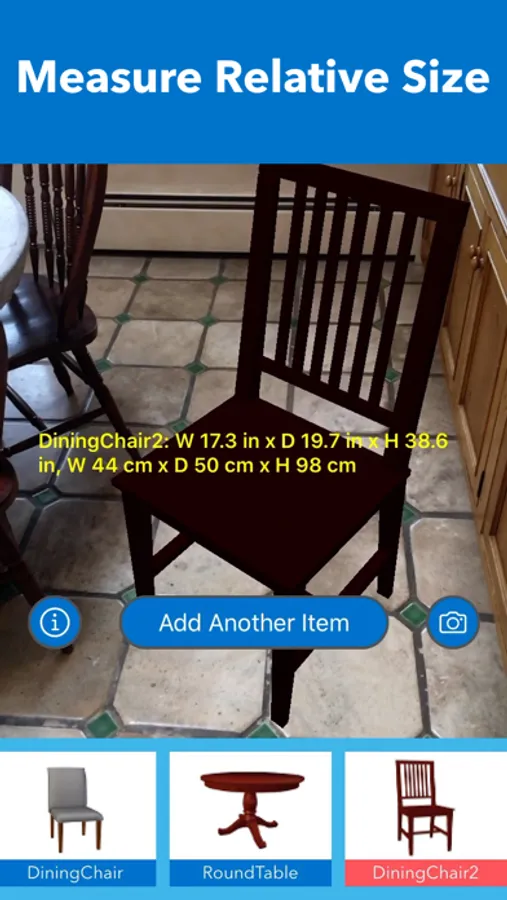
4. Furniture: To measure the relative size of the space by placing standard-sized virtual furniture
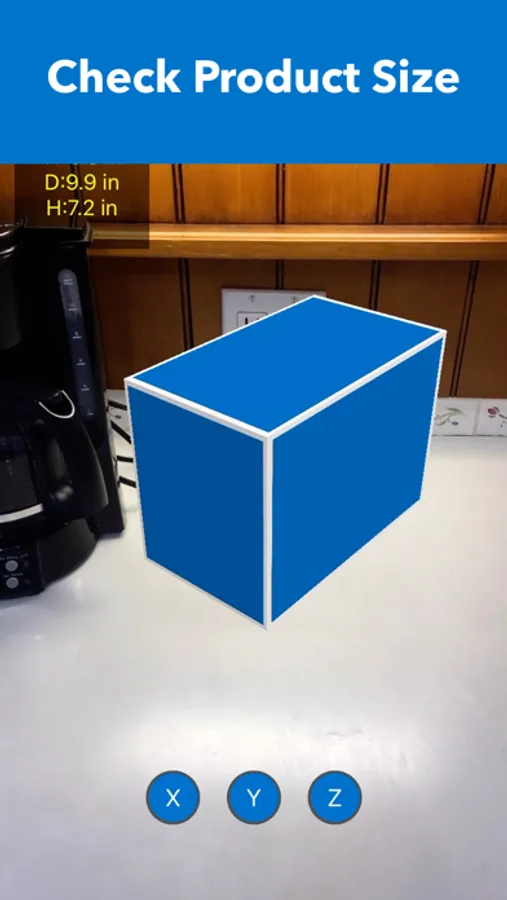
5. Size Checker: To check the relative size of a product in the real world by comparing it to other objects. To check whether the product's size fits the space.
HOW TO USE
1. Area - Floor or Wall
- Choose a unit between ft² or m²
- Tap "Area - Floor" or "Area - Wall" on the main menu
- Move the camera to scan the surrounding area
- Find a flat surface on the floor or on the wall until the blue square appears
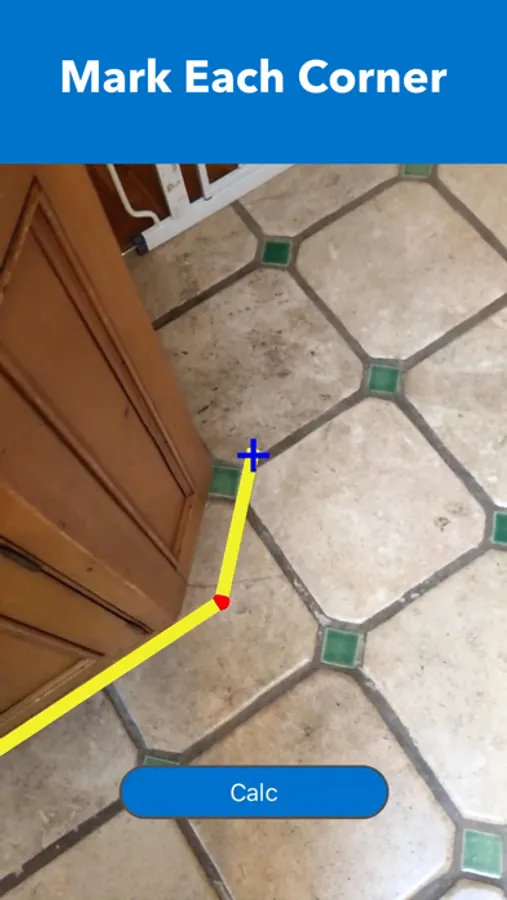
- Place the pointer ("+" on the center of the screen) to one of the corners of the floor or the wall
- Tap the screen to mark with a red sphere
- Move slowly clockwise ( or counterclockwise) to the next corner and repeat the action until all corners are marked by a red sphere ( Do not mark twice on the starting point)
- Tap the "Calc" button to calculate the area
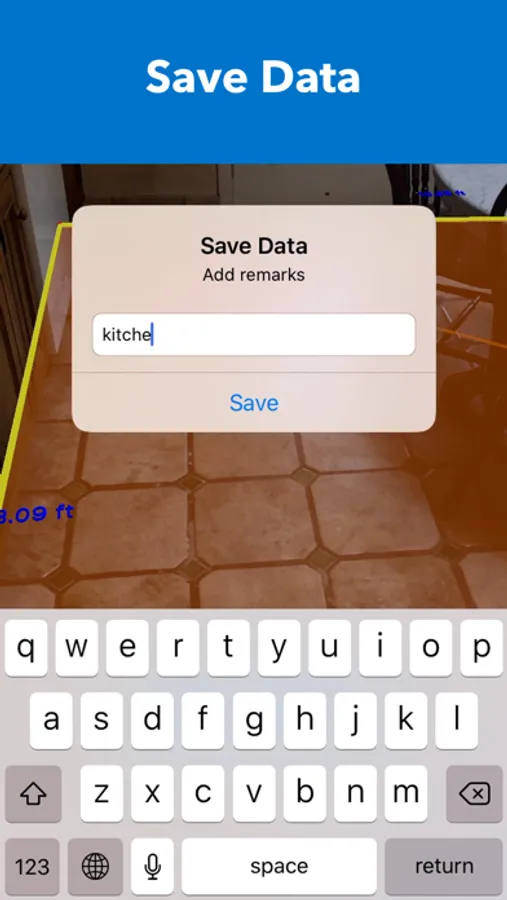
- To save data, tap the "Save" button, type remarks, and tap "Save."
- To take a photo, tap the "Camera" button
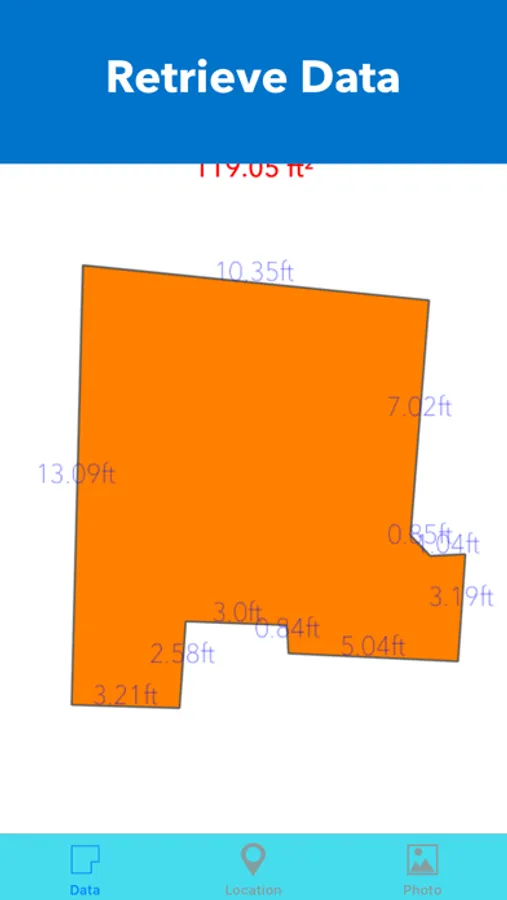
- To find saved data of Area, tap "File" mark on the top right corner of the main menu
- To see the location and photo (if it was taken) of saved data, tap the row on the list of saved data
- To delete saved data, tap "File" mark on the main menu and slide your finger from right to left on the row in the list of saved data
- In some cases, the AR shaded orange area may be displayed outside of the outlines or overlapped; this does not affect the calculation of the area
2. Length
- Tap "Length" on the main menu
- Move the camera to scan the surrounding area
- Wait until a lot of yellow dots display on the surface of the target object.
- Place the pointer ( "+" on the center of the screen) to the starting point of measuring object
- Tap the screen to mark with a red sphere
- Move slowly to the other end of the measuring object and place the pointer
- Tap the screen to display the length
- To measure another object, tap the "Reset" button and repeat the same procedure
- To take a photo, tap the "Camera" button
3. Furniture
- The virtual furniture is standard or typical size to help measure the relative size of the space
- Tap "Furniture" on the main menu
- Move the camera to scan the surrounding area
- Find a flat surface on the floor until the blue square appears
- Choose one of the furniture items on the list of furniture and tap it
- Tap the screen to place the furniture
- To rotate the furniture, touch the screen on the furniture and slide your finger
- To move the furniture, long-press the screen on the furniture and slide your finger
- To place more furniture, tap the "Add Another Item" button and repeat the procedure
- To hide the size of furniture, tap the "Info" button
- To display the size of furniture, tap the "Info" button again
- To take a photo, tap the "Camera" button
4. Size Checker
- This feature is to check the relative size of the product in the real world by comparing it to other objects
- To check whether the size of the product fits the space or not
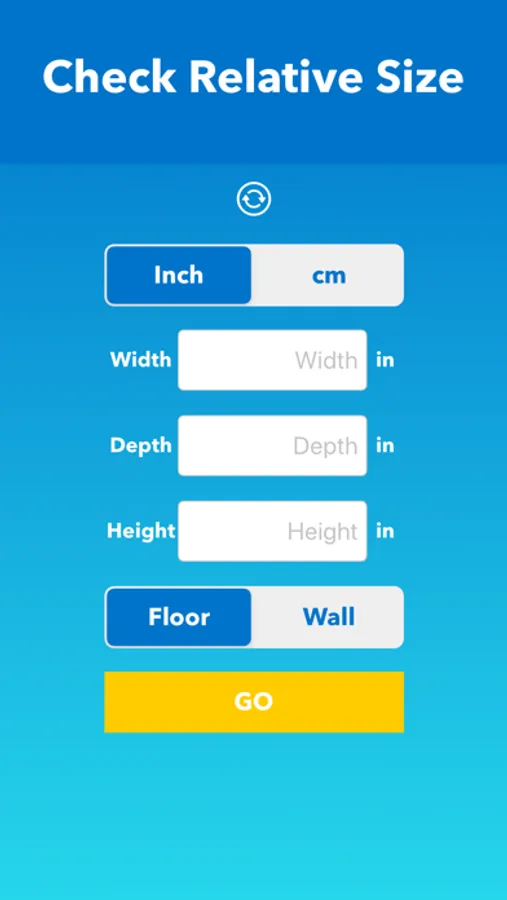
- Select measure unit
- Type Width, Depth, and Height into each field
- Select the surface to place the AR box and tap GO
- Move the camera to scan the surrounding area
- Find a flat surface to place the AR box until the blue square appears
- Tap the screen where you want to place the AR box.
sqft AR Screenshots
Tap to Rate:
Reviews for sqft AR
D2-4more
Will not stay on same function
Trying to find sq ft of yard and half way through the app wants to start measuring like it is a wall. Can’t get as accurate as I think it should.
Cummingsinatlanta
Absolutely Recommend 👌🏻
I’m a landscaper and I use this app regularly. It’s actually free and is very user friendly. I find it to be reliable once you have used it 2-3x measuring different things so if you need an app like this you have found the best option. 10/10