
With this assignment submission app, you can upload files or scan pages directly from your device. Includes course management, assignment tracking, and resubmission options.
AppRecs review analysis
AppRecs rating 1.4. Trustworthiness 73 out of 100. Review manipulation risk 26 out of 100. Based on a review sample analyzed.
★☆☆☆☆
1.4
AppRecs Rating
Ratings breakdown
5 star
6%
4 star
1%
3 star
4%
2 star
8%
1 star
80%
What to know
✓
Low review manipulation risk
26% review manipulation risk
⚠
Mixed user feedback
Average 1.4★ rating suggests room for improvement
⚠
High negative review ratio
89% of sampled ratings are 1–2 stars
About Gradescope
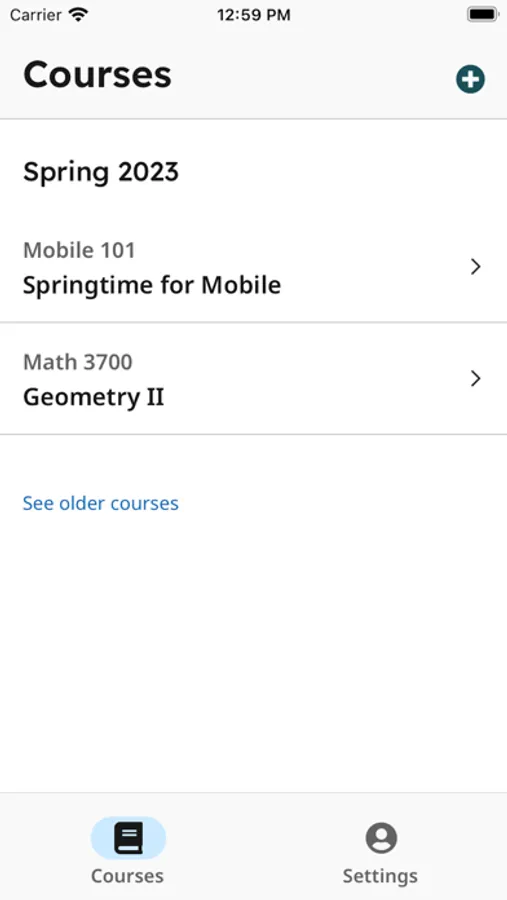
Students, upload your assignments to Gradescope more easily than ever before! If your instructor uses Gradescope for your assignments, you can now upload your submission with our mobile app.
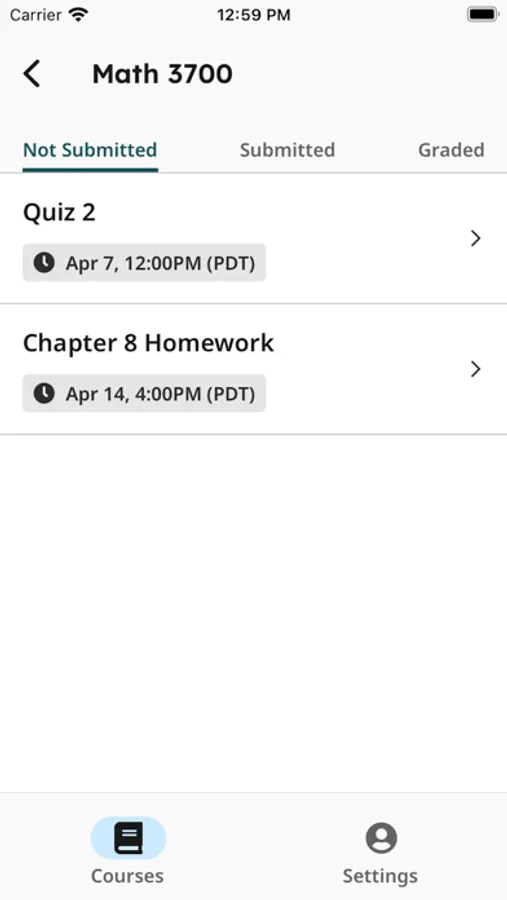
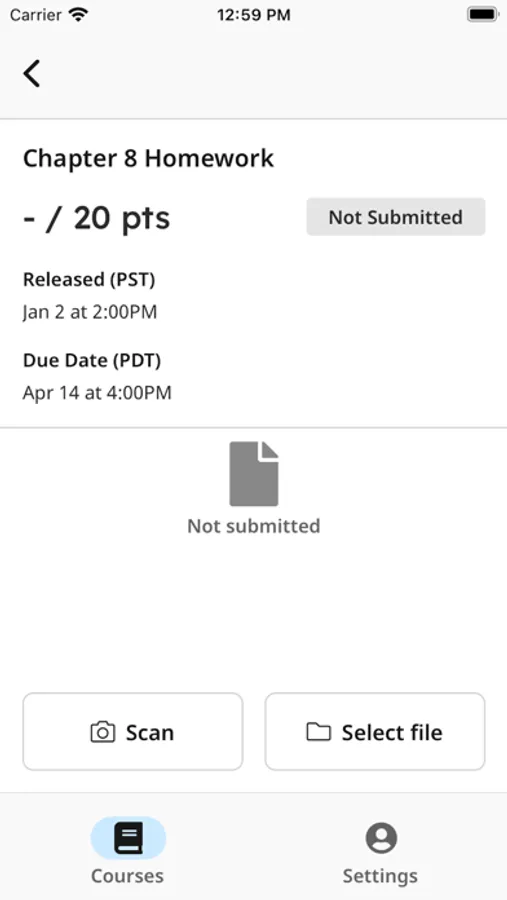
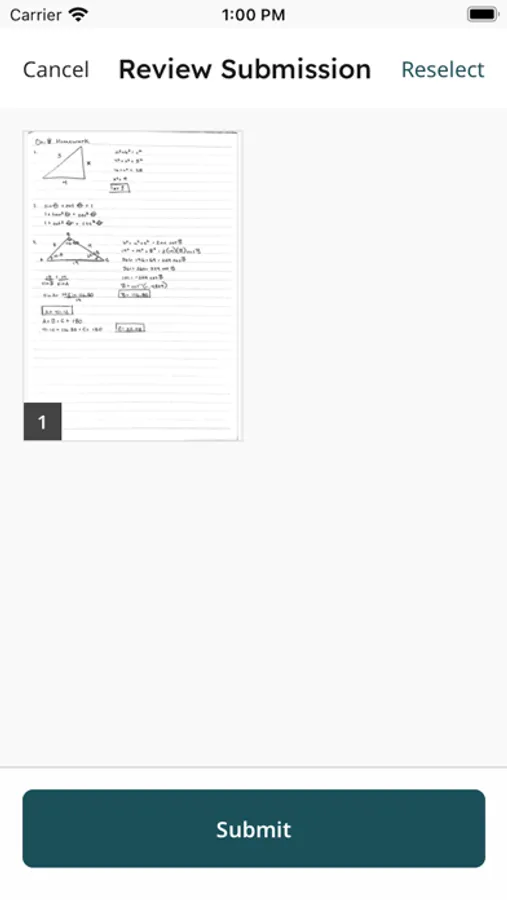
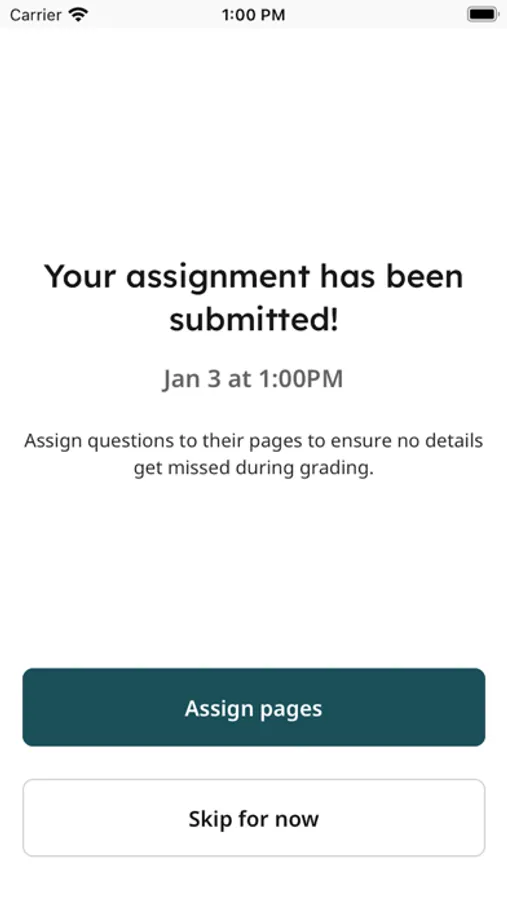
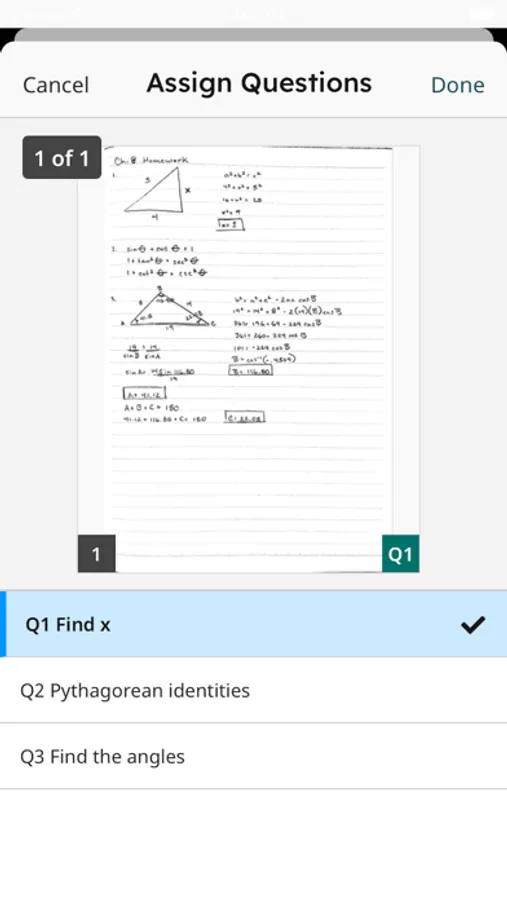
After installing and opening the app, login to see your Gradescope courses and assignments. To upload a submission, click on the assignment in the “Not Submitted” tab and either “Select File” to select an existing file from your device or “Scan” all pages of your completed work using your iPhone’s camera. Once you submit your file(s), for templated assignments, you’re all set. For variable-length assignments, “Assign pages” to indicate where your answer for each question appears within your submission. It’s that easy! After confirming, your assignment then moves to the “Submitted” tab. If needed, you can resubmit your assignment until the due date your instructor set has passed. Once it is graded and grades are published for the assignment, it then moves to the “Graded” tab.
Note: For V1 of the app, you will be directed to our mobile website for any advanced functionality, including viewing feedback and submitting timed, programming, or online assignments. Stay tuned for future updates that will allow you to do even more with our mobile app!
After installing and opening the app, login to see your Gradescope courses and assignments. To upload a submission, click on the assignment in the “Not Submitted” tab and either “Select File” to select an existing file from your device or “Scan” all pages of your completed work using your iPhone’s camera. Once you submit your file(s), for templated assignments, you’re all set. For variable-length assignments, “Assign pages” to indicate where your answer for each question appears within your submission. It’s that easy! After confirming, your assignment then moves to the “Submitted” tab. If needed, you can resubmit your assignment until the due date your instructor set has passed. Once it is graded and grades are published for the assignment, it then moves to the “Graded” tab.
Note: For V1 of the app, you will be directed to our mobile website for any advanced functionality, including viewing feedback and submitting timed, programming, or online assignments. Stay tuned for future updates that will allow you to do even more with our mobile app!
Gradescope Screenshots
Tap to Rate:
Reviews for Gradescope
GSH100
Gradescope
Over all the platform is not very intuitive and all most of the time when I’m clicking on something it doesn’t work
Uncle Ted K.
Missing all useful function
0 actual functionality. I downloaded to view submissions and feedback on asignments, cant view submitted pdfs or any grade feedback.