AppRecs review analysis
AppRecs rating 4.4. Trustworthiness 68 out of 100. Review manipulation risk 23 out of 100. Based on a review sample analyzed.
★★★★☆
4.4
AppRecs Rating
Ratings breakdown
5 star
60%
4 star
20%
3 star
20%
2 star
0%
1 star
0%
What to know
✓
Low review manipulation risk
23% review manipulation risk
✓
High user satisfaction
80% of sampled ratings are 4+ stars (4.4★ average)
About Draw Stickers for iMessage
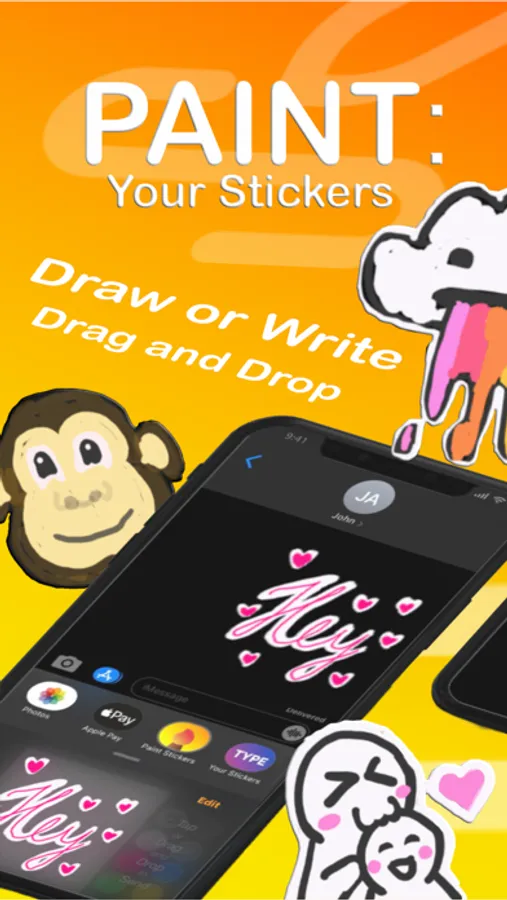
Ever wanted to draw a quick sketch and put it as a stamp?
Tired of the pre-generated sticker packs with lame images in it?
Wanted to use your own creativity to make something unique?
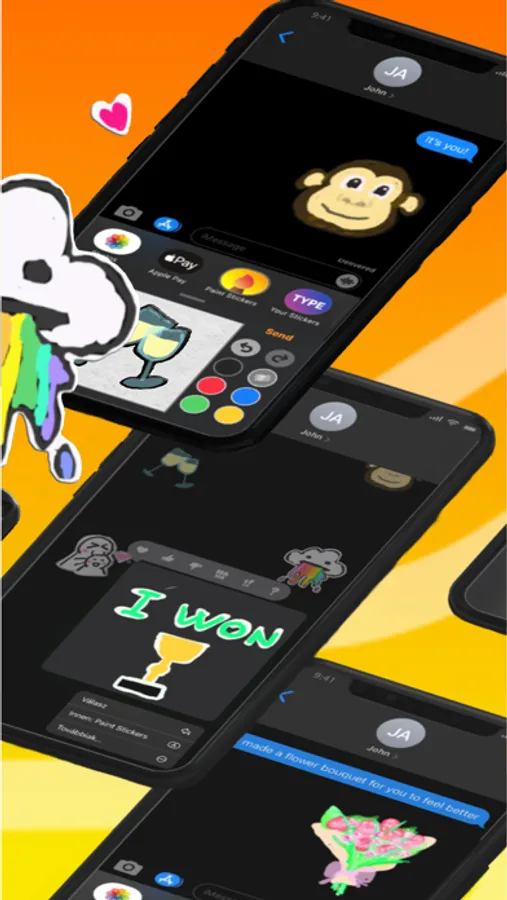
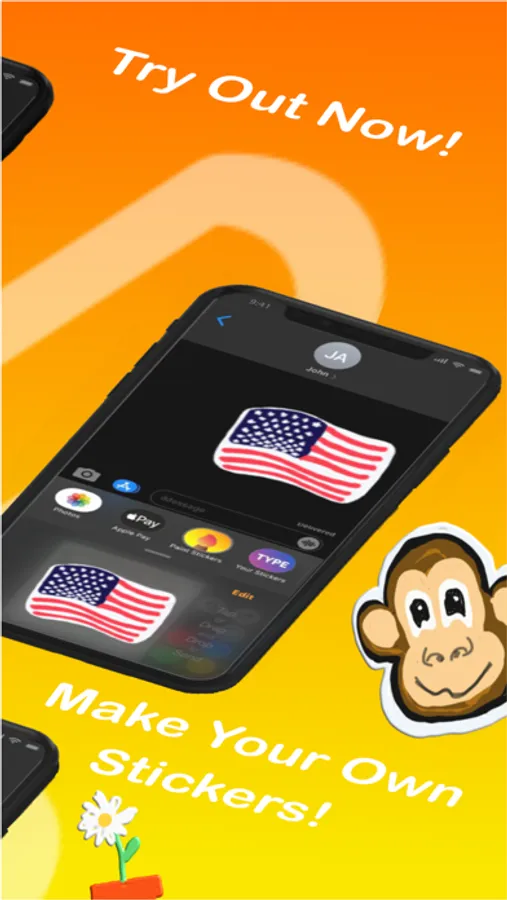
Now it's your time, make custom drawing based stickers on the go.
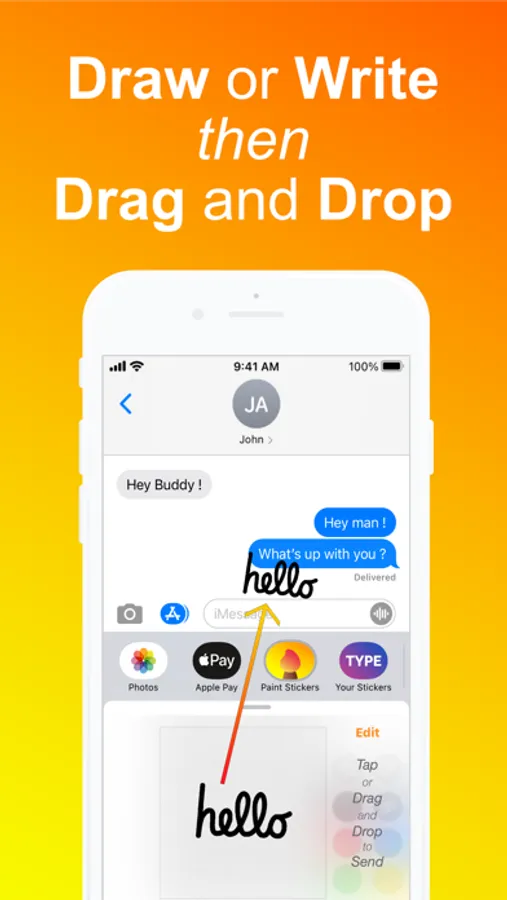
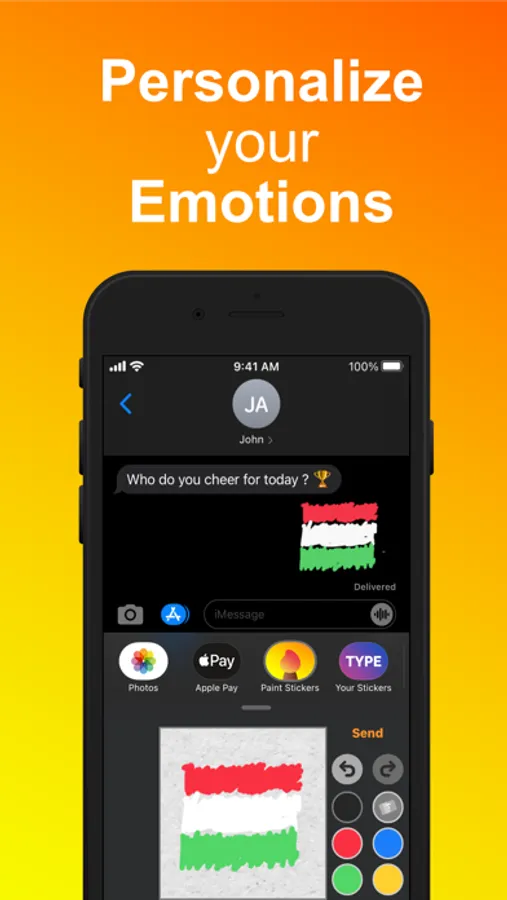
Just PAINT or DRAW what you want and place it where you want.
It's your choice now.
How to add a sticker to a conversation:
1. Open Messages and tap the Compose button to start writing a new message. Or go to an existing conversation.
2. Swipe left or right over the app drawer to find the one that you want to use.
3. Then tap the app to open it.
If you want to add a sticker, touch and hold the sticker and then drag it to the message bubble. The sticker will automatically be sent after you've added it to the message. You can also pinch or zoom to resize stickers before sending.
Tired of the pre-generated sticker packs with lame images in it?
Wanted to use your own creativity to make something unique?
Now it's your time, make custom drawing based stickers on the go.
Just PAINT or DRAW what you want and place it where you want.
It's your choice now.
How to add a sticker to a conversation:
1. Open Messages and tap the Compose button to start writing a new message. Or go to an existing conversation.
2. Swipe left or right over the app drawer to find the one that you want to use.
3. Then tap the app to open it.
If you want to add a sticker, touch and hold the sticker and then drag it to the message bubble. The sticker will automatically be sent after you've added it to the message. You can also pinch or zoom to resize stickers before sending.
Draw Stickers for iMessage Screenshots
Tap to Rate:
Reviews for Draw Stickers for iMessage
𝘓𝘦𝘮𝘮𝘺 𝘒𝘰𝘰𝘱𝘢 :3
Size
I want to change the size of the brush beacuse it is too small
Fleshman
🖊🖌🖍
You can paint a sticker and send it or put it on text. Nice. 👩🏼🎨🧑🏼🎨👨🏼🎨