VIP Access for iPhone
Symantec Enterprise Division, Broadcom Inc.
2.5 ★
105 ratings
Free
In this app, you can generate security codes and receive push notifications for account authentication. Includes QR code scanning and biometric verification features.
AppRecs review analysis
AppRecs rating 2.4. Trustworthiness 75 out of 100. Review manipulation risk 23 out of 100. Based on a review sample analyzed.
★★☆☆☆
2.4
AppRecs Rating
Ratings breakdown
5 star
29%
4 star
9%
3 star
4%
2 star
7%
1 star
52%
What to know
✓
Low review manipulation risk
23% review manipulation risk
⚠
Mixed user feedback
Average 2.5★ rating suggests room for improvement
⚠
High negative review ratio
59% of sampled ratings are 1–2 stars
About VIP Access for iPhone
Symantec VIP Access helps protect your online accounts and transactions by using a strong authentication process when you sign in to your VIP-enabled accounts.
• Strong authentication: Provides strong, two-factor authentication when logging into your VIP-enabled accounts.
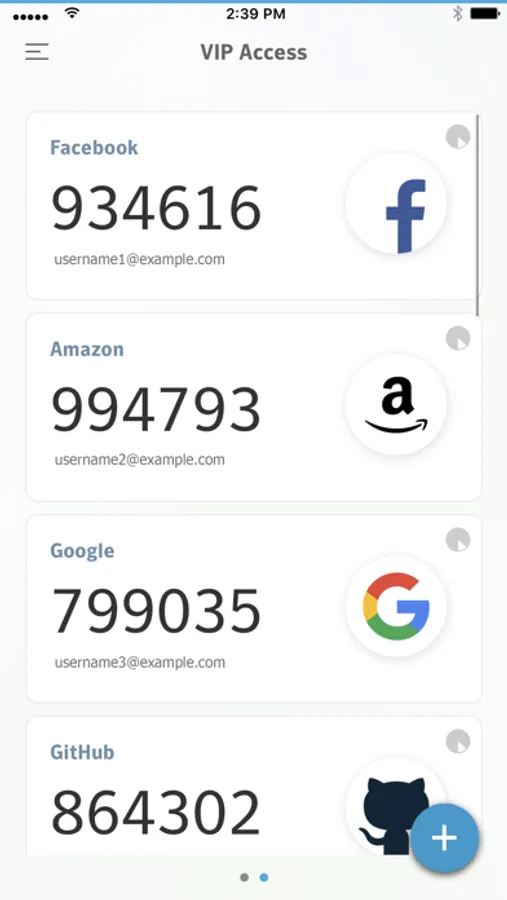
• QR/App Code: Scan a QR Code to generate site-specific security codes for strong two-factor authentication to your favorite websites or to migrate credentials to a new device.
Use VIP Access at participating organizations such as E*TRADE, Facebook, Google, or any one of the hundreds of sites within the VIP Network:
https://vip.symantec.com
Features
Strong Authentication
VIP Access adds strong authentication to your normal login in one of the following ways:
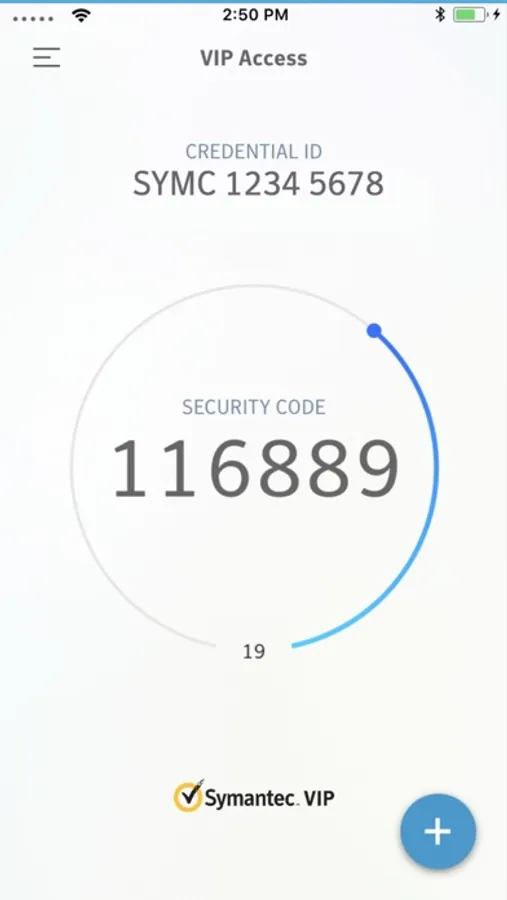
• Dynamically generate a one-time use security code on your mobile device. Use that code along with your username and password.
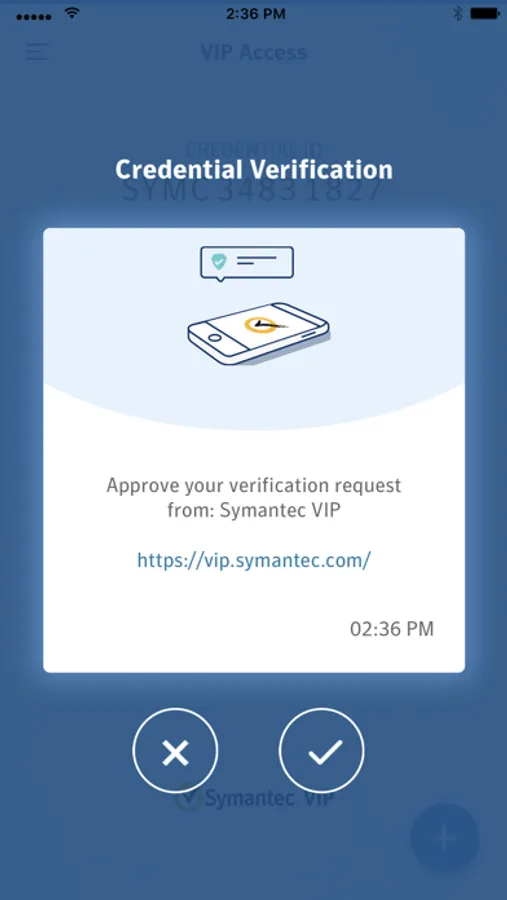
• Receive a push notification on your mobile device that you approve as authentication. If your organization requires you to define an additional device authentication mechanism to meet the security requirements, you are prompted for the additional local authentication such as passphrases or biometrics.
• Enter a challenge number on your mobile device that you receive during authentication. The challenge number proves that you are physically present during authentication.
• Use Touch ID, Face ID, or Passcode in a push notification to authenticate yourself on your mobile device.
Note: Touch ID or Face ID authentication requires that your mobile device is Touch ID or Face ID capable and that you have registered a fingerprint or facial recognition authentication on the device.
The strong authentication method you use depends on the method implemented by your participating organization.
You can generate a security code even if you do not have a network or mobile connection.
QR/App Codes
• Scan a QR Code at participating organizations such as Google, Facebook, Amazon, and more to generate a security code every 30 seconds to securely sign in. Enter this security code along with your password to add strong authentication to your favorite websites.
• Generate a QR code to migrate a VIP Access credential to a new mobile device.
Be sure to read the VIP End User Agreement after downloading VIP Access: https://docs.broadcom.com/doc/end-user-agreement-english
• Strong authentication: Provides strong, two-factor authentication when logging into your VIP-enabled accounts.
• QR/App Code: Scan a QR Code to generate site-specific security codes for strong two-factor authentication to your favorite websites or to migrate credentials to a new device.
Use VIP Access at participating organizations such as E*TRADE, Facebook, Google, or any one of the hundreds of sites within the VIP Network:
https://vip.symantec.com
Features
Strong Authentication
VIP Access adds strong authentication to your normal login in one of the following ways:
• Dynamically generate a one-time use security code on your mobile device. Use that code along with your username and password.
• Receive a push notification on your mobile device that you approve as authentication. If your organization requires you to define an additional device authentication mechanism to meet the security requirements, you are prompted for the additional local authentication such as passphrases or biometrics.
• Enter a challenge number on your mobile device that you receive during authentication. The challenge number proves that you are physically present during authentication.
• Use Touch ID, Face ID, or Passcode in a push notification to authenticate yourself on your mobile device.
Note: Touch ID or Face ID authentication requires that your mobile device is Touch ID or Face ID capable and that you have registered a fingerprint or facial recognition authentication on the device.
The strong authentication method you use depends on the method implemented by your participating organization.
You can generate a security code even if you do not have a network or mobile connection.
QR/App Codes
• Scan a QR Code at participating organizations such as Google, Facebook, Amazon, and more to generate a security code every 30 seconds to securely sign in. Enter this security code along with your password to add strong authentication to your favorite websites.
• Generate a QR code to migrate a VIP Access credential to a new mobile device.
Be sure to read the VIP End User Agreement after downloading VIP Access: https://docs.broadcom.com/doc/end-user-agreement-english
VIP Access for iPhone Screenshots
Tap to Rate:
Reviews for VIP Access for iPhone
Aifonu'
Junk
Really bad UX, who came with the idea of having entering a number? The Apple Watch app is useless, since it asks you to open the iPhone app. Why even have one???
Fan astern
Needs Dark mode
Needs Dark mode