AppRecs review analysis
AppRecs rating 4.4. Trustworthiness 65 out of 100. Review manipulation risk 32 out of 100. Based on a review sample analyzed.
★★★★☆
4.4
AppRecs Rating
Ratings breakdown
5 star
75%
4 star
13%
3 star
0%
2 star
0%
1 star
13%
What to know
✓
High user satisfaction
88% of sampled ratings are 4+ stars (4.4★ average)
About Tarana Install
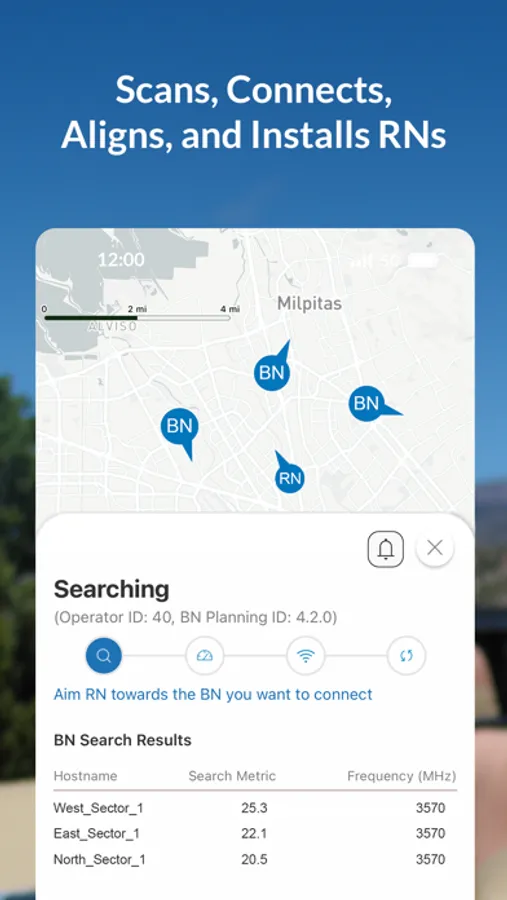
Scans, connects, aligns, and installs RNs
Comprehensive process handled efficiently through a single app
Reduces install times
Increases the number of RN installs possible per day
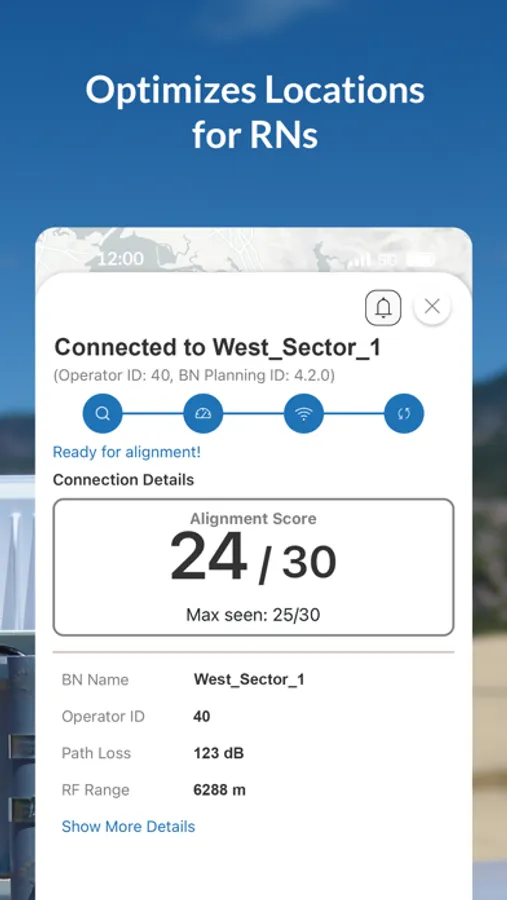
Optimizes location
Finds the ideal location to install RNs with minimal cabling
Reduces errors
Minimizes installation errors with guided processes and automation
Integrates with Tarana Cloud Suite (TCS)
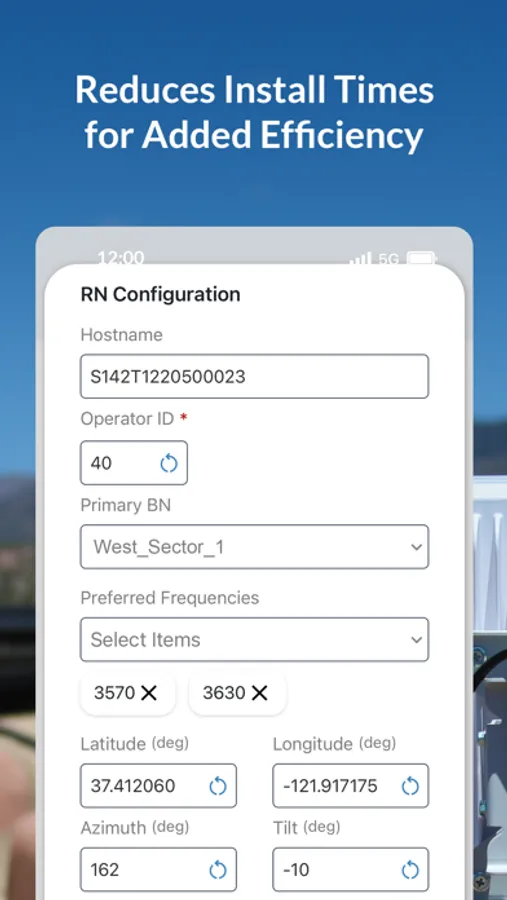
Fetches CPI IDs directly, and sends newly deployed parameters to TCS
Smart device integration
Populates latitude, longitude, azimuth, and tilt from device sensors
Suggests the most ideal primary BN
Eliminates warehouse pre-configuration and software upgrades
Allows downloading of offline maps for BNs
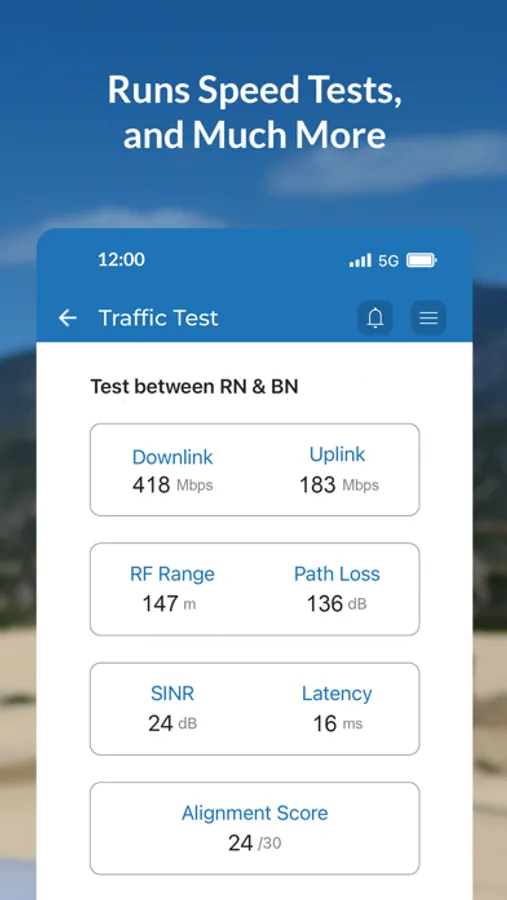
Shows metrics, such as alignment score, path loss, carrier details, etc.
Runs speed tests
Provides MFA (multi-factor authentication) for enhanced security
Tarana Install Screenshots
Tap to Rate:
Reviews for Tarana Install
Gefoce10
Love the new UI, but has a bug!!
On previous APP, when you selected the Preferred BN, it would not automatically select the frequencies the BN was using, so you had to select them manually (To save LOTS of time) but there was No Save button!!! U had to fumble your way to the cancel button on the upper right. Now this version not only saves, but you don’t even need to do this in the first place! Once u select the preferred BN, it selects the frequencies used automatically! However here is the BUG. Once you connect the RN to a laptop, update the firmware, reboot and choose the “Operator ID”. It will NOT save this!! Tried using the APP after this many, MANY TIMES and even if you put in the operator ID in the APP and “Save”, it absolutely will not!! The work around is this: put in the operator ID using a laptop. Then choose “Configure”, then simply choose “Search for BN’s”. Now you can use the APP, and it will actually save the Operator ID and search, then find your closest BN. Please fix this Tarana!! Fourway.Net Field Tech Supervisor