AppRecs review analysis
AppRecs rating . Trustworthiness 85 out of 100. Review manipulation risk 18 out of 100. Based on a review sample analyzed.
★
AppRecs Rating
Ratings breakdown
5 star
57%
4 star
0%
3 star
0%
2 star
0%
1 star
43%
What to know
✓
Low review manipulation risk
18% review manipulation risk
✓
Credible reviews
85% trustworthiness score from analyzed reviews
About 2wayshare
2wayshare helps you to share files between your phone and PC quick and easily. You will get very fast file-sharing experience between your phone and PC without internet connection via WiFi network.
Features
- Lightweight app.
- Simple and easy to use
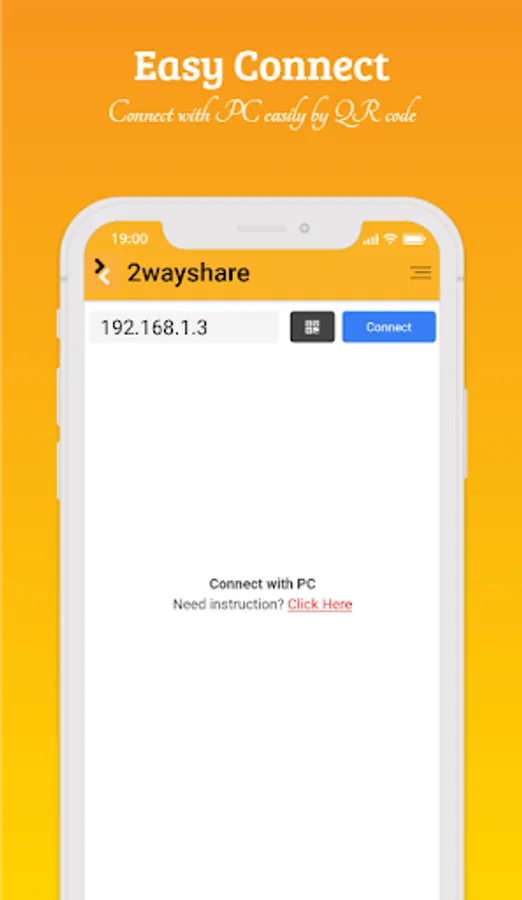
- Connect with PC via QR code scan
- Send files from phone to PC.
- Send files from PC to phone.
- Speed file-sharing experience.
- and more features
Phone to PC file transfer
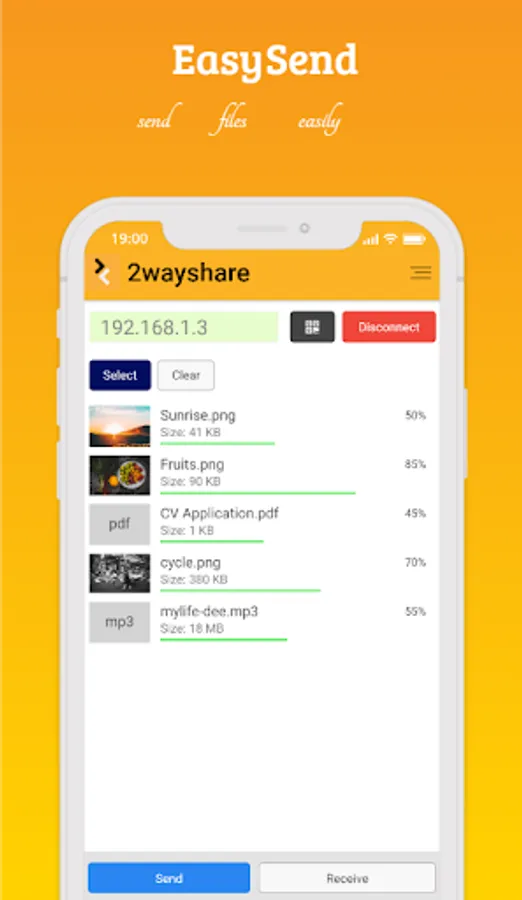
It's very easy to share single or multiple files from your phone to the PC. First, connect the phone with PC server app. Now press on the select file button and select those file which you want to send to your PC and it will send those file to your PC instantly!
PC to phone file transfer
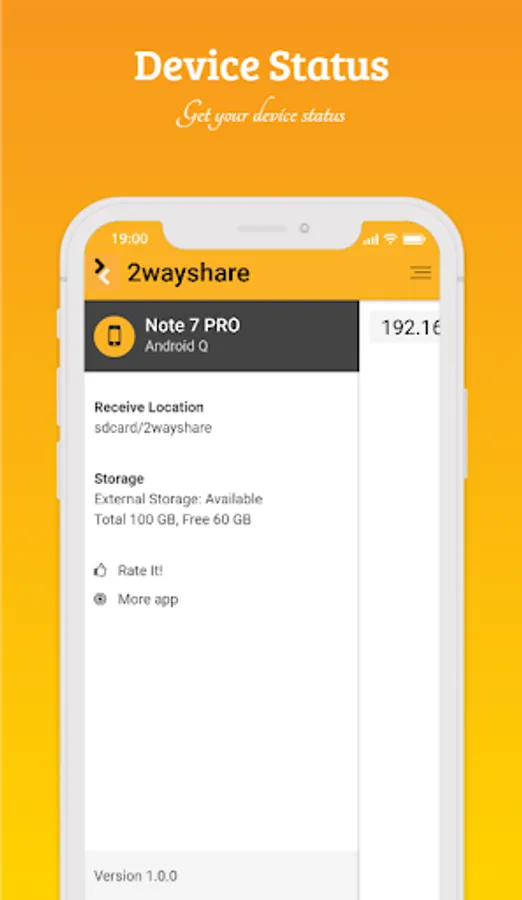
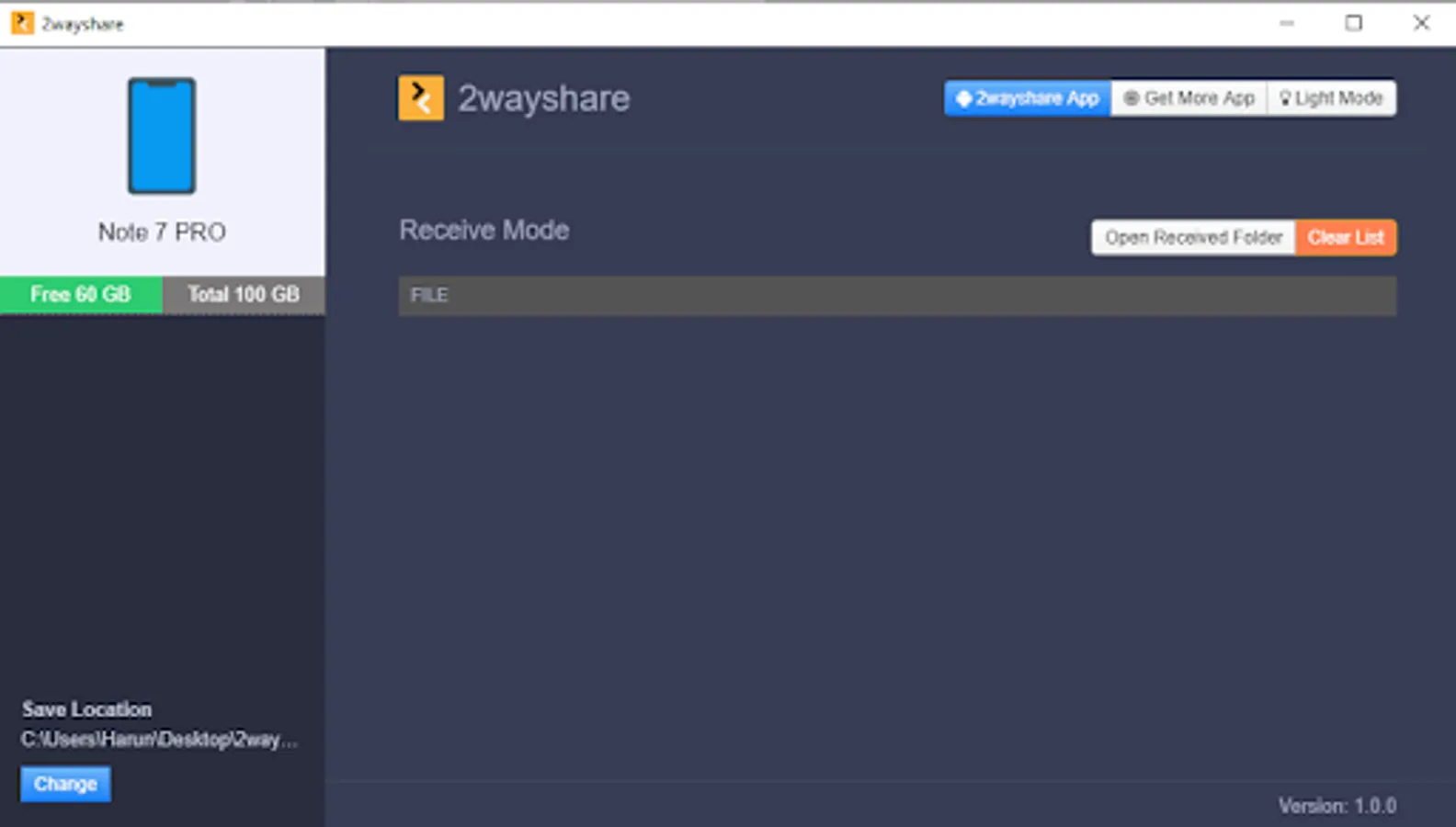
After connect with PC server app. Press receive button from the app. Now your phone will be in receive mode and you can send files from your PC server app. You need external storage for receive file. All received file from PC into your phone will store in SDcard/2waysare folder.
How to connect server
- Download 2wayshare.exe file from https://github.com/haruncpi/2wayshare
- Install 2wayshare.exe
- Now scan the QR code via 2wayshare android app and connect.
- Done!
Important Note:
Your phone and PC must be connected with the same WiFi network.
Features
- Lightweight app.
- Simple and easy to use
- Connect with PC via QR code scan
- Send files from phone to PC.
- Send files from PC to phone.
- Speed file-sharing experience.
- and more features
Phone to PC file transfer
It's very easy to share single or multiple files from your phone to the PC. First, connect the phone with PC server app. Now press on the select file button and select those file which you want to send to your PC and it will send those file to your PC instantly!
PC to phone file transfer
After connect with PC server app. Press receive button from the app. Now your phone will be in receive mode and you can send files from your PC server app. You need external storage for receive file. All received file from PC into your phone will store in SDcard/2waysare folder.
How to connect server
- Download 2wayshare.exe file from https://github.com/haruncpi/2wayshare
- Install 2wayshare.exe
- Now scan the QR code via 2wayshare android app and connect.
- Done!
Important Note:
Your phone and PC must be connected with the same WiFi network.
2wayshare Screenshots
Tap to Rate:
Reviews for 2wayshare
Md Abdur Rahman
10/8/2023
Sd card permission needed problem not work properly
Abu Umar (abuumar)
3/31/2021
Did not connected with pc