In this simple notes app, you can create, edit, and organize notes with features like search and color options. Includes auto-save, dark mode, lock screen and home screen widgets, and note reordering.
AppRecs review analysis
AppRecs rating 4.5. Trustworthiness 69 out of 100. Review manipulation risk 26 out of 100. Based on a review sample analyzed.
★★★★☆
4.5
AppRecs Rating
Ratings breakdown
5 star
88%
4 star
7%
3 star
2%
2 star
1%
1 star
2%
What to know
✓
Low review manipulation risk
26% review manipulation risk
✓
High user satisfaction
88% of sampled ratings are 5 stars
About Notepad - Simple Notes & Memo
■ Features
- Search
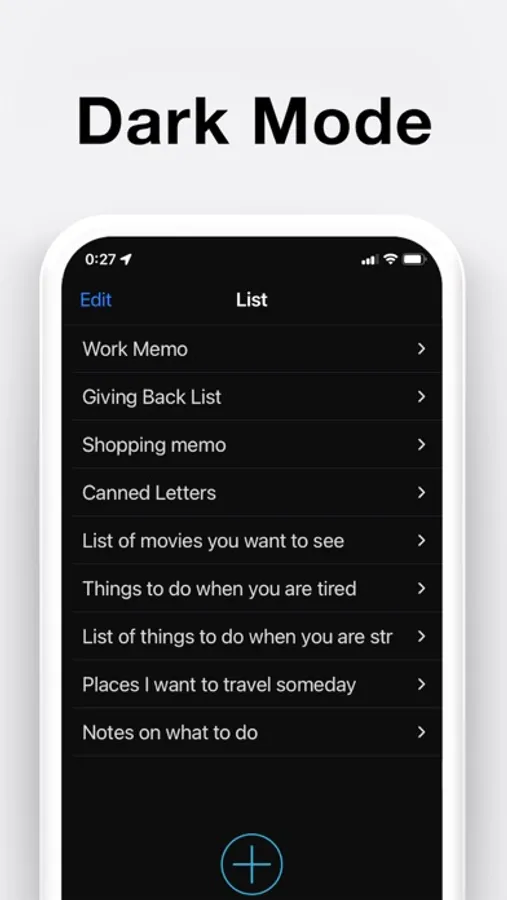
- Dark mode
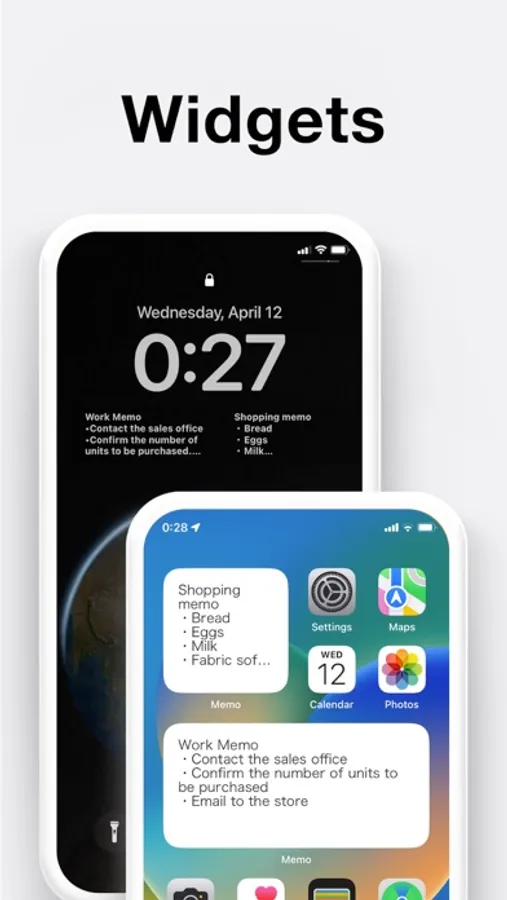
- Lock screen widget with 4 font sizes
- Home screen widget with 3 different sizes
- Automatic note saving with the auto-save feature
- Word count
- Choose from 6 different colors to brighten up your notes (swipe right on the note)
- Reorder your notes (press and hold the note to move it)
■ Usage
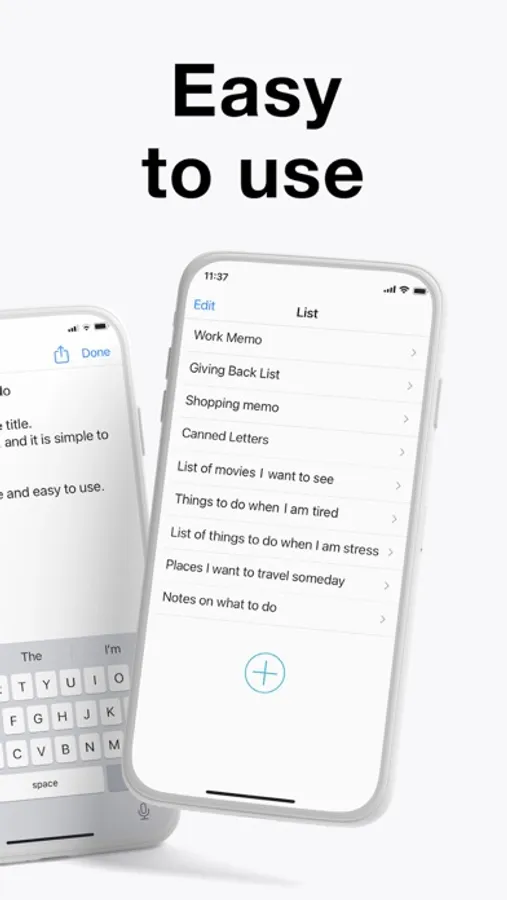
- Easily enter your thoughts in the notepad
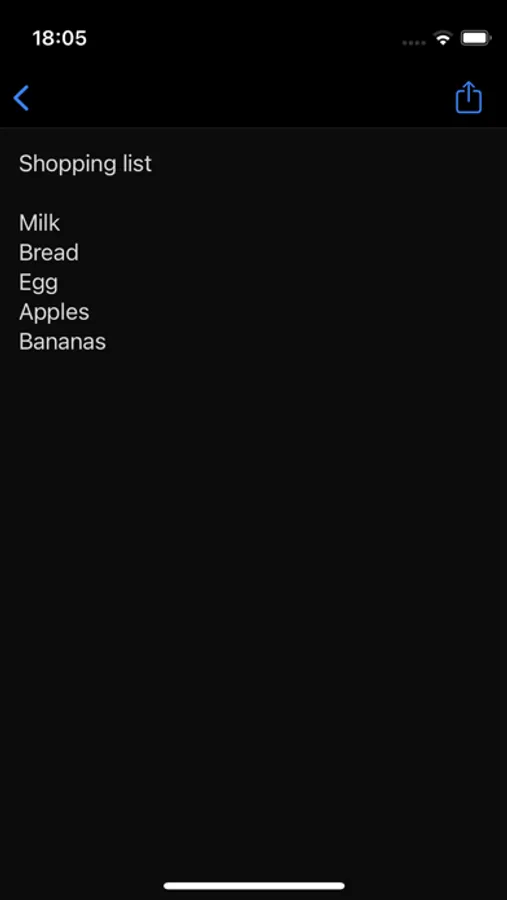
- Make a shopping list
- Make a To Do list
- Temporarily save copy/paste items here
- Draft reports, minutes, collections, and stories
■ FAQ
** How do I delete notes?
Swipe left on the note to bring up the [Delete] button.
Or tap the [Edit] button, then tap the red symbol to bring up the [Delete] button.
** How do I sort notes?
Tap and hold the note you want to move, and then drag it up or down.
Or tap the [Edit] button, then pinch the tab on the right of the note to move it.
** How do I add a note to my Lock Screen? (How do I set up a Lock Screen widget?)
Please update your device to iOS 16 or later.
Once you have updated, touch and hold the center of the Lock Screen until the [Customize] button appears at the bottom of the screen, then tap [Customize].
Select [Lock Screen], tap [Add Widgets], select this app, and then select the widget you want to use.
If the name of this app is not displayed, restart your device to display it.
** How do I add a note to my Home Screen? (How do I set up a widget?)
Tap and hold an empty area on your Home Screen, then tap the [+] button in the top-left corner.
Select the [Notepad] widget in this app, select from three widget sizes, and then tap the [Add] button.
You can add as many widgets as you like!
To select a note to be displayed in the widget, tap and hold the widget on the Home Screen, then select the note you want to display from [Edit Widget] - [Notes].
** How do I change the color of my notes?
Change the color of your notes by swiping right.
** How do I display notes in the widget?
Swipe right on your iPhone's Home Screen to display the widget screen.
Press the [Edit] button at the bottom of the widget screen, then press the [+] symbol to allow the Notepad app to be displayed in the widget.
** What about data security?
This app never collects or sends any text entered by the user to servers or any external sources outside the app.
The only communication this app performs is related to advertising information.
This app has been operating for over 10 years through advertising revenue and in-app purchases.
All data entered by users is stored only within the app, so you can use it with confidence.
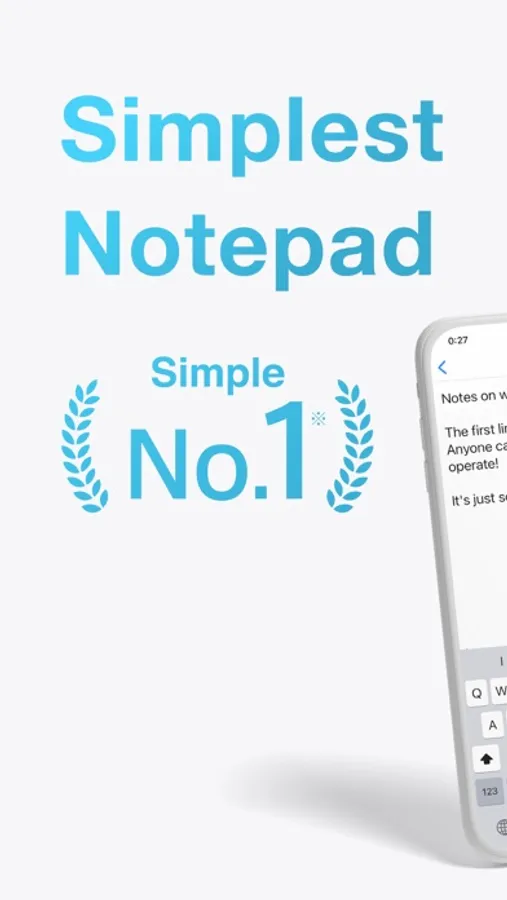
Notepad - Simple Notes & Memo Screenshots
Tap to Rate:
Reviews for Notepad - Simple Notes & Memo
Font Colors
Please allow us to remove ads
I really love the simplicity of this app. However it would be nice to be able to have the option to remove ads if we wanted to. Personally I would pay a fee to have the ads removed, but there is no option for that. Also there is no print option. If I want to print I have to highlight the text and copy the text then paste the text to Apple Notes and then I can print. Might as well just use Apple Notes.
ZaraRosetta
It’s good
I really love this widget feature, it’s amazing for making sure I see my to do list whenever I open my phone. I just wish there was more customization options, like color changing, highlighting, bold, font etc.