With this photo extension, you can overlay artistic composition rules on your photos and receive guidance on applying them. Includes explanations of rules, advice on storytelling, and options to save edited images.
AppRecs review analysis
AppRecs rating 3.5. Trustworthiness 77 out of 100. Review manipulation risk 22 out of 100. Based on a review sample analyzed.
★★★☆☆
3.5
AppRecs Rating
Ratings breakdown
5 star
54%
4 star
8%
3 star
0%
2 star
8%
1 star
31%
What to know
✓
Low review manipulation risk
22% review manipulation risk
✓
Credible reviews
77% trustworthiness score from analyzed reviews
About Photo Extension Composition
** ESSENTIAL PHOTO UTILITY **
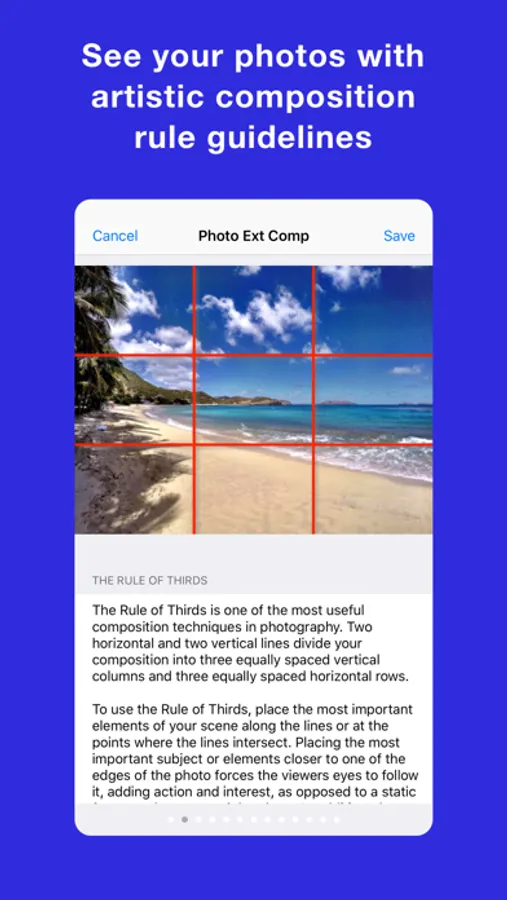
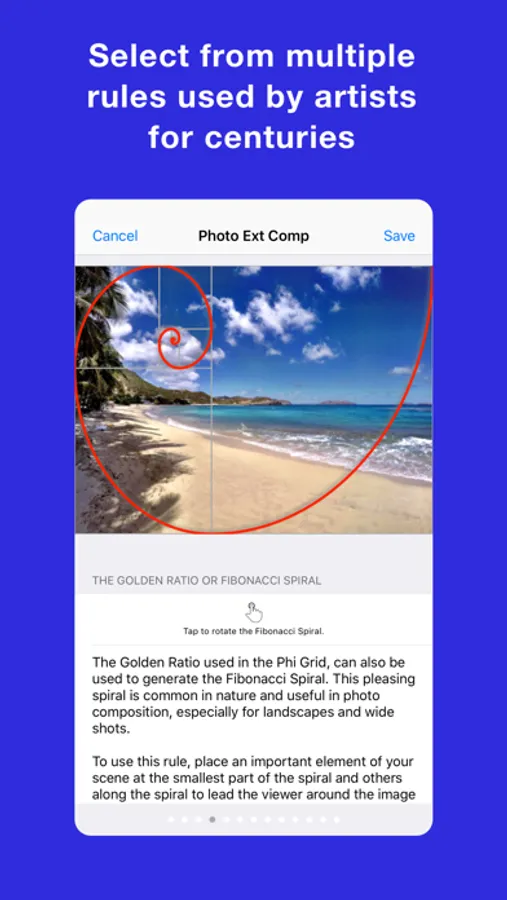
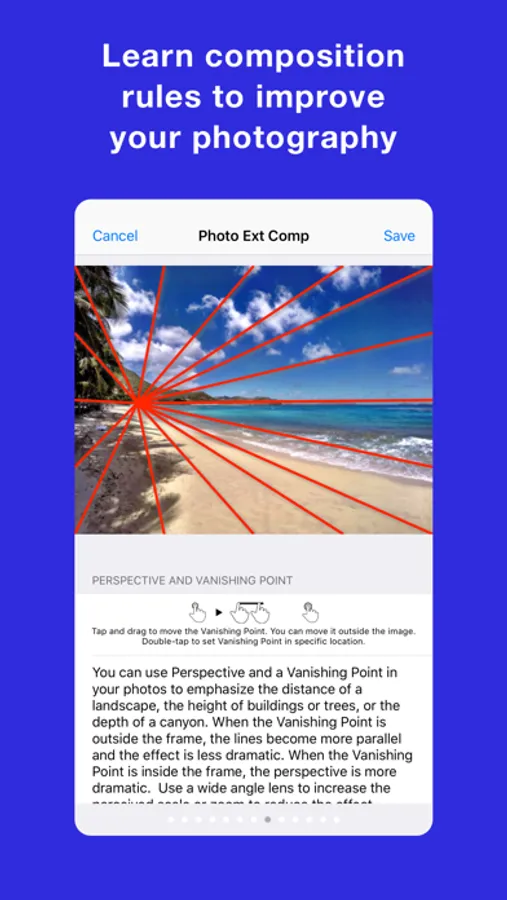
Photo Extension Composition overlays over 10 artistic photography composition rules on photos stored in the Apple Photos app for iPhone and iPad. This extension is great for photographers who want to become better at photograph composition. The extension also shows, advises, and guides you on how to understand each composition rule to be a great photographer!
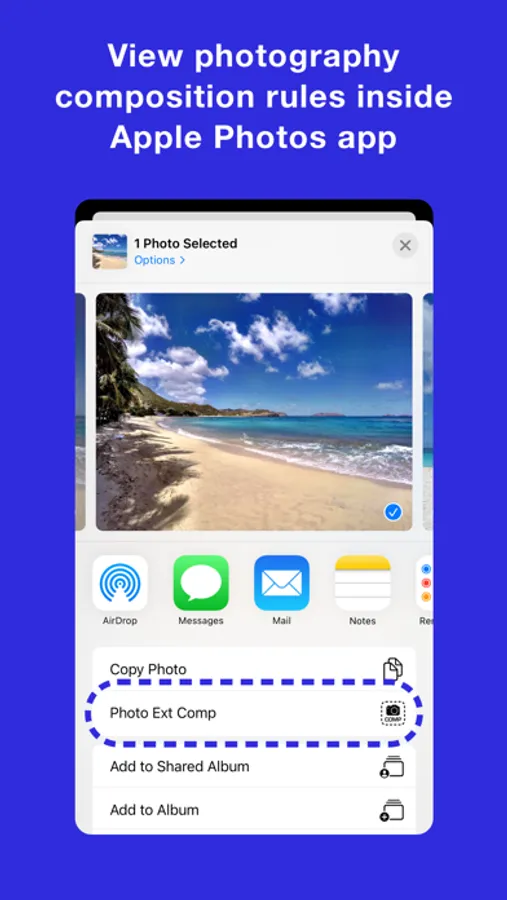
To use this extension, open the Apple Photos app, select any photo, tap the Action button, and then select the Photo Extension. You can also use the extension when editing photos.
Photo Extension Composition:
+ Quick and easy to use.
+ Supported in most photo apps Action button.
+ Works on the iPhone and iPad.
+ Available from Action Extension or Edit Extension.
+ Guides you to tell a story with your photography.
+ Overlays over 10 composition rules over your photos.
+ Provides explanations of each composition rule.
+ Provides advice on how to apply the rule.
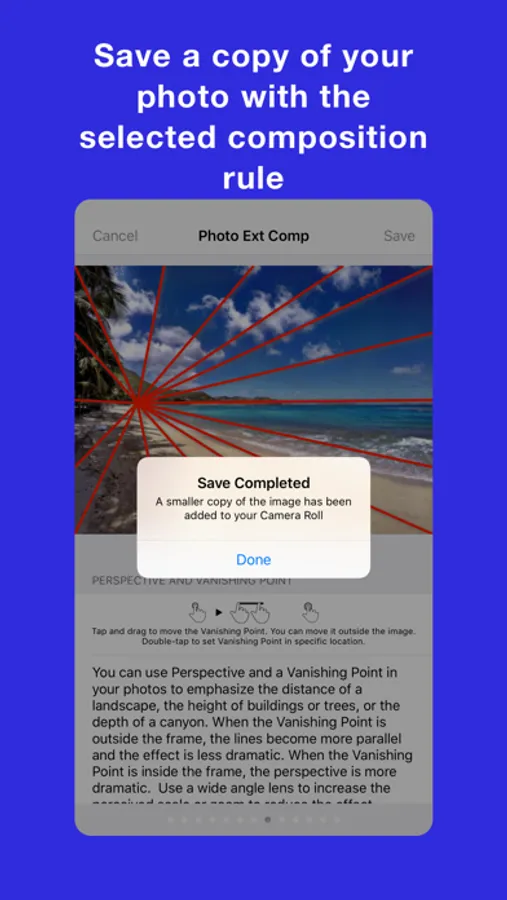
+ Save photo with the composition rule overlay in the Photos Library.
MORE APPS:
Check out all our apps at https://digiguys.com
SUPPORT:
We are here to help https://www.digiguys.com/help
FACEBOOK PAGE:
Join our Facebook Page for tips, ideas, support, and much more... be part of the community!
https://www.facebook.com/digiguysapps
Photo Extension Composition overlays over 10 artistic photography composition rules on photos stored in the Apple Photos app for iPhone and iPad. This extension is great for photographers who want to become better at photograph composition. The extension also shows, advises, and guides you on how to understand each composition rule to be a great photographer!
To use this extension, open the Apple Photos app, select any photo, tap the Action button, and then select the Photo Extension. You can also use the extension when editing photos.
Photo Extension Composition:
+ Quick and easy to use.
+ Supported in most photo apps Action button.
+ Works on the iPhone and iPad.
+ Available from Action Extension or Edit Extension.
+ Guides you to tell a story with your photography.
+ Overlays over 10 composition rules over your photos.
+ Provides explanations of each composition rule.
+ Provides advice on how to apply the rule.
+ Save photo with the composition rule overlay in the Photos Library.
MORE APPS:
Check out all our apps at https://digiguys.com
SUPPORT:
We are here to help https://www.digiguys.com/help
FACEBOOK PAGE:
Join our Facebook Page for tips, ideas, support, and much more... be part of the community!
https://www.facebook.com/digiguysapps
Photo Extension Composition Screenshots
Tap to Rate:
Reviews for Photo Extension Composition
shanechicago
The most confusing app ever!
I open the photos app and iOS and follow the instructions the red lines that appear on top of the photograph to show the placement of the photo saves with the photo. The only thing I’ve done is at red lines and red circles and red squares and red triangles everywhere. Now my photos are screwed
todofoton
PRO photographer must have
PRO photographer must have