
With this app, you can manage and configure CatGenie devices, register cats, and monitor bathroom habits. Includes device setup, cat registration, notifications, and news updates.
AppRecs review analysis
AppRecs rating 2.2. Trustworthiness 77 out of 100. Review manipulation risk 22 out of 100. Based on a review sample analyzed.
★★☆☆☆
2.2
AppRecs Rating
Ratings breakdown
5 star
17%
4 star
13%
3 star
9%
2 star
15%
1 star
47%
What to know
⚠
Pricing complaints
Many low ratings mention paywalls or pricing
⚠
Mixed user feedback
Average 2.4★ rating suggests room for improvement
⚠
High negative review ratio
61% of sampled ratings are 1–2 stars
About CatGenie
Designed for use with CatGenie connected devices, app allows users to manage and program CatGenie AI devices, register cats and monitor their bathroom habits.
CatGenie Pairing: When logging in for the first, the CatGenie wizard will be open and the app will scan for all CatGenie devices using BLE. When one or more devices are found, the user will be able to connect to CatGenie and to configure the CatGenie WIFI settings (SSID + password).
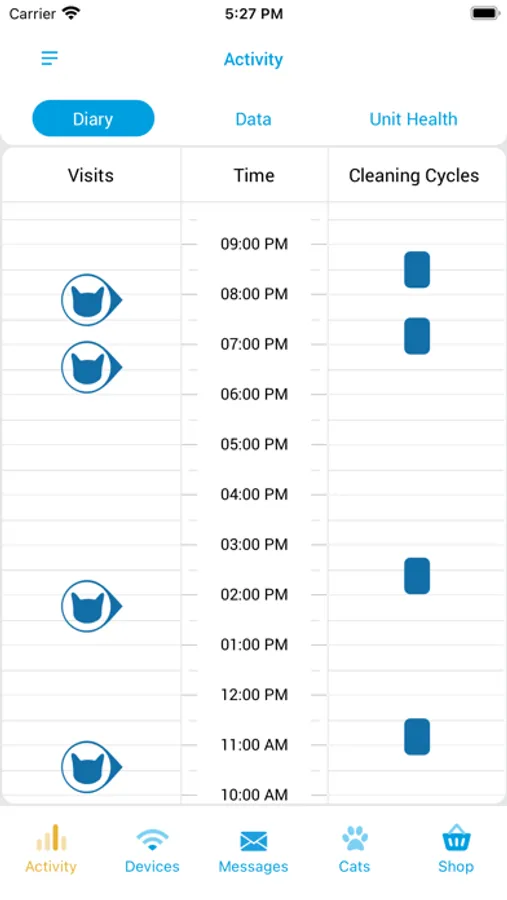
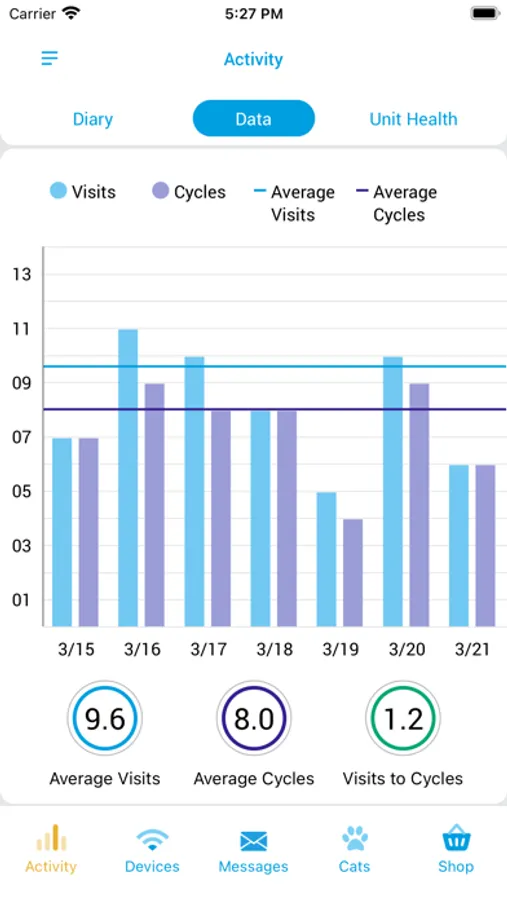
Cats Registration: The user will be able to register cats in the application. Pressing (+) will open wizard for adding cats. The user will be able to add cat's name, hair type, birthday and connect other devices. (The cats screen displays list of registered cats with their names, picture and last visit time. When pressing on cat's card, the user will be able to see the cat diary. The diary contains 2 modes: 1 - CatGenie visit statistics chart for one week and last visits timeline - up to 100 visits.
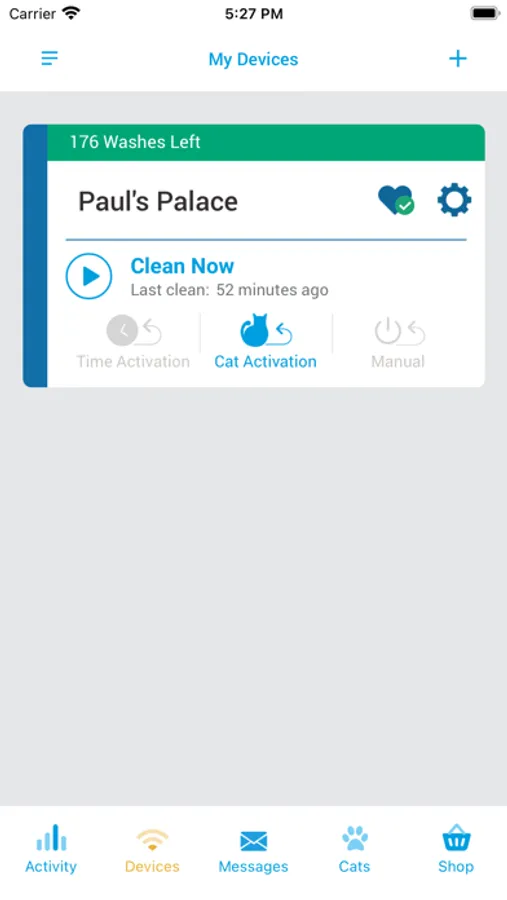
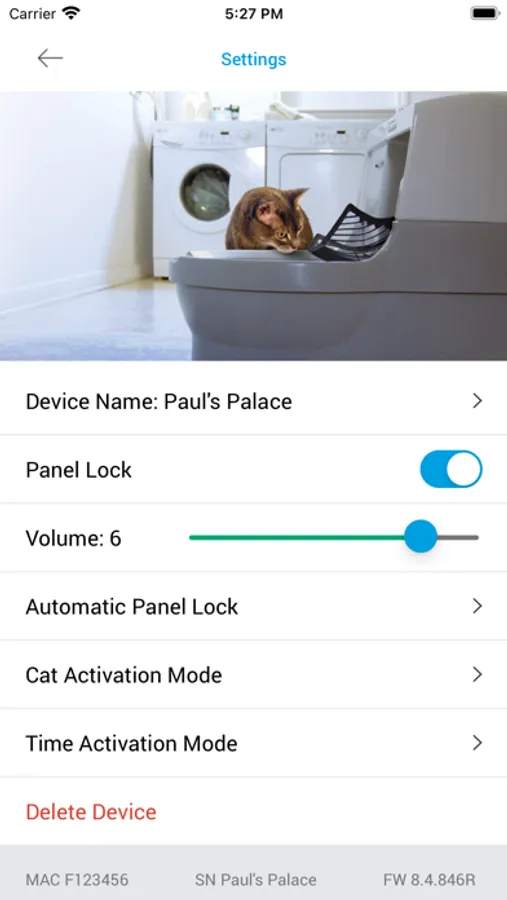
CatGenie operations and configuration - The devices list will display a list of CatGenie devices. When pressing on CatGenie card, it is possible to start/pause cleaning process, set CatGenie friendly name and change CatGenie configuration (cleaning mode, value, child lock).
Cat News page will display cat related articles.
Notifications:
1. When cat visited CatGenie, "Cat Visit" notification will be received.
2. When new Firmware Update is available, a notification will be received. The user can choose to approve the update or dismiss the notification. If the notification is dismissed, it will appear again next time the app is open.
3. CatGenie notification: If there is an issue with your CatGenie a notification will be sent telling you what is happening.
General Settings:
Pressing on (i) button on header, will open General Settings page, where the user will be able to view its profile settings, open troubleshooting url, send a feedback, and configure notification alerts.
CatGenie Pairing: When logging in for the first, the CatGenie wizard will be open and the app will scan for all CatGenie devices using BLE. When one or more devices are found, the user will be able to connect to CatGenie and to configure the CatGenie WIFI settings (SSID + password).
Cats Registration: The user will be able to register cats in the application. Pressing (+) will open wizard for adding cats. The user will be able to add cat's name, hair type, birthday and connect other devices. (The cats screen displays list of registered cats with their names, picture and last visit time. When pressing on cat's card, the user will be able to see the cat diary. The diary contains 2 modes: 1 - CatGenie visit statistics chart for one week and last visits timeline - up to 100 visits.
CatGenie operations and configuration - The devices list will display a list of CatGenie devices. When pressing on CatGenie card, it is possible to start/pause cleaning process, set CatGenie friendly name and change CatGenie configuration (cleaning mode, value, child lock).
Cat News page will display cat related articles.
Notifications:
1. When cat visited CatGenie, "Cat Visit" notification will be received.
2. When new Firmware Update is available, a notification will be received. The user can choose to approve the update or dismiss the notification. If the notification is dismissed, it will appear again next time the app is open.
3. CatGenie notification: If there is an issue with your CatGenie a notification will be sent telling you what is happening.
General Settings:
Pressing on (i) button on header, will open General Settings page, where the user will be able to view its profile settings, open troubleshooting url, send a feedback, and configure notification alerts.
CatGenie Screenshots

Tap to Rate:
Reviews for CatGenie
68Samep
Useless
App does not work. Cannot connect to WiFi.
Crushing it5
Useless
Couldn’t even create an account. Which is the first step after downloading the app.