
In this app, you can add and customize photo widgets for your home screen, including single and multi-photo displays with various options. Includes photo import, widget creation, and multi-photo mosaic features.
AppRecs review analysis
AppRecs rating 4.2. Trustworthiness 75 out of 100. Review manipulation risk 25 out of 100. Based on a review sample analyzed.
★★★★☆
4.2
AppRecs Rating
Ratings breakdown
5 star
65%
4 star
10%
3 star
9%
2 star
7%
1 star
8%
What to know
✓
Low review manipulation risk
25% review manipulation risk
✓
Credible reviews
75% trustworthiness score from analyzed reviews
✓
High user satisfaction
76% of sampled ratings are 4+ stars (4.2★ average)
About Home Photo Widget
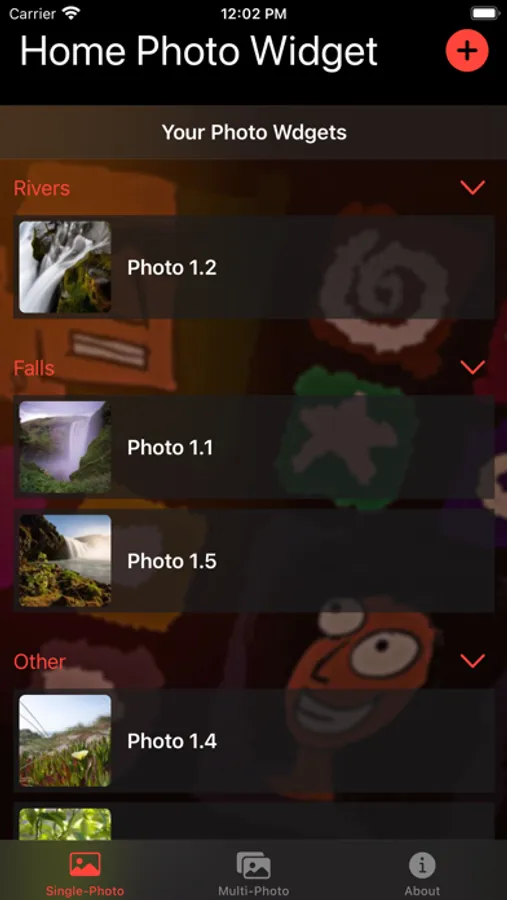
Add the photos you want to your home screen as widgets:
1. Import the picture or pictures you want to show on the home screen as a widget to the app. You can add it/them to a folder (new or existing)
2. Create a widget, edit it and choose the photo you imported.
3. Select the photo in the app to edit its name and to choose wether you want the widget to show it or not (and its color). If the picture is wide or tall, be sure to set its center to make sure the important part is displayed on any sized widget.
You can import multiple phots and have multiple widgets with different pictures in all three sizes!
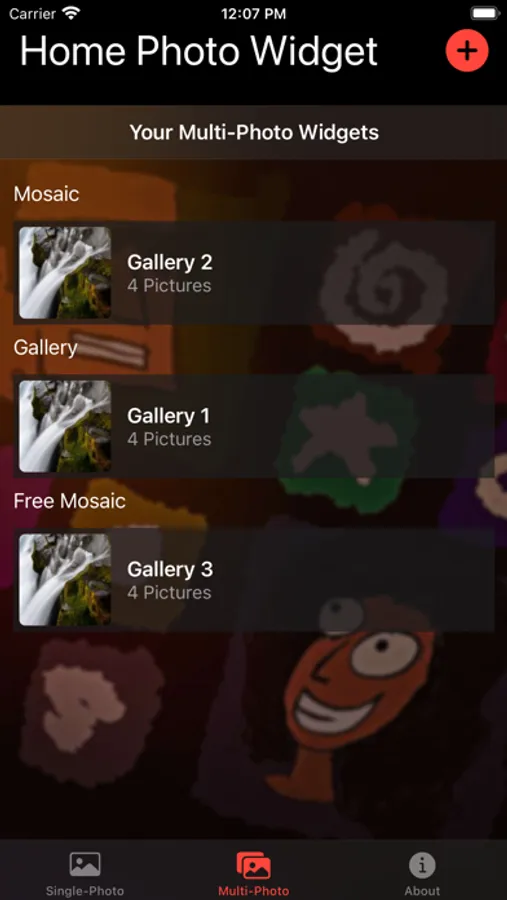
Unlock the app to also creat multi photo widgets that display each picture for your chosen amount of time or at specific times in the order you want. Also make mosaics from your pictures:
1. Choose the multi-widget tab
2. Press the + button to add a multi photo widget
3. Choose some pictures from the ones you already imported into the app
4. select the multi photo widget in the app to change its name, edit its order and select the amount of time for each photo
5. Create the widget as before and select if by its name when editing it.
6. Choose the type: Mosaic and Free Mosaic show multiple pictures in the widget. Be sure to edit the composition if you choose Free Mosaic to place the pictures, scale and rotate them to your liking.
You can also add a custom link to your photos so once pressed it will be opened. I've included an easy way to link to your own shortcuts by name.
Home Photo Widget Screenshots




Tap to Rate:
Reviews for Home Photo Widget
jwdavisjr
It's ok
Have been using widgets on Android for many years and it's definitely much easier than on iOS. Also I know most of this is because of iOS and not the developer. I have been looking for a simple photo widget for my home screen and this was the best choice and the most reasonably priced. The only suggestion I would make is for the transition between photo changes, there should be an option to apply a time to all photos at once instead of individually.
not that girl88
The app itself
The app was okay at first I got the iOS update. But when the app got updated recently my pictures were gone and I couldn’t get them on my Home Screen. Yet I only got some of them but not the ones that I wanted back on the Home Screen. So I try restarting my phone but it still didn’t have the original pictures on my Home Screen.