WAVS Custom: 3D Scanner
3Key Digital Marketing LLC
3.8 ★
10 ratings
Free
AppRecs review analysis
AppRecs rating 3.8. Trustworthiness 60 out of 100. Review manipulation risk 31 out of 100. Based on a review sample analyzed.
★★★☆☆
3.8
AppRecs Rating
Ratings breakdown
5 star
40%
4 star
40%
3 star
0%
2 star
0%
1 star
20%
What to know
✓
Good user ratings
80% positive sampled reviews
About WAVS Custom: 3D Scanner
SCAN YOUR EARS AND GET A CUSTOM FIT!
WAVS Custom revolutionizes your listening experience with our state-of-the-art app that crafts the perfect earphones, In-Ear Monitors (IEMs), and gaming headsets, tailored just for you. Say goodbye to the one-size-fits-all approach and hello to custom-fit audio gear that promises unparalleled comfort and sound quality.
Why WAVS Custom?
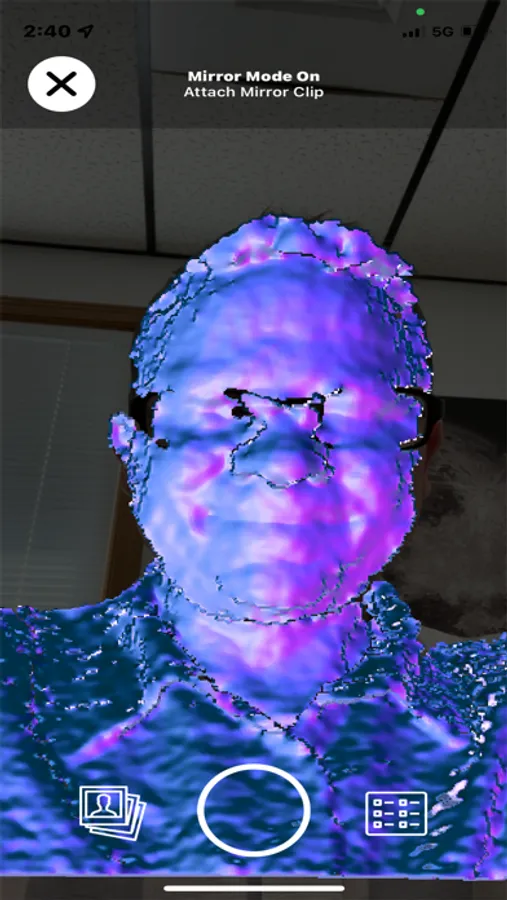
Precision Scanning Technology: Utilizing advanced scanning technology, WAVS Custom accurately maps the unique contours of your ears in minutes. This ensures your earphones, IEMs, or gaming headsets fit flawlessly, providing maximum comfort and superior sound isolation.
Customized for You: Whether you're a music enthusiast, a professional musician, or a gamer seeking an edge, WAVS Custom delivers audio gear designed to meet your specific needs and preferences.
Enhanced Audio Experience: Experience sound like never before. Our custom-fit approach not only improves comfort but also enhances bass response, clarity, and overall sound quality.
WAVS Custom: 3D Scanner Screenshots
Tap to Rate:
Reviews for WAVS Custom: 3D Scanner
yess indeeed
Works great! Just one minor issue
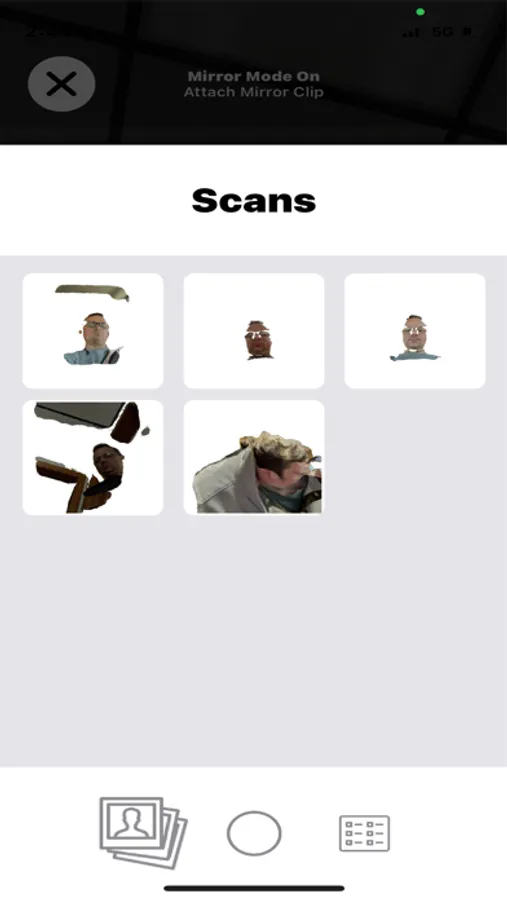
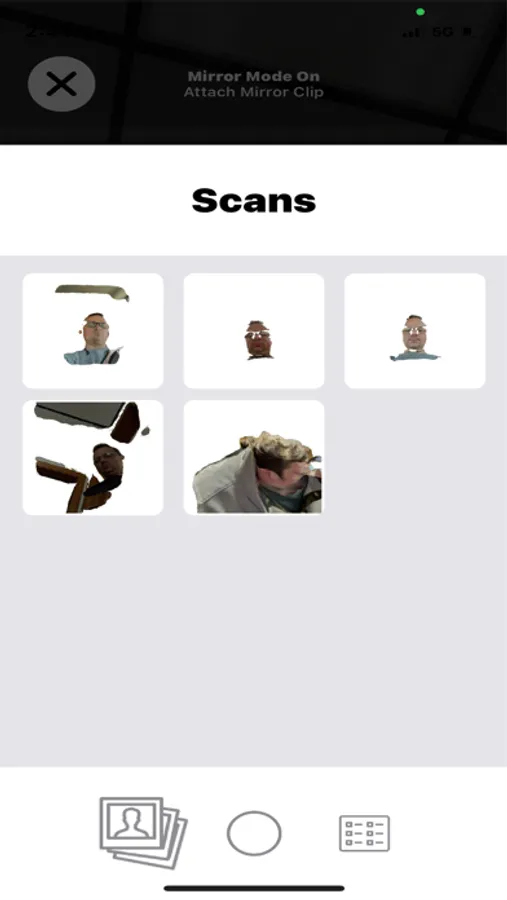
This app is great for 3D scanning and producing accurate models, but I 3D printed a mirror clip for easier scanning and I still can’t figure out how to enable the mirror mode. It will occasionally say “mirror clip mode on, attach mirror clip” but it will still have my model backwards in the model. Help would be appreciated! Thanks
DWilsonMusic
App will only allow a hand full of scans
This app will only allow just a handful of scans in the camera roll until it’s no longer able to save or share the scans you’ve made. I spent so much time trying to get the cleanest scan of both of my ears just not to be able to upload. The best way to make this work is to take one or two scans and then hit the share button and save to your device or to your Google Drive. Do not use the internal camera roll! Otherwise this seems to work pretty well!