With this X server app, you can stream applications from your Linux PC or launch Linux on your Android device. Includes PulseAudio support and customizable display settings.
AppRecs review analysis
AppRecs rating 3.7. Trustworthiness 80 out of 100. Review manipulation risk 21 out of 100. Based on a review sample analyzed.
★★★☆☆
3.7
AppRecs Rating
Ratings breakdown
5 star
49%
4 star
14%
3 star
11%
2 star
3%
1 star
23%
What to know
✓
Low review manipulation risk
21% review manipulation risk
✓
Credible reviews
80% trustworthiness score from analyzed reviews
✓
Good user ratings
63% positive sampled reviews
About XServer XSDL
X Window System / X11 server for Android, complete and fully functional, with PulseAudio server included.
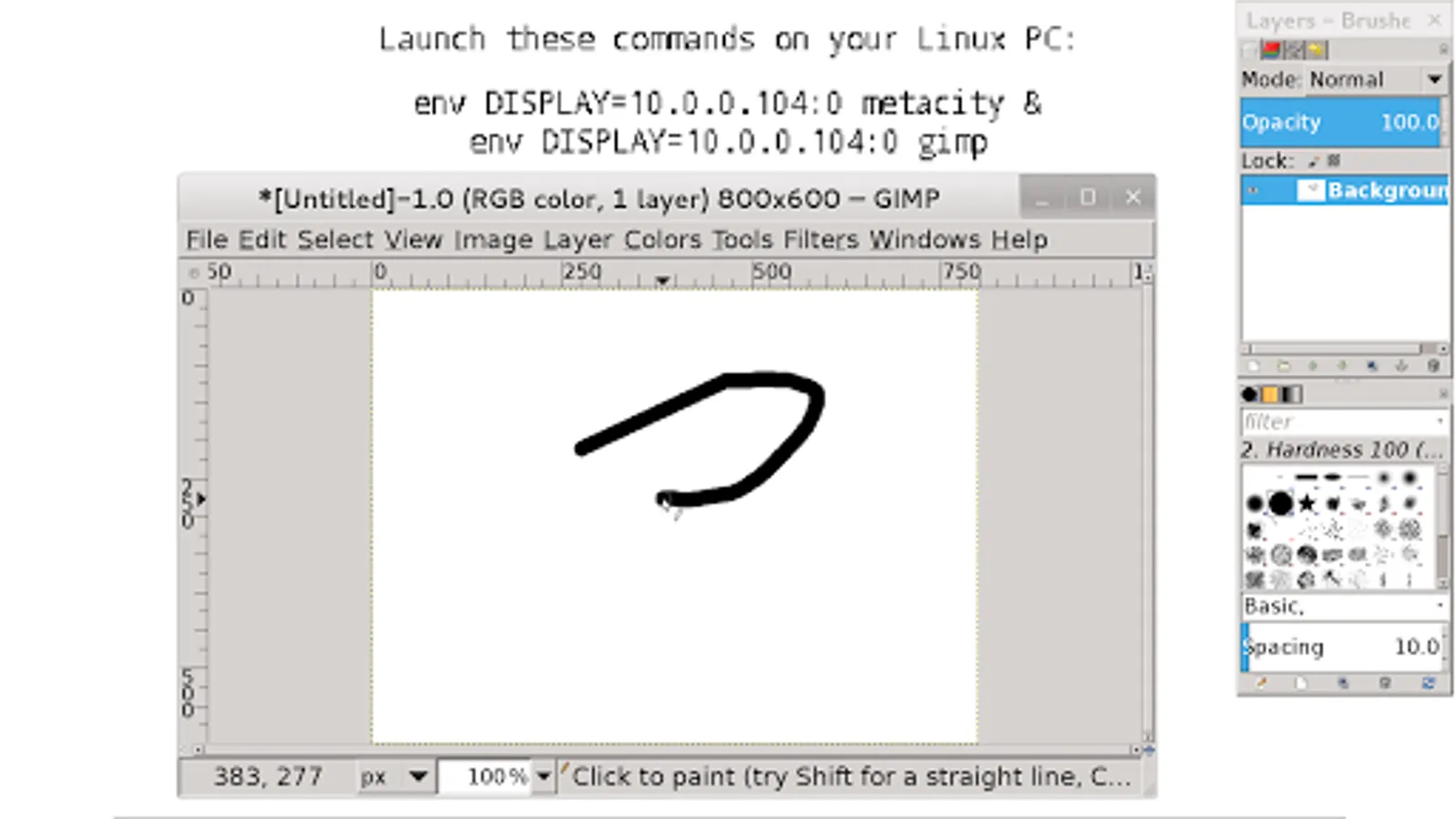
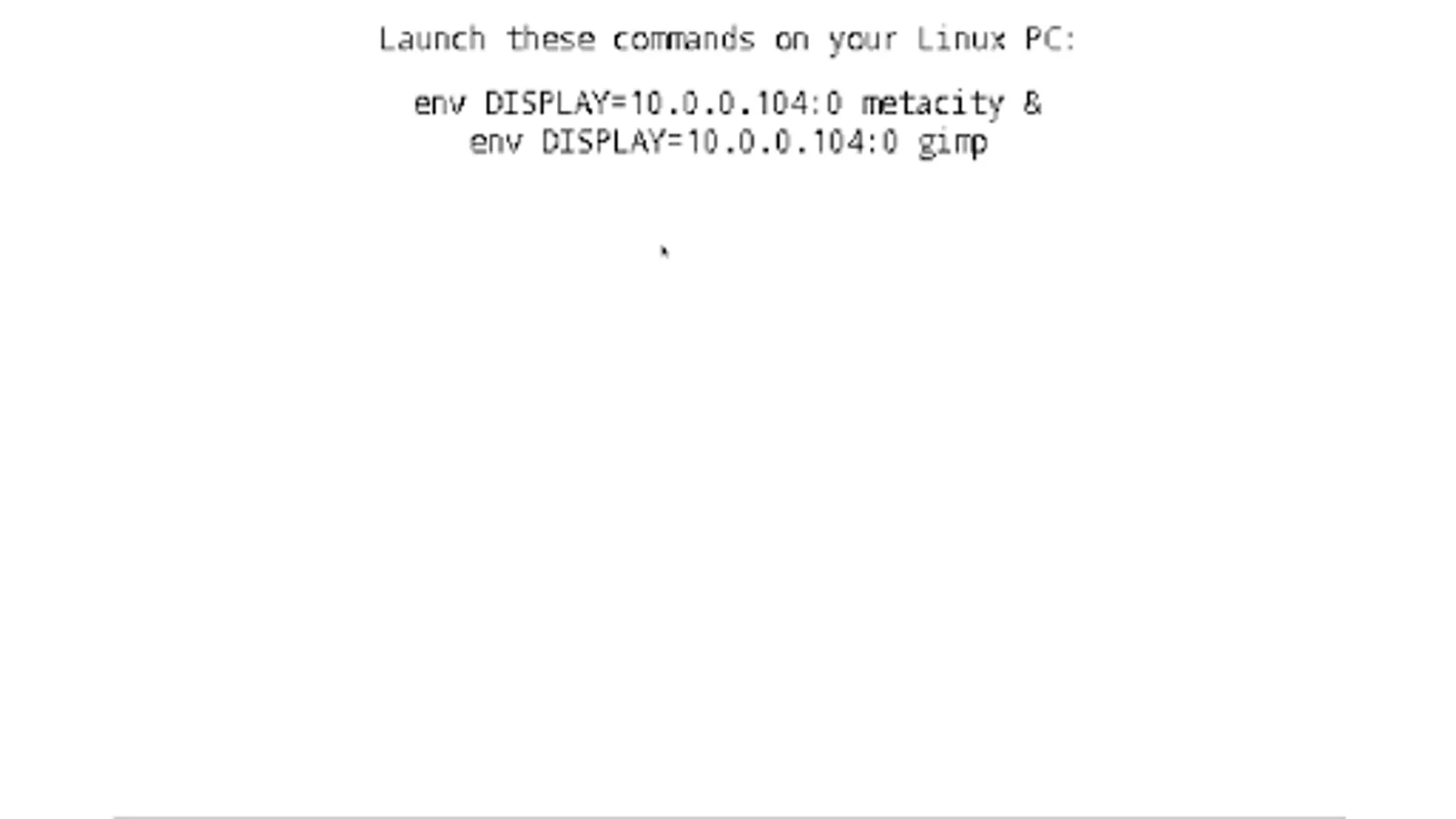
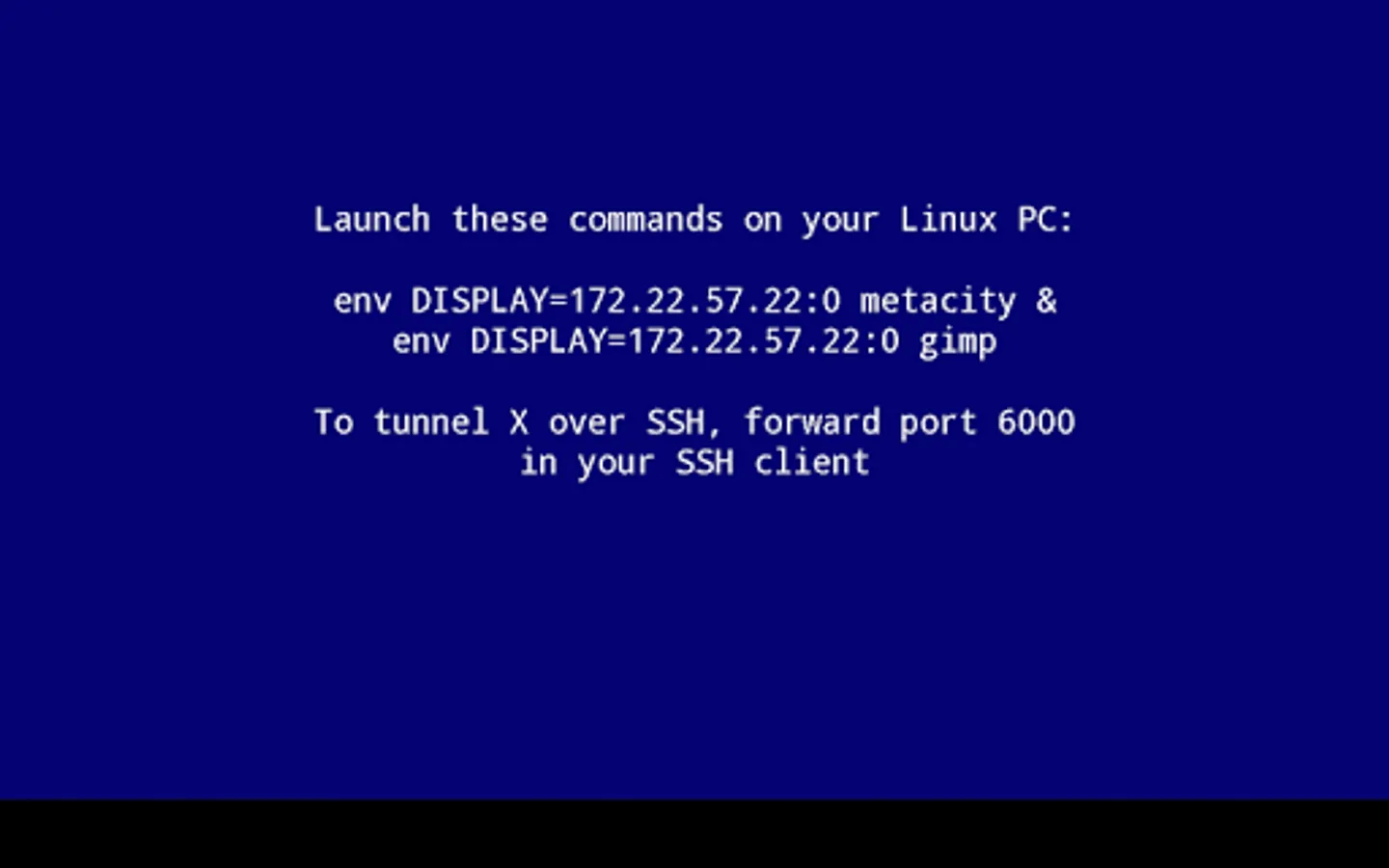
You may use it to stream applications from your Linux PC, or to launch Linux installed on your Android (installing Linux is done via separate app).
3D acceleration and OpenGL are not supported. If you're launching X clients from PC, you can install VirtualGL to use OpenGL.
Touch screen with two fingers to send right mouse button click, with three fingers to send middle button click. You can also press button on your stylus, or use Bluetooth mouse.
Swipe with two fingers to scroll documents.
Finger hover is supported on select devices. If you have Galaxy S4/Note 3 device, enable AirView in system settings to use it.
To invoke keyboard, press Back key. Non-English text input is not supported in terminal, but it works in GUI applications.
If you don't see Back key, swipe up from the bottom of the screen.
If you have hardware Menu key, it will send Ctrl-Z (Undo in most apps).
You can disable gyroscope in Mouse emulation → Advanced → Gyroscope.
You can enable portrait screen orientation and 24bpp color depth in Change device config → Video.
To set custom display number, go to Change device config → Command line parameters → change parameters to XSDL :123, press OK, where 123 is your display number. XSDL will listen on TCP port 6123. You may also pass other parameters to X server using this dialog.
To connect to the display manager on your PC, add parameter -query your.PC.IP.address to the Xserver command line, then configure your display manager.
If you have XDM, you will need to remove a line starting with :0 from /etc/X11/xdm/Xservers , add * to /etc/X11/xdm/Xaccess , and set DisplayManager*authorize: false in /etc/X11/xdm/xdm-config , to disable local X server and allow connections from external IP addresses.
If you want SHM extension to work in Linux chroot - download file libandroid-shmem.so from here:
https://github.com/pelya/cuntubuntu/tree/master/dist
copy it to chroot, set executable flag, and execute this in chroot before other commands:
export LD_PRELOAD=/path/to/libandroid-shmem.so
.APK file for side-loading and old versions:
https://sourceforge.net/projects/libsdl-android/files/apk/XServer-XSDL/
Sources:
https://github.com/pelya/commandergenius/tree/sdl_android/project/jni/application/xserver
You may use it to stream applications from your Linux PC, or to launch Linux installed on your Android (installing Linux is done via separate app).
3D acceleration and OpenGL are not supported. If you're launching X clients from PC, you can install VirtualGL to use OpenGL.
Touch screen with two fingers to send right mouse button click, with three fingers to send middle button click. You can also press button on your stylus, or use Bluetooth mouse.
Swipe with two fingers to scroll documents.
Finger hover is supported on select devices. If you have Galaxy S4/Note 3 device, enable AirView in system settings to use it.
To invoke keyboard, press Back key. Non-English text input is not supported in terminal, but it works in GUI applications.
If you don't see Back key, swipe up from the bottom of the screen.
If you have hardware Menu key, it will send Ctrl-Z (Undo in most apps).
You can disable gyroscope in Mouse emulation → Advanced → Gyroscope.
You can enable portrait screen orientation and 24bpp color depth in Change device config → Video.
To set custom display number, go to Change device config → Command line parameters → change parameters to XSDL :123, press OK, where 123 is your display number. XSDL will listen on TCP port 6123. You may also pass other parameters to X server using this dialog.
To connect to the display manager on your PC, add parameter -query your.PC.IP.address to the Xserver command line, then configure your display manager.
If you have XDM, you will need to remove a line starting with :0 from /etc/X11/xdm/Xservers , add * to /etc/X11/xdm/Xaccess , and set DisplayManager*authorize: false in /etc/X11/xdm/xdm-config , to disable local X server and allow connections from external IP addresses.
If you want SHM extension to work in Linux chroot - download file libandroid-shmem.so from here:
https://github.com/pelya/cuntubuntu/tree/master/dist
copy it to chroot, set executable flag, and execute this in chroot before other commands:
export LD_PRELOAD=/path/to/libandroid-shmem.so
.APK file for side-loading and old versions:
https://sourceforge.net/projects/libsdl-android/files/apk/XServer-XSDL/
Sources:
https://github.com/pelya/commandergenius/tree/sdl_android/project/jni/application/xserver
XServer XSDL Screenshots
Tap to Rate:
Reviews for XServer XSDL
آرمین 1 q_l
12/11/2025
روی گوشیم Xiaomi Redmi note 12 نمیاد و میندازه بیرون 😔
Dylan Eliot
12/6/2025
application fails to function.