Screen Mirroring: LetsView
Wangxu Technology Co., Ltd
2.8 ★
372 ratings
Free
In this screen mirroring app, you can cast your device screens to TVs, PCs, or Macs using wireless connections. Includes options for control, remote mirroring, and additional features like whiteboard and screen recording.
AppRecs review analysis
AppRecs rating 2.5. Trustworthiness 81 out of 100. Review manipulation risk 30 out of 100. Based on a review sample analyzed.
★★☆☆☆
2.5
AppRecs Rating
Ratings breakdown
5 star
30%
4 star
10%
3 star
10%
2 star
8%
1 star
42%
What to know
⚠
Pricing complaints
Many low ratings mention paywalls or pricing
⚠
Mixed user feedback
Average 2.8★ rating suggests room for improvement
⚠
High negative review ratio
50% of sampled ratings are 1–2 stars
About Screen Mirroring: LetsView
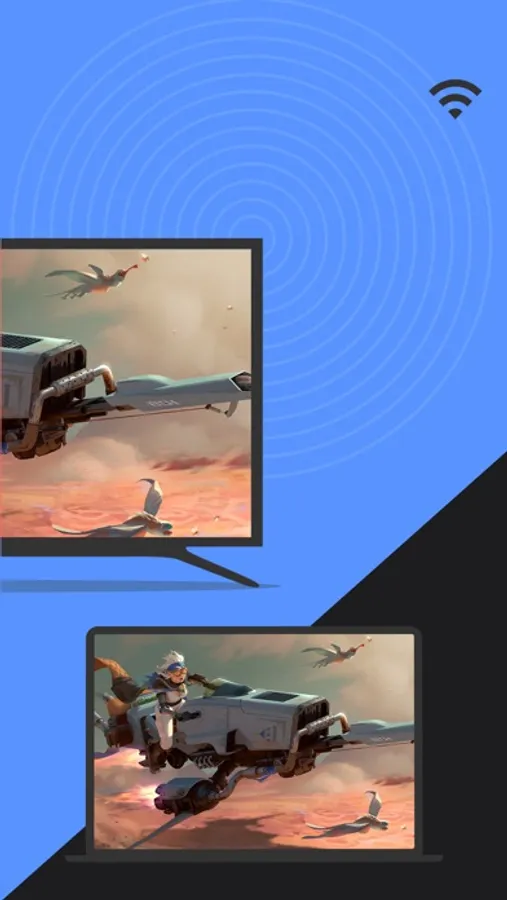
Looking for high-quality and free screen mirroring app? Look no further than LetsView! Easily mirror or cast your phone, tablet, or computer screen to your TV, PC, or Mac. With LetsView, you'll have endless possibilities for communication and entertainment in your daily life.
Key Features:
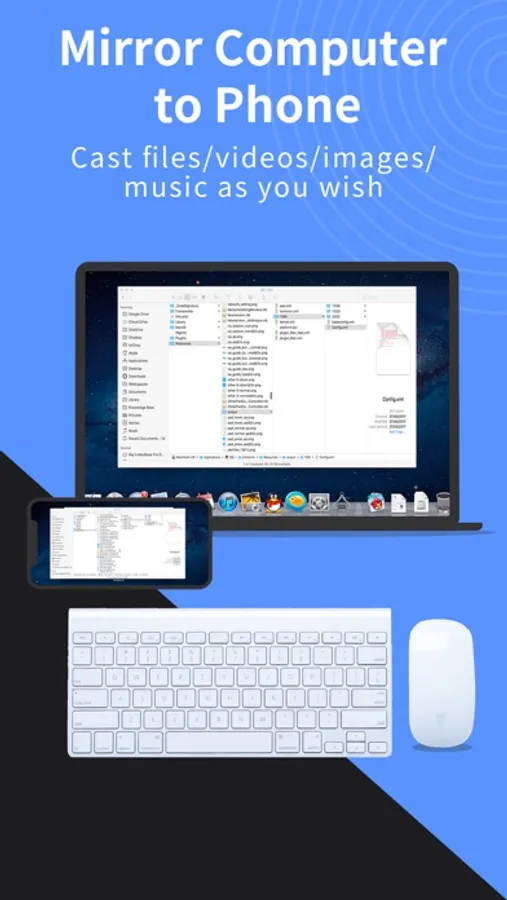
*Screen mirroring between mobile phones and PCs
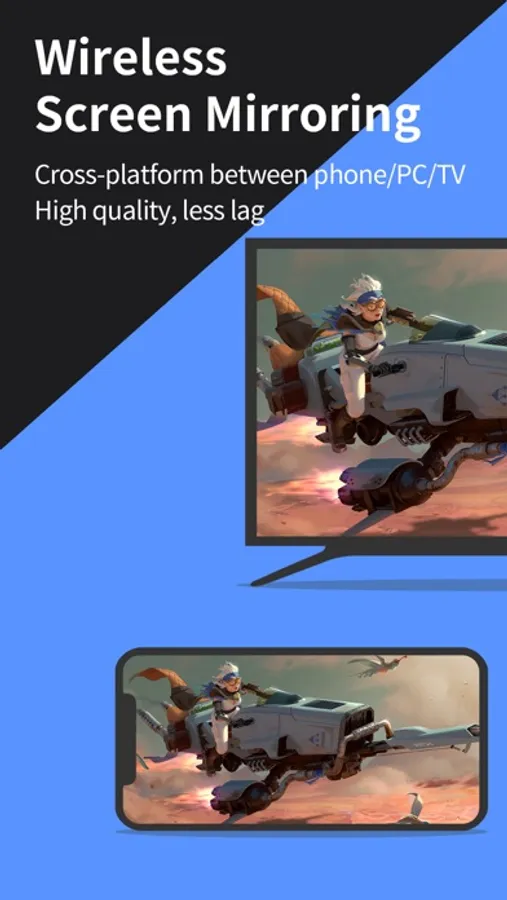
Mirror your phone screen to your Mac or Windows computer, enhance your favorite live stream viewing experience, or present content on a bigger screen without any limitations of your phone's screen size. You can even cast your phone screen to multiple devices.
*Control PC from a phone
Once your computer and smartphone are connected, the smartphone can act as a makeshift keyboard or mouse, allowing you full control over your computer screen with just your fingertips.
*Screen mirroring between mobile phone and TV
Whether you're watching a movie, watching a sporting event with the family, or giving a business presentation on TV, mirroring your phone's screen to a larger display has never been easier with LetsView. LetsView perfectly fit most of the TVs on the market.
*Screen mirroring between PC/tablet and TV
In addition to the mobile version, LetsView covers various platforms. Our desktop version also enables mirroring between PC to PC, and PC to TV.
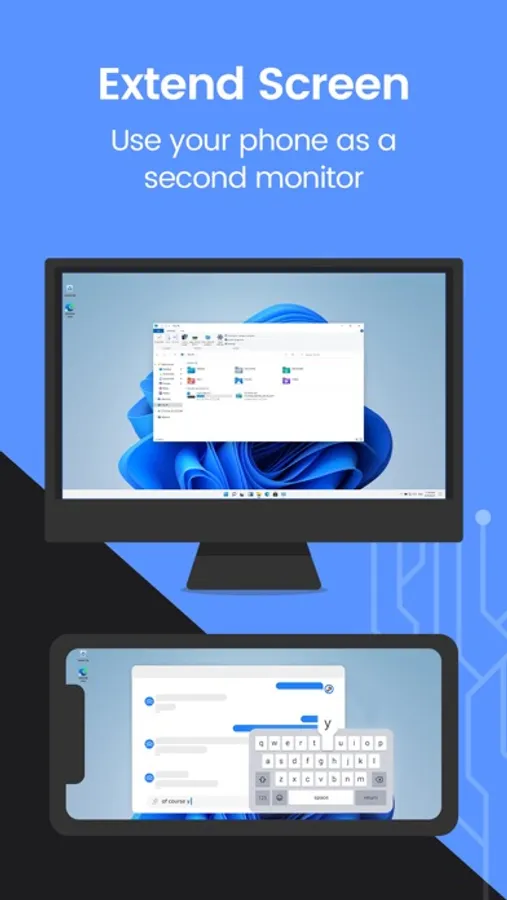
*Extend screen
Turn your phone into a secondary monitor for your computer, allowing you to focus on main tasks on the primary screen while simultaneously handling auxiliary activities on your phone's screen, thus significantly boosting your productivity.
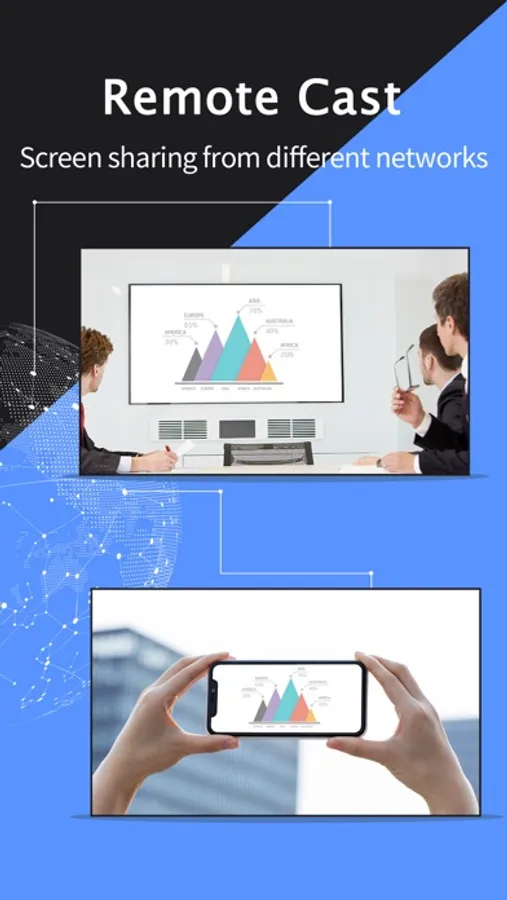
*Remote screen mirroring
Screen mirroring is also possible when you are on a different network. The remote screen mirroring feature will help you cross the network, just enter the remote cast code, and the two devices will share the screen over a distance.
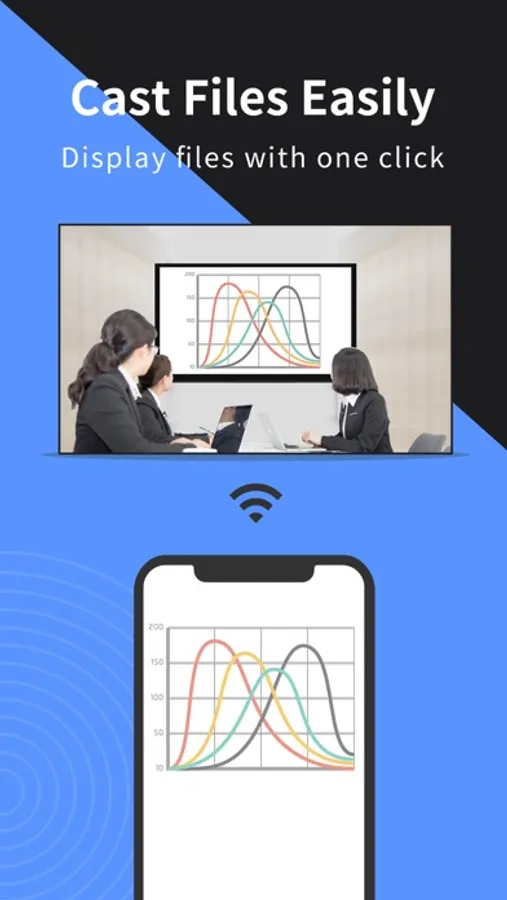
*Additional features
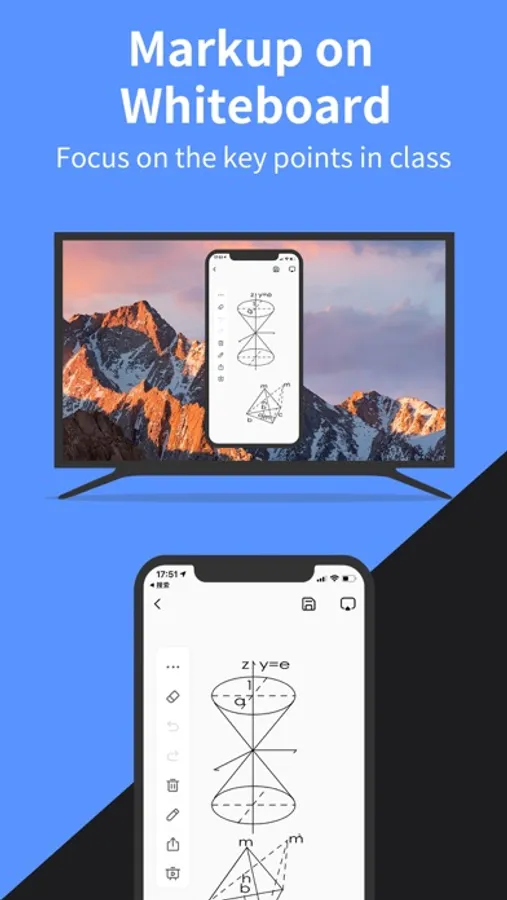
Drawing, whiteboard, document presentation, screen capture, and screen recording of a mobile phone screen are also available.
*Why LetsView?
● Ad-free.
● Uninterrupted and unlimited usage.
● HD screen mirroring.
● HD screen recording.
*Primary use cases:
1. Family Entertainment
Mirroring movies, games, photos, and more onto a larger screen for a better visual experience.
2. Business Presentations
Share your PC or mobile phone screen content onto a large screen for presentations or meetings, demonstrate your product to potential customers remotely.
3. Online teaching
Share the teacher's device screen and combine it with the whiteboard, enhancing the visual experience of your online classes.
4. Live stream gameplay
Broadcast gaming content on a big screen, share gameplay with followers, and keep wonderful moments.
*Easy to Connect:
Connecting your devices is easy with 3 available methods: direct connection, QR code connection, or passkey connection.
Ensure that all your devices are connected to the same Wi-Fi network, and your device will be automatically detected for easy connection. If your device isn't detected, simply scan the QR code or enter the passkey to establish the connection.
*Contact:
We appreciate all your feedback! Contact us at support@letsview.com or send feedback from Me > Feedback on the LetsView app for suggestions, comments, questions, or concerns.
Key Features:
*Screen mirroring between mobile phones and PCs
Mirror your phone screen to your Mac or Windows computer, enhance your favorite live stream viewing experience, or present content on a bigger screen without any limitations of your phone's screen size. You can even cast your phone screen to multiple devices.
*Control PC from a phone
Once your computer and smartphone are connected, the smartphone can act as a makeshift keyboard or mouse, allowing you full control over your computer screen with just your fingertips.
*Screen mirroring between mobile phone and TV
Whether you're watching a movie, watching a sporting event with the family, or giving a business presentation on TV, mirroring your phone's screen to a larger display has never been easier with LetsView. LetsView perfectly fit most of the TVs on the market.
*Screen mirroring between PC/tablet and TV
In addition to the mobile version, LetsView covers various platforms. Our desktop version also enables mirroring between PC to PC, and PC to TV.
*Extend screen
Turn your phone into a secondary monitor for your computer, allowing you to focus on main tasks on the primary screen while simultaneously handling auxiliary activities on your phone's screen, thus significantly boosting your productivity.
*Remote screen mirroring
Screen mirroring is also possible when you are on a different network. The remote screen mirroring feature will help you cross the network, just enter the remote cast code, and the two devices will share the screen over a distance.
*Additional features
Drawing, whiteboard, document presentation, screen capture, and screen recording of a mobile phone screen are also available.
*Why LetsView?
● Ad-free.
● Uninterrupted and unlimited usage.
● HD screen mirroring.
● HD screen recording.
*Primary use cases:
1. Family Entertainment
Mirroring movies, games, photos, and more onto a larger screen for a better visual experience.
2. Business Presentations
Share your PC or mobile phone screen content onto a large screen for presentations or meetings, demonstrate your product to potential customers remotely.
3. Online teaching
Share the teacher's device screen and combine it with the whiteboard, enhancing the visual experience of your online classes.
4. Live stream gameplay
Broadcast gaming content on a big screen, share gameplay with followers, and keep wonderful moments.
*Easy to Connect:
Connecting your devices is easy with 3 available methods: direct connection, QR code connection, or passkey connection.
Ensure that all your devices are connected to the same Wi-Fi network, and your device will be automatically detected for easy connection. If your device isn't detected, simply scan the QR code or enter the passkey to establish the connection.
*Contact:
We appreciate all your feedback! Contact us at support@letsview.com or send feedback from Me > Feedback on the LetsView app for suggestions, comments, questions, or concerns.
Screen Mirroring: LetsView Screenshots
Tap to Rate:
Reviews for Screen Mirroring: LetsView
ptrr8
Scam
Doesn’t work says can’t read the same network when it’s clearly connected on both devices don’t waste your time
dilladonuts1234
wonderful
pretty good app works for my things i have to do for work